display INFINITI QX60 2016 Quick Reference Guide
[x] Cancel search | Manufacturer: INFINITI, Model Year: 2016, Model line: QX60, Model: INFINITI QX60 2016Pages: 40, PDF Size: 2.69 MB
Page 19 of 40
17
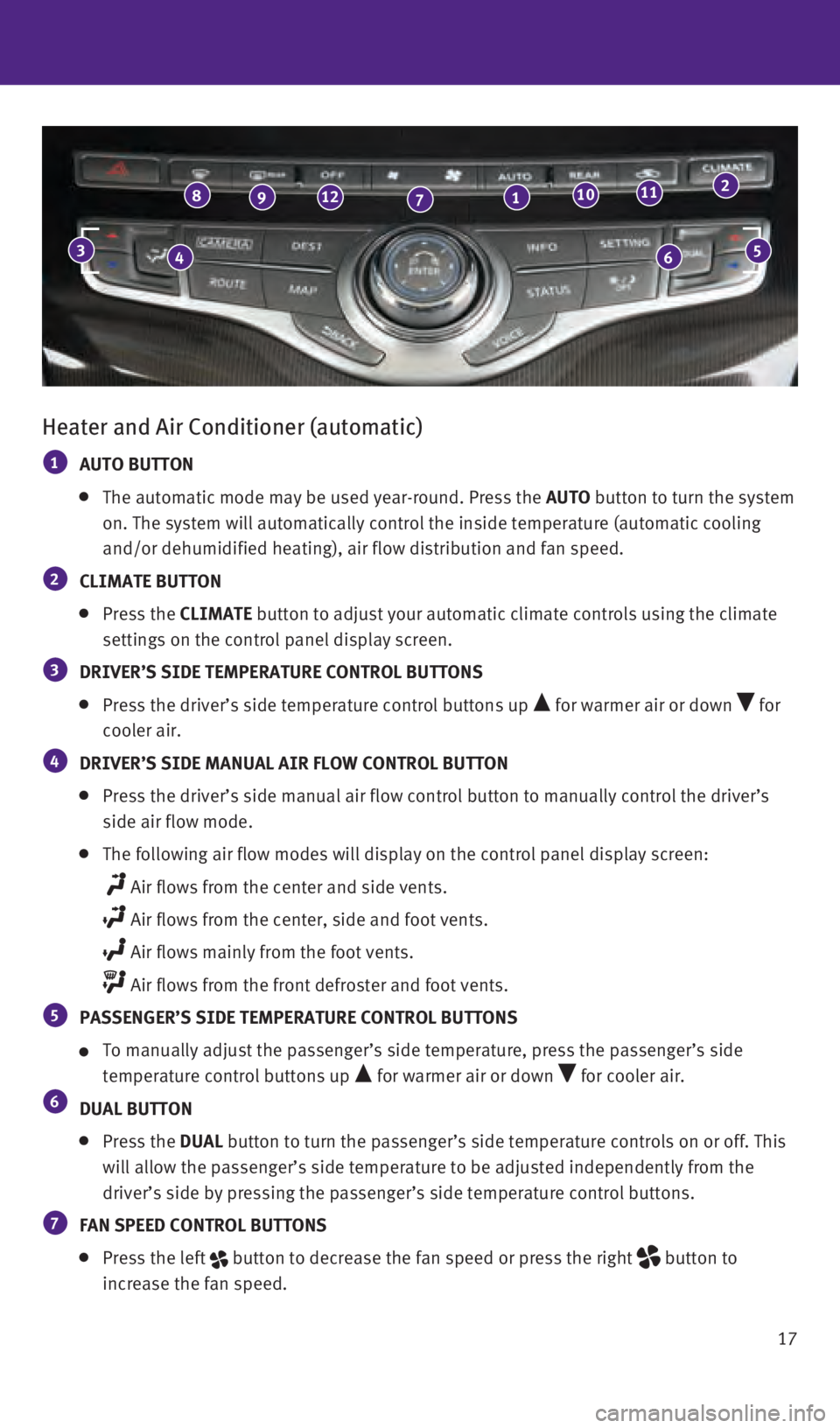
Heater and Air Conditioner (automatic)
1 AUTO BUTTON
The automatic mode may be used year-round. Press the AUTO button to turn the system
on. The system will automatically control the inside temperature (autom\
atic cooling
and/or dehumidified heating), air flow distribution and fan speed.
2 CLIMATE BUTTON
Press the CLIMATE button to adjust your automatic climate controls using the climate
settings on the control panel display screen.
3 DRIVER’S SIDE TEMPERATURE CONTROL BUTTONS
Press the driver’s side temperature control buttons up for warmer air or down for
cooler air.
4 DRIVER’S SIDE MANUAL AIR FLOW CONTROL BUTTON
Press the driver’s side manual air flow control button to manually co\
ntrol the driver’s
side air flow mode.
The following air flow modes will display on the control panel display s\
creen:
Air flows from the center and side vents.
Air flows from the center, side and foot vents.
Air flows mainly from the foot vents.
Air flows from the front defroster and foot vents.
5 PASSENGER’S SIDE TEMPERATURE CONTROL BUTTONS
To manually adjust the passenger’s side temperature, press the passen\
ger’s side
temperature control buttons up
for warmer air or down for cooler air.
6 DUAL BUTTON
Press the DUAL button to turn the passenger’s side temperature controls on or off. \
This
will allow the passenger’s side temperature to be adjusted independen\
tly from the
driver’s side by pressing the passenger’s side temperature control\
buttons.
7 FAN SPEED CONTROL BUTTONS
Press the left button to decrease the fan speed or press the right button to
increase the fan speed.
46
89127110112
35
2460934_16b_Infiniti_QX60_QRG_031716_b.indd 173/17/16 2:20 PM
Page 20 of 40
18
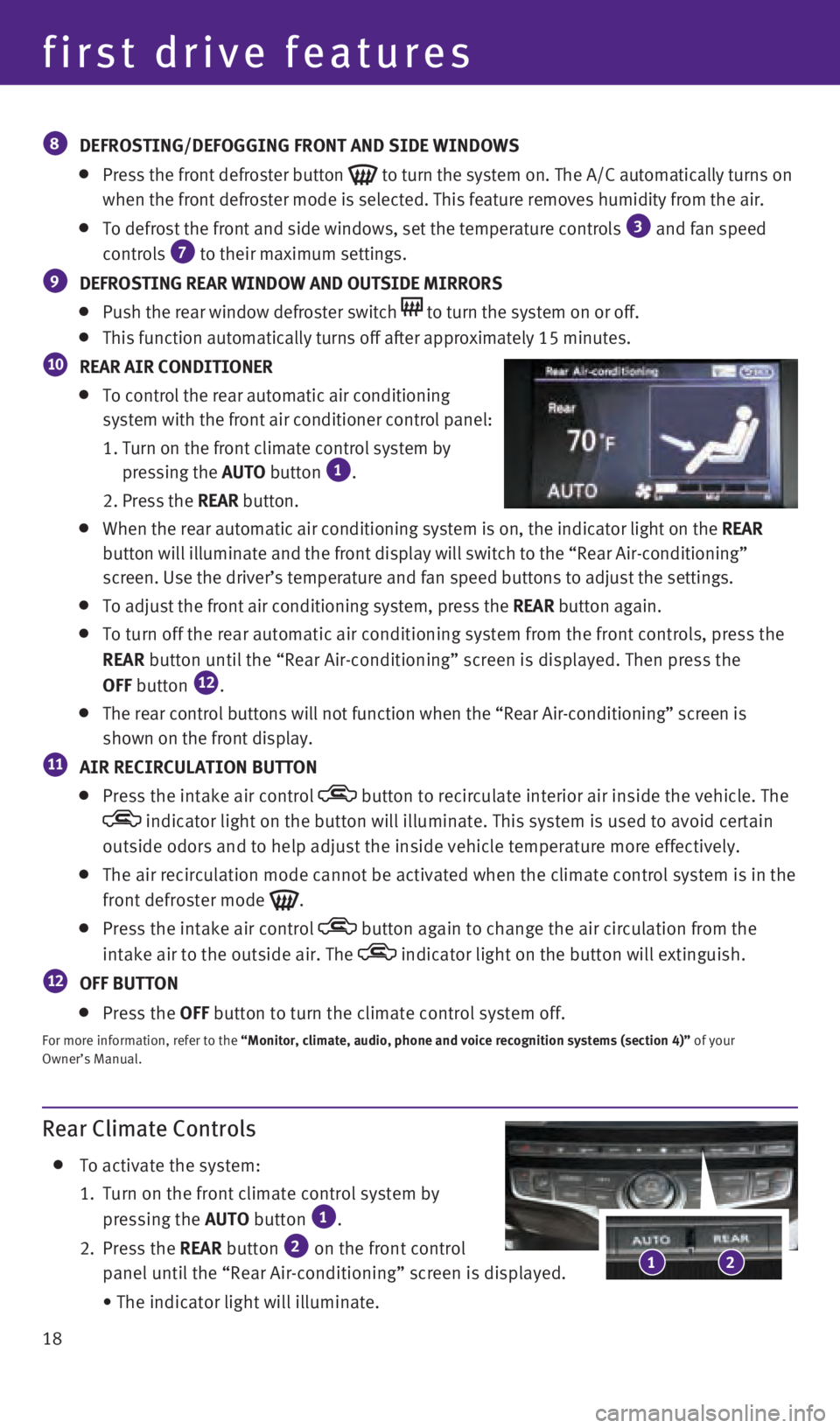
Rear Climate Controls
To activate the system:
1.
Turn on the front climate control system by
pressing the AUTO
button
1.
2.
Press
the REAR button
2 on the front control
panel until the “Rear Air-conditioning” screen is displayed.
• The indicator light will illuminate.
8 DEFROSTING/DEFOGGING FRONT AND SIDE WINDOWS
Press the front defroster button to turn the system on. The A/C automatically turns on
when the front defroster mode is selected. This feature removes humidity\
from the air.
To defrost the front and side windows, set the temperature controls 3 and fan speed
controls 7 to their maximum settings.
9 DEFROSTING REAR WINDOW AND OUTSIDE MIRRORS
Push the rear window defroster switch to turn the system on or off.
This function automatically turns off after approximately 15 minutes.
10 REAR AIR CONDITIONER
To control the rear automatic air conditioning
system with the front air conditioner control panel:
1. Turn on the front climate control system by
pressing the
AUTO button
1.
2. Press the REAR
button.
When the rear automatic air conditioning system is on, the indicator lig\
ht on the REAR
button will illuminate and the front display will switch to the “Rear\
Air-conditioning”
screen. Use the driver’s temperature and fan speed buttons to adjust \
the settings.
To adjust the front air conditioning system, press the REAR button again.
To turn off the rear automatic air conditioning system from the front co\
ntrols, press the
REAR button until the “Rear Air-conditioning” screen is displayed. The\
n press the
OFF
button
12.
The rear control buttons will not function when the “Rear Air-conditi\
oning” screen is
shown on the front display.
11 AIR RECIRCULATION BUTTON
Press the intake air control button to recirculate interior air inside the vehicle. The
indicator light on the button will illuminate. This system is used to a\
void certain
outside odors and to help adjust the inside vehicle temperature more eff\
ectively.
The air recirculation mode cannot be activated when the climate control \
system is in the
front defroster mode
.
Press the intake air control button again to change the air circulation from the
intake air to the outside air. The
indicator light on the button will extinguish.
12 OFF BUTTON
Press the OFF button to turn the climate control system off.
For more information, refer to the “Monitor, climate, audio, phone and voice recognition systems (secti\
on 4)” of your
Owner’s Manual.
21
first drive features
2460934_16b_Infiniti_QX60_QRG_031716_b.indd 183/17/16 2:20 PM
Page 21 of 40
19
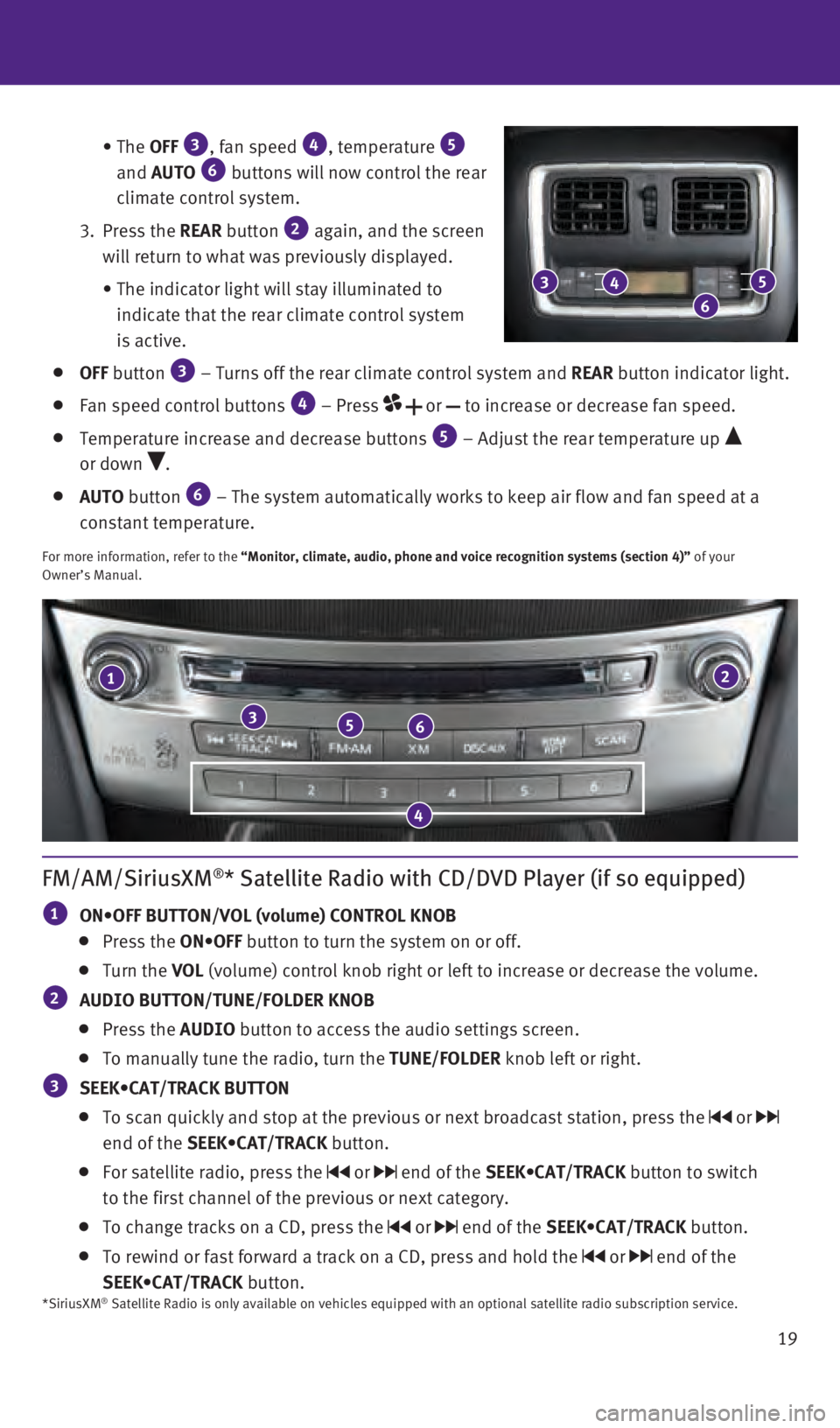
• The
OFF
3, fan speed 4, temperature 5
and AUTO 6 buttons will now control the rear
climate control system.
3.
Press
the REAR button
2 again, and the screen
will return to what was previously displayed.
•
The indicator light will stay illuminated to
indicate that the rear climate control system
is active.
OFF button 3 – Turns off the rear climate control system and REAR button indicator light.
Fan speed control buttons 4 – Press or to increase or decrease fan speed.
Temperature increase and decrease buttons 5 – Adjust the rear temperature up
or down
.
AUTO button 6 – The system automatically works to keep air flow and fan speed at a\
constant temperature.
For more information, refer to the “Monitor, climate, audio, phone and voice recognition systems (secti\
on 4)” of your
Owner’s Manual.
21
356
4
FM/AM/SiriusXM®* Satellite Radio with CD/DVD Player (if so equipped)
1 ON•OFF BUTTON/VOL (volume) CONTROL KNOB
Press the ON•OFF button to turn the system on or off.
Turn the VOL (volume) control knob right or left to increase or decrease the volum\
e.
2 AUDIO BUTTON/TUNE/FOLDER KNOB
Press the AUDIO button to access the audio settings screen.
To manually tune the radio, turn the TUNE/FOLDER knob left or right.
3 SEEK•CAT/TRACK BUTTON
To scan quickly and stop at the previous or next broadcast station, pres\
s the or
end of the SEEK•CAT/TRACK button.
For satellite radio, press the or end of the SEEK•CAT/TRACK button to switch
to the first channel of the previous or next category.
To change tracks on a CD, press the or end of the SEEK•CAT/TRACK button.
To rewind or fast forward a track on a CD, press and hold the or end of the
SEEK•CAT/TRACK button.
3
6
45
*SiriusXM® Satellite Radio is only available on vehicles equipped with an optional\
satellite radio subscription service.
2460934_16b_Infiniti_QX60_QRG_031716_b.indd 193/17/16 2:21 PM
Page 22 of 40
20
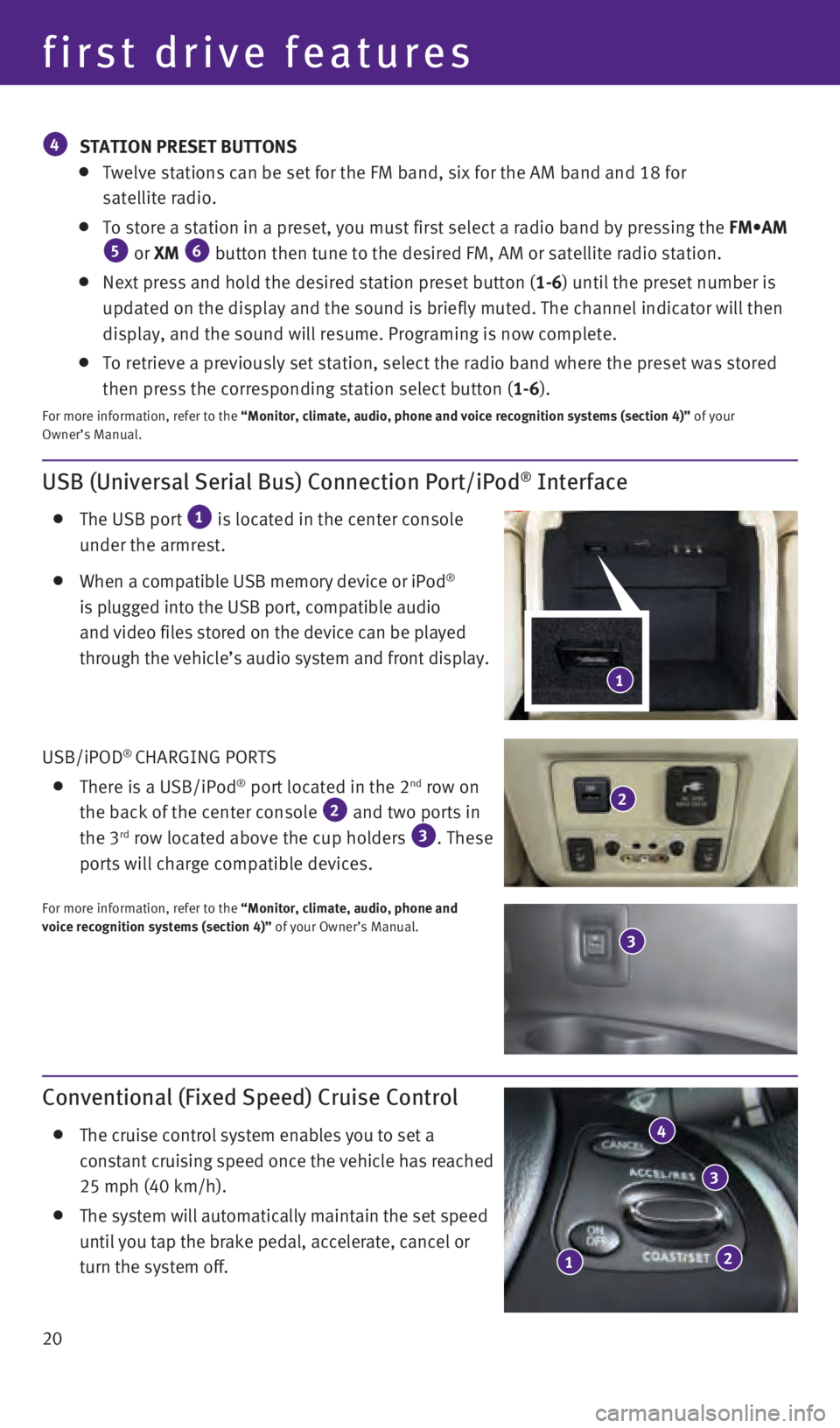
USB (Universal Serial Bus) Connection Port/iPod® Interface
The USB port 1 is located in the center console
under the armrest.
When a compatible USB memory device or iPod®
is plugged into the USB port, compatible audio
and video files stored on the device can be played
through the vehicle’s audio system and front display.
USB/iPOD
® CHARGING PORTS
There is a USB/iPod® port located in the 2nd row on
the back of the center console 2 and two ports in
the 3rd row located above the cup holders 3. These
ports will charge compatible devices.
For more information, refer to the “Monitor, climate, audio, phone and
voice recognition systems (section 4)” of your Owner’s Manual.
Conventional (Fixed Speed) Cruise Control
The cruise control system enables you to set a
constant cruising speed once the vehicle has reached
25 mph (40 km/h).
The system will automatically maintain the set speed
until you tap the brake pedal, accelerate, cancel or
turn the system off.
12
3
4
1
4 STATION PRESET BUTTONS
Twelve stations can be set for the FM band, six for the AM band and 18 f\
or
satellite radio.
To store a station in a preset, you must first select a radio band by pr\
essing the FM•AM 5 or XM 6 button then tune to the desired FM, AM or satellite radio station.
Next press and hold the desired station preset button (1-6) until the preset number is
updated on the display and the sound is briefly muted. The channel indic\
ator will then
display, and the sound will resume. Programing is now complete.
To retrieve a previously set station, select the radio band where the pr\
eset was stored
then press the corresponding station select button (1-6 ).
For more information, refer to the “Monitor, climate, audio, phone and voice recognition systems (secti\
on 4)” of your
Owner’s Manual.
first drive features
3
2
2460934_16b_Infiniti_QX60_QRG_031716_b.indd 203/17/16 2:21 PM
Page 25 of 40
23
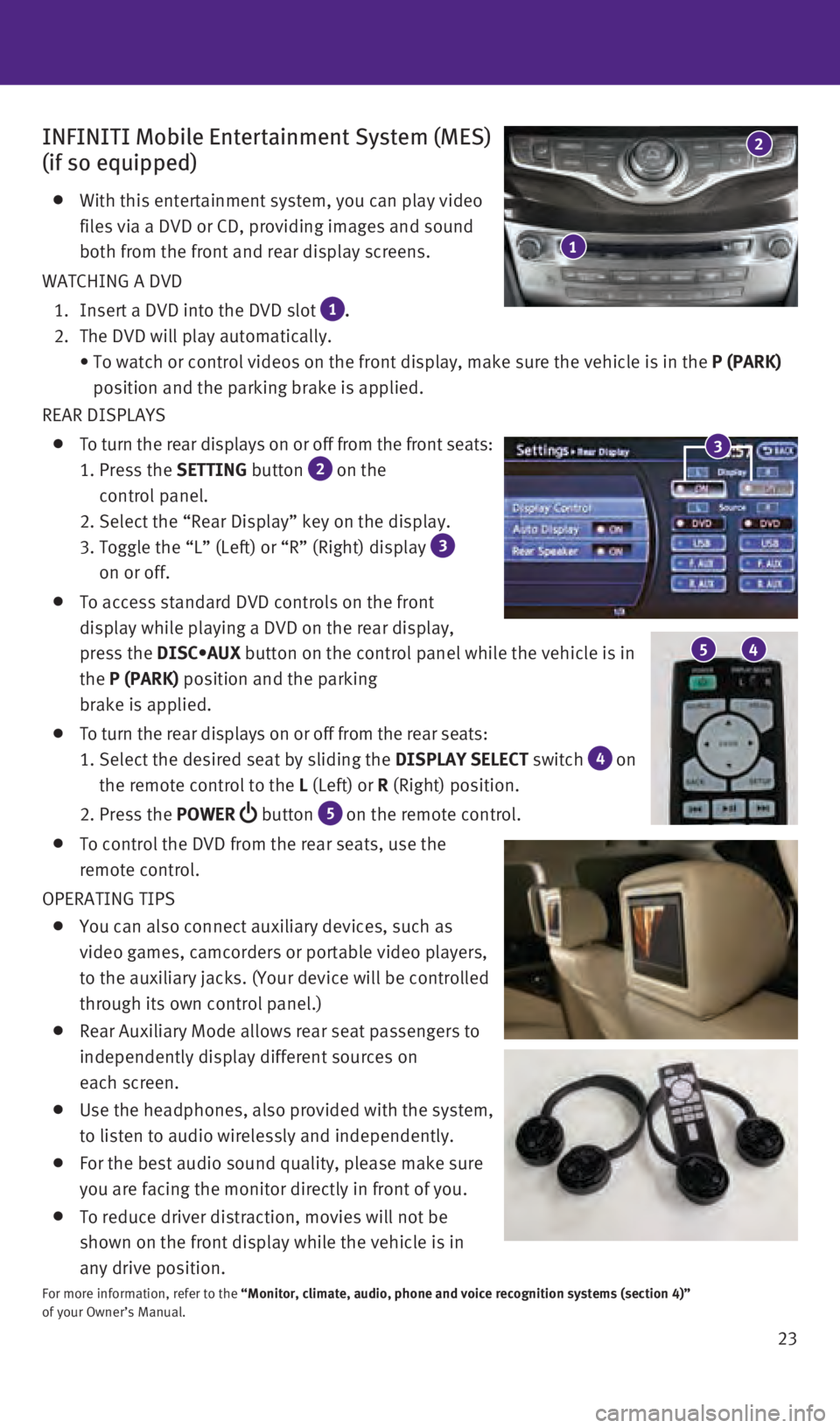
INFINITI Mobile Entertainment System (MES)
(if so equipped)
With this entertainment system, you can play video
files via a DVD or CD, providing images and sound
both from the front and rear display screens.
WATCHING A DVD
1. Insert a DVD into the DVD slot 1 .
2. The DVD will play automatically.
•
To watch or control videos on the front display, make sure the vehicle i\
s in the P (PARK)
position and the parking brake is applied.
REAR DISPLAYS
To turn the rear displays on or off from the front seats:
1. Press the SETTING
button
2 on the
control panel.
2. Select the “Rear Display” key on the display.
3. Toggle the “L” (Left) or “R” (Right) display 3
on or off.
To access standard DVD controls on the front
display while playing a DVD on the rear display,
press the DISC•AUX
button on the control panel while the vehicle is in
the P (PARK) position and the parking
brake is applied.
To turn the rear displays on or off from the rear seats:
1. Select the desired seat by sliding the DISPLAY SELECT
switch
4 on
the remote control to the L (Left) or R (Right) position.
2. Press the POWER
button 5 on the remote control.
To control the DVD from the rear seats, use the
remote control.
OPERATING TIPS
You can also connect auxiliary devices, such as
video games, camcorders or portable video players,
to the auxiliary jacks. (Your device will be controlled
through its own control panel.)
Rear Auxiliary Mode allows rear seat passengers to
independently display different sources on
each screen.
Use the headphones, also provided with the system,
to listen to audio wirelessly and independently.
For the best audio sound quality, please make sure
you are facing the monitor directly in front of you.
To reduce driver distraction, movies will not be
shown on the front display while the vehicle is in
any drive position.
For more information, refer to the “Monitor, climate, audio, phone and voice recognition systems (secti\
on 4)”
of your Owner’s Manual.
5 4
3
1
2
2460934_16b_Infiniti_QX60_QRG_031716_b.indd 233/17/16 2:22 PM
Page 26 of 40
 Main Menu Selection Body Color Maintenance")
24 SETTINGS
The setting mode allows you to change the information displayed in the v\
ehicle
information display:
Driver Assistance (if so equipped) Main Menu Selection Body Color Maintenance Alarms
Vehicle Settings Language Unit Welcome Effects
For more information, refer to the “Instruments and controls (section 2)” of your Owner’s Manual.
Vehicle Information Display
The vehicle information display 1 displays items such as:
Vehicle settings
Trip computer information
Drive system warnings and settings (if so equipped)
Cruise control system
Intelligent Cruise Control (ICC) system
(if so equipped) information
Intelligent Key operation information
Indicators and warnings
Tire pressure information
USING THE VEHICLE INFORMATION DISPLAY
The vehicle information display modes can be changed
using the
button 2 and ENTER button 3 located on
the steering wheel.
1.
Press
the
button 2 on the steering wheel to
enter the vehicle information display menu items.
2.
Press
the
button 4 on the steering wheel to navigate through the items in the vehicle
information display.
3.
Press
the ENTER button
3 on the steering wheel to change or select an item in the vehicle
information display.
4. Press the button 5 on the steering wheel to go back to the previous menu.
START-UP DISPLAY
When the ignition switch is placed in the ON or ACC position, the screen\
s that display in the
vehicle information display include:
Active system status (if so equipped)
Trip computer
Tire pressure information
Fuel economy
Warnings (displays when a warning is present)
RESETTING THE TRIP COMPUTER
1.
Press
the
button 2 on the steering wheel until
you reach the trip computer mode 6.
2. Press
the
button 2 on the steering wheel again for more than 1.5 seconds to reset
average fuel consumption, average speed, distance to empty and journey t\
ime.
1
system guide
3
2
4
5
6
2460934_16b_Infiniti_QX60_QRG_031716_b.indd 243/17/16 2:22 PM
Page 28 of 40
26
Bluetooth® System without Navigation (if so equipped)
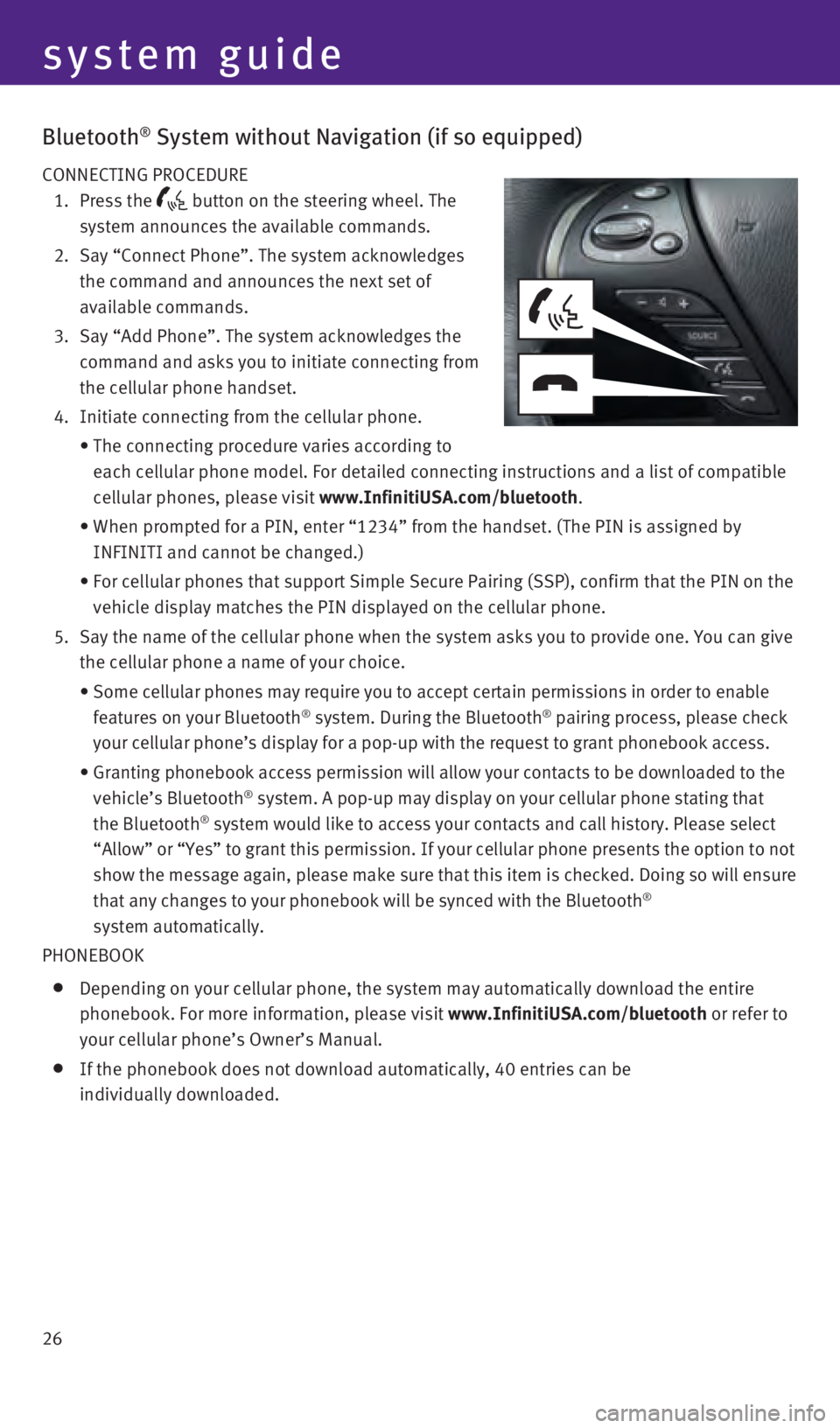
CONNECTING PROCEDURE
1.
Press
the
button on the steering wheel. The
system announces the available commands.
2.
Say “Connect Phone”. The system acknowledges
the command and announces the next set of
available commands.
3.
Say “Add Phone”. The system acknowledges the
command and asks you to initiate connecting from
the cellular phone handset.
4. Initiate connecting from the cellular phone.
• The connecting procedure varies according to
each cellular phone model. For detailed connecting instructions and a li\
st of compatible
cellular phones, please visit www.InfinitiUSA.com/bluetooth
.
• When prompted for a PIN, enter “1234” from the handset. (The PIN \
is assigned by
INFINITI and cannot be changed.)
• For cellular phones that support Simple Secure Pairing (SSP), confirm \
that the PIN on the
vehicle display matches the PIN displayed on the cellular phone.
5.
Say the name of the cellular phone when the system asks you to provide o\
ne. You can give
the cellular phone a name of your choice.
• Some cellular phones may require you to accept certain permissions in or\
der to enable
features on your Bluetooth® system. During the Bluetooth® pairing process, please check
your cellular phone’s display for a pop-up with the request to grant \
phonebook access.
• Granting phonebook access permission will allow your contacts to be down\
loaded to the
vehicle’s Bluetooth® system. A pop-up may display on your cellular phone stating that
the Bluetooth® system would like to access your contacts and call history. Please sele\
ct
“Allow” or “Yes” to grant this permission. If your cellular \
phone presents the option to not
show the message again, please make sure that this item is checked. Doin\
g so will ensure
that any changes to your phonebook will be synced with the Bluetooth
®
system automatically.
PHONEBOOK
Depending on your cellular phone, the system may automatically download \
the entire
phonebook. For more information, please visit www.InfinitiUSA.com/bluetooth or refer to
your cellular phone’s Owner’s Manual.
If the phonebook does not download automatically, 40 entries can be
individually downloaded.
system guide
2460934_16b_Infiniti_QX60_QRG_031716_b.indd 263/17/16 2:23 PM
Page 30 of 40
28
system guide
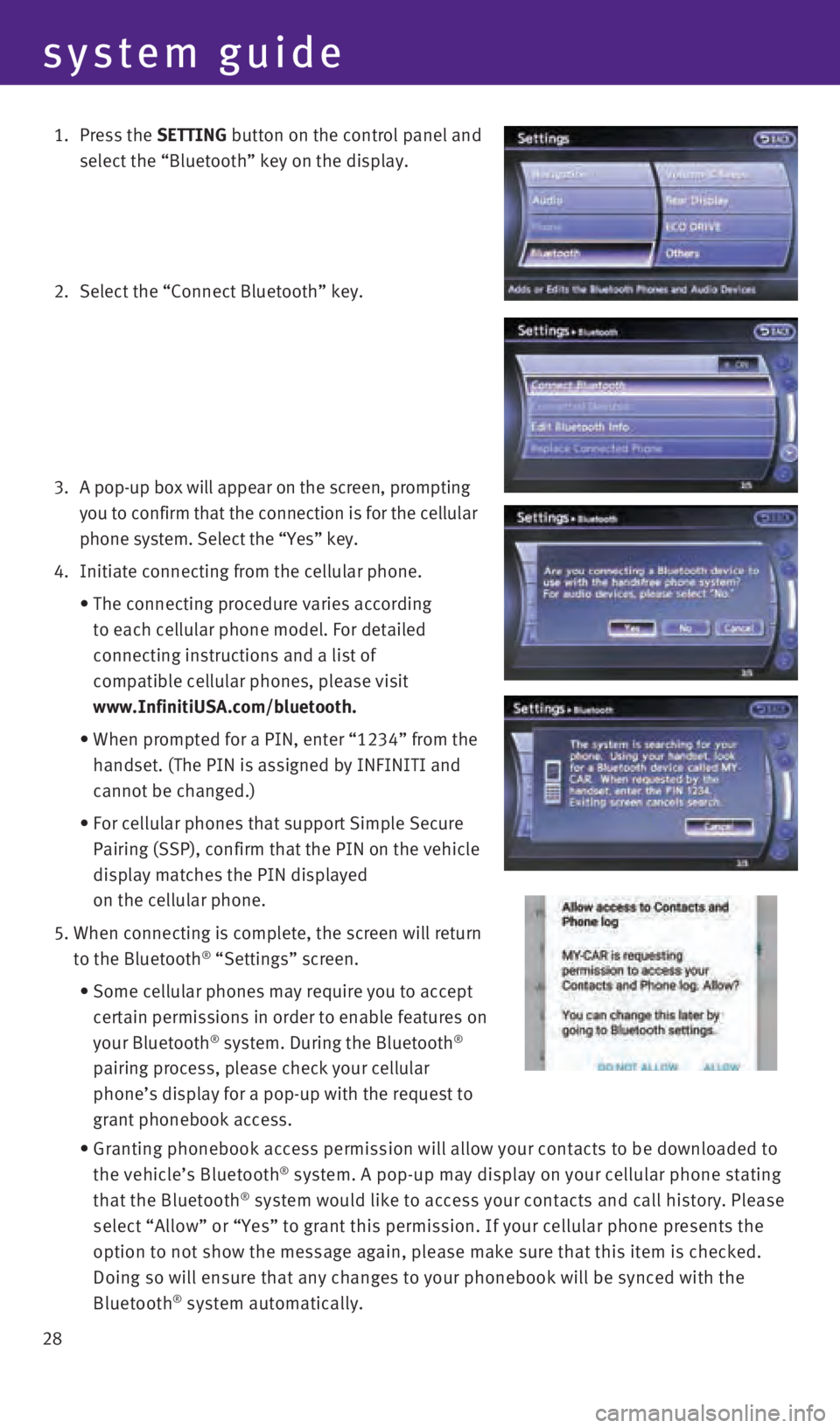
1. Press the SETTING button on the control panel and
select the “Bluetooth” key on the display.
2. Select the “Connect Bluetooth” key.
3.
A pop-up box will appear on the screen, prompting
you to confirm that the connection is for the cellular
phone system. Select the “Yes” key.
4. Initiate connecting from the cellular phone.
•
The connecting procedure varies according
to each cellular phone model. For detailed
connecting instructions and a list of
compatible cellular phones, please visit
www.InfinitiUSA.com/bluetooth.
•
When prompted for a PIN, enter “1234” from the
handset. (The PIN is assigned by INFINITI and
cannot be changed.)
•
For cellular phones that support Simple Secure
Pairing (SSP), confirm that the PIN on the vehicle
display matches the PIN displayed
on the cellular phone.
5. When connecting is complete, the screen will return
to the Bluetooth® “Settings” screen.
• Some cellular phones may require you to accept
certain permissions in order to enable features on
your Bluetooth
® system. During the Bluetooth®
pairing process, please check your cellular
phone’s display for a pop-up with the request to
grant phonebook access.
• Granting phonebook access permission will allow your contacts to be down\
loaded to
the vehicle’s Bluetooth® system. A pop-up may display on your cellular phone stating
that the Bluetooth® system would like to access your contacts and call history. Please
select “Allow” or “Yes” to grant this permission. If your ce\
llular phone presents the
option to not show the message again, please make sure that this item is\
checked.
Doing so will ensure that any changes to your phonebook will be synced w\
ith the
Bluetooth
® system automatically.
2460934_16b_Infiniti_QX60_QRG_031716_b.indd 283/17/16 2:23 PM
Page 31 of 40
29
PHONEBOOK SETUP
Depending on your cellular phone, the system may
automatically download your cellular phone’s entire
phonebook to the vehicle’s Bluetooth
® system.
If the phonebook does not download automatically,
the vehicle’s phonebook may be set for up to
1,000 entries.
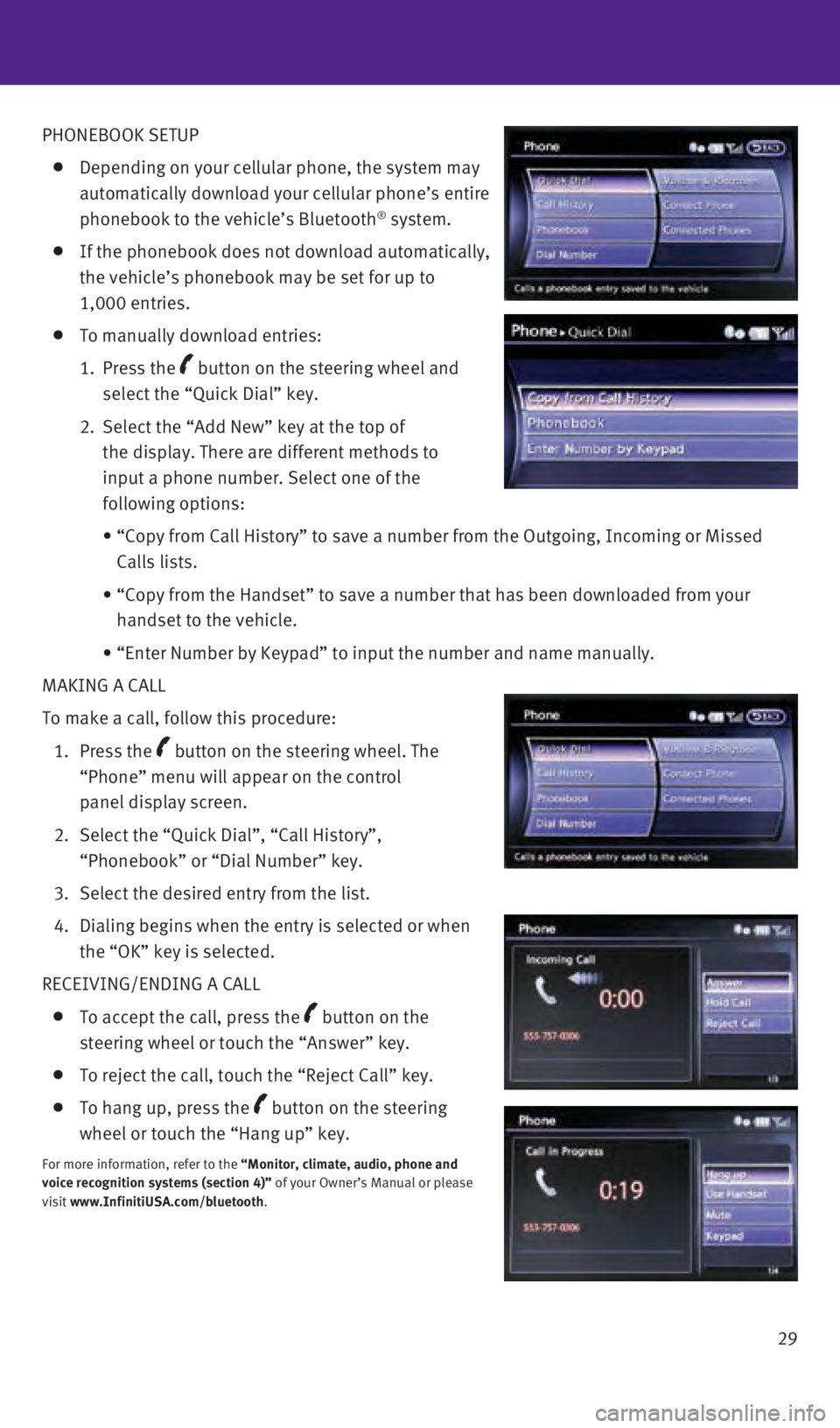
To manually download entries:
1.
Press
the
button on the steering wheel and
select the “Quick Dial” key.
2.
Select the “Add New” key at the top of
the display. There are different methods to
input a phone number. Select one of the
following options:
• “Copy from Call History” to save a number from the Outgoing, Incom\
ing or Missed
Calls lists.
• “Copy from the Handset” to save a number that has been downloaded \
from your
handset to the vehicle.
• “Enter Number by Keypad” to input the number and name manually.
MAKING A CALL
To make a call, follow this procedure:
1.
Press
the
button on the steering wheel. The
“Phone” menu will appear on the control
panel display screen.
2.
Select the “Quick Dial”, “Call History”,
“Phonebook” or “Dial Number” key.
3. Select the desired entry from the list.
4.
Dialing begins when the entry is selected or when
the “OK” key is selected.
RECEIVING/ENDING A CALL
To accept the call, press the button on the
steering wheel or touch the “Answer” key.
To reject the call, touch the “Reject Call” key.
To hang up, press the button on the steering
wheel or touch the “Hang up” key.
For more information, refer to the “Monitor, climate, audio, phone and
voice recognition systems (section 4)” of your Owner’s Manual or please
visit www.InfinitiUSA.com/bluetooth.
2460934_16b_Infiniti_QX60_QRG_031716_b.indd 293/17/16 2:23 PM
Page 32 of 40
30
system guide
Bluetooth® Streaming Audio with Navigation (if so equipped)
If you have a compatible Bluetooth® device with streaming audio (A2DP and AVRCP
profiles), you can set up the wireless connection between your Bluetoot\
h® device and your
vehicle’s audio system. This connection allows you to listen to audio\
from the Bluetooth®
device using your vehicle’s speakers.
A cellular telephone should not be used while driving so full attention \
may be given to
vehicle operation.*
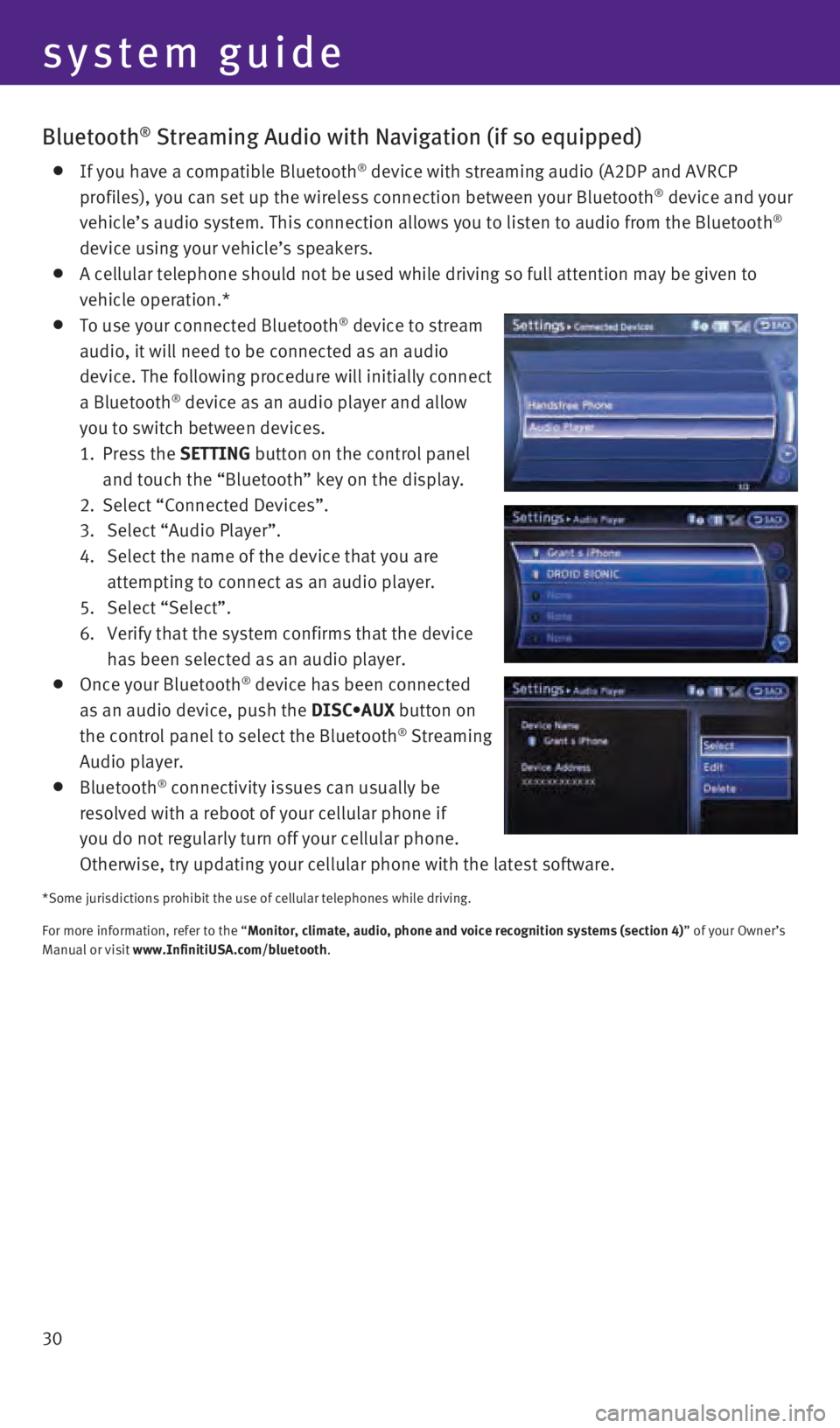
To use your connected Bluetooth® device to stream
audio, it will need to be connected as an audio
device. The following procedure will initially connect
a Bluetooth
® device as an audio player and allow
you to switch between devices.
1.
Press
the SETTING button on the control panel
and touch the “Bluetooth” key on the display.
2.
Select “Connected Devices”.
3.
Select “Audio Player”.
4. Select the name of the device that you are
attempting to connect as an audio player.
5.
Select “Select”.
6.
Verify that the system confirms that the device
has been selected as an audio player.
Once your Bluetooth® device has been connected
as an audio device, push the DISC•AUX button on
the control panel to select the Bluetooth
® Streaming
Audio player.
Bluetooth® connectivity issues can usually be
resolved with a reboot of your cellular phone if
you do not regularly turn off your cellular phone.
Otherwise, try updating your cellular phone with the latest software.
*Some jurisdictions prohibit the use of cellular telephones while drivin\
g.
For more information, refer to the “Monitor, climate, audio, phone and voice recognition systems (section 4\
) ” of your Owner’s
Manual or visit www.InfinitiUSA.com/bluetooth.
2460934_16b_Infiniti_QX60_QRG_031716_b.indd 303/17/16 2:23 PM