ECO mode INFINITI QX60 2017 Workshop Manual
[x] Cancel search | Manufacturer: INFINITI, Model Year: 2017, Model line: QX60, Model: INFINITI QX60 2017Pages: 629, PDF Size: 6.89 MB
Page 301 of 629
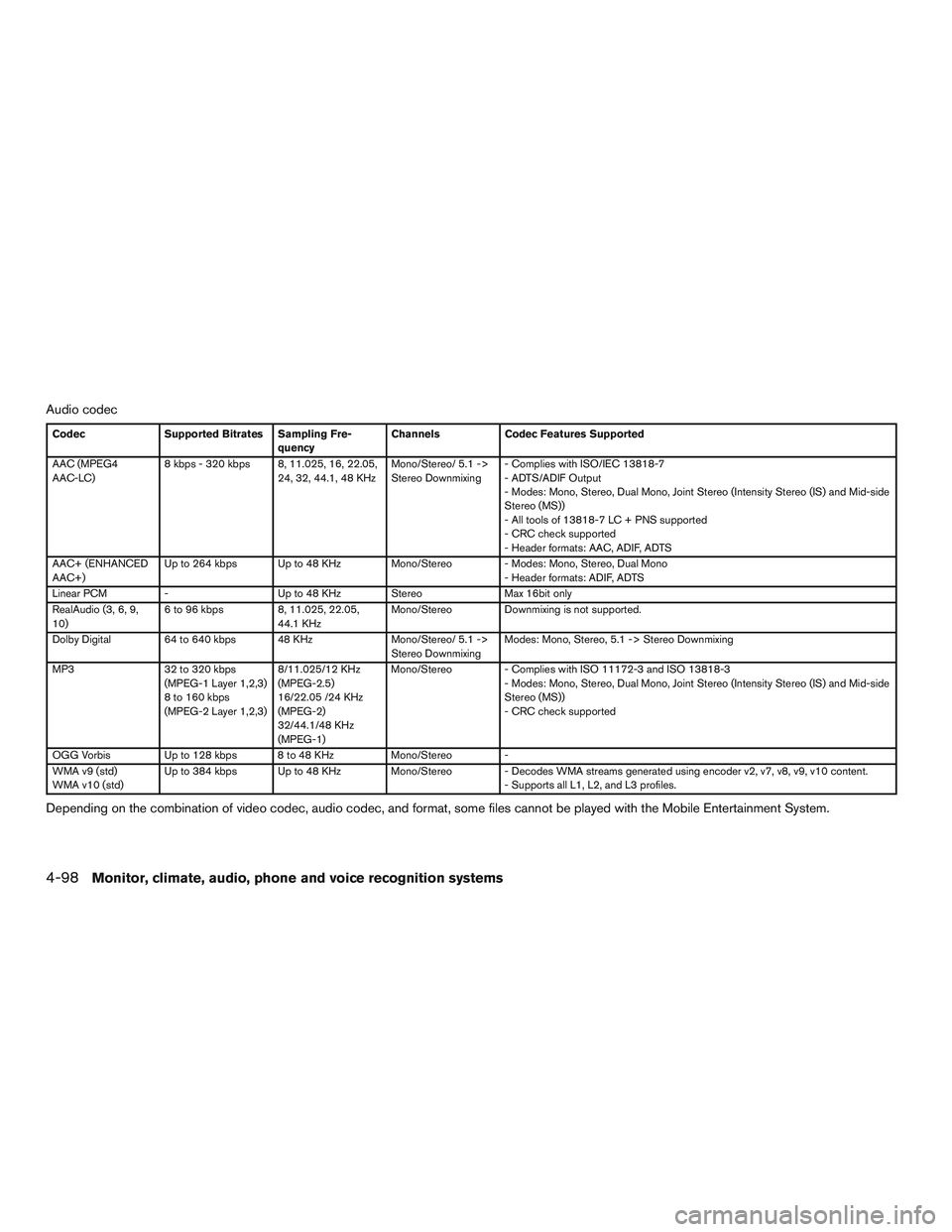
Audio codec
CodecSupported Bitrates Sampling Fre-
quencyChannels
Codec Features Supported
AAC (MPEG4
AAC-LC) 8 kbps - 320 kbps 8, 11.025, 16, 22.05,
24, 32, 44.1, 48 KHzMono/Stereo/ 5.1 ->
Stereo Downmixing- Complies with ISO/IEC 13818-7
- ADTS/ADIF Output
- Modes: Mono, Stereo, Dual Mono, Joint Stereo (Intensity Stereo (IS) and Mid-side
Stereo (MS))
- All tools of 13818-7 LC + PNS supported
- CRC check supported
- Header formats: AAC, ADIF, ADTS
AAC+ (ENHANCED
AAC+) Up to 264 kbps Up to 48 KHz Mono/Stereo - Modes: Mono, Stereo, Dual Mono
- Header formats: ADIF, ADTS
Linear PCM - Up to 48 KHz Stereo Max 16bit only
RealAudio (3, 6, 9,
10) 6 to 96 kbps 8, 11.025, 22.05,
44.1 KHzMono/Stereo Downmixing is not supported.
Dolby Digital 64 to 640 kbps 48 KHz Mono/Stereo/ 5.1 ->
Stereo Downmixing Modes: Mono, Stereo, 5.1 -> Stereo Downmixing
MP3 32 to 320 kbps
(MPEG-1 Layer 1,2,3)
8 to 160 kbps
(MPEG-2 Layer 1,2,3) 8/11.025/12 KHz
(MPEG-2.5)
16/22.05 /24 KHz
(MPEG-2)
32/44.1/48 KHz
(MPEG-1)Mono/Stereo - Complies with ISO 11172-3 and ISO 13818-3
- Modes: Mono, Stereo, Dual Mono, Joint Stereo (Intensity Stereo (IS) and Mid-side
Stereo (MS))
- CRC check supported
OGG Vorbis Up to 128 kbps 8 to 48 KHz Mono/Stereo -
WMA v9 (std)
WMA v10 (std) Up to 384 kbps Up to 48 KHz Mono/Stereo - Decodes WMA streams generated using encoder v2, v7, v8, v9, v10 content.
- Supports all L1, L2, and L3 profiles.
Depending on the combination of video codec, audio codec, and format, some files cannot be played with the Mobile Entertainment System.
4-98Monitor, climate, audio, phone and voice recognition systems
Page 310 of 629
●Replacement of the batteries is needed
when the remote controller only functions at
extremely close distances to the Mobile En-
tertainment System or when is does not
function at all.
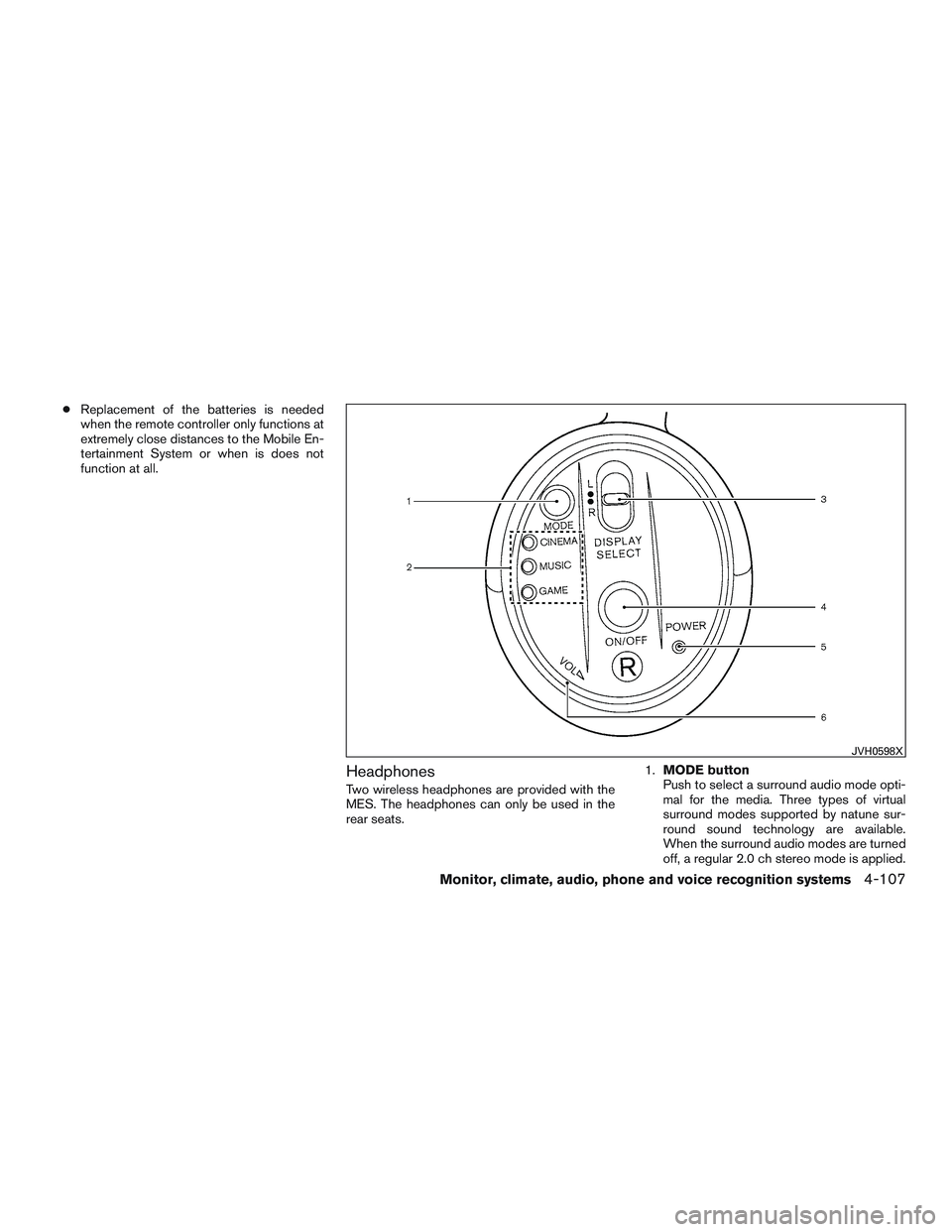
Headphones
Two wireless headphones are provided with the
MES. The headphones can only be used in the
rear seats. 1.
MODE button
Push to select a surround audio mode opti-
mal for the media. Three types of virtual
surround modes supported by natune sur-
round sound technology are available.
When the surround audio modes are turned
off, a regular 2.0 ch stereo mode is applied.
JVH0598X
Monitor, climate, audio, phone and voice recognition systems4-107
Page 311 of 629
CINEMA
Optimum mode for movies. Provides power-
ful surround audio as if you are in a theater.
MUSIC
Provides natural and clear sounds with sta-
bility optimal for listening to music.
GAME
Provides realistic sounds for playing games
with bass enhanced sounds.
2. Mode indicators The selected surround audio mode will illu-
minate.
3. DISPLAY SELECT button
Slide this switch to select which of the audio
sources to listen to when the rear displays
are playing different sources.
L: the headphone will play audio from the
source playing on the left display
R: the headphone will play audio from the
source playing on the right display
4. ON/OFF button
Push to turn the headphones on or off.
5. Power ON/OFF indicator Illuminates when the headphones are turned
on.
6. VOL button
Turn to adjust the volume. Operating tips:
● The headphones will automatically turn off
after several minutes if there is no audio
output during that period. The headphones
will also turn off after approximately 4 hours
of continuous use. To prevent the battery
from being discharged, keep the power
turned off when not in use.
● If the sound from the headphones is not
clear, it may be due to interference from an
infrared communication device or a cellular
phone. If this happens, turn down the head-
phone volume or stop using the head-
phones. It is also possible that the head-
phones may be too far or offset from the
transmitter which is in the rear display
screen. Use the headphones in front of the
rear display.
● The sound may also be interrupted tempo-
rarily when there is something between the
headphones and the transmitter causing in-
terference. Move the source of interference,
such as opaque materials, hands, hair, etc. Battery replacement:
CAUTION
●
An improperly disposed battery can
harm the environment. Always confirm
local regulations for battery disposal.
● When changing the batteries, do not let
dust or oil get on the components.
NOTE:
Change the batteries of the headphones when
they stop functioning while playing or when noise
is produced.
4-108Monitor, climate, audio, phone and voice recognition systems
Page 314 of 629

Menus
Push the MENU button on the remote controller
to display the operation screen for the source that
is playing. Select and adjust the preferred items
using the Select buttons and the ENTER button
on the remote controller. The available menu
items differ depending on the selected source.
Available menu items:● “Speaker Output” key
When this item is turned on, the audio of the
source playing on the corresponding rear
display will be output to the vehicle speak-
ers.
● “Top Menu” key (DVD only)
Select to display the top menu screen.
● “Title Menu” key (DVD only)
Menus specific to each disc will be shown.
For details, see the instructions attached to
the disc.
● “Title Search” key (DVD only)
A scene that belongs to a specified title will
be displayed each time the “+” key side or
the “—” key side is selected. ●
“Use Keypad” key (DVD only)
Select the “Keypad” key and push the EN-
TER button to open the number entry
screen. Enter the number you want to search
for and select the “OK” key with the remote
controller. The selected Title/Chapter will be
played.
● “Audio” key (DVD, USB (DivX) only)
Select a preferred language for the audio
output.
● “Subtitle” key (DVD, USB (DivX) only)
Choose the preferred subtitle language set-
ting.
● “Angle” key (DVD only)
If the DVD contains data of different angles,
the angle of the image can be changed.
● “File Browser” key (USB only)
The data contained in the USB can be
browsed. The tracks are automatically cat-
egorized by playlists, songs, artists, com-
posers, genres, etc.
● “Play Mode” key (USB only)
Select a preferred play mode from the “Nor-
mal” key/”Repeat” key/”Shuffle” key.
● “Aspect Ratio” key
Aspect can be selected from Normal, Wide,
Cinema and Full. ●
“Select No.” key (DVD (Video-CD) only)
Select a section number you wish to play.SETTINGS AND INFORMATION
Various settings for the MES such as aspect
ratio, language, etc. can be changed on the rear
displays.
Push the SET UP button on the remote controller
and select the preferred item using the Select
button and ENTER button to change the rear
display settings and to view the system informa-
tion.
Available items:
● “System Settings” key
● “Display Settings” key
● “Information” key
System settings
To change the settings of the Mobile Entertain-
ment System, push the SET UP button on the
remote controller and select the “System Set-
tings” key.
Select the preferred item and adjust the setting
using the remote controller.
Monitor, climate, audio, phone and voice recognition systems4-111
Page 315 of 629
Available items:● “Aspect Ratio” key
Select the image size from Normal, Wide,
Cinema and Full.
● “Language” key
The language displayed on the screen can
be changed. Select the “Manual” key and
then select a preferred language from the
list. To apply the same language that is ap-
plied to the front display, select the “Auto”
key.
The language of the rear menu screens can
be set independently from the front display.
The rear display language settings will be
applied to both the rear left and rear right
displays.
● “Operation Guide” key
When this item is turned on, an explanation
for the menu highlighted on the screen will
appear at the bottom of the screen.
● “DivX® VOD” key
DivX® VOD license information can be
viewed.Display settings
To change the rear display settings, push the SET
UP button on the remote controller and select the
“Display Settings” key.
Select the preferred item and adjust the setting
using the remote controller.
Available items
● “Display Adjustment” key
– “Picture Mode” key Select image quality from Normal, Dy-
namic, Cinema and Game.
– “Auto Bright” key Select from Normal, Bright, OFF and
Dark. The brightness of the screen is ad-
justed automatically according to the
brightness inside the vehicle compart-
ment. The sensor is located on the right
side corner of the rear displays.
– “Brightness”, “Tint”, “Contrast”, “Color” and “Black Level” keys
Adjust the levels using the
orbuttons on the remote control-
ler.
– “Default” key Select this item to reset the screen set-
tings to the default value. ●
“Automatic Detail Enhancement” key
The enhancement of the contrast for details
can be adjusted automatically with this func-
tion. Select the level of the function from
High, Medium and Low.
● “Super Resolution” key
Blurred images with a low resolution can be
converted and adjusted into more crisp,
clearer images. Select the level of the func-
tion from High, Medium or Low.
● “Automatic Contrast Adjustment” key
Objects in dark images that are difficult to
view can be adjusted and enhanced auto-
matically for clearer viewing. Select the level
of the function from High, Medium or Low.
● “Noise Reduction” key
With the noise reduction function, block
noise that accompanies images can be re-
duced. Select the level of the function from
High, Medium or Low.
Software information
To display the software information of the Mobile
Entertainment System, push the SET UP button
on the remote controller and select the “Informa-
tion” key.
4-112Monitor, climate, audio, phone and voice recognition systems
Page 317 of 629
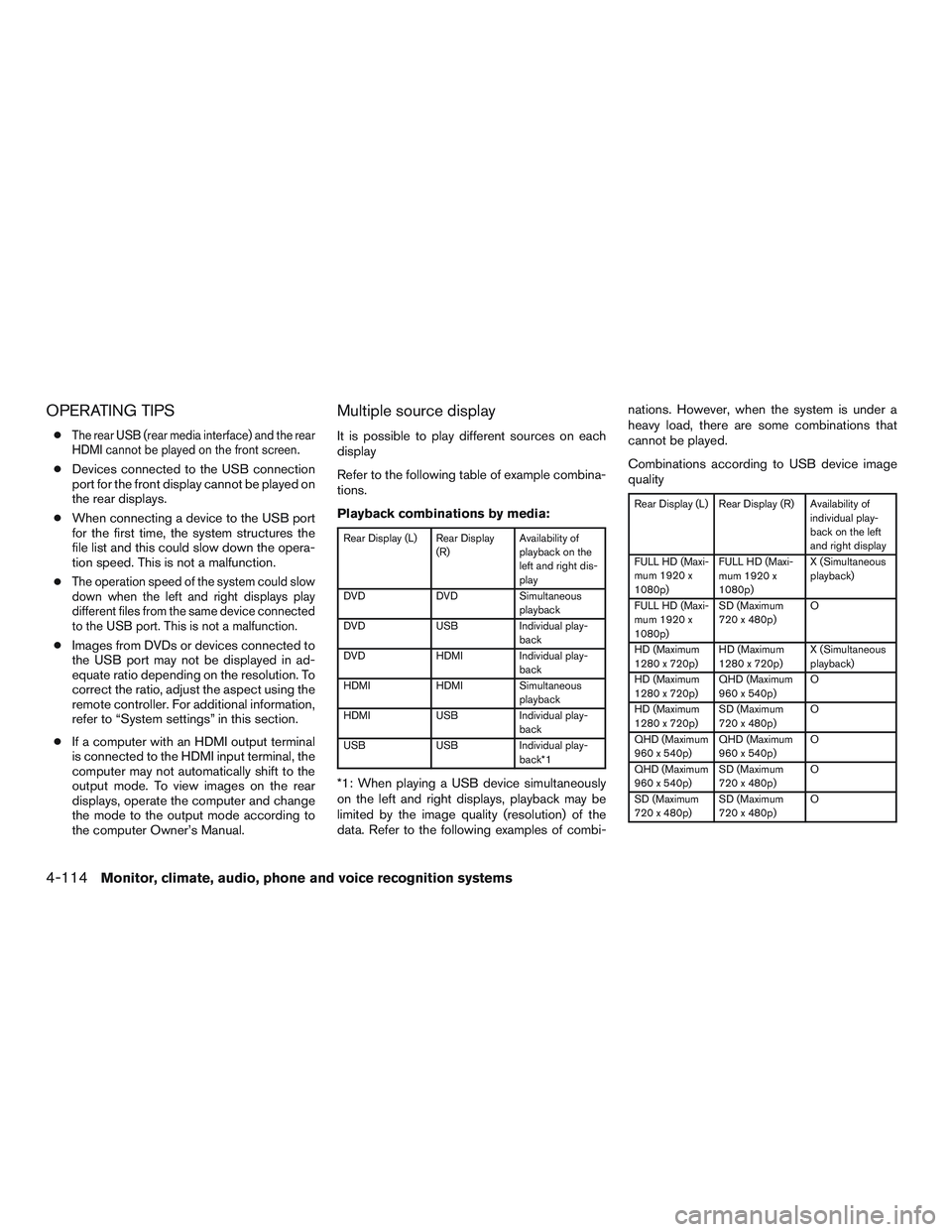
OPERATING TIPS
●The rear USB (rear media interface) and the rear
HDMI cannot be played on the front screen.
● Devices connected to the USB connection
port for the front display cannot be played on
the rear displays.
● When connecting a device to the USB port
for the first time, the system structures the
file list and this could slow down the opera-
tion speed. This is not a malfunction.
●
The operation speed of the system could slow
down when the left and right displays play
different files from the same device connected
to the USB port. This is not a malfunction.
● Images from DVDs or devices connected to
the USB port may not be displayed in ad-
equate ratio depending on the resolution. To
correct the ratio, adjust the aspect using the
remote controller. For additional information,
refer to “System settings” in this section.
● If a computer with an HDMI output terminal
is connected to the HDMI input terminal, the
computer may not automatically shift to the
output mode. To view images on the rear
displays, operate the computer and change
the mode to the output mode according to
the computer Owner’s Manual.
Multiple source display
It is possible to play different sources on each
display
Refer to the following table of example combina-
tions.
Playback combinations by media:
Rear Display (L) Rear Display
(R)Availability of
playback on the
left and right dis-
play
DVD DVDSimultaneous
playback
DVD USBIndividual play-
back
DVD HDMIIndividual play-
back
HDMI HDMISimultaneous
playback
HDMI USBIndividual play-
back
USB USBIndividual play-
back*1
*1: When playing a USB device simultaneously
on the left and right displays, playback may be
limited by the image quality (resolution) of the
data. Refer to the following examples of combi- nations. However, when the system is under a
heavy load, there are some combinations that
cannot be played.
Combinations according to USB device image
quality
Rear Display (L) Rear Display (R) Availability of
individual play-
back on the left
and right display
FULL HD (Maxi-
mum 1920 x
1080p) FULL HD (Maxi-
mum 1920 x
1080p) X (Simultaneous
playback)
FULL HD (Maxi-
mum 1920 x
1080p) SD (Maximum
720 x 480p)
O
HD (Maximum
1280 x 720p) HD (Maximum
1280 x 720p) X (Simultaneous
playback)
HD (Maximum
1280 x 720p) QHD (Maximum
960 x 540p) O
HD (Maximum
1280 x 720p) SD (Maximum
720 x 480p) O
QHD (Maximum
960 x 540p) QHD (Maximum
960 x 540p) O
QHD (Maximum
960 x 540p) SD (Maximum
720 x 480p) O
SD (Maximum
720 x 480p) SD (Maximum
720 x 480p) O
4-114Monitor, climate, audio, phone and voice recognition systems
Page 318 of 629
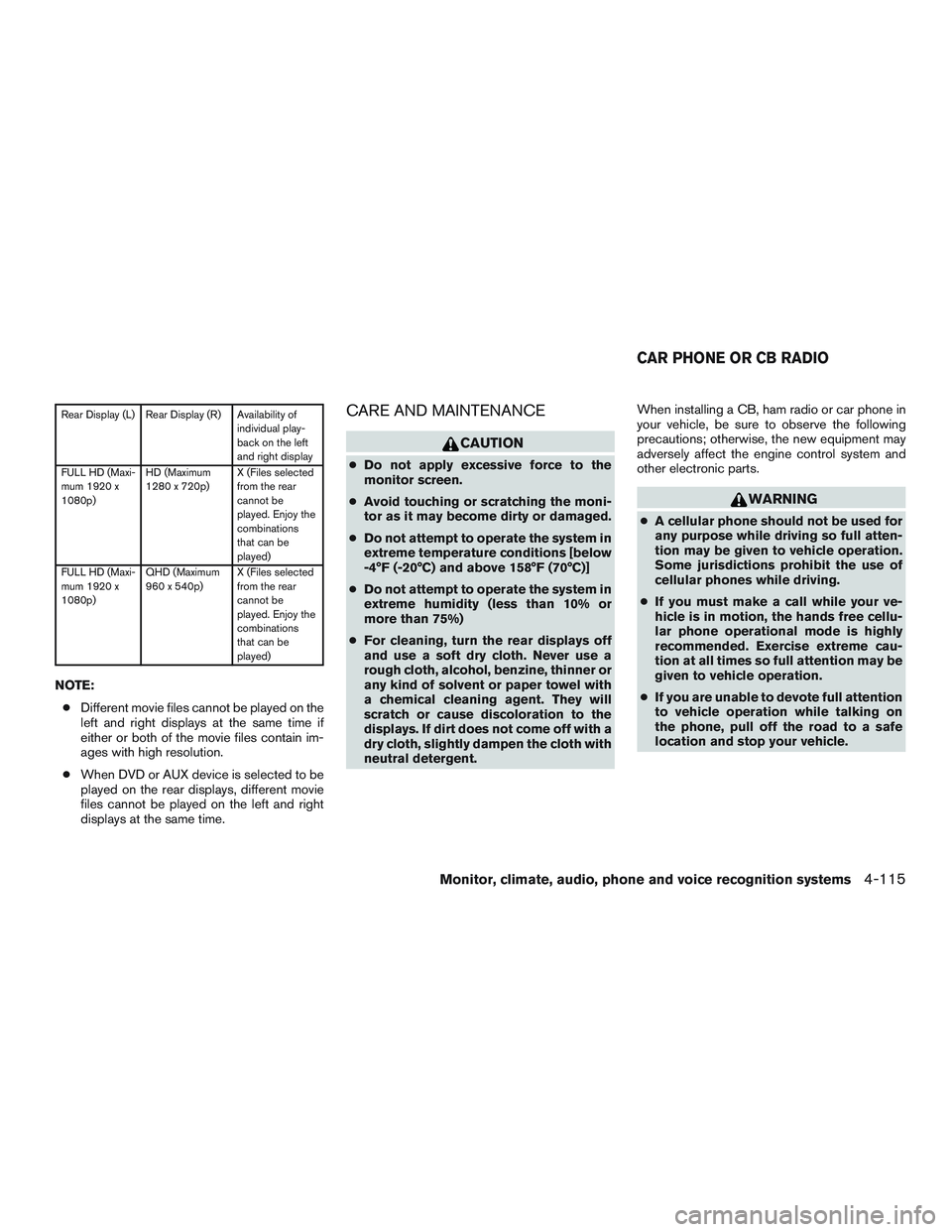
Rear Display (L) Rear Display (R) Availability ofindividual play-
back on the left
and right display
FULL HD (Maxi-
mum 1920 x
1080p) HD (Maximum
1280 x 720p)
X (Files selected
from the rear
cannot be
played. Enjoy the
combinations
that can be
played)
FULL HD (Maxi-
mum 1920 x
1080p) QHD (Maximum
960 x 540p)
X (Files selected
from the rear
cannot be
played. Enjoy the
combinations
that can be
played)
NOTE:
● Different movie files cannot be played on the
left and right displays at the same time if
either or both of the movie files contain im-
ages with high resolution.
● When DVD or AUX device is selected to be
played on the rear displays, different movie
files cannot be played on the left and right
displays at the same time.
CARE AND MAINTENANCE
CAUTION
● Do not apply excessive force to the
monitor screen.
● Avoid touching or scratching the moni-
tor as it may become dirty or damaged.
● Do not attempt to operate the system in
extreme temperature conditions [below
-4°F (-20°C) and above 158°F (70°C)]
● Do not attempt to operate the system in
extreme humidity (less than 10% or
more than 75%)
● For cleaning, turn the rear displays off
and use a soft dry cloth. Never use a
rough cloth, alcohol, benzine, thinner or
any kind of solvent or paper towel with
a chemical cleaning agent. They will
scratch or cause discoloration to the
displays. If dirt does not come off with a
dry cloth, slightly dampen the cloth with
neutral detergent. When installing a CB, ham radio or car phone in
your vehicle, be sure to observe the following
precautions; otherwise, the new equipment may
adversely affect the engine control system and
other electronic parts.
WARNING
●
A cellular phone should not be used for
any purpose while driving so full atten-
tion may be given to vehicle operation.
Some jurisdictions prohibit the use of
cellular phones while driving.
● If you must make a call while your ve-
hicle is in motion, the hands free cellu-
lar phone operational mode is highly
recommended. Exercise extreme cau-
tion at all times so full attention may be
given to vehicle operation.
● If you are unable to devote full attention
to vehicle operation while talking on
the phone, pull off the road to a safe
location and stop your vehicle.
CAR PHONE OR CB RADIO
Monitor, climate, audio, phone and voice recognition systems4-115
Page 322 of 629

The Bluetooth® word
mark and logos are
registered trademarks
owned by Bluetooth
SIG, Inc. and any use
of such marks by
DENSO
CORPORATION is
under license. Other
trademarks and trade
names are those of
their respective
owners.
PHONE
Connecting Bluetooth® device
Your vehicle is equipped with a Bluetooth®
Hands-Free Phone System and Bluetooth®
streaming audio device. If you are an owner of a
compatible Bluetooth® enabled cellular phone
or Bluetooth® audio device, you can set up the
wireless connection between your cellular phone
and the in-vehicle phone module, or Bluetooth®
audio and in-vehicle audio module. With
Bluetooth® wireless technology, you can make
or receive a telephone call with your cellularphone in your pocket and listen to music on your
Bluetooth® streaming audio device via the in-
vehicle system.
Connecting cellular phone/audio device
1. Press the SETTING button.
2. Touch the “Bluetooth” key and touch the “Connect Device” key.
3. Touch the “Add New (X/5 Free)” key to reg- ister a device.
4. When a PIN code appears on the screen, operate the compatible Bluetooth® cellular
phone to enter the PIN code.
The pairing procedure for cellular phones
varies depending on the model of cellular
phone. Refer to the owner’s manual for the
cellular phone for details.
If the registered device has both audio and
phone functions, the system displays a mes-
sage asking if you would like to register the
device for another function.
The procedure for connecting a cellular
phone/audio device varies depending on the
Bluetooth® device. Refer to the owner’s
manual for the Bluetooth® device for de-
tails. NOTE:
Some cellular phones or other devices may
cause interference or a buzzing noise to be emit-
ted from the audio system speakers. Storing the
device in a different location may reduce or elimi-
nate the noise.
You can also visit www.infinitiusa.com/Bluetooth
or call INFINITI Consumer Affairs Department for
instructions on pairing INFINITI recommended
cellular phones or audio devices.
Phone selection
Select one of the connected devices for opera-
tion.
1. Push the
switch, then touch the “Se-
lect Phone” key. A list of the connected
cellular phones is displayed.
2. Select one of the connected cellular phones from the list.
3. When selection of the device is successful, a message on the display indicates that the
cellular phone was selected.
Monitor, climate, audio, phone and voice recognition systems4-119
Page 326 of 629

Receiving a message
When the cellular phone connected to the ve-
hicle receives a text message, a notification is
displayed on the display accompanied by a tone.
To check the message, touch the “Check Now”
key. Touch the “Later” key to save the message to
be checked later.
Using the text message function with iPhone®.
If you would like to use the text message function
with your iPhone®, please follow the steps be-
low.1. Connect iPhone® to the Bluetooth® Hands-Free Phone System. 2. Disconnect iPhone® from vehicle setting
menu.
3. Turn “Show Notification” ON from Bluetooth® setting menu on your iPhone®.
4. Connect iPhone® from vehicle setting menu.
Displaying received message list
1. To display the phone menu screen, take thefollowing actions:
● Push the
switch on the steering
wheel or control panel (models without
navigation system) .
2. Touch the “Text Messages” key.
3. Touch an item on the list to read or to reply to the message.
Up to 20 messages can be stored on the mes-
sage list.
JVH1470MJVH1471M
Monitor, climate, audio, phone and voice recognition systems4-123
Page 334 of 629

INFINITI INTOUCHTMAPPS
OVERVIEW
Laws in some jurisdictions may restrict the use of
some of the applications and features, such as
social networking and texting. Check local regu-
lations for any requirements.
Infiniti InTouch
TMApps provides in-vehicle ac-
cess to two types of applications: Vehicle Apps
and Mobile Apps (if so equipped) .
Some pre-installed Vehicle Apps can be used
without taking any extra steps.
CAUTION
● While driving, some operations are lim-
ited in order to prevent distracting the
driver. While driving, avoid keeping a
close watch on the display.
● Some application services may be sub-
ject to change or termination without
prior notice.
For Canada:
The system allows you to download new applica-
tions, update downloaded applications and de-
lete downloaded applications in a similar manner
as popular smartphone operating systems. You will need to connect a compatible smart-
phone to the vehicle in order to update Vehicle
Apps or use Mobile Apps.
The usage of applications is only guaranteed for
smartphones that have been tested and ap-
proved for use with Infiniti InTouch
TMApps. Only
iPhone® and Android devices are currently sup-
ported. Android smartphones must support
Bluetooth® and SPP (Serial Port Profile) .
USING APPLICATIONS
NOTE:
To use APP functions on the models without a
navigation system, the calendar setting is neces-
sary for checking the SSL expiration date. For
additional information, refer to “Clock settings” in
this section.
Main operation
Push the APPS button to display the menu
screen.
Touch the icon for the desired application. The
selected application will be launched.
The applications shown on the menu screen and
the display order can be customized. For addi-
tional information, refer to “App Garage Settings
screen” in this section. Some applications can be set to launch automati-
cally upon vehicle ignition.
VEHICLE APPS
Vehicle Apps are unique applications developed
by INFINITI.
INFINITI INTOUCHTMAPPS
Monitor, climate, audio, phone and voice recognition systems4-131