traffic JAGUAR XF 2010 1.G User Guide
[x] Cancel search | Manufacturer: JAGUAR, Model Year: 2010, Model line: XF, Model: JAGUAR XF 2010 1.GPages: 225, PDF Size: 8 MB
Page 122 of 225
L
(FM8) SEMCON JLR OWNER GUIDE VER 1.00 EURO
LANGUAGE: english-en; MARQUE: jaguar; MODEL: XF
Television
122
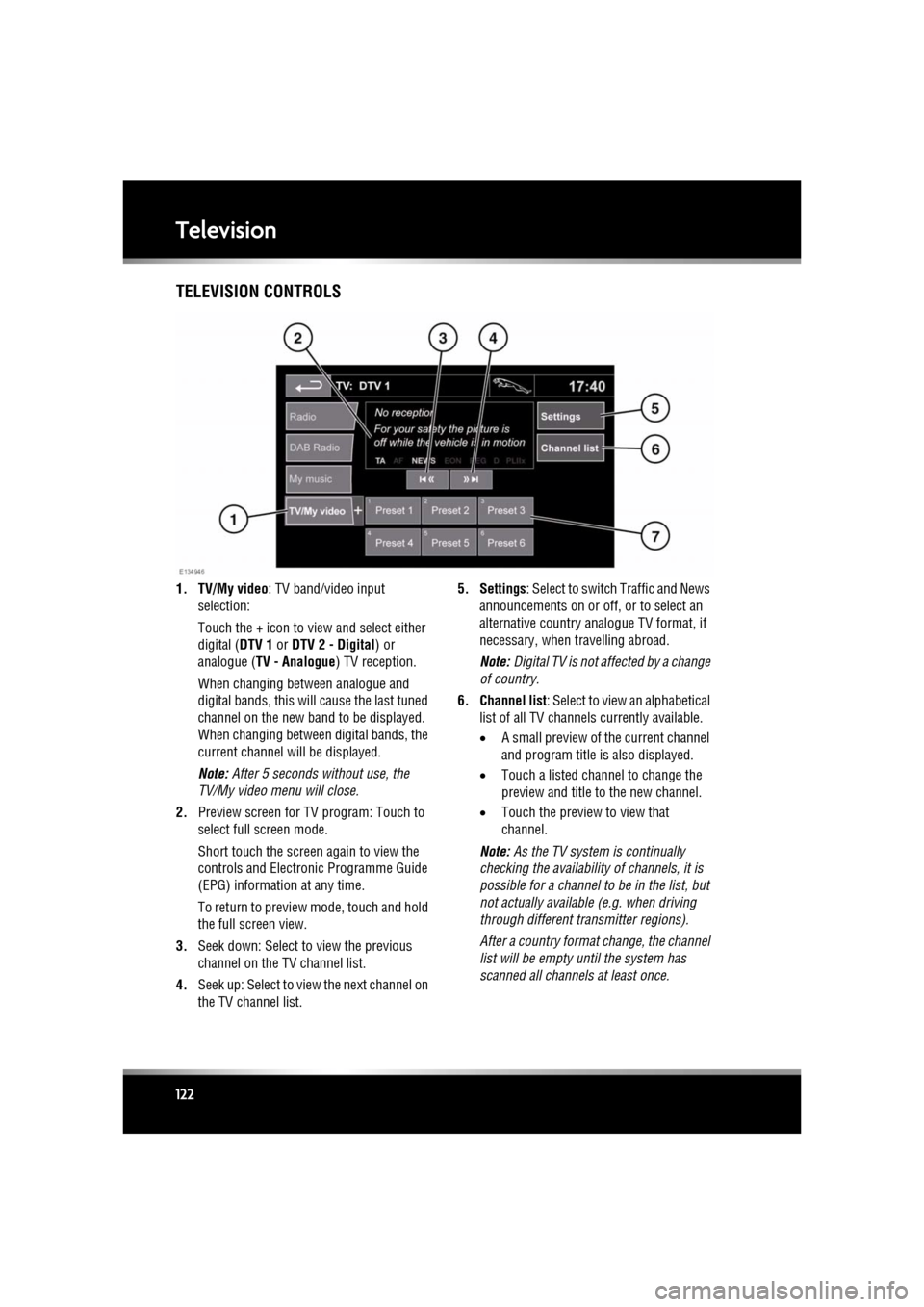
TelevisionTELEVISION CONTROLS
1. TV/My video : TV band/video input
selection:
Touch the + icon to view and select either
digital ( DTV 1 or DTV 2 - Digital ) or
analogue ( TV - Analogue ) TV reception.
When changing between analogue and
digital bands, this will cause the last tuned
channel on the new band to be displayed.
When changing between digital bands, the
current channel wi ll be displayed.
Note: After 5 seconds without use, the
TV/My video menu will close.
2. Preview screen for TV program: Touch to
select full screen mode.
Short touch the screen again to view the
controls and Electronic Programme Guide
(EPG) information at any time.
To return to preview mode, touch and hold
the full screen view.
3. Seek down: Select to view the previous
channel on the TV channel list.
4. Seek up: Select to view the next channel on
the TV channel list. 5. Settings
: Select to switch Traffic and News
announcements on or off, or to select an
alternative country an alogue TV format, if
necessary, when travelling abroad.
Note: Digital TV is not af fected by a change
of country.
6. Channel list : Select to view an alphabetical
list of all TV channels currently available.
• A small preview of the current channel
and program title is also displayed.
• Touch a listed channel to change the
preview and title to the new channel.
• Touch the preview to view that
channel.
Note: As the TV system is continually
checking the availability of channels, it is
possible for a channel to be in the list, but
not actually availabl e (e.g. when driving
through different tr ansmitter regions).
After a country format change, the channel
list will be empty unt il the system has
scanned all channe ls at least once.
Page 134 of 225
L
(FM8) SEMCON JLR OWNER GUIDE VER 1.00 EURO
LANGUAGE: english-en; MARQUE: jaguar; MODEL: XF
Navigation system
134
Navigation systemTHE NAVIGATION SYSTEM
Navigation instruction is by map and turn
information displayed on the touch screen and
can be complemented by voice guidance if
required. The system uses signals from Global
Positioning System (GPS) satellites combined
with information from vehicle sensors and
from data stored on the hard drive, to establish
the true vehicle position.
Note: Mapping data loaded on the hard drive is
relevant to the market in which the vehicle is
first sold and will provide guidance and
information only for that area. Your local Dealer
will have details of software updates.
Using this combination of data sources the
vehicle navigation com puter enables you to
plan and follow a route map to your desired
destination.
The touch screen is used to control navigation
via menus, text screens and map displays.
Operate the system only when it is
safe to do so.
The requirements of na tional Road Traffic
Regulations always apply.
Observation of traffic signs and local traffic
regulations always take priority.
The navigation system serves solely as an aid
to navigation. In part icular, the navigation
system cannot be used as an aid to orientation
when visibility is poor.
GPS signals may occasion ally be interrupted
due to physical barriers such as tunnels and
roads under raised highways.
However, direction and speed sensors on the
vehicle will minimise any adverse effect on the
navigation system. Normal operation will
resume once the obstruc tion has been passed. Under certain conditions it is possible for the
vehicle position show
n on screen to be
incorrect. This may happen when:
• Driving on a spiral ramp in a building.
• Driving on or beneath elevated roads.
• Two roads are close and parallel.
• The vehicle is transported to another
destination.
• After the vehicle is rotated on a turntable.
• After vehicle batte ry disconnection.
USING THE NAVIGATION SYSTEM
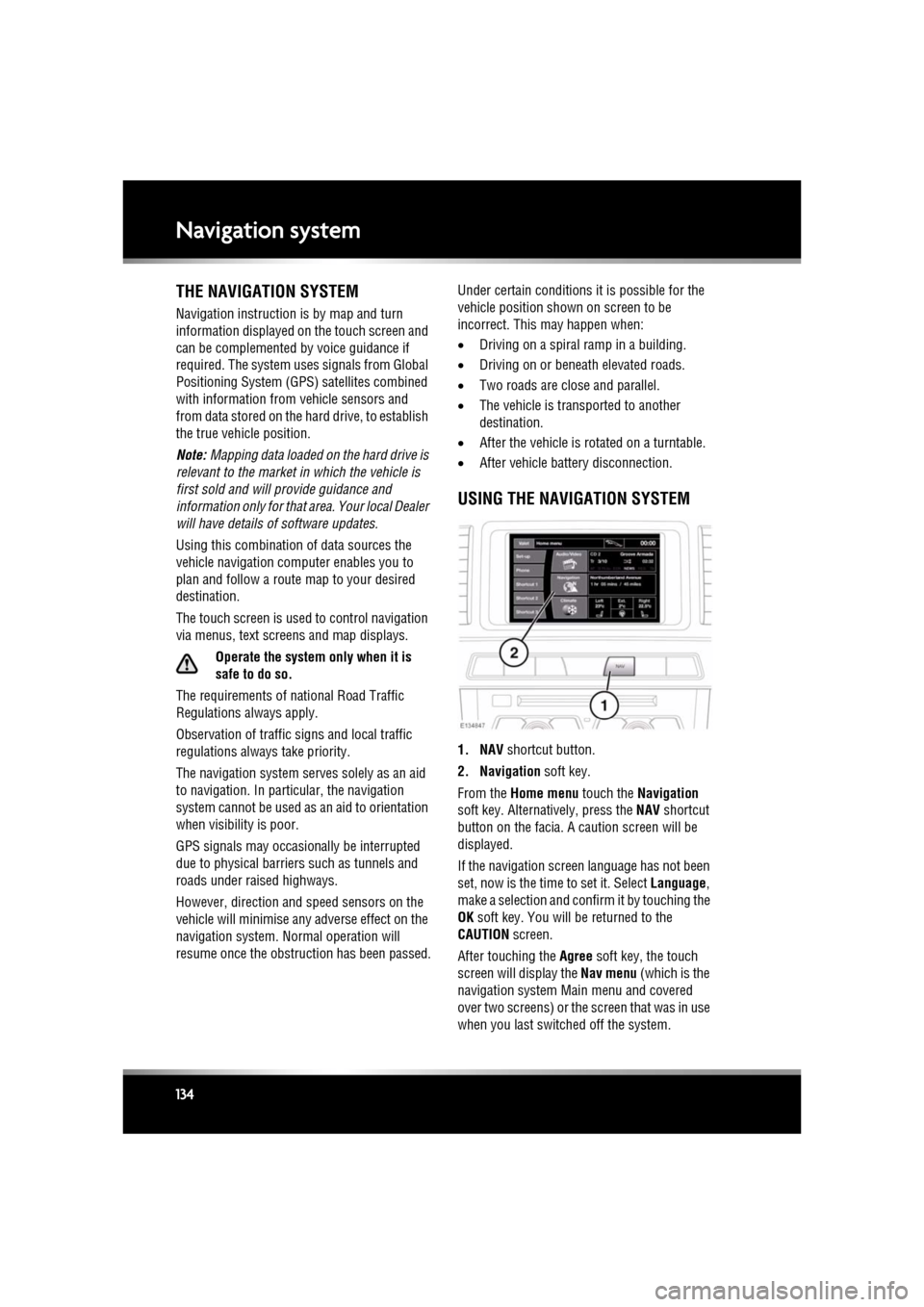
1. NAV shortcut button.
2. Navigation soft key.
From the Home menu touch the Navigation
soft key. Alternatively, press the NAV shortcut
button on the facia. A caution screen will be
displayed.
If the navigation screen language has not been
set, now is the time to set it. Select Language,
make a selection and confirm it by touching the
OK soft key. You will be returned to the
CAUTION screen.
After touching the Agree soft key, the touch
screen will display the Nav menu (which is the
navigation system Ma in menu and covered
over two screens) or the screen that was in use
when you last switched off the system.
Page 136 of 225

L
(FM8) SEMCON JLR OWNER GUIDE VER 1.00 EURO
LANGUAGE: english-en; MARQUE: jaguar; MODEL: XF
Navigation system
136
4. Route voice guidance: Allows the voice
guidance messages to be turned off for the
current journey. The soft key is highlighted
while voice guidance is enabled.
5. Detour: Allows a detour from the current route.
6. Return to map : Advances to the main map
screen.
7. Nav set-up : Settings for the navigation
system.
8. Map POI off : Turns the POI (Point Of
Interest) icons on the map on/off.
9. TMC (Traffic Message Channel): Not used
for entering a destination but, when
enabled, will provide data about road
conditions and any even ts that may affect
the journey.
10. More...: Displays the other Nav menu screen.
11. Stored locations : Manages the stored
locations.
12. Stop guidance: Cancels current route guidance.
13. Destination entry : Provides a choice of
options for entering a destination.
Page 137 of 225
R
(FM8) SEMCON JLR OWNER GUIDE VER 1.00 EURO
LANGUAGE: english-en; MARQUE: jaguar; MODEL: XF
Navigation system
137
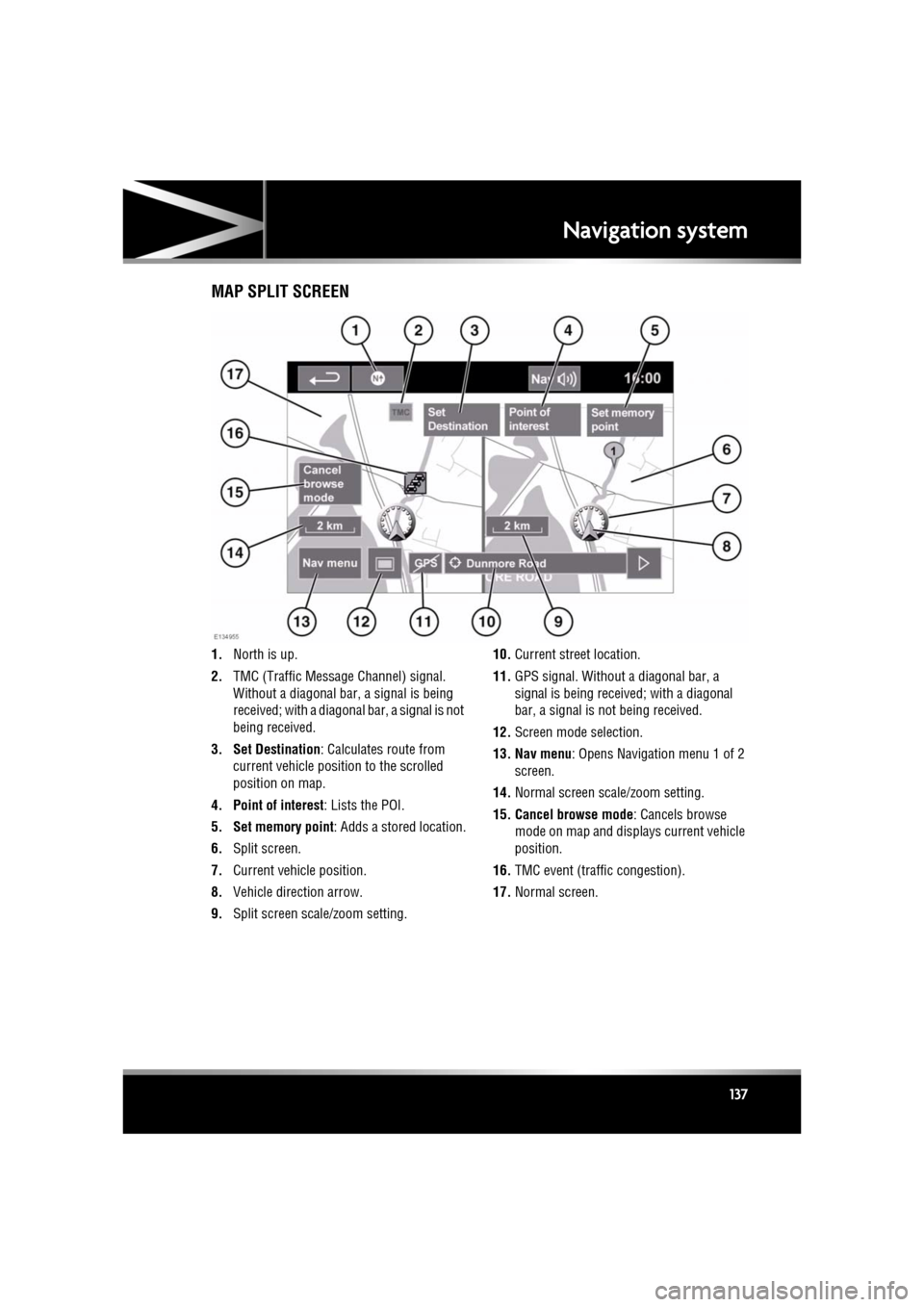
MAP SPLIT SCREEN
1. North is up.
2. TMC (Traffic Messag e Channel) signal.
Without a diagonal bar, a signal is being
received; with a diagonal bar, a signal is not
being received.
3. Set Destination : Calculates route from
current vehicle position to the scrolled
position on map.
4. Point of interest : Lists the POI.
5. Set memory point : Adds a stored location.
6. Split screen.
7. Current vehicle position.
8. Vehicle direction arrow.
9. Split screen scale/zoom setting. 10.
Current street location.
11. GPS signal. Without a diagonal bar, a
signal is being received; with a diagonal
bar, a signal is not being received.
12. Screen mode selection.
13. Nav menu : Opens Navigation menu 1 of 2
screen.
14. Normal screen scale/zoom setting.
15. Cancel browse mode : Cancels browse
mode on map and displays current vehicle
position.
16. TMC event (traff ic congestion).
17. Normal screen.
Page 139 of 225

R
(FM8) SEMCON JLR OWNER GUIDE VER 1.00 EURO
LANGUAGE: english-en; MARQUE: jaguar; MODEL: XF
Navigation system
139
START GUIDANCE
After selecting a destination, the system will
calculate the route.
There is now a choice to select 3 Routes,
Change route or to Start navigation guidance.
Touch 3 Routes to display a choice of three
different route options on the map.
The roads on the map are drawn in three
different colours to highlight each route.
EcoRoute helps you find the most fuel efficient
route available. A display of three leaves
indicates the most fuel efficient route.
Select route 1, 2 or 3 by touching the
respective box displaye d on the right side of
the map.
Touch Change Route followed by Route prefs.
to change the route setti ngs. If a destination is
already set, touch Waypoint to add a waypoint
in the journey if required.
When you have made your selection, if any,
touch Go.
Note: As you approach a j unction, in addition
to the voice guidance, an inset on the map will
display an enlarged view of the junction.
EASY ROUTE
In Route options , Easy Route can be turned On
or Off .
When On is selected, Easy Route changes the
calculation parameters of Route 3 in order to
reduce:
• Junctions.
• Turns.
• Turns that cross traffic.
• The priority of minor roads.
• Complex junction s and manoeuvres.
LEARN ROUTE
In Route options , Learn Route can be turned
On or Off.
When On is selected, if you make the same
deviation from the proposed route three times,
then the system will memorize the deviation
and offer that as the normal route from then on.
Select Reset all routes to delete any learnt
routes and return to the default settings.
VOICE GUIDANCE
To turn voice guidance on or off but maintain
route guidance, proceed as follows:
1. Touch Nav menu on the navigation screen.
2. Touch the Route voice guidance soft key.
The soft key will be highlighted when voice
guidance is enabled.
CANCEL ROUTE GUIDANCE
To cancel route guidance, proceed as follows:
1. Touch Nav menu on the navigation screen.
2. Touch the Cancel guidance soft key.
QUICK POI SELECTION
Touch the Map screen to display the POI
button. Touch the POI (Point of interest)
button. The screen shows six suggested
categories, five of which can be selected as
quick points of interest.
Note: The POI icons will not be shown if the
map zoom level is greate r than 1 km (½ mile).
Select a Quick POI category, or select More to
see further POIs. Touch OK to confirm a
selection.
The map screen with the POI icon(s) is
displayed. Select the five POIs you wish to see
when the Quick POIs are displayed.
Page 142 of 225

L
(FM8) SEMCON JLR OWNER GUIDE VER 1.00 EURO
LANGUAGE: english-en; MARQUE: jaguar; MODEL: XF
Navigation system
142
LIST SOFT KEY
The List button can be used when the
characters entered reduce the possible entries
to a small enough number.
You can also select List (when active) without
entering a POI name. All the relevant points of
interest will be displayed, e.g. in a selected
town or category.
ALL SOFTKEY
The All button shows a list of all POI
categories.
LOCAL POI SEARCH
This selects the points of interest in all
categories within 32 kilometres (20 miles) of
the vehicle.
• Touch the All Local POIs button.
RDS-TMC OVERVIEW
RDS-TMC (Radio Data System-Traffic
Message Channel) is a feature that announces
traffic hold-ups on your route as broadcast by
radio stations that transmit TMC information.
Touch the TMC button on the Navigation Menu
to access the TMC menu.
TMC events ahead on route can be displayed by
touching the Events ahead soft key. TMC can
be set to display on the map for all events, for
major events or can be switched off. During
route calculation, it can be set to avoid TMC
events along the route.
RDS-TMC DISPLAY
When a TMC signal is received the icon in the
top left of the screen will appear green. If a TMC
signal is not being received, the icon will be
shown with a bar through it.
The system will inform the driver of any
roadworks, narrow road, contraflow,
accidents, slippery road, diversion,
information, parking in formation, congestion
or other hazard.
The driver is informed of a traffic event as
follows:
• A TMC Event icon shown on the map at the
location of the event.
• Text can be displaye d showing the details
of each occurrence which can be selected
either by touching the screen icon or from
the traffic information list.
• Dynamic route guidance, which calculates
an alternative route when the system
receives the traffic event warning affecting
the route currently set in the navigation
system.
• Traffic event list shows all events sorted by
road name/ distance on your selected route
in a straight line or along your actual route.
The information rega rding the hold-up is
maintained and updated even if the vehicle
crosses into another country.
Page 143 of 225
R
(FM8) SEMCON JLR OWNER GUIDE VER 1.00 EURO
LANGUAGE: english-en; MARQUE: jaguar; MODEL: XF
Navigation system
143
RDS-TMC ICONS
Any traffic event (broadcast on TMC) in your
area, will be displayed as a warning icon on the
map and an alert may be displayed as a
message giving the road number(s) and
between which junctions the hold-up or event
occurs.
This data is stored in th e system for up to of 30
minutes.
The colour of the TMC icon changes in order to
show the type and priority of a TMC event. The
background colour of the icon returns to
normal when there is no longer an event or
hold-up, or if any re-route instructions are
calculated.
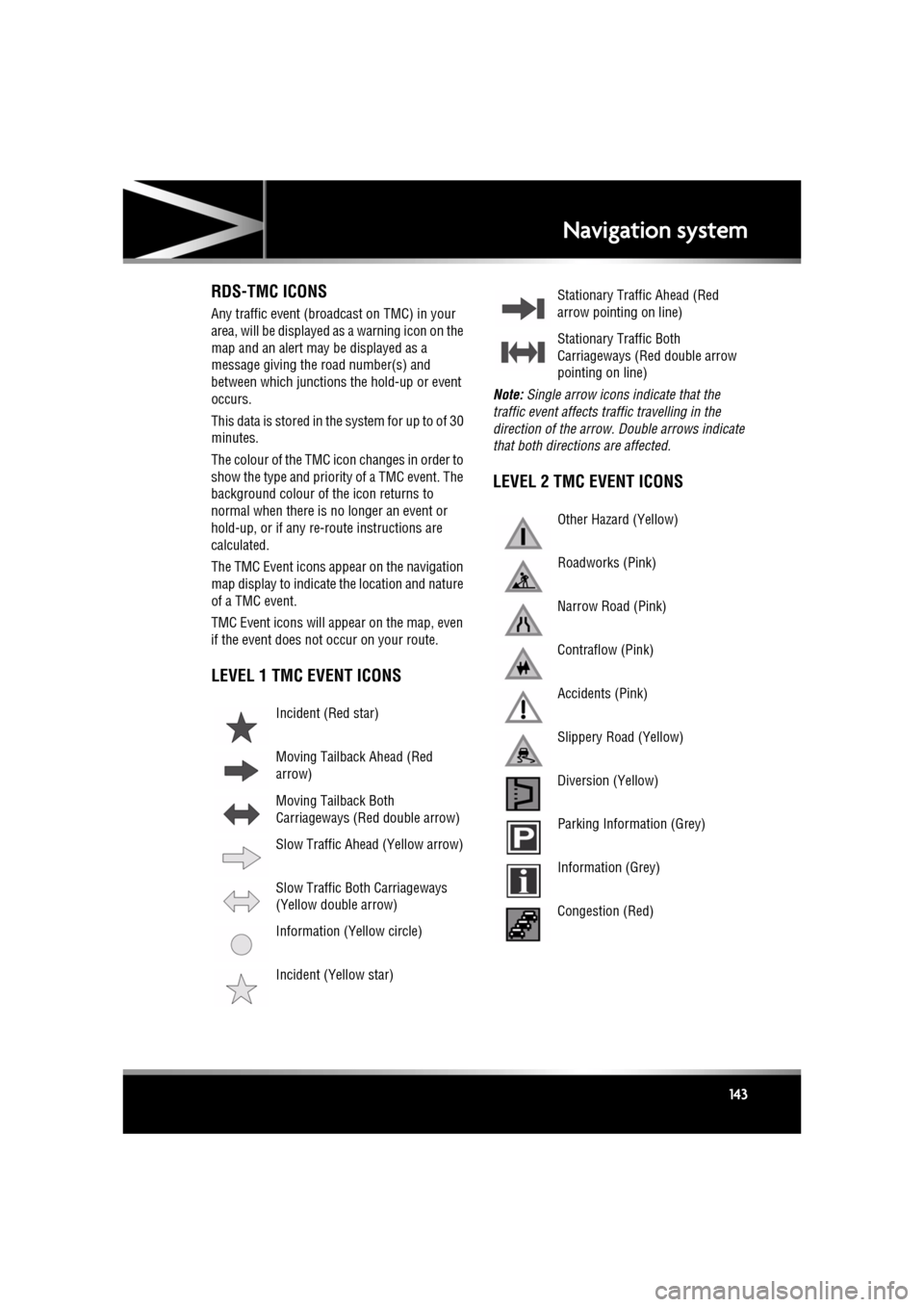
The TMC Event icons appear on the navigation
map display to indicate the location and nature
of a TMC event.
TMC Event icons will appear on the map, even
if the event does not occur on your route.
LEVEL 1 TMC EVENT ICONS
Note: Single arrow icons i ndicate that the
traffic event affects traffic travelling in the
direction of the arrow. Double arrows indicate
that both directions are affected.
LEVEL 2 TMC EVENT ICONS
Incident (Red star)
Moving Tailback Ahead (Red
arrow)
Moving Tailback Both
Carriageways (Red double arrow)
Slow Traffic Ahead (Yellow arrow)
Slow Traffic Both Carriageways
(Yellow double arrow)
Information (Yellow circle)
Incident (Yellow star)
Stationary Traffic Ahead (Red
arrow pointing on line)
Stationary Traffic Both
Carriageways (Red double arrow
pointing on line)
Other Hazard (Yellow)
Roadworks (Pink)
Narrow Road (Pink)
Contraflow (Pink)
Accidents (Pink)
Slippery Road (Yellow)
Diversion (Yellow)
Parking Information (Grey)
Information (Grey)
Congestion (Red)
Page 144 of 225

L
(FM8) SEMCON JLR OWNER GUIDE VER 1.00 EURO
LANGUAGE: english-en; MARQUE: jaguar; MODEL: XF
Navigation system
144
USING TMC
Dynamic route guidance will calculate an
alternative route to avoid a traffic event when
the system receives an event warning.The
system calculates a new route for all sections.
However, if any way points are set, the system
calculates for the next way point.If the event on
route is serious (closed road) or if the new
route is shorter than the current one and the
current one was not recalc ulated within the last
5 minutes, then a message to confirm the new
route will be displayed. This pop-up message
will be displayed for 10 minutes and if the new
route is not rejected, th en the vehicle will follow
the new route.
ORDNANCE SURVEY DATA
Please read this agreement carefully before
using the Navi gation System.
This is a licence agreement to use the
Ordnance Survey (OS) Code-Point data
incorporated in the Navigation System. By
using this Code-Point data you accept and
agree to all the term s and conditions below.
OWNERSHIP
The OS Code-Point data is licensed by
Ordnance Survey with permission of Her
Majesty’s Stationery Office. © Crown
Copyright. All rights reserved.
LICENCE GRANT
OS grants you a non-excl usive licence to use
your copy of the OS Code-Point data for your
personal use solely as pa rt of the Navigation
System. You may transfer the licence to a
subsequent purchaser of the vehicle with
which the Navigation Sy stem is supplied,
provided that the purchaser agrees to abide by
each of the terms of this licence.
LICENCE TERMS
These licence terms ar e governed by English
Law and are subject to the exclusive
jurisdiction of the English courts.
LIMITATIONS OF USE
The DATABASE is restricted for use in the
specific system for which it was created.
Except to the extent ex plicitly permitted by
mandatory applicable laws, you may not
extract or re-utilise s ubstantial parts of the
contents of the DATA BASE, not reproduce,
copy, modify, adapt, translate, disassemble,
decompile, or reverse e ngineer any portion of
the DATABASE.
LIMITATION OF LIABILITY
The price of the DATABASE does not include
any consideration for assumption of risk of
consequential, indirect or unlimited direct
damages which may aris e in connection with
your use of the DATABASE.
Accordingly, in no event shall NAVTEQ
Corporation or supplie r of the navigation
system using the DATA BASE (‘Supplier’) be
liable for any consequentia l, special, incidental
or indirect damage s, including without
limitation, loss of re venue, data, or use,
incurred by you or any th ird party arising out of
your use of the DATABASE, whether in an
action in contract or tort or based on a
warranty, even if NAVTEQ Corporation or the
Supplier has been advised of the possibility of
such damages. In any event, NAVTEQ
Corporation’s liability for direct damages is
limited to the price of your copy of the
DATABASE.
Page 145 of 225
R
(FM8) SEMCON JLR OWNER GUIDE VER 1.00 EURO
LANGUAGE: english-en; MARQUE: jaguar; MODEL: XF
Navigation system
145
THE DISCLAIMER OF WARRANTY AND
LIMITATION OF LIABILITY, SET FORTH IN
THIS AGREEMENT, DO NOT AFFECT OR
PREJUDICE YOUR STATUTORY RIGHTS
WHERE YOU HAVE ACQUIRED THE
DATABASE OTHERWISE THAN IN THE
COURSE OF A BUSINESS. Some states and
laws do not allow the exclusion of implied
warranties, so the above disclaimer may not
apply to you.
The DATABASE reflects reality as
existing before you received the
DATABASE and it comprises data and
information from government and
other sources, which may contain
errors and omissions. Accordingly,
the DATABASE may contain inaccurate
or incomplete information due to the
passage of time, changing
circumstances, and due to the nature
of the sources used. The DATABASE
does not include or reflect information
on - inter alia - neighbourhood safety;
law enforcement; emergency
assistance; construction work; road or
lane closures; vehicle or speed
restrictions; road slope or grade;
bridge height, weight or other limits;
road or traffic conditions; special
events; traffic congestion; or travel
time.NAVTEQ CORPORATION
Please read this agreement carefully before
using the Navigation System.
This is a licence agreement for your copy of the
Navigable Map Database , (the ‘DATABASE’)
originally made by NAVTEQ Corporation), used
in the Navigation Sy stem. By using this
DATABASE you accept and agree to all the
terms and conditions below.
OWNERSHIP
The DATABASE and the copyrights and
intellectual property or neighbouring rights
therein are owned by NAVTEQ Corporation or
its licensors.
LICENCE GRANT
NAVTEQ Corporation grants you a
non-exclusive licence to use your copy of the
DATABASE for your personal use or for use in
your business’ internal operations. This license
does not include the right to grant
sub-licenses.
LIMITATIONS OF USE
The DATABASE is restricted for use in the
specific system for which it was created.
Except to the extent ex plicitly permitted by
mandatory applicable laws, you may not
extract or re-utilise s ubstantial parts of the
contents of the DATA BASE, not reproduce,
copy, modify, adapt, translate, disassemble,
decompile, or reverse engineer any portion of
the DATABASE.
Page 149 of 225
R
(FM8) SEMCON JLR OWNER GUIDE VER 1.00 EURO
LANGUAGE: english-en; MARQUE: jaguar; MODEL: XF
Tyre repair kit
149
USING THE TYRE REPAIR KIT
Avoid skin contact with the sealant
which contains natural rubber latex.
If the tyre inflation pressure does not
reach 1.8 bar (26 psi, 180 kPa) within
seven minutes, the tyre may have
suffered excessive damage. A
temporary repair will not be possible,
and the vehicle should not be driven
until the tyre has been replaced.
Before attempting a tyre repair, ensure
that the vehicle is parked safely, as far
away from passing traffic as possible.
Ensure that the parking brake is applied
and P (Park) is selected.
Do not attempt to remove foreign
objects such as nails, screws, etc. from
the tyre.
Always run the engine when using the
compressor, unless the vehicle is in an
enclosed or poorly ventilated space, as
this may cause asphyxiation.
To prevent overheatin g, do not operate
the compressor continuously for longer
than ten minutes.
Note: All vehicle drivers and occupants should
be made aware that a temporary repair has
been made to a tyre fitt ed to the vehicle. They
should also be made aware of the special
driving conditions im posed when using a
repaired tyre.
REPAIR PROCEDURE
Check the tyre sidewall prior to
inflation. If there are any cracks,
bumps or similar damage, do not
attempt to inflate the tyre. Do not
stand directly besi de the tyre while
the compressor is pumping. Watch the
tyre sidewall. If any cracks, bumps or
similar damage appear, turn off the
compressor and let the air out by
means of the pressure relief valve. Do
not continue to use the tyre.
1. Open the tyre repair kit and peel off the
maximum speed label. Attach the label to
the facia in the driver's field of vision. Take
care not to obstruct an y of the instruments
or warning lights.
2. Uncoil the compressor power cable and
the inflation hose.
3. Unscrew the orange cap from the sealant
bottle receiver and the sealant bottle cap.
4. Screw the sealant bottle into the receiver
(clockwise) until tight.
•Screwing the bottle onto the receiver
will pierce the bottle's seal. Once the
receiver has been fitted, a ratchet
prevents it from being removed.
5. Remove the valve cap from the damaged
tyre.
6. Remove the protective cap from the
inflation hose and connect the inflation
hose to the tyre valve. Ensure that the hose
is screwed on firmly.
7. Ensure that the compressor switch is in the
off ( 0) position.
8. Insert the power cable connector into the
auxiliary power socket.
9. Unless the vehicle is in an enclosed area,
start the engine.