Switch JAGUAR XF 2010 1.G Workshop Manual
[x] Cancel search | Manufacturer: JAGUAR, Model Year: 2010, Model line: XF, Model: JAGUAR XF 2010 1.GPages: 225, PDF Size: 8 MB
Page 118 of 225

L
(FM8) SEMCON JLR OWNER GUIDE VER 1.00 EURO
LANGUAGE: english-en; MARQUE: jaguar; MODEL: XF
Portable media
118
PAIRING AND CONNECTING A
BLUETOOTH® DEVICE USING THE
TOUCH SCREEN
For further informatio n on Bluetooth®, see
129, BLUETOOTH® INFORMATION .
1. Switch on your device’s Bluetooth®
connection. Make sure that it is in
Bluetooth® discov erable mode,
sometimes referred to as find me mode
(see your device’s operating instructions
for more information).
2. Switch on the ignition and ensure the touch
screen is active.
3. From the Home menu, select Audio/Video,
then My Music .
4. A menu will appear. Select Search new.
5. Select Vehicle to device option.
6. Identify your device fr om the displayed list
and select the corresponding Pair and
connect option.
Note: If more than 5 devices are detected,
it may be necessary to use the scroll bar to
see the entire list.
7. When prompted, enter the PIN (Personal
Identification Number) code into your
device. See your device's operating
instructions for more information.
8. Once your device is paired and connected
to the system, a confirmation message will
be displayed before switching to the My
music: Bluetooth screen.
Note: Due to the duration of a Bluetooth®
search, it is advised that the time-out to home
screen feature is switched off before
attempting to search fo r Bluetooth® devices.
This setting can be changed within Set-up,
Screen, Time out home .
AUTOMATIC BLUETOOTH®
RECONNECTION
If devices have already been paired and
connected, when Bluetoot h® is selected from
the My music menu, the system will
automatically connect to th e last used device (a
confirmation pop-up appears) . If the last used
device is not present, then the system will
search for other previously connected devices
and automatically conne ct if one is found.
If no previously connect ed device is found,
Please connect device is displayed and the
Change device option is given.
LOSS OF CONNECTION
If a loss of connection between the vehicle and
the Bluetooth® device occurs, a pop-up is
displayed. Select Reconnect to automatically
restore the connection. A confirmation pop-up
will appear before the touch screen reverts to
its previous mode.
CHANGING/DISCONNECTING A
DEVICE
1. From the menu, select Change device.
2. Select Disconnect . A confirmation pop-up
will appear and then you will be given the
option to Search new or select a different
device from the list of paired devices.
Page 120 of 225
L
(FM8) SEMCON JLR OWNER GUIDE VER 1.00 EURO
LANGUAGE: english-en; MARQUE: jaguar; MODEL: XF
CD player
120
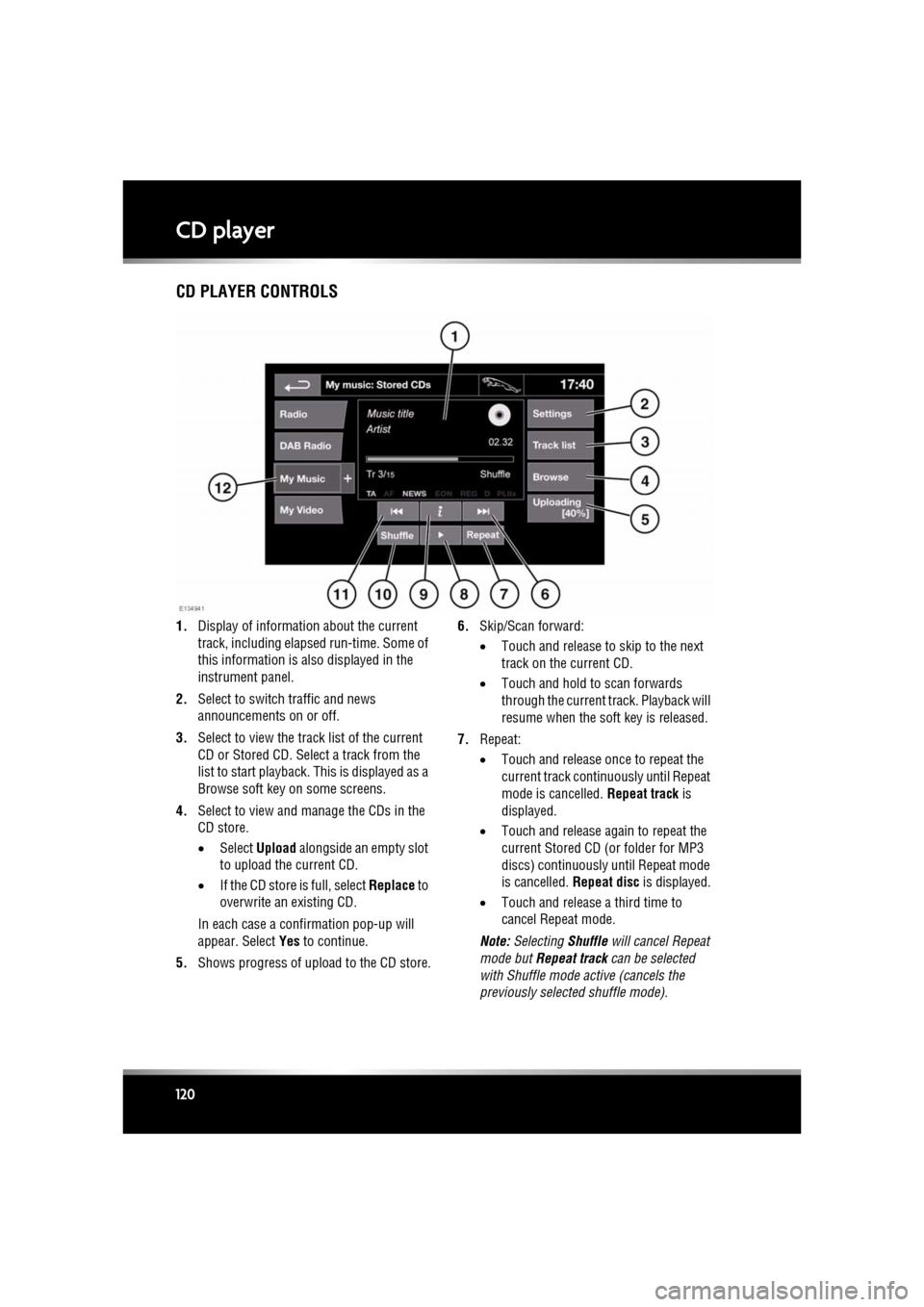
CD PLAYER CONTROLS
1. Display of information about the current
track, including elapse d run-time. Some of
this information is also displayed in the
instrument panel.
2. Select to switch traffic and news
announcements on or off.
3. Select to view the track list of the current
CD or Stored CD. Select a track from the
list to start playback. This is displayed as a
Browse soft key on some screens.
4. Select to view and manage the CDs in the
CD store.
•Select Upload alongside an empty slot
to upload the current CD.
• If the CD store is full, select Replace to
overwrite an existing CD.
In each case a confirmation pop-up will
appear. Select Yes to continue.
5. Shows progress of upload to the CD store. 6.
Skip/Scan forward:
•Touch and release to skip to the next
track on the current CD.
• Touch and hold to scan forwards
through the current track. Playback will
resume when the soft key is released.
7. Repeat:
•Touch and release onc e to repeat the
current track continuously until Repeat
mode is cancelled. Repeat track is
displayed.
• Touch and release again to repeat the
current Stored CD (or folder for MP3
discs) continuously until Repeat mode
is cancelled. Repeat disc is displayed.
• Touch and release a third time to
cancel Repeat mode.
Note: Selecting Shuffle will cancel Repeat
mode but Repeat track can be selected
with Shuffle mode active (cancels the
previously selected shuffle mode).
Page 122 of 225
L
(FM8) SEMCON JLR OWNER GUIDE VER 1.00 EURO
LANGUAGE: english-en; MARQUE: jaguar; MODEL: XF
Television
122
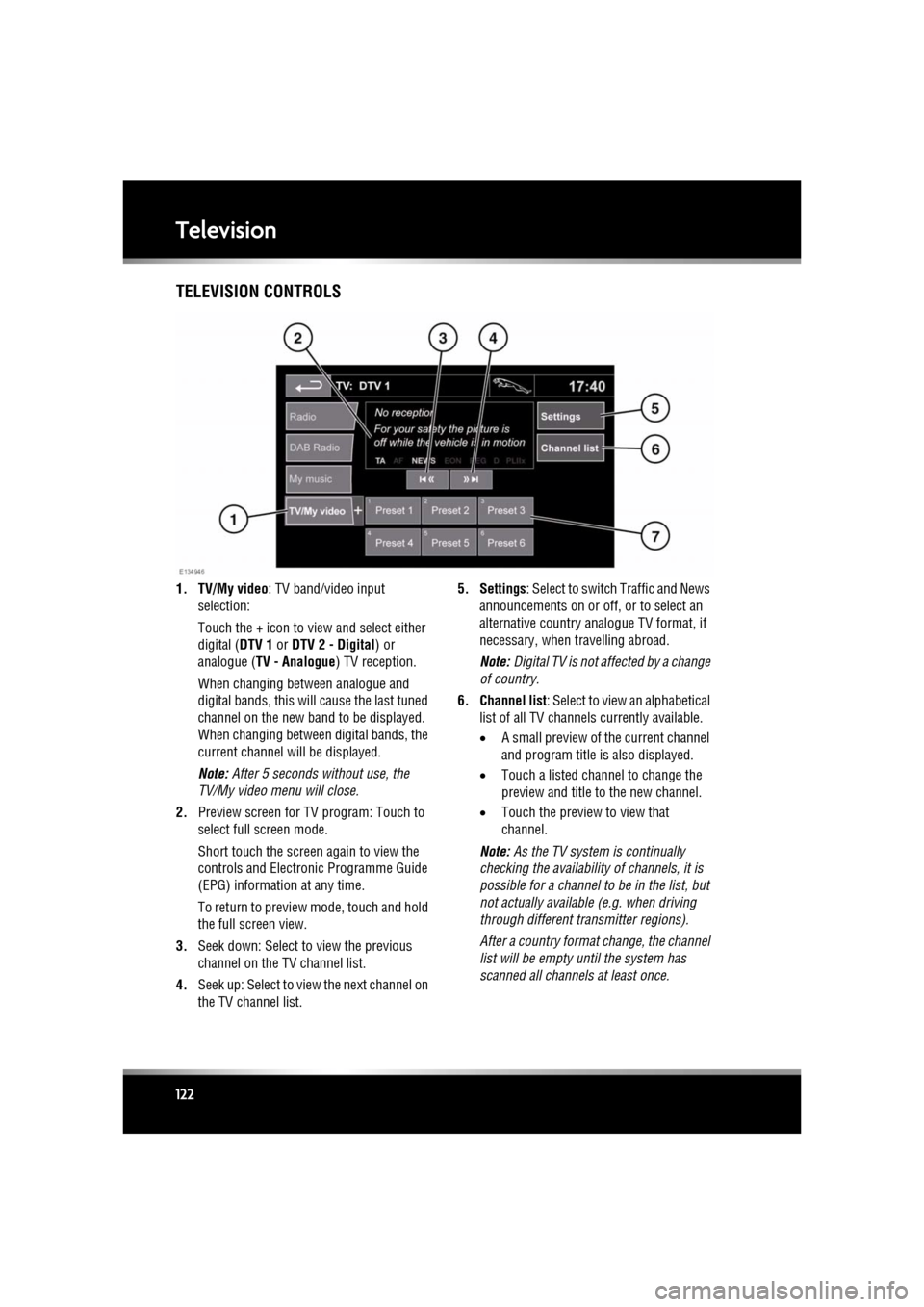
TelevisionTELEVISION CONTROLS
1. TV/My video : TV band/video input
selection:
Touch the + icon to view and select either
digital ( DTV 1 or DTV 2 - Digital ) or
analogue ( TV - Analogue ) TV reception.
When changing between analogue and
digital bands, this will cause the last tuned
channel on the new band to be displayed.
When changing between digital bands, the
current channel wi ll be displayed.
Note: After 5 seconds without use, the
TV/My video menu will close.
2. Preview screen for TV program: Touch to
select full screen mode.
Short touch the screen again to view the
controls and Electronic Programme Guide
(EPG) information at any time.
To return to preview mode, touch and hold
the full screen view.
3. Seek down: Select to view the previous
channel on the TV channel list.
4. Seek up: Select to view the next channel on
the TV channel list. 5. Settings
: Select to switch Traffic and News
announcements on or off, or to select an
alternative country an alogue TV format, if
necessary, when travelling abroad.
Note: Digital TV is not af fected by a change
of country.
6. Channel list : Select to view an alphabetical
list of all TV channels currently available.
• A small preview of the current channel
and program title is also displayed.
• Touch a listed channel to change the
preview and title to the new channel.
• Touch the preview to view that
channel.
Note: As the TV system is continually
checking the availability of channels, it is
possible for a channel to be in the list, but
not actually availabl e (e.g. when driving
through different tr ansmitter regions).
After a country format change, the channel
list will be empty unt il the system has
scanned all channe ls at least once.
Page 123 of 225

R
(FM8) SEMCON JLR OWNER GUIDE VER 1.00 EURO
LANGUAGE: english-en; MARQUE: jaguar; MODEL: XF
Television
123
7. TV channel presets:
•Long touch to store the current
channel as a preset. The channel name
will then be displayed on the soft key.
• Short touch to se lect the channel
stored on that preset.
Note: Stored presets contain information
identifying the country where the preset
was stored. When a stored preset is
selected, the TV format of that country will
be adopted. As analogue TV formats differ
in different countries , this may create a
situation where the analogue channel list is
empty.
For information on the use of the audio/video
controls, on the audio unit and steering wheel,
see 104, AUDIO/VIDEO CONTROLS .
ANALOGUE/DIGITAL TELEVISION
The TV offers both analogue and digital TV
reception. You can switch between the two
modes using the touc h screen controls.
• From the TV/My video menu, select TV/My
video again or touch the + button
alongside.
• Select the desired option from DTV 1or
DTV 2 - Digital or ATV - Analogue . There
is no difference in the reception mode
between DTV 1 and DTV 2. The preset list
is the only thing that changes.
Page 128 of 225
L
(FM8) SEMCON JLR OWNER GUIDE VER 1.00 EURO
LANGUAGE: english-en; MARQUE: jaguar; MODEL: XF
Telephone
128
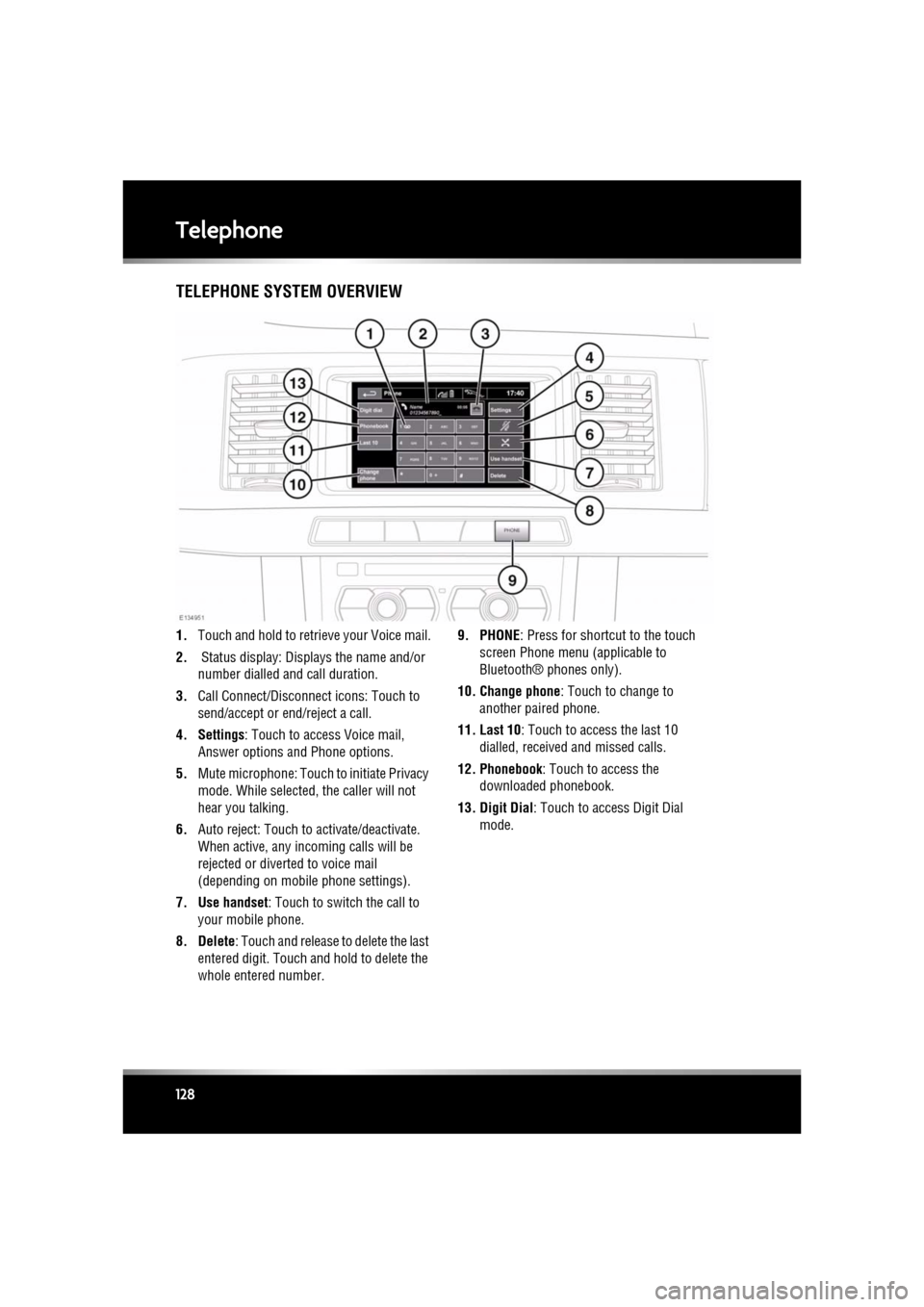
TelephoneTELEPHONE SYSTEM OVERVIEW
1. Touch and hold to retrieve your Voice mail.
2. Status display: Disp lays the name and/or
number dialled a nd call duration.
3. Call Connect/Disconn ect icons: Touch to
send/accept or e nd/reject a call.
4. Settings : Touch to access Voice mail,
Answer options and Phone options.
5. Mute microphone: Touch to initiate Privacy
mode. While selected, the caller will not
hear you talking.
6. Auto reject: Touch to activate/deactivate.
When active, any incoming calls will be
rejected or diverted to voice mail
(depending on mobile phone settings).
7. Use handset : Touch to switch the call to
your mobile phone.
8. Delete : Touch and release to delete the last
entered digit. Touch a nd hold to delete the
whole entered number. 9. PHONE
: Press for shortcut to the touch
screen Phone menu (applicable to
Bluetooth® phones only).
10. Change phone : Touch to change to
another paired phone.
11. Last 10 : Touch to access the last 10
dialled, received and missed calls.
12. Phonebook : Touch to access the
downloaded phonebook.
13. Digit Dial: Touch to access Digit Dial mode.
Page 129 of 225
R
(FM8) SEMCON JLR OWNER GUIDE VER 1.00 EURO
LANGUAGE: english-en; MARQUE: jaguar; MODEL: XF
Telephone
129
BLUETOOTH® INFORMATION
The Jaguar Bluetoot h® system supports
Bluetooth® Hands-Fre e Profile (HFP),
Advanced Audio Distribution Profile (A2DP)
and Audio Video Remote Control Profile
(AVRCP).
Note: HFP and A2DP/AVRCP profiles can be
connected independently, so a phone can be
connected via one, while a media device can be
connected via the other, at the same time.
Before making use of the vehicle’s Bluetooth
phone system, your Bl uetooth phone must be
paired and connected to the vehicle system.
This is done using one of two methods; via
your phone to the vehicl e or from the touch
screen to your phone. If one of these methods
is not successful, try the other option.
Each time the ignition is switched on the
system will attempt to connect with the last
connected phone.
As mobile phones have a wide range of audio
and echo characteristics, it may take a few
seconds for the vehicle system to adapt and
deliver optimum audio performance. To
achieve this, it may be necessary to reduce the
in-vehicle volume a nd ventilation fan speed
slightly.
TELEPHONE SAFETY
Switch off your telephone in areas
with a high explos ion risk. This
includes filling stat ions, fuel storage
areas or chemical factories, as well
as places where the air contains fuel
vapour, chemicals or metal dust. Always stow your mobile phone
securely.
The functioning of cardiac
pacemakers or hearing aids may be
impaired when the phone is in use.
Check with a doctor or manufacturer
whether any such devices you or your
passengers are using, are sufficiently
protected against high-frequency
energy.
The Health Industry Manufacturers'
Association recommends that a minimum
separation of 15 centimetres (six inches) is
maintained between a wireless phone antenna
and a pacemaker, to avoid potential
interference with the pacemaker. These
recommendations are consistent with the
independent research by, and
recommendations of, Wi reless Technology
Research.
Bluetooth® is the name for
short-range radio frequency (RF)
technology that allows electronic
devices to communicate
wirelessly with each other.
Page 130 of 225

L
(FM8) SEMCON JLR OWNER GUIDE VER 1.00 EURO
LANGUAGE: english-en; MARQUE: jaguar; MODEL: XF
Telephone
130
TELEPHONE COMPATIBILITY
Please refer to the Ow nership section of the
Jaguar website at www.jaguar.com, for a list
of compatible phones.
Note: The Bluetooth® equipped phones listed
on Jaguar.com, have been tested for
compatibility with Jaguar vehicles.
Performance will vary, based on the phone’s
software version, batte ry condition, coverage
and your network provider. Phones are
warranted by their ma nufacturer, not Jaguar.
If the mobile phone supports Bluetooth®
Hands Free Profile 1.5 (HFP 1.5), additional
features will be displa yed on the vehicle touch
screen, such as battery meter, signal strength
and network operator.
PAIRING AND CONNECTING USING
THE MOBILE PHONE
Note: The process of pairing and connecting
your phone with the vehi cle using the mobile
phone will vary depending on the type of
mobile phone used.
1. Switch the ignition on and ensure that the
touch screen is active.
2. From the home menu, select Phone.
3. A menu will appear. Select Search new.
4. Select Device to vehicle option.
Note: The vehicle’s Blue tooth® system is
discoverable for only 3 minutes.
5. Using the mobile phone, search for
Bluetooth® devices.
On s ome phone s, t hi s i s ref e rre d to a s ne w
paired device. See your phone's operating
instructions for further information. 6.
When the vehicle's Bluetooth® system is
discovered, begin the pairing process
using your mobile phone and follow any
directions shown on the touch screen.
Select Yes when prompted, to confirm the
pairing.
Either the phone or th e vehicle system will
ask for a PIN (Personal Identification
Number). When prompted, enter a PIN of
your choice and select OK to confirm.
7. Enter the same PIN into the other device.
8. Once your phone is paired and connected
to the system, a confirmation message will
be displayed before sw itching to the Digit
Dial screen.
Note: Some mobile phones require the
Bluetooth® pairing to be set as
‘authorised’ or ‘trusted’ in order to
automatically connect. Pl ease refer to your
phone’s operating instructions for further
information.
PAIRING AND CONNECTING USING
THE TOUCH SCREEN
1. Switch on your mobile phone’s
Bluetooth® connection. Make sure that
your mobile phone is in Bluetooth®
discoverable mode, sometimes referred to
as find me mode (see your phone’s
operating instructions for more
information).
2. Switch the ignition on and ensure the touch
screen is active.
3. From the home menu select Phone.
4. A menu will appear. Select Search new.
5. Select Vehicle to device option.
6. Identify your phone from the displayed list
and select the corresponding Pair and
connect option.
Page 131 of 225
R
(FM8) SEMCON JLR OWNER GUIDE VER 1.00 EURO
LANGUAGE: english-en; MARQUE: jaguar; MODEL: XF
Telephone
131
Note: If more than 5 phones are detected,
it may be necessary to use the scroll bar to
see the entire list.
7. When prompted, enter the PIN code into
your phone. See your phone’s operating
instructions for more information.
8. Once your phone is paired and connected
to the system, a confirmation message will
be displayed before sw itching to the Digit
Dial screen.
Note: Due to the duration of a Bluetooth®
search, it is advised that the timeout to home
screen feature is switched off before
attempting to search fo r Bluetooth® devices.
This setting can be changed within Vehicle,
Syst settings , Display set, Timeout to home
screen .
CHANGING THE CONNECTED PHONE
Up to 10 mobile phones can be paired with the
vehicle in the same way. However, only one can
be connected and ready for use as a phone at
any one time.
To connect a different paired phone to the
vehicle, follow the steps below:
1.From the home menu, select Phone.
2. A menu will appear. Select Change phone.
3. Identify and select your phone from the
displayed list.
4. Once your phone is connected to the
system, a confirmation message will be
displayed before switch ing to the Digit Dial
screen.
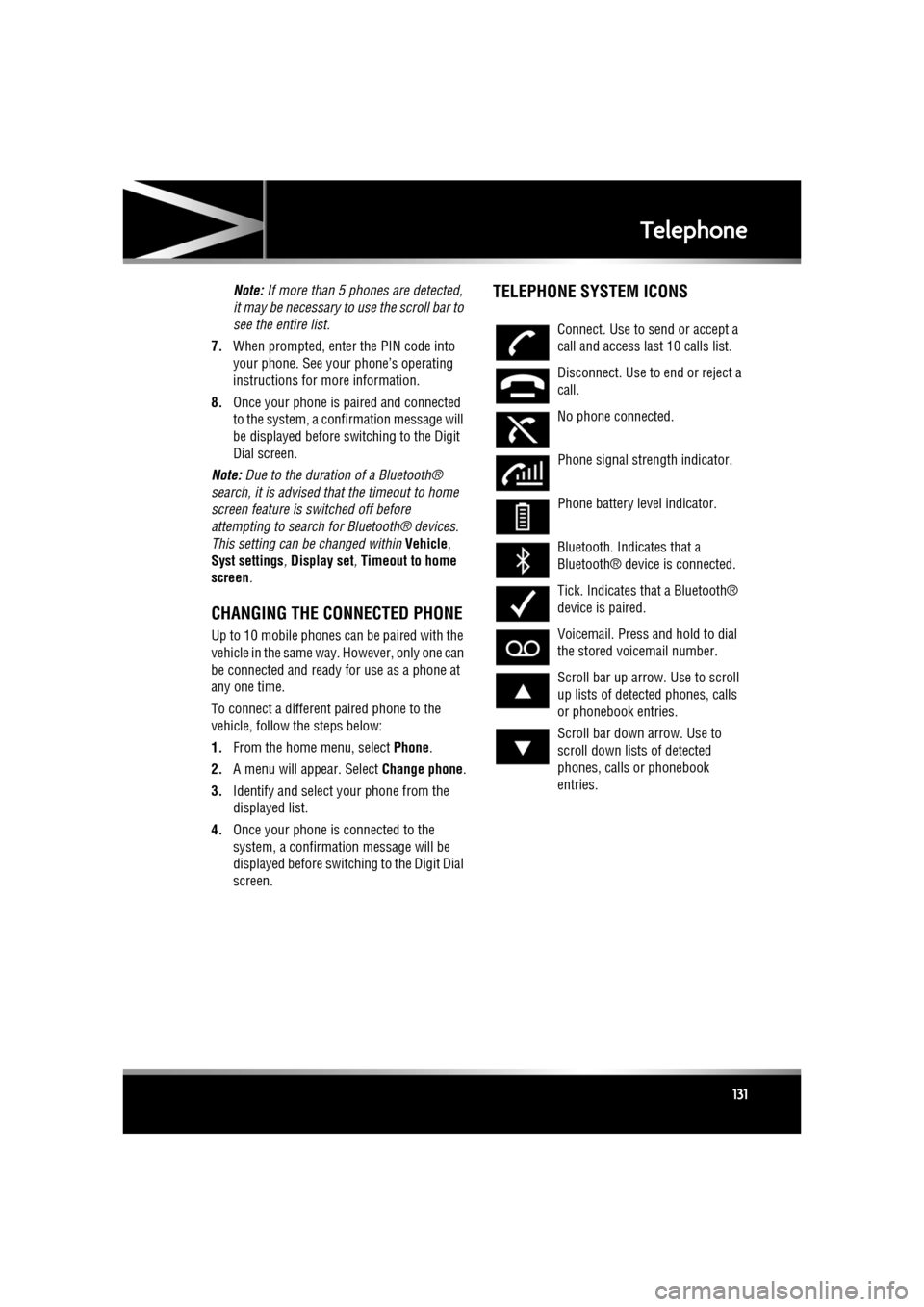
TELEPHONE SYSTEM ICONS
Connect. Use to send or accept a
call and access last 10 calls list.
Disconnect. Use to end or reject a
call.
No phone connected.
Phone signal strength indicator.
Phone battery level indicator.
Bluetooth. Indicates that a
Bluetooth® device is connected.
Tick. Indicates that a Bluetooth®
device is paired.
Voicemail. Press and hold to dial
the stored voicemail number.
Scroll bar up arrow. Use to scroll
up lists of detected phones, calls
or phonebook entries.
Scroll bar down arrow. Use to
scroll down lists of detected
phones, calls or phonebook
entries.
Page 134 of 225
L
(FM8) SEMCON JLR OWNER GUIDE VER 1.00 EURO
LANGUAGE: english-en; MARQUE: jaguar; MODEL: XF
Navigation system
134
Navigation systemTHE NAVIGATION SYSTEM
Navigation instruction is by map and turn
information displayed on the touch screen and
can be complemented by voice guidance if
required. The system uses signals from Global
Positioning System (GPS) satellites combined
with information from vehicle sensors and
from data stored on the hard drive, to establish
the true vehicle position.
Note: Mapping data loaded on the hard drive is
relevant to the market in which the vehicle is
first sold and will provide guidance and
information only for that area. Your local Dealer
will have details of software updates.
Using this combination of data sources the
vehicle navigation com puter enables you to
plan and follow a route map to your desired
destination.
The touch screen is used to control navigation
via menus, text screens and map displays.
Operate the system only when it is
safe to do so.
The requirements of na tional Road Traffic
Regulations always apply.
Observation of traffic signs and local traffic
regulations always take priority.
The navigation system serves solely as an aid
to navigation. In part icular, the navigation
system cannot be used as an aid to orientation
when visibility is poor.
GPS signals may occasion ally be interrupted
due to physical barriers such as tunnels and
roads under raised highways.
However, direction and speed sensors on the
vehicle will minimise any adverse effect on the
navigation system. Normal operation will
resume once the obstruc tion has been passed. Under certain conditions it is possible for the
vehicle position show
n on screen to be
incorrect. This may happen when:
• Driving on a spiral ramp in a building.
• Driving on or beneath elevated roads.
• Two roads are close and parallel.
• The vehicle is transported to another
destination.
• After the vehicle is rotated on a turntable.
• After vehicle batte ry disconnection.
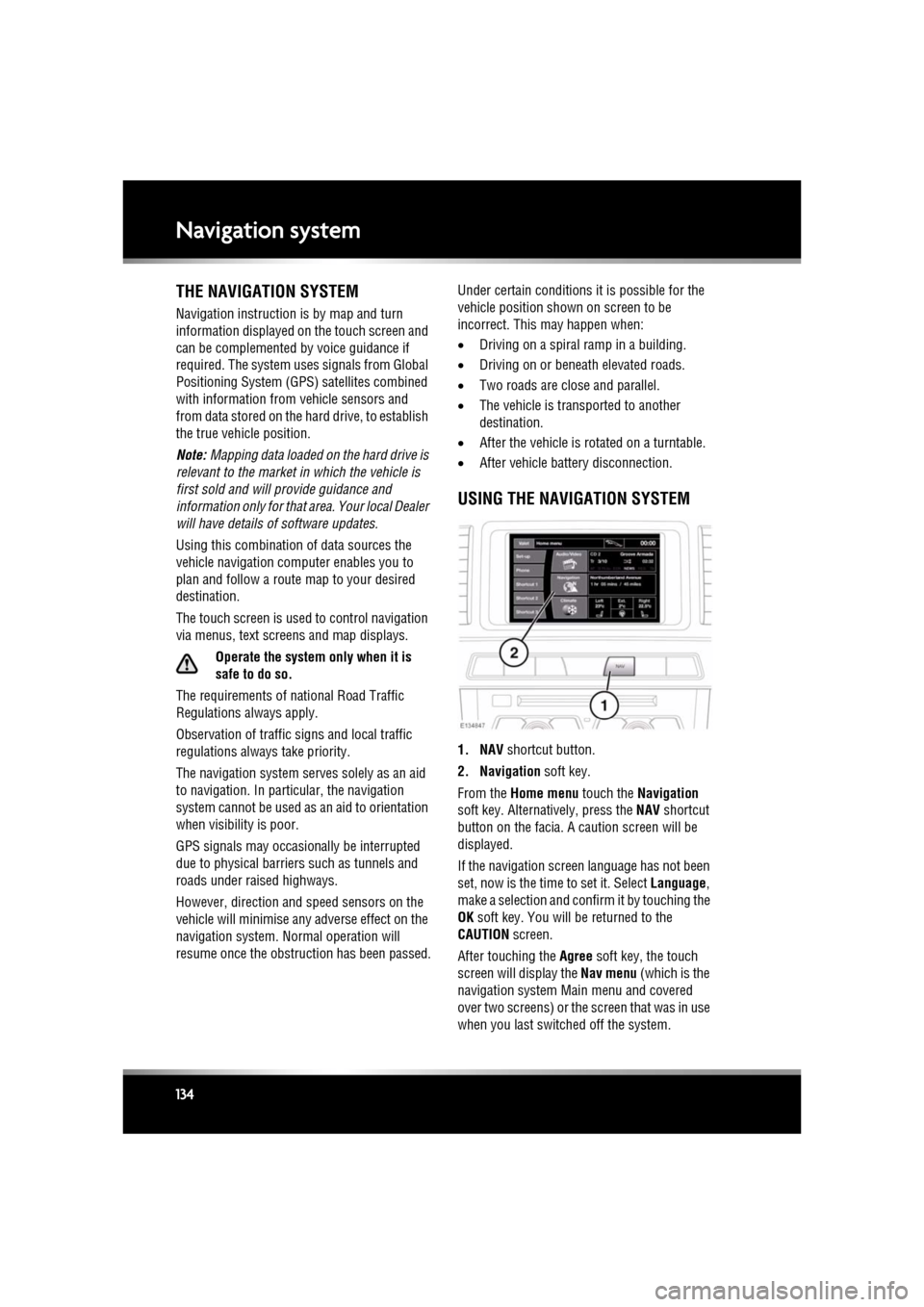
USING THE NAVIGATION SYSTEM
1. NAV shortcut button.
2. Navigation soft key.
From the Home menu touch the Navigation
soft key. Alternatively, press the NAV shortcut
button on the facia. A caution screen will be
displayed.
If the navigation screen language has not been
set, now is the time to set it. Select Language,
make a selection and confirm it by touching the
OK soft key. You will be returned to the
CAUTION screen.
After touching the Agree soft key, the touch
screen will display the Nav menu (which is the
navigation system Ma in menu and covered
over two screens) or the screen that was in use
when you last switched off the system.
Page 142 of 225

L
(FM8) SEMCON JLR OWNER GUIDE VER 1.00 EURO
LANGUAGE: english-en; MARQUE: jaguar; MODEL: XF
Navigation system
142
LIST SOFT KEY
The List button can be used when the
characters entered reduce the possible entries
to a small enough number.
You can also select List (when active) without
entering a POI name. All the relevant points of
interest will be displayed, e.g. in a selected
town or category.
ALL SOFTKEY
The All button shows a list of all POI
categories.
LOCAL POI SEARCH
This selects the points of interest in all
categories within 32 kilometres (20 miles) of
the vehicle.
• Touch the All Local POIs button.
RDS-TMC OVERVIEW
RDS-TMC (Radio Data System-Traffic
Message Channel) is a feature that announces
traffic hold-ups on your route as broadcast by
radio stations that transmit TMC information.
Touch the TMC button on the Navigation Menu
to access the TMC menu.
TMC events ahead on route can be displayed by
touching the Events ahead soft key. TMC can
be set to display on the map for all events, for
major events or can be switched off. During
route calculation, it can be set to avoid TMC
events along the route.
RDS-TMC DISPLAY
When a TMC signal is received the icon in the
top left of the screen will appear green. If a TMC
signal is not being received, the icon will be
shown with a bar through it.
The system will inform the driver of any
roadworks, narrow road, contraflow,
accidents, slippery road, diversion,
information, parking in formation, congestion
or other hazard.
The driver is informed of a traffic event as
follows:
• A TMC Event icon shown on the map at the
location of the event.
• Text can be displaye d showing the details
of each occurrence which can be selected
either by touching the screen icon or from
the traffic information list.
• Dynamic route guidance, which calculates
an alternative route when the system
receives the traffic event warning affecting
the route currently set in the navigation
system.
• Traffic event list shows all events sorted by
road name/ distance on your selected route
in a straight line or along your actual route.
The information rega rding the hold-up is
maintained and updated even if the vehicle
crosses into another country.