Start JAGUAR XF 2011 1.G Owner's Manual
[x] Cancel search | Manufacturer: JAGUAR, Model Year: 2011, Model line: XF, Model: JAGUAR XF 2011 1.GPages: 225, PDF Size: 7.32 MB
Page 79 of 225

R
(FM8) SEMCON JLR OWNER GUIDE VER 1.00 EURO
LANGUAGE: english-en; MARQUE: jaguar; MODEL: XF
Intelligent stop/start
79
Intelligent stop/startECO STOP/START
The Stop/Start system is designed to improve
fuel efficiency and is automatically activated
when the ignition is turned on. If the vehicle is
stopped (e.g. at traffic lights or in traffic), the
engine will turn off ( unless it is required to
support other vehicle systems). When the
brake is released and a drive gear is selected,
the engine will restart automatically.
To activate an automatic engine stop:
• Stop the vehicle from a speed greater than
4 km/h (2.5 mph) and apply sufficient
brake pressure to ensure the vehicle is
stationary.
• Alternatively, whilst stationary, select P
(Park) or N (Neutral).
To activate an automatic engine restart release
the brake pedal with D (Drive) or S (Sport)
selected. The engine will also restart if one of the
following occurs:
•
The accelerator pedal is pressed.
• A shift paddle is used to select a gear.
• R (Reverse) is selected.
• Climate control system demand increases.
• The vehicle’s speed exceeds approximately
1 km/h (0.5 mph).
• Battery charge becomes low.
• Brake vacuum has be en reduced (e.g.
using the brake pedal repeatedly with the
engine off).
• Stop/Start is deactivated.
The following conditions will prevent an
automatic engine stop:
• A shift paddle has been used to select a
gear.
• The external temperature is less than
approximately 0 °C (32 °F).
• The external temperature is more than
approximately 40 °C (104 °F).
• The engine has not reached operating
temperature.
• The driver's door is opened.
• The driver’s seat belt is not fastened.
• The climate control system demand
requires the engine to be running (for
example, in Defrost mode).
• The battery charge is low.
• The bonnet is opened.
• Stop/Start is deactivated.
The warning lamp in the
instrument panel
illuminates when
the engine has been switched off
by the Stop/Start system.
Page 80 of 225
L
(FM8) SEMCON JLR OWNER GUIDE VER 1.00 EURO
LANGUAGE: english-en; MARQUE: jaguar; MODEL: XF
Intelligent stop/start
80
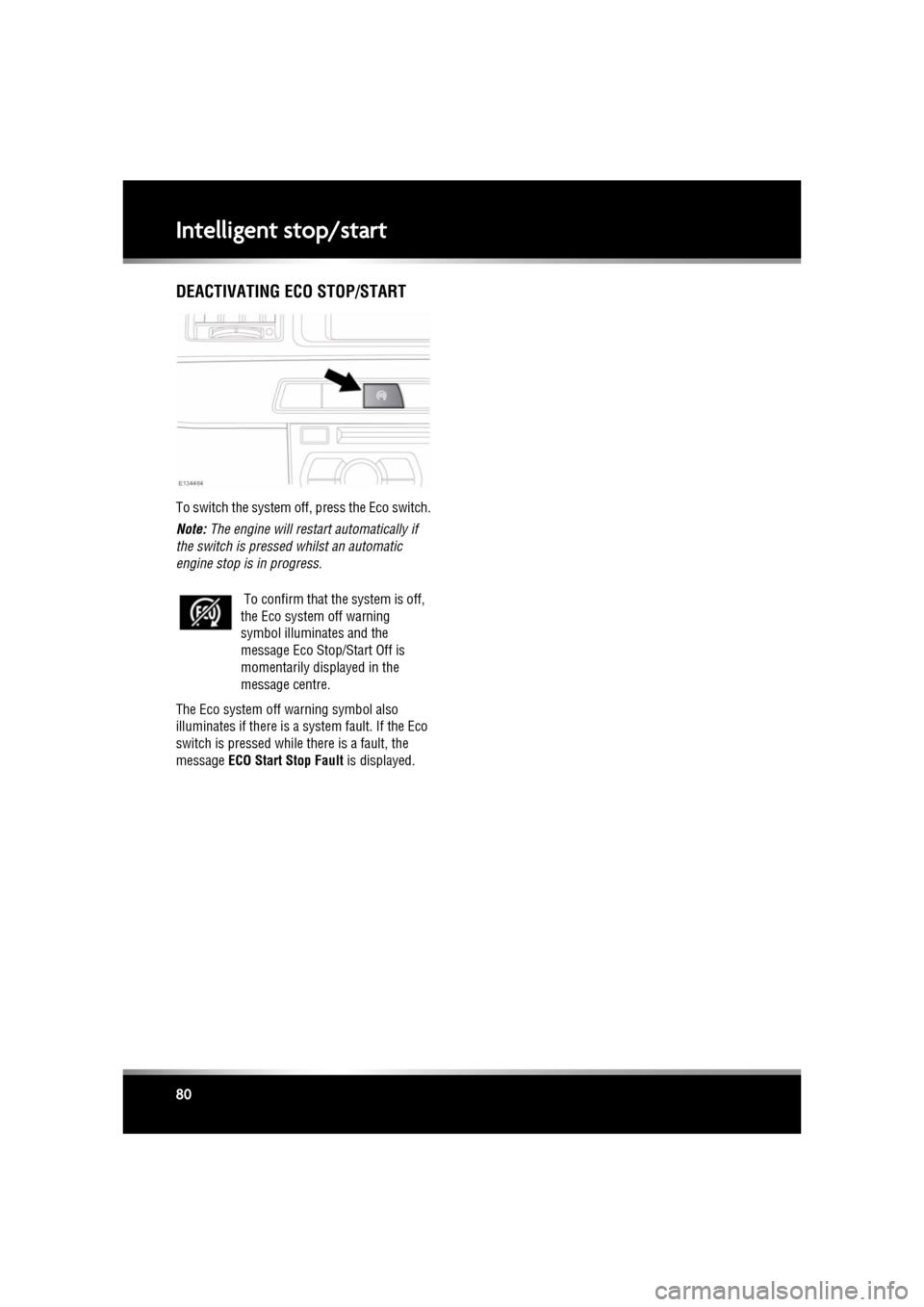
DEACTIVATING ECO STOP/START
To switch the system off, press the Eco switch.
Note: The engine will restart automatically if
the switch is pressed whilst an automatic
engine stop is in progress.
The Eco system off warning symbol also
illuminates if there is a sy stem fault. If the Eco
switch is pressed while there is a fault, the
message ECO Start Stop Fault is displayed.
To confirm that th
e system is off,
the Eco system off warning
symbol illuminates and the
message Eco Stop/Start Off is
momentarily displayed in the
message centre.
Page 82 of 225

L
(FM8) SEMCON JLR OWNER GUIDE VER 1.00 EURO
LANGUAGE: english-en; MARQUE: jaguar; MODEL: XF
Gearbox
82
Do not allow the vehicle to remain
stationary with a drive gear selected and
the engine running . Always select P or
N if the engine is to idle for a prolonged
period.
ROTARY GEAR SELECTOR
The JaguarDrive selector elevates out of the
centre console when the engine is started, in
readiness for gear selection
P should be selected before switching off the
engine. However, it is possible to switch the
engine off with R, D or S selected - the selector
will automatica lly select P, while retracting into
the centre console.
Note: If the engine is switched off with N
selected, the system will wait for 10 minutes
before selecting P. This procedure is to allow
the vehicle to be conveyed through a car wash
only and should not be used for vehicle
recovery purposes.
In the event of a vehicle breakdown, the
transmission will automatically select P. This
prevents the vehicle from being towed on all
four wheels. Therefore, vehicle recovery
should only be undertaken by suitably qualified
personnel.
IF THE SELECTOR FAILS TO ELEVATE
If the JaguarDrive selector is obstructed
remove the obstruction and then start the
engine. The selector s hould elevate as normal.
If the selector still fails to elevate, even if there
is no obstruction, a faul t in the system is
indicated. The selector ca n still be used in the
lowered position, but be aware that it will not
automatically select P when the engine is
switched off. P should be selected manually.
The fault should be re ctified by a Dealer/
Authorised Repairer at the earliest opportunity.
MANUAL GEAR SELECTION
When the gear selector is in the D position,
manual mode may be directly accessed by the
single action of operating the steering wheel
mounted shift paddles.
If continued use of manua l mode is required,
the gear selector may be subsequently moved
to the S position to enter permanent manual
mode.
If the gear selector remains in the D position,
temporary manual mode will be held whilst the
driver is accelerating, decelerating, cornering
or continuing to request shifts via the paddles.
LIMP-HOME MODE
Note: The driver should be aware that the
vehicle’s performance will be reduced and
must take this into account when driving. Also
the use of the Jaguar Sequential Shift paddles
will be disabled. In this event, seek qualified
assistance as soon as possible.
In the event of an electrical or mechanical
failure, transmission ope ration will be limited.
P , R , N , D and S may still be used to enable the
vehicle to be driven to a safe area.
Some faults will cause the selector to be locked
in position until the ignition is switched off. If
the selected range flashes, it signifies that the
driver request cannot be engaged. Re-select N
and repeat the attempt.
If the transmission is st ill unable to select the
requested gear, contact your Dealer/
Authorised Repairer.
Page 100 of 225
L
(FM8) SEMCON JLR OWNER GUIDE VER 1.00 EURO
LANGUAGE: english-en; MARQUE: jaguar; MODEL: XF
Adaptive cruise control
100
ACC MALFUNCTION
If a malfunction occurs during operation of the
system in cruise or follow modes, the ACC
system will switch off a nd cannot be used until
the fault is cleared. The message Driver
Intervene appears briefly and is then replaced
by the message Cruise Not Available . If
malfunction of the ACC or any related system
occurs at any other time, the message Cruise
Not Available will be displayed. It will not be
possible to activate the ACC system in any
mode.
Accumulations of dirt, snow or ice on the
sensor or cover may inhibit ACC operation.
Fitting of a vehicle front protector or metallised
badges may also affect ACC operation.
The ACC system relies on its radar to detect
objects and constantly scans ahead. If the
radar is unable to detect any objects ahead,
then ACC will be deactivated, the audible alarm
sounds and the message Driver Intervene
displays briefly. The message ACC Sensor
Blocked will then be displayed.
The same messages may also be displayed
while driving on open ro ads with few objects
for the radar to detect.
Clearing the obstruction fr om in front of the
sensor allows the system to return to normal
operation. If the obstr uction is present when
ACC is inactive (e.g. on initial starting or with
the ACC system switched off), the message
ACC Sensor Blocked will be displayed.
Tyres other than those recommended for your
vehicle, may have different sizes. This can
affect the correct operation of the ACC.
FORWARD ALERT FUNCTION
Limited detect ion and warning of objects
ahead, is provided duri ng ACC operation by the
ACC Forward Alert warning. The enhanced
forward alert feature additionally provides
warnings when ACC is not engaged; if an object
is detected close ahead, then the warning tone
and message will be issu ed. The brakes will not
be applied.
The forward alert system does not initiate any
action. The driver must take appropriate action
when the Forward Alert message is displayed.
However, the system monitors driver actions
(e.g. braking, steering or indicating) and may
not initiate the warning display if the
appropriate action has been taken early
enough.
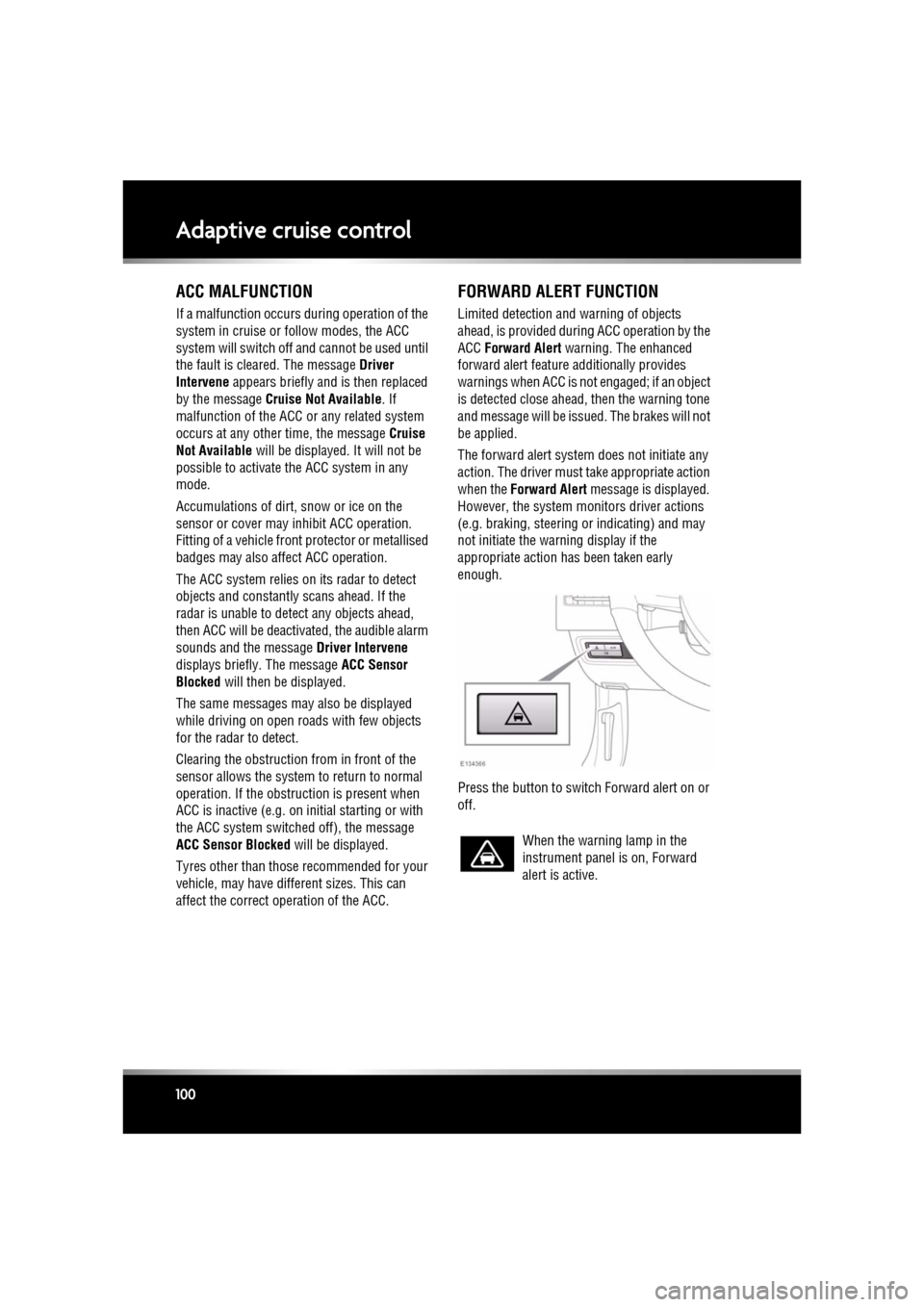
Press the button to switch Forward alert on or
off.
When the warning lamp in the
instrument panel is on, Forward
alert is active.
Page 105 of 225
R
(FM8) SEMCON JLR OWNER GUIDE VER 1.00 EURO
LANGUAGE: english-en; MARQUE: jaguar; MODEL: XF
Audio/video overview
105
7. Seek down:
Short press:
•To auto seek down the frequency to the
next radio station.
• To select the previous track or start of
current track on chosen audio source -
CD, MP3 etc.
• To select the previous TV channel on
the channel list or the previous DVD
chapter.
Long press:
• To activate radio manual seek mode.
• To skip backward through current
audio source track.
With radio manual seek mode activated,
further short presse s will change the
frequency in single decrements. A further
long press will scan backward through the
current waveband until the button is
released.
8. CD/DVD eject button.
9. Rotate to adjust volume.
10. Rotate (up or down) and release repeatedly
to scroll through:
•The radio presets.
• The previous track or start of next track
on chosen audio source - CD, MP3 etc.
11. MODE : Press repeatedly to scroll through
all audio/video sources.
12. If Telephone and Voice control are not
fitted, press to mute/un-mute audio.
Otherwise, if Tele phone is fitted, see 128,
TELEPHONE SYSTEM OVERVIEW. If Voice
control is fitted, see 126, USING VOICE
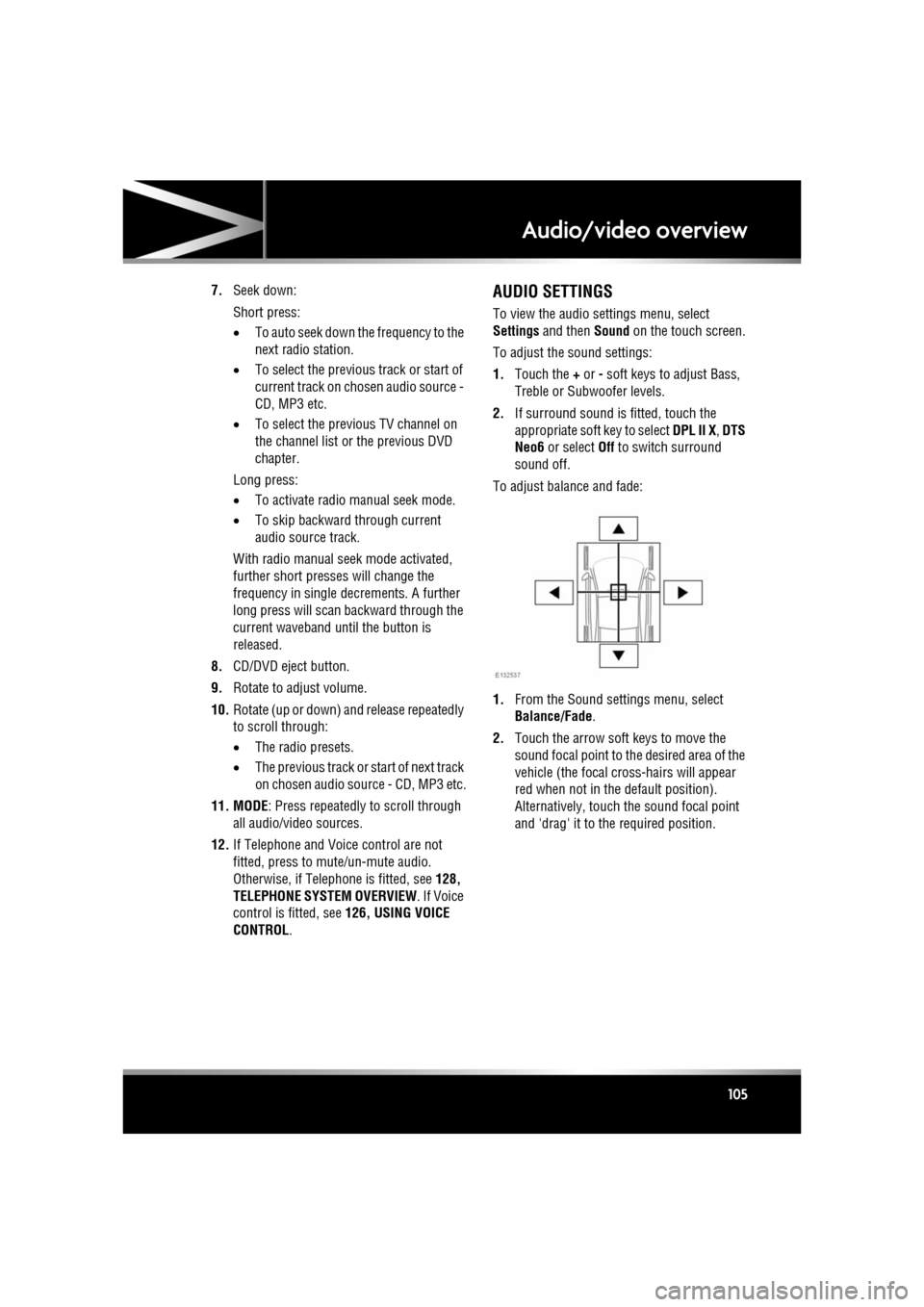
CONTROL .AUDIO SETTINGS
To view the audio settings menu, select
Settings and then Sound on the touch screen.
To adjust the sound settings:
1. Touch the + or - soft keys to adjust Bass,
Treble or Subwoofer levels.
2. If surround sound is fitted, touch the
appropriate soft key to select DPL II X, DTS
Neo6 or select Off to switch surround
sound off.
To adjust balance and fade:
1. From the Sound settings menu, select
Balance/Fade.
2. Touch the arrow soft keys to move the
sound focal point to the desired area of the
vehicle (the focal cr oss-hairs will appear
red when not in the default position).
Alternatively, touch the sound focal point
and 'drag' it to the required position.
Page 115 of 225
R
(FM8) SEMCON JLR OWNER GUIDE VER 1.00 EURO
LANGUAGE: english-en; MARQUE: jaguar; MODEL: XF
Portable media
115
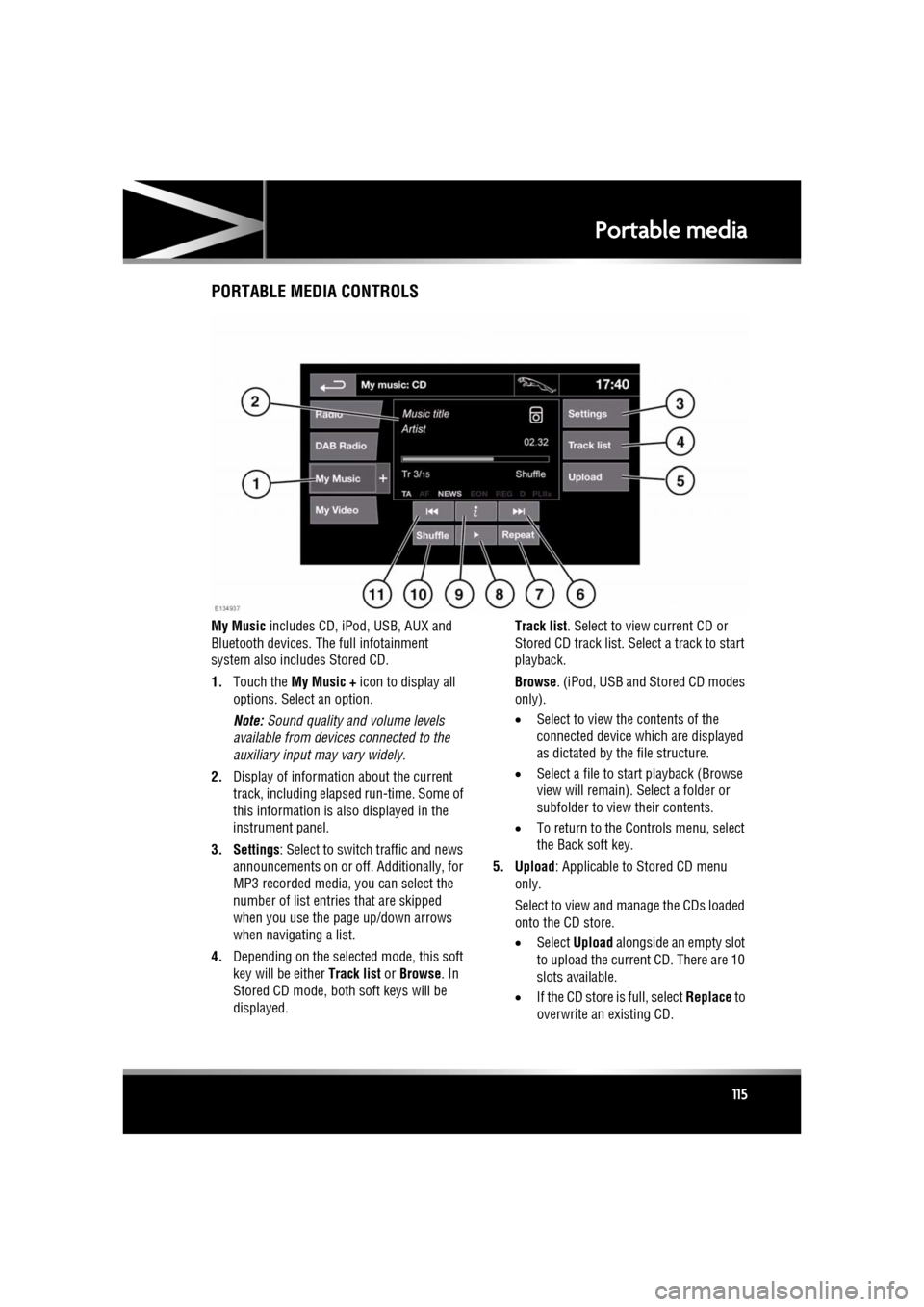
PORTABLE MEDIA CONTROLS
My Music includes CD, iPod, USB, AUX and
Bluetooth devices. Th e full infotainment
system also includes Stored CD.
1. Touch the My Music + icon to display all
options. Select an option.
Note: Sound quality and volume levels
available from devices connected to the
auxiliary input may vary widely.
2. Display of information about the current
track, including elapse d run-time. Some of
this information is also displayed in the
instrument panel.
3. Settings : Select to switch traffic and news
announcements on or off. Additionally, for
MP3 recorded media, you can select the
number of list entries that are skipped
when you use the page up/down arrows
when navigating a list.
4. Depending on the selected mode, this soft
key will be either Track list or Browse . In
Stored CD mode, both soft keys will be
displayed. Track list
. Select to view current CD or
Stored CD track list. Select a track to start
playback.
Browse . (iPod, USB and Stored CD modes
only).
• Select to view the contents of the
connected device wh ich are displayed
as dictated by the file structure.
• Select a file to start playback (Browse
view will remain). Se lect a folder or
subfolder to view their contents.
• To return to the Cont rols menu, select
the Back soft key.
5. Upload : Applicable to Stored CD menu
only.
Select to view and manage the CDs loaded
onto the CD store.
• Select Upload alongside an empty slot
to upload the current CD. There are 10
slots available.
• If the CD store is full, select Replace to
overwrite an existing CD.
Page 120 of 225
L
(FM8) SEMCON JLR OWNER GUIDE VER 1.00 EURO
LANGUAGE: english-en; MARQUE: jaguar; MODEL: XF
CD player
120
CD PLAYER CONTROLS
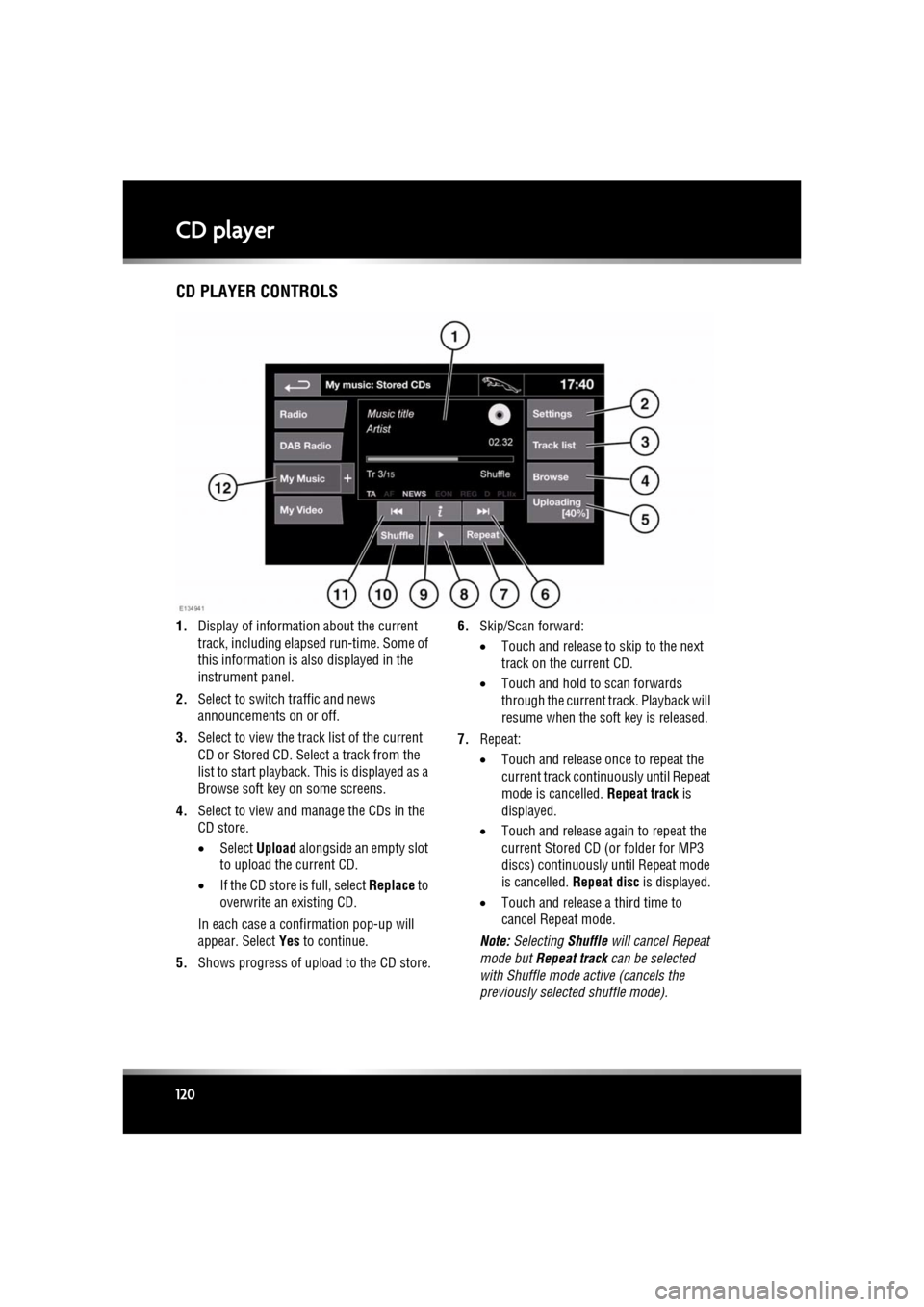
1. Display of information about the current
track, including elapse d run-time. Some of
this information is also displayed in the
instrument panel.
2. Select to switch traffic and news
announcements on or off.
3. Select to view the track list of the current
CD or Stored CD. Select a track from the
list to start playback. This is displayed as a
Browse soft key on some screens.
4. Select to view and manage the CDs in the
CD store.
•Select Upload alongside an empty slot
to upload the current CD.
• If the CD store is full, select Replace to
overwrite an existing CD.
In each case a confirmation pop-up will
appear. Select Yes to continue.
5. Shows progress of upload to the CD store. 6.
Skip/Scan forward:
•Touch and release to skip to the next
track on the current CD.
• Touch and hold to scan forwards
through the current track. Playback will
resume when the soft key is released.
7. Repeat:
•Touch and release onc e to repeat the
current track continuously until Repeat
mode is cancelled. Repeat track is
displayed.
• Touch and release again to repeat the
current Stored CD (or folder for MP3
discs) continuously until Repeat mode
is cancelled. Repeat disc is displayed.
• Touch and release a third time to
cancel Repeat mode.
Note: Selecting Shuffle will cancel Repeat
mode but Repeat track can be selected
with Shuffle mode active (cancels the
previously selected shuffle mode).
Page 124 of 225
L
(FM8) SEMCON JLR OWNER GUIDE VER 1.00 EURO
LANGUAGE: english-en; MARQUE: jaguar; MODEL: XF
Video media player
124
Video media playerVIDEO MEDIA PLAYER CONTROLS
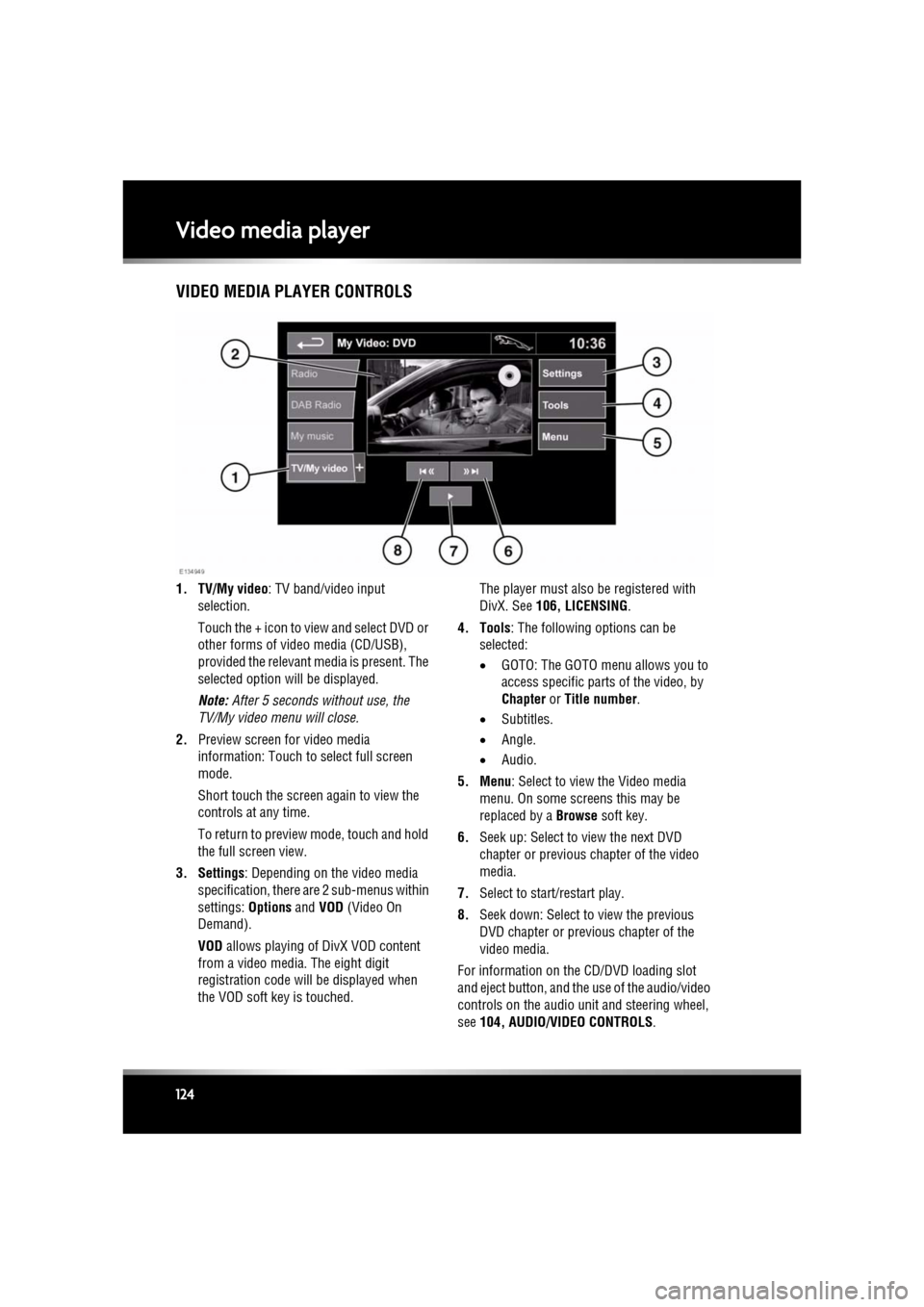
1. TV/My video : TV band/video input
selection.
Touch the + icon to view and select DVD or
other forms of video media (CD/USB),
provided the relevant media is present. The
selected option will be displayed.
Note: After 5 seconds without use, the
TV/My video menu will close.
2. Preview screen for video media
information: Touch to select full screen
mode.
Short touch the screen again to view the
controls at any time.
To return to preview mode, touch and hold
the full screen view.
3. Settings : Depending on the video media
specification, there are 2 sub-menus within
settings: Options and VOD (Video On
Demand).
VOD allows playing of DivX VOD content
from a video media. The eight digit
registration code will be displayed when
the VOD soft key is touched. The player must also be registered with
DivX. See
106, LICENSING .
4. Tools : The following options can be
selected:
• GOTO: The GOTO menu allows you to
access specific part s of the video, by
Chapter or Title number .
• Subtitles.
• Angle.
• Audio.
5. Menu : Select to view the Video media
menu. On some screens this may be
replaced by a Browse soft key.
6. Seek up: Select to view the next DVD
chapter or previous chapter of the video
media.
7. Select to start/restart play.
8. Seek down: Select to view the previous
DVD chapter or previous chapter of the
video media.
For information on the CD/DVD loading slot
and eject button, and the use of the audio/video
controls on the audio unit and steering wheel,
see 104, AUDIO/VIDEO CONTROLS .
Page 126 of 225
L
(FM8) SEMCON JLR OWNER GUIDE VER 1.00 EURO
LANGUAGE: english-en; MARQUE: jaguar; MODEL: XF
Voice control
126
Voice controlUSING VOICE CONTROL
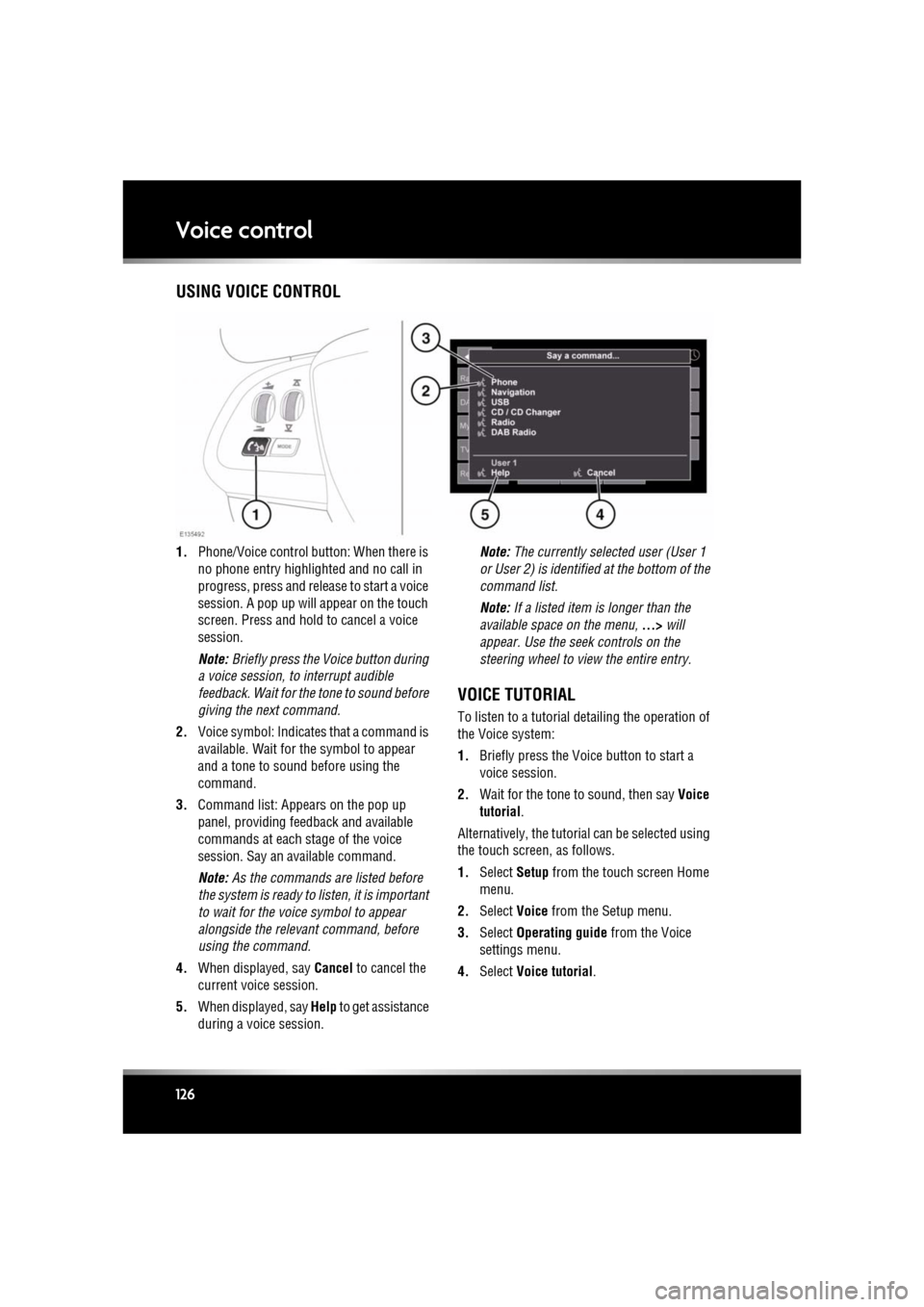
1. Phone/Voice cont rol button: When there is
no phone entry highlighted and no call in
progress, press and release to start a voice
session. A pop up will appear on the touch
screen. Press and hold to cancel a voice
session.
Note: Briefly press the Voice button during
a voice session, to interrupt audible
feedback. Wait for the tone to sound before
giving the next command.
2. Voice symbol: Indicates that a command is
available. Wait for the symbol to appear
and a tone to sound before using the
command.
3. Command list: Appears on the pop up
panel, providing fee dback and available
commands at each stage of the voice
session. Say an available command.
Note: As the commands are listed before
the system is ready to listen, it is important
to wait for the voice symbol to appear
alongside the relevant command, before
using the command.
4. When displayed, say Cancel to cancel the
current voice session.
5. When displayed, say Help to get assistance
during a voice session. Note:
The currently selected user (User 1
or User 2) is identified at the bottom of the
command list.
Note: If a listed item is longer than the
available space on the menu, ...> will
appear. Use the seek controls on the
steering wheel to view the entire entry.
VOICE TUTORIAL
To listen to a tutorial detailing the operation of
the Voice system:
1. Briefly press the Voice button to start a
voice session.
2. Wait for the tone to sound, then say Voice
tutorial .
Alternatively, the tutorial can be selected using
the touch screen, as follows.
1. Select Setup from the touch screen Home
menu.
2. Select Voice from the Setup menu.
3. Select Operating guide from the Voice
settings menu.
4. Select Voice tutorial.
Page 127 of 225

R
(FM8) SEMCON JLR OWNER GUIDE VER 1.00 EURO
LANGUAGE: english-en; MARQUE: jaguar; MODEL: XF
Voice control
127
The voice tutorial can be cancelled at any time
by touching the on-screen pop-up or by
pressing and holding the Voice button.
VOICE TRAINING
This is a feature designed to enable the system
to better recognise the vocal characteristics of
a user, once the training has been completed.
To carry out Voice training:
1. Select Setup from the Home menu.
2. Select Voice and from the Setup menu.
3. Select Voice training from the Voice
settings menu.
4. Select User 1 or User 2 , to start the
training.
5. Follow the on-screen and audible
instructions.
The training session can be cancelled at any
time by touching the on-screen pop-up or by
pressing and holding the Voice button.
VOICETAGS
Voicetags enable the user to personalise the
Voice system so that a single name can be used
to call-up a navigation destination, telephone
number or radio channel.
To add a Voicetag:
1. Briefly press the Voice button to start a
Voice session.
2. Wait for the tone to sound then say Phone,
Navigation or Radio .
3. Say Store voicetag .
Alternatively, Voicetag s can be managed via
the touch screen as follows:
1. Select Setup from the Home menu.
2. Select Voice from the Setup menu.
3. Select Voicetags from the Voice settings
menu. 4.
Select the system which the Voicetag is to
activate ( Phone, Navigation or Radio ).
Follow the on-screen and audible instructions.
NAVIGATION POI VOICE COMMANDS
To request the display of POI (Point Of Interest)
identifiers on the navi gation display, say
Navigation , followed by the name of the
desired POI category from the following list:
• Petrol station/Petrol.
• Parking/Car park.
• Jaguar Dealer.
• Hospital.
• Golf course.
• Tourist information.
• Restaurant/I’m hungry.
• Shopping centre.
• Hotel.
• Motorway service.
• Town centre.
Icons will appear on th e navigation display,
indicating the locations of the selected POI. For
further information about POIs, see 141,
CATEGORIES AND SUB-CATEGORIES.