lights JEEP CHEROKEE 2015 KL / 5.G Owner's Manual
[x] Cancel search | Manufacturer: JEEP, Model Year: 2015, Model line: CHEROKEE, Model: JEEP CHEROKEE 2015 KL / 5.GPages: 772, PDF Size: 18.21 MB
Page 179 of 772
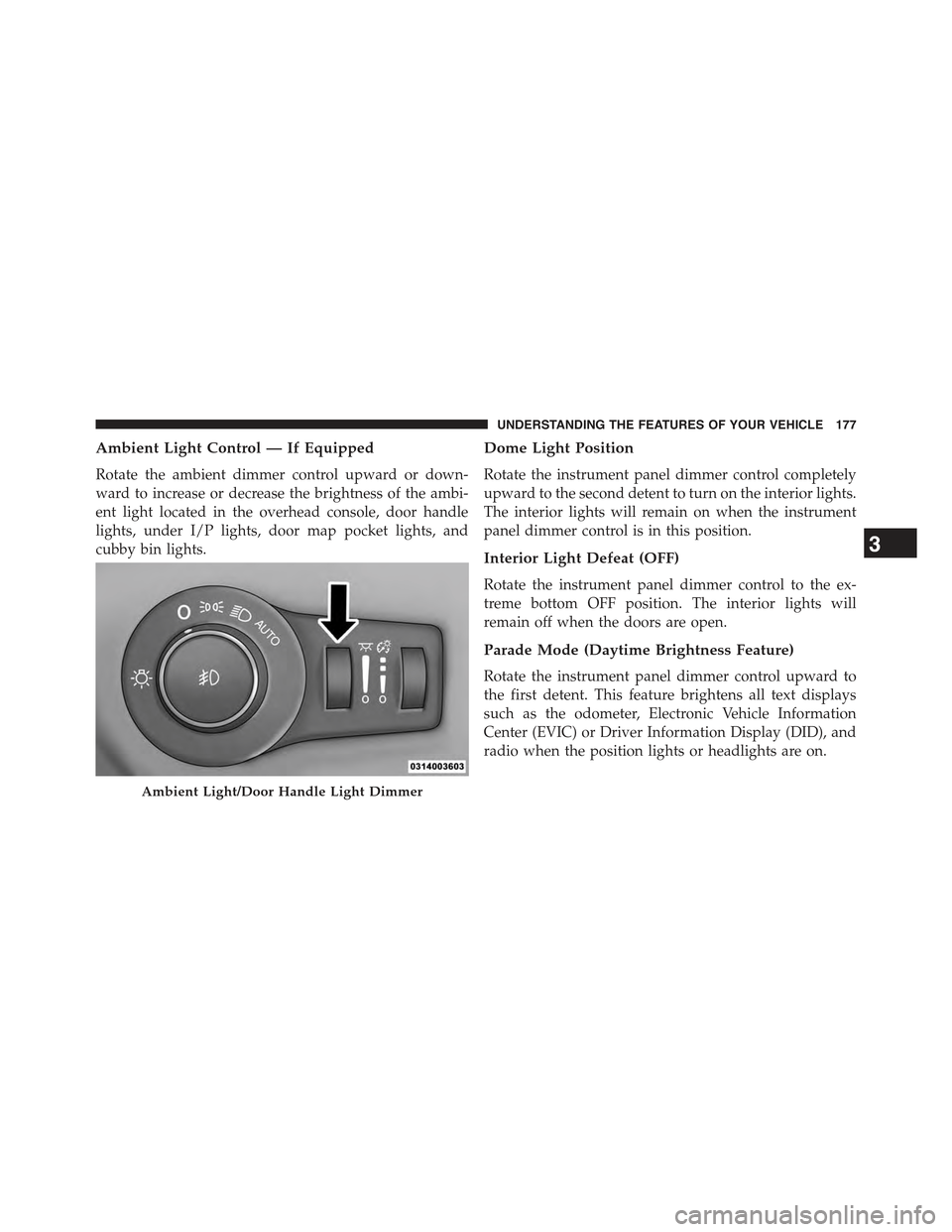
Ambient Light Control — If Equipped
Rotate the ambient dimmer control upward or down-
ward to increase or decrease the brightness of the ambi-
ent light located in the overhead console, door handle
lights, under I/P lights, door map pocket lights, and
cubby bin lights.
Dome Light Position
Rotate the instrument panel dimmer control completely
upward to the second detent to turn on the interior lights.
The interior lights will remain on when the instrument
panel dimmer control is in this position.
Interior Light Defeat (OFF)
Rotate the instrument panel dimmer control to the ex-
treme bottom OFF position. The interior lights will
remain off when the doors are open.
Parade Mode (Daytime Brightness Feature)
Rotate the instrument panel dimmer control upward to
the first detent. This feature brightens all text displays
such as the odometer, Electronic Vehicle Information
Center (EVIC) or Driver Information Display (DID), and
radio when the position lights or headlights are on.
Ambient Light/Door Handle Light Dimmer
3
UNDERSTANDING THE FEATURES OF YOUR VEHICLE 177
Page 180 of 772
Battery Saver Feature
To protect the battery, the interior lights will turn off
automatically 10 minutes after the ignition switch is
moved to the LOCK position. This will occur if the
interior lights were switched on manually or are on
because a door is open.
WINDSHIELD WIPERS AND WASHERS
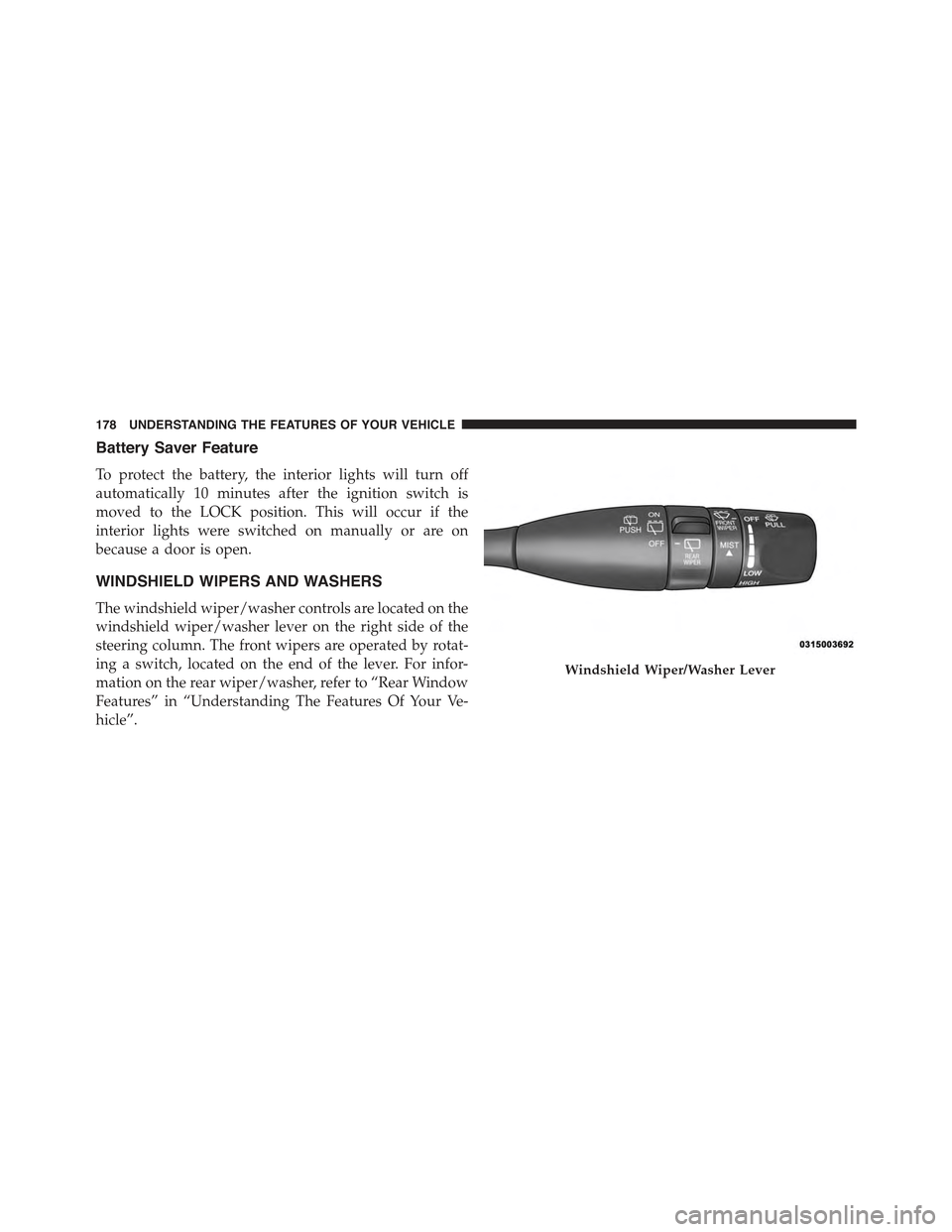
The windshield wiper/washer controls are located on the
windshield wiper/washer lever on the right side of the
steering column. The front wipers are operated by rotat-
ing a switch, located on the end of the lever. For infor-
mation on the rear wiper/washer, refer to “Rear Window
Features” in “Understanding The Features Of Your Ve-
hicle”.
Windshield Wiper/Washer Lever
178 UNDERSTANDING THE FEATURES OF YOUR VEHICLE
Page 206 of 772
•The distance setting is changed.
•The system disengages. (Refer to the information on
ACC Activation).
The maximum braking applied by ACC is limited; how-
ever, the driver can always apply the brakes manually, if
necessary.
NOTE:The brake lights will illuminate whenever the
ACC system applies the brakes.
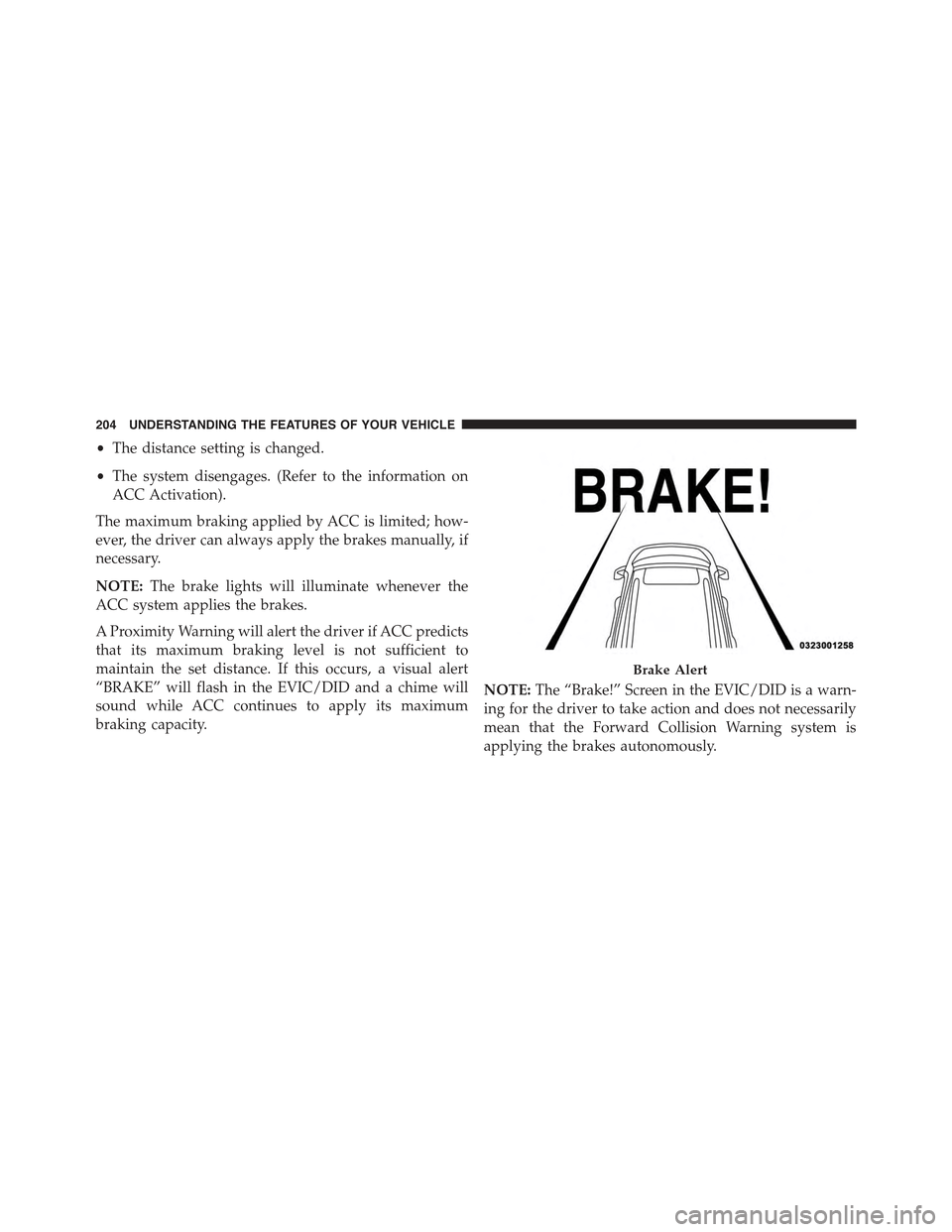
A Proximity Warning will alert the driver if ACC predicts
that its maximum braking level is not sufficient to
maintain the set distance. If this occurs, a visual alert
“BRAKE” will flash in the EVIC/DID and a chime will
sound while ACC continues to apply its maximum
braking capacity.
NOTE:The “Brake!” Screen in the EVIC/DID is a warn-
ing for the driver to take action and does not necessarily
mean that the Forward Collision Warning system is
applying the brakes autonomously.
Brake Alert
204 UNDERSTANDING THE FEATURES OF YOUR VEHICLE
Page 308 of 772
CAUTION!
•Many accessories that can be plugged in draw
power from the vehicle’s battery, even when not in
use (i.e., cellular phones, etc.). Eventually, if
plugged in long enough, the vehicle’s battery will
discharge sufficiently to degrade battery life and/or
prevent the engine from starting.
•Accessories that draw higher power (i.e., coolers,
vacuum cleaners, lights, etc.) will degrade the bat-
tery even more quickly. Only use these intermit-
tently and with greater caution.
•After the use of high power draw accessories, or
long periods of the vehicle not being started (with
accessories still plugged in), the vehicle must be
driven a sufficient length of time to allow the
generator to recharge the vehicle’s battery.
POWER INVERTER — IF EQUIPPED
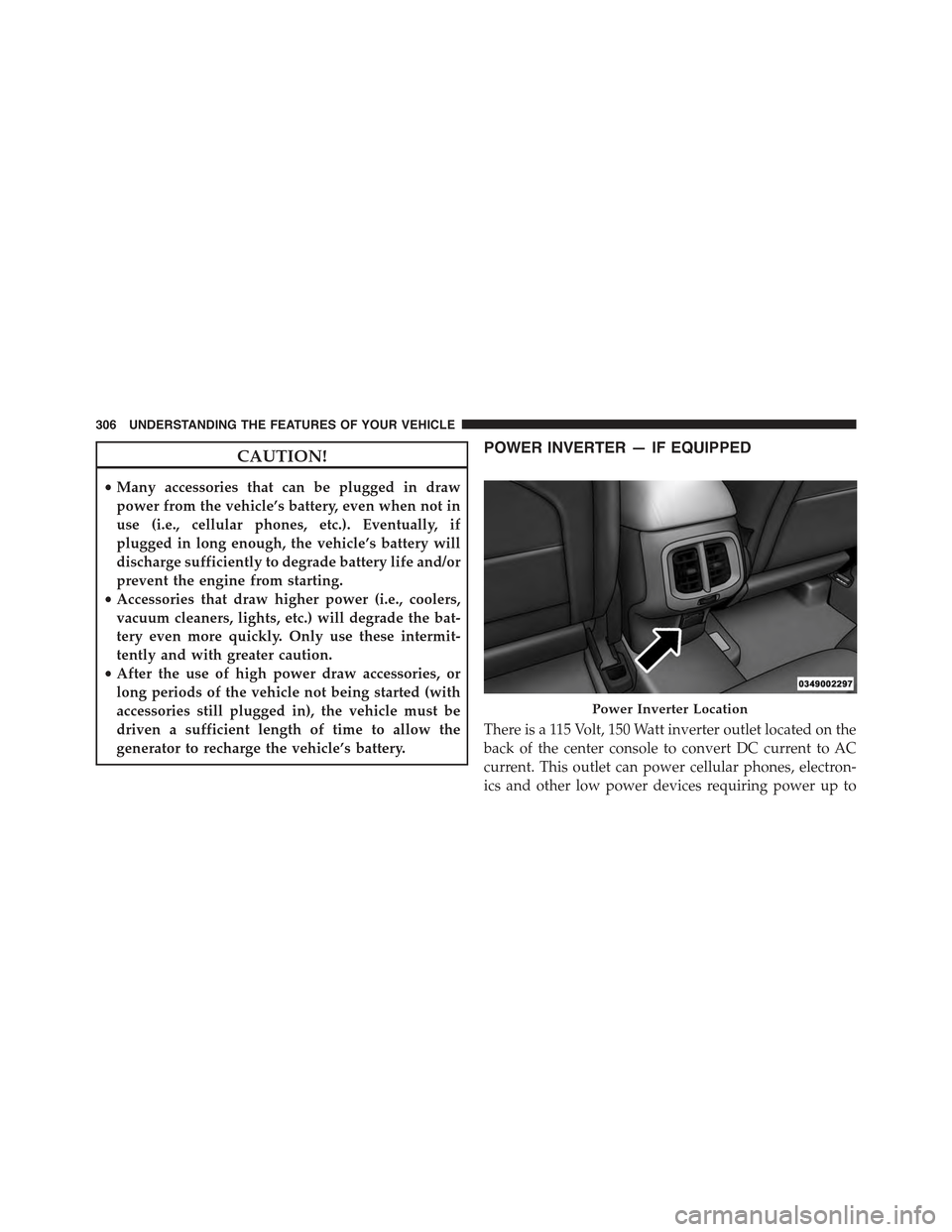
There is a 115 Volt, 150 Watt inverter outlet located on the
back of the center console to convert DC current to AC
current. This outlet can power cellular phones, electron-
ics and other low power devices requiring power up to
Power Inverter Location
306 UNDERSTANDING THE FEATURES OF YOUR VEHICLE
Page 333 of 772
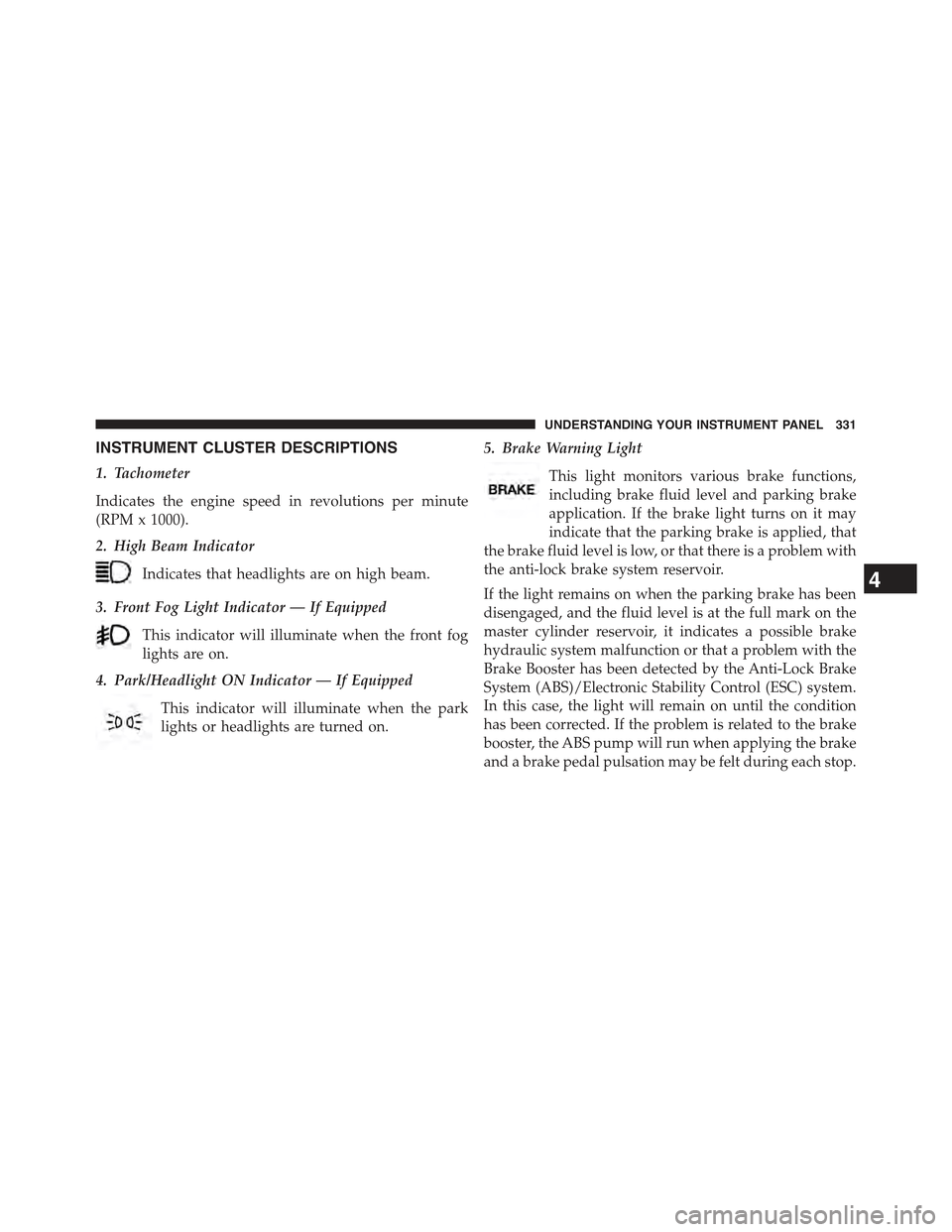
INSTRUMENT CLUSTER DESCRIPTIONS
1. Tachometer
Indicates the engine speed in revolutions per minute
(RPM x 1000).
2. High Beam Indicator
Indicates that headlights are on high beam.
3. Front Fog Light Indicator — If Equipped
This indicator will illuminate when the front fog
lights are on.
4. Park/Headlight ON Indicator — If Equipped
This indicator will illuminate when the park
lights or headlights are turned on.
5. Brake Warning Light
This light monitors various brake functions,
including brake fluid level and parking brake
application. If the brake light turns on it may
indicate that the parking brake is applied, that
the brake fluid level is low, or that there is a problem with
the anti-lock brake system reservoir.
If the light remains on when the parking brake has been
disengaged, and the fluid level is at the full mark on the
master cylinder reservoir, it indicates a possible brake
hydraulic system malfunction or that a problem with the
Brake Booster has been detected by the Anti-Lock Brake
System (ABS)/Electronic Stability Control (ESC) system.
In this case, the light will remain on until the condition
has been corrected. If the problem is related to the brake
booster, the ABS pump will run when applying the brake
and a brake pedal pulsation may be felt during each stop.
4
UNDERSTANDING YOUR INSTRUMENT PANEL 331
Page 345 of 772
4. EVIC Display Area
The EVIC display area will normally display the main
menu or the screens of a selected feature of the main
menu. The EVIC display area also displays “pop up”
messages that consist of approximately 60 possible warn-
ing or information messages. These pop up messages fall
into several categories:
•Five Second Stored Messages
When the appropriate conditions occur, this type of
message takes control of the main display area for
five seconds and then returns to the previous screen.
Most of the messages of this type are then stored (as
long as the condition that activated it remains active)
and can be reviewed from the “Messages” main
menu item. As long as there is a stored message, an
“i” will be displayed in the EVIC’s compass/outside
temp line. Examples of this message type are “Right
Front Turn Signal Lamp Out” and “Low Tire Pres-
sure”.
•Unstored Messages
This message type is displayed indefinitely or until
the condition that activated the message is cleared.
Examples of this message type are “Turn Signal On”
(if a turn signal is left on) and “Lights On” (if driver
leaves the vehicle).
•Unstored Messages Until RUN
These messages deal primarily with the Remote Start
feature. This message type is displayed until the
ignition is in the RUN state. Examples of this message
type are “Remote Start Aborted - Door Ajar” and
“Press Brake Pedal and Push Button to Start”.
•Five Second Unstored Messages
When the appropriate conditions occur, this type of
message takes control of the main display area for
five seconds and then returns to the previous screen.
An example of this message type is “Automatic High
Beams On”.
4
UNDERSTANDING YOUR INSTRUMENT PANEL 343
Page 367 of 772
The light also will turn on when the parking brake is
applied with the ignition switch in the ON/RUN posi-
tion.
NOTE:This light shows only that the parking brake is
applied. It does not show the degree of brake application.
5. Driver Information Display (DID)
The DID display area will normally display the main
menu or the screens of a selected feature of the main
menu. The DID display area also displays “pop up”
messages that consist of approximately 60 possible warn-
ing or information messages. These pop up messages fall
into several categories:
•Five Second Stored Messages
When the appropriate conditions occur, this type of
message takes control of the main display area for
five seconds and then returns to the previous screen.
Most of the messages of this type are then stored (as
long as the condition that activated it remains active)
and can be reviewed from the “Messages” main
menu item. As long as there is a stored message, an
“i” will be displayed in the middle of the DID’s top
line. Examples of this message type are “Right Front
Turn Signal Lamp Out” and “Low Tire Pressure”.
•Unstored Messages
This message type is displayed indefinitely or until
the condition that activated the message is cleared.
Examples of this message type are “Turn Signal On”
(if a turn signal is left on) and “Lights On” (if driver
leaves the vehicle).
•Unstored Messages Until RUN
These messages deal primarily with the Remote Start
feature. This message type is displayed until the
ignition is in the RUN state. Examples of this message
type are “Remote Start Aborted - Door Ajar” and
“Press Brake Pedal and Push Button to Start”.
4
UNDERSTANDING YOUR INSTRUMENT PANEL 365
Page 388 of 772
side of the Climate Controls in the center of the instru-
ment panel. Turn the control knob to scroll through
menus and change settings (i.e., 30, 60, 90), push the
center of the control knob one or more times to select or
change a setting (i.e., ON, OFF).
Your Uconnect® system may also have a Screen Off and
Back buttons located below the system.
Push the Screen Off button to turn off the Uconnect®
screen. Push the Screen Off button a second time to turn
the screen on.
Push the Back button to exit out of a Menu or certain
option on the Uconnect® system.
Buttons On The Touchscreen
Buttons on the touchscreen are accessible on the
Uconnect® display.
Customer Programmable Features/Personal
Settings — Uconnect® 5.0 Settings
Push the MORE button on the faceplate to display the
menu setting screen. In this mode the Uconnect® system
allows you to access programmable features that may be
equipped such as Display, Voice, Clock & Date, Safety &
Assistance, Lights, Doors & Locks, Auto-On Comfort,
Engine Off Options, Compass Settings, Audio, Phone/
Bluetooth®, Sirius Setup, Restore Settings, and Clear
Personal Data.
NOTE:Only one category may be selected at a time.
When making a selection, press the button on the touch-
screen to enter the desired mode. Once in the desired
mode, press and release the preferred setting and make
your selection. Once the setting is complete, either press
the Back Arrow/Done button on the touchscreen or the
Back button on the faceplate to return to the previous
menu or press the “X” button on the touchscreen to close
386 UNDERSTANDING YOUR INSTRUMENT PANEL
Page 389 of 772
out of the settings screen. Pressing the Up or Down
Arrow buttons on the right side of the screen will allow
you to toggle up or down through the available settings.
Display
After pressing the “Display” button on the touchscreen
the following settings will be available.
•Display Mode
When in this display you may select the “Auto” or
“Manual” display settings. To change Mode status, press
and release the “Auto” or “Manual” button on the
touchscreen. Then press the arrow back button on the
touchscreen.
NOTE:When Day or Night is selected for the Display
Mode, the usage of the Parade Mode feature will cause
the radio to activate the Display Brightness Day control
even though the headlights are on.
•Display Brightness With Headlights ON
When in this display, you may select the overall screen
brightness with the headlights on. Adjust the brightness
with the “+” and “–” setting buttons on the touchscreen
or by selecting any point on the scale between the “+”
and “–” buttons on the touchscreen. Then press the arrow
back button on the touchscreen.
NOTE:To make changes to the#Display Brightness with
Headlights ON#setting, the headlights must be on and
the interior dimmer switch must not be in the#party#or
#parade#positions.
•Display Brightness With Headlights OFF
When in this display, you may select the overall screen
brightness with the headlights off. Adjust the brightness
with the “+” and “–” setting buttons on the touchscreen
4
UNDERSTANDING YOUR INSTRUMENT PANEL 387
Page 390 of 772
or by selecting any point on the scale between the “+”
and “–” buttons on the touchscreen. Then press the arrow
back button on the touchscreen.
NOTE:To make changes to the#Display Brightness with
Headlights OFF#setting, the headlights must be off and
the interior dimmer switch must not be in the#party#or
#parade#positions.
•Set Language
When in this display, you may select one of multiple
languages (English / Français / Español) for all display
nomenclature, including the trip functions and the navi-
gation system (if equipped). Press the “Set Language”
button on the touchscreen, then select the desired lan-
guage button on the touchscreen. Press the back arrow
button on the touchscreen to return to the previous
menu.
•Units
When in this display, you may select to have the DID,
odometer, and navigation system (if equipped) changed
between US and Metric units of measure. Press “US” or
“Metric” to make your selection. Press the back arrow
button on the touchscreen to return to the previous
menu.
•Touchscreen Beep
When in this display, you may turn on or shut off the
sound heard when a button on the touchscreen is
pressed. Press the “Touchscreen Beep” button on the
touchscreen then select from “on” or “off.” Press the back
arrow button on the touchscreen to return to the previous
menu.
388 UNDERSTANDING YOUR INSTRUMENT PANEL