reset JEEP CHEROKEE 2015 KL / 5.G Owner's Manual
[x] Cancel search | Manufacturer: JEEP, Model Year: 2015, Model line: CHEROKEE, Model: JEEP CHEROKEE 2015 KL / 5.GPages: 772, PDF Size: 18.21 MB
Page 377 of 772
release the OK button. To reset the oil change indicator
system (after performing the scheduled maintenance)
refer to the following procedure.
1. Without pushing the brake pedal, push the ENGINE
START/STOP button and cycle the ignition to the
ON/RUN position (do not start the engine.)
2. Fully depress the accelerator pedal, slowly, three times
within 10 seconds.
3. Without pushing the brake pedal, push the ENGINE
START/STOP button once to return the ignition to the
OFF/LOCK position.
NOTE:If the indicator message illuminates when you
start the vehicle, the oil change indicator system did not
reset. If necessary, repeat this procedure.
DID Red Telltales
This area will show reconfigurable red telltales. These
telltales include:
•Charging System Light
This light shows the status of the electrical charg-
ing system. If the light stays on or comes on while
driving, turn off some of the vehicle’s non-essential
electrical devices or increase engine speed (if at idle). If
the charging system light remains on, it means that the
vehicle is experiencing a problem with the charging
system. Obtain SERVICE IMMEDIATELY. See an autho-
rized dealer.
If jump starting is required, refer to “Jump Starting
Procedures” in “What To Do In Emergencies”.
4
UNDERSTANDING YOUR INSTRUMENT PANEL 375
Page 383 of 772
Vehicle Info (Customer Information Features)
Push and release the UP or DOWN arrow button until
the Vehicle Info Menu item is highlighted in the DID.
Push and release the RIGHT/LEFT arrow button to cycle
through the Vehicle Info sub-menus, follow the prompts
on each screen as needed.
Tire Pressure
Push and release the UP or DOWN arrow button until
“Tire Pressure” is highlighted in the DID. Push and
release the RIGHT arrow button and one of the following
will be displayed:
•If tire pressure is OK for all tires a vehicle ICON is
displayed with tire pressure values in each corner of
the ICON.
•If one or more tires have low pressure, “Inflate Tire To
XX” is displayed with the vehicle ICON and the tire
pressure values in each corner of the ICON with the
pressure value of the low tire displayed in a different
color than the other tire pressure value.
•If the Tire Pressure system requires service, “Service
Tire Pressure System” is displayed.
Tire PSI is an information only function and cannot be
reset. Push and release the LEFT arrow button to return
to the main menu.
Refer to “Tire Pressure Monitoring System (TPMS)”
under “Starting and Operating” for further information.
Coolant Temperature
Transmission Temp
Oil Temp
Oil Life
Battery Voltage
4
UNDERSTANDING YOUR INSTRUMENT PANEL 381
Page 385 of 772
•The DID will return to the last display selected after
five seconds of no ACC display activity.
For further information, refer to “Adaptive Cruise Con-
trol (ACC) — If Equipped” in “Understanding The
Features Of Your Vehicle”.
LaneSense
The DID displays the current LaneSense system settings.
The information displayed depends on LaneSense sys-
tem status and the conditions that need to be met. For
further information, refer to “LaneSense — If Equipped”
in “Understanding The Features Of Your Vehicle”.
Fuel Economy
Push and release the UP or DOWN arrow button until
the Fuel Economy Menu item is highlighted in the DID.
Push and Hold the OK button to reset feature.
•Range
•Average Fuel Economy
•Current Fuel Economy (MPG or L/100 km)
Trip Info
Push and release the UP or DOWN arrow button until
the Trip Menu item is highlighted in the DID (Toggle left
or right to select Trip A or Trip B). The Trip information
will display the following:
•Distance
•Average Fuel Economy
•Elapsed Time
Hold the OK button to reset feature information.
4
UNDERSTANDING YOUR INSTRUMENT PANEL 383
Page 400 of 772
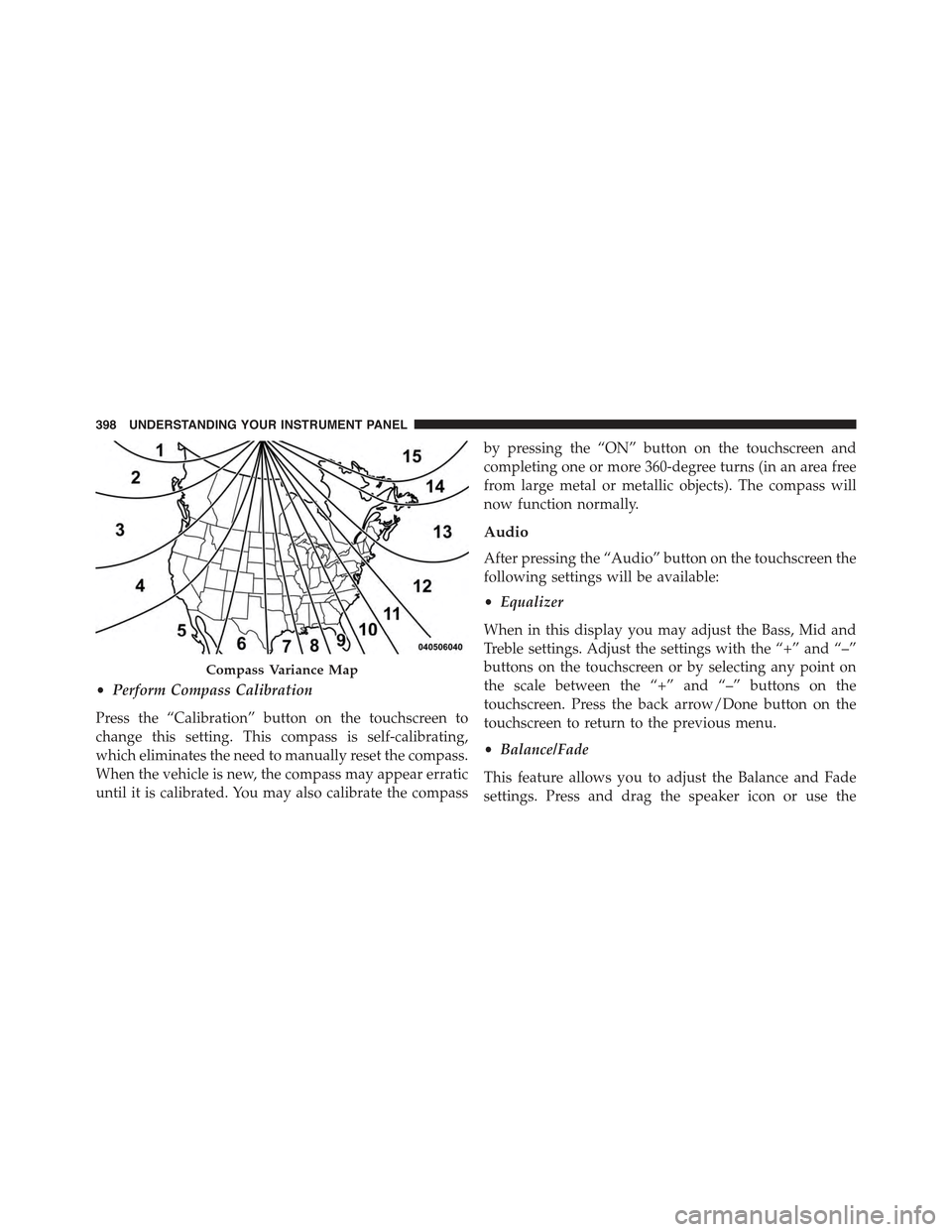
•Perform Compass Calibration
Press the “Calibration” button on the touchscreen to
change this setting. This compass is self-calibrating,
which eliminates the need to manually reset the compass.
When the vehicle is new, the compass may appear erratic
until it is calibrated. You may also calibrate the compass
by pressing the “ON” button on the touchscreen and
completing one or more 360-degree turns (in an area free
from large metal or metallic objects). The compass will
now function normally.
Audio
After pressing the “Audio” button on the touchscreen the
following settings will be available:
•Equalizer
When in this display you may adjust the Bass, Mid and
Treble settings. Adjust the settings with the “+” and “–”
buttons on the touchscreen or by selecting any point on
the scale between the “+” and “–” buttons on the
touchscreen. Press the back arrow/Done button on the
touchscreen to return to the previous menu.
•Balance/Fade
This feature allows you to adjust the Balance and Fade
settings. Press and drag the speaker icon or use the
Compass Variance Map
398 UNDERSTANDING YOUR INSTRUMENT PANEL
Page 403 of 772
Restore Settings
After pressing the “Restore Settings” button on the
touchscreen the following settings will be available:
•Restore Settings
When this feature is selected it will reset the Display,
Clock, Audio, and Radio Settings to their default settings.
To restore the settings to their default setting, press the
Restore Settings button. A pop-up will appear asking
#Are you sure you want to reset your settings to default?”
select “Yes” to restore, or “Cancel” to exit. Once the
settings are restored, a pop up appears stating#settings
reset to default.#Press the back arrow button on the
touchscreen to exit.
Clear Personal Data
After pressing the “Clear Personal Data Settings” button
on the touchscreen the following settings will be avail-
able:
•Clear Personal Data
When this feature is selected it will remove personal data
including Bluetooth® devices and presets. To remove
personal information, press the “Clear Personal Data”
button and a pop-up will appear asking#Are you sure
you want to clear all personal data?” select “Yes” to Clear,
or “Cancel” to exit. Once the data has been cleared, a pop
up appears stating#Personal data cleared”. Press the back
arrow button on the touchscreen to return to the previous
menu.
Customer Programmable Features — Uconnect®
8.4 Personal Settings
Press the “Apps” or the “Controls” button on the touch-
screen, then press the “Settings” button on the touch-
screen to display the menu setting screen. In this mode
the Uconnect® system allows you to access program-
mable features that may be equipped such as Display,
Voice, Clock, Safety & Driving Assistance, Lights, Doors
4
UNDERSTANDING YOUR INSTRUMENT PANEL 401
Page 422 of 772
•Subscription Information
New vehicle purchasers or lessees will receive a free
limited time subscription to SiriusXM Satellite Radio
with your radio. Following the expiration of the free
services, it will be necessary to access the information on
the Subscription Information screen to re-subscribe.
Press the “Subscription Info” button on the touchscreen
to access the Subscription Information screen.
Write down the SIRIUS ID numbers for your receiver. To
reactivate your service, either call the number listed on
the screen or visit the provider online.
NOTE:SiriusXM Travel Link is a separate subscription
and is available for U.S. residents only.
Restore Settings
After pressing the “Restore Settings” button on the
touchscreen the following settings will be available:
•Restore Settings
When this feature is selected it will reset the Display,
Clock, Audio, and Radio Settings to their default settings.
To restore the settings to their default setting, press the
Restore Settings button. A pop-up will appear asking
#Are you sure you want to reset your settings to default?”
select “OK” to restore, or “Cancel” to exit. Once the
settings are restored, a pop up appears stating#settings
reset to default.#
420 UNDERSTANDING YOUR INSTRUMENT PANEL
Page 423 of 772
Clear Personal Data
After pressing the “Clear Personal Data Settings” button
on the touchscreen the following settings will be avail-
able:
•Clear Personal Data
When this feature is selected it will remove personal data
including Bluetooth® devices and presets. To remove
personal information, press the “Clear Personal Data”
button and a pop-up will appear asking#Are you sure
you want to clear all personal data?” select “OK” to
Clear, or “Cancel” to exit. Once the data has been cleared,
a pop up appears stating#Personal data cleared.”
System Information
After pressing the “System Information” button on the
touchscreen the following settings will be available:
•System Information
When System Information is selected, a System Informa-
tion screen will appear displaying the system software
version.
Uconnect® RADIOS — IF EQUIPPED
For detailed information about your Uconnect® radio,
refer to your Uconnect® Supplement Manual.
4
UNDERSTANDING YOUR INSTRUMENT PANEL 421
Page 425 of 772
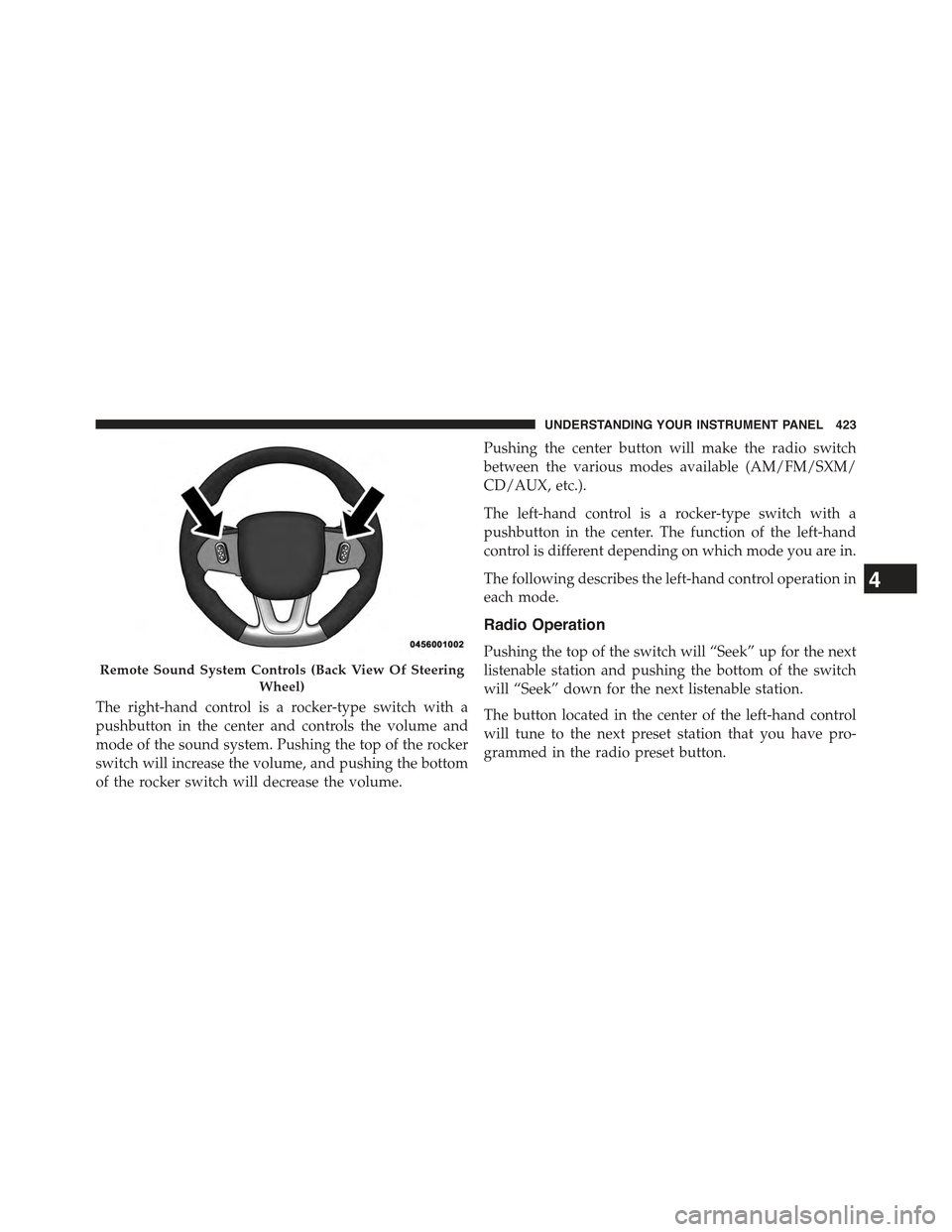
The right-hand control is a rocker-type switch with a
pushbutton in the center and controls the volume and
mode of the sound system. Pushing the top of the rocker
switch will increase the volume, and pushing the bottom
of the rocker switch will decrease the volume.
Pushing the center button will make the radio switch
between the various modes available (AM/FM/SXM/
CD/AUX, etc.).
The left-hand control is a rocker-type switch with a
pushbutton in the center. The function of the left-hand
control is different depending on which mode you are in.
The following describes the left-hand control operation in
each mode.
Radio Operation
Pushing the top of the switch will “Seek” up for the next
listenable station and pushing the bottom of the switch
will “Seek” down for the next listenable station.
The button located in the center of the left-hand control
will tune to the next preset station that you have pro-
grammed in the radio preset button.
Remote Sound System Controls (Back View Of Steering
Wheel)
4
UNDERSTANDING YOUR INSTRUMENT PANEL 423
Page 481 of 772
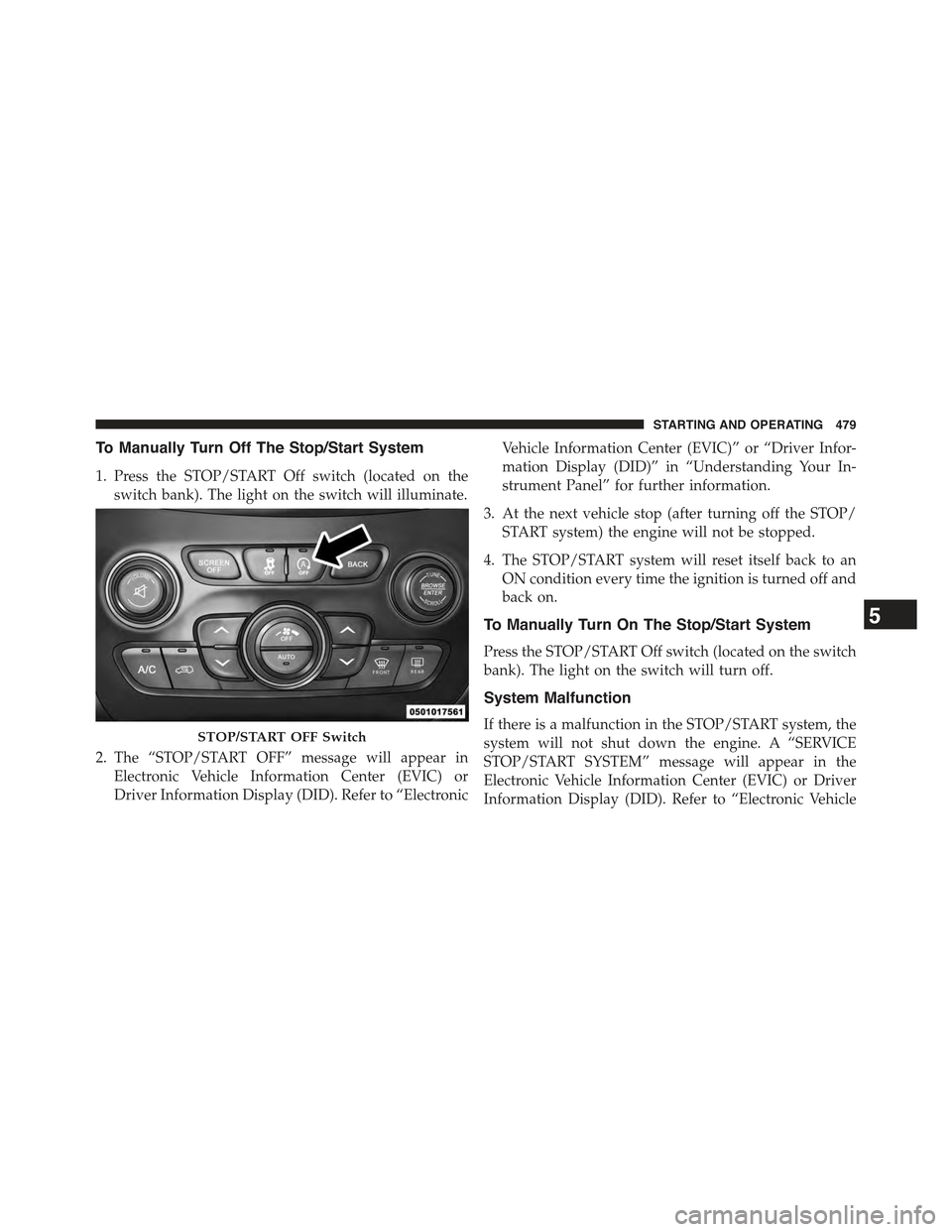
To Manually Turn Off The Stop/Start System
1. Press the STOP/START Off switch (located on the
switch bank). The light on the switch will illuminate.
2. The “STOP/START OFF” message will appear in
Electronic Vehicle Information Center (EVIC) or
Driver Information Display (DID). Refer to “Electronic
Vehicle Information Center (EVIC)” or “Driver Infor-
mation Display (DID)” in “Understanding Your In-
strument Panel” for further information.
3. At the next vehicle stop (after turning off the STOP/
START system) the engine will not be stopped.
4. The STOP/START system will reset itself back to an
ON condition every time the ignition is turned off and
back on.
To Manually Turn On The Stop/Start System
Press the STOP/START Off switch (located on the switch
bank). The light on the switch will turn off.
System Malfunction
If there is a malfunction in the STOP/START system, the
system will not shut down the engine. A “SERVICE
STOP/START SYSTEM” message will appear in the
Electronic Vehicle Information Center (EVIC) or Driver
Information Display (DID). Refer to “Electronic Vehicle
STOP/START OFF Switch
5
STARTING AND OPERATING 479
Page 494 of 772
to operate. The Malfunction Indicator Light (MIL) may be
illuminated. Limp Home Mode allows the vehicle to be
driven to an authorized dealer for service without dam-
aging the transmission.
In the event of a momentary problem, the transmission
can be reset to regain all forward gears by performing the
following steps:
1. Stop the vehicle.
2. Shift the transmission into PARK.
3. Turn the ignition switch to the OFF position.
4. Wait approximately 10 seconds.
5. Restart the engine.
6. Shift into the desired gear range. If the problem is no
longer detected, the transmission will return to normal
operation.
NOTE:Even if the transmission can be reset, we recom-
mend that you visit your authorized dealer at your
earliest possible convenience. Your authorized dealer has
diagnostic equipment to determine if the problem could
recur. If the transmission cannot be reset, authorized
dealer service is required.
Electronic Range Select (ERS) Operation
The Electronic Range Select (ERS) shift control allows the
driver to limit the highest available gear. For example, if
you shift the transmission into 5 (fifth gear), the trans-
mission will not shift above fifth gear, but will shift
through the lower gears normally.
You can switch between DRIVE and ERS mode at any
vehicle speed. When the shift lever is in the DRIVE
position, the transmission will operate automatically,
shifting between all available gears.
492 STARTING AND OPERATING