change time JEEP COMPASS 2008 1.G User Guide
[x] Cancel search | Manufacturer: JEEP, Model Year: 2008, Model line: COMPASS, Model: JEEP COMPASS 2008 1.GPages: 399, PDF Size: 6.59 MB
Page 175 of 399
Distance To Empty (DTE)
Shows the estimated distance that can be travelled with
the fuel remaining in the tank. This estimated distance is
determined by a weighted average of the instantaneous
and average fuel economy, according to the current fuel
tank level. This is not resettable.
NOTE:Significant changes in driving style or vehicle
loading will greatly affect the actual drivable distance of
the vehicle, regardless of the DTE displayed value.
When the DTE value is less than 30 miles estimated
driving distance, the DTE display will change to a text
display of9LOW FUEL9. This display will continue until
the vehicle runs out of fuel. Adding a significant amount
of fuel to the vehicle will turn off the9LOW FUEL9text
and a new DTE value will be displayed, based on the
current values in the DTE calculation and the current fuel
tank level.
Elapsed Time
Shows the total elapsed time of travel since the last reset
when the ignition switch is in the ACC position. Elapsed
time will increment when the ignition switch is in the ON
or START position.
Tire Pressure Monitor (TPM)
Refer to Section 5, ªTire Pressure Monitoring System
(TPMS) for system operation.
Personal Settings (Customer Programmable
Features)
This allows the driver to set and recall features when the
transmission is in PARK (automatic transmission) or the
vehicle is stopped (manual transmissions).
Press and release the EVIC button until Personal Settings
is displayed in the EVIC.
Use the EVIC button to display one of the following
choices:
UNDERSTANDING YOUR INSTRUMENT PANEL 175
4
Page 179 of 399
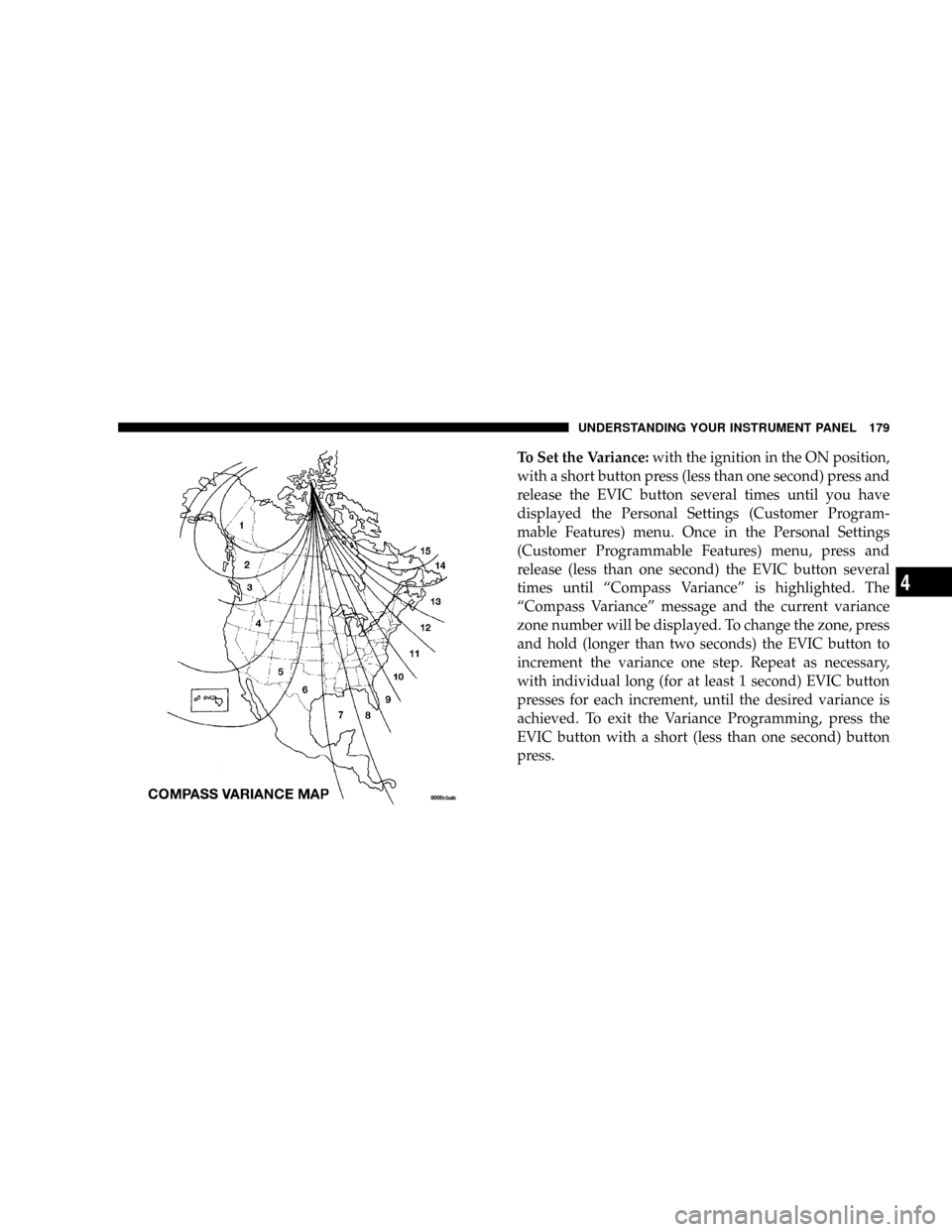
To Set the Variance:with the ignition in the ON position,
with a short button press (less than one second) press and
release the EVIC button several times until you have
displayed the Personal Settings (Customer Program-
mable Features) menu. Once in the Personal Settings
(Customer Programmable Features) menu, press and
release (less than one second) the EVIC button several
times until ªCompass Varianceº is highlighted. The
ªCompass Varianceº message and the current variance
zone number will be displayed. To change the zone, press
and hold (longer than two seconds) the EVIC button to
increment the variance one step. Repeat as necessary,
with individual long (for at least 1 second) EVIC button
presses for each increment, until the desired variance is
achieved. To exit the Variance Programming, press the
EVIC button with a short (less than one second) button
press.
UNDERSTANDING YOUR INSTRUMENT PANEL 179
4
Page 188 of 399

SCAN Button (CD Mode)
Press this button to play the first 10 seconds of each track.
To stop the scan function, press the button a second time.
EJECT Button (CD Mode)
Press this button and the disc will unload and
move to the entrance for easy removal. The
unit will switch to the last selected mode.
If you do not remove the disc within 15 seconds, it will be
reloaded. The radio mode will continue to appear.
TIME Button (CD Mode)
Press this button to change the display from elapsed CD
playing time to time of day. The time of day will display
for 5 seconds.
RW/FF (CD Mode)
Press and hold the FF (Fast Forward) and the CD player
will begin to fast forward until FF is released. The RW
(Reverse) button works in a similar manner.
RND/SET Button (Random Play Button) (CD
Mode)
Press this button while the CD is playing to activate
Random Play. This feature plays the selections on the
compact disc in random order to provide an interesting
change of pace.
Press the SEEK button to move to the next randomly
selected track.
Press and hold the FF button to fast forward through the
tracks. Release the FF button to stop the fast forward
feature. If the RW button is pressed, the current track will
reverse to the beginning of the track and begin playing.
Press the RND button a second time to stop Random
Play.
188 UNDERSTANDING YOUR INSTRUMENT PANEL
Page 190 of 399

TIME Button (Auxiliary Mode)
Press this button to change the display from elapsed
playing time to time of day. The time of day will display
for 5 seconds.
RW/FF (Auxiliary Mode)
No function.
RND/SET Button (Auxiliary Mode)
No function.
Mode Button (Auxiliary Mode)
Press the mode button repeatedly to select between the
CD player and Satellite Radio (if equipped).
Operating Instructions - Hands Free Phone Ð If
Equipped
Refer to the ªHANDS FREE PHONE (UConnectŸ)º
section of the Owner's Manual.
Operating Instructions - Satellite Radio Ð If
Equipped
Refer to the ªSatellite Radioº section of the Owner's
Manual.
SALES CODE RAQ ± AM/FM/CD (6-DISC) RADIO
WITH OPTIONAL SATELLITE RADIO, HANDS
FREE PHONE, AND VEHICLE ENTERTAINMENT
SYSTEMS (VES) CAPABILITIES
NOTE:The radio sales code is located on the lower right
side of your radio faceplate.
190 UNDERSTANDING YOUR INSTRUMENT PANEL
Page 198 of 399

LOAD / EJT - Eject
Press the LOAD/ EJT button and the push-
button with the corresponding number where
the CD was loaded and the disc will unload
and move to the entrance for easy removal.
Radio display will show9EJECTING DISC9when the disc
is being ejected and prompt the user to remove the disc.
Press and hold the LOAD/ EJT button for 5 seconds and
all CDs will be ejected from the radio.
If you have ejected a disc and have not removed it within
15 seconds, it will be reloaded. If the CD is not removed,
the radio will continue to play the non-removed CD. If
the CD is removed and there are other CD's in the radio,
the radio will play the next CD after a 2 minute timeout.
If the CD is removed and there are no other CD's in the
radio, the radio will remain in CD mode and display
9INSERT DISCº for 10 seconds. If no discs are inserted
within 10 seconds ªNO DISCS LOADEDº will be dis-
played.On some vehicles a disc can be ejected with the radio and
ignition OFF.
TIME Button (CD MODE for CD Audio Play)
Press this button to change the display from a large CD
playing time display to a small CD playing time display.
RW/FF (CD MODE for CD Audio Play)
Press and hold FF (Fast Forward) and the CD player will
begin to fast forward until FF is released or RW or
another CD button is pressed. The RW (Reverse) button
works in a similar manner.
TUNE Control (CD MODE for CD Audio Play)
Pressing the TUNE control allows the setting of the Tone,
Fade, and Balance. See Radio Mode.
AM/FM Button (CD MODE for CD Audio Play)
Switches the Radio to the Radio mode.
198 UNDERSTANDING YOUR INSTRUMENT PANEL
Page 199 of 399
RND/PTY Button (Random Play Button) (CD
MODE for CD Audio Play)
Press this button while the CD is playing to activate
Random Play. This feature plays the selections on the
compact disc in random order to provide an interesting
change of pace.
Press the SEEK button to move to the next randomly
selected track.
Press and hold the FF button to fast forward through the
tracks. Release the FF button to stop the fast forward
feature.
Press the RND button a second time to stop Random
Play.
Buttons1-6(CDMODE for CD Audio Play)
Selects disc positions1-6forPlay/Load/Eject.
Notes On Playing MP3 Files
The radio can play MP3 files, however, acceptable MP3
file recording media and formats are limited. When
writing MP3 files, pay attention to the following restric-
tions.
Supported Media (Disc Types)
The MP3 file recording media supported by the radio are
CD-ROM, CD-R and CD-RW.
Supported Medium Formats (File Systems)
The medium formats supported by the radio are ISO 9660
Level 1 and Level 2 and includes the Joliet extension.
When reading discs recorded using formats other than
ISO 9660 Level 1 and Level 2, the radio may fail to read
files properly and may be unable to play the file nor-
mally. UDF and Apple HFS formats are not supported.
UNDERSTANDING YOUR INSTRUMENT PANEL 199
4
Page 205 of 399
menus and instructions for selecting a variety of destina-
tions and routes, AM/FM stereo radio and six-disc CD
changer with MP3 capability.
Mapping information for navigation is supplied on a
DVD that is loaded into the unit. One map DVD covers
all of North America. Refer to your ªNavigation User's
Manualº for detailed operating instructions.
Operating Instructions Ð Satellite Radio (If
Equipped)
Refer to your ªNavigation User's Manualº for detailed
operating instructions.
REC Setting the Clock
GPS Clock
The GPS receiver used in this system is synchronized to
the time data being transmitted by the GPS satellites. The
satellites' clock is Greenwich Mean Time (GMT). This isthe worldwide standard for time. This makes the sys-
tem's clock very accurate once the appropriate time zone
and daylight savings information is set.
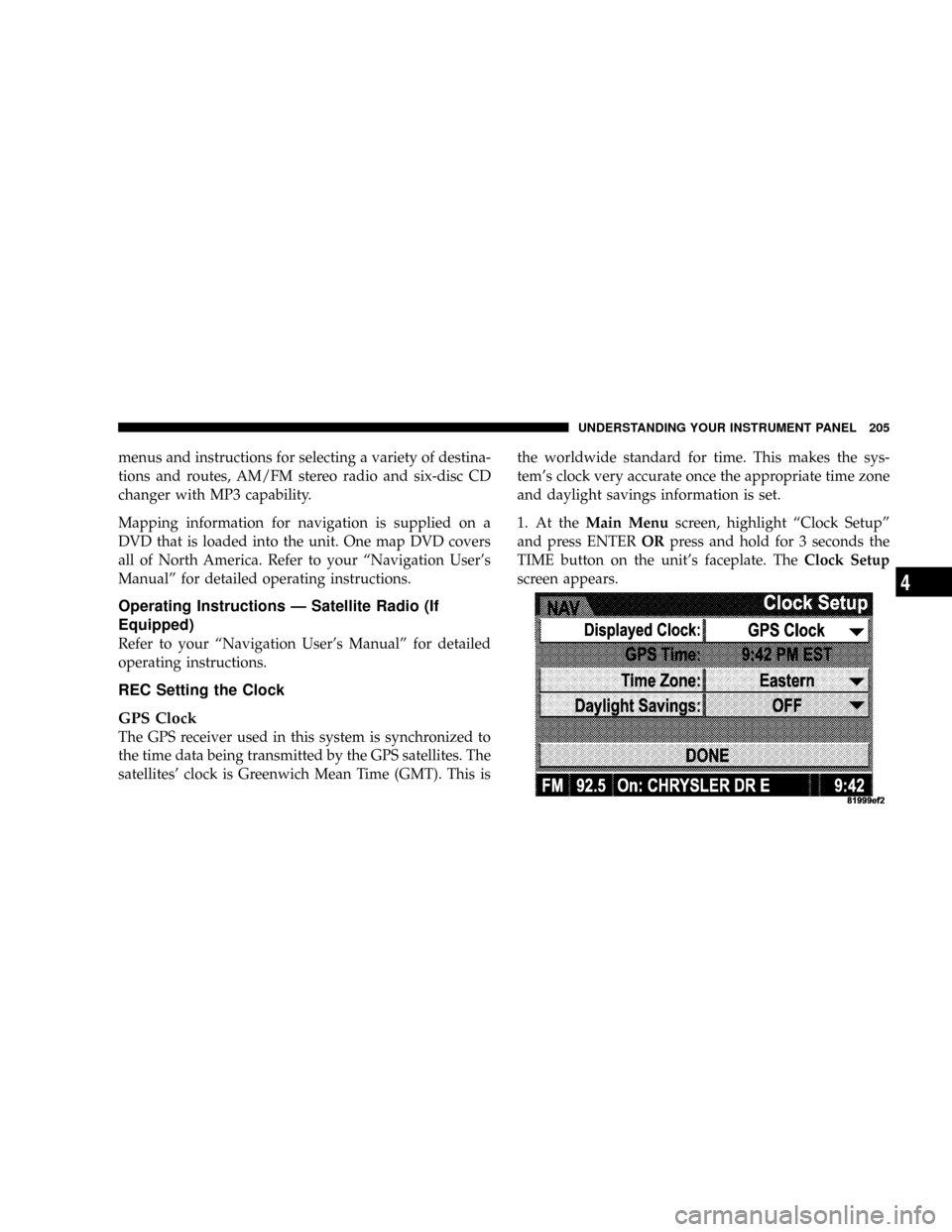
1. At theMain Menuscreen, highlight ªClock Setupº
and press ENTERORpress and hold for 3 seconds the
TIME button on the unit's faceplate. TheClock Setup
screen appears.
UNDERSTANDING YOUR INSTRUMENT PANEL 205
4
Page 206 of 399

2. To show the GPS clock, select ªDisplayed Clock: GPS
Clockº and press ENTER.
3. To adjust the time zone, Select ªTime Zoneº and press
ENTER. Select the appropriate time zone and press
ENTER.
4. To turn daylight savings on or off, select ªDaylight
Savingsº and press ENTER. Select ªOnº or ªOffº and
press ENTER.
5. Select DONE to exit from the clock setting mode. Press
ENTER to save your changes. If you press CANCEL or
NAV then your changes will not be saved.
User Defined Clock
If you wish to set the clock to a time different than the
system clock, you can manually adjust the time by
choosing the ªUser Defined Clockº option.
1. At theClock Setupscreen highlight ªDisplayed
Clock: User Defined Clockº.2. To increase the clock by hours, make sure ªHR +º is
highlighted and press ENTER. Press ENTER again to
increase the clock by another hour. You will see on the
ªUser Defined Timeº display the number of hours you
have increased the clock by.
206 UNDERSTANDING YOUR INSTRUMENT PANEL
Page 207 of 399
3. To decrease the clock by one hour, use the Select
Encoder to highlight the ª-º sign. Press ENTER. Press
ENTER again to decrease the clock by another hour.
4. To increase the clock by minutes, make sure ªMIN +º
is highlighted and press ENTER. Press ENTER again to
increase the clock by another minute.
5. To decrease the clock by minutes, use the Select
Encoder to highlight the ª-ª sign. Press ENTER. Press
ENTER again to decrease the clock by another minute.
6. Select ªDONEº to exit from the clock setting mode.
Press ENTER to save your changes. If you press CAN-
CEL or NAV then your changes will not be saved.Audio Clock Display
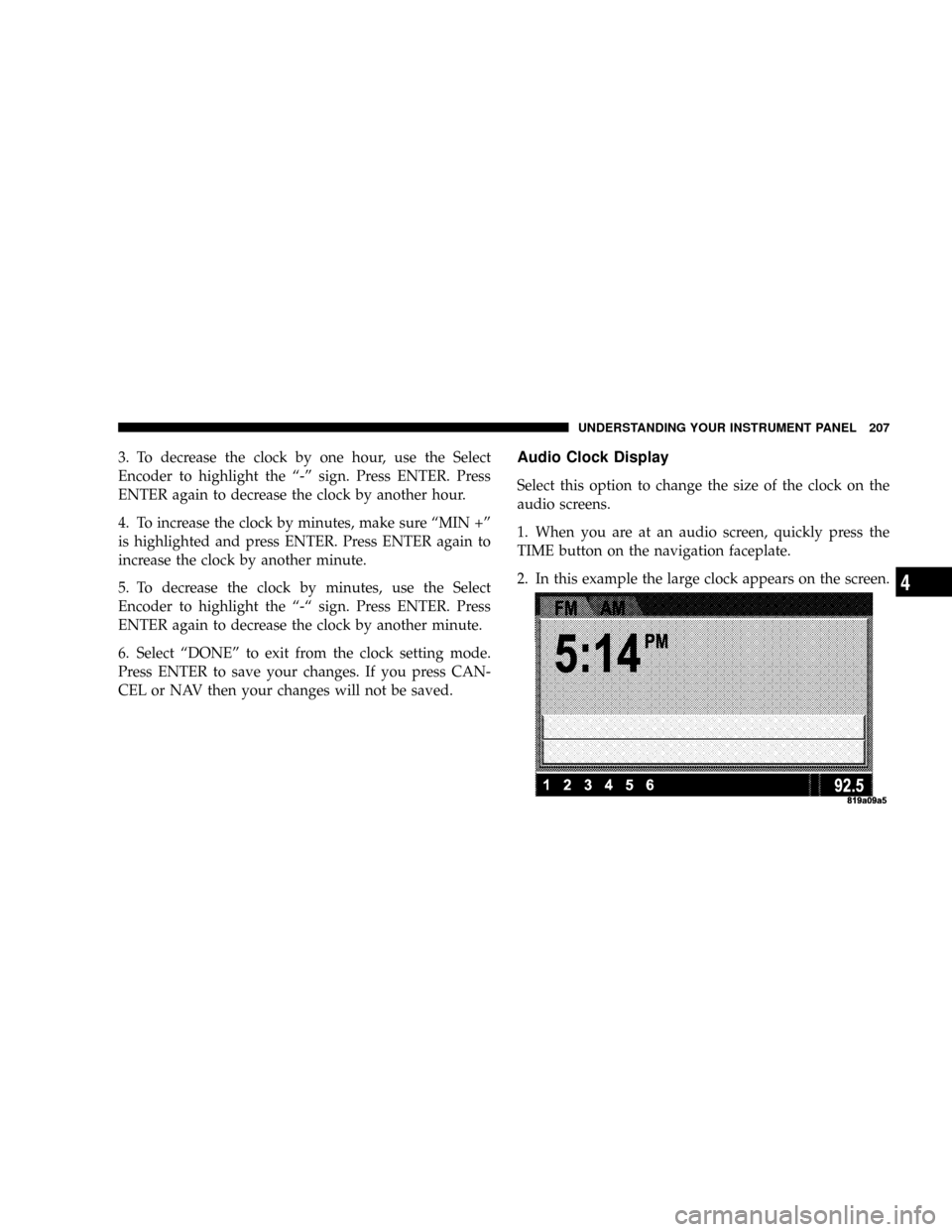
Select this option to change the size of the clock on the
audio screens.
1. When you are at an audio screen, quickly press the
TIME button on the navigation faceplate.
2. In this example the large clock appears on the screen.
UNDERSTANDING YOUR INSTRUMENT PANEL 207
4
Page 210 of 399

Selecting Satellite Mode Ð RAQ Radio
Press the MODE button repeatedly until the word9SAT9
appears in the display.
These radios will also display the current station name
and program type. For more information such as song
title and artist press the MSG or INFO button.
A CD or tape may remain in the radio while in the
Satellite radio mode.
Selecting a Channel
Press and release the SEEK or TUNE knob to search for
the next channel. Press the top of the button to search up
and the bottom of the button to search down. Holding the
TUNE button causes the radio to bypass channels until
the button is released.
Press and release the SCAN button (if equipped) to
automatically change channels every 7 seconds. The
radio will pause on each channel for 7 seconds beforemoving on to the next channel. The word9SCAN9will
appear in the display between each channel change. Press
the SCAN button a second time to stop the search.
NOTE:Channels that may contain objectionable content
can be blocked. Contact Sirius Customer Care at 888-539-
7474 to discuss options for channel blocking or unblock-
ing. Please have your ESN/SID information available.
Storing and Selecting Pre-Set Channels
In addition to the 12 AM and 12 FM pre-set stations, you
may also commit 12 satellite stations to push button
memory. These satellite channel pre-set stations will not
erase any AM or FM pre-set memory stations. Follow the
memory pre-set procedures that apply to your radio.
210 UNDERSTANDING YOUR INSTRUMENT PANEL