reset JEEP COMPASS 2018 Owner handbook (in English)
[x] Cancel search | Manufacturer: JEEP, Model Year: 2018, Model line: COMPASS, Model: JEEP COMPASS 2018Pages: 348, PDF Size: 6.03 MB
Page 275 of 348
Radio
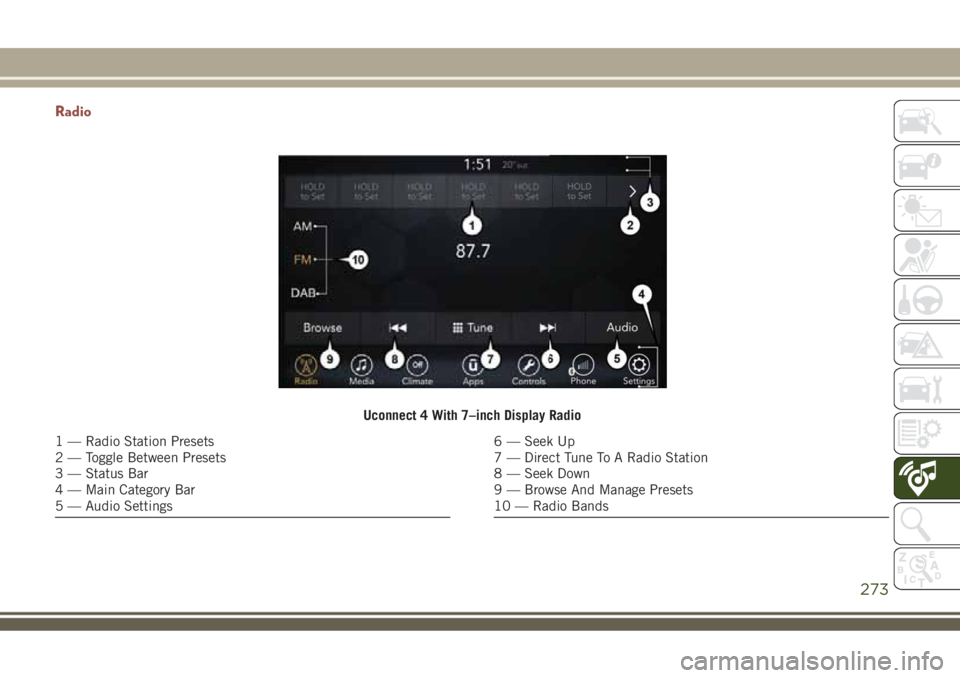
Uconnect 4 With 7–inch Display Radio
1 — Radio Station Presets
2 — Toggle Between Presets
3 — Status Bar
4 — Main Category Bar
5 — Audio Settings6 — Seek Up
7 — Direct Tune To A Radio Station
8 — Seek Down
9 — Browse And Manage Presets
10 — Radio Bands
273
Page 276 of 348
WARNING!
ALWAYS drive safely with your hands on
the wheel. You have full responsibility and
assume all risks related to the use of the
Uconnect features and applications in this
vehicle. Only use Uconnect when it is safe
to do so. Failure to do so may result in an
accident involving serious injury or death.
• To access the Radio mode, press the “Ra-
dio” button on the touchscreen.
Selecting Radio Stations
• Press the desired radio band (AM, FM or
DAB) button on the touchscreen.
Seek Up/Seek Down
• Press the Seek up or down arrow buttons on
the touchscreen for less than two seconds
to seek through radio stations.
• Press and hold either arrow button on the
touchscreen for more than two seconds to
bypass stations without stopping. The radio
will stop at the next listenable station once
the arrow button on the touchscreen is
released.Direct Tune
• Tune directly to a radio station by pressing
the “Tune” button on the screen, and en-
tering the desired station number.
Store Radio Presets Manually
Your radio can store 36 total preset stations,
12 presets per band (AM, FM and DAB). They
are shown at the top of your radio screen. To
see the 12 preset stations per band, press the
arrow button on the touchscreen at the top
right of the screen to toggle between the two
sets of six presets.
To store a radio preset manually, follow the
steps below:
1. Tune to the desired station.
2. Press and hold the desired numbered but-
ton on the touchscreen for more than two
seconds or until you hear a confirmation
beep.
Media Hub — USB/Audio Jack (AUX) — If
Equipped
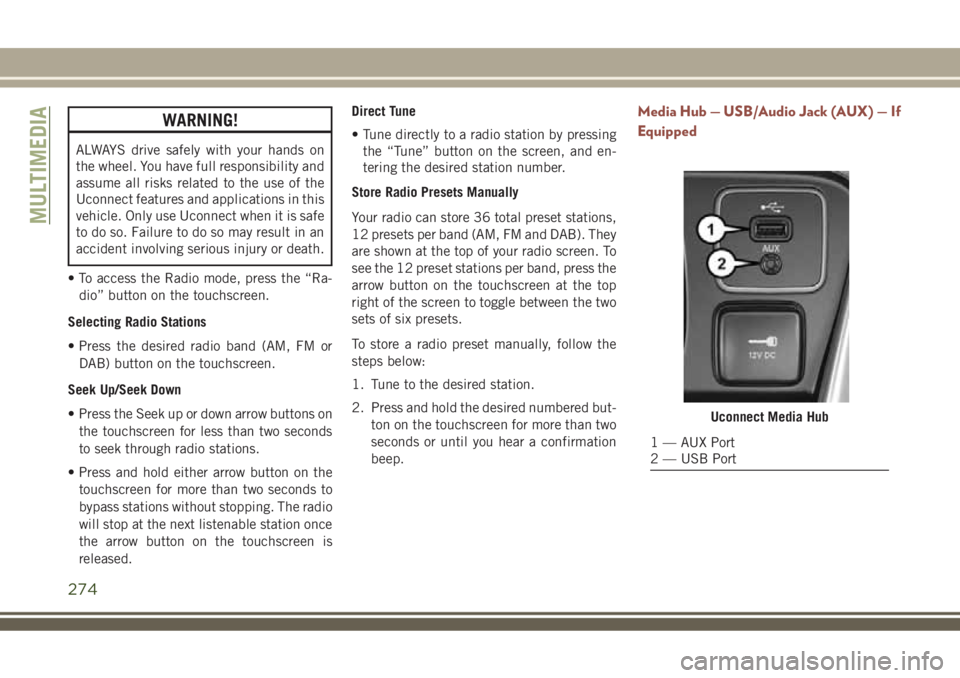
Uconnect Media Hub
1 — AUX Port
2 — USB Port
MULTIMEDIA
274
Page 283 of 348
Radio
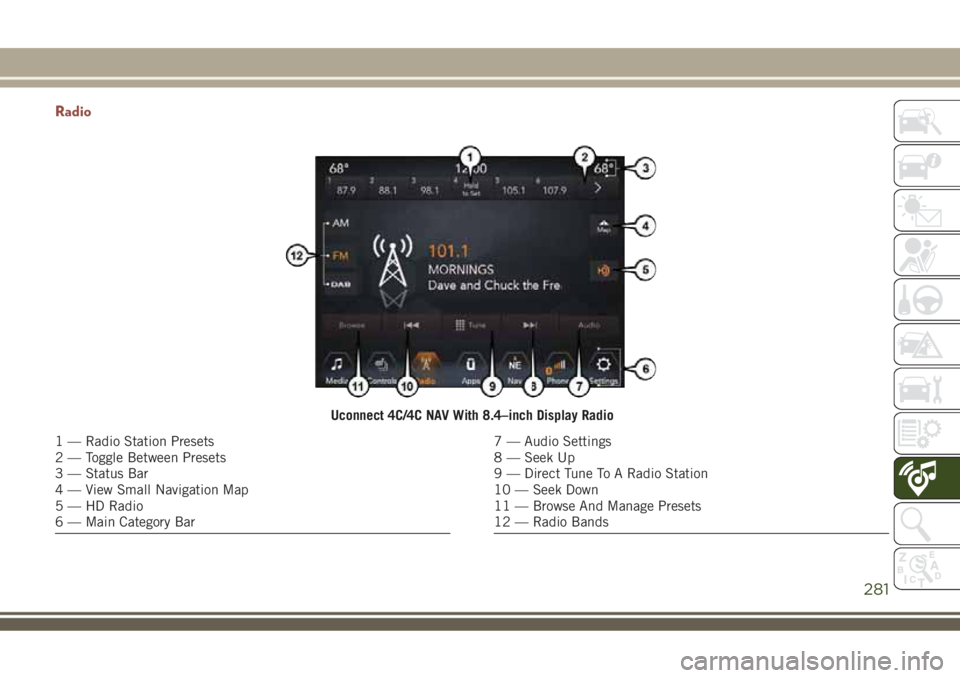
Uconnect 4C/4C NAV With 8.4–inch Display Radio
1 — Radio Station Presets
2 — Toggle Between Presets
3 — Status Bar
4 — View Small Navigation Map
5 — HD Radio
6 — Main Category Bar7 — Audio Settings
8 — Seek Up
9 — Direct Tune To A Radio Station
10 — Seek Down
11 — Browse And Manage Presets
12 — Radio Bands
281
Page 284 of 348
WARNING!
ALWAYS drive safely with your hands on
the wheel. You have full responsibility and
assume all risks related to the use of the
Uconnect features and applications in this
vehicle. Only use Uconnect when it is safe
to do so. Failure to do so may result in an
accident involving serious injury or death.
• To access the Radio mode, press the “Ra-
dio” button on the touchscreen.
Selecting Radio Stations
• Press the desired radio band (AM, FM or
DAB) button on the touchscreen.
Seek Up/Seek Down
• Press the Seek up or down arrow buttons on
the touchscreen for less than two seconds
to seek through radio stations.
• Press and hold either arrow button on the
touchscreen for more than two seconds to
bypass stations without stopping. The radio
will stop at the next listenable station once
the arrow button on the touchscreen is
released.Direct Tune
• Tune directly to a radio station by pressing
the “Tune” button on the screen, and en-
tering the desired station number.
Store Radio Presets Manually
Your radio can store 36 total preset stations,
12 presets per band (AM, FM and DAB). They
are shown at the top of your radio screen. To
see the 12 preset stations per band, press the
arrow button on the touchscreen at the top
right of the screen to toggle between the two
sets of six presets.
To store a radio preset manually, follow the
steps below:
1. Tune to the desired station.
2. Press and hold the desired numbered but-
ton on the touchscreen for more than two
seconds or until you hear a confirmation
beep.
Media Hub — USB/Audio Jack (AUX) — If
Equipped
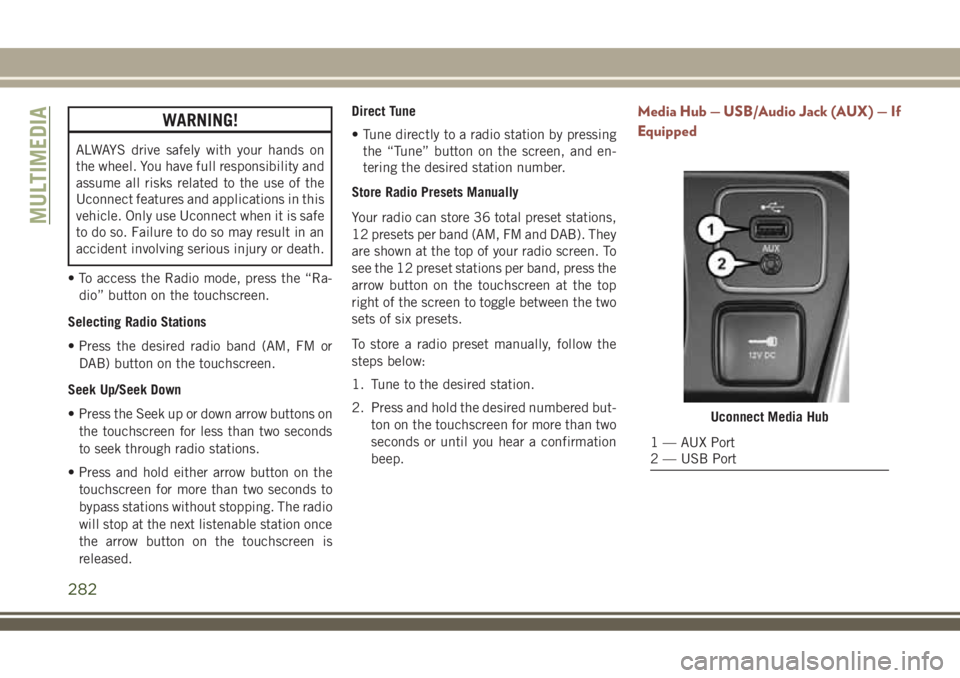
Uconnect Media Hub
1 — AUX Port
2 — USB Port
MULTIMEDIA
282
Page 306 of 348
Helpful Tips And Common Questions To
Improve Bluetooth Performance With
Your Uconnect System
Mobile Phone won’t reconnect to system after
pairing:
• Set mobile phone to auto-connect or
trusted device in mobile phone Bluetooth
settings (Blackberry devices).
• Many mobile phones do not automatically
reconnect after being restarted (hard re-
boot). Your mobile phone can still be con-
nected manually. Close all applications
that may be operating (refer to mobile
phone manufacturer’s instructions), and
follow “Pairing (Wirelessly Connecting)
Your Mobile Phone To The Uconnect Sys-
tem”.
• Perform a factory reset on your mobile
phone. Refer to your mobile phone manu-
facturer or cellular provider for instruc-
tions. This should only be done as a last
resort.Mobile Phone won’t pair to system:
• Delete pairing history in mobile phone and
Uconnect system; usually found in phone’s
Bluetooth connection settings.
• Verify you are selecting “Uconnect” in the
discovered Bluetooth devices on your mo-
bile phone.
• If your vehicle system generates a pin code
the default is 0000.
• Perform a hard reset in the mobile phone by
removing the battery (if removable — see
your mobile phone’s owner manual). This
should only be done as a last resort.
Mobile Phonebook didn’t download:
• Check “Do not ask again,” then accept the
“phonebook download” request on your
mobile phone.
• Up to 5,000 contact names with four num-
bers per contact will transfer to the
Uconnect 4C/4C NAV system phonebook.
• Up to 2,000 contact names with six num-
bers per contact will transfer to the
Uconnect 4 system phonebook.Can’t make a conference call:
• CDMA (Code-Division Multiple Access) car-
riers do not support conference calling.
Refer to your mobile phone user’s manual
for further information.
Making calls while connected to AUX:
• Plugging in your mobile phone to AUX while
connected to Bluetooth will disable Hands-
Free Calling. Do not make calls while your
mobile phone is plugged into the AUX jack.
UCONNECT LIVE — IF
EQUIPPED
The Uconnect LIVE app is available in the
Apple Store or the Google Play Store. A whole
range of apps can be viewed and controlled
through the touchscreen of the Uconnect
system. The apps have been designed to
ensure that the driver’s concentration re-
mains focused on driving. Please refer to your
Uconnect 4 With 7–inch Display or Uconnect
4C/4C NAV With 8.4–inch Display Radio
Supplement for further information regarding
Uconnect Live.
MULTIMEDIA
304
Page 339 of 348
Capacity.................258
Checking.................233
Dipstick.................233
Filter...................259
Pressure Warning Light.........63
Recommendation............258
Viscosity.................258
Oil Pressure Light...............63
Onboard Diagnostic System.........71
Operating Precautions............71
Outside Rearview Mirrors..........34
Overheating, Engine............214
Paddle Shifters...............155
Paint Care..................247
Parking Brake................145
ParkSense Active Park Assist.......172
ParkSense System, Front And Rear . . .169
ParkSense System, Rear......167, 169
Passenger Air Bag Disable OFF......109
Passenger Air Bag Disable ON......109
Pets......................135
Phone, Hands-Free (Uconnect)......295
Phone (Pairing)...............298
Phone (Uconnect)..............295
Power
Glass Sunroof...............50Inverter..................58
Lift Gate..................54
Outlet (Auxiliary Electrical Outlet) . .56
Windows..................48
Pregnant Women And Seat Belts.....105
Preparation For Jacking..........200
Radial Ply Tires...............239
Radio
Presets...........267, 273, 281
Radio Operation...............267
Radio Screens.............271, 279
Radio (Sound Systems)..........267
Rain Sensitive Wiper System.....37, 38
Rear Camera.................176
Rear Cross Path................
87
Rear ParkSense System . . .167, 169, 176
Rear Seat, Folding............25, 29
Rear Wiper/Washer............37, 39
Recreational Towing.............183
Release, Hood.................53
Reminder, Lights On.............34
Reminder, Seat Belt.............98
Remote Control
Starting System.............17
Remote Keyless Entry............13
Arm The Alarm..............20Disarm The Alarm.............20
Programming Additional Key Fobs . . .19
Remote Starting
Exit Remote Start Mode........18
Remote Starting System...........17
Replacement Keys............14, 19
Replacement Tires.............241
Restraint, Head................30
Roll Over Warning................2
Rotation, Tires................245
Safety Checks Inside Vehicle.......137
Safety Checks Outside Vehicle......138
Safety, Exhaust Gas.............136
Safety Tips..................136
Schedule, Maintenance..........222
Seat Belt
Adjustable Upper Shoulder Belt Anchor-
age ....................102
Lap/Shoulder Belt Operation.....101
Lap/Shoulder Belts............99
Lap/Shoulder Belt Untwisting.....101
Pregnant Women............105
Seat Belt Reminder............98
Seat Belt Maintenance...........250
Seat Belt Reminder..............98
Seat Belts................98, 137
337