change wheel JEEP COMPASS 2019 Owner handbook (in English)
[x] Cancel search | Manufacturer: JEEP, Model Year: 2019, Model line: COMPASS, Model: JEEP COMPASS 2019Pages: 362, PDF Size: 6.23 MB
Page 294 of 362
Audio Jack (AUX)
• The AUX allows a device to be plugged into
the radio and utilize the vehicle’s sound
system, using a 3.5 mm audio cable, to
amplify the source and play through the
vehicle speakers.
• Pressing the “AUX” button on the touch-
screen will change the mode to auxiliary
device if the audio jack is connected, allow-
ing the music from your device to be heard
through the vehicle's speakers. To activate
the AUX, plug in the audio jack.
• The functions of the device are controlled
using the device buttons. The volume may
be controlled using the radio or device.
• To route the audio cable out of the center
console, use the access cut out in the front
of the console.USB Port
• Connect your compatible device using a
USB cable into the USB Port. USB Memory
sticks with audio files can also be used.
Audio from the device can be played on the
vehicles sound system while providing
metadata (artist, track title, album, etc.)
information on the radio display.
• When connected, the compatible USB de-
vice can be controlled using the radio or
Steering Wheel Audio Controls to play, skip
to the next or previous track, browse, and
list the contents.
•
The battery charges when plugged into the
USB port (if supported by the specific device).
NOTE:
When connecting your device for the first
time, the system may take several minutes to
read your music, depending on the number of
files. For example, the system will take ap-
proximately five minutes for every
1,000 songs loaded on the device. Also dur-
ing the reading process, the Shuffle and
Browse functions will be disabled.This process is needed to ensure the full use
of your features and only happens the first
time it is connected. After the first time, the
reading process of your device will take con-
siderably less time unless changes are made
or new songs are added to the playlist.
Bluetooth Streaming Audio
• If equipped with Uconnect Voice Com-
mand, your Bluetooth-equipped device
may also be able to stream music to your
vehicle's sound system. Your connected de-
vice must be Bluetooth-compatible and
paired with your system (see Uconnect
Phone for pairing instructions). You can
access the music from your connected
Bluetooth device by pressing the Bluetoothbutton on the touchscreen while in Me-
dia mode.
MULTIMEDIA
292
Page 302 of 362
Audio Jack (AUX)
• The AUX allows a device to be plugged into
the radio and utilize the vehicle’s sound
system, using a 3.5 mm audio cable, to
amplify the source and play through the
vehicle speakers.
• Pressing the “AUX” button on the touch-
screen will change the mode to auxiliary
device if the audio jack is connected, allow-
ing the music from your device to be heard
through the vehicle's speakers. To activate
the AUX, plug in the audio jack.
• The functions of the device are controlled
using the device buttons. The volume may
be controlled using the radio or device.
• To route the audio cable out of the center
console, use the access cut out in the front
of the console.USB Port
• Connect your compatible device using a
USB cable into the USB Port. USB Memory
sticks with audio files can also be used.
Audio from the device can be played on the
vehicles sound system while providing
metadata (artist, track title, album, etc.)
information on the radio display.
• When connected, the compatible USB de-
vice can be controlled using the radio or
Steering Wheel Audio Controls to play, skip
to the next or previous track, browse, and
list the contents.
• The battery charges when plugged into the
USB port (if supported by the specific de-
vice).
NOTE:
When connecting your device for the first
time, the system may take several minutes to
read your music, depending on the number of
files. For example, the system will take ap-
proximately five minutes for every
1,000 songs loaded on the device. Also dur-
ing the reading process, the Shuffle and
Browse functions will be disabled.This process is needed to ensure the full use
of your features and only happens the first
time it is connected. After the first time, the
reading process of your device will take con-
siderably less time unless changes are made
or new songs are added to the playlist.
Bluetooth Streaming Audio
• If equipped with Uconnect Voice Com-
mand, your Bluetooth-equipped device
may also be able to stream music to your
vehicle's sound system. Your connected de-
vice must be Bluetooth-compatible and
paired with your system (see Uconnect
Phone for pairing instructions). You can
access the music from your connected
Bluetooth device by pressing the Bluetooth
button on the touchscreen while in Me-
dia mode.
MULTIMEDIA
300
Page 303 of 362
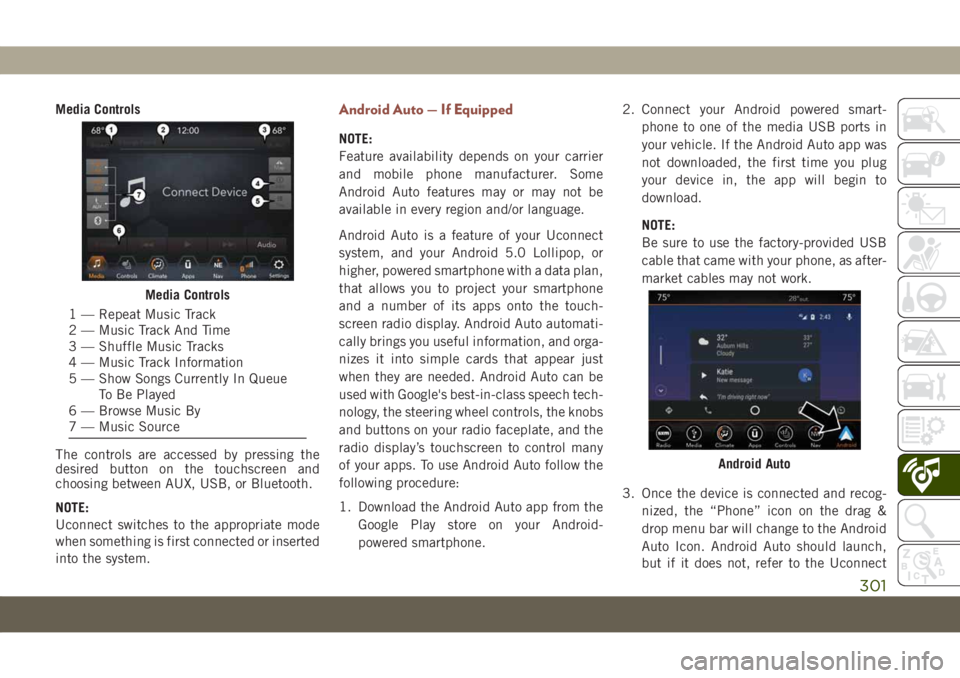
Media Controls
The controls are accessed by pressing the
desired button on the touchscreen and
choosing between AUX, USB, or Bluetooth.
NOTE:
Uconnect switches to the appropriate mode
when something is first connected or inserted
into the system.Android Auto — If Equipped
NOTE:
Feature availability depends on your carrier
and mobile phone manufacturer. Some
Android Auto features may or may not be
available in every region and/or language.
Android Auto is a feature of your Uconnect
system, and your Android 5.0 Lollipop, or
higher, powered smartphone with a data plan,
that allows you to project your smartphone
and a number of its apps onto the touch-
screen radio display. Android Auto automati-
cally brings you useful information, and orga-
nizes it into simple cards that appear just
when they are needed. Android Auto can be
used with Google's best-in-class speech tech-
nology, the steering wheel controls, the knobs
and buttons on your radio faceplate, and the
radio display’s touchscreen to control many
of your apps. To use Android Auto follow the
following procedure:
1. Download the Android Auto app from the
Google Play store on your Android-
powered smartphone.2. Connect your Android powered smart-
phone to one of the media USB ports in
your vehicle. If the Android Auto app was
not downloaded, the first time you plug
your device in, the app will begin to
download.
NOTE:
Be sure to use the factory-provided USB
cable that came with your phone, as after-
market cables may not work.
3. Once the device is connected and recog-
nized, the “Phone” icon on the drag &
drop menu bar will change to the Android
Auto Icon. Android Auto should launch,
but if it does not, refer to the Uconnect
Media Controls
1 — Repeat Music Track
2 — Music Track And Time
3 — Shuffle Music Tracks
4 — Music Track Information
5 — Show Songs Currently In Queue
To Be Played
6 — Browse Music By
7 — Music Source
Android Auto
301
Page 305 of 362
NOTE:
If you are using the built-in Uconnect naviga-
tion system, and you try and start a new route
using the Android Auto, via voice or any other
method, a pop-up appears asking if you
would like to switch from Uconnect naviga-
tion to smartphone navigation. A pop-up also
appears, asking if you’d like to switch, if
Android Auto is currently in use and you
attempt to launch a built-in Uconnect route.
Selecting “Yes” switches the navigation type
to the newly used method of navigation and a
route will be planned for the new destination.
If “No” is selected the navigation type re-
mains unchanged.
For further information, refer to
www.android.com/auto/.
For further information on the navigation
function, please refer to
https://support.google.com/android or
https://support.google.com/androidauto/.Music
Android Auto allows you to access and stream
your favorite music with apps like Google Play
Music, iHeartRadio, and Spotify. Using your
smartphone’s data plan, you can stream end-
less music on the road.
NOTE:
Music apps, playlists, and stations must be
set up on your smartphone prior to using
Android Auto, for them to work with Android
Auto.
NOTE:
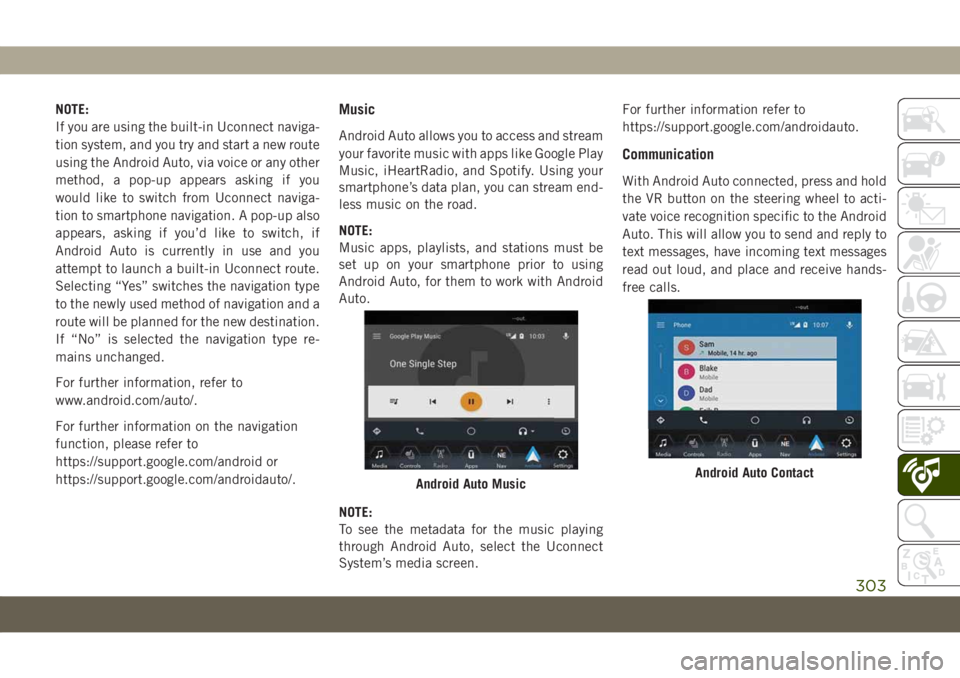
To see the metadata for the music playing
through Android Auto, select the Uconnect
System’s media screen.For further information refer to
https://support.google.com/androidauto.
Communication
With Android Auto connected, press and hold
the VR button on the steering wheel to acti-
vate voice recognition specific to the Android
Auto. This will allow you to send and reply to
text messages, have incoming text messages
read out loud, and place and receive hands-
free calls.
Android Auto MusicAndroid Auto Contact
303
Page 354 of 362
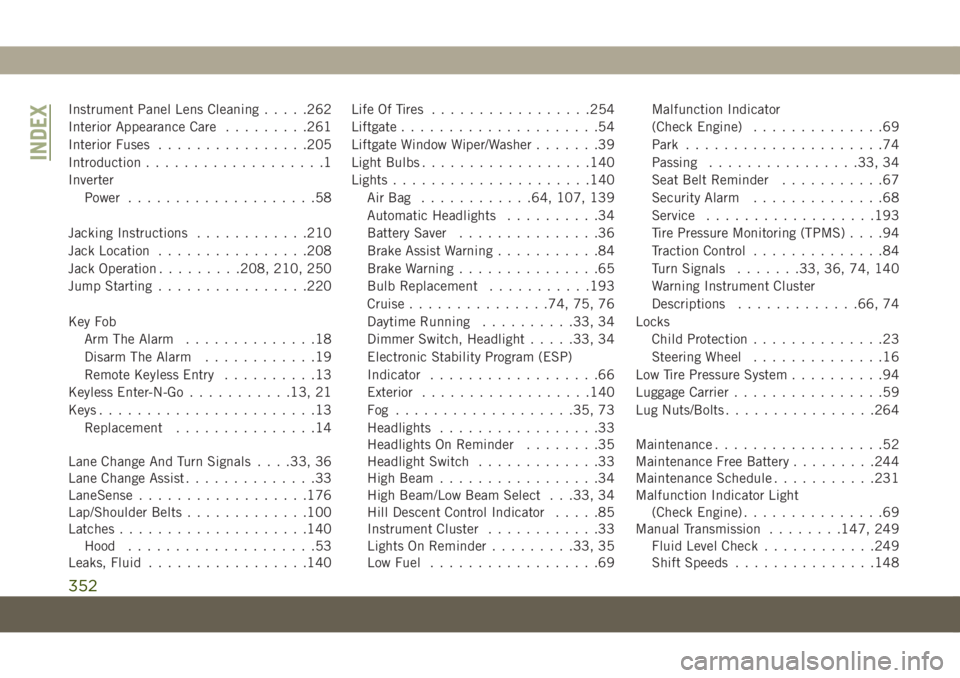
Instrument Panel Lens Cleaning.....262
Interior Appearance Care.........261
Interior Fuses................205
Introduction...................1
Inverter
Power....................58
Jacking Instructions............210
Jack Location................208
Jack Operation.........208, 210, 250
Jump Starting................220
Key Fob
Arm The Alarm..............18
Disarm The Alarm............19
Remote Keyless Entry..........13
Keyless Enter-N-Go...........13, 21
Keys.......................13
Replacement...............14
Lane Change And Turn Signals. . . .33, 36
Lane Change Assist..............33
LaneSense..................176
Lap/Shoulder Belts.............100
Latches....................140
Hood....................53
Leaks, Fluid.................140Life Of Tires.................254
Liftgate.....................54
Liftgate Window Wiper/Washer.......39
Light Bulbs..................140
Lights.....................140
AirBag ............64, 107, 139
Automatic Headlights..........34
Battery Saver...............36
Brake Assist Warning...........84
Brake Warning...............65
Bulb Replacement...........193
Cruise...............74, 75, 76
Daytime Running..........33, 34
Dimmer Switch, Headlight.....33, 34
Electronic Stability Program (ESP)
Indicator..................66
Exterior..................140
Fog ...................35, 73
Headlights
.................33
Headlights On Reminder........35
Headlight Switch.............33
High Beam.................34
High Beam/Low Beam Select . . .33, 34
Hill Descent Control Indicator.....85
Instrument Cluster............33
Lights On Reminder.........33, 35
Low Fuel..................69Malfunction Indicator
(Check Engine)..............69
Park.....................74
Passing................33, 34
Seat Belt Reminder...........67
Security Alarm..............68
Service..................193
Tire Pressure Monitoring (TPMS)....94
Traction Control..............84
Turn Signals.......33, 36, 74, 140
Warning Instrument Cluster
Descriptions.............66, 74
Locks
Child Protection..............23
Steering Wheel..............16
Low Tire Pressure System..........94
Luggage Carrier................59
Lug Nuts/Bolts................264
Maintenance..................52
Maintenance Free Battery.........244
Maintenance Schedule...........231
Malfunction Indicator Light
(Check Engine)...............69
Manual Transmission........147, 249
Fluid Level Check............249
Shift Speeds...............148
INDEX
352