radio JEEP COMPASS 2023 Owner's Manual
[x] Cancel search | Manufacturer: JEEP, Model Year: 2023, Model line: COMPASS, Model: JEEP COMPASS 2023Pages: 344, PDF Size: 18.8 MB
Page 150 of 344
148STARTING AND OPERATING
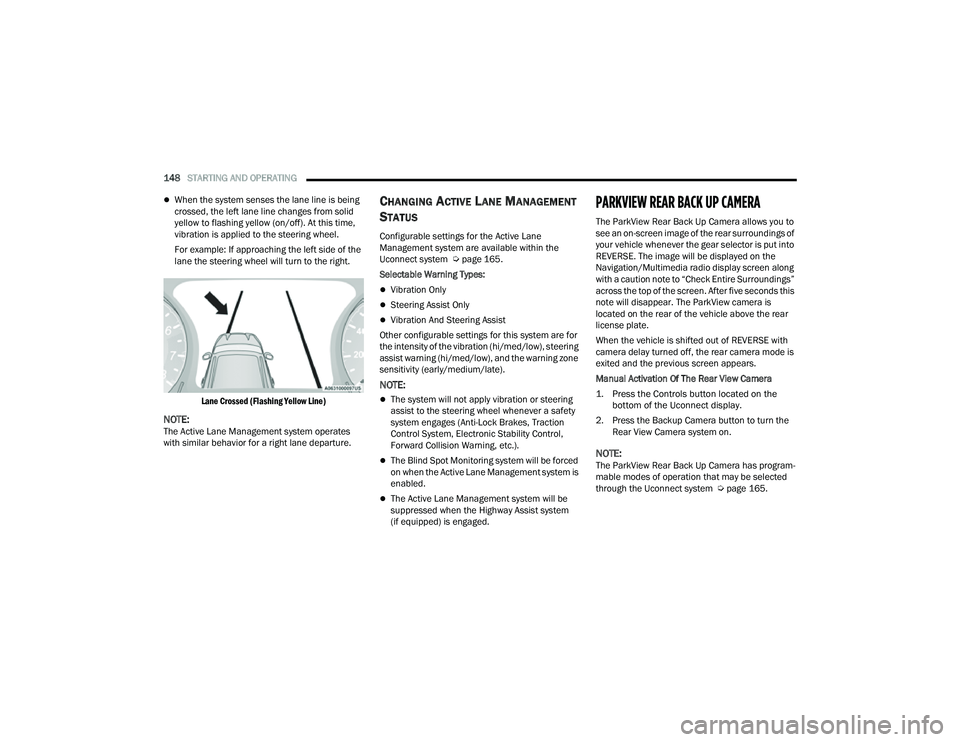
When the system senses the lane line is being
crossed, the left lane line changes from solid
yellow to flashing yellow (on/off). At this time,
vibration is applied to the steering wheel.
For example: If approaching the left side of the
lane the steering wheel will turn to the right.
Lane Crossed (Flashing Yellow Line)
NOTE:The Active Lane Management system operates
with similar behavior for a right lane departure.
CHANGING ACTIVE LANE MANAGEMENT
S
TATUS
Configurable settings for the Active Lane
Management system are available within the
Uconnect system Ú page 165.
Selectable Warning Types:
Vibration Only
Steering Assist Only
Vibration And Steering Assist
Other configurable settings for this system are for
the intensity of the vibration (hi/med/low), steering
assist warning (hi/med/low), and the warning zone
sensitivity (early/medium/late).
NOTE:
The system will not apply vibration or steering
assist to the steering wheel whenever a safety
system engages (Anti-Lock Brakes, Traction
Control System, Electronic Stability Control,
Forward Collision Warning, etc.).
The Blind Spot Monitoring system will be forced
on when the Active Lane Management system is
enabled.
The Active Lane Management system will be
suppressed when the Highway Assist system
(if equipped) is engaged.
PARKVIEW REAR BACK UP CAMERA
The ParkView Rear Back Up Camera allows you to
see an on-screen image of the rear surroundings of
your vehicle whenever the gear selector is put into
REVERSE. The image will be displayed on the
Navigation/Multimedia radio display screen along
with a caution note to “Check Entire Surroundings”
across the top of the screen. After five seconds this
note will disappear. The ParkView camera is
located on the rear of the vehicle above the rear
license plate.
When the vehicle is shifted out of REVERSE with
camera delay turned off, the rear camera mode is
exited and the previous screen appears.
Manual Activation Of The Rear View Camera
1. Press the Controls button located on the bottom of the Uconnect display.
2. Press the Backup Camera button to turn the Rear View Camera system on.
NOTE:The ParkView Rear Back Up Camera has program -
mable modes of operation that may be selected
through the Uconnect system Ú page 165.
22_MP_OM_EN_USC_t.book Page 148
Page 167 of 344
MULTIMEDIA165
UCONNECT SETTINGS
The Uconnect system uses a combination of
buttons on the touchscreen and buttons on the
faceplate located in the center of the instrument
panel. These buttons allow you to access and
change Programmable Features. Many features
can vary by vehicle and packages.
Buttons on the faceplate are located below and/or
beside the Uconnect system in the center of the
instrument panel. In addition, there is a Scroll/
Enter control knob below and to the right of the
screen. Turn the control knob to scroll through
menus and change settings. Push the center of the
control knob one or more times to select or change
a setting.
Your Uconnect system may also have Screen Off
and Mute buttons on the faceplate.
Push the Screen Off button on the faceplate to turn
off the Uconnect screen. Push the button again or
tap the screen to turn the screen on.
Press the Back Arrow button to exit out of a Menu
or certain option on the Uconnect system.
Push and hold the Power button on the radio’s
faceplate for a minimum of 15 seconds to reset
the radio.
CUSTOMER PROGRAMMABLE FEATURES
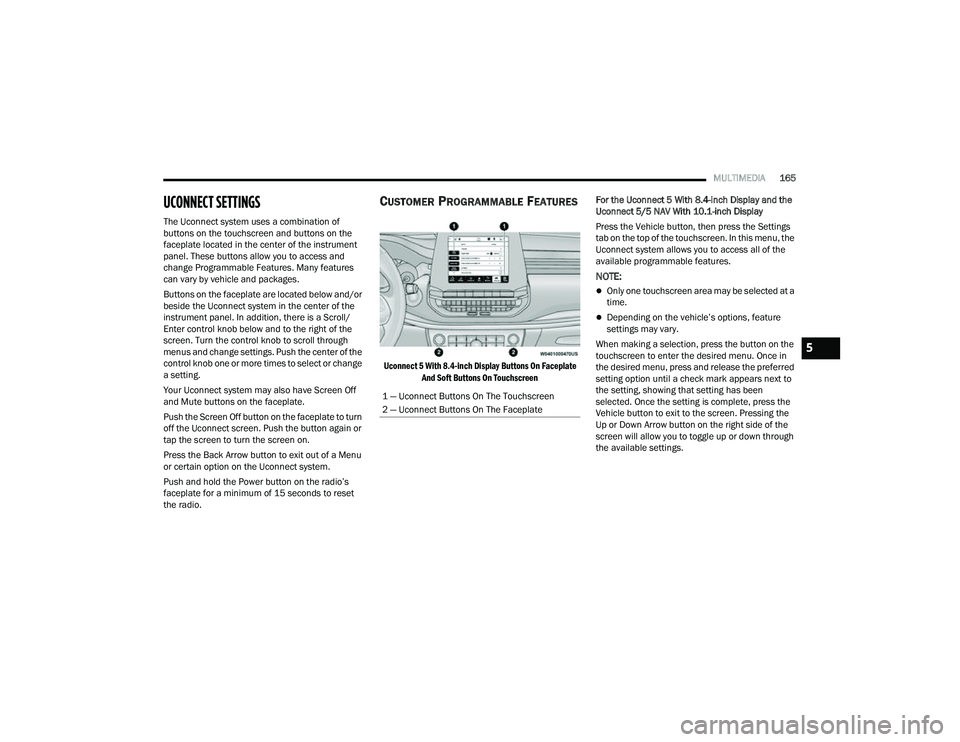
Uconnect 5 With 8.4-inch Display Buttons On Faceplate
And Soft Buttons On Touchscreen
For the Uconnect 5 With 8.4-inch Display and the
Uconnect 5/5 NAV With 10.1-inch Display
Press the Vehicle button, then press the Settings
tab on the top of the touchscreen. In this menu, the
Uconnect system allows you to access all of the
available programmable features.
NOTE:
Only one touchscreen area may be selected at a
time.
Depending on the vehicle’s options, feature
settings may vary.
When making a selection, press the button on the
touchscreen to enter the desired menu. Once in
the desired menu, press and release the preferred
setting option until a check mark appears next to
the setting, showing that setting has been
selected. Once the setting is complete, press the
Vehicle button to exit to the screen. Pressing the
Up or Down Arrow button on the right side of the
screen will allow you to toggle up or down through
the available settings.
1 — Uconnect Buttons On The Touchscreen
2 — Uconnect Buttons On The Faceplate
5
22_MP_OM_EN_USC_t.book Page 165
Page 168 of 344
166MULTIMEDIA
My Profile
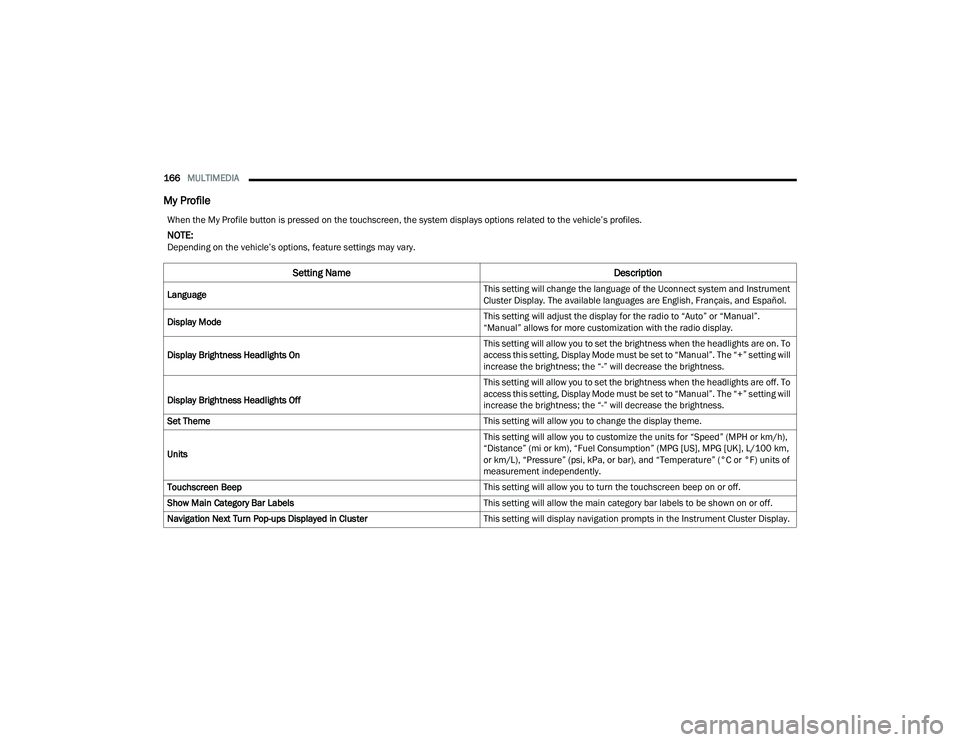
When the My Profile button is pressed on the touchscreen, the system displays options related to the vehicle’s profiles.
NOTE:Depending on the vehicle’s options, feature settings may vary.
Setting Name Description
Language This setting will change the language of the Uconnect system and Instrument
Cluster Display. The available languages are English, Français, and Español.
Display Mode This setting will adjust the display for the radio to “Auto” or “Manual”.
“Manual” allows for more customization with the radio display.
Display Brightness Headlights On This setting will allow you to set the brightness when the headlights are on. To
access this setting, Display Mode must be set to “Manual”. The “+” setting will
increase the brightness; the “-” will decrease the brightness.
Display Brightness Headlights Off This setting will allow you to set the brightness when the headlights are off. To
access this setting, Display Mode must be set to “Manual”. The “+” setting will
increase the brightness; the “-” will decrease the brightness.
Set Theme This setting will allow you to change the display theme.
Units This setting will allow you to customize the units for “Speed” (MPH or km/h),
“Distance” (mi or km), “Fuel Consumption” (MPG [US], MPG [UK], L/100 km,
or km/L), “Pressure” (psi, kPa, or bar), and “Temperature” (°C or °F) units of
measurement independently.
Touchscreen Beep This setting will allow you to turn the touchscreen beep on or off.
Show Main Category Bar Labels This setting will allow the main category bar labels to be shown on or off.
Navigation Next Turn Pop-ups Displayed in Cluster This setting will display navigation prompts in the Instrument Cluster Display.
22_MP_OM_EN_USC_t.book Page 166
Page 169 of 344
MULTIMEDIA167
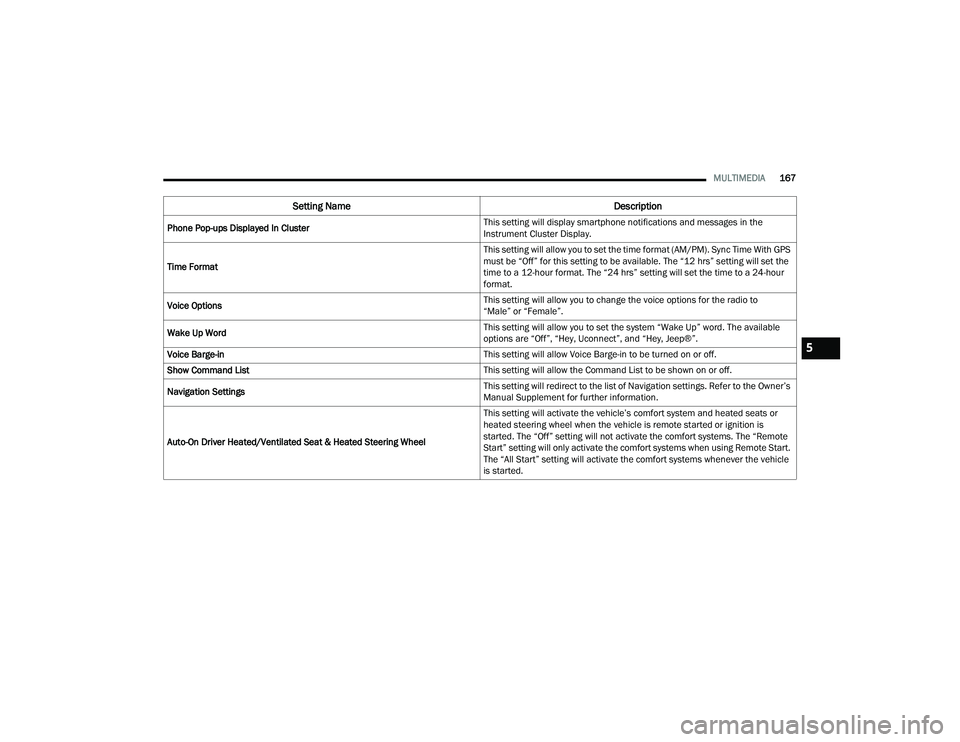
Phone Pop-ups Displayed In Cluster This setting will display smartphone notifications and messages in the
Instrument Cluster Display.
Time Format This setting will allow you to set the time format (AM/PM). Sync Time With GPS
must be “Off” for this setting to be available. The “12 hrs” setting will set the
time to a 12-hour format. The “24 hrs” setting will set the time to a 24-hour
format.
Voice Options This setting will allow you to change the voice options for the radio to
“Male” or “Female”.
Wake Up Word This setting will allow you to set the system “Wake Up” word. The available
options are “Off”, “Hey, Uconnect”, and “Hey, Jeep®”.
Voice Barge-in This setting will allow Voice Barge-in to be turned on or off.
Show Command List This setting will allow the Command List to be shown on or off.
Navigation Settings This setting will redirect to the list of Navigation settings. Refer to the Owner’s
Manual Supplement for further information.
Auto-On Driver Heated/Ventilated Seat & Heated Steering Wheel This setting will activate the vehicle’s comfort system and heated seats or
heated steering wheel when the vehicle is remote started or ignition is
started. The “Off” setting will not activate the comfort systems. The “Remote
Start” setting will only activate the comfort systems when using Remote Start.
The “All Start” setting will activate the comfort systems whenever the vehicle
is started.
Setting Name
Description
5
22_MP_OM_EN_USC_t.book Page 167
Page 170 of 344
168MULTIMEDIA
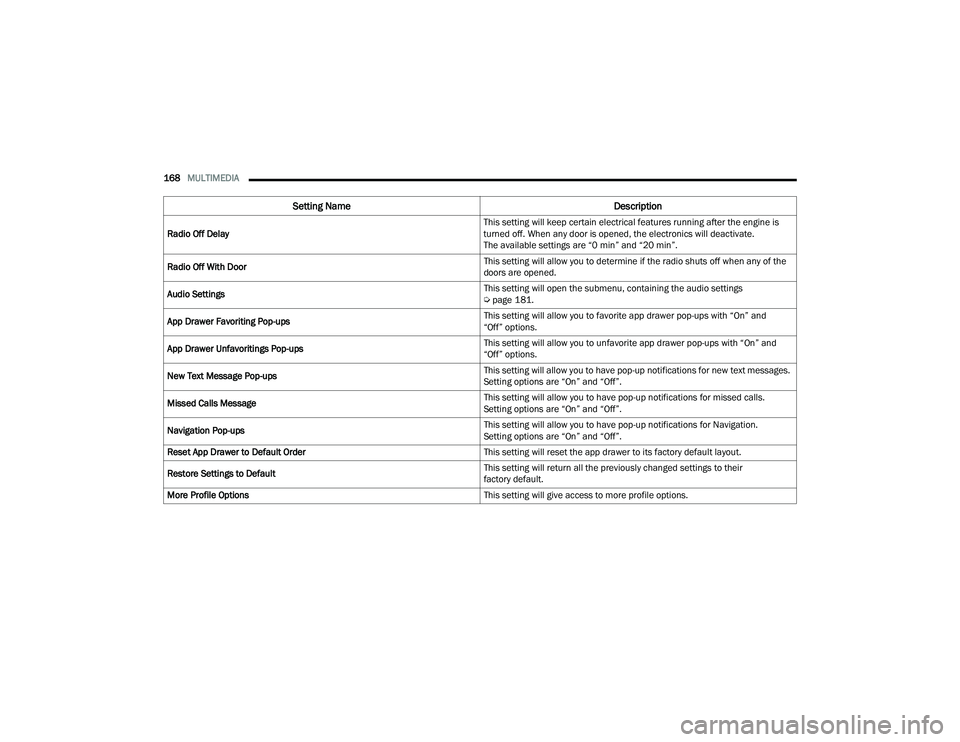
Radio Off Delay This setting will keep certain electrical features running after the engine is
turned off. When any door is opened, the electronics will deactivate.
The available settings are “0 min” and “20 min”.
Radio Off With Door This setting will allow you to determine if the radio shuts off when any of the
doors are opened.
Audio Settings This setting will open the submenu, containing the audio settings
Ú
page 181.
App Drawer Favoriting Pop-ups This setting will allow you to favorite app drawer pop-ups with “On” and
“Off” options.
App Drawer Unfavoritings Pop-ups This setting will allow you to unfavorite app drawer pop-ups with “On” and
“Off” options.
New Text Message Pop-ups This setting will allow you to have pop-up notifications for new text messages.
Setting options are “On” and “Off”.
Missed Calls Message This setting will allow you to have pop-up notifications for missed calls.
Setting options are “On” and “Off”.
Navigation Pop-ups This setting will allow you to have pop-up notifications for Navigation.
Setting options are “On” and “Off”.
Reset App Drawer to Default Order This setting will reset the app drawer to its factory default layout.
Restore Settings to Default This setting will return all the previously changed settings to their
factory default.
More Profile Options This setting will give access to more profile options.
Setting NameDescription
22_MP_OM_EN_USC_t.book Page 168
Page 183 of 344
MULTIMEDIA181
Key Off Options
Audio
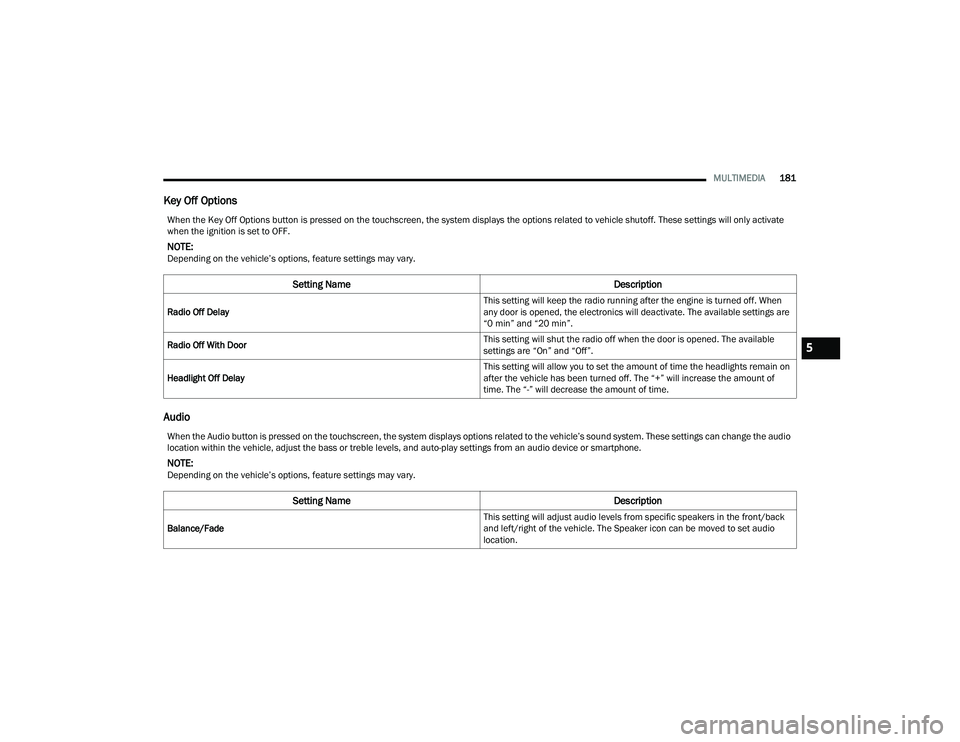
When the Key Off Options button is pressed on the touchscreen, the system displays the options related to vehicle shutoff. These settings will only activate
when the ignition is set to OFF.
NOTE:Depending on the vehicle’s options, feature settings may vary.
Setting Name Description
Radio Off Delay This setting will keep the radio running after the engine is turned off. When
any door is opened, the electronics will deactivate. The available settings are
“0 min” and “20 min”.
Radio Off With Door This setting will shut the radio off when the door is opened. The available
settings are “On” and “Off”.
Headlight Off Delay This setting will allow you to set the amount of time the headlights remain on
after the vehicle has been turned off. The “+” will increase the amount of
time. The “-” will decrease the amount of time.
When the Audio button is pressed on the touchscreen, the system displays options related to the vehicle’s sound system. These settings can change the audio
location within the vehicle, adjust the bass or treble levels, and auto-play settings from an audio device or smartphone.
NOTE:Depending on the vehicle’s options, feature settings may vary.
Setting Name
Description
Balance/Fade This setting will adjust audio levels from specific speakers in the front/back
and left/right of the vehicle. The Speaker icon can be moved to set audio
location.
5
22_MP_OM_EN_USC_t.book Page 181
Page 184 of 344
182MULTIMEDIA
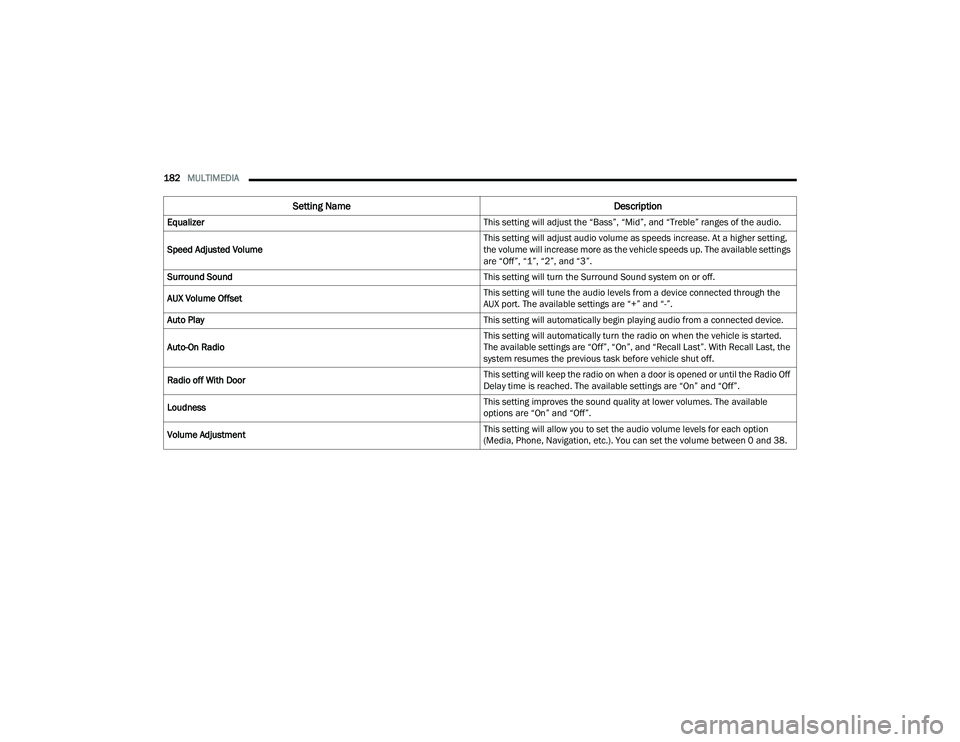
Equalizer This setting will adjust the “Bass”, “Mid”, and “Treble” ranges of the audio.
Speed Adjusted Volume This setting will adjust audio volume as speeds increase. At a higher setting,
the volume will increase more as the vehicle speeds up. The available settings
are “Off”, “1”, “2”, and “3”.
Surround Sound This setting will turn the Surround Sound system on or off.
AUX Volume Offset This setting will tune the audio levels from a device connected through the
AUX port. The available settings are “+” and “-”.
Auto Play This setting will automatically begin playing audio from a connected device.
Auto-On Radio This setting will automatically turn the radio on when the vehicle is started.
The available settings are “Off”, “On”, and “Recall Last”. With Recall Last, the
system resumes the previous task before vehicle shut off.
Radio off With Door This setting will keep the radio on when a door is opened or until the Radio Off
Delay time is reached. The available settings are “On” and “Off”.
Loudness This setting improves the sound quality at lower volumes. The available
options are “On” and “Off”.
Volume Adjustment This setting will allow you to set the audio volume levels for each option
(Media, Phone, Navigation, etc.). You can set the volume between 0 and 38.
Setting Name
Description
22_MP_OM_EN_USC_t.book Page 182
Page 186 of 344
184MULTIMEDIA
SiriusXM® Setup
Software Updates
NOTE:A subscription to SiriusXM® satellite radio is required for these settings to be functional.
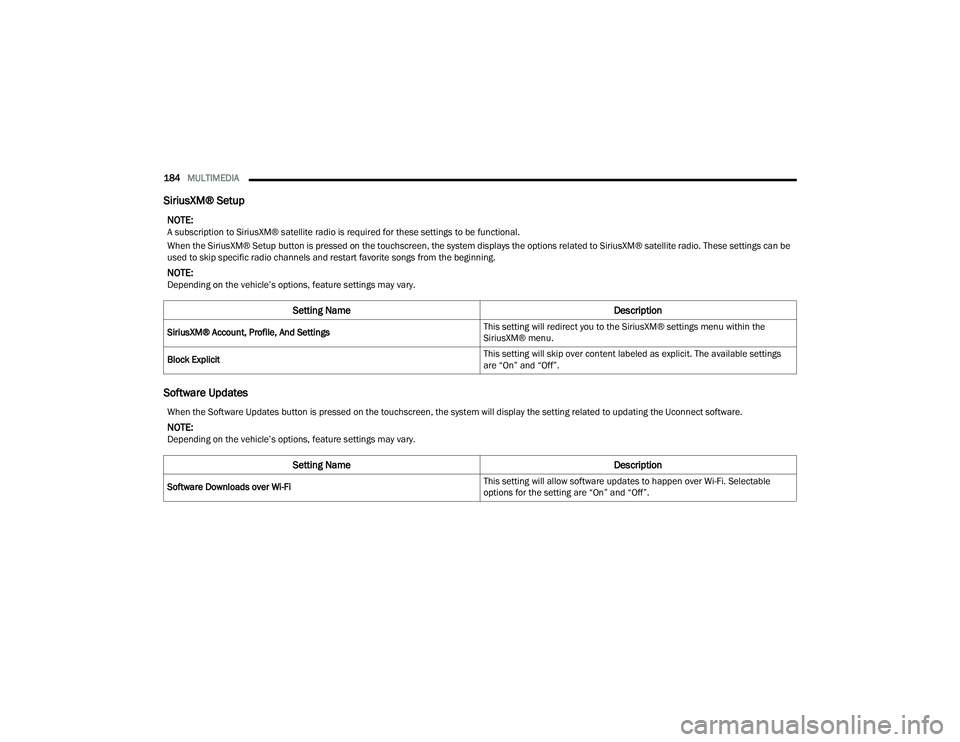
When the SiriusXM® Setup button is pressed on the touchscreen, the system displays the options related to SiriusXM® satellite radio. These settings can be
used to skip specific radio channels and restart favorite songs from the beginning.
NOTE:Depending on the vehicle’s options, feature settings may vary.
Setting Name Description
SiriusXM® Account, Profile, And Settings This setting will redirect you to the SiriusXM® settings menu within the
SiriusXM® menu.
Block Explicit This setting will skip over content labeled as explicit. The available settings
are “On” and “Off”.
When the Software Updates button is pressed on the touchscreen, the system will display the setting related to updating the Uconnect software.
NOTE:Depending on the vehicle’s options, feature settings may vary.
Setting Name
Description
Software Downloads over Wi-Fi This setting will allow software updates to happen over Wi-Fi. Selectable
options for the setting are “On” and “Off”.
22_MP_OM_EN_USC_t.book Page 184
Page 187 of 344
MULTIMEDIA185
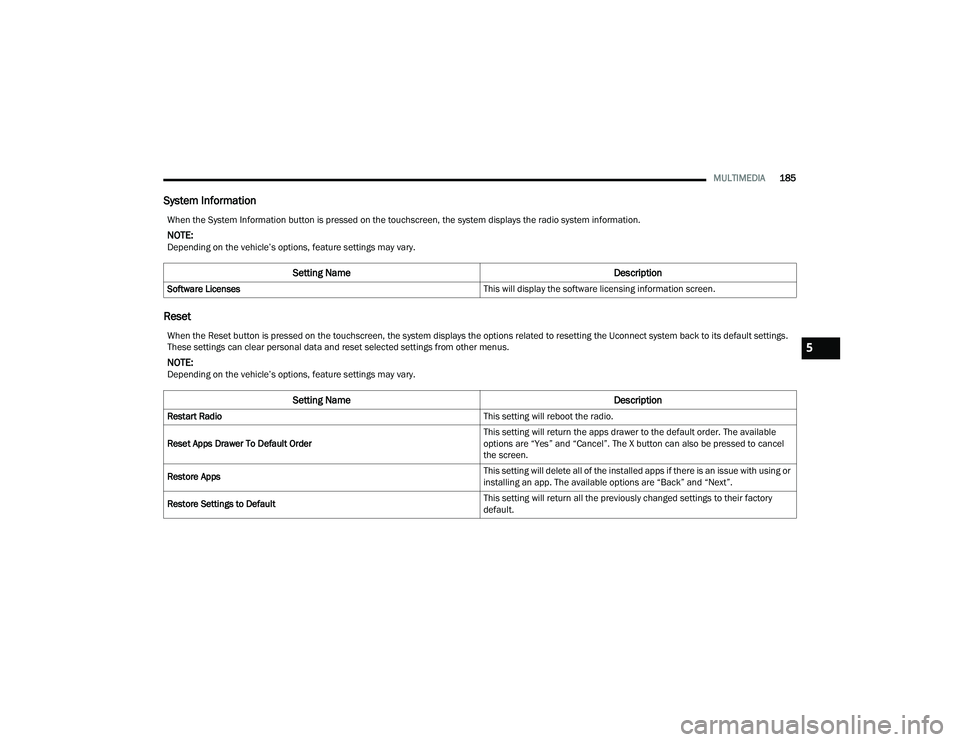
System Information
Reset
When the System Information button is pressed on the touchscreen, the system displays the radio system information.
NOTE:Depending on the vehicle’s options, feature settings may vary.
Setting Name Description
Software Licenses This will display the software licensing information screen.
When the Reset button is pressed on the touchscreen, the system displays the options related to resetting the Uconnect system back to its default settings.
These settings can clear personal data and reset selected settings from other menus.
NOTE:Depending on the vehicle’s options, feature settings may vary.
Setting NameDescription
Restart Radio This setting will reboot the radio.
Reset Apps Drawer To Default Order This setting will return the apps drawer to the default order. The available
options are “Yes” and “Cancel”. The X button can also be pressed to cancel
the screen.
Restore Apps This setting will delete all of the installed apps if there is an issue with using or
installing an app. The available options are “Back” and “Next”.
Restore Settings to Default This setting will return all the previously changed settings to their factory
default.
5
22_MP_OM_EN_USC_t.book Page 185
Page 188 of 344
186MULTIMEDIA
RADIO OPERATION AND MOBILE PHONES
Under certain conditions, the mobile phone being
on in your vehicle can cause erratic or noisy
performance from your radio. This condition may
be lessened or eliminated by repositioning the
mobile phone within the vehicle. This condition is
not harmful to the radio. If your radio performance
does not satisfactorily improve from repositioning
the mobile phone, it is recommended that the
volume be turned down or off during mobile phone
operation when not using the Uconnect system.
REGULATORY AND SAFETY
I
NFORMATION
US/CANADA
Exposure to Radio Frequency Radiation
The radiated output power of the internal wireless
radio is far below the FCC and IC radio frequency
exposure limits. Nevertheless, the wireless radio
will be used in such a manner that the radio is
8 inches (20 cm) or further from the human body.
The internal wireless radio operates within
guidelines found in radio frequency safety
standards and recommendations, which reflect
the consensus of the scientific community. The radio manufacturer believes the internal
wireless radio is safe for use by consumers.
The level of energy emitted is far less than the
electromagnetic energy emitted by wireless
devices such as mobile phones. However, the
use of wireless radios may be restricted in some
situations or environments, such as aboard
airplanes. If you are unsure of restrictions, you are
encouraged to ask for authorization before turning
on the wireless radio Ú
page 328.
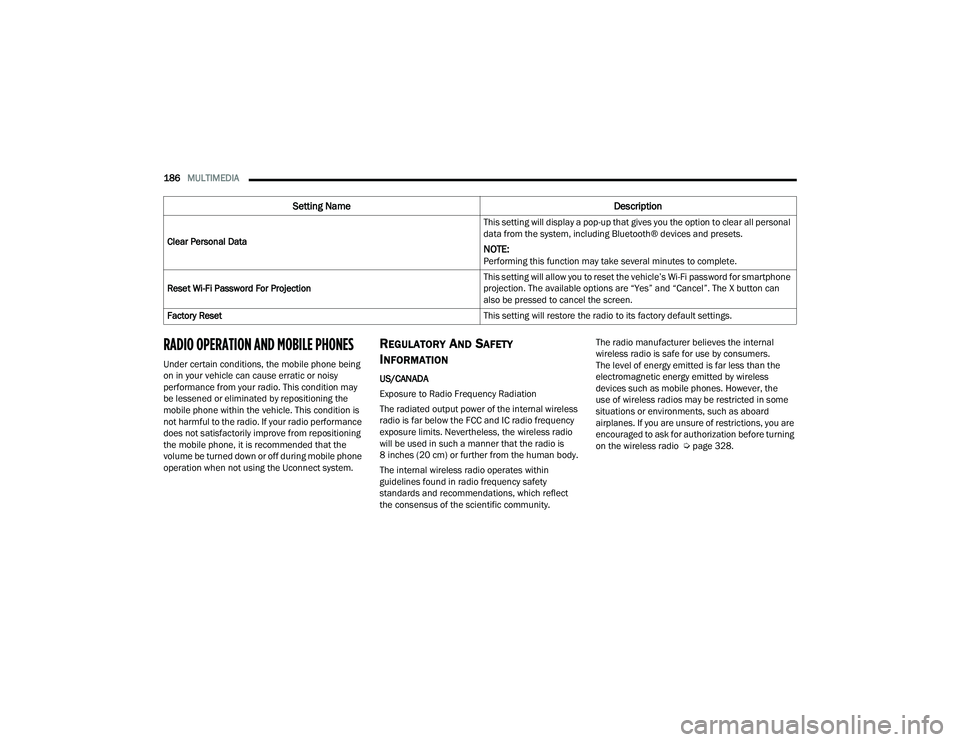
Clear Personal Data
This setting will display a pop-up that gives you the option to clear all personal
data from the system, including Bluetooth® devices and presets.
NOTE:Performing this function may take several minutes to complete.
Reset Wi-Fi Password For Projection This setting will allow you to reset the vehicle’s Wi-Fi password for smartphone
projection. The available options are “Yes” and “Cancel”. The X button can
also be pressed to cancel the screen.
Factory Reset This setting will restore the radio to its factory default settings.
Setting NameDescription
22_MP_OM_EN_USC_t.book Page 186