ignition JEEP COMPASS 2023 Repair Manual
[x] Cancel search | Manufacturer: JEEP, Model Year: 2023, Model line: COMPASS, Model: JEEP COMPASS 2023Pages: 344, PDF Size: 18.8 MB
Page 143 of 344
STARTING AND OPERATING141
Driver's door is opened.
Rear liftgate is opened.
Electronic Stability Control/Anti-lock Braking
System intervention.
The ParkSense Active Park Assist system will allow
a maximum number of shifts between DRIVE and
REVERSE. If the maneuver cannot be completed
within the maximum amount of shifts, the system
will cancel and the instrument cluster display will
instruct the driver to complete the maneuver
manually.
The ParkSense Active Park Assist system will only
operate and search for a parking space when the
following conditions are present:
Gear selector is in DRIVE.
Ignition is in the RUN position.
ParkSense Active Park Assist switch is acti -
vated.
Driver's door is closed.
Rear liftgate is closed.
The outer surface and the underside of the front
and rear fascias/bumpers are clean and clear
of snow, ice, mud, dirt or other obstruction.
Vehicle speed is less than 15 mph (25 km/h).
NOTE:If the vehicle is driven above approximately
15 mph (25 km/h), the instrument cluster display
will instruct the driver to slow down. If the vehicle
is driven above approximately 18 mph (30 km/h),
the system will cancel. The driver must then reac -
tivate the system by pushing the ParkSense Active
Park Assist switch.
When pushed, the LED on the ParkSense Active
Park Assist switch will blink momentarily, and then
the LED will turn off if any of the above conditions
are not present.
PARALLEL/PERPENDICULAR PARKING
S
PACE ASSISTANCE OPERATION
When the ParkSense Active Park Assist system
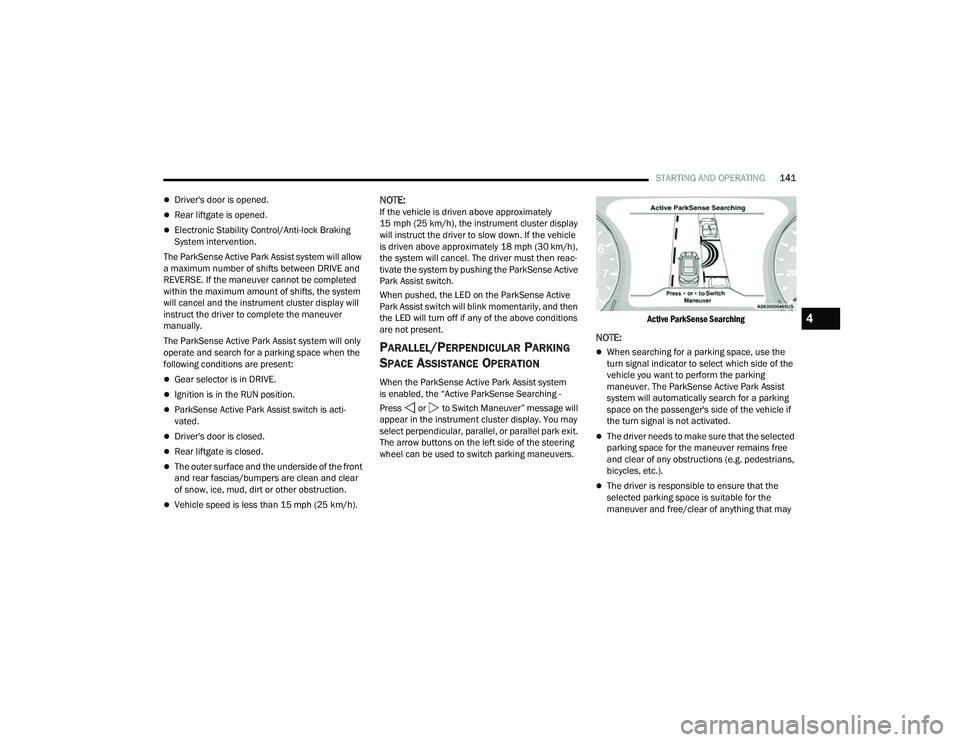
is enabled, the “Active ParkSense Searching -
Press or to Switch Maneuver” message will
appear in the instrument cluster display. You may
select perpendicular, parallel, or parallel park exit.
The arrow buttons on the left side of the steering
wheel can be used to switch parking maneuvers.
Active ParkSense Searching
NOTE:
When searching for a parking space, use the
turn signal indicator to select which side of the
vehicle you want to perform the parking
maneuver. The ParkSense Active Park Assist
system will automatically search for a parking
space on the passenger's side of the vehicle if
the turn signal is not activated.
The driver needs to make sure that the selected
parking space for the maneuver remains free
and clear of any obstructions (e.g. pedestrians,
bicycles, etc.).
The driver is responsible to ensure that the
selected parking space is suitable for the
maneuver and free/clear of anything that may
4
22_MP_OM_EN_USC_t.book Page 141
Page 148 of 344
146STARTING AND OPERATING
Depending on the type of warning selected, the
system will either guide the vehicle back to the
center of the lane, provide a vibration in the
steering wheel, or both.
NOTE:For an event where the Active Lane Management
system is reacting to a target vehicle in the
adjacent lane, the steering vibration will occur as
soon as the vehicle starts to depart the center of its
lane (as opposed to waiting until the lane marker is
crossed), the Blind Spot Monitoring indicator LED
on the mirror will flash, and the steering wheel
torque will be greater than for a normal lane
departure (no vehicle in adjacent lane).
The driver may manually override the steering
assist warning by applying force into the steering
wheel at any time.
When only a single lane marking is detected and the
driver drifts across the lane marking (no turn signal
applied), the Active Lane Management system
provides a visual warning in the instrument cluster,
as well as a steering assist torque (if configured in
Uconnect Settings), to prompt the driver to remain
within the lane boundaries. If the driver continues to
drift out of the lane, the system provides a flashing
visual warning through the instrument cluster
display as well as a haptic steering wheel vibration
(if configured in Uconnect Settings) when the
vehicle crosses the lane boundary.
NOTE:When operating conditions have been met, the
Active Lane Management system will monitor if the
driver’s hands are on the steering wheel and
provides an audible and visual warning to the
driver if removed. The system will cancel if the
driver does not return their hands to the wheel.
TURNING ACTIVE LANE MANAGEMENT
O
N OR OFF
The Active Lane Management button is
located on the switch panel below the
Uconnect display.
To turn the system on, push the Active Lane
Management button (LED turns off). A message is
shown in the instrument cluster display.
To turn the system off, push the button again
(LED turns on).
NOTE:The Active Lane Management system will retain
the last system state on or off from the last ignition
cycle when the ignition is placed in the ON/RUN
position.
ACTIVE LANE MANAGEMENT WARNING
M
ESSAGE
The Active Lane Management system will indicate
the current lane drift condition through the
instrument cluster display.
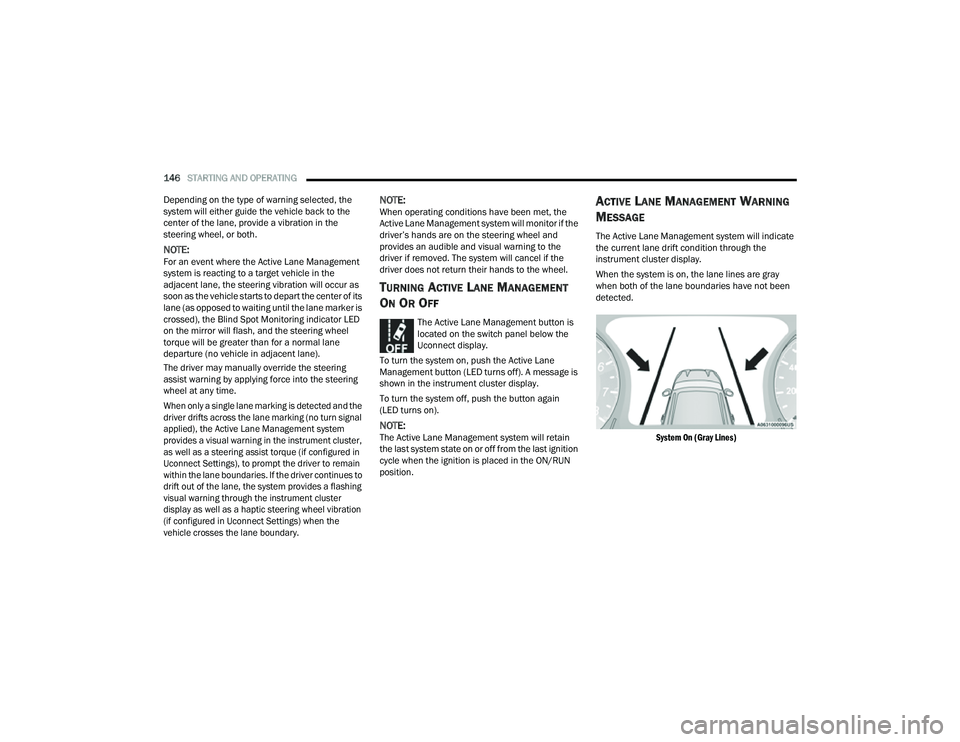
When the system is on, the lane lines are gray
when both of the lane boundaries have not been
detected.
System On (Gray Lines)
22_MP_OM_EN_USC_t.book Page 146
Page 151 of 344
STARTING AND OPERATING149
When the vehicle is shifted out of REVERSE with
camera delay turned off, the rear camera mode is
exited and the previous screen appears. When the
vehicle is shifted out of REVERSE with camera
delay turned on, the camera image will continue to
be displayed for up to 10 seconds unless the
following conditions occur: The vehicle speed
exceeds 8 mph (13 km/h), the vehicle is shifted
into PARK, the vehicle’s ignition is placed in the
OFF position, or the user presses X to exit out of the
camera video display.
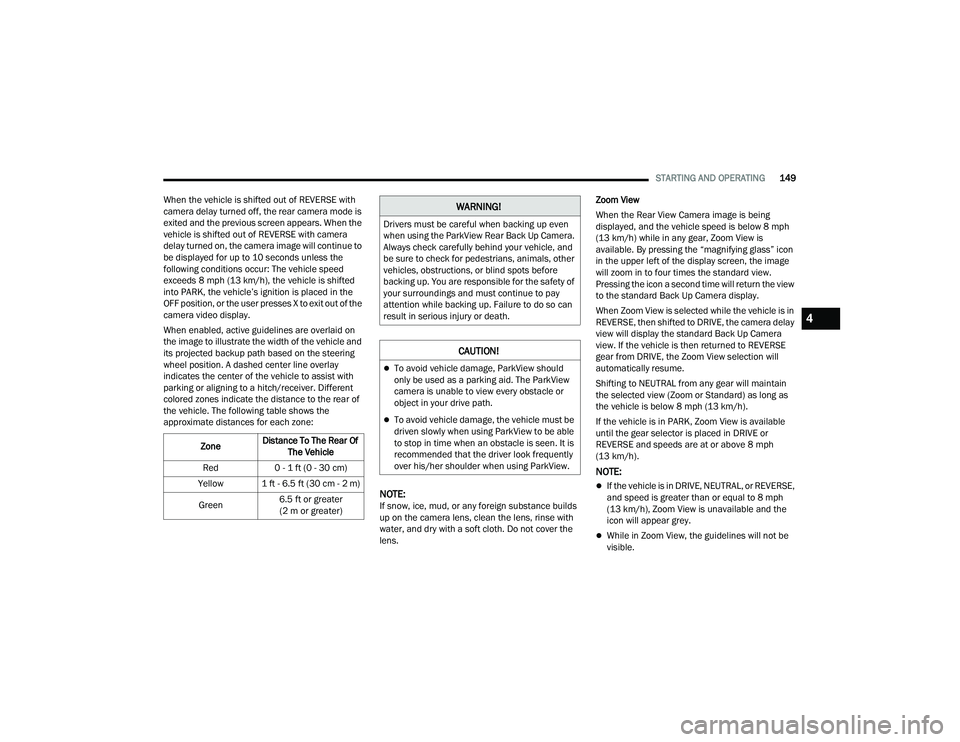
When enabled, active guidelines are overlaid on
the image to illustrate the width of the vehicle and
its projected backup path based on the steering
wheel position. A dashed center line overlay
indicates the center of the vehicle to assist with
parking or aligning to a hitch/receiver. Different
colored zones indicate the distance to the rear of
the vehicle. The following table shows the
approximate distances for each zone:
NOTE:If snow, ice, mud, or any foreign substance builds
up on the camera lens, clean the lens, rinse with
water, and dry with a soft cloth. Do not cover the
lens. Zoom View
When the Rear View Camera image is being
displayed, and the vehicle speed is below 8 mph
(13 km/h) while in any gear, Zoom View is
available. By pressing the “magnifying glass” icon
in the upper left of the display screen, the image
will zoom in to four times the standard view.
Pressing the icon a second time will return the view
to the standard Back Up Camera display.
When Zoom View is selected while the vehicle is in
REVERSE, then shifted to DRIVE, the camera delay
view will display the standard Back Up Camera
view. If the vehicle is then returned to REVERSE
gear from DRIVE, the Zoom View selection will
automatically resume.
Shifting to NEUTRAL from any gear will maintain
the selected view (Zoom or Standard) as long as
the vehicle is below 8 mph (13 km/h).
If the vehicle is in PARK, Zoom View is available
until the gear selector is placed in DRIVE or
REVERSE and speeds are at or above 8 mph
(13 km/h).
NOTE:
If the vehicle is in DRIVE, NEUTRAL, or REVERSE,
and speed is greater than or equal to 8 mph
(13 km/h), Zoom View is unavailable and the
icon will appear grey.
While in Zoom View, the guidelines will not be
visible.
Zone
Distance To The Rear Of
The Vehicle
Red 0 - 1 ft (0 - 30 cm)
Yellow 1 ft - 6.5 ft (30 cm - 2 m)
Green 6.5 ft or greater
(2 m or greater)
WARNING!
Drivers must be careful when backing up even
when using the ParkView Rear Back Up Camera.
Always check carefully behind your vehicle, and
be sure to check for pedestrians, animals, other
vehicles, obstructions, or blind spots before
backing up. You are responsible for the safety of
your surroundings and must continue to pay
attention while backing up. Failure to do so can
result in serious injury or death.
CAUTION!
To avoid vehicle damage, ParkView should
only be used as a parking aid. The ParkView
camera is unable to view every obstacle or
object in your drive path.
To avoid vehicle damage, the vehicle must be
driven slowly when using ParkView to be able
to stop in time when an obstacle is seen. It is
recommended that the driver look frequently
over his/her shoulder when using ParkView.
4
22_MP_OM_EN_USC_t.book Page 149
Page 152 of 344
150STARTING AND OPERATING
SURROUND VIEW CAMERA SYSTEM —
IF EQUIPPED
Your vehicle may be equipped with the Surround
View Camera system that allows you to see an
on-screen image of the surroundings and Top View
of your vehicle whenever the gear selector is put
into REVERSE or a different view is selected
through the touchscreen soft buttons. The Top
View of the vehicle will show which doors are open.
The image will be displayed on the touchscreen
display along with a caution note “Check Entire
Surroundings” across the top of the screen.
After five seconds, this note will disappear. The
Surround View Camera system is comprised of four
sequential cameras located in the front grille, rear
liftgate and side mirrors.
NOTE:The Surround View Camera system has program -
mable settings that may be selected through the
Uconnect system Ú page 165.
Press this button on the touchscreen to
enter the Surround View Camera menu in
the Uconnect system.
When the vehicle is shifted into REVERSE, the Rear
View and Top View is the default view of the
system.
When the vehicle is shifted out of REVERSE with
camera delay turned on, the camera image will
continue to be displayed for up to 10 seconds
unless the vehicle speed exceeds 8 mph (13 km/h),
the vehicle is shifted into PARK or the ignition is
placed in the OFF position. There is a touchscreen
button X to disable the display of the camera image.
When the vehicle is shifted out of REVERSE with
camera delay turned off, the Surround View
Camera mode is exited and the last known screen
appears again.
When enabled, active guidelines are overlaid on
the image to illustrate the width of the vehicle,
including the side view mirrors and its projected
backup path based on the steering wheel position.
Different colored zones indicate the distance to
the rear of the vehicle.
The following table shows the approximate
distances for each zone:
Modes Of Operation
Manual activation of the Surround View Camera is
selected by pressing the Surround View Camera
soft key located in the Controls menu within the
Uconnect system.
Top View
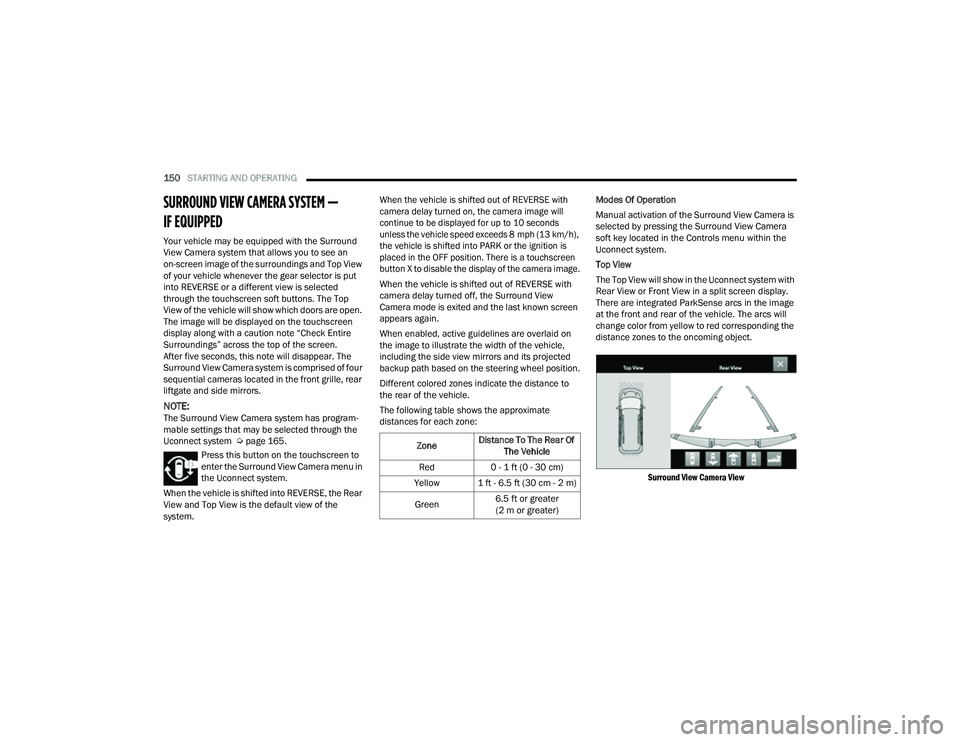
The Top View will show in the Uconnect system with
Rear View or Front View in a split screen display.
There are integrated ParkSense arcs in the image
at the front and rear of the vehicle. The arcs will
change color from yellow to red corresponding the
distance zones to the oncoming object.
Surround View Camera View
Zone Distance To The Rear Of
The Vehicle
Red 0 - 1 ft (0 - 30 cm)
Yellow 1 ft - 6.5 ft (30 cm - 2 m)
Green 6.5 ft or greater
(2 m or greater)
22_MP_OM_EN_USC_t.book Page 150
Page 162 of 344
160STARTING AND OPERATING
RECREATIONAL TOWING (BEHIND MOTORHOME)
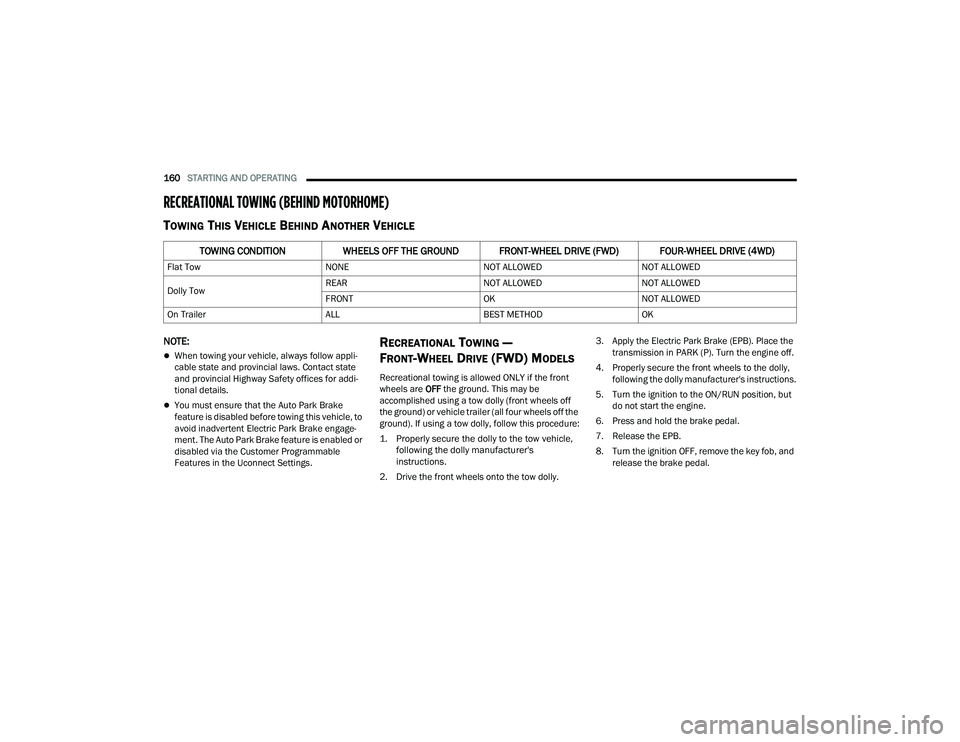
TOWING THIS VEHICLE BEHIND ANOTHER VEHICLE
NOTE:
When towing your vehicle, always follow appli -
cable state and provincial laws. Contact state
and provincial Highway Safety offices for addi -
tional details.
You must ensure that the Auto Park Brake
feature is disabled before towing this vehicle, to
avoid inadvertent Electric Park Brake engage -
ment. The Auto Park Brake feature is enabled or
disabled via the Customer Programmable
Features in the Uconnect Settings.
RECREATIONAL TOWING —
F
RONT-WHEEL DRIVE (FWD) MODELS
Recreational towing is allowed ONLY if the front
wheels are OFF the ground. This may be
accomplished using a tow dolly (front wheels off
the ground) or vehicle trailer (all four wheels off the
ground). If using a tow dolly, follow this procedure:
1. Properly secure the dolly to the tow vehicle, following the dolly manufacturer's
instructions.
2. Drive the front wheels onto the tow dolly. 3. Apply the Electric Park Brake (EPB). Place the
transmission in PARK (P). Turn the engine off.
4. Properly secure the front wheels to the dolly, following the dolly manufacturer's instructions.
5. Turn the ignition to the ON/RUN position, but do not start the engine.
6. Press and hold the brake pedal.
7. Release the EPB.
8. Turn the ignition OFF, remove the key fob, and release the brake pedal.
TOWING CONDITION WHEELS OFF THE GROUND FRONT-WHEEL DRIVE (FWD) FOUR-WHEEL DRIVE (4WD)
Flat Tow NONENOT ALLOWEDNOT ALLOWED
Dolly Tow REAR
NOT ALLOWEDNOT ALLOWED
FRONT OKNOT ALLOWED
On Trailer ALLBEST METHODOK
22_MP_OM_EN_USC_t.book Page 160
Page 169 of 344
MULTIMEDIA167
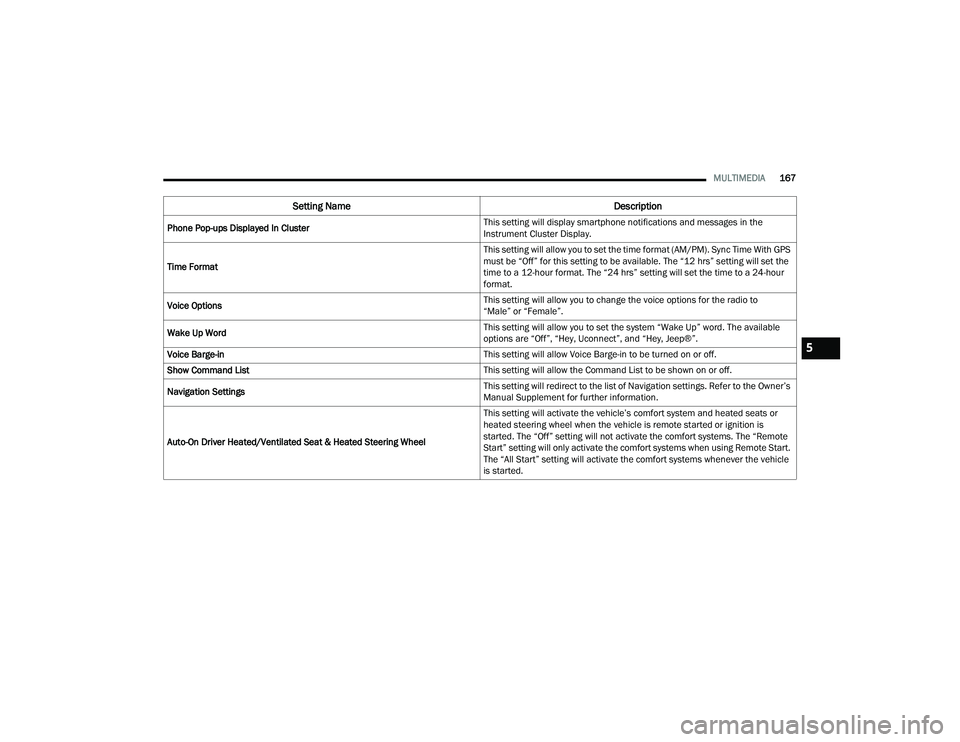
Phone Pop-ups Displayed In Cluster This setting will display smartphone notifications and messages in the
Instrument Cluster Display.
Time Format This setting will allow you to set the time format (AM/PM). Sync Time With GPS
must be “Off” for this setting to be available. The “12 hrs” setting will set the
time to a 12-hour format. The “24 hrs” setting will set the time to a 24-hour
format.
Voice Options This setting will allow you to change the voice options for the radio to
“Male” or “Female”.
Wake Up Word This setting will allow you to set the system “Wake Up” word. The available
options are “Off”, “Hey, Uconnect”, and “Hey, Jeep®”.
Voice Barge-in This setting will allow Voice Barge-in to be turned on or off.
Show Command List This setting will allow the Command List to be shown on or off.
Navigation Settings This setting will redirect to the list of Navigation settings. Refer to the Owner’s
Manual Supplement for further information.
Auto-On Driver Heated/Ventilated Seat & Heated Steering Wheel This setting will activate the vehicle’s comfort system and heated seats or
heated steering wheel when the vehicle is remote started or ignition is
started. The “Off” setting will not activate the comfort systems. The “Remote
Start” setting will only activate the comfort systems when using Remote Start.
The “All Start” setting will activate the comfort systems whenever the vehicle
is started.
Setting Name
Description
5
22_MP_OM_EN_USC_t.book Page 167
Page 182 of 344
180MULTIMEDIA
Seats & Comfort
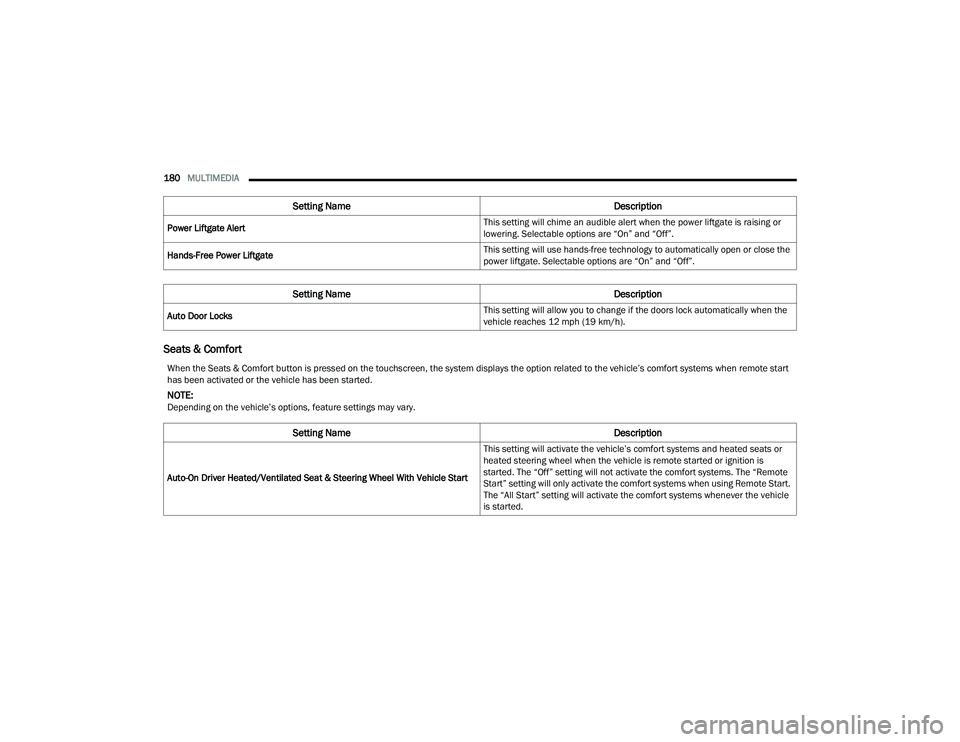
Power Liftgate Alert This setting will chime an audible alert when the power liftgate is raising or
lowering. Selectable options are “On” and “Off”.
Hands-Free Power Liftgate This setting will use hands-free technology to automatically open or close the
power liftgate. Selectable options are “On” and “Off”.
Setting Name
Description
Auto Door Locks This setting will allow you to change if the doors lock automatically when the
vehicle reaches 12 mph (19 km/h).
Setting Name
Description
When the Seats & Comfort button is pressed on the touchscreen, the system displays the option related to the vehicle’s comfort systems when remote start
has been activated or the vehicle has been started.
NOTE:Depending on the vehicle’s options, feature settings may vary.
Setting NameDescription
Auto-On Driver Heated/Ventilated Seat & Steering Wheel With Vehicle Start This setting will activate the vehicle’s comfort systems and heated seats or
heated steering wheel when the vehicle is remote started or ignition is
started. The “Off” setting will not activate the comfort systems. The “Remote
Start” setting will only activate the comfort systems when using Remote Start.
The “All Start” setting will activate the comfort systems whenever the vehicle
is started.
22_MP_OM_EN_USC_t.book Page 180
Page 183 of 344
MULTIMEDIA181
Key Off Options
Audio
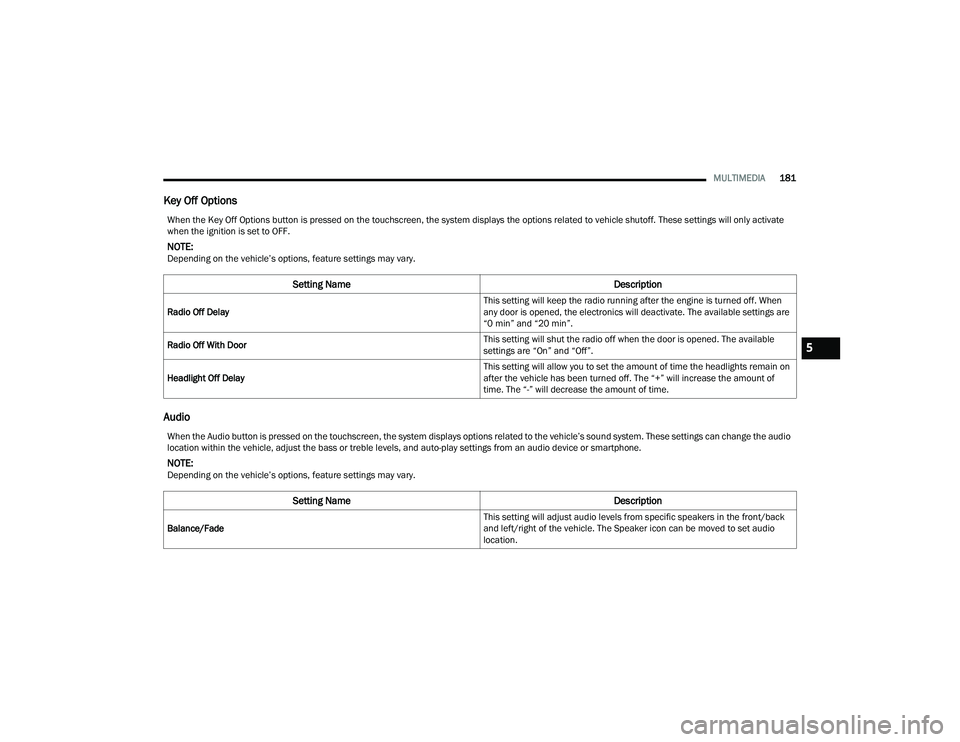
When the Key Off Options button is pressed on the touchscreen, the system displays the options related to vehicle shutoff. These settings will only activate
when the ignition is set to OFF.
NOTE:Depending on the vehicle’s options, feature settings may vary.
Setting Name Description
Radio Off Delay This setting will keep the radio running after the engine is turned off. When
any door is opened, the electronics will deactivate. The available settings are
“0 min” and “20 min”.
Radio Off With Door This setting will shut the radio off when the door is opened. The available
settings are “On” and “Off”.
Headlight Off Delay This setting will allow you to set the amount of time the headlights remain on
after the vehicle has been turned off. The “+” will increase the amount of
time. The “-” will decrease the amount of time.
When the Audio button is pressed on the touchscreen, the system displays options related to the vehicle’s sound system. These settings can change the audio
location within the vehicle, adjust the bass or treble levels, and auto-play settings from an audio device or smartphone.
NOTE:Depending on the vehicle’s options, feature settings may vary.
Setting Name
Description
Balance/Fade This setting will adjust audio levels from specific speakers in the front/back
and left/right of the vehicle. The Speaker icon can be moved to set audio
location.
5
22_MP_OM_EN_USC_t.book Page 181
Page 189 of 344
187
(Continued)
SAFETY
SAFETY FEATURES
ANTI-LOCK BRAKE SYSTEM (ABS)
The ABS provides increased vehicle stability and
brake performance under most braking conditions.
The system automatically prevents wheel lock and
enhances vehicle control during braking.
The ABS performs a self-check cycle to ensure that
the ABS is working properly each time the vehicle
is started and driven. During this self-check, you
may hear a slight clicking sound as well as some
related motor noises.
The ABS is activated during braking when the
system detects one or more wheels are beginning
to lock. Road conditions such as ice, snow, gravel,
bumps, railroad tracks, loose debris, or panic stops
may increase the likelihood of ABS activation(s).
You also may experience the following normal
characteristics when the ABS activates:
ABS motor noise or clicking sounds (you may
continue to hear for a short time after the stop)
Brake pedal pulsations
A slight drop of the brake pedal at the end of
the stopThe ABS is designed to function with the Original
Equipment Manufacturer (OEM) tires. Modification
may result in degraded ABS performance.
Anti-Lock Brake System (ABS) Warning
Light
The yellow ABS Warning Light will turn on when the
ignition is placed in the ON/RUN mode and may
stay on for as long as four seconds.
If the ABS Warning Light remains on or comes on
while driving, it indicates that the anti-lock portion
of the brake system is not functioning and that
service is required. However, the conventional
brake system will continue to operate normally if
the ABS Warning Light is on.
If the ABS Warning Light is on, the brake system
should be serviced as soon as possible to restore
the benefits of Anti-lock Brakes. If the ABS Warning
WARNING!
The ABS contains sophisticated electronic
equipment that may be susceptible to interfer
-
ence caused by improperly installed or high
output radio transmitting equipment. This
interference can cause possible loss of
anti-lock braking capability. Installation of
such equipment should be performed by
qualified professionals.
Pumping of the Anti-Lock Brakes will diminish
their effectiveness and may lead to a collision.
Pumping makes the stopping distance longer.
Just press firmly on your brake pedal when you
need to slow down or stop.
The ABS cannot prevent the natural laws of
physics from acting on the vehicle, nor can it
increase braking or steering efficiency beyond
that afforded by the condition of the vehicle
brakes and tires or the traction afforded.
The ABS cannot prevent collisions, including
those resulting from excessive speed in turns,
following another vehicle too closely, or hydro -
planing.
The capabilities of an ABS equipped vehicle
must never be exploited in a reckless or
dangerous manner that could jeopardize the
user’s safety or the safety of others.
WARNING!
6
22_MP_OM_EN_USC_t.book Page 187
Page 190 of 344
188SAFETY
Light does not come on when the ignition is placed
in the ON/RUN mode, have the light repaired as
soon as possible.
ELECTRONIC BRAKE CONTROL (EBC)
S
YSTEM
Your vehicle is equipped with an advanced
Electronic Brake Control (EBC) system. This system
includes Anti-Lock Brake System (ABS), Brake Assist
System (BAS), Electronic Brake Force Distribution
(EBD), Electronic Roll Mitigation (ERM), Electronic
Stability Control (ESC), Hill Start Assist (HSA), and
Traction Control System (TCS). These systems work
together to enhance both vehicle stability and
control in various driving conditions.
Your vehicle may also be equipped with Dynamic
Steering Torque (DST), Hill Descent Control (HDC),
Rain Brake Support (RBS), Ready Alert Braking
(RAB), and Trailer Sway Control (TSC).
Brake Assist System (BAS)
The BAS is designed to optimize the vehicle’s
braking capability during emergency braking
maneuvers. The system detects an emergency
braking situation by sensing the rate and amount
of brake application and then applies optimum
pressure to the brakes. This can help reduce
braking distances. The BAS complements the
Anti-Lock Brake System (ABS). Applying the brakes
very quickly results in the best BAS assistance. To receive the benefit of the system, you must
apply continuous braking pressure during the
stopping sequence (do not “pump” the brakes). Do
not reduce brake pedal pressure unless braking is
no longer desired. Once the brake pedal is
released, the BAS is deactivated.
Brake System Warning Light
The red Brake System Warning Light will turn on
when the ignition is placed in the ON/RUN mode
and may stay on for as long as four seconds.
If the Brake System Warning Light remains on or
comes on while driving, it indicates that the brake
system is not functioning properly and that
immediate service is required. If the Brake System
Warning Light does not come on when the ignition
is placed in the ON/RUN mode, have the light
repaired as soon as possible.
Dynamic Steering Torque (DST)
DST is a feature of the Electronic Stability Control
(ESC) and Electric Power Steering (EPS) modules
that provides torque at the steering wheel for
certain driving conditions in which the ESC module
is detecting vehicle instability. The torque that the
steering wheel receives is only meant to help the
driver realize optimal steering behavior in order to
reach/maintain vehicle stability. The only
notification the driver receives that the feature is
active is the torque applied to the steering wheel.
NOTE:The DST feature is only meant to help the driver
realize the correct course of action through small
torques on the steering wheel, which means the
effectiveness of the DST feature is highly
dependent on the driver’s sensitivity and overall
reaction to the applied torque. It is very important
to realize that this feature will not steer the vehicle,
meaning the driver is still responsible for steering
the vehicle.
Electronic Brake Force Distribution (EBD)
EBD manages the distribution of the braking
torque between the front and rear axles by limiting
braking pressure to the rear axle. This is done to
prevent overslip of the rear wheels to avoid vehicle
instability, and to prevent the rear axle from
entering ABS before the front axle.
WARNING!
The Brake Assist System (BAS) cannot prevent the
natural laws of physics from acting on the vehicle,
nor can it increase the traction afforded by
prevailing road conditions. BAS cannot prevent
collisions, including those resulting from excessive
speed in turns, driving on very slippery surfaces, or
hydroplaning. The capabilities of a BAS-equipped
vehicle must never be exploited in a reckless or
dangerous manner, which could jeopardize the
user's safety or the safety of others.
22_MP_OM_EN_USC_t.book Page 188