phone JEEP GLADIATOR 2023 User Guide
[x] Cancel search | Manufacturer: JEEP, Model Year: 2023, Model line: GLADIATOR, Model: JEEP GLADIATOR 2023Pages: 448, PDF Size: 17.37 MB
Page 78 of 448

76GETTING TO KNOW YOUR VEHICLE
Waterproof Features
The Jeep® wireless speaker is IP67 waterproof
certified with design in mind to withstand rainfall,
waterjets, splashing and being submerged in up to
3 ft (1 m) of water for up to 30 minutes.
Warnings, Caution & Legal Information
To reduce the risk of fire or electric shock, do not
expose the Jeep® wireless speaker to rain or
moisture while charging. The Jeep® wireless
speaker should not be exposed to dripping or
splashing, and objects filled with liquids, such as
vases, should not be placed on or near it while
being charged or charging other devices. As with
any electronic products, use care not to spill liquids
into any part of the product. Liquids can cause a
failure and/or a fire hazard. The power supply must
be used indoors only. Make no modifications to the
product or accessories. Unauthorized alterations
may compromise safety, regulatory compliance,
and system performance, and will void the
warranty. Do not place any flame sources, such as
lighted candles, on or near the Jeep® wireless speaker. The Jeep® wireless speaker contains
small parts that may be a choking hazard and is
not suitable for children under age 3. Do not
continue charging the battery if it does not reach
full charge within the specified charging time.
Overcharging may cause the battery to become
hot, rupture, or ignite. If you see any heat
deformation or leakage, properly dispose of the
battery. Do not attempt to charge the battery in
temperatures outside the range of 32°- 104°F
(0° - 40°C). If the battery begins to leak, do not
allow the liquid to come in contact with your skin or
eyes. If contact has been made, wash the affected
area with plenty of water and seek medical
attention immediately. Do not expose the Jeep®
wireless speaker or battery to excessive heat,
including direct sunlight or fire. Do not store or use
inside cars in hot weather, where it can be exposed
to temperatures in excess of 115°F (60°C). Doing
so may cause the battery and power supply to
generate heat, rupture, or ignite. Using the Jeep®
wireless speaker in this manner also may result in
a loss of performance and a shortened life
expectancy. Extended exposure to direct sunlight
may damage the external appearance and
material qualities. Do not step on, throw, or drop
batteries or the power supply or device, or expose
them to a strong shock. Do not pierce, crush, dent,
or deform the batteries or power supply in any way.
If either becomes deformed, properly dispose of it.
Do not short-circuit batteries. Do not attempt to service the Jeep® wireless speaker yourself.
Opening or removing covers may expose you to
dangerous voltages or other hazards and will void
the manufacturer’s warranty. To prevent risk of fire
or electric shock, avoid overloading wall outlets,
extension cords, or integral convenience
receptacles. Your Bluetooth® device (mobile
phone, music player, tablet, laptop, etc.) must
support the A2DP Bluetooth® profile in order to
work wirelessly with your Jeep® wireless speaker.
The A2DP profile is supported by most recent
mobile products with built-in Bluetooth®
capability. Please refer to your device’s user
manual for details and instruction regarding the
Bluetooth® profiles it supports. This device
complies with part 15 of the FCC Rules. Operation
is subject to the following two conditions: (1) This
device may not cause harmful interference, and
(2) this device must accept any interference
received, including interference that may cause
undesired operation.
Jeep® follows Safety Instruction for CE- LV. Do not
operate products in temperatures outside the
range of -5 to 40°C. Operating Frequency Band:
2402 MHz to 2480 MHz. Maximum RF power:
6 dBm EIRP. Do not install this equipment in a
confined space or building, such as a bookcase or
similar unit that is not well-ventilated. The
ventilation should not be impeded by covering the
ventilation openings with items such as
newspaper, tablecloths, curtains etc.
WARNING!
Any modifications or alterations to this vehicle
could seriously affect its roadworthiness and
safety and may lead to a collision resulting in
serious injury or death.
23_JT_OM_EN_USC_t.book Page 76
Page 80 of 448
78GETTING TO KNOW YOUR VEHICLE
(Continued)
POWER INVERTERS — IF EQUIPPED
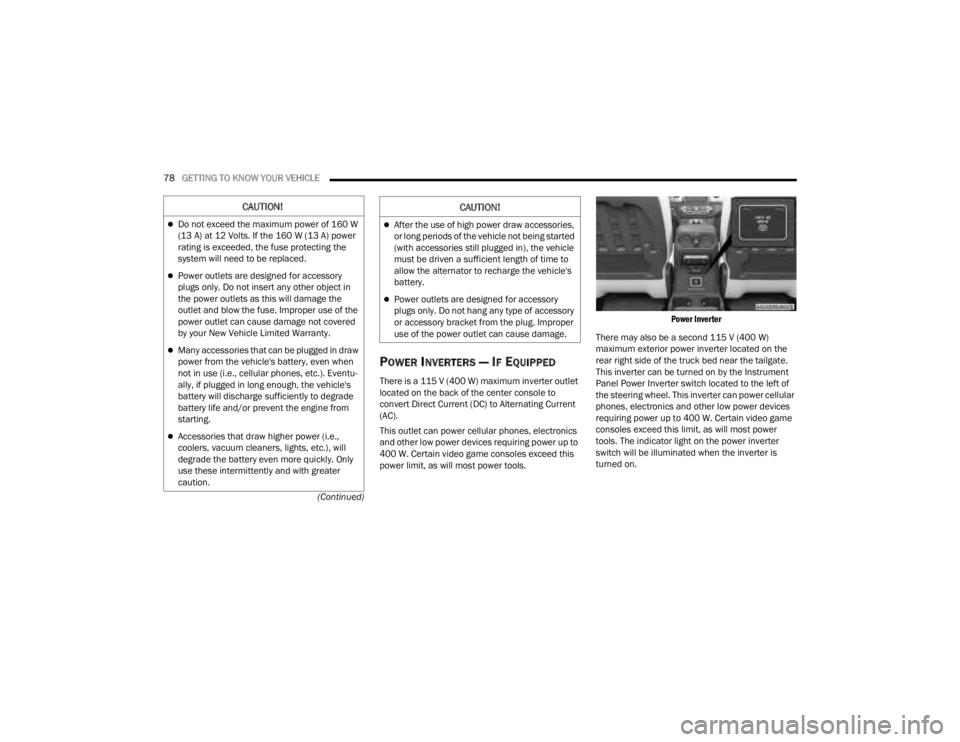
There is a 115 V (400 W) maximum inverter outlet
located on the back of the center console to
convert Direct Current (DC) to Alternating Current
(AC).
This outlet can power cellular phones, electronics
and other low power devices requiring power up to
400 W. Certain video game consoles exceed this
power limit, as will most power tools.
Power Inverter
There may also be a second 115 V (400 W)
maximum exterior power inverter located on the
rear right side of the truck bed near the tailgate.
This inverter can be turned on by the Instrument
Panel Power Inverter switch located to the left of
the steering wheel. This inverter can power cellular
phones, electronics and other low power devices
requiring power up to 400 W. Certain video game
consoles exceed this limit, as will most power
tools. The indicator light on the power inverter
switch will be illuminated when the inverter is
turned on.
CAUTION!
Do not exceed the maximum power of 160 W
(13 A) at 12 Volts. If the 160 W (13 A) power
rating is exceeded, the fuse protecting the
system will need to be replaced.
Power outlets are designed for accessory
plugs only. Do not insert any other object in
the power outlets as this will damage the
outlet and blow the fuse. Improper use of the
power outlet can cause damage not covered
by your New Vehicle Limited Warranty.
Many accessories that can be plugged in draw
power from the vehicle's battery, even when
not in use (i.e., cellular phones, etc.). Eventu -
ally, if plugged in long enough, the vehicle's
battery will discharge sufficiently to degrade
battery life and/or prevent the engine from
starting.
Accessories that draw higher power (i.e.,
coolers, vacuum cleaners, lights, etc.), will
degrade the battery even more quickly. Only
use these intermittently and with greater
caution.
After the use of high power draw accessories,
or long periods of the vehicle not being started
(with accessories still plugged in), the vehicle
must be driven a sufficient length of time to
allow the alternator to recharge the vehicle's
battery.
Power outlets are designed for accessory
plugs only. Do not hang any type of accessory
or accessory bracket from the plug. Improper
use of the power outlet can cause damage.
CAUTION!
23_JT_OM_EN_USC_t.book Page 78
Page 127 of 448

GETTING TO KNOW YOUR INSTRUMENT PANEL125
ACC SET
When ACC is set, the set speed will display in the
instrument cluster.
The ACC screen may display once again if any ACC
activity occurs, which may include any of the
following:
System Cancel
Driver Override
System Off
ACC Proximity Warning
ACC Unavailable Warning
NOTE:The instrument cluster display will return to the last
display selected after five seconds of no ACC
display activity Ú page 175.
Fuel Economy
Push and release the up or down arrow
button until the Fuel Economy icon is highlighted in
the instrument cluster display. Push and hold the
OK button to reset average fuel economy feature.
Toggle left or right to select a display with or
without Current Fuel Economy Information.
Range – The display shows the estimated
distance (mi or km) that can be traveled with the
fuel remaining in the tank. When the Range
value is less than 10 miles (16 km), the Range
display will change to a “LOW” message. Adding a significant amount of fuel to the vehicle will
turn off the “LOW” message and a new Range
value will display. Range cannot be reset
through the
OK button.
NOTE:Significant changes in driving style or vehicle
loading will greatly affect the actual drivable
distance of the vehicle, regardless of the Range
displayed value.
Average – The display shows the average fuel
economy (MPG, L/100km, or km/L) since the
last reset.
Current – The display shows the current fuel
economy (MPG, L/100km, or km/L) while
driving.
Trip
Push and release the up or down arrow
button until the Trip icon/title is highlighted in the
instrument cluster display, then push and release
the left or right arrow button to select Trip A
or Trip B.
The Trip A and Trip B information will display the
following:
Distance
Average Fuel Economy
Elapsed Time
Hold the OK button to reset all the information.
Stop/Start — If Equipped
Push and release the up or down arrow
button until the Stop/Start icon/title is highlighted
in the instrument cluster display. The screen will
display the Stop/Start status.
Audio
Push and release the up or down arrow
button until the Stop/Start icon/title is highlighted
in the instrument cluster display. The screen will
display the Stop/Start status.
Phone Call Status
When a call is incoming, a Phone Call Status
pop-up will display on the screen. The pop-up will
remain until the phone is answered or ignored.
NOTE:The call status will temporarily replace the
previous media source information displayed on
the screen. When the pop-up is no longer
displayed, the display will return to the last used
screen.
Stored Messages
Push and release the up or down arrow
button until the Messages Menu item is
highlighted. This feature shows the number of
stored warning messages. Pushing the right
arrow button will allow you to see what the stored
messages are.
3
23_JT_OM_EN_USC_t.book Page 125
Page 219 of 448

MULTIMEDIA217
Units
Set Theme This setting will allow you to change the display theme.
Keyboard
This setting will change the keyboard type on the display. The selectable key
-
boards are “ABCDEF Keyboard”, “QWERTY Keyboard”, and “AZERTY Keyboard”.
Touchscreen Beep This setting will allow you to turn the touchscreen beep on or off.
Control Screen Timeout This setting allows you to set the Control Screen to turn off automatically after
five seconds or stay open until manually closed.
Navigation Next Turn Pop-ups Displayed in Cluster This setting will display navigation prompts in the Instrument Cluster Display.
Phone Pop-ups Displayed In Cluster This setting will display smartphone notifications and messages in the
Instrument Cluster Display.
Setting Name
Description
When the Units button is pressed on the touchscreen, the system displays the different measurement options. The selected unit of measurement will display in
the instrument cluster display and Navigation system (if equipped). The available settings are:
NOTE:Depending on the vehicle’s options, feature settings may vary.
Setting NameDescription
US This setting will change the unit of measurement on the display to US.
Metric This setting will change the unit of measurement on the display to Metric.
Custom The setting changes the “Speed” (MPH or km/h), “Distance” (mi or km),
“Fuel Consumption” (MPG [US], MPG [UK], L/100 km, or km/L), “Pressure”
(psi, kPa, or bar), and “Temperature” (°C or °F) units of measurement
independently.
5
23_JT_OM_EN_USC_t.book Page 217
Page 228 of 448

226MULTIMEDIA
Audio
When the Audio button is pressed on the touchscreen, the system displays options related to the vehicle’s sound system. These settings can change the audio
location within the vehicle, adjust the bass or treble levels, and auto-play settings from an audio device or smartphone.
NOTE:Depending on the vehicle’s options, feature settings may vary.
Setting Name Description
Balance/Fade This setting will adjust audio levels from specific speakers in the front/back
and left/right of the vehicle. The Speaker icon can be moved to set audio
location.
Equalizer This setting will adjust the “Bass”, “Mid”, and “Treble” ranges of the audio.
Speed Adjusted Volume This setting will adjust audio volume as speeds increase. At a higher setting,
the volume will increase more as the vehicle speeds up. The available settings
are “Off”, “1”, “2”, and “3”.
Surround Sound This setting will turn the Surround Sound system on or off.
AUX Volume Offset This setting will tune the audio levels from a device connected through the
AUX port. The available settings are “+” and “-”.
Auto Play This setting will automatically begin playing audio from a connected device.
Loudness This setting will improve audio quality at lower volumes.
23_JT_OM_EN_USC_t.book Page 226
Page 229 of 448

MULTIMEDIA227
Phone/Bluetooth®
When the Phone/Bluetooth® button is pressed on the touchscreen, the system displays the options related to Bluetooth® connectivity from an external audio
device or smartphone. The list of paired audio devices or smartphones can be accessed from this menu.
NOTE:Depending on the vehicle’s options, feature settings may vary.
Setting Name Description
Phone Pop-Ups Displayed In Cluster This setting will activate phone message pop-ups in the Instrument Cluster
Display.
Do Not Disturb This setting will open the “Do Not Disturb” settings menu. The settings are
“Auto Reply” (both, text, call), “Auto Reply Message” (custom, default), and
“Custom Auto Reply Message” (create message).
Paired Phones This setting will show the list of paired phones.
Paired Audio Sources This setting will show the list of paired audio sources.
Paired Phones And Audio Devices This setting will show the list of paired phones and audio devices.
5
23_JT_OM_EN_USC_t.book Page 227
Page 232 of 448
230MULTIMEDIA
UCONNECT INTRODUCTION
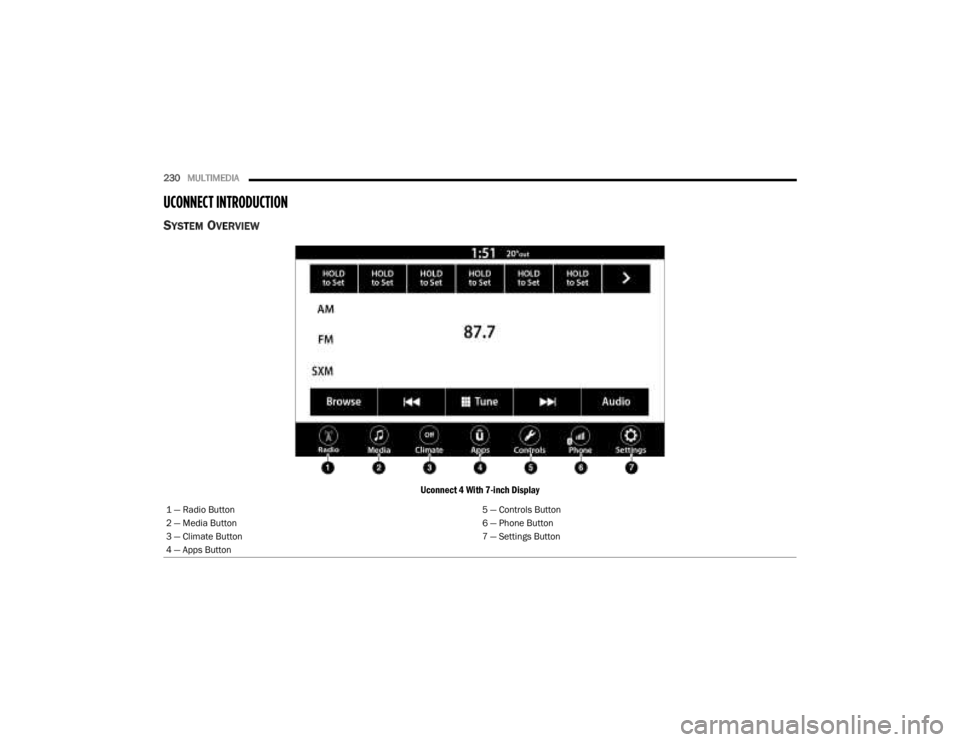
SYSTEM OVERVIEW
Uconnect 4 With 7-inch Display
1 — Radio Button 5 — Controls Button
2 — Media Button 6 — Phone Button
3 — Climate Button 7 — Settings Button
4 — Apps Button
23_JT_OM_EN_USC_t.book Page 230
Page 233 of 448
MULTIMEDIA231
NOTE:Uconnect screen images are for illustration purposes only and may not reflect exact software for your vehicle.
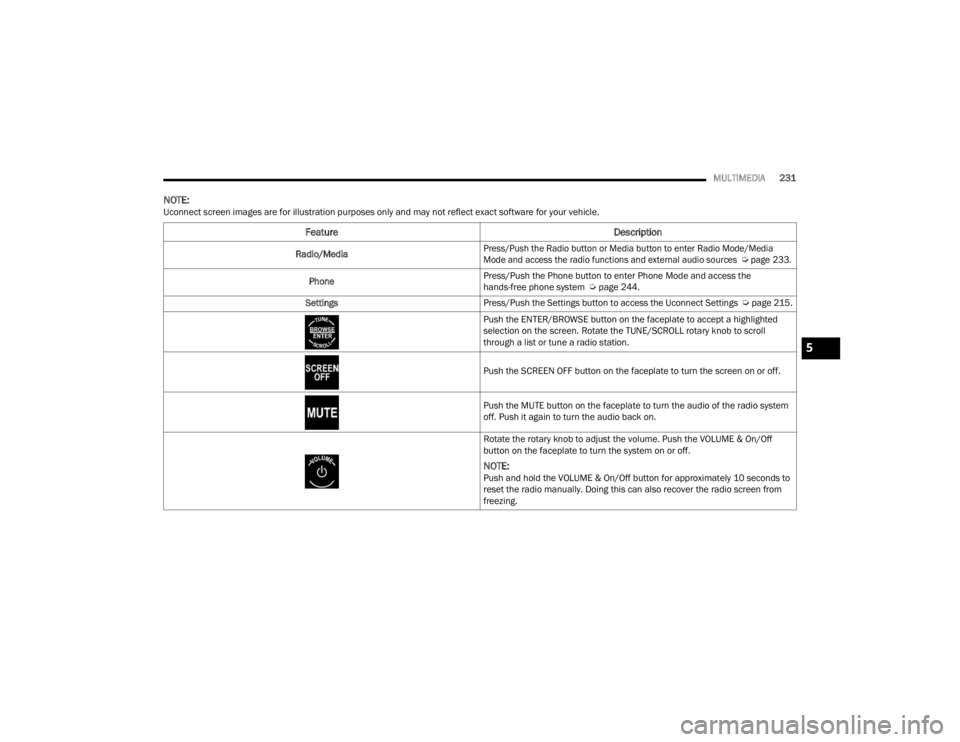
Feature Description
Radio/Media
Press/Push the Radio button or Media button to enter Radio Mode/Media
Mode and access the radio functions and external audio sources
Ú
page 233.
Phone Press/Push the Phone button to enter Phone Mode and access the
hands-free phone system Ú
page 244.
Settings Press/Push the Settings button to access the Uconnect Settings Úpage 215.
Push the ENTER/BROWSE button on the faceplate to accept a highlighted
selection on the screen. Rotate the TUNE/SCROLL rotary knob to scroll
through a list or tune a radio station.
Push the SCREEN OFF button on the faceplate to turn the screen on or off.
Push the MUTE button on the faceplate to turn the audio of the radio system
off. Push it again to turn the audio back on.
Rotate the rotary knob to adjust the volume. Push the VOLUME & On/Off
button on the faceplate to turn the system on or off.
NOTE:Push and hold the VOLUME & On/Off button for approximately 10 seconds to
reset the radio manually. Doing this can also recover the radio screen from
freezing.
5
23_JT_OM_EN_USC_t.book Page 231
Page 244 of 448
242MULTIMEDIA
MEDIA MODE
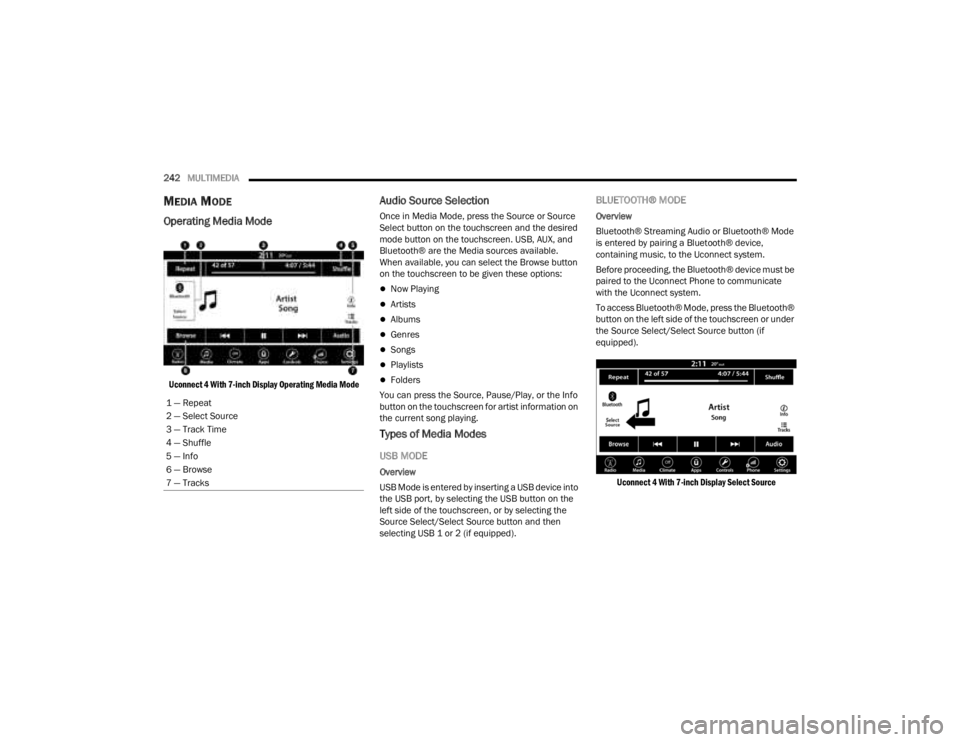
Operating Media Mode
Uconnect 4 With 7-inch Display Operating Media Mode
Audio Source Selection
Once in Media Mode, press the Source or Source
Select button on the touchscreen and the desired
mode button on the touchscreen. USB, AUX, and
Bluetooth® are the Media sources available.
When available, you can select the Browse button
on the touchscreen to be given these options:
Now Playing
Artists
Albums
Genres
Songs
Playlists
Folders
You can press the Source, Pause/Play, or the Info
button on the touchscreen for artist information on
the current song playing.
Types of Media Modes
USB MODE
Overview
USB Mode is entered by inserting a USB device into
the USB port, by selecting the USB button on the
left side of the touchscreen, or by selecting the
Source Select/Select Source button and then
selecting USB 1 or 2 (if equipped).
BLUETOOTH® MODE
Overview
Bluetooth® Streaming Audio or Bluetooth® Mode
is entered by pairing a Bluetooth® device,
containing music, to the Uconnect system.
Before proceeding, the Bluetooth® device must be
paired to the Uconnect Phone to communicate
with the Uconnect system.
To access Bluetooth® Mode, press the Bluetooth®
button on the left side of the touchscreen or under
the Source Select/Select Source button (if
equipped).
Uconnect 4 With 7-inch Display Select Source
1 — Repeat
2 — Select Source
3 — Track Time
4 — Shuffle
5 — Info
6 — Browse
7 — Tracks
23_JT_OM_EN_USC_t.book Page 242
Page 246 of 448

244MULTIMEDIA
Info
In USB Mode, press the Info button on the
touchscreen to display the current track
information. Press the Info or X button on the
touchscreen a second time to cancel this feature.
Tracks
In USB Mode, press the Tracks button on the
touchscreen to display a pop-up with the Song List.
The song currently playing is indicated by an arrow
and lines above and below the song title. When in
the Tracks List screen you can rotate the TUNE/
SCROLL knob to highlight a track (indicated by the
line above and below the track name) and then
push the ENTER/BROWSE knob to start playing
that track.
In Bluetooth® Mode, if the Bluetooth® device
supports this feature, press the Tracks button on
the touchscreen to display a pop-up with the Song
List. The currently playing song is indicated by a red
arrow and lines above and below the song title.
Pressing the Tracks button on the touchscreen
while the pop-up is displayed will close the pop-up.
MEDIA VOICE COMMANDS
Uconnect offers connections via USB, Bluetooth®,
and auxiliary (AUX) ports. Voice operation is only
available for connected USB and AUX devices. Push the VR button located on the steering
wheel. After the beep, say one of the following
commands and follow the prompts to switch your
media source or choose an artist:
“
Change source to Bluetooth®”
“Change source to AUX”
“Change source to USB”
“Play artist Beethoven”; “ Play album Greatest
Hits”; “ Play song Moonlight Sonata”; “ Play genre
Classical”
Did You Know: Press the Browse button on the
touchscreen to see all of the music on your USB
device. Your Voice Command must match exactly
how the artist, album, song, and genre information
is displayed.
PHONE MODE
Overview
Uconnect Phone is a voice-activated, hands-free,
in-vehicle communications system. It allows you to
dial a phone number with your mobile phone.
The feature supports the following:
Voice Activated Features
Hands-Free dialing via Voice (“Call John Smith
Mobile” or “Dial 248-555-1212”).
Hands-Free text-to-speech listening of your
incoming SMS messages.
Hands-Free Text Message Replying: Forward
one of 18 predefined SMS messages to
incoming calls/text messages.
Redialing last dialed numbers (“Redial”).
Calling Back the last incoming call number
(“Call Back”).
Viewing call logs on screen (“Show Incoming
Calls,” “Show Outgoing Calls,” “Show Missed
Calls,” or “Show Recent Calls”).
Searching Contacts phone number (“Search for
John Smith Mobile”).
Screen Activated Features
Dialing via Keypad using touchscreen.
Viewing and Calling contacts from Phonebooks
displayed on the touchscreen.
Setting Favorite Contact phone numbers so they
are easily accessible on the Main Phone screen.
Viewing and Calling contacts from Recent Call
logs.
Reviewing your recent Incoming SMS
Messages.
Pairing up to 10 phones/audio devices for easy
access to connect to them quickly.
NOTE:Your phone must be capable of SMS messaging via
Bluetooth® for messaging features to work
properly.
23_JT_OM_EN_USC_t.book Page 244