ESP JEEP GRAND CHEROKEE 2023 Owner's Guide
[x] Cancel search | Manufacturer: JEEP, Model Year: 2023, Model line: GRAND CHEROKEE, Model: JEEP GRAND CHEROKEE 2023Pages: 424, PDF Size: 15.48 MB
Page 177 of 424
STARTING AND OPERATING175
The following table shows the approximate
distances for each zone:
NOTE:If snow, ice, mud, or any foreign substance builds
up on the camera lens, clean the lens, rinse with
water, and dry with a soft cloth. Do not cover the
lens.
Rear Camera Washer (If Equipped)
When the rear window washer is activated by
pushing the windshield wiper/washer lever
forward, the Rear Back Up camera and Digital
Rearview Mirror (if equipped) cameras are also
washed. For more information, see Ú page 66.
ZOOM VIEW
When the Rear View Camera image is
being displayed, and the vehicle speed is
below 8 mph (13 km/h) while in any gear
selector position, Zoom View is available.
By pressing the “magnifying glass” icon in the
upper left of the display screen, the image will
zoom in to four times the standard view. Pressing
the icon a second time will return the view to the
standard Back Up Camera display.
When Zoom View is selected while the vehicle is in
REVERSE, then shifted to DRIVE, the camera delay
view will display the standard Back Up Camera
view. If the vehicle is then returned to REVERSE
gear from DRIVE, the Zoom View selection will
automatically resume.
Shifting to NEUTRAL from any gear will maintain
the selected view (Zoom or Standard) as long as
the vehicle speed is below 8 mph (13 km/h).
If the vehicle is in PARK, Zoom View is available
until the gear selector is placed in DRIVE or
REVERSE and speeds are at or above 8 mph
(13 km/h).
Zone
Distance To The Rear Of
The Vehicle
Red 0 - 1 ft (0 - 30 cm)
Yellow 1 ft - 6.5 ft (30 cm - 2 m)
Green 6.5 ft or greater
(2 m or greater)
WARNING!
Drivers must be careful when backing up even
when using the ParkView Rear Back Up Camera.
Always check carefully behind your vehicle, and
be sure to check for pedestrians, animals, other
vehicles, obstructions, or blind spots before
backing up. You are responsible for the safety of
your surroundings and must continue to pay
attention while backing up. Failure to do so can
result in serious injury or death.
CAUTION!
To avoid vehicle damage, ParkView should
only be used as a parking aid. The ParkView
camera is unable to view every obstacle or
object in your drive path.
To avoid vehicle damage, the vehicle must be
driven slowly when using ParkView to be able
to stop in time when an obstacle is seen. It is
recommended that the driver look frequently
over his/her shoulder when using ParkView.
4
23_WL_OM_EN_USC_t.book Page 175
Page 181 of 424
STARTING AND OPERATING179
(Continued)
The Night Vision alert status telltale will
be gray when the warnings are
suppressed. The telltale will also turn
gray to indicate that the alerts are
suppressed due to environmental factors (e.g.
daylight hours, external temperature is greater
than 86°F (30°C)) or if the gear selector is in
REVERSE. When the Night Vision alerts are active,
the telltale will be green Ú page 108.
Camera Washers
When the front window washer is activated, the
Night Vision camera will also be washed
Ú page 64.
DETECTION RANGE
The system can detect people 4 ft (1.25 m) tall or
greater in the upright position. The system can also
detect animals that are four-legged and 3 ft (1 m)
tall or greater in the upright position.
The detection distance for the system is between
26 ft (8 m) and 328 ft (100 m) from the front of the
vehicle.
The system may not be able to detect pedestrians
or animals in the following situations:
Pedestrian/animal is outside of the detection
range
Pedestrian/animal is fully or partially covered
Pedestrian/animal does not reach the minimum
detection height
NOTE:Other objects on the road that meet the height/
shape/temperature (e.g. sun exposure) of pedes -
trians/animals may be detected and classified as
targets.
WARNING!
Do not jerk the steering wheel in response to
a warning.
Never attempt to swerve around animals if
doing so would endanger you or others.
Do not stare at the image while driving. You
could crash and you or others could be
injured.
The Night Vision system only provides alerts to
objects of interest and cannot serve as a
substitute for the driver’s personal judgment.
The warnings are meant to direct your atten-
tion to the detected objects, but the Night
Vision system does not automatically brake
the vehicle and may not provide a warning
with enough time to help avoid a crash.
Warnings are only provided if a pedestrian or
large animal is detected by the system.
It is always the driver’s responsibility to be
attentive of road, traffic, and weather condi -
tions, vehicle speed, distance to the vehicle
ahead, and most importantly, brake opera -
tion, to ensure safe operation of the vehicle
under all road conditions. Your complete
attention is always required while driving to
maintain safe control of your vehicle.
WARNING!
4
23_WL_OM_EN_USC_t.book Page 179
Page 183 of 424
STARTING AND OPERATING181
SURROUND VIEW CAMERA SYSTEM —
IF EQUIPPED
Your vehicle may be equipped with the Surround
View Camera system that allows you to see an
on-screen image of the surroundings and Top View
of your vehicle whenever the gear selector is put
into REVERSE or a different view is selected
through the touchscreen buttons. The Top View of
the vehicle will show which doors are open. The
image will be displayed on the Uconnect display
along with a caution note “Check Entire
Surroundings” across the top of the screen. After
five seconds, this note will disappear. The
Surround View Camera system is comprised of four
sequential cameras located in the front grille, rear
liftgate and side mirrors.
NOTE:The Surround View Camera system has program -
mable settings that may be selected through the
Uconnect system Ú page 204.
Press this button on the touchscreen to
enter the Surround View Camera menu in
the Uconnect system.
When the vehicle is shifted into REVERSE, the Rear
View or Top View is the default view of the system. When the vehicle is shifted out of REVERSE with
camera delay turned on, the camera image will
continue to be displayed for up to 10 seconds
unless the vehicle speed exceeds 8 mph
(13 km/h), the vehicle is shifted into PARK or the
ignition is placed in the OFF position. There is a
touchscreen X button to disable the display of the
camera image.
When the vehicle is shifted out of REVERSE with
camera delay turned off, the Surround View
Camera mode is exited and the last known screen
appears again.
When enabled, active guidelines are overlaid on
the image to illustrate the width of the vehicle,
including the side view mirrors and its projected
backup path based on the steering wheel position.
Different colored zones indicate the distance to
the rear of the vehicle.
The following table shows the approximate
distances for each zone:
Modes Of Operation
Manual activation of the Surround View Camera is
selected by pressing the Surround View Camera
button located in the Controls menu within the
Uconnect system.
Top View
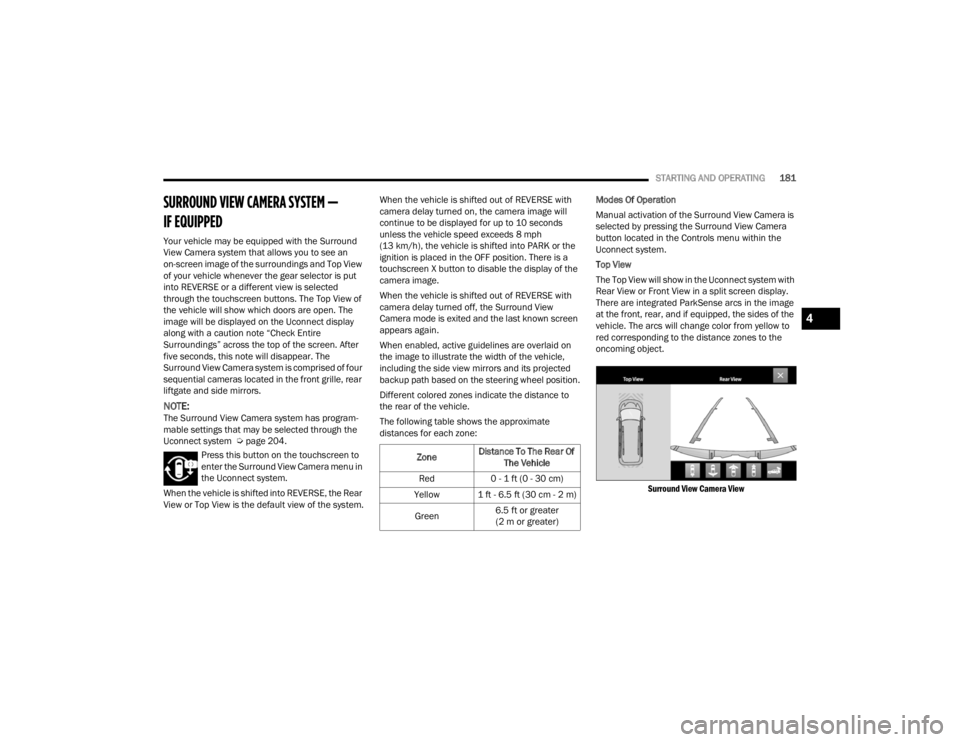
The Top View will show in the Uconnect system with
Rear View or Front View in a split screen display.
There are integrated ParkSense arcs in the image
at the front, rear, and if equipped, the sides of the
vehicle. The arcs will change color from yellow to
red corresponding to the distance zones to the
oncoming object.
Surround View Camera View
Zone Distance To The Rear Of
The Vehicle
Red 0 - 1 ft (0 - 30 cm)
Yellow 1 ft - 6.5 ft (30 cm - 2 m)
Green 6.5 ft or greater
(2 m or greater)
4
23_WL_OM_EN_USC_t.book Page 181
Page 184 of 424
182STARTING AND OPERATING
NOTE:
Front tires will be in image when the tires are
turned.
Due to wide angle cameras in the mirrors, the
image may appear distorted.
Top View will show which doors are open.
Open front doors and/or liftgate will cancel
outside image in Top View, but the standard
view remains unchanged.
Rear View Plus Top View This is the default view of the system in
REVERSE and is always paired with the
Top View of the vehicle with optional
active guidelines for the projected path
when enabled.
Rear Cross Path View
Pressing the Rear Cross Path button will
give the driver a wider angle view of the
rear camera system. The Top View will be
disabled when this is selected.
Front View Plus Top View The Front View will show you what is
immediately in front of the vehicle and is
always paired with the Top View of the
vehicle. Front Cross Path View
Pressing the Front Cross Path button will
give the driver a wider angle view of the
front camera system. The Top View will
be disabled when this is selected.
Back Up Camera View Pressing the Back Up Camera button will
provide a full screen rear view with Zoom
View.
NOTE:If the Rear View Camera view was selected through
the Surround View Camera menu, exiting out of the
Rear View screen will return to the Surround View
Camera menu. If the Back Up Camera was
manually activated through the Controls menu of
the Uconnect system, exiting out of the display
screen will return to the Controls menu.
Deactivation
The system can be deactivated under the following
conditions:
The speed of the vehicle is greater than 8 mph
(13 km/h).
The vehicle is shifted into PARK.
The vehicle is in any gear other than REVERSE
and the touchscreen X button is pressed.
The camera delay system is turned off manually
through Uconnect Settings Ú page 204.Front And Rear Camera Washers
When the front windshield washer is activated by
pulling the windshield wiper/washer lever
rearward, the front camera is also washed.
When the rear window washer is activated by
pushing the windshield wiper/washer lever
forward, the Rear Back Up camera and Digital
Rearview Mirror (if equipped) cameras are also
washed. For more information, see Ú
page 66.
NOTE:
If snow, ice, mud, or any foreign substance
builds up on the camera lenses, clean the
lenses, rinse with water, and dry with a soft
cloth. Do not cover the lenses.
If a malfunction with the system has occurred,
see an authorized dealer.
WARNING!
Drivers must be careful when backing up even
when using the Surround View Camera. Always
check carefully behind your vehicle, and be sure
to check for pedestrians, animals, other
vehicles, obstructions, or blind spots before
backing up. You are responsible for the safety of
your surroundings and must continue to pay
attention while backing up. Failure to do so can
result in serious injury or death.
23_WL_OM_EN_USC_t.book Page 182
Page 217 of 424
MULTIMEDIA215
Navigation
Camera
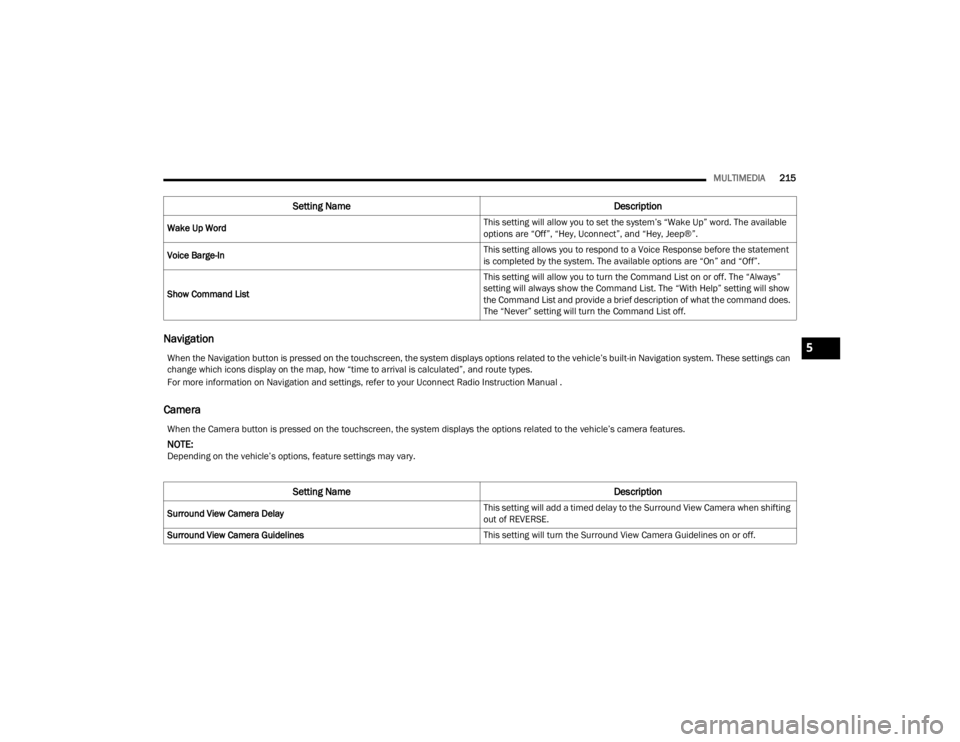
Wake Up Word This setting will allow you to set the system’s “Wake Up” word. The available
options are “Off”, “Hey, Uconnect”, and “Hey, Jeep®”.
Voice Barge-In This setting allows you to respond to a Voice Response before the statement
is completed by the system. The available options are “On” and “Off”.
Show Command List This setting will allow you to turn the Command List on or off. The “Always”
setting will always show the Command List. The “With Help” setting will show
the Command List and provide a brief description of what the command does.
The “Never” setting will turn the Command List off.
Setting Name
Description
When the Navigation button is pressed on the touchscreen, the system displays options related to the vehicle’s built-in Navigation system. These settings can
change which icons display on the map, how “time to arrival is calculated”, and route types.
For more information on Navigation and settings, refer to your Uconnect Radio Instruction Manual .
When the Camera button is pressed on the touchscreen, the system displays the options related to the vehicle’s camera features.
NOTE:Depending on the vehicle’s options, feature settings may vary.
Setting NameDescription
Surround View Camera Delay This setting will add a timed delay to the Surround View Camera when shifting
out of REVERSE.
Surround View Camera Guidelines This setting will turn the Surround View Camera Guidelines on or off.
5
23_WL_OM_EN_USC_t.book Page 215
Page 242 of 424
240MULTIMEDIA
REAR SEAT ENTERTAINMENT WITH FIRE
TV B
UILT-IN STREAMING (USING THE
F
RONT RADIO AND REAR SCREENS)
Access Using Launch Source
To access Rear Seat Entertainment with Fire TV
built-in from the front radio, press the Media tab
located on the bottom menu bar. Then select the
Rear Seat option located on the top menu bar.
Select “Launch Source”, and then under “Inputs”
select “Fire TV Home”.
Access Using Browse Media
Selecting “Browse Media” on the front radio
screen will give access to different media within
Rear Seat Entertainment with Fire TV built-in.
These options will be in the top menu of “Browse
Media” and include:
Fire TV — Selecting “Fire TV” will show streaming
options for categories and to select apps. This
option will be selectable on the left slider menu
in “Browse Media”. While in “Browse Media”
under Fire TV, it will display recent activity under
“Recent”. This will display recent videos viewed
from Fire TV and recent downloads as well.
USB Video — Under “USB Videos”, videos will
appear that are options with a USB device
connected to Rear Seat Entertainment with Fire
TV built-in.
USB Music — Under “USB Music”, music will
appear that are options with a USB device
connected to Rear Seat Entertainment with Fire
TV built-in.
Access Using the Voice Remote with Alexa and
Rear Screens
Rear passengers will be able to access some
options for streaming by pressing the “Prime
Video”, “App 1”, or “App 2” button on the Voice
Remote with Alexa. Selecting one of those buttons
on the Voice Remote with Alexa will take you to the
home page for that respective streaming service.
Turning on either of the rear screens will launch
Fire TV. By default, the rear screens will always
launch in Fire TV. More streaming options can be
selected on the Fire TV home page.
Fire TV
Fire TV is your source for online streaming with
Rear Seat Entertainment with Fire TV built-in.
NOTE:A data source needs to be connected to the system
for streaming to be accessible. This can be set up
when Fire TV is turned on for the first time from the
rear screens. Some of these options can be an
in-vehicle 4G Wi-Fi hot spot, capable Wi-Fi hot spot
from a mobile device, or Wi-Fi from an outside
source like a home or a garage. To access Fire TV on the front screen, select
“Launch Source” on the front radio rear seat
screen and then “Fire TV Home” under the Inputs.
Viewing from the front radio screen or passenger
screen mirrors or controls the Fire TV experience
from one of the rear Fire TV displays.
The menu bar for Fire TV will have the options for
“Home”, “Find”, “Library”, “Brand”, and “Live”.
Below the menu bar will be streaming options
linked to your Prime account like “Prime Video”.
The front radio screen offers some options:
Power — This will turn Fire TV on or off.
Screen 1 and Screen 2 Toggle
— This toggles
between the Rear Screens (for use with front
radio screen only).
Collapse — While viewing on the front radio
screen, this will collapse the screen to dash -
board view.
Source Drawer — This will open the “Source
Drawer” and the source logo will be displayed
on the icon.
Browse Media — This will open the “Browse
Media” pop-up.
Back — This will let you go back the previous
page.
23_WL_OM_EN_USC_t.book Page 240
Page 251 of 424
SAFETY249
If the ABS Warning Light is on, the brake system
should be serviced as soon as possible to restore
the benefits of Anti-Lock Brakes. If the ABS
Warning Light does not come on when the ignition
is placed in the ON/RUN mode, have the light
repaired as soon as possible.
DROWSY DRIVER DETECTION (DDD) —
I
F EQUIPPED
DDD detects when the driver is feeling fatigued
and warns the driver to pull over and take a break.
To Activate/Deactivate
DDD can be activated and deactivated through the
Uconnect system by selecting the following in order:
1. “Safety & Driving Assistance”
2. “Drowsy Driver Detection”
System Operation
Using feedback obtained from the driver’s steering
patterns, any buttons/switches that are pressed,
and from the front camera, the system implements
two operating logics:
The first operating logic takes the driving style
into account, observing the road and detecting
to what extent the driver can continue driving
with few lane crossing events.
The second operating logic measures the time
spent behind the wheel with the vehicle speed
above 40 mph (60 km/h) and below 100 mph
(160 km/h).
If the driving style indicates that the driver is
unable to follow the road trajectory and respect the
horizontal lane markings while within the operating
speed range of the system, a pop up will display on
the instrument cluster display to suggest that the
driver should stop for a break. An audible signal
will also sound.
If the driver accepts the suggestion provided by the
system by pushing the “OK” button on the left side
of the steering wheel, the message will disappear
from the display.
If the driver does not acknowledge the warning, it
will be displayed for 60 seconds and then
disappear.
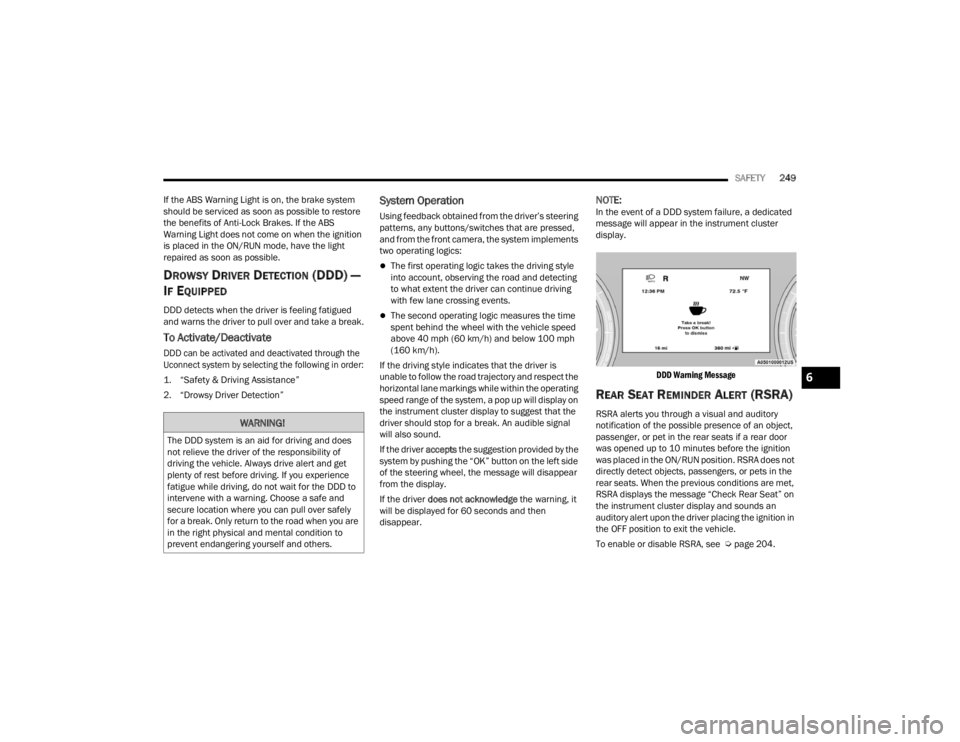
NOTE:In the event of a DDD system failure, a dedicated
message will appear in the instrument cluster
display.
DDD Warning Message
REAR SEAT REMINDER ALERT (RSRA)
RSRA alerts you through a visual and auditory
notification of the possible presence of an object,
passenger, or pet in the rear seats if a rear door
was opened up to 10 minutes before the ignition
was placed in the ON/RUN position. RSRA does not
directly detect objects, passengers, or pets in the
rear seats. When the previous conditions are met,
RSRA displays the message “Check Rear Seat” on
the instrument cluster display and sounds an
auditory alert upon the driver placing the ignition in
the OFF position to exit the vehicle.
To enable or disable RSRA, see Ú page 204.WARNING!
The DDD system is an aid for driving and does
not relieve the driver of the responsibility of
driving the vehicle. Always drive alert and get
plenty of rest before driving. If you experience
fatigue while driving, do not wait for the DDD to
intervene with a warning. Choose a safe and
secure location where you can pull over safely
for a break. Only return to the road when you are
in the right physical and mental condition to
prevent endangering yourself and others.
6
23_WL_OM_EN_USC_t.book Page 249
Page 253 of 424
SAFETY251
Electronic Brake Force Distribution (EBD)
EBD manages the distribution of the braking
torque between the front and rear axles by limiting
braking pressure to the rear axle. This is done to
prevent overslip of the rear wheels to avoid vehicle
instability, and to prevent the rear axle from
entering ABS before the front axle.
Electronic Roll Mitigation (ERM)
ERM anticipates the potential for wheel lift by
monitoring the driver’s steering wheel input and
the speed of the vehicle. When ERM determines
that the rate of change of the steering wheel angle
and vehicle’s speed are sufficient to potentially
cause wheel lift, it then applies the appropriate
brake and may also reduce engine power to lessen
the chance that wheel lift will occur. ERM can only
reduce the chance of wheel lift occurring during
severe or evasive driving maneuvers; it cannot
prevent wheel lift due to other factors, such as
road conditions, leaving the roadway, or striking
objects or other vehicles.
NOTE:ERM is disabled any time the ESC is in “Full Off”
mode (if equipped). See Ú page 251 for a
complete explanation of the available ESC modes.
Electronic Stability Control (ESC)
ESC enhances directional control and stability of
the vehicle under various driving conditions. ESC
corrects for oversteering or understeering of the
vehicle by applying the brake of the appropriate
wheel(s) to assist in counteracting the following
conditions. Engine power may also be reduced to
help the vehicle maintain the desired path.
Oversteer — when the vehicle is turning more
than appropriate for the steering wheel position.
Understeer — when the vehicle is turning less
than appropriate for the steering wheel position.
ESC uses sensors in the vehicle to determine the
vehicle path intended by the driver and compares
it to the actual path of the vehicle. When the actual
path does not match the intended path, ESC
applies the brake of the appropriate wheel to
assist in counteracting the oversteer or understeer
condition.
The ESC Activation/Malfunction Indicator Light
located in the instrument cluster will start to flash
as soon as the ESC system becomes active. The
ESC Activation/Malfunction Indicator Light also
flashes when the Traction Control System (TCS) is
active. If the ESC Activation/Malfunction Indicator
Light begins to flash during acceleration, ease up
on the accelerator and apply as little throttle as
possible. Be sure to adapt your speed and driving
to the prevailing road conditions.
WARNING!
Many factors, such as vehicle loading, road
conditions and driving conditions, influence the
chance that wheel lift or rollover may occur. ERM
cannot prevent all wheel lift or rollovers,
especially those that involve leaving the roadway
or striking objects or other vehicles. The
capabilities of an ERM-equipped vehicle must
never be exploited in a reckless or dangerous
manner which could jeopardize the user's safety
or the safety of others.
6
23_WL_OM_EN_USC_t.book Page 251
Page 256 of 424
254SAFETY
Driver Override
The driver may override HDC activation with
throttle or brake application at any time.
Deactivating HDC
HDC will be deactivated but remain available if any
of the following conditions occur:
The driver overrides HDC set speed with throttle
or brake application.
The vehicle speed exceeds 20 mph (32 km/h)
but remains below 40 mph (64 km/h).
The vehicle is on a downhill grade of insufficient
magnitude, is on level ground, or is on an uphill
grade.
The vehicle is shifted to PARK.
Disabling HDC
HDC will be deactivated and disabled if any of the
following conditions occur:
The driver pushes the HDC switch.
The driveline is shifted out of 4WD Low.
The parking brake is applied.
The driver door opens.
The vehicle is driven greater than 20 mph
(32 km/h) for greater than 70 seconds.
The vehicle is driven greater than 40 mph
(64 km/h) (HDC exits immediately).
HDC detects excessive brake temperature. Feedback To The Driver
The instrument cluster has an HDC icon and the
HDC switch has an LED icon, which offers feedback
to the driver about the state HDC is in.
The cluster icon and switch light will illuminate
and remain on solid when HDC is enabled or
activated. This is the normal operating condition
for HDC.
The cluster icon and switch light will flash for
several seconds, then extinguish when the
driver pushes the HDC switch but enable condi
-
tions are not met.
The cluster icon and switch light will flash for
several seconds, then extinguish when HDC
disables due to excess speed.
The cluster icon and switch light will flash when
HDC deactivates due to overheated brakes. The
flashing will stop and HDC will activate again
once the brakes have cooled sufficiently.
Hill Start Assist (HSA)
HSA is designed to mitigate roll back from a
complete stop while on an incline. If the driver
releases the brake while stopped on an incline,
HSA will continue to hold the brake pressure for a
short period. If the driver does not apply the
throttle before this time expires, the system will
release brake pressure and the vehicle will roll
down the hill as normal.
The following conditions must be met in order for
HSA to activate:
The feature must be enabled.
The vehicle must be stopped.
The parking brake must be off.
The driver door must be closed.
The vehicle must be on a sufficient grade.
The gear selection must match vehicle uphill
direction (i.e., vehicle facing uphill is in forward
gear; vehicle backing uphill is in REVERSE (R)
gear).
HSA will work in REVERSE gear and all forward
gears. The system will not activate if the trans -
mission is in PARK (P) or NEUTRAL (N). For vehi -
cles equipped with a manual transmission, if
the clutch is pressed, HSA will remain active.
WARNING!
HDC is only intended to assist the driver in
controlling vehicle speed when descending hills.
The driver must remain attentive to the driving
conditions and is responsible for maintaining a
safe vehicle speed.
23_WL_OM_EN_USC_t.book Page 254
Page 257 of 424
SAFETY255
Disabling And Enabling HSA
This feature can be turned on or turned off. To
change the current setting, proceed as follows:
If disabling HSA using your instrument cluster
display, see Ú page 98 for further information.
If disabling HSA using Uconnect Settings, see
Úpage 204 for further information.
Towing With HSA
HSA will also provide assistance to mitigate roll
back while towing a trailer.
Rain Brake Support (RBS)
RBS may improve braking performance in wet
conditions. It will periodically apply a small amount
of brake pressure to remove any water buildup on
the front brake rotors. It functions when the
windshield wipers are in LO or HI speed. When RBS
is active, there is no notification to the driver and
no driver interaction is required.
Ready Alert Braking (RAB)
RAB may reduce the time required to reach full
braking during emergency braking situations. It
anticipates when an emergency braking situation
may occur by monitoring how fast the throttle is
released by the driver. The Electronic Brake
Controller (EBC) will prepare the brake system for
a panic stop.
Selec-Speed Control (SSC) — If Equipped
SSC is intended for off-road driving in
4WD Low only. SSC maintains vehicle
speed by actively controlling engine
torque and brakes.
SSC has three states:
1. Off (feature is not enabled and will not activate)
2. Enabled (feature is enabled and ready but activation conditions are not met, or driver is
actively overriding with brake or throttle
application)
3. Active (feature is enabled and actively controlling vehicle speed)
WARNING!
There may be situations where the Hill Start
Assist (HSA) will not activate and slight rolling
may occur, such as on minor hills or with a
loaded vehicle, or while pulling a trailer. HSA is
not a substitute for active driving involvement. It
is always the driver’s responsibility to be
attentive to distance to other vehicles, people,
and objects, and most importantly brake
operation to ensure safe operation of the vehicle
under all road conditions. Your complete
attention is always required while driving to
maintain safe control of your vehicle. Failure to
follow these warnings can result in a collision or
serious personal injury.
WARNING!
If you use a trailer brake controller with your
trailer, the trailer brakes may be activated and
deactivated with the brake switch. If so, there
may not be enough brake pressure to hold
both the vehicle and the trailer on a hill when
the brake pedal is released. In order to avoid
rolling down an incline while resuming accel -
eration, manually activate the trailer brake or
apply more vehicle brake pressure prior to
releasing the brake pedal.
HSA is not a parking brake. Always apply the
parking brake fully when exiting your vehicle.
Also, be certain to place the transmission in
PARK.
Failure to follow these warnings can result in a
collision or serious personal injury.
6
23_WL_OM_EN_USC_t.book Page 255