radio JEEP GRAND CHEROKEE 2023 Owner's Guide
[x] Cancel search | Manufacturer: JEEP, Model Year: 2023, Model line: GRAND CHEROKEE, Model: JEEP GRAND CHEROKEE 2023Pages: 424, PDF Size: 15.48 MB
Page 189 of 424
STARTING AND OPERATING187
RECOMMENDED DISTRIBUTION HITCH
ADJUSTMENT
1. Verify that the vehicle is at the Normal Ride
Height.
NOTE:The vehicle must remain in the engine run position
with all doors closed while attaching a trailer for
proper leveling of the air suspension system.
2. Position the vehicle to be ready to connect to the trailer (do not connect the trailer). 3. For vehicles equipped with Quadra-Lift air
suspension, use the touchscreen radio
settings to enable Tire/Jack mode. Tire/Jack
mode will be canceled and the procedure must
be restarted if the vehicle is driven at speeds
above 5mph (8 km/h).
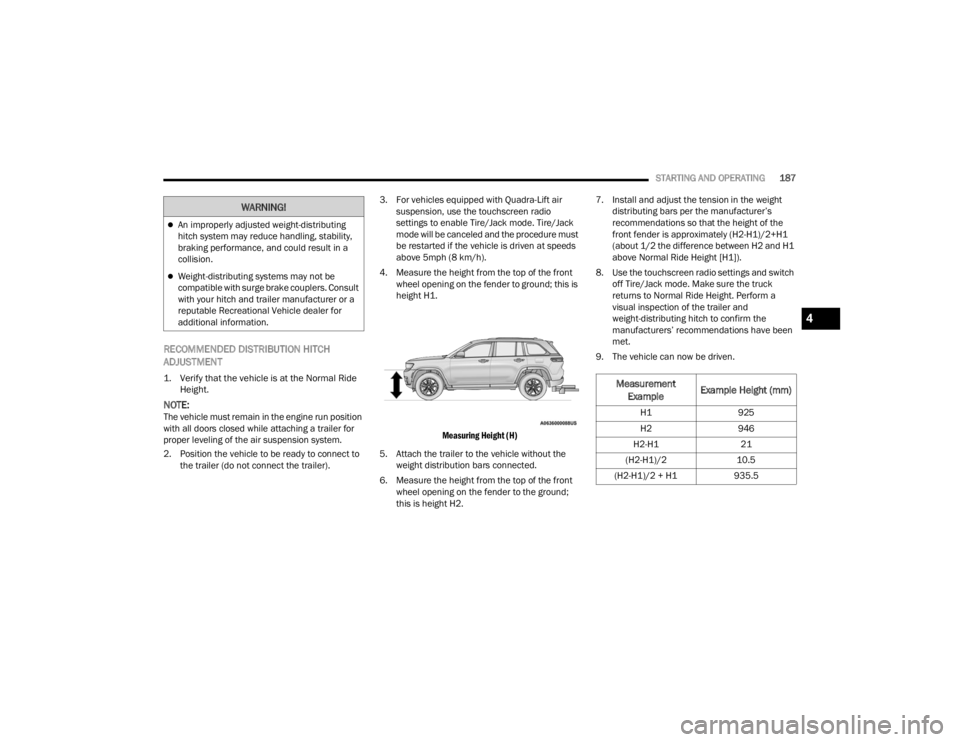
4. Measure the height from the top of the front wheel opening on the fender to ground; this is
height H1.
Measuring Height (H)
5. Attach the trailer to the vehicle without the weight distribution bars connected.
6. Measure the height from the top of the front wheel opening on the fender to the ground;
this is height H2. 7. Install and adjust the tension in the weight
distributing bars per the manufacturer’s
recommendations so that the height of the
front fender is approximately (H2-H1)/2+H1
(about 1/2 the difference between H2 and H1
above Normal Ride Height [H1]).
8. Use the touchscreen radio settings and switch off Tire/Jack mode. Make sure the truck
returns to Normal Ride Height. Perform a
visual inspection of the trailer and
weight-distributing hitch to confirm the
manufacturers’ recommendations have been
met.
9. The vehicle can now be driven.
An improperly adjusted weight-distributing
hitch system may reduce handling, stability,
braking performance, and could result in a
collision.
Weight-distributing systems may not be
compatible with surge brake couplers. Consult
with your hitch and trailer manufacturer or a
reputable Recreational Vehicle dealer for
additional information.
WARNING!
Measurement Example Example Height (mm)
H1
925
H2 946
H2-H1 21
(H2-H1)/2 10.5
(H2-H1)/2 + H1 935.5
4
23_WL_OM_EN_USC_t.book Page 187
Page 205 of 424

203
MULTIMEDIA
UCONNECT SYSTEMS
For detailed information about your Uconnect 5/
5 NAV With 8.4-inch Display or Uconnect 5/5 NAV
With 10.1-inch Display system, refer to your
Uconnect Radio Instruction Manual.
NOTE:Uconnect screen images are for illustration
purposes only and may not reflect exact software
for your vehicle.
CYBERSECURITY
Depending on applicability, your vehicle may be
able to send or receive information from a wired or
wireless network. This information allows systems
and features in your vehicle to function properly.Your vehicle may be equipped with certain security
features to reduce the risk of unauthorized and
unlawful access to vehicle systems and wireless
communications. Vehicle software technology
continues to evolve over time and FCA US LLC,
working with its suppliers, evaluates and takes
appropriate steps as needed. As always, if you
experience unusual behavior, contact an
authorized dealer immediately, Ú
page 403, or
refer to your Uconnect Radio Instruction Manual
for additional contact information.
The risk of unauthorized and unlawful access to
your vehicle systems may still exist, even if the
most recent version of vehicle software (such as
Uconnect software) is installed.NOTE:To help further improve user experience, features,
stability, etc., and minimize the potential risk of a
security breach, vehicle owners should routinely
check
www.driveuconnect.com (US Residents) or www.driveuconnect.ca (Canadian Residents) to
learn about available Uconnect software updates.
WARNING!
ONLY insert trusted devices/components into
your vehicle. Media of unknown origin could
possibly contain malicious software, and if
installed in your vehicle, it may increase the
possibility for vehicle systems to be breached.
As always, if you experience unusual vehicle
behavior, take your vehicle to an authorized
dealer immediately.
5
23_WL_OM_EN_USC_t.book Page 203
Page 206 of 424
204MULTIMEDIA
UCONNECT SETTINGS
The Uconnect system uses a combination of
buttons on the touchscreen and buttons on the
faceplate located on the center of the instrument
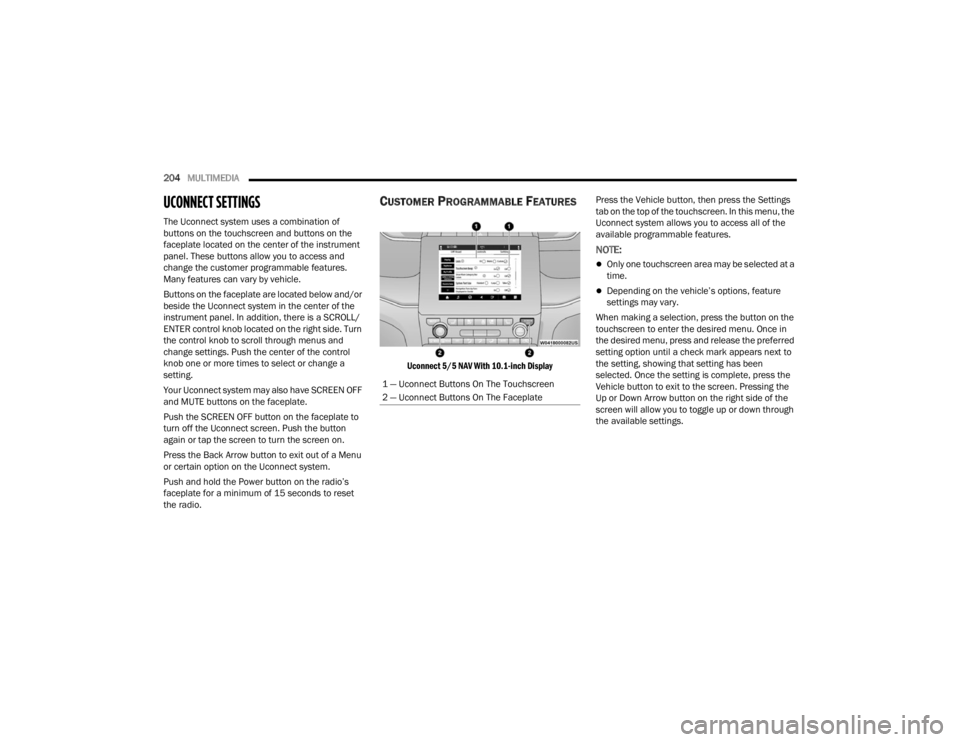
panel. These buttons allow you to access and
change the customer programmable features.
Many features can vary by vehicle.
Buttons on the faceplate are located below and/or
beside the Uconnect system in the center of the
instrument panel. In addition, there is a SCROLL/
ENTER control knob located on the right side. Turn
the control knob to scroll through menus and
change settings. Push the center of the control
knob one or more times to select or change a
setting.
Your Uconnect system may also have SCREEN OFF
and MUTE buttons on the faceplate.
Push the SCREEN OFF button on the faceplate to
turn off the Uconnect screen. Push the button
again or tap the screen to turn the screen on.
Press the Back Arrow button to exit out of a Menu
or certain option on the Uconnect system.
Push and hold the Power button on the radio’s
faceplate for a minimum of 15 seconds to reset
the radio.
CUSTOMER PROGRAMMABLE FEATURES
Uconnect 5/5 NAV With 10.1-inch Display
Press the Vehicle button, then press the Settings
tab on the top of the touchscreen. In this menu, the
Uconnect system allows you to access all of the
available programmable features.
NOTE:
Only one touchscreen area may be selected at a
time.
Depending on the vehicle’s options, feature
settings may vary.
When making a selection, press the button on the
touchscreen to enter the desired menu. Once in
the desired menu, press and release the preferred
setting option until a check mark appears next to
the setting, showing that setting has been
selected. Once the setting is complete, press the
Vehicle button to exit to the screen. Pressing the
Up or Down Arrow button on the right side of the
screen will allow you to toggle up or down through
the available settings.
1 — Uconnect Buttons On The Touchscreen
2 — Uconnect Buttons On The Faceplate
23_WL_OM_EN_USC_t.book Page 204
Page 210 of 424

208MULTIMEDIA
Show Main Category Bar Labels This setting will allow the main category bar labels to be shown on or off.
Navigation Turn-by-Turn Displayed In Cluster This setting will display Navigation prompts in the Instrument Cluster Display.
Phone Pop-Ups Displayed In Cluster This setting will display smartphone notifications and messages in the
Instrument Cluster Display.
Massage Pop-Up Displayed With Button Press This setting will activate or deactivate the massage feature pop-ups.
Time Format This setting will allow you to set the time format (AM/PM). Sync Time With GPS
must be “Off” for this setting to be available. The “12 hrs” setting will set the
time to a 12-hour format. The “24 hrs” setting will set the time to a 24-hour
format.
Voice Options This setting will allow you to change the voice options for the radio to “Male”
or “Female”.
Wake Up Word This setting will allow you to set the system “Wake Up” word. The available
options are “Off”, “Hey, Uconnect”, and “Hey, Jeep®”.
Voice Barge-in
This setting will allow Voice Barge-in, which is a feature that will allow you to
interrupt the help message or system prompts by speaking, to be turned on or off.
Show Command List This setting will allow the Command List to be shown on or off.
Navigation Settings This setting will redirect to the list of Navigation settings. Refer to your
Uconnect Radio Instruction Manual for further information.
Ambient Color Personalization This setting will redirect to a new menu that will allow you to change the
ambient lighting color in the cabin.
Setting Name
Description
23_WL_OM_EN_USC_t.book Page 208
Page 211 of 424

MULTIMEDIA209
Auto-On Driver Heated/Ventilated Seat & Heated Steering Wheel This setting will activate the vehicle’s comfort system and heated seats or
heated steering wheel when the vehicle is remote started or ignition is
started. The “Off” setting will not activate the comfort systems. The “Remote
Start” setting will only activate the comfort systems when using Remote Start.
The “All Start” setting will activate the comfort systems whenever the vehicle
is started.
Radio Off Delay This setting will keep certain electrical features running after the engine is
turned off. When any door is opened, the electronics will deactivate. The
available settings are “0 sec”, “45 sec”, “5 min”, and “10 min”.
Radio Off With Door This setting will allow you to determine if the radio shuts off when any of the
doors are opened.
Audio Settings This setting will open the submenu, containing the audio settings
Ú
page 223.
App Drawer Favoriting Pop-ups This setting will allow you to favorite app drawer pop-ups with “On” and “Off”
options.
App Drawer Unfavoritings Pop-ups This setting will allow you to unfavorite app drawer pop-ups with “On” and
“Off” options.
New Text Message Pop-ups This setting will allow you to have pop-up notifications for new text messages.
Setting options are “On” and “Off”.
Missed Calls Message This setting will allow you to have pop-up notifications for missed calls. Setting
options are “On” and “Off”.
Navigation Pop-ups This setting will allow you to have pop-up notifications for Navigation. Setting
options are “On” and “Off”.
Reset App Drawer to Default Order This setting will reset the app drawer to its factory default layout.
Setting NameDescription
5
23_WL_OM_EN_USC_t.book Page 209
Page 217 of 424

MULTIMEDIA215
Navigation
Camera
Wake Up Word This setting will allow you to set the system’s “Wake Up” word. The available
options are “Off”, “Hey, Uconnect”, and “Hey, Jeep®”.
Voice Barge-In This setting allows you to respond to a Voice Response before the statement
is completed by the system. The available options are “On” and “Off”.
Show Command List This setting will allow you to turn the Command List on or off. The “Always”
setting will always show the Command List. The “With Help” setting will show
the Command List and provide a brief description of what the command does.
The “Never” setting will turn the Command List off.
Setting Name
Description
When the Navigation button is pressed on the touchscreen, the system displays options related to the vehicle’s built-in Navigation system. These settings can
change which icons display on the map, how “time to arrival is calculated”, and route types.
For more information on Navigation and settings, refer to your Uconnect Radio Instruction Manual .
When the Camera button is pressed on the touchscreen, the system displays the options related to the vehicle’s camera features.
NOTE:Depending on the vehicle’s options, feature settings may vary.
Setting NameDescription
Surround View Camera Delay This setting will add a timed delay to the Surround View Camera when shifting
out of REVERSE.
Surround View Camera Guidelines This setting will turn the Surround View Camera Guidelines on or off.
5
23_WL_OM_EN_USC_t.book Page 215
Page 222 of 424

220MULTIMEDIA
Seats & Comfort
Passive Entry This setting will allow you to turn the Passive Entry feature
(Keyless Enter ‘n Go™) on or off.
Personal Settings Linked To Key Fob This setting will recall preset radio stations and driver seat position that have
been linked to the key fob.
Power Liftgate Alert This setting will chime an audible alert when the power liftgate is raising or
lowering. Selectable options are “On” and “Off”.
Hands-Free Power Liftgate This setting will use hands-free technology to automatically open or close the
power liftgate. Selectable options are “On” and “Off”.
Auto Relock This setting will lock the doors after 30 seconds of the doors remaining
unlocked. The available options are “On” and “Off”.
Setting Name
Description
When Seats & Comfort button is pressed on the touchscreen, the system displays the options related to the vehicle’s comfort systems when remote start has
been activated or the vehicle has been started.
NOTE:Depending on the vehicle’s options, feature settings may vary.
Setting NameDescription
Easy Exit Seats This setting will automatically move the driver seat rearward when the engine
is shut off. The available settings are “On” and “Off”.
23_WL_OM_EN_USC_t.book Page 220
Page 224 of 424

222MULTIMEDIA
Suspension
Radio Off Delay
This setting will keep the radio on for the selected amount of time after vehicle
shut off. The available options are “0 sec”, “45 sec”, “5 min”, and “10 min”.
Radio Off With Door This setting will keep the radio on when a door is opened or until the Radio Off
Delay time is reached. The available settings are “On” and “Off”.
Windows With Key Fob This setting will allow you to control window function while the vehicle is off.
The available options are “On” and “Off”.
Setting Name
Description
When the Suspension button is pressed on the touchscreen, the system will display settings related to the vehicle’s air suspension.
NOTE:Depending on the vehicle’s options, feature settings may vary.
Setting NameDescription
Auto Entry/Exit Suspension This setting will turn the Auto Entry/Exit Suspension system on or off.
Display Suspension Messages This setting will display suspension messages in the Instrument Cluster
Display. The “All” setting will display all available messages. The “Warnings
Only” setting will only display warning messages.
Tire Jack Mode This setting will disable the Air Suspension system to assist in changing a
spare tire.
Auxiliary Mode This setting will allow you to set the Auxiliary Suspension Mode. The available
options are “Off”, “Transport Mode”, and “Wheel Alignment Mode”. In
Transport Mode, the vehicle will not auto level when being transported by
another vehicle. In Wheel Alignment Mode, the vehicle will not auto level when
a wheel alignment is being performed.
23_WL_OM_EN_USC_t.book Page 222
Page 225 of 424

MULTIMEDIA223
Audio
When the Audio button is pressed on the touchscreen, the system displays options related to the vehicle’s sound system. These settings can change the audio
location within the vehicle, adjust the bass or treble levels, and auto-play settings from an audio device or smartphone.
NOTE:Depending on the vehicle’s options, feature settings may vary.
Setting Name Description
Balance/Fade This setting will adjust audio levels from specific speakers in the front/back
and left/right of the vehicle. The Speaker icon can be moved to set audio
location.
Equalizer This setting will adjust the “Bass”, “Mid”, and “Treble” ranges of the audio.
Speed Adjusted Volume This setting will adjust audio volume as speeds increase. At a higher setting,
the volume will increase more as the vehicle speeds up. The available settings
are “Off”, “1”, “2”, and “3”.
Surround Sound This setting will turn the Surround Sound system on or off.
AUX Volume Offset This setting will tune the audio levels from a device connected through the
AUX port. The available settings are “+” and “-”.
Auto Play This setting will automatically begin playing audio from a connected device.
Auto-On Radio This setting will automatically turn the radio on when the vehicle is started, if
selected. The available settings are “Off”, “On”, and “Recall Last”. With Recall
Last, the system resumes the previous task before vehicle shut off.
Radio off With Door This setting will keep the radio on when a door is opened or until the Radio Off
Delay time is reached. The available settings are “On” and “Off”.
Volume Adjustment This setting will allow you to set the audio volume levels for each option
(Media, Phone, Navigation, etc.). You can set the volume between 0 and 38.
Media Expander This setting will allow you to turn the Media Expander setting “On” or “Off”.
5
23_WL_OM_EN_USC_t.book Page 223
Page 227 of 424

MULTIMEDIA225
SiriusXM® Setup
Accessibility — If Equipped
When the SiriusXM® Setup button is pressed on the touchscreen, the system displays the options related to SiriusXM® satellite radio. These settings can be
used to skip specific radio channels and restart favorite songs from the beginning.
NOTE:
A subscription to SiriusXM® satellite radio is required for these settings to be functional.
Depending on the vehicle’s options, feature settings may vary.
Setting Name Description
SiriusXM® Account, Profile, And Settings This setting will redirect you to the SiriusXM® Settings menu within the
SiriusXM® menu.
Block Explicit This setting will skip over content labeled as explicit. The available settings
are “On” and “Off”.
After pressing the Accessibility button on the touchscreen, the following setting will be available:
NOTE:Depending on the vehicle’s options, feature settings may vary.
Setting Name
Description
Video Button Readback This setting will turn the Video Button Readback feature on or off.
5
23_WL_OM_EN_USC_t.book Page 225