AUX JEEP PATRIOT 2013 1.G User Guide
[x] Cancel search | Manufacturer: JEEP, Model Year: 2013, Model line: PATRIOT, Model: JEEP PATRIOT 2013 1.GPages: 108, PDF Size: 3.17 MB
Page 33 of 108
Radio Operation
Seek Up/Down Buttons
• Press to seek through radio stations in AM or FM bands.
• Hold either button to bypass stations without stopping.
Store Radio Presets
• Press the “SET/RND” button once and SET 1 will show in the display. Then selectbutton (1–6).
• A second station may be added to each push button. Press the “SET/RND” button twice and SET 2 will show in the display. Then select button (1–6).
CD/DISC Operation
Seek Up/Down Buttons
• Press to seek through CD tracks.
• Hold either button to bypass tracks without stopping.
SET/RND Button (Random Play)
• Press this button while the CD is playing to activate Random Play.
• This feature plays the selections on the CD in random order to provide aninteresting change of pace.
Audio Jack Operation
• The AUX/Audio Jack provides a means to connect a portable audio device, such asan MP3 player, or an iPod®, to the vehicles sound system. This requires the use of
a 3.5 mm stereo audio patch cable.
• Pressing the AUX button will change the mode to auxiliary device if the Audio Jack is connected, allowing the music from your portable device to play through the
vehicle's speakers.
• The functions of the portable device are controlled using the device buttons, not the buttons on the radio. The volume may be controlled using the radio or portable
device.
ELECTRONICS
31
Page 36 of 108
LIST Button
• Press the “LIST” button to bring up a list of all folders on the CD. Scroll up or downthe list by turning the “TUNE/SCROLL” control knob.
• To select a folder from the list, press the “TUNE/SCROLL” control knob and the radio will begin playing the files contained in that folder.
Audio Jack Operation
• The AUX/Audio Jack provides a means to connect a portable audio device, such asan MP3 player, or an iPod®, to the vehicles sound system. This requires the use of
a 3.5 mm stereo audio patch cable.
• Pressing the AUX button will change the mode to auxiliary device if the Audio Jack is connected, allowing the music from your portable device to play through the
vehicle's speakers.
• The functions of the portable device are controlled using the device buttons, not the buttons on the radio. The volume may be controlled using the radio or portable
device.
ELECTRONICS
34
Page 39 of 108
How To Load Multiple CDs/DVDs
• Press the “LOAD” button and then press the button with the correspondingnumber (1–6) where the CD is being loaded. The radio will display PLEASE WAIT
and prompt when to INSERT DISC.
• After the radio displays INSERT DISC, insert the CD into the player. The radio display will show LOADING DISC when the disc is loading and “READING DISC”
when the radio is reading the disc.
• Press the eject button and then the corresponding number (1–6) to eject the desired disc.
Audio Jack Operation
• The AUX/Audio Jack provides a means to connect a portable audio device, such asan MP3 player, or an iPod®, to the vehicles sound system. This requires the use of
a 3.5 mm stereo audio patch cable.
• Pressing the AUX button will change the mode to auxiliary device if the Audio Jack is connected, allowing the music from your portable device to play through the
vehicle's speakers.
• The functions of the portable device are controlled using the device buttons, not the buttons on the radio. The volume may be controlled using the radio or portable
device.
ELECTRONICS
37
Page 41 of 108
Menu
• Press the “MENU” hard-key to access the System Setup menu and the My Filesmenu.
• Press the “MENU” hard-key in an active mode (SAT, CD, AUX, etc.) in order to change mode specific settings.
Equalizer, Balance And Fade
Audio Control Menu
• Press the “AUDIO” hard-key on theright side of the radio.
• Use either the arrow soft-keys or the cross-hair on the screen to change Bal-
ance and Fade. The “CENTER” soft-
key resets the settings.
• Touch the “Equalizer” soft-key and use either the arrow soft-keys or the
sliders on the screen to adjust BASS, MID, and/or TREBLE.
Display Settings
• Press the “MENU” hard-key and touch the “Display Settings” soft-key
to access the Display Settings menu.
• Select the “Daytime Colors” soft-key to switch to manual daytime mode and
to adjust the brightness of the display
using daytime colors.
• Select the “Nighttime Colors” soft-key to switch to manual nighttime mode and to adjust the brightness of the display
using nighttime colors.
• Select the “Auto Color Mode” soft-key to switch to automatic daytime/nighttime mode and to control the brightness of the display using the dimmer switch of the
vehicle.
• Touch the “EXIT” soft-key to save your settings.
ELECTRONICS
39
Page 43 of 108
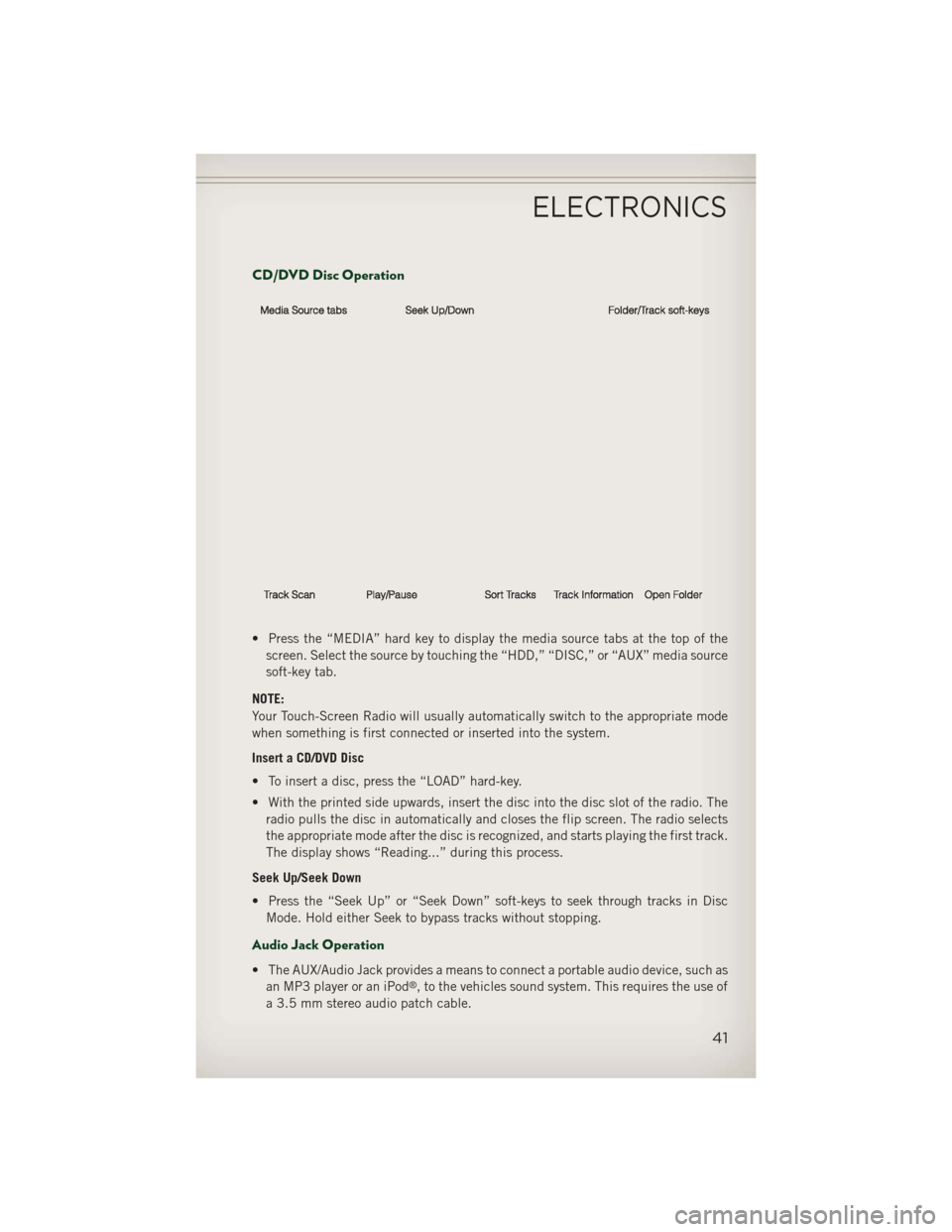
CD/DVD Disc Operation
• Press the “MEDIA” hard key to display the media source tabs at the top of thescreen. Select the source by touching the “HDD,” “DISC,” or “AUX” media source
soft-key tab.
NOTE:
Your Touch-Screen Radio will usually automatically switch to the appropriate mode
when something is first connected or inserted into the system.
Insert a CD/DVD Disc
• To insert a disc, press the “LOAD” hard-key.
• With the printed side upwards, insert the disc into the disc slot of the radio. The radio pulls the disc in automatically and closes the flip screen. The radio selects
the appropriate mode after the disc is recognized, and starts playing the first track.
The display shows “Reading...” during this process.
Seek Up/Seek Down
• Press the “Seek Up” or “Seek Down” soft-keys to seek through tracks in Disc Mode. Hold either Seek to bypass tracks without stopping.
Audio Jack Operation
• The AUX/Audio Jack provides a means to connect a portable audio device, such asan MP3 player or an iPod®, to the vehicles sound system. This requires the use of
a 3.5 mm stereo audio patch cable.
ELECTRONICS
41
Page 44 of 108
• Pressing the “MEDIA” hard-key and then the “AUX” soft-key to change the modeto auxiliary device if the Audio Jack is connected, allowing the music from your
portable device to play through the vehicle's speakers.
• The functions of the portable device are controlled using the device itself, not the buttons on the radio. The volume may be controlled using the radio or portable
device.
Hard Disk Drive (HDD) Operation
• The Hard Disk Drive (HDD) mode gives you access to the audio files on the internalhard disk drive. It functions similar to a CD player, with the exception that the
internal HDD can hold more tracks.
• It is also possible to import display pictures to the internal hard disk drive. The pictures can be displayed on the right half of the radio screen.
• Before using the HDD mode, you will need to copy songs and pictures to the internal hard drive. Songs and pictures can be added to the hard drive by using a
CD or USB device (e.g. thumb drive or memory stick).
NOTE:
HDD supports only .jpg/JPEG formats for photos.
NOTE:
WMA/MP3 Files and Selective Songs from a CD can also be added to the HDD.
See the Uconnect
®430/430N User's Manual for more information.
Copying Music From CD
• Press the “LOAD” hard-key.
• Insert a disc, then press the “MY FILES” hard-key and then select “MY MUSIC soft-key.”
• Touch the “Add Music Files to HDD” soft-key, then touch the “Disc” soft-key in the next screen to start the process.
NOTE:
• You might need to select the folder or title depending on the CD, then press
“DONE” to start the copy process.
• The copy progress is shown in the lower left corner of the screen.
Copying Music From USB
• The USB port on the radio face plate allows you to copy files to your hard drive. To access, lift up on the cover.
• Insert a USB device (e.g. thumb drive or memory stick), then select “MY MUSIC soft-key.”
ELECTRONICS
42
Page 53 of 108
iPod®/USB/MP3 CONTROL
• There are many ways to play music from iPod®/MP3 players or USB devices
through your vehicle's sound system.
• The remote USB port, located within the front storage area, allows you to plug an iPod
®into the vehicle's sound system.
• Non-Touch-Screen Radios: To hear audio from devices connected to the USB port, press the “AUX” button on the radio faceplate
• Touch-Screen Radios: To hear audio from devices connected to the USB port, press the “MEDIA” hard-key, then touch the “AUX” or “iPod
®” soft-key.
• When connected to this feature: • The iPod
®can be controlled using
the radio buttons to Play, Browse,
and List the iPod
®or external de-
vices contents.
• The iPod
®battery charges when
plugged into the USB port (if sup-
ported by the specific audio device).
• Compatible iPod
®devices may also
be controllable using voice commands. Refer to the Owner's Manual on the DVD
for details.
NOTE:
The USB port supports certain Mini, Classic, Nano, Touch, and iPhone
®devices. The
USB port also supports playing music from compatible external USB Mass Storage
Class memory devices. For supported audio file formats, refer to the USB Port section
in the Owner's Manual on the DVD. Refer to www.UconnectPhone.com website for a
list of tested iPod
®s. Some iPod®software versions may not fully support the USB
port features. Please visit Apple’s website for iPod®software updates.
WARNING!
Do not plug in or remove the iPod®or external device while driving. Failure to
follow this warning could result in a collision.
Uconnect® Phone
• To determine if your vehicle is equipped with Uconnect®Phone, press the
“Uconnect®Phone” button. If your vehicle has this feature, you will hear a
voice prompt. If not, you will see a message on the radio “Uconnect phone not
available”.
• The Uconnect
®Phone is a voice-activated, hands-free, in-vehicle communica-
tions system with Voice Command Capability (see Voice Command section).
ELECTRONICS
51
Page 59 of 108
Bluetooth® STREAMING AUDIO
• If equipped with Uconnect®Voice
Command, your Bluetooth-equipped
iPod
®devices, cell phones or other
media players, may also be able to
stream music to your vehicle's speak-
ers. Your connected device must be
Bluetooth-compatible, and paired with
your radio (see Uconnect
®Phone for
pairing instructions). Non-Touch-
Screen Radios: Press the “AUX” but-
ton on the radio faceplate until "BT" or “Audio Streaming” is displayed on the radio
screen. Touch-Screen-Radios: Press the “RADIO/MEDIA” or “MEDIA” hard-key
and then touch the “AUX” soft-key tab.
ELECTRONIC VEHICLE INFORMATION CENTER
(EVIC)
• The EVIC features a driver interactive display that is located in the instru-
ment cluster. Pressing the controls on
the steering wheel allows the driver
to select vehicle information and Per-
sonal Settings. For additional informa-
tion, refer to Programmable Features
in this guide.
• Press and release the MENU button and the mode displayed will change
between Compass/Temperature, Trip,
System Status, and Personal settings.
• Press the DOWN
button to scroll through sub menus (i.e., Trip Functions,
Avg. Fuel Economy, DTE, Elapsed Time, and Units).
• Press and release the COMPASS
button for instant access to the Compass/
Temperature screens.
• Press the SELECT
button to RESET Trip Functions and change Personal
Settings.
Compass Calibration
• This compass is self-calibrating, which eliminates the need to set the compass manually. When the vehicle is new, the compass may appear erratic and the EVIC
will display “CAL” until the compass is calibrated.
• You may also calibrate the compass by completing one or more 360 degree turns (in an area free from large metal or metallic objects) until the “CAL” message
displayed in the EVIC turns off. The compass will now function normally.
ELECTRONICS
57
Page 100 of 108
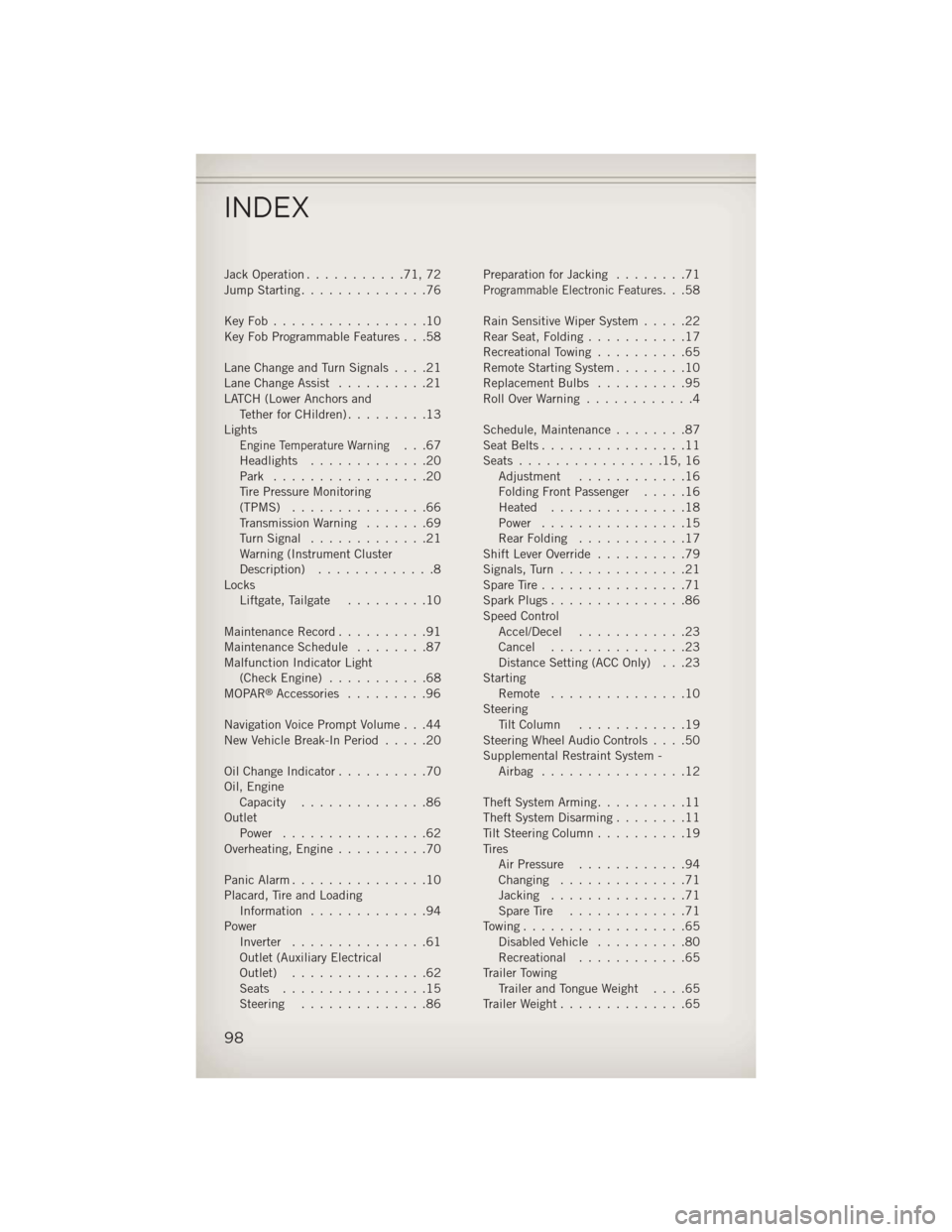
Jack Operation...........71,72
Jump Starting ..............76
KeyFob.................10
Key Fob Programmable Features . . .58
LaneChangeandTurnSignals....21
Lane Change Assist ..........21
LATCH (Lower Anchors and TetherforCHildren).........13
Lights
Engine Temperature Warning...67
Headlights .............20
Park .................20
Tire Pressure Monitoring
(TPMS) ...............66
Transmission Warning .......69
TurnSignal .............21
Warning (Instrument Cluster
Description) .............8
Locks Liftgate, Tailgate .........10
Maintenance Record ..........91
MaintenanceSchedule ........87
Malfunction Indicator Light (CheckEngine) ...........68
MOPAR
®Accessories .........96
Navigation Voice Prompt Volume . . .44
New Vehicle Break-In Period .....20
Oil Change Indicator ..........70
Oil, Engine Capacity ..............86
Outlet Power ................62
Overheating, Engine ..........70
Panic Alarm ...............10
Placard, Tire and Loading Information .............94
Power Inverter ...............61
Outlet (Auxiliary Electrical
Outlet) ...............62
Seats ................15
Steering ..............86 Preparation for Jacking
........71
Programmable Electronic Features...58
Rain Sensitive Wiper System .....22
RearSeat,Folding...........17
Recreational Towing ..........65
Remote Starting System ........10
Replacement Bulbs ..........95
RollOverWarning ............4
Schedule,Maintenance........87
Seat Belts ................11
Seats ................15,16
Adjustment ............16
Folding Front Passenger .....16
Heated ...............18
Power ................15
RearFolding ............17
Shift Lever Override ..........79
Signals, Turn ..............21
SpareTire................71
SparkPlugs...............86
Speed Control Accel/Decel ............23
Cancel ...............23
Distance Setting (ACC Only) . . .23
Starting Remote ...............10
Steering TiltColumn ............19
Steering Wheel Audio Controls ....50
Supplemental Restraint System - Airbag ................12
Theft System Arming ..........11
Theft System Disarming ........11
Tilt Steering Column ..........19
Tires Air Pressure ............94
Changing ..............71
Jacking ...............71
SpareTire .............71
Towing..................65 Disabled Vehicle ..........80
Recreational ............65
Trailer Towing Trailer and Tongue Weight ....65
Trailer Weight ..............65
INDEX
98