buttons JEEP RENEGADE 2014 1.G User Guide
[x] Cancel search | Manufacturer: JEEP, Model Year: 2014, Model line: RENEGADE, Model: JEEP RENEGADE 2014 1.GPages: 212, PDF Size: 17.48 MB
Page 79 of 212
ADJUSTING THE SEAT
BELT HEIGHT
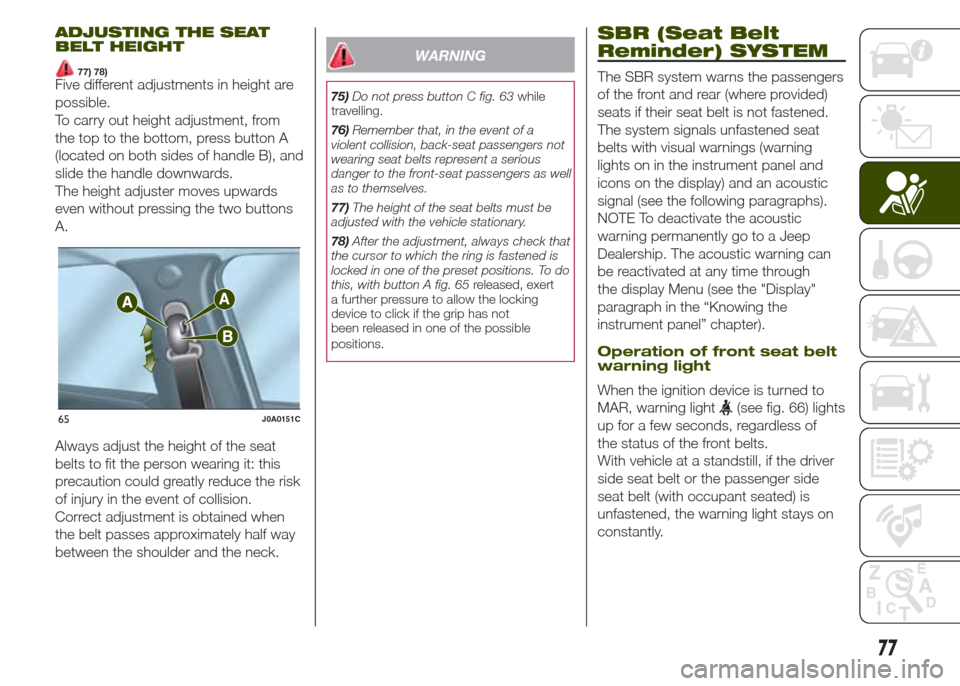
77) 78)Five different adjustments in height are
possible.
To carry out height adjustment, from
the top to the bottom, press button A
(located on both sides of handle B), and
slide the handle downwards.
The height adjuster moves upwards
even without pressing the two buttons
A.
Always adjust the height of the seat
belts to fit the person wearing it: this
precaution could greatly reduce the risk
of injury in the event of collision.
Correct adjustment is obtained when
the belt passes approximately half way
between the shoulder and the neck.
WARNING
75)Do not press button C fig. 63while
travelling.
76)Remember that, in the event of a
violent collision, back-seat passengers not
wearing seat belts represent a serious
danger to the front-seat passengers as well
as to themselves.
77)The height of the seat belts must be
adjusted with the vehicle stationary.
78)After the adjustment, always check that
the cursor to which the ring is fastened is
locked in one of the preset positions. To do
this, with button A fig. 65released, exert
a further pressure to allow the locking
device to click if the grip has not
been released in one of the possible
positions.
SBR (Seat Belt
Reminder) SYSTEM
The SBR system warns the passengers
of the front and rear (where provided)
seats if their seat belt is not fastened.
The system signals unfastened seat
belts with visual warnings (warning
lights on in the instrument panel and
icons on the display) and an acoustic
signal (see the following paragraphs).
NOTE To deactivate the acoustic
warning permanently go to a Jeep
Dealership. The acoustic warning can
be reactivated at any time through
the display Menu (see the "Display"
paragraph in the “Knowing the
instrument panel” chapter).
Operation of front seat belt
warning light
When the ignition device is turned to
MAR, warning light
(see fig. 66) lights
up for a few seconds, regardless of
the status of the front belts.
With vehicle at a standstill, if the driver
side seat belt or the passenger side
seat belt (with occupant seated) is
unfastened, the warning light stays on
constantly.65J0A0151C
77
Page 109 of 212
122)Before opening the bonnet, make
sure that the vehicle is switched off and
that the ignition device is in the STOP
position. Follow the indications on the plate
underneath the bonnet. We recommend
that you remove the key from the ignition if
other people remain in the vehicle. The
vehicle should always be left after the key
has been removed or turned to the STOP
position. During refuelling, make sure
that the engine is off (ignition device in the
STOP position).
WARNING
39)If climate comfort is to be favoured, the
Stop/Start system can be deactivated,
for a continuous operation of the climate
control system.
SPEED LIMITER
DESCRIPTION
This device allows the speed of the
vehicle to be limited to values which
can be set by the driver.
The maximum speed can be set both
with vehicle stationary and in motion.
The minimum speed that can be set is
30 km/h.
When the device is active, the vehicle
speed depends on the pressure at
the accelerator pedal, until the set
speed limit is reached.
ACTIVATING THE DEVICE
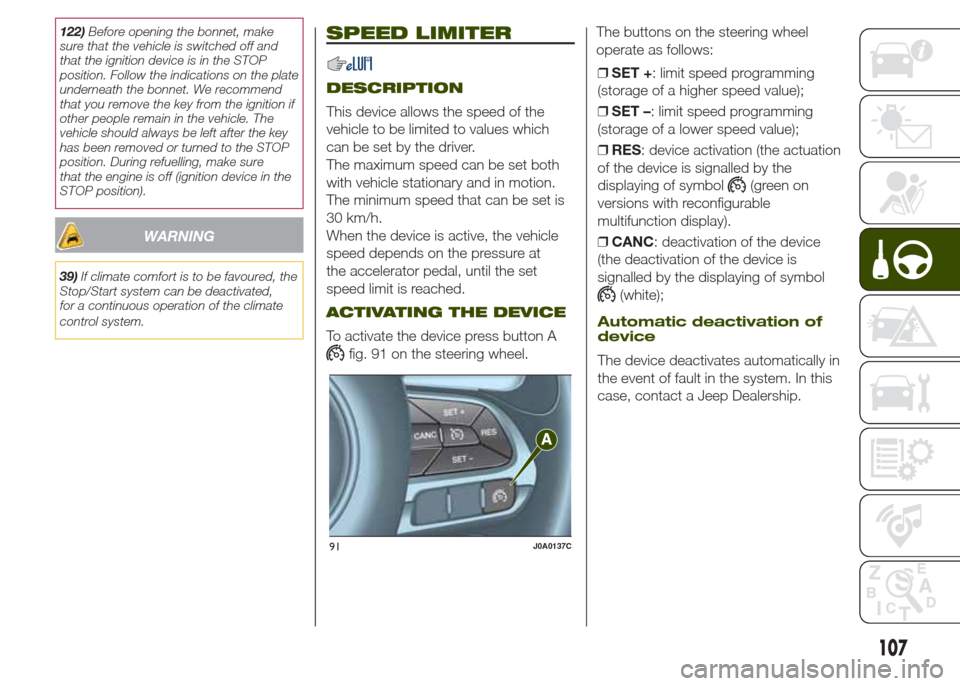
To activate the device press button A
fig. 91 on the steering wheel.The buttons on the steering wheel
operate as follows:
❒SET +: limit speed programming
(storage of a higher speed value);
❒SET –: limit speed programming
(storage of a lower speed value);
❒RES: device activation (the actuation
of the device is signalled by the
displaying of symbol
(green on
versions with reconfigurable
multifunction display).
❒CANC: deactivation of the device
(the deactivation of the device is
signalled by the displaying of symbol
(white);
Automatic deactivation of
device
The device deactivates automatically in
the event of fault in the system. In this
case, contact a Jeep Dealership.
91J0A0137C
107
Page 110 of 212
ELECTRONIC
CRUISE CONTROL
DESCRIPTION
This is an electronically controlled
driving assistance device that allows
the desired vehicle speed to be
maintained, without having to press the
accelerator pedal.
This device can be used at a speed
above 40 km/h on long stretches of dry,
straight roads with few variations (e.g.
motorways). It is therefore not
recommended to use this device on
extra-urban roads with traffic. Do not
use it in town.
ACTIVATING THE DEVICE
123) 124) 125)
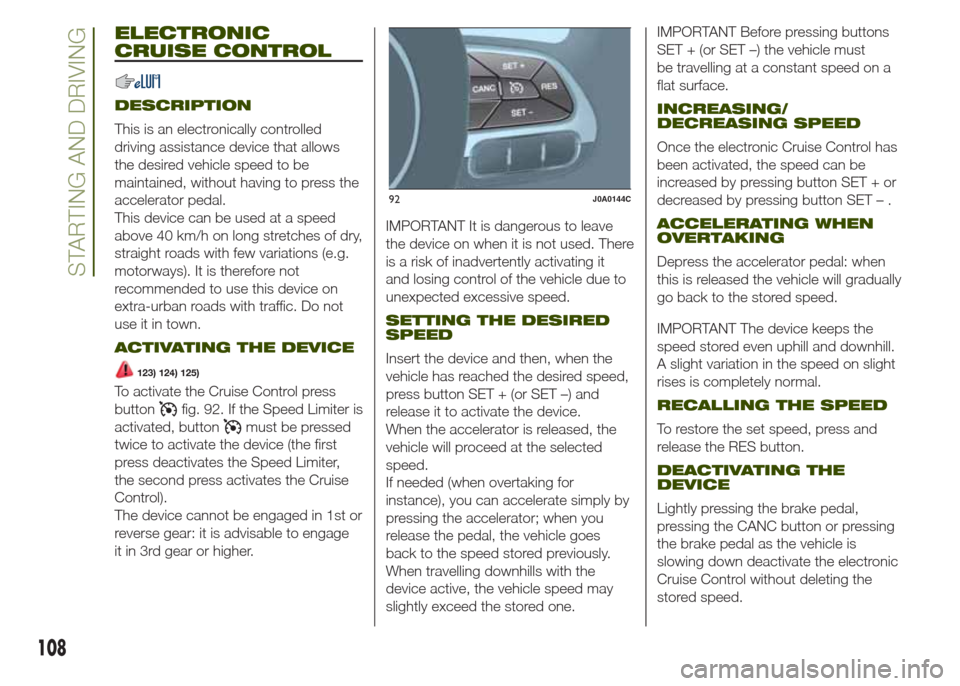
To activate the Cruise Control press
button
fig. 92. If the Speed Limiter is
activated, button
must be pressed
twice to activate the device (the first
press deactivates the Speed Limiter,
the second press activates the Cruise
Control).
The device cannot be engaged in 1st or
reverse gear: it is advisable to engage
it in 3rd gear or higher.IMPORTANT It is dangerous to leave
the device on when it is not used. There
is a risk of inadvertently activating it
and losing control of the vehicle due to
unexpected excessive speed.
SETTING THE DESIRED
SPEED
Insert the device and then, when the
vehicle has reached the desired speed,
press button SET + (or SET –) and
release it to activate the device.
When the accelerator is released, the
vehicle will proceed at the selected
speed.
If needed (when overtaking for
instance), you can accelerate simply by
pressing the accelerator; when you
release the pedal, the vehicle goes
back to the speed stored previously.
When travelling downhills with the
device active, the vehicle speed may
slightly exceed the stored one.IMPORTANT Before pressing buttons
SET + (or SET –) the vehicle must
be travelling at a constant speed on a
flat surface.
INCREASING/
DECREASING SPEED
Once the electronic Cruise Control has
been activated, the speed can be
increased by pressing button SET + or
decreased by pressing button SET – .
ACCELERATING WHEN
OVERTAKING
Depress the accelerator pedal: when
this is released the vehicle will gradually
go back to the stored speed.
IMPORTANT The device keeps the
speed stored even uphill and downhill.
A slight variation in the speed on slight
rises is completely normal.
RECALLING THE SPEED
To restore the set speed, press and
release the RES button.
DEACTIVATING THE
DEVICE
Lightly pressing the brake pedal,
pressing the CANC button or pressing
the brake pedal as the vehicle is
slowing down deactivate the electronic
Cruise Control without deleting the
stored speed.
92J0A0144C
108
STARTING AND DRIVING
Page 111 of 212
DEACTIVATING THE
DEVICE
The device is deactivated by pressing
button
or bringing the ignition
device to STOP.
WARNING
123)While travelling with the device
activated, do not move the gear lever to
neutral.
124)In the event of device faults or failures,
go to a Jeep Dealership.
125)The electronic Cruise Control can be
dangerous if the system cannot keep a
constant speed. In specific conditions
speed may be excessive, resulting in the
risk of losing control of the vehicle and
causing accidents. Do not use the device
in heavy traffic or on winding, icy, snowy or
slippery roads.
FOUR WHEEL DRIVE
JEEP ACTIVE
DRIVE (4WD) and
JEEP ACTIVE DRIVE
LOW (4WD LOW)
ALL-WHEEL DRIVE
The four wheel drive (4WD) is fully
automatic in standard driving mode.
IMPORTANT Changing mode is not
possible when the vehicle speed is over
120 km/h.
Four wheel drive activation
40) 41)
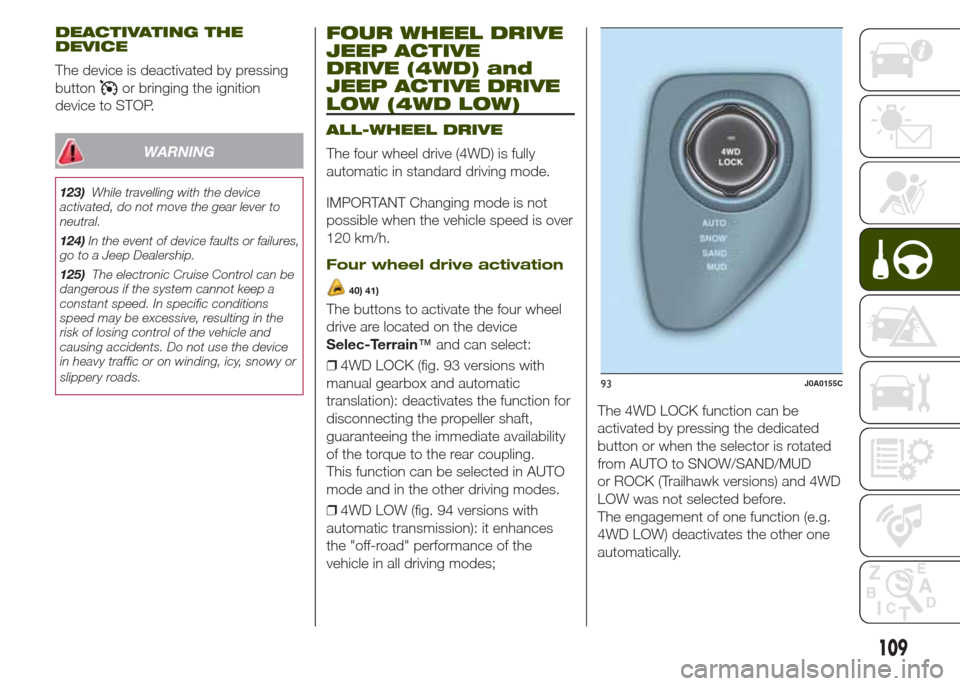
The buttons to activate the four wheel
drive are located on the device
Selec-Terrain™and can select:
❒4WD LOCK (fig. 93 versions with
manual gearbox and automatic
translation): deactivates the function for
disconnecting the propeller shaft,
guaranteeing the immediate availability
of the torque to the rear coupling.
This function can be selected in AUTO
mode and in the other driving modes.
❒4WD LOW (fig. 94 versions with
automatic transmission): it enhances
the "off-road" performance of the
vehicle in all driving modes;The 4WD LOCK function can be
activated by pressing the dedicated
button or when the selector is rotated
from AUTO to SNOW/SAND/MUD
or ROCK (Trailhawk versions) and 4WD
LOW was not selected before.
The engagement of one function (e.g.
4WD LOW) deactivates the other one
automatically.
93J0A0155C
109
Page 186 of 212
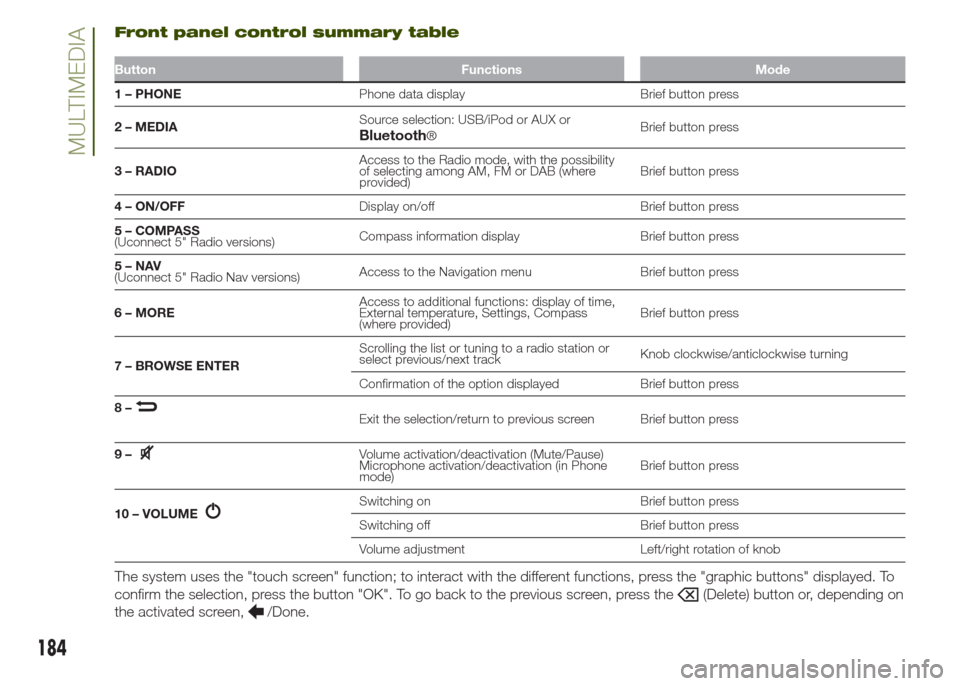
Front panel control summary table
Button Functions Mode
1 – PHONEPhone data display Brief button press
2 – MEDIASource selection: USB/iPod or AUX or
®Brief button press
3 – RADIOAccess to the Radio mode, with the possibility
of selecting among AM, FM or DAB (where
provided)Brief button press
4 – ON/OFFDisplay on/off Brief button press
5 – COMPASS
(Uconnect 5" Radio versions)Compass information display Brief button press
5–NAV
(Uconnect 5" Radio Nav versions)Access to the Navigation menu Brief button press
6 – MOREAccess to additional functions: display of time,
External temperature, Settings, Compass
(where provided)Brief button press
7 – BROWSE ENTERScrolling the list or tuning to a radio station or
select previous/next trackKnob clockwise/anticlockwise turning
Confirmation of the option displayed Brief button press
8–
Exit the selection/return to previous screen Brief button press
9–
Volume activation/deactivation (Mute/Pause)
Microphone activation/deactivation (in Phone
mode)Brief button press
10 – VOLUME
Switching on Brief button press
Switching off Brief button press
Volume adjustment Left/right rotation of knob
The system uses the "touch screen" function; to interact with the different functions, press the "graphic buttons" displayed. To
confirm the selection, press the button "OK". To go back to the previous screen, press the
(Delete) button or, depending on
the activated screen,
/Done.
184
MULTIMEDIABluetooth
Page 188 of 212
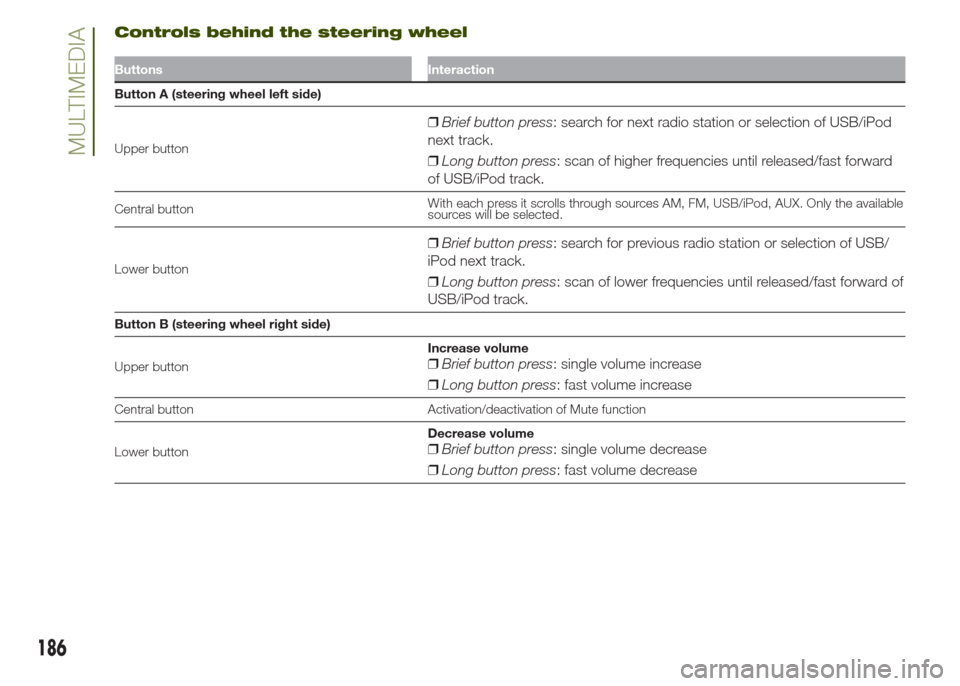
Controls behind the steering wheel
Buttons Interaction
Button A (steering wheel left side)
Upper button
❒Brief button press: search for next radio station or selection of USB/iPod
next track.
❒Long button press: scan of higher frequencies until released/fast forward
of USB/iPod track.
Central buttonWith each press it scrolls through sources AM, FM, USB/iPod, AUX. Only the available
sources will be selected.
Lower button
❒Brief button press: search for previous radio station or selection of USB/
iPod next track.
❒Long button press: scan of lower frequencies until released/fast forward of
USB/iPod track.
Button B (steering wheel right side)
Upper buttonIncrease volume
❒Brief button press: single volume increase
❒Long button press: fast volume increase
Central button Activation/deactivation of Mute function
Lower buttonDecrease volume
❒Brief button press: single volume decrease
❒Long button press: fast volume decrease
186
MULTIMEDIA
Page 189 of 212
USB/iPod/AUX SUPPORT
Versions with Uconnect 5" Radio:
the vehicle has a USB/AUX port located
on the central tunnel.
Versions with Uconnect 5" Radio
Nav: the vehicle has a USB/AUX port
located in the centre tunnel and a USB
port located inside the front armrest.
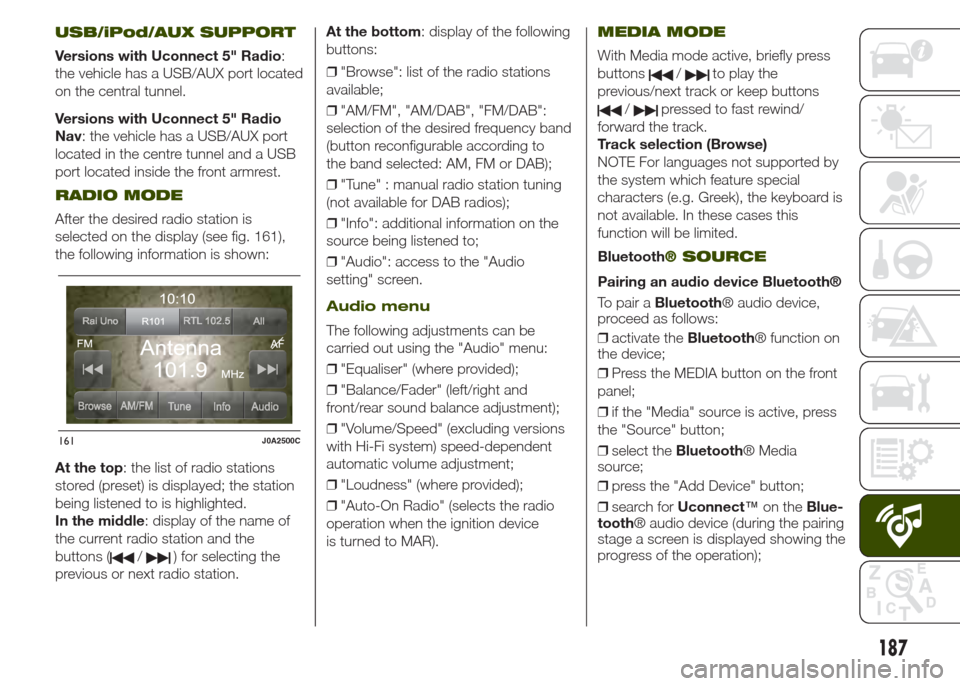
RADIO MODE
After the desired radio station is
selected on the display (see fig. 161),
the following information is shown:
At the top: the list of radio stations
stored (preset) is displayed; the station
being listened to is highlighted.
In the middle: display of the name of
the current radio station and the
buttons (
/) for selecting the
previous or next radio station.At the bottom: display of the following
buttons:
❒"Browse": list of the radio stations
available;
❒"AM/FM", "AM/DAB", "FM/DAB":
selection of the desired frequency band
(button reconfigurable according to
the band selected: AM, FM or DAB);
❒"Tune" : manual radio station tuning
(not available for DAB radios);
❒"Info": additional information on the
source being listened to;
❒"Audio": access to the "Audio
setting" screen.
Audio menu
The following adjustments can be
carried out using the "Audio" menu:
❒"Equaliser" (where provided);
❒"Balance/Fader" (left/right and
front/rear sound balance adjustment);
❒"Volume/Speed" (excluding versions
with Hi-Fi system) speed-dependent
automatic volume adjustment;
❒"Loudness" (where provided);
❒"Auto-On Radio" (selects the radio
operation when the ignition device
is turned to MAR).
MEDIA MODE
With Media mode active, briefly press
buttons
/to play the
previous/next track or keep buttons
/pressed to fast rewind/
forward the track.
Track selection (Browse)
NOTE For languages not supported by
the system which feature special
characters (e.g. Greek), the keyboard is
not available. In these cases this
function will be limited.
Bluetooth
® SOURCE
Pairing an audio device Bluetooth®
To pair aBluetooth® audio device,
proceed as follows:
❒activate theBluetooth® function on
the device;
❒Press the MEDIA button on the front
panel;
❒if the "Media" source is active, press
the "Source" button;
❒select theBluetooth® Media
source;
❒press the "Add Device" button;
❒search forUconnect™on theBlue-
tooth® audio device (during the pairing
stage a screen is displayed showing the
progress of the operation);
161J0A2500C
187
Page 190 of 212
❒when requested by the audio device,
enter the PIN code shown on the
system display or confirm on the device
the PIN displayed;
❒if the pairing procedure is completed
successfully, a screen is displayed.
Answer "Yes" to the question to pair the
Bluetooth® audio device as favourite
(the device will have priority over all
other devices that will be paired subse-
quently). If "No" is selected, the priority
is determined according to the order of
pairing. The last device connected will
have the highest priority;
❒an audio device can also be paired
by pressing the
PHONE button
on the front panel and by selecting
"Settings" or, from the "Settings" menu,
selecting "Phone/Bluetooth".
IMPORTANT If theBluetooth® pairing
between mobile phone and system is
lost, consult the mobile phone owner's
handbook.
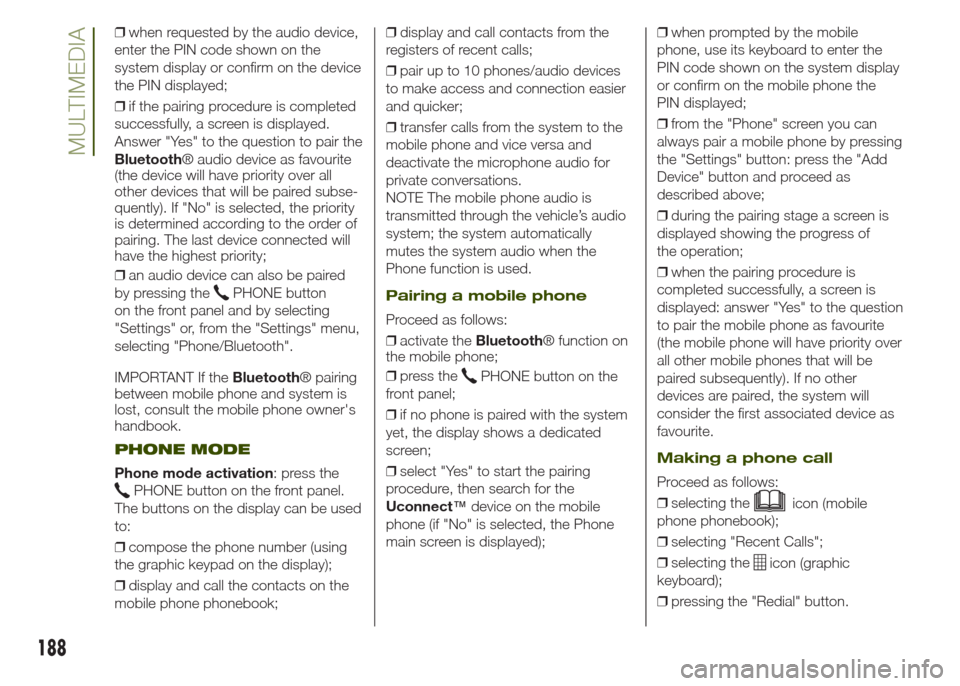
PHONE MODE
Phone mode activation: press the
PHONE button on the front panel.
The buttons on the display can be used
to:
❒compose the phone number (using
the graphic keypad on the display);
❒display and call the contacts on the
mobile phone phonebook;❒display and call contacts from the
registers of recent calls;
❒pair up to 10 phones/audio devices
to make access and connection easier
and quicker;
❒transfer calls from the system to the
mobile phone and vice versa and
deactivate the microphone audio for
private conversations.
NOTE The mobile phone audio is
transmitted through the vehicle’s audio
system; the system automatically
mutes the system audio when the
Phone function is used.
Pairing a mobile phone
Proceed as follows:
❒activate theBluetooth® function on
the mobile phone;
❒press the
PHONE button on the
front panel;
❒if no phone is paired with the system
yet, the display shows a dedicated
screen;
❒select "Yes" to start the pairing
procedure, then search for the
Uconnect™device on the mobile
phone (if "No" is selected, the Phone
main screen is displayed);❒when prompted by the mobile
phone, use its keyboard to enter the
PIN code shown on the system display
or confirm on the mobile phone the
PIN displayed;
❒from the "Phone" screen you can
always pair a mobile phone by pressing
the "Settings" button: press the "Add
Device" button and proceed as
described above;
❒during the pairing stage a screen is
displayed showing the progress of
the operation;
❒when the pairing procedure is
completed successfully, a screen is
displayed: answer "Yes" to the question
to pair the mobile phone as favourite
(the mobile phone will have priority over
all other mobile phones that will be
paired subsequently). If no other
devices are paired, the system will
consider the first associated device as
favourite.
Making a phone call
Proceed as follows:
❒selecting the
icon (mobile
phone phonebook);
❒selecting "Recent Calls";
❒selecting the
icon (graphic
keyboard);
❒pressing the "Redial" button.
188
MULTIMEDIA
Page 197 of 212
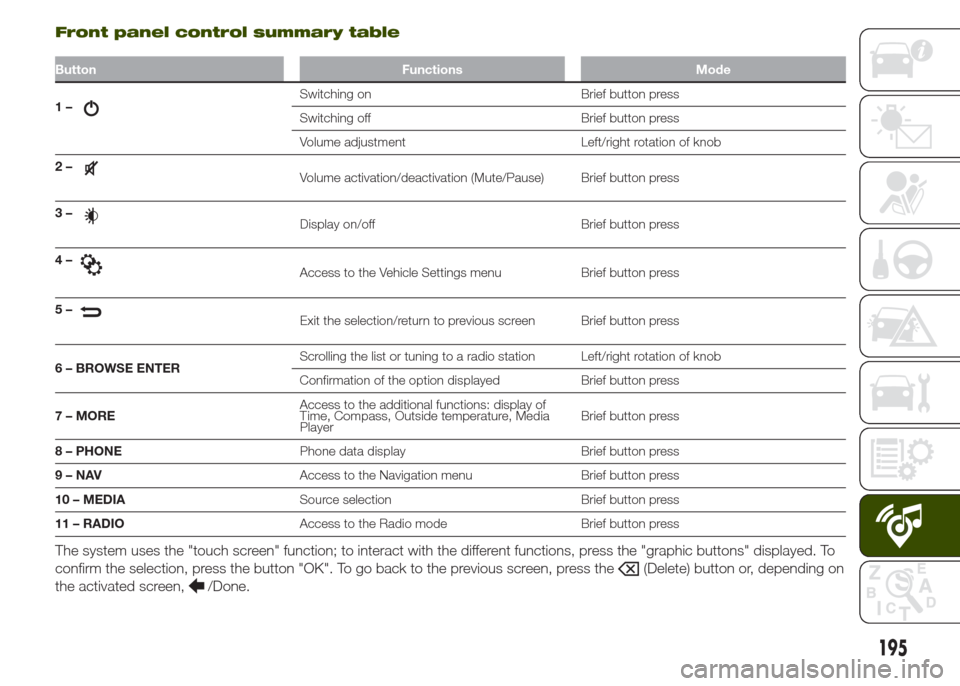
Front panel control summary table
Button Functions Mode
1–Switching on Brief button press
Switching off Brief button press
Volume adjustment Left/right rotation of knob
2–
Volume activation/deactivation (Mute/Pause) Brief button press
3–
Display on/off Brief button press
4–
Access to the Vehicle Settings menu Brief button press
5–
Exit the selection/return to previous screen Brief button press
6 – BROWSE ENTERScrolling the list or tuning to a radio station Left/right rotation of knob
Confirmation of the option displayed Brief button press
7 – MOREAccess to the additional functions: display of
Time, Compass, Outside temperature, Media
PlayerBrief button press
8 – PHONEPhone data display Brief button press
9–NAVAccess to the Navigation menu Brief button press
10 – MEDIASource selection Brief button press
11 – RADIOAccess to the Radio mode Brief button press
The system uses the "touch screen" function; to interact with the different functions, press the "graphic buttons" displayed. To
confirm the selection, press the button "OK". To go back to the previous screen, press the
(Delete) button or, depending on
the activated screen,
/Done.
195
Page 198 of 212
STEERING WHEEL
CONTROLS
For the operation of the controls on the
steering wheel see paragraph Uconnect
5" Radio/Uconnect 5" Radio Nav.
USB/iPod/AUX SUPPORT
The vehicle has a USB/AUX port
located in the centre tunnel and a USB
port located inside the front armrest.
RADIO MODE
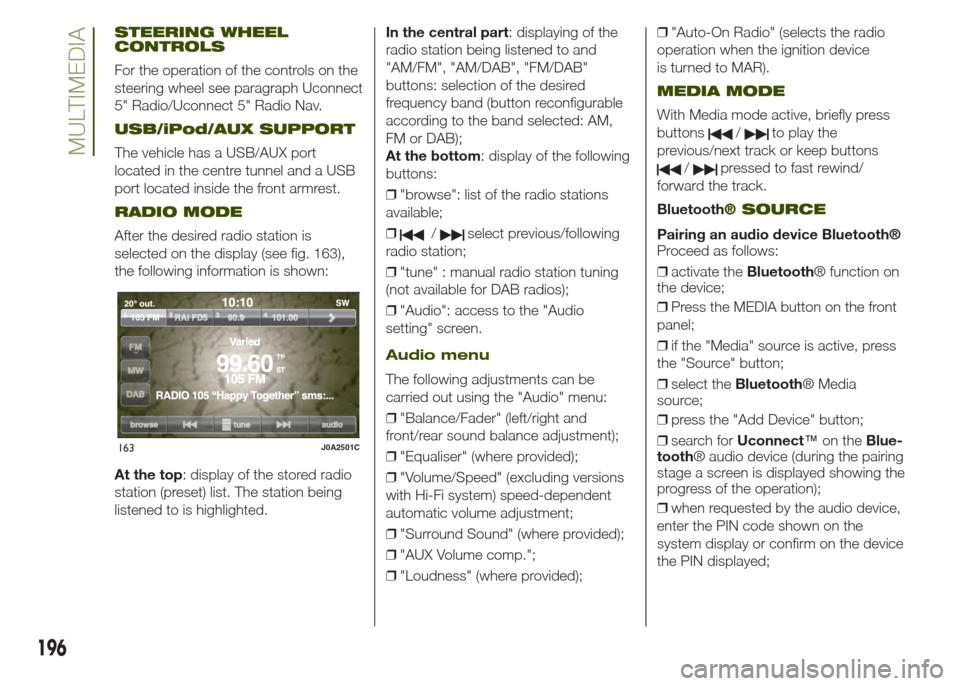
After the desired radio station is
selected on the display (see fig. 163),
the following information is shown:
At the top: display of the stored radio
station (preset) list. The station being
listened to is highlighted.In the central part: displaying of the
radio station being listened to and
"AM/FM", "AM/DAB", "FM/DAB"
buttons: selection of the desired
frequency band (button reconfigurable
according to the band selected: AM,
FM or DAB);
At the bottom: display of the following
buttons:
❒"browse": list of the radio stations
available;
❒/select previous/following
radio station;
❒"tune" : manual radio station tuning
(not available for DAB radios);
❒"Audio": access to the "Audio
setting" screen.
Audio menu
The following adjustments can be
carried out using the "Audio" menu:
❒"Balance/Fader" (left/right and
front/rear sound balance adjustment);
❒"Equaliser" (where provided);
❒"Volume/Speed" (excluding versions
with Hi-Fi system) speed-dependent
automatic volume adjustment;
❒"Surround Sound" (where provided);
❒"AUX Volume comp.";
❒"Loudness" (where provided);❒"Auto-On Radio" (selects the radio
operation when the ignition device
is turned to MAR).
MEDIA MODE
With Media mode active, briefly press
buttons
/to play the
previous/next track or keep buttons
/pressed to fast rewind/
forward the track.
Bluetooth
® SOURCE
Pairing an audio device Bluetooth®
Proceed as follows:
❒activate theBluetooth® function on
the device;
❒Press the MEDIA button on the front
panel;
❒if the "Media" source is active, press
the "Source" button;
❒select theBluetooth® Media
source;
❒press the "Add Device" button;
❒search forUconnect™on theBlue-
tooth® audio device (during the pairing
stage a screen is displayed showing the
progress of the operation);
❒when requested by the audio device,
enter the PIN code shown on the
system display or confirm on the device
the PIN displayed;
163J0A2501C
196
MULTIMEDIA