mirror JEEP RENEGADE 2023 User Guide
[x] Cancel search | Manufacturer: JEEP, Model Year: 2023, Model line: RENEGADE, Model: JEEP RENEGADE 2023Pages: 364, PDF Size: 18.65 MB
Page 180 of 364
178 MULTIMEDIA
Maps
Push and hold the VR button on the
steering wheel until the beep or tap the
Microph
one icon to ask Apple® Siri to
take you to a desired destination by
voice. You can also touch the Navigation icon in
Apple CarPlay® to access Apple® Maps.
If the VR button is not held, and is only pushed, the
built -
in Uconnect Navigation system (if equipped)
will launch instead of Apple CarPlay® Apple®
Maps.
NOTE:
A pop-up also appears, asking if you’d like to
switc h
, if an Apple CarPlay® navigation is currently
in use and you attempt to launch a built-in
Uconnect route. Selecting “Yes” switches the navi -
gation type to the newly used method of navigation
a nd a
route is planned for the new destination. If
“No” is selected, the navigation type remains
unchanged.
Apps
The Apple CarPlay® App plays all compatible apps
that are available to use, every time it is launched.
You must have the compatible app downloaded,
and you must be signed in to the app through your
mobile device for it to work with Apple CarPlay®.
Refer to http://www.apple.com/ios/carplay/ (US)
or https://www.apple.com/ca/ios/carplay/ (Canada) to see the latest list of available apps for
A
pple
CarPlay®.
Apple CarPlay® Voice Command
NOTE:
Feature availability depends on your carrier and
mobile
phone maker. Some Apple CarPlay®
features may not be available in every region and/
or language.
Apple CarPlay® allows you to use your voice to
intera
ct with Siri through your vehicle’s voice
recognition system, and use your smartphone’s
data plan to project your iPhone® and a number of
its apps onto your Uconnect touchscreen. Connect
your iPhone® 5 or higher to one of the media USB
ports, using the factory-provided Lightning cable,
and press the new Apple CarPlay® icon that
replaces your Phone icon on the main menu bar to
begin Apple CarPlay®. Push and hold the VR
button on the steering wheel, or press and hold the
Home button within Apple CarPlay®, to activate
Siri, which recognizes natural voice commands to
use a list of your iPhone® features:
Phone
Music
Messages
Maps — If Equipped
Additional Apps — If Equipped
NOTE:
Apple CarPlay® is a trademark of Apple® Inc.
iPhone ®
is a trademark of Apple® Inc., registered
in the US and other countries. Apple® terms of use
and privacy statements apply.
ANDROID AUTO™ AND APPLE
C
ARPLAY® TIPS AND TRICKS
Smartphone Device Mirroring — If Equipped
Once downloaded or activated, Android Auto™ and
A p p
le
CarPlay® will automatically start when your
smartphone is plugged into a USB port. This
function can be activated/deactivated through the
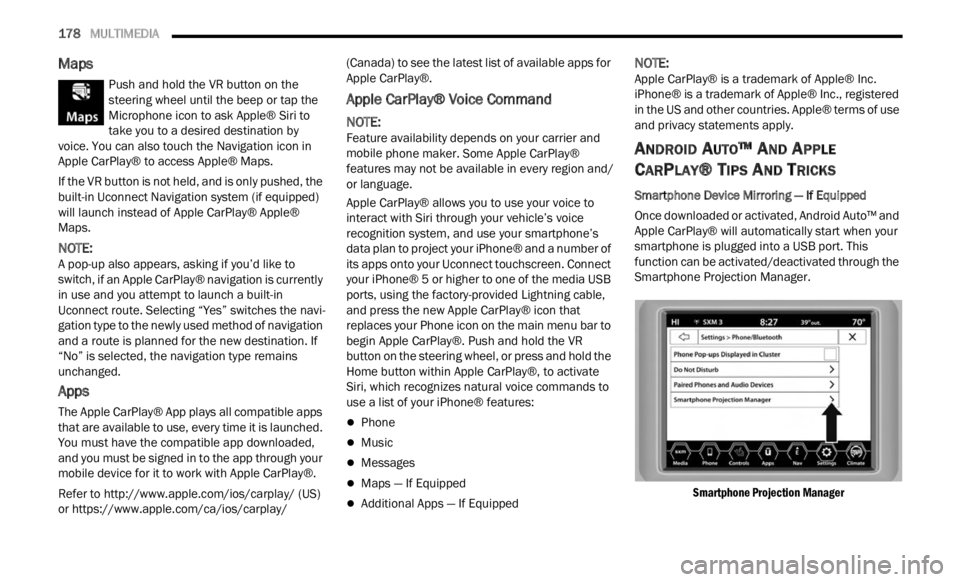
Smartphone Projection Manager.
Smartphone Projection Manager
Page 181 of 364
MULTIMEDIA 179
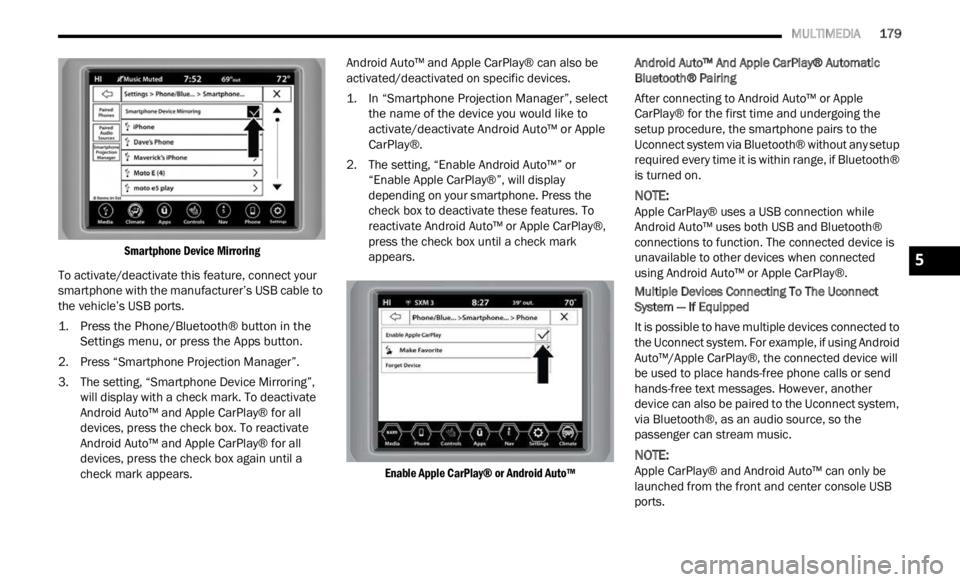
Smartphone Device Mirroring
To activate/deactivate this feature, connect your
smartp
hone with the manufacturer’s USB cable to
the vehicle’s USB ports.
1. Press the Phone/Bluetooth® button in the Sett i
ngs menu, or press the Apps button.
2. Press “Smartphone Projection Manager”.
3. The
setting, “Smartphone Device Mirroring”,
will
display with a check mark. To deactivate
Android Auto™ and Apple CarPlay® for all
devices, press the check box. To reactivate
Android Auto™ and Apple CarPlay® for all
devices, press the check box again until a
check mark appears. Android Auto™ and Apple CarPlay® can also be
activ
a
ted/deactivated on specific devices.
1. In “Smartphone Projection Manager”, select the na
me of the device you would like to
activate/deactivate Android Auto™ or Apple
CarPlay®.
2. The setting, “Enable Android Auto™” or “Enab
le Apple CarPlay®”, will display
depending on your smartphone. Press the
check box to deactivate these features. To
reactivate Android Auto™ or Apple CarPlay®,
press the check box until a check mark
appears.
Enable Apple CarPlay® or Android Auto™
Android Auto™ And Apple CarPlay® Automatic
Bluetoot
h® Pairing
After connecting to Android Auto™ or Apple
CarPla
y® for the first time and undergoing the
setup procedure, the smartphone pairs to the
Uconnect system via Bluetooth® without any setup
required every time it is within range, if Bluetooth®
is turned on.
NOTE:
Apple CarPlay® uses a USB connection while
Androi d
Auto™ uses both USB and Bluetooth®
connections to function. The connected device is
unavailable to other devices when connected
using Android Auto™ or Apple CarPlay®.
Multiple Devices Connecting To The Uconnect
Syste m
— If Equipped
It is possible to have multiple devices connected to
the Uc
onnect system. For example, if using Android
Auto™/Apple CarPlay®, the connected device will
be used to place hands-free phone calls or send
hands-free text messages. However, another
device can also be paired to the Uconnect system,
via Bluetooth®, as an audio source, so the
passenger can stream music.
NOTE:
Apple CarPlay® and Android Auto™ can only be
launc h
ed from the front and center console USB
ports.
5
Page 204 of 364
202 MULTIMEDIA
service is integrated with a vehicle's Navigation
system, SiriusXM® Traffic Plus can help drivers
pick the fastest route based on traffic conditions.
1. Detailed information on traffic speed,
accid
ents, construction, and road closings.
2. Traffic information from multiple sources, inclu
ding police and emergency services,
cameras and road sensors.
3. Coast-to-coast delivery of traffic information.
4. Vi e
w conditions for points along your route and
beyon d
.
CONNECTED VEHICLE SERVICES —
IF EQUIPPED
IS MY VEHICLE CONNECTED?
If equipped, vehicles with an ASSIST and an SOS
button are connected vehicles. These buttons will
be located on either the rearview mirror or
overhead console, depending on the vehicle. If
these buttons are present in your vehicle, you have
a connected radio and can take advantage of the
many connected vehicle features.
For further information about the ASSIST and SOS
button s
Ú page 268.
INTRODUCTION TO CONNECTED VEHICLE
S
ERVICES
One of the many benefits of your vehicle’s
Uconnect system is that you can now take
advantage of SiriusXM Guardian™ connected
services. To unlock the full potential of SiriusXM
Guardian™ in your vehicle, you first need to
activate SiriusXM Guardian™ connected services.
NOTE:
SiriusXM Guardian™ involves the collection, trans -
mission and use of data from your vehicle
Ú page 220.
SiriusXM Guardian™ Contact Information
SiriusXM Guardian™/Care
US residents visit: https://www.driveucon -
nect.com/sirius-xm-guardian.html or call
1-844-796-4827
Canadian residents visit: https://www.driveuco-
nnect.ca/en/sirius-xm-guardian or call
1-877-324-9091
What Is SiriusXM Guardian™?
SiriusXM Guardian™ uses an embedded device in
the Uconnect system installed in your vehicle,
which receives GPS signals and communicates
with the SiriusXM Guardian™ Customer Care
center via wireless and landline communications
networks. Depending on the type of device in your
vehicle, some SiriusXM Guardian™ connected
services require an operable LTE (voice/data) or
3G or 4G (data) network compatible with your
device. SiriusXM Guardian™ is available only on
equipped vehicles purchased within the
continental United States, Alaska, Hawaii, Puerto
Rico and Canada.WARNING!
ALWAYS obey traffic laws and pay attention to
the road. ALWAYS drive safely with your hands on
the steering wheel. You have full responsibility
and assume all risks related to the use of the
features and applications in this vehicle. Only
use the features and applications when it is safe
to do so. Failure to comply may result in an
accident involving serious injury or death.
Page 205 of 364

MULTIMEDIA 203
NOTE:
Certain SiriusXM Guardian™ connected
services are dependent upon an operative
telematics device, a cellular connection, naviga
-
tion map data, and GPS satellite signal recep -
tion, which can limit the ability to reach the
r espons
e center or reach emergency support.
Not all features of SiriusXM Guardian™ are
available everywhere at all times, particularly in
remote or enclosed areas.
Other factors outside the control of SiriusXM
Guardian™ that may limit or prevent service
delivery are hills, structures, buildings, tunnels,
weather, damage to the electrical system or
other important parts of your vehicle, network
congestion, civil disturbances, actions of third
parties or the government, Internet failure, and/
or the physical location of your vehicle, such as
in an underground parking structure or under a
bridge.
Not all SiriusXM Guardian™ features are available
for al l
models.
SiriusXM Guardian™ provides:
The ability to remotely lock/unlock and remote
start your vehicle from virtually anywhere by
using the Mobile App or your computer.
If equipped — Send & Go capability with the
Mobile App. Use the Mobile App to easily search, map and send your locations directly to your
Uconnect Navigation.
The ability to locate your vehicle, when you
forget where you parked, using the Vehicle
Finder function of the Mobile App.
Before you drive, familiarize yourself with the
easy- t
o-use Uconnect system and SiriusXM
Guardian™ connected services.
The ASSIST and SOS Call Buttons On Your
Rearv i
ew Mirror Or Overhead Console
If equipped, the ASSIST Button is used for
contact
ing Roadside Assistance, Vehicle Care,
Uconnect Care, and SiriusXM Guardian™
Customer Care. The SOS Call button connects you
directly to SiriusXM Guardian™ Customer Care for
assistance in an emergency.
Activation — If Equipped
To unlock the full potential of SiriusXM Guardian™
in your vehicle, you must activate your SiriusXM
Guardian™ connected services.
1. Press the Apps icon on the bottom of your in-ve hi
cle touchscreen.
2. Select the Activate Services icon from your list of app
s.
3. For customers in the United States , sel
ect
“Customer Care” to speak with a SiriusXM
Guardian™ Customer Care agent who will activate services in your vehicle, or select
“Enter Email” to activate on the web.
For customers in Canada
, ente
r your email ad-
dress to activate services in your vehicle.
Included Trial Period For New Vehicles
Your new vehicle may come with an included trial*
period for use of SiriusXM Guardian™ connected
services starting on the date of vehicle purchase.
To get started with your trial, enrollment in
SiriusXM Guardian™ is required.
* Included trial applies to new vehicles only.
Features And Packages
After the trial period, you must purchase a
subscription to continue your services by calling a
SiriusXM Guardian™ Customer Care agent.
GETTING STARTED WITH CONNECTED
V
EHICLE SERVICES
Download The Mobile App
Once you have activated your services, you’re only
a few steps away from using connected services.
Download the Mobile App to your mobile device.
Use your Owner Account login and password to
open the app and then set up a PIN.
5
Page 207 of 364

MULTIMEDIA 205
Editing Your Notifications
Notifications are an important element of your
Sirius
XM Guardian™ account. For example, any
time you use your remote services (such as
Remote Door Unlock), you can elect to receive a
text message, push notification, and/or E-mail to
notify you of the event. To set up the notifications,
please follow these instructions:
1. Log on to your Owner’s Account at
https:// www. m
opar.com/en-us.html (US Residents)
and select “Dashboard”, or www.mopar.ca
(Canadian Residents), select “My Vehicle”
a nd t he
n “Dashboard”.
2. Click the Edit/Edit Profile button. 3. Onc
e there, select “SiriusXM Guardian™”
wher e
you can edit Notification Preferences.
4. You can enter a mobile phone and/or email addre
ss to notify you, and you can customize
the types of messages.
USING SIRIUSXM GUARDIAN™
SOS Call — If Equipped
Access To Emergency Services At The Push Of A
Button
SiriusXM Guardian™ In-Vehicle Assistance Features
With SiriusXM Guardian™, your vehicle has
onboard
assistance features located on the
rearview mirror or overhead console designed to
enhance your driving experience if you should ever
need assistance or support.
Description
SOS Call offers a convenient way to get in contact
w ith a
SiriusXM Guardian™ Customer Care agent
in the event of an emergency. When the
connection between the vehicle and the live agent
is made, your vehicle will automatically transmit
location information. In the event of a minor
collision, medical or any other emergency, press
the SOS button to be connected to a call center
agent who can send emergency assistance to your
vehicle’s location.
NOTE:
Certain SiriusXM Guardian™ connected services
are d e
pendent on an operational Uconnect
system, cellular network availability that is compatible with the device in your vehicle, and
GPS network availability. Not all features of
SiriusXM Guardian™ are available everywhere at
all times, particularly in remote or enclosed areas.
How It Works
1. Push the SOS Call button; the indicator light will
turn green indicating a call has been
placed.
NOTE:
In case the SOS Call button is accidentally
pushed, there is a 10-second delay before
the SOS call is placed. The system will
verbally alert you that a call is about to be
made. To cancel the SOS Call connection,
push the SOS Call button on the rearview
mirror or overhead console or press the
Cancel button on the touchscreen within 10
seconds.
During an SOS Call, the Bluetooth®-paired
phone is disconnected so incoming or
outgoing calls will go through your mobile
device versus the hands-free system which
is not available due to the SOS Call.
2. Once a connection between the vehicle and a Siriu
sXM Guardian™ Customer Care agent is
made, the agent will stay on the line with you.
NOTE:
Calls between the vehicle occupants and the
Siriu s
XM Guardian™ Customer Care center may be
WARNING!
Some SiriusXM Guardian™ connected services,
including SOS Call and Roadside Assistance
Call, will NOT work without a network connection
compatible with your device.
Center Light StatusDescription
Off No call activated
Green Active call in progress
Red System error
5
Page 209 of 364

MULTIMEDIA 207
Automatic SOS — If Equipped
Automatic SOS is a hands-free safety service that
can immediately connect you with help in the event
that your vehicle’s airbags deploy. After an
accident, a live agent will contact you through the
Uconnect system and alert emergency services.
NOTE:
An active SiriusXM Guardian™ subscription is
requi r
ed for this feature to function.
After a crash where the airbags deploy:
1. Automatic SOS will initiate a call with an agen t
.
2. An agent will receive the call and confirm the locati
on of the emergency.
3. If needed, the agent will request the assis
tance of emergency services.
4. First responders will arrive on scene. The agent
will remain on the call until emergency
services arrive.
NOTE:
Agents are available 24/7 to assist you in the
case of an emergency.
On your behalf, agents are able to notify family
members about the collision.
Agents can brief first responders of the situation
before they arrive on scene.
In the event vehicle occupants are unable to
speak, emergency services will be dispatched
based on the last known GPS coordinates.
SiriusXM Guardian™ connected services are
dependent upon an operative telematics
device, a cellular connection, navigation map
data, and GPS satellite reception, which can
limit the ability to reach the response center or
reach emergency support.
Terms of service of the Uconnect and the
SiriusXM Guardian™ subscriber agreement
apply. See terms of services for complete
service limitation.
Remote Commands
On the Remote Commands screen, you have
access to several vehicle features that can be
controlled remotely from your mobile device. These
features include locking/unlocking, remote
starting, and activating the horn and lights of the
vehicle.
The Occupant Restraint Controller (ORC) turns
on the Air Bag Warning Light on the instru -
ment panel if a malfunction in any part of the
a ir ba
g system is detected. If the Air Bag
Warning Light is illuminated, the air bag
system may not be working properly and the
SOS Call system may not be able to send a
signal to the SiriusXM Guardian™ Customer
Care center. If the Air Bag Warning Light is illu -
minated, have an authorized dealer service
your v e
hicle immediately.
Ignoring the Rearview Mirror Light could mean
you will not have SOS Call services if needed.
If the Rearview Mirror Light is illuminated,
have an authorized dealer service the SOS
Call system immediately.
If anyone in the vehicle could be in danger
(e.g., fire or smoke is visible, dangerous road
conditions or location), do not wait for voice
contact from a SiriusXM Guardian™ Customer
Care agent. All occupants should exit the
vehicle immediately and move to a safe loca -
tion.
Failure to perform scheduled maintenance
and regular inspection of your vehicle may
result in vehicle damage, accident or injury.
WARNING!
LockPress this button to lock your vehicle.
Vehicle Start Press this button to
start
your vehicle.
Horn & Lights Press this button to
s ound
t
he horn and
activate your lights.
5
Page 212 of 364

210 MULTIMEDIA
Remote Horn & Lights
Description
It is easy to locate a vehicle in a dark, crowded or
noisy p
arking area by activating the horn and
lights. It may also help if you need to draw attention
to your vehicle for any reason.
If you want, you can set up push notifications every
time a
command is sent to turn on the horn and
lights.
Working Vehicle Conditions
The vehicle must in PARK or at a standstill.
The vehicle must be in an open area with cell
tower reception.
Your mobile device must have a cellular or Wi-Fi
connection.
NOTE:
The Remote Horn & Lights feature is designed to
be lou d
and get noticed. Please keep in mind the
surroundings when using this feature. You are
responsible for compliance with local laws, rules
and ordinances in the location of your vehicle
when using Remote Horn & Lights.
Assist — If Equipped
Description
Vehicles equipped with the SiriusXM Guardian™
connec t
ed services feature may contain an ASSIST
button in the vehicle. Once your SiriusXM Guardian™ connected services have been
activated, the ASSIST button can connect you
directly to the Customer Care call center (if
equipped). You will be directed to one of the
following four services:
Roadside Assistance
— If you get a flat tire or
need a tow, you’ll be connected to someone
who can help anytime.
Connected Services — Contact the SiriusXM
Guardian™ Customer Care call center to acti -
vate your services, renew after your trial has
e xpire
d, for in-vehicle support for your SiriusXM
Guardian™ connected services, or help
answering any general questions surrounding
your connected services.
Uconnect Care — In-vehicle support for all
non-connected Uconnect system features, such
as radio and Bluetooth® connections.
Vehicle Care — Total support for your vehicle.
SiriusXM Guardian™ In-Vehicle Assistance
Featu r
es — If Equipped
With SiriusXM Guardian™, your vehicle has
onboard
assistance features located on the
rearview mirror or overhead console designed to
enhance your driving experience if you should ever
need assistance or support.
How It Works
Simply push the ASSIST button in the vehicle and
y ou wi l
l be presented with your ASSIST options on the touchscreen. Make your selection by pressing
the touchscreen.
Requirements
This feature is available only on vehicles sold in
the US and Canada.
Vehicle must be properly equipped with the
SiriusXM Guardian™ connected services.
Vehicle must have an operable LTE (voice/data)
or 3G or 4G (data) network connection.
Vehicle must be registered with SiriusXM
Guardian™ and have an active subscription that
includes the applicable feature.
Vehicle must be powered in the ON/RUN or ACC
(Accessory) position with a properly functioning
electrical system.
Disclaimers
If Roadside Assistance Call is provided to your
v ehicl
e, you agree to be responsible for any
additional roadside assistance service costs that
you may incur. In order to provide SiriusXM
Guardian™ connected services to you, we may
record and monitor your conversations with
Roadside Assistance Call, Vehicle Care, Uconnect
Care, or SiriusXM Guardian™ Customer Care,
whether such conversations are initiated through
the SiriusXM Guardian™ connected services in
your vehicle, or via a landline or mobile device, and
may share information obtained through such
recording and monitoring in accordance with
Page 217 of 364

MULTIMEDIA 215
Speed Alert
Receive a notification whenever your car
exceed
s a speed limit you set.
Valet Alert
Receive a notification if and when your vehicle is
driven
outside a quarter-mile radius of a valet
drop-off zone.
SmartWatch Integration — If Equipped
Description
SmartWatch Integration puts the Mobile App right
on your
Apple® Watch or Android™ Wear. To get
started, follow these steps:
1. Download the Mobile App from the App Store ®
or Google Play.
2. Log onto the app from your smartphone using the u
sername and password you created when
you first set up your account.
3. Make sure your watch and smartphone are conne c
ted through Bluetooth®.
4. The Mobile App should appear on your Smart
Watch.
Once the app is downloaded on your SmartWatch,
you can
enjoy these features:
Lock or unlock your vehicle by tapping the
remote lock button in the app and entering your
security PIN.
Remote start or stop your vehicle.
View important vehicle stats, such as fuel level,
vehicle location, tire pressure warning, and
more.
For help, refer to the Uconnect YouTube channel
for Sm a
rtWatch Integration.
MANAGE MY SIRIUSXM GUARDIAN™
A
CCOUNT
To manage your SiriusXM Guardian™ account,
press the ASSIST button in your vehicle, or call
SiriusXM Guardian™ Customer Care.
NOTE:
It is recommended, when selling your vehicle, or
turni n
g in your lease, to call SiriusXM Guardian™
Care to remove your personal data.
CONNECTED SERVICES FAQS
For additional information about SiriusXM
Guardian™, active subscribers can push the
ASSIST button (if equipped) and then select
SiriusXM Guardian™ Call on your in-vehicle
touchscreen to contact SiriusXM Guardian™. Your
call will be directed to a SiriusXM Guardian™ agent
or held in a queue until an agent is available. If you
do not have an active subscription, push the
ASSIST button and press the Activate button on the
touchscreen to activate services.
CONNECTED SERVICES SOS FAQS —
I
F EQUIPPED
1.
What happens if I accidentally push the SOS
Call button on the mirror or overhead console?
You have 10 seconds after pushing the SOS
Call button to cancel the call. To cancel the
call, either push the SOS Call button again, or
press the Cancel button on the in-vehicle
touchscreen.
2. What type of information is sent when I use the
SOS C
all button from my vehicle? Certain
vehicle information, such as make and model,
is transmitted along with the last known GPS
location.
3. When could I use the SOS Call button? You c
an
use the SOS Call button to make a call if you or
someone else needs emergency assistance.
CONNECTED SERVICES REMOTE DOOR
L
OCK/UNLOCK FAQS
1.
How long does it take to unlock or lock the
door?
Depending on various conditions, it can
take up to three minutes or more for the
request to get to your vehicle.
2. Which is faster, my key fob or the Mobile App?
Your k
ey fob will lock/unlock the door more
quickly, however its range is limited and your
Mobile App comes in handy for these and
other situations.
5
Page 221 of 364

MULTIMEDIA 219
8.Can I access every App and service while
driving? No, some applications and services
are not available while driving. For your own
safety, it is not possible to use some of the
touchscreen features while the vehicle is in
motion (e.g. key pad).
9. What happens when my subscription comes
up for
renewal? If you have added a credit card
to your account information, your subscription
will be automatically renewed for a term length
in accordance with the service plan that you
have selected at the then current subscription
rate and on every renewal date thereafter,
unless you cancel your subscription by calling
SiriusXM Guardian™ Care. If you have not
added a credit card to your account, SiriusXM
Guardian™ will send you an email or letter in
advance of your expiration date to remind you
that your subscription is ending soon.
10. How do I manage my SiriusXM Guardian™
notif i
cation preferences? Contact SiriusXM
Guardian™ Customer Care, or go to your
Owner’s Site and then update your
preferences on the SiriusXM Guardian™
customer web portal.
11. How do I purchase a subscription? Conta
ct
SiriusXM Guardian™ Customer Care by
pushing the ASSIST button on your rearview
mirror or overhead console. 12.
How do I update my credit card information?
Login t
o your Owner’s Site, and select Edit
Profile, then select SiriusXM Guardian™
Payment Account.
13. How do I find out how much longer I have on
my su
bscription? Contact SiriusXM Guardian™
Customer Care.
You also can visit your Owner’s Site and
choose a
subscription to view its expiration
date. When your subscription is about to ex -
pire, you will receive an email or letter of notifi -
cation.
14. Can I get a refund if I have not used the entire
subsc
ription? Prorated refunds are provided
from the date of cancellation for annual plans
or longer. Please see the Uconnect and
SiriusXM Guardian™ Terms & Conditions for
refunds related to billing plans of other lengths
and other circumstances.
15. Can I cancel a subscription before it expires?
Yes.
If you have an annual subscription, your
subscription will be canceled the day you
cancel. If you have a monthly subscription,
your subscription will be canceled on the last
day of the month in which you choose to
cancel. 16.
What should I do if I want to sell my vehicle?
Befor e
your vehicle is sold to a new owner,
you’ll want to remove your account
information. This process removes all personal
information, returns the Uconnect system to
its original factory settings, removes all
SiriusXM Guardian™ connected services and
account information. To remove your account
information from the Uconnect system,
contact SiriusXM Guardian™ Customer Care.
17. What if I forgot to remove my account
infor m
ation before I returned my lease vehicle
or sold it? Contact SiriusXM Guardian™
Customer Care.
18. What will happen if an operable LTE (voice/
data)
, 4G (data), or 5G (data) network
connection compatible with my device is
temporarily unavailable? The SOS Call and
ASSIST buttons will NOT function if you are not
connected to an operable LTE (voice/data) or
3G, 4G (data), 5G (data) network. Services that
required your smartphone only direct calls to
Roadside Assistance Call may be functioning if
you have an operable network.
5
Page 230 of 364
228 SAFETY
AUXILIARY DRIVING SYSTEMS
BLIND SPOT MONITORING (BSM) —
I
F EQUIPPED
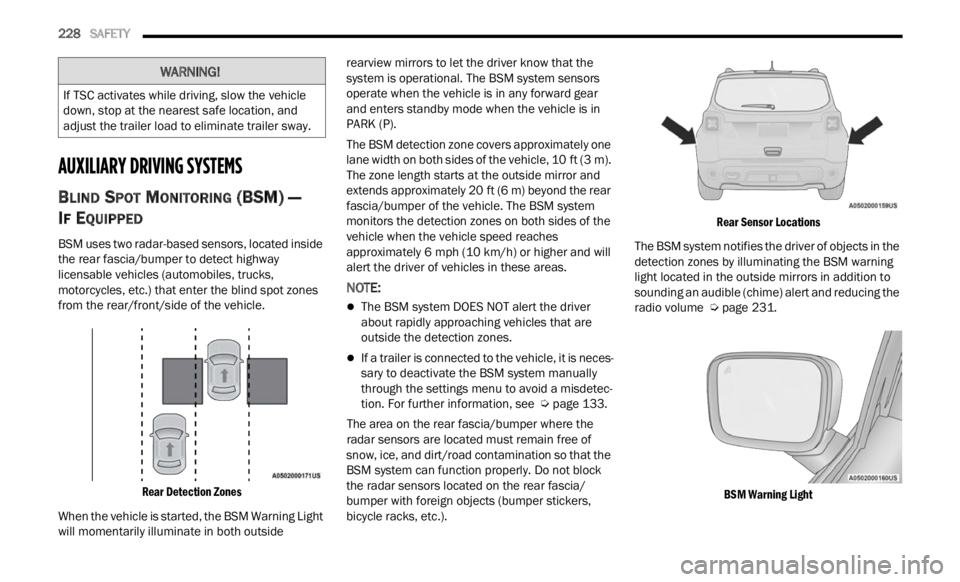
BSM uses two radar-based sensors, located inside
the rear fascia/bumper to detect highway
licensable vehicles (automobiles, trucks,
motorcycles, etc.) that enter the blind spot zones
from the rear/front/side of the vehicle.
Rear Detection Zones
When the vehicle is started, the BSM Warning Light
will m
omentarily illuminate in both outside rearview mirrors to let the driver know that the
system is operational. The BSM system sensors
operate when the vehicle is in any forward gear
and enters standby mode when the vehicle is in
PARK (P).
The BSM detection zone covers approximately one
lane
w
idth on both sides of the vehicle, 10 ft (3 m).
The z on
e length starts at the outside mirror and
extends approximately 20 ft (6 m) beyond the rear
fascia
/bumper of the vehicle. The BSM system
monitors the detection zones on both sides of the
vehicle when the vehicle speed reaches
approximately 6 mph (10 km/h) or higher and will
alert
the driver of vehicles in these areas.
NOTE:
The BSM system DOES NOT alert the driver
about rapidly approaching vehicles that are
outside the detection zones.
If a trailer is connected to the vehicle, it is neces -
sary to deactivate the BSM system manually
t h r
ou g
h
the settings menu to avoid a misdetec -
tion. For further information, see Ú page 133.
The area on the rear fascia/bumper where the
r adar
sensors are located must remain free of
snow, ice, and dirt/road contamination so that the
BSM system can function properly. Do not block
the radar sensors located on the rear fascia/
bumper with foreign objects (bumper stickers,
bicycle racks, etc.).
Rear Sensor Locations
The BSM system notifies the driver of objects in the
detec t
ion zones by illuminating the BSM warning
light located in the outside mirrors in addition to
sounding an audible (chime) alert and reducing the
radio volume Ú page 231.
BSM Warning Light
WARNING!
If TSC activates while driving, slow the vehicle
down, stop at the nearest safe location, and
adjust the trailer load to eliminate trailer sway.