radio JEEP RENEGADE 2023 User Guide
[x] Cancel search | Manufacturer: JEEP, Model Year: 2023, Model line: RENEGADE, Model: JEEP RENEGADE 2023Pages: 364, PDF Size: 18.65 MB
Page 145 of 364

MULTIMEDIA 143
Seats & Comfort
Key Off Options/Engine Off Options
When the Seats & Comfort button is pressed on the touchscreen, the system displays the options related to the vehicle’s comfort systems when remote start
has been activated or the vehicle has been started.
NOTE:
Depending on the vehicle’s options, feature settings may vary.
Setting Name Description
Auto-On Driver Heated/Ventilated Seat & Steering Wheel With Vehicle Start This setting will activate the vehicle’s comfort system and heated seats (if
equip
p
ed) or heated steering wheel (if equipped) when the vehicle is remote
started or ignition is started. The “Off” setting will not activate the comfort
systems. The “Remote Start” setting will only activate the comfort systems
when using Remote Start. The “All Start” setting will activate the comfort
systems whenever the vehicle is started.
When the Key Off Options/Engine Off Options button is pressed on the touchscreen, the system displays the options related to vehicle shutoff. These settings
will only activate when the ignition is set to OFF.
NOTE:
Depending on the vehicle’s options, feature settings may vary.
Setting Name Description
Radio Off Delay This setting will keep the radio on for the selected amount of time after
vehic
l
e shut off. The available options are “0 sec” or “20 min”.
Radio Off With Door This setting will shut the radio off when the door is opened. The available
s
etti
n
gs are “On” and “Off”.
5
Page 146 of 364

144 MULTIMEDIA
Audio
When the Audio button is pressed on the touchscreen, the system displays options related to the vehicle’s sound system. These settings can change the audio
location within the vehicle, adjust the bass or treble levels, and auto-play settings from an audio device or smartphone.
NOTE:
Depending on the vehicle’s options, feature settings may vary.
Setting Name Description
Balance/Fade This setting will adjust audio levels from specific speakers in the front/back
and l
e
ft/right of the vehicle. The Speaker icon can be moved to set audio
location.
Equalizer This setting will adjust the “Bass”, “Mid”, and “Treble” ranges of the audio.
Speed Adjusted Volume This setting will adjust audio volume as speeds increase. At a higher setting,
the vol
ume will increase more as the vehicle speeds up. The available settings
are “Off”, “1”, “2”, and “3”.
Surround Sound This setting will turn the Surround Sound system on or off.
AUX Volume Offset This setting will tune the audio levels from a device connected through the
AUX port
. The available settings are “+” and “-”.
Auto Play This setting will automatically begin playing audio from a connected device.
Loudness This setting will improve audio quality at lower volumes.
Auto-On Radio This setting will automatically turn the radio on when the vehicle is started.
The a
v
ailable settings are “Off”, “On”, and “Recall Last”. With Recall Last, the
system resumes the previous task before vehicle shut off.
Page 147 of 364

MULTIMEDIA 145
Phone/Bluetooth®
SiriusXM® Setup
When the Phone/Bluetooth® button is pressed on the touchscreen, the system displays the options related to Bluetooth® connectivity from an external audio
device or smartphone. The list of paired audio devices or smartphones can be accessed from this menu.
NOTE:
Depending on the vehicle’s options, feature settings may vary.
Setting Name Description
Phone Pop-Ups Displayed In Cluster This setting will activate phone message pop-ups in the Instrument Cluster
Displ
a
y.
Do Not Disturb This setting will open the Do Not Disturb settings menu. The settings are “Auto
R
eply
”
(both, text, call), “Auto Reply Message” (custom, default), and “Custom
Auto Reply Message” (create message).
Paired Phones This setting will show the list of paired phones.
Paired Phones And Audio Devices This setting will show the list of paired phones and audio devices.
NOTE:
A subscription to SiriusXM® Satellite Radio is required for these settings to be functional.
When the SiriusXM® Setup button is pressed on the touchscreen, the system displays options related to SiriusXM® Satellite Radio. These settings can be used
t o ski p
specific radio channels and restart favorite songs from the beginning.
NOTE:
Depending on the vehicle’s options, feature settings may vary.
Setting Name Description
Tune Start This setting will play the current song from the beginning when you tune to a
music
channel using one of the 12 presets.
5
Page 149 of 364
MULTIMEDIA 147
UCONNECT INTRODUCTION
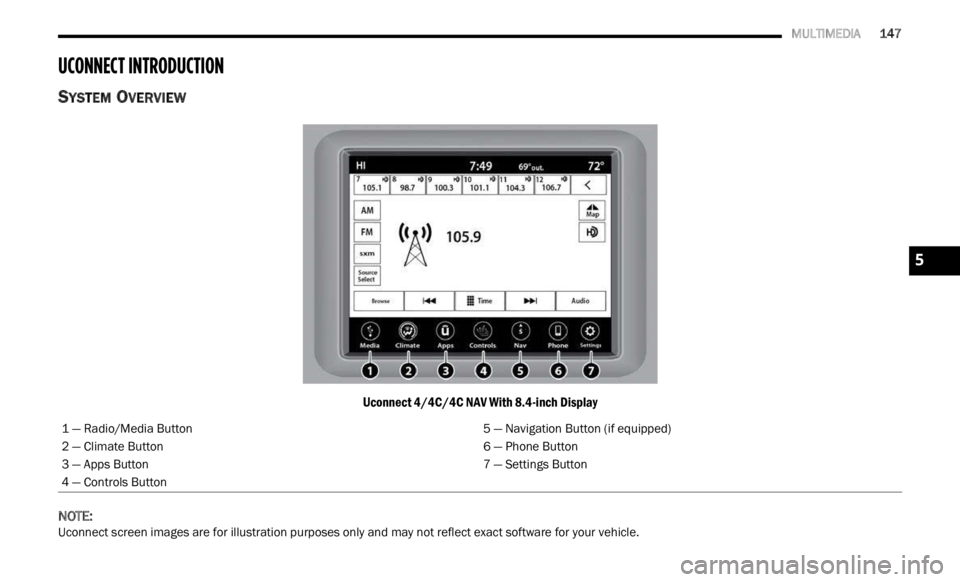
SYSTEM OVERVIEW
Uconnect 4/4C/4C NAV With 8.4-inch Display
NOTE:
Uconnect screen images are for illustration purposes only and may not reflect exact software for your vehicle. 1 — Radio/Media Button
5 — Navigation Button (if equipped)
2 — Climate Button 6 — Phone Button
3 — Apps Button 7 — Settings Button
4 — Controls Button
5
Page 150 of 364

148 MULTIMEDIA
Feature Description
Radio/MediaPress/Push the Radio button or Media button to enter Radio Mode/Media
Mode a
n
d access the radio functions and external audio sources
Ú page 150.
Phone Press/Push the Phone button to enter Phone Mode and access the
h
ands-
free phone system Ú page 164.
Settings Press/Push the Settings button to access the Uconnect Settings Ú page 133.
Push the ENTER/BROWSE button on the faceplate to accept a highlighted
s elec t
ion on the screen. Rotate the TUNE/SCROLL rotary knob to scroll
through a list or tune a radio station.
Push the SCREEN OFF button on the faceplate to turn the screen on or off.
Push the MUTE button on the faceplate to turn the audio of the radio system
off. Pu
sh it again to turn the audio back on.
Rotate the rotary knob to adjust the volume. Push the VOLUME & On/Off
button
on the faceplate to turn the system on or off.
NOTE:
Push and hold the VOLUME & On/Off button for approximately 10 seconds to
reset
the radio manually. Doing this can also recover the radio screen from
freezing or being stuck.
Controls — If Equipped Press the Controls button to access vehicle-specific features like heated seats
and st
eering wheel.
Apps Press the Apps button to access a list of the available Mobile apps.
Page 152 of 364
150 MULTIMEDIA
Safe Usage Of The Uconnect System
The Uconnect system is a sophisticated elec -
tronic device. Do not let young children use the
syste m
.
Permanent hearing loss may occur if you play
your music or sound system at loud volumes.
Exercise caution when setting the volume on the
system.
Keep drinks, rain and other sources of moisture
away from the system. Besides damage to the
system, moisture can cause electric shocks as
with any electronic device.
NOTE:
Many features of this system are speed
depen d
ent. For your own safety, it is not possible to
use some of the touchscreen features while the
vehicle is in motion.
Care And Maintenance
Do not press the touchscreen with any hard or
sharp objects (pen, USB stick, jewelry, etc.),
which could scratch the surface.
Do not spray any liquid or chemicals directly on
the screen! Use a clean and dry microfiber lens
cleaning cloth in order to clean the touchscreen.
If necessary, use a lint-free cloth dampened
with a cleaning solution, such as isopropyl
alcohol or an isopropyl alcohol and water solu -tion ratio of 50:50. Be sure to follow the solvent
manuf
a
cturer's precautions and directions
Ú page 349.
UCONNECT MODES
STEERING WHEEL AUDIO CONTROLS
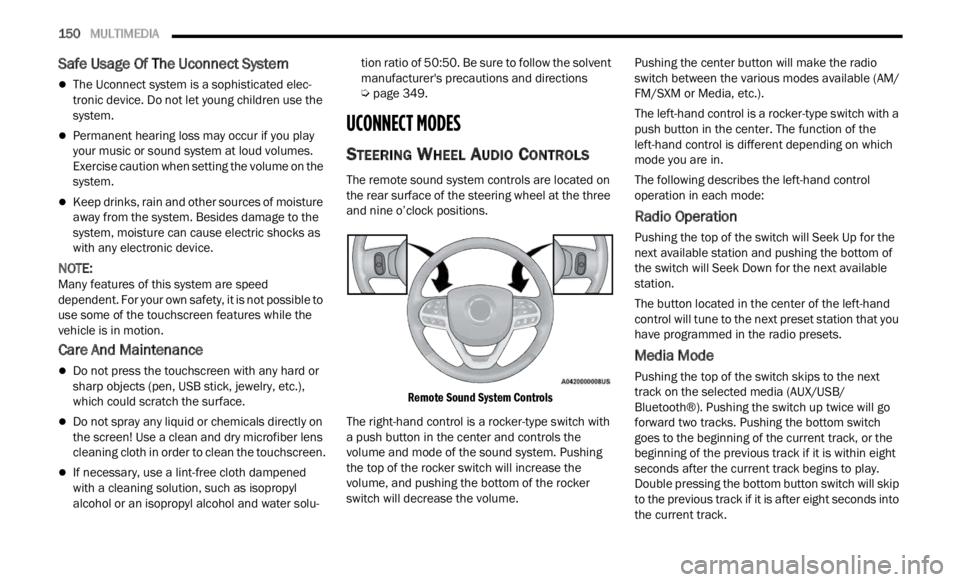
The remote sound system controls are located on
the rear surface of the steering wheel at the three
and nine o’clock positions.
Remote Sound System Controls
The right-hand control is a rocker-type switch with
a pus h
button in the center and controls the
volume and mode of the sound system. Pushing
the top of the rocker switch will increase the
volume, and pushing the bottom of the rocker
switch will decrease the volume. Pushing the center button will make the radio
switc
h
between the various modes available (AM/
FM/SXM or Media, etc.).
The left-hand control is a rocker-type switch with a
push b
utton in the center. The function of the
left-hand control is different depending on which
mode you are in.
The following describes the left-hand control
operati
on in each mode:
Radio Operation
Pushing the top of the switch will Seek Up for the
next available station and pushing the bottom of
the switch will Seek Down for the next available
station.
The button located in the center of the left-hand
control
will tune to the next preset station that you
have programmed in the radio presets.
Media Mode
Pushing the top of the switch skips to the next
track on the selected media (AUX/USB/
Bluetooth®). Pushing the switch up twice will go
forward two tracks. Pushing the bottom switch
goes to the beginning of the current track, or the
beginning of the previous track if it is within eight
seconds after the current track begins to play.
Double pressing the bottom button switch will skip
to the previous track if it is after eight seconds into
the current track.
Page 153 of 364
MULTIMEDIA 151
RADIO MODE
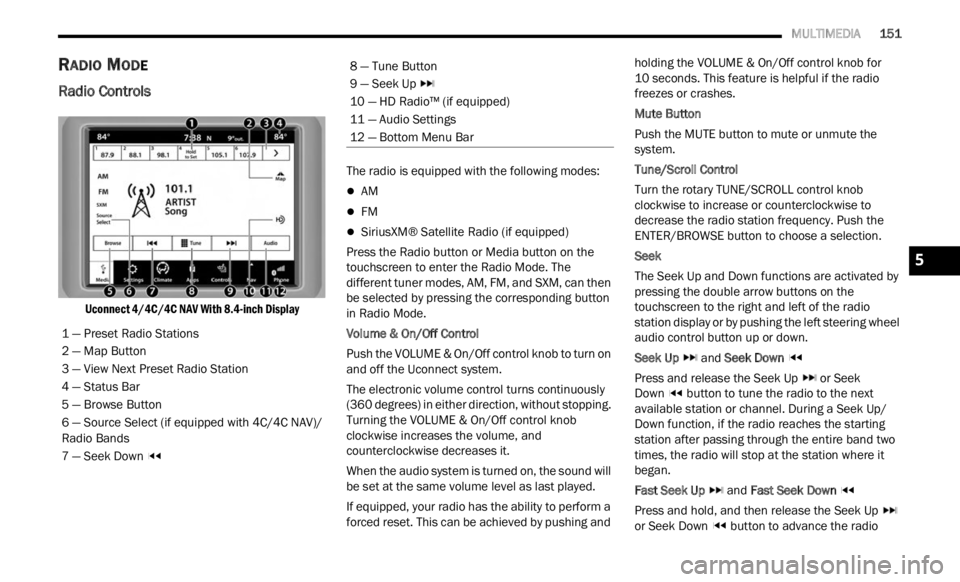
Radio Controls
Uconnect 4/4C/4C NAV With 8.4-inch Display
The radio is equipped with the following modes:
AM
FM
SiriusXM® Satellite Radio (if equipped)
Press the Radio button or M
ed
i
a button on the
touchscreen to enter the Radio Mode. The
different tuner modes, AM, FM, and SXM, can then
be selected by pressing the corresponding button
in Radio Mode.
Volume & On/Off Control
Push the VOLUME & On/Off control knob to turn on
a nd of f
the Uconnect system.
The electronic volume control turns continuously
(360 d
egrees) in either direction, without stopping.
Turning the VOLUME & On/Off control knob
clockwise increases the volume, and
counterclockwise decreases it.
When the audio system is turned on, the sound will
be se t
at the same volume level as last played.
If equipped, your radio has the ability to perform a
forced
reset. This can be achieved by pushing and holding the VOLUME & On/Off control knob for
10 seconds. This feature is helpful if the radio
freez e
s or crashes.
Mute Button
Push the MUTE button to mute or unmute the
syste m
.
Tune/Scroll Control
Turn the rotary TUNE/SCROLL control knob
clock w
ise to increase or counterclockwise to
decrease the radio station frequency. Push the
ENTER/BROWSE button to choose a selection.
Seek
The Seek Up and Down functions are activated by
press i
ng the double arrow buttons on the
touchscreen to the right and left of the radio
station display or by pushing the left steering wheel
audio control button up or down.
Seek Up and Seek Down
Pres s
and release the Seek Up or Seek
Down button to tune the radio to the next
available station or channel. During a Seek Up/
D own f u
nction, if the radio reaches the starting
station after passing through the entire band two
times, the radio will stop at the station where it
began.
Fast Seek Up and Fast Seek Down
Pres s
and hold, and then release the Seek Up
or Seek Down button to advance the radio
1 — Preset Radio Stations
2 — Map Button
3 — View Next Preset Radio Station
4 — Status Bar
5 — Browse Button
6 — Source Select (if equipped with 4C/4C NAV)/
R
adio B
ands
7 — Seek Down
8 — Tune Button
9 — Seek Up
10 — HD Radio™ (if equipped)
11 — Audio Settings
12 — Bottom Menu Bar
5
Page 154 of 364

152 MULTIMEDIA
through the available stations or channels at a
faster rate. The radio stops at the next available
station or channel when the button on the
touchscreen is released.
NOTE:
Pressing and holding either the Seek Up or
Seek Down button will scan the different
frequency bands at a slower rate.
Direct Tune
Press the Tune button located at the bottom of the
r adio s
creen to directly tune to a desired radio
station or channel.
Press the available number button on the
touchs c
reen to begin selecting a desired station.
Once a number has been entered, any numbers
that are no longer possible (stations that cannot be
reached) will become deactivated/grayed out.
Undo
You can backspace an entry by pressing the
Back button on the touchscreen.
GO
Once the last digit of a station has been entered,
p ress
“Ok”. The Direct Tune screen will close, and
the system will automatically tune to that station.
RADIO VOICE COMMANDS
Use your voice to quickly get to the AM, FM, or
SiriusXM® Satellite Radio stations you would like to hear. (Subscription or included SiriusXM®
Satellite Radio trial required.)
Push the VR button
on the steering wheel and
wait for the beep to say a command. See the
f ollow
i
ng example:
“Tune to ninety-five-point-five FM”
“Tune to Satellite Channel Hits 1”
Did You Know: At an
y time, if you are not sure of
what to say or want to learn a Voice Command,
push the VR button and say “Help”. T
he system
provides you with a list of commands.
HD Radio™ — If Equipped
HD Radio™ technology is the digital evolution of
analog AM/FM radio. Your system has a special
receiver, which allows it to receive digital
broadcasts (where available) in addition to the
analog broadcasts. Digital broadcasts provide free,
crystal clear audio with no static or distortion.
For more information and a guide to available
station
s and programming, please visit
hdradio.com .
To begin using HD Radio™:
1. P ress the Media Button.
2. S ele
ct AM or FM tab.
3 .
Se
l
ect the HD button. When
HD Radio™ reception is enabled and a
stati on
with HD Radio™ broadcasts is playing, the
following indicators may appear on the screen:
HD Radio™ Logo: This indicator will display in
gray when a digital station is being acquired and
will appear in orange and white when digital
audio is playing. When this logo is available, you
will also see Station Call Sign (e.g. WNIC), Title
and Artist fields on screen.
Multicast Indicator (1 2 3...): These numbers will
appear if the current station has multiple digital
broadcasts. Press the Seek Up or Down button
repeatedly to access the other digital broad -
casts. The numbers that are highlighted signify
a vaila
ble digital channels where new/different
content is available. HD1 will signify the main
programming service and is available in analog
and digital broadcasts. Any additional multicast
stations (HD2–HD8) are only broadcast digi -
tally.
Album Art/Station Logo: Some HD Radio™
stations broadcast station logos and album art
associated with the song being played as part of
the HD Radio™ broadcast service. Station logo
art is stored in the radio and may take up to five
minutes to learn for each station that supports
station logo service. Album art is broadcast at
the beginning of songs. If tuning into the middle
of a song, the art may not be available.
Page 155 of 364

MULTIMEDIA 153
When HD Radio™ broadcasts are active, you can
access the following functions:
Seek Up And Down: Press to seek to the next
strong radio station. If the current station has
multiple digital broadcasts, the multicast indi -
cator numbers will display. Press “Seek” repeat -
edly to advance through all available
b roadc
asts. If you are on the last multicast
channel, press “Seek Up” to advance to the next
strong station.
Saving A Multicast Station As A Preset: When
the channel is active on-screen, press and hold
a Preset button; it will save the station to the
available slot. When recalling an HD2, HD3, etc.
memory preset, there will be a momentary mute
before the digital audio is played as the system
acquires the digital signal. If you have turned
this feature off, this will automatically turn on
HD Radio™ broadcasts and will tune to the
selected frequency. As with any saved radio
station, you will not be able to access the saved
station if your vehicle is outside the station’s
reception area.
“LIVE” Ballgame Mode Broadcasts: If a station
has a live broadcast (such as a baseball game),
“LIVE” may appear on screen beside the multi -
cast numbers. These are analog broadcasts
with d
igital components (i.e. artist, title). If HD1
is in a live broadcast mode, the HD Radio™ logo
will be gray. You will hear analog audio; the user
will still be able to tune to the multicast chan -
nels.
Reception Area:
If y ou
are listening to a multicast
(HD2, HD3, etc.) station and you are on the fringe
of the reception area, the station may mute due to
weak signal strength. If you are listening to HD1,
the system will simply switch to the analog
broadcast until the digital broadcast is available
again.
However, if you are listening to any of the possible
multi c
ast (HD2, HD3, etc.) channels, the station
will mute and stay muted unless it is able to
connect to the digital signal again. While in this
state, the text “buffering” will appear for 30 sec-
onds. If it is not able to reconnect to the digital
signal, the screen will be cleared and “HD Radio™
Signal Unavailable” will appear in artist and title
field area. Station Blending:
When
an HD1 station is received,
the system will play the analog audio broadcast
from the station for a few seconds and then, if the
receiver verifies the station is an HD Radio™
station, it will transition to play the digital audio
broadcast. Depending on the station quality, you
may hear a slight sound change when the station
transitions from analog to the digital broadcast.
The shift from analog to digital or digital back to
analog sound is known as “blending”.
Station Issues: In ord
er to provide the best
possible experience, a contact form has been
developed to report any station issues found while
listening to a station broadcasting with HD Radio™
technology. Every station is independently owned
and operated. These stations are responsible for
ensuring all audio streams and data fields are
accurate. This form can be found at https://
hdradio.com/stations/feedback/ .
5
Page 156 of 364

154 MULTIMEDIA
HD Radio™ Technology manufactured under license from iBiquity Digital Corporation. US and Foreign Patents. For patents, see http://dts.com/patents. HD
Radio™, Artist Experience, and the HD, HD Radio™, and "ARC" logos are registered trademarks or trademarks of iBiquity Digital Corporation in the United States
and/or
other countries.
Troubleshooting
Experience CauseAction
Mismatch of time alignment — a user may hear a
short period of programming replayed or an echo,
stutter, or skip. The radio station’s analog and digital volume is not
proper
l
y aligned or the station is in ballgame mode. None. It is a radio broadcast issue. The user can
contac
t the station.
Sound fades, blending in and out. Radio is shifting between analogue and digital
audio.Re
ception issue: It may clear up as the vehicle
conti n
ues to be driven. Turning off HD Radio™ can
force the radio to use analogue audio.
Audio mute condition when an HD2, HD3, etc.
multic
ast channel is playing. The radio does not have access to digital signals at
the mom
ent. This is normal behavior. Wait until the digital signal
return
s. If out of coverage area, seek a new station.
Audio mute delay when selecting an HD2, HD3, etc.
multic
ast channel preset. The digital multicast content is not available until
HD
R
ad
i
o™ broadcast can be decoded and make
the audio available. This can take up to seven
seconds. This is normal behavior. Wait until the audio is
a
va
il
a
ble again.
Text information does not match the present song
audio or
no text information shown for the present
selected frequency. Data service issue by the radio broadcaster.
Broadcaster should be notified. Use the form at
https://hdradio.com/stations/feedback/