turn signal JEEP RENEGADE 2023 Owner's Manual
[x] Cancel search | Manufacturer: JEEP, Model Year: 2023, Model line: RENEGADE, Model: JEEP RENEGADE 2023Pages: 364, PDF Size: 18.65 MB
Page 143 of 364

MULTIMEDIA 141
Lights
When the Lights button is pressed on the touchscreen, the system displays the options related to the vehicle’s exterior and interior lights.
NOTE:
When the “Daytime Running Lights” feature is selected, the daytime running lights can be turned on or off. This feature is only allowed by law in the country of
the v e
hicle purchased.
NOTE:
Depending on the vehicle’s options, feature settings may vary.
Setting Name Description
Interior Ambient Lighting This setting will allow you to adjust the interior ambient lighting using “+” and
“-” op
t
ions.
Headlight Sensitivity This setting will allow you to set the sensitivity of the headlights dependent on
the a
m
ount of visible light. The greater the sensitivity set, the less the external
light variation required to turn on the lights (e.g. with a setting on level 3 at
sunset, the headlights turn on earlier than in levels 1 and 2). The available
levels are “Level 1: Minimum Sensitivity”, “Level 2: Medium Sensitivity”, and
“Level 3: Maximum Sensitivity”.
Headlight Off Delay This setting will allow you to set the amount of time it takes for the headlights
t
o shu
t
off after the vehicle is unlocked. The available settings are “0 sec”,
“30 sec”, “60 sec”, and “90 sec”.
Daytime Running Lights This setting will allow you to turn the Daytime Running Lights on or off.
Cornering Lights When this setting is selected, if the steering wheel rotation angle is large or
the tu
rn signal indicators are on, a light (incorporated in the fog light) will turn
on, on the relevant side to improve visibility at night.
Auto Dim High Beams This setting will allow you to turn the Auto Dim High Beams on or off.
Flash Lights with Lock This setting will allow you to turn the flashing of the lights when the Lock
button
is pushed on the key fob on or off.
5
Page 155 of 364

MULTIMEDIA 153
When HD Radio™ broadcasts are active, you can
access the following functions:
Seek Up And Down: Press to seek to the next
strong radio station. If the current station has
multiple digital broadcasts, the multicast indi -
cator numbers will display. Press “Seek” repeat -
edly to advance through all available
b roadc
asts. If you are on the last multicast
channel, press “Seek Up” to advance to the next
strong station.
Saving A Multicast Station As A Preset: When
the channel is active on-screen, press and hold
a Preset button; it will save the station to the
available slot. When recalling an HD2, HD3, etc.
memory preset, there will be a momentary mute
before the digital audio is played as the system
acquires the digital signal. If you have turned
this feature off, this will automatically turn on
HD Radio™ broadcasts and will tune to the
selected frequency. As with any saved radio
station, you will not be able to access the saved
station if your vehicle is outside the station’s
reception area.
“LIVE” Ballgame Mode Broadcasts: If a station
has a live broadcast (such as a baseball game),
“LIVE” may appear on screen beside the multi -
cast numbers. These are analog broadcasts
with d
igital components (i.e. artist, title). If HD1
is in a live broadcast mode, the HD Radio™ logo
will be gray. You will hear analog audio; the user
will still be able to tune to the multicast chan -
nels.
Reception Area:
If y ou
are listening to a multicast
(HD2, HD3, etc.) station and you are on the fringe
of the reception area, the station may mute due to
weak signal strength. If you are listening to HD1,
the system will simply switch to the analog
broadcast until the digital broadcast is available
again.
However, if you are listening to any of the possible
multi c
ast (HD2, HD3, etc.) channels, the station
will mute and stay muted unless it is able to
connect to the digital signal again. While in this
state, the text “buffering” will appear for 30 sec-
onds. If it is not able to reconnect to the digital
signal, the screen will be cleared and “HD Radio™
Signal Unavailable” will appear in artist and title
field area. Station Blending:
When
an HD1 station is received,
the system will play the analog audio broadcast
from the station for a few seconds and then, if the
receiver verifies the station is an HD Radio™
station, it will transition to play the digital audio
broadcast. Depending on the station quality, you
may hear a slight sound change when the station
transitions from analog to the digital broadcast.
The shift from analog to digital or digital back to
analog sound is known as “blending”.
Station Issues: In ord
er to provide the best
possible experience, a contact form has been
developed to report any station issues found while
listening to a station broadcasting with HD Radio™
technology. Every station is independently owned
and operated. These stations are responsible for
ensuring all audio streams and data fields are
accurate. This form can be found at https://
hdradio.com/stations/feedback/ .
5
Page 156 of 364

154 MULTIMEDIA
HD Radio™ Technology manufactured under license from iBiquity Digital Corporation. US and Foreign Patents. For patents, see http://dts.com/patents. HD
Radio™, Artist Experience, and the HD, HD Radio™, and "ARC" logos are registered trademarks or trademarks of iBiquity Digital Corporation in the United States
and/or
other countries.
Troubleshooting
Experience CauseAction
Mismatch of time alignment — a user may hear a
short period of programming replayed or an echo,
stutter, or skip. The radio station’s analog and digital volume is not
proper
l
y aligned or the station is in ballgame mode. None. It is a radio broadcast issue. The user can
contac
t the station.
Sound fades, blending in and out. Radio is shifting between analogue and digital
audio.Re
ception issue: It may clear up as the vehicle
conti n
ues to be driven. Turning off HD Radio™ can
force the radio to use analogue audio.
Audio mute condition when an HD2, HD3, etc.
multic
ast channel is playing. The radio does not have access to digital signals at
the mom
ent. This is normal behavior. Wait until the digital signal
return
s. If out of coverage area, seek a new station.
Audio mute delay when selecting an HD2, HD3, etc.
multic
ast channel preset. The digital multicast content is not available until
HD
R
ad
i
o™ broadcast can be decoded and make
the audio available. This can take up to seven
seconds. This is normal behavior. Wait until the audio is
a
va
il
a
ble again.
Text information does not match the present song
audio or
no text information shown for the present
selected frequency. Data service issue by the radio broadcaster.
Broadcaster should be notified. Use the form at
https://hdradio.com/stations/feedback/
Page 165 of 364

MULTIMEDIA 163
AUX MODE
Overview
Auxiliary Mode (AUX) is entered by inserting an AUX
device
using a cable with a 3.5 mm audio jack into
t h
e
A U
X port, or by pressing the AUX button on the
left side of the touchscreen, or under the Source
Select button (if equipped).
To insert an Auxiliary device, gently insert the
Auxili
ary device cable into the AUX port. If you
insert an Auxiliary device with the ignition and the
radio on, the unit will switch to AUX Mode and
begin to play.
Controlling The Auxiliary Device
The control of the Auxiliary device (e.g., selecting
p layl i
sts, play, fast forward, etc.) cannot be
provided by the radio; use the device controls
instead. Adjust the volume with the Volume button,
VOLUME/MUTE rotary knob, or the On/Off rotary
knob, or with the volume of the attached device.
NOTE:
The radio unit is acting as the amplifier for audio
output
from the Auxiliary device. Therefore, if the
volume control on the Auxiliary device is set too
low, there will be insufficient audio signal for the
radio unit to play the music on the device. Seek Up
/Seek Down
In USB Mode, press the Seek Up button on the
t ouchs c
reen for the next selection on the USB
device. Press and release the Seek Down button
on the touchscreen to return to the beginning of
the current selection, or to return to the beginning
of the previous selection if the USB device is within
the first three seconds of the current selection.
In Bluetooth® Mode, press and release the Seek
Up bu t
ton on the touchscreen for the next
selection on the Bluetooth® device. Press and
release the Seek Down button on the touchscreen
to return to the beginning of the current selection,
or return to the beginning of the previous selection
if the Bluetooth® device is within the first second
of the current selection.
Browse
In USB Mode, press the Browse button on the
touchs c
reen to display the browse window. In USB
Mode, the left side of the browse window displays
a list of ways you can browse through the contents
of the USB device. If supported by the device, you
can browse by Folder, Artist, Playlist, Album, Song,
etc. Press the desired button on the touchscreen
on the left side of the screen. The center of the
browse window shows items and their
sub-functions, which can be scrolled through by
pressing the Up and Down buttons to the right. The
TUNE/SCROLL knob can also be used to scroll. Media Mode
In USB Mode, press the Media button on the
touchs
c
reen to select the desired audio source:
USB.
In Bluetooth® Mode, press the Media button on
the t ou
chscreen to select the desired audio
source: Bluetooth®.
In AUX Mode, press the Media button on the
touchs c
reen to select the desired audio source:
AUX.
Repeat
In USB Mode, press the Repeat button on the
t ouchsc
reen to toggle the repeat functionality. The
Repeat button on the touchscreen is highlighted
when active. The Radio will continue to play the
current track, repeatedly, as long as the repeat is
active. Press the Repeat button again to enter
Repeat All. The radio will continue to play all the
current tracks, repeatedly, as long as the repeat
function is active. To cancel Repeat, press the
Repeat button a third time.
Shuffle
In USB Mode, press the Shuffle button on the
touchs c
reen to play the selections on the USB
device in random order to provide an interesting
change of pace. Press the Shuffle button on the
touchscreen a second time to turn this feature off.
5
Page 167 of 364
MULTIMEDIA 165
Reviewing your recent Incoming SMS
Messages.
Pairing up to 10 phones/audio devices for easy
access to connect to them quickly.
NOTE:
Your phone must be capable of SMS messaging via
Bluet oot
h® for messaging features to work
properly.
Your mobile phone’s audio is transmitted through
your v e
hicle’s audio system; the system will
automatically mute your radio when using the
Uconnect Phone.
For Uconnect customer support:
US visit UconnectPhone.com or call
877-855-8400
Canada visit UconnectPhone.com or call
800-465-2001 (English) or (French) call
800-3 8
7-9983
Uconnect Phone allows you to transfer calls
betwee
n the system and your mobile phone as you
enter or exit your vehicle and enables you to mute
the system's microphone for private conversation. The Phone feature is driven through your
Bluet
oot
h® “Hands-Free Profile” mobile phone.
Uconnect features Bluetooth® technology — the
global standard that enables different electronic
devices to connect to each other without wires or a
docking station. Ensure you phone is turned on
with Bluetooth® active and has been paired to the
Uconnect system. Up to 10 mobile phones or audio
devic e
s are allowed to be linked to the system.
Only one linked (or paired) mobile phone and one
audio device can be used with the system at a
time.
Phone Button
The Phone button on your steering wheel
is used to get into the Phone Mode and
make c
alls, show recent, incoming or
outgoing calls, view phonebook, etc.
When you push the button you will hear a BEEP.
The BEEP is your signal to give a command. Voice Command Button
The Voice Command button on your
steering wheel is only used for “barge in”
and w h
en you are already in a call or
want to make another call.
The button on your steering wheel is also used to
acces s
the Voice Commands for the Uconnect
Voice Command features if your vehicle is
equipped.
Phone Operation
OPERATION
Voice commands can be used to operate the
Uconnect Phone and to navigate its menu
structure. Voice commands are required after
most Uconnect Phone prompts. There are two
general methods for how Voice Command works:
1. Say compound commands like “Call John Smit h
mobile”.
2. Say the individual commands and allow the syste
m to guide you to complete the task.
You will be prompted for a specific command and
then g
uided through the available options.
Prior to giving a voice command, one must wait
for the beep, which follows the “Listen” prompt
or another prompt.
For certain operations, compound commands
can be used. For example, instead of saying
WARNING!
ALWAYS drive safely with your hands on the
steering wheel. You have full responsibility and
assume all risks related to the use of the
Uconnect features and applications in this
vehicle. Only use Uconnect when it is safe to do
so. Failure to do so may result in an accident
involving serious injury or death.
5
Page 209 of 364

MULTIMEDIA 207
Automatic SOS — If Equipped
Automatic SOS is a hands-free safety service that
can immediately connect you with help in the event
that your vehicle’s airbags deploy. After an
accident, a live agent will contact you through the
Uconnect system and alert emergency services.
NOTE:
An active SiriusXM Guardian™ subscription is
requi r
ed for this feature to function.
After a crash where the airbags deploy:
1. Automatic SOS will initiate a call with an agen t
.
2. An agent will receive the call and confirm the locati
on of the emergency.
3. If needed, the agent will request the assis
tance of emergency services.
4. First responders will arrive on scene. The agent
will remain on the call until emergency
services arrive.
NOTE:
Agents are available 24/7 to assist you in the
case of an emergency.
On your behalf, agents are able to notify family
members about the collision.
Agents can brief first responders of the situation
before they arrive on scene.
In the event vehicle occupants are unable to
speak, emergency services will be dispatched
based on the last known GPS coordinates.
SiriusXM Guardian™ connected services are
dependent upon an operative telematics
device, a cellular connection, navigation map
data, and GPS satellite reception, which can
limit the ability to reach the response center or
reach emergency support.
Terms of service of the Uconnect and the
SiriusXM Guardian™ subscriber agreement
apply. See terms of services for complete
service limitation.
Remote Commands
On the Remote Commands screen, you have
access to several vehicle features that can be
controlled remotely from your mobile device. These
features include locking/unlocking, remote
starting, and activating the horn and lights of the
vehicle.
The Occupant Restraint Controller (ORC) turns
on the Air Bag Warning Light on the instru -
ment panel if a malfunction in any part of the
a ir ba
g system is detected. If the Air Bag
Warning Light is illuminated, the air bag
system may not be working properly and the
SOS Call system may not be able to send a
signal to the SiriusXM Guardian™ Customer
Care center. If the Air Bag Warning Light is illu -
minated, have an authorized dealer service
your v e
hicle immediately.
Ignoring the Rearview Mirror Light could mean
you will not have SOS Call services if needed.
If the Rearview Mirror Light is illuminated,
have an authorized dealer service the SOS
Call system immediately.
If anyone in the vehicle could be in danger
(e.g., fire or smoke is visible, dangerous road
conditions or location), do not wait for voice
contact from a SiriusXM Guardian™ Customer
Care agent. All occupants should exit the
vehicle immediately and move to a safe loca -
tion.
Failure to perform scheduled maintenance
and regular inspection of your vehicle may
result in vehicle damage, accident or injury.
WARNING!
LockPress this button to lock your vehicle.
Vehicle Start Press this button to
start
your vehicle.
Horn & Lights Press this button to
s ound
t
he horn and
activate your lights.
5
Page 232 of 364
230 SAFETY
The BSM system is designed not to issue an alert
on stationary objects such as guardrails, posts,
walls, foliage, berms, etc. However, occasionally
the system may alert on such objects. This is
normal operation and your vehicle does not require
service.
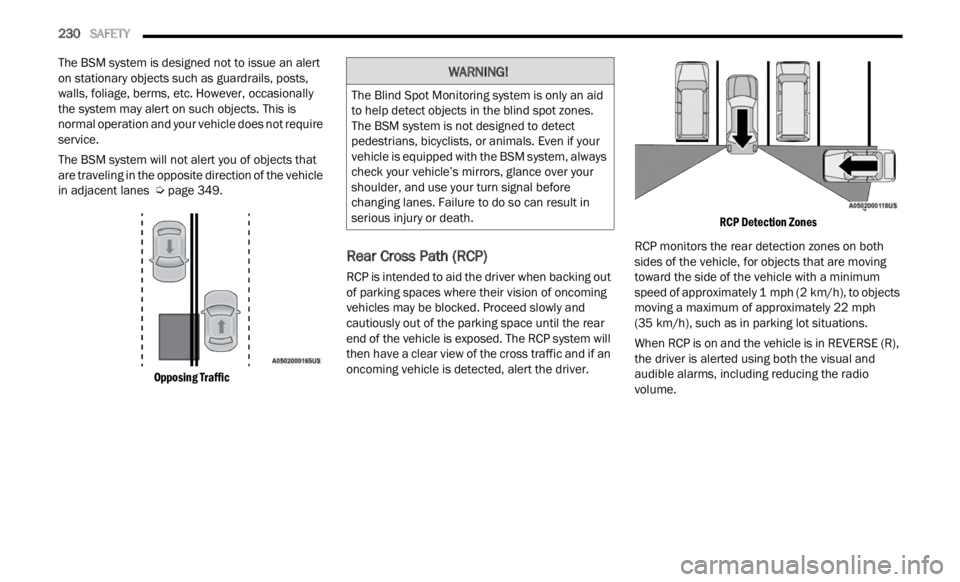
The BSM system will not alert you of objects that
are t r
aveling in the opposite direction of the vehicle
in adjacent lanes Ú page 349.
Opposing Traffic
Rear Cross Path (RCP)
RCP is intended to aid the driver when backing out
of parking spaces where their vision of oncoming
vehicles may be blocked. Proceed slowly and
cautiously out of the parking space until the rear
end of the vehicle is exposed. The RCP system will
then have a clear view of the cross traffic and if an
oncoming vehicle is detected, alert the driver.
RCP Detection Zones
RCP monitors the rear detection zones on both
sides
of the vehicle, for objects that are moving
toward the side of the vehicle with a minimum
speed of approximately 1 mph (2 km/h), to objects
moving
a maximum of approximately 22 mph
(35 km /
h), such as in parking lot situations.
When RCP is on and the vehicle is in REVERSE (R),
the dr
iver is alerted using both the visual and
audible alarms, including reducing the radio
volume.
WARNING!
The Blind Spot Monitoring system is only an aid
to help detect objects in the blind spot zones.
The BSM system is not designed to detect
pedestrians, bicyclists, or animals. Even if your
vehicle is equipped with the BSM system, always
check your vehicle’s mirrors, glance over your
shoulder, and use your turn signal before
changing lanes. Failure to do so can result in
serious injury or death.
Page 233 of 364

SAFETY 231
NOTE:
In a parking lot situation, oncoming vehicles can be
blocke d
by vehicles parked on either side. If the
sensors are blocked by other structures or
vehicles, the system will not be able to alert the
driver.
Blind Spot Modes
Blind Spot has three selectable modes of
operation that are available in the Uconnect
system.
Blind Spot Alert Lights Only
When operating in Blind Spot Alert mode, the BSM
s ystem
will provide a visual alert in the appropriate
side view mirror based on a detected object.
However, when the system is operating in Rear
Cross Path (RCP) mode, the system will respond with both visual and audible alerts when a
detected object is present. Whenever an audible
alert is requested, the radio is muted.
Blind Spot Alert Lights/Chime
When operating in Blind Spot Alert Lights/Chime
m
ode, t
he BSM system will provide a visual alert in
the appropriate side view mirror based on a
detected object. If the turn signal is then activated,
and it corresponds to an alert present on that side
of the vehicle, an audible chime will also be
sounded. Whenever a turn signal and detected
object are present on the same side at the same
time, both the visual and audible alerts will be
issued. In addition to the audible alert, the radio (if
on) will also be muted.
NOTE:
Whenever an audible alert is requested by the
BSM s y
stem, the radio is also muted.
When the system is in RCP, the system will respond
with b
oth visual and audible alerts when a
detected object is present. Whenever an audible
alert is requested, the radio is also muted. Turn/
hazard signal status is ignored; the RCP state
always requests the chime.
Blind Spot Alert Off
When the BSM system is turned off, there will be a
relat e
d message on instrument cluster display. If
BSM system is off, this message will be visualized
every time the vehicle is restarted.
NOTE:
The BSM system will store the current operating
mode w h
en the vehicle is shut off. Each time the
vehicle is started the previously stored mode will
be recalled and used.
Blind Spot Monitoring Fault Warnings
Blinded Sensor
In the case of a sensor that is blinded:
BSM Mirror Warning Lights are turned on contin -
uously
An instrument cluster dedicated message will
display
NOTE:
The rear fascia/bumper must be clean and free of
any ob s
tructing debris.
System Not Available
In the case of the system being temporarily
unava i
lable:
BSM Mirror Warning Lights are turned on contin -
uously
An instrument cluster dedicated message will
display
In the case of the system being completely
unavai
lable:
A chime will sound
An instrument cluster dedicated message will
display
WARNING!
Rear Cross Path Detection (RCP) is not a backup
aid system. It is intended to be used to help a
driver detect an oncoming vehicle in a parking
lot situation. Drivers must be careful when
backing up, even when using RCP. Always check
carefully behind your vehicle, look behind you,
and be sure to check for pedestrians, animals,
other vehicles, obstructions, and blind spots
before backing up. Failure to do so can result in
serious injury or death.
6
Page 239 of 364
SAFETY 237
NOTE:
It is particularly important for you to check the tire
press u
re in all of the tires on your vehicle monthly
and to maintain the proper pressure.
The TPMS consists of the following components:
Receiver module
Four Tire Pressure Monitoring System sensors
Tire Pressure Monitoring System Light
TIRE PRESSURE MONITORING SYSTEM LOW
PRESSURE WARNINGS
The Tire Pressure Monitoring System
Light will illuminate in the instrument
clust e
r, a “LOW TIRE PRESSURE”
message will display in the instrument
cluster, an "Inflate to XX" message will be displayed
and a chime will sound when tire pressure is low in
one or more of the four active road tires. Should
this occur, you should stop as soon as possible,
check the inflation pressure of each tire on your
vehicle, and inflate each tire to the vehicle’s
recommended cold placard pressure value as
shown in the "Inflate to XX" message. Once the
system receives the updated tire pressures, the
system will automatically update and the Tire
Pressure Monitoring System Light will turn off.
NOTE:
When filling warm tires, the tire pressure may need
to be i
ncreased up to an additional 4 psi (28 kPa)
above the recommended cold placard pressure in
order to turn the Tire Pressure Monitoring System
Light off. The vehicle may need to be driven for up
to 20 minutes above 15 mph (24 km/h) in order
for th e
TPMS to receive this information.
SERVICE TPMS WARNING
When a system fault is detected, the Tire Pressure
Monitoring System Light will flash on and off for
75 seconds and then remain on solid. The system
fault
will also sound a chime. If the ignition is
cycled, this sequence will repeat, providing the
system fault still exists. The Tire Pressure
Monitoring System Light will turn off when the fault
condition no longer exists. A system fault can occur
due to any of the following:
Jamming due to electronic devices or driving
next to facilities emitting the same radio
frequencies as the TPMS sensors.
Installing some form of aftermarket window
tinting that affects radio wave signals.
Lots of snow or ice around the wheels or wheel
housings.
Using tire chains on the vehicle.
Using wheels/tires not equipped with TPMS
sensors. Vehicles With Compact Spare Or Non-Matching
Full
S
ize Spare
1. The compact spare tire or non-matching full size
spare tire does not have a Tire Pressure
Monitoring System sensor. Therefore, the
TPMS will not monitor the pressure in the
spare tire.
2. If you install the compact or non-matching full size
spare tire in place of a road tire that has a
pressure below the low-pressure warning limit, a
chime will sound and the TPMS Light and “LOW
TIRE PRESSURE” and "Inflate to XX" messages
will turn on upon the next ignition cycle.
3. After driving the vehicle for up to 20 minu
tes
above 1
5 mph (24 km/h), the TPMS Light will
flash
on and off for 75 seconds and then
remain on solid.
4. For each subsequent ignition cycle, a chime will
sound and the TPMS Light will flash on and
off for 75 seconds and then remain on solid.
5. Once you repair or replace the original road tire and r
einstall it on the vehicle in place of the
compact spare or non-matching full size spare,
the TPMS will update automatically and the
“TPMS Light” will turn off, as long as no tire
pressure is below the low-pressure warning
limit in any of the four active road tires. The
vehicle may need to be driven for up to
20 minutes above 15 mph (24 km/h) in order
for th e
TPMS to receive this information.
6
Page 240 of 364
238 SAFETY
Tire Pressure Monitoring System
Operation
TPMS uses wireless technology with wheel rim
mounted electronic sensors to monitor tire
pressure levels. Sensors, mounted to each wheel
as part of the valve stem, transmit tire pressure
readings to the receiver module.
NOTE:
It is particularly important for you to check the tire
press u
re in all of the tires on your vehicle monthly
and to maintain the proper pressure.
The TPMS consists of the following components:
Receiver module
Four Tire Pressure Monitoring System sensors
Various Tire Pressure Monitoring System
messages, which display in the instrument
cluster
Tire Pressure Monitoring System Light
TIRE PRESSURE MONITORING SYSTEM LOW
PRESSURE WARNINGS
The Tire Pressure Monitoring System
Light will illuminate in the instrument
c lu
st
e
r and a chime will sound when tire
pressure is low in one or more of the four
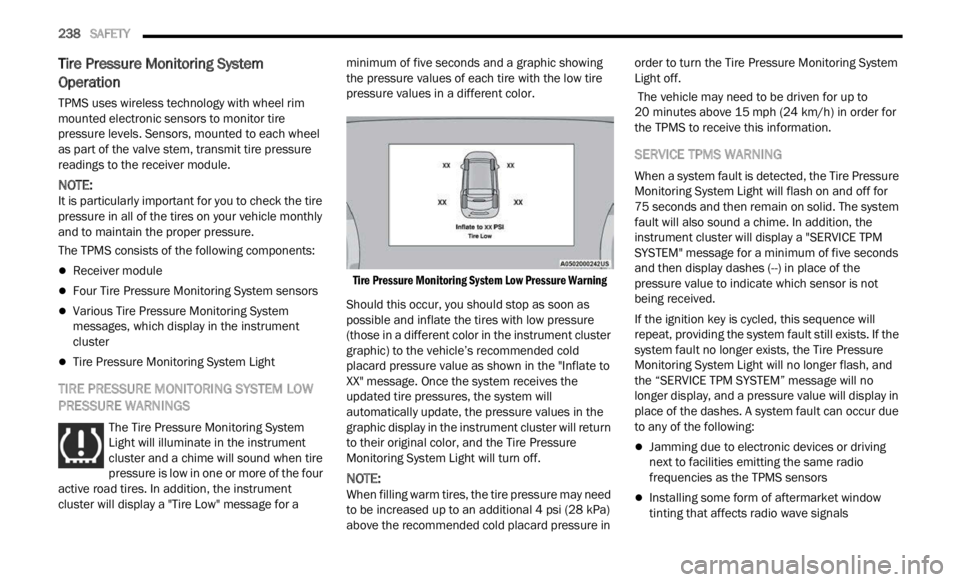
active road tires. In addition, the instrument
cluster will display a "Tire Low" message for a minimum of five seconds and a graphic showing
the pressure values of each tire with the low tire
pressure values in a different color.
Tire Pressure Monitoring System Low Pressure Warning
Should this occur, you should stop as soon as
possibl
e and inflate the tires with low pressure
(those in a different color in the instrument cluster
graphic) to the vehicle’s recommended cold
placard pressure value as shown in the "Inflate to
XX" message. Once the system receives the
updated tire pressures, the system will
automatically update, the pressure values in the
graphic display in the instrument cluster will return
to their original color, and the Tire Pressure
Monitoring System Light will turn off.
NOTE:
When filling warm tires, the tire pressure may need
to be i
ncreased up to an additional 4 psi (28 kPa)
above the recommended cold placard pressure in order to turn the Tire Pressure Monitoring System
Light off.
The vehicle may need to be driven for up to
20
min u
tes above 15 mph (24 km/h) in order for
t h
e
T P
MS to receive this information.
SERVICE TPMS WARNING
When a system fault is detected, the Tire Pressure
Monitoring System Light will flash on and off for
75 seconds and then remain on solid. The system
f ault
will also sound a chime. In addition, the
instrument cluster will display a "SERVICE TPM
SYSTEM" message for a minimum of five seconds
and then display dashes (--) in place of the
pressure value to indicate which sensor is not
being received.
If the ignition key is cycled, this sequence will
repea t
, providing the system fault still exists. If the
system fault no longer exists, the Tire Pressure
Monitoring System Light will no longer flash, and
the “SERVICE TPM SYSTEM” message will no
longer display, and a pressure value will display in
place of the dashes. A system fault can occur due
to any of the following:
Jamming due to electronic devices or driving
next to facilities emitting the same radio
frequencies as the TPMS sensors
Installing some form of aftermarket window
tinting that affects radio wave signals