steering JEEP RENEGADE 2023 Workshop Manual
[x] Cancel search | Manufacturer: JEEP, Model Year: 2023, Model line: RENEGADE, Model: JEEP RENEGADE 2023Pages: 364, PDF Size: 18.65 MB
Page 179 of 364
MULTIMEDIA 177
Uconnect Touchscreen display, the vehicle's knobs
and controls, and your voice with Siri to get access
to Apple Music®, Maps, Messages, and more.
NOTE:
Feature availability depends on your carrier and
mobile
phone manufacturer. Some Apple
CarPlay® features may or may not be available in
every region and/or language.
To use Apple CarPlay®, make sure you are using
iPhone®
5 or later, have Siri enabled in Settings,
ensure your iPhone® is unlocked for the very first
connection only, and then use the following
procedure:
1. Connect your iPhone® to one of the media USB p
orts in your vehicle.
NOTE:
Be sure to use the factory-provided Lightning cable
that c
ame with your phone, as aftermarket cables
may not work.
2. Once the device is connected and recognized, the P
hone icon on the drag & drop menu bar
changes to the Apple CarPlay® Icon.
NOTE:
Apple CarPlay® is set to launch immediately. You
can a l
so launch it by pressing the Apple CarPlay®
icon on the touchscreen.
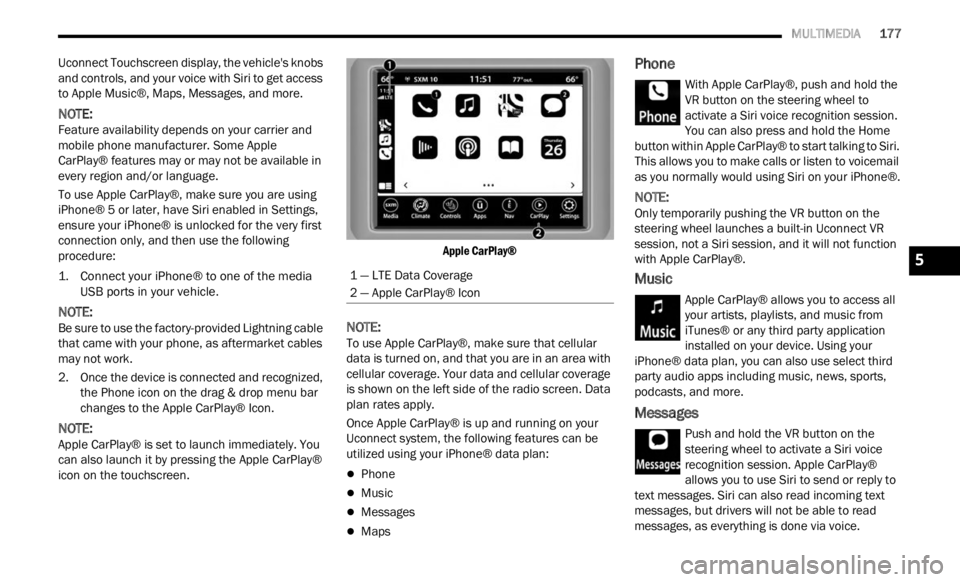
Apple CarPlay®
NOTE:
To use Apple CarPlay®, make sure that cellular
data i
s turned on, and that you are in an area with
cellular coverage. Your data and cellular coverage
is shown on the left side of the radio screen. Data
plan rates apply.
Once Apple CarPlay® is up and running on your
Uconne c
t system, the following features can be
utilized using your iPhone® data plan:
Phone
Music
Messages
Maps
Phone
With Apple CarPlay®, push and hold the
VR button on the steering wheel to
activ a
te a Siri voice recognition session.
You can also press and hold the Home
button within Apple CarPlay® to start talking to Siri.
This allows you to make calls or listen to voicemail
as you normally would using Siri on your iPhone®.
NOTE:
Only temporarily pushing the VR button on the
steer i
ng wheel launches a built-in Uconnect VR
session, not a Siri session, and it will not function
with Apple CarPlay®.
Music
Apple CarPlay® allows you to access all
your artists, playlists, and music from
i T u
n e
s
® or any third party application
installed on your device. Using your
iPhone® data plan, you can also use select third
party audio apps including music, news, sports,
podcasts, and more.
Messages
Push and hold the VR button on the
steering wheel to activate a Siri voice
recogn i
tion session. Apple CarPlay®
allows you to use Siri to send or reply to
text messages. Siri can also read incoming text
messages, but drivers will not be able to read
messages, as everything is done via voice.
1 — LTE Data Coverage
2 — Apple CarPlay® Icon
5
Page 180 of 364
178 MULTIMEDIA
Maps
Push and hold the VR button on the
steering wheel until the beep or tap the
Microph
one icon to ask Apple® Siri to
take you to a desired destination by
voice. You can also touch the Navigation icon in
Apple CarPlay® to access Apple® Maps.
If the VR button is not held, and is only pushed, the
built -
in Uconnect Navigation system (if equipped)
will launch instead of Apple CarPlay® Apple®
Maps.
NOTE:
A pop-up also appears, asking if you’d like to
switc h
, if an Apple CarPlay® navigation is currently
in use and you attempt to launch a built-in
Uconnect route. Selecting “Yes” switches the navi -
gation type to the newly used method of navigation
a nd a
route is planned for the new destination. If
“No” is selected, the navigation type remains
unchanged.
Apps
The Apple CarPlay® App plays all compatible apps
that are available to use, every time it is launched.
You must have the compatible app downloaded,
and you must be signed in to the app through your
mobile device for it to work with Apple CarPlay®.
Refer to http://www.apple.com/ios/carplay/ (US)
or https://www.apple.com/ca/ios/carplay/ (Canada) to see the latest list of available apps for
A
pple
CarPlay®.
Apple CarPlay® Voice Command
NOTE:
Feature availability depends on your carrier and
mobile
phone maker. Some Apple CarPlay®
features may not be available in every region and/
or language.
Apple CarPlay® allows you to use your voice to
intera
ct with Siri through your vehicle’s voice
recognition system, and use your smartphone’s
data plan to project your iPhone® and a number of
its apps onto your Uconnect touchscreen. Connect
your iPhone® 5 or higher to one of the media USB
ports, using the factory-provided Lightning cable,
and press the new Apple CarPlay® icon that
replaces your Phone icon on the main menu bar to
begin Apple CarPlay®. Push and hold the VR
button on the steering wheel, or press and hold the
Home button within Apple CarPlay®, to activate
Siri, which recognizes natural voice commands to
use a list of your iPhone® features:
Phone
Music
Messages
Maps — If Equipped
Additional Apps — If Equipped
NOTE:
Apple CarPlay® is a trademark of Apple® Inc.
iPhone ®
is a trademark of Apple® Inc., registered
in the US and other countries. Apple® terms of use
and privacy statements apply.
ANDROID AUTO™ AND APPLE
C
ARPLAY® TIPS AND TRICKS
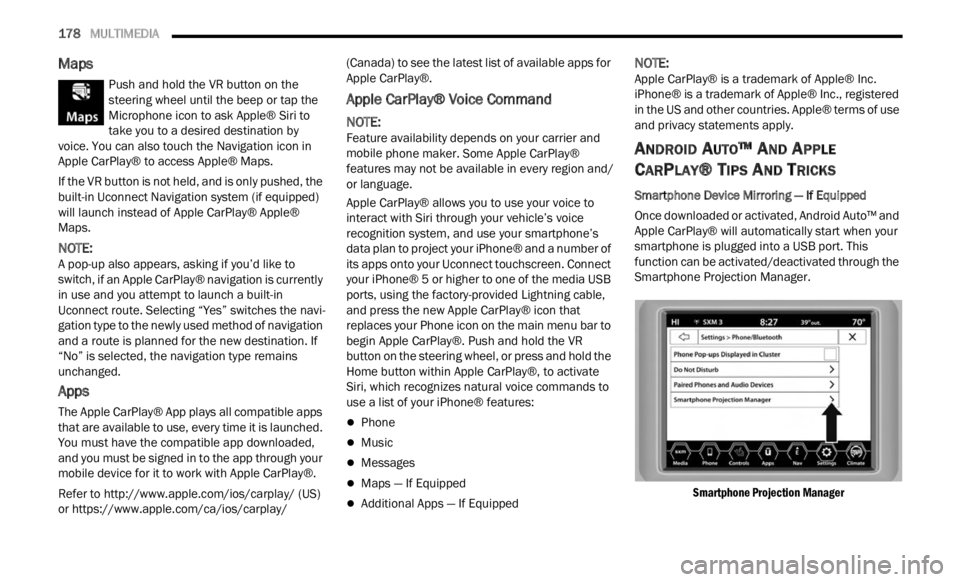
Smartphone Device Mirroring — If Equipped
Once downloaded or activated, Android Auto™ and
A p p
le
CarPlay® will automatically start when your
smartphone is plugged into a USB port. This
function can be activated/deactivated through the
Smartphone Projection Manager.
Smartphone Projection Manager
Page 204 of 364

202 MULTIMEDIA
service is integrated with a vehicle's Navigation
system, SiriusXM® Traffic Plus can help drivers
pick the fastest route based on traffic conditions.
1. Detailed information on traffic speed,
accid
ents, construction, and road closings.
2. Traffic information from multiple sources, inclu
ding police and emergency services,
cameras and road sensors.
3. Coast-to-coast delivery of traffic information.
4. Vi e
w conditions for points along your route and
beyon d
.
CONNECTED VEHICLE SERVICES —
IF EQUIPPED
IS MY VEHICLE CONNECTED?
If equipped, vehicles with an ASSIST and an SOS
button are connected vehicles. These buttons will
be located on either the rearview mirror or
overhead console, depending on the vehicle. If
these buttons are present in your vehicle, you have
a connected radio and can take advantage of the
many connected vehicle features.
For further information about the ASSIST and SOS
button s
Ú page 268.
INTRODUCTION TO CONNECTED VEHICLE
S
ERVICES
One of the many benefits of your vehicle’s
Uconnect system is that you can now take
advantage of SiriusXM Guardian™ connected
services. To unlock the full potential of SiriusXM
Guardian™ in your vehicle, you first need to
activate SiriusXM Guardian™ connected services.
NOTE:
SiriusXM Guardian™ involves the collection, trans -
mission and use of data from your vehicle
Ú page 220.
SiriusXM Guardian™ Contact Information
SiriusXM Guardian™/Care
US residents visit: https://www.driveucon -
nect.com/sirius-xm-guardian.html or call
1-844-796-4827
Canadian residents visit: https://www.driveuco-
nnect.ca/en/sirius-xm-guardian or call
1-877-324-9091
What Is SiriusXM Guardian™?
SiriusXM Guardian™ uses an embedded device in
the Uconnect system installed in your vehicle,
which receives GPS signals and communicates
with the SiriusXM Guardian™ Customer Care
center via wireless and landline communications
networks. Depending on the type of device in your
vehicle, some SiriusXM Guardian™ connected
services require an operable LTE (voice/data) or
3G or 4G (data) network compatible with your
device. SiriusXM Guardian™ is available only on
equipped vehicles purchased within the
continental United States, Alaska, Hawaii, Puerto
Rico and Canada.WARNING!
ALWAYS obey traffic laws and pay attention to
the road. ALWAYS drive safely with your hands on
the steering wheel. You have full responsibility
and assume all risks related to the use of the
features and applications in this vehicle. Only
use the features and applications when it is safe
to do so. Failure to comply may result in an
accident involving serious injury or death.
Page 214 of 364

212 MULTIMEDIA
Create A 4G Wi-Fi Hotspot For Use In Your Vehicle
How It Works
The 4G Wi-Fi Hotspot feature provides
the vehicle passengers with an internet
acces s
hotspot in the vehicle, using the
radio as an access point. The hotspot will
allow Wi-Fi-enabled in-vehicle devices (such as a
laptop or any other portable-enabled media
device) to wirelessly connect to the internet.
Uconnect offers a complimentary 3-month trial
period that includes 1GB of total data. The trial can
be activated any time within the first year of new
vehicle ownership.
Use one of these three ways to purchase a
subsc r
iption to the 4G Wi-Fi Hotspot:
1. From your vehicle’s touchscreen, select the 4G Wi
-Fi Hotspot App, and press the How To
Purchase button and follow the instructions.
2. Log onto your Owner’s Site and click the link to the A
T&T portal to get set up.
3. For existing Connected Car customers: Push
the ASSIST button to be routed to an AT&T
Customer Care agent who will assist you.
Once the 4G Wi-Fi Hotspot is purchased, you can
chang e
its name and the password by selecting the
Wi-Fi Hotspot App and pressing the Setup Wi-Fi
Hotspot button. You can also view the connected
devices from the app screen by pressing the View
Connected Devices button.
NOTE:
A SiriusXM Guardian™ subscription is not required
in ord e
r to purchase and use the 4G Wi-Fi Hotspot.
Stolen Vehicle Assistance — If Equipped
Description
If your vehicle is stolen, the SiriusXM Guardian™
Cus
to
m
er Care agent may be able to locate the
stolen vehicle and work with law enforcement to
help recover it.
How It Works
1. If your vehicle is stolen, contact local law enforc e
ment as soon as possible. They will
work with you to file a stolen vehicle report.
2. Next, inform SiriusXM Guardian™ Customer Care
that your vehicle has been stolen.
The SiriusXM Guardian™ Customer Care Agent
will a
sk for the stolen vehicle report number (as issued by your local law enforcement). If
you have downloaded the Mobile App, you can
push the Settings menu button on your device,
select “Help”, and then select “SiriusXM
Guardian™ Customer Care” to make the call.
3. SiriusXM Guardian™ Customer Care will auth e
nticate that you are the owner of the
vehicle and contact the law enforcement with
whom you filed the stolen vehicle report.
4. SiriusXM Guardian™ Customer Care will work with
your local law enforcement to locate the
vehicle. You will be contacted by law
enforcement if your vehicle is recovered. While
the investigation is ongoing, you should also
contact your insurance company to inform it of
the situation.
Requirements
Vehicle must be properly equipped with the
Uconnect system.
Vehicle must have an operable LTE (voice/data)
or 3G or 4G (data) network connection compat -
ible with your device.
Vehicle must be registered with SiriusXM
Guardian™ and have an active subscription that
includes the applicable feature.
NOTE:
Not all features of SiriusXM Guardian™ are
avail a
ble everywhere at all times, particularly in
remote or enclosed areas.
WARNING!
Always drive safely with your hands on the
steering wheel and obey all applicable laws. You
have full responsibility and assume all risks
related to the use of the features and
applications in this vehicle. Only use the
features and applications in this vehicle when it
is safe to do so. Failure to comply may result in
an accident involving in serious injury or death.
Page 223 of 364
221
(Continued)
SAFETY
SAFETY FEATURES
ANTI-LOCK BRAKE SYSTEM (ABS)
ABS provides increased vehicle stability and brake
performance under most braking conditions. The
system automatically prevents wheel lock and
enhances vehicle control during braking.
The ABS performs a self-check cycle to ensure that
the AB
S is working properly each time the vehicle
is started and driven. During this self-check, you
may hear a slight clicking sound as well as some
related motor noises.
The ABS is activated during braking when the
syste m
detects one or more wheels are beginning
to lock. Road conditions such as ice, snow, gravel,
bumps, railroad tracks, loose debris, or panic stops
may increase the likelihood of ABS activation(s).
You also may experience the following normal
chara c
teristics when the ABS activates:
ABS motor noise or clicking sounds (you may
continue to hear for a short time after the stop)
Brake pedal pulsations
A slight drop of the brake pedal at the end of the
stop ABS is designed to function with the Original
Equip
m
ent Manufacturer (OEM) tires. Modification
may result in degraded ABS performance.
Anti-Lock Brake System (ABS) Warning
Light
The yellow ABS Warning Light will turn on when the
ignition is placed in the ON/RUN mode and may
stay on for as long as four seconds.
If the ABS Warning Light remains on or comes on
while
driving, it indicates that the anti-lock portion
of the brake system is not functioning and that
service is required. However, the conventional
brake system will continue to operate normally if
the ABS Warning Light is on.
WARNING!
The ABS contains sophisticated electronic
equipment that may be susceptible to interfer -
ence caused by improperly installed or high
output
radio transmitting equipment. This
interference can cause possible loss of
anti-lock braking capability. Installation of
such equipment should be performed by qual -
ified professionals.
Pumping of the Anti-Lock Brakes will diminish
their effectiveness and may lead to a collision.
Pumping makes the stopping distance longer.
Just press firmly on your brake pedal when you
need to slow down or stop.
The ABS cannot prevent the natural laws of
physics from acting on the vehicle, nor can it
increase braking or steering efficiency beyond
that afforded by the condition of the vehicle
brakes and tires or the traction afforded.
The ABS cannot prevent collisions, including
those resulting from excessive speed in turns,
following another vehicle too closely, or hydro -
planing.
The capabilities of an ABS equipped vehicle
must never be exploited in a reckless or
dangerous manner that could jeopardize the
user’s safety or the safety of others.
WARNING!
6
Page 224 of 364

222 SAFETY
If the ABS Warning Light is on, the brake system
should be serviced as soon as possible to restore
the benefits of Anti-Lock Brakes. If the ABS
Warning Light does not come on when the ignition
is placed in the ON/RUN mode, have the light
repaired as soon as possible.
ELECTRONIC BRAKE CONTROL (EBC)
S
YSTEM
Your vehicle is equipped with an advanced
Electronic Brake Control (EBC) system. This system
includes Anti-Lock Brake System (ABS), Brake
Assist System (BAS), Electronic Roll Mitigation
(ERM), Electronic Stability Control (ESC), Hill Start
Assist (HSA) and Traction Control System (TCS).
These systems work together to enhance both
vehicle stability and control in various driving
conditions.
Your vehicle may also be equipped with Dynamic
Steer i
ng Torque (DST), Hill Descent Control (HDC)
and Trailer Sway Control (TSC).
Brake Assist System (BAS)
The BAS is designed to optimize the vehicle’s
braking capability during emergency braking
maneuvers. The system detects an emergency
braking situation by sensing the rate and amount
of brake application and then applies optimum
pressure to the brakes. This can help reduce
braking distances. The BAS complements the Anti-Lock Brake System (ABS). Applying the brakes
very quickly results in the best BAS assistance. To
receive the benefit of the system, you must apply
continuous braking pressure during the stopping
sequence (do not “pump” the brakes). Do not
reduce brake pedal pressure unless braking is no
longer desired. Once the brake pedal is released,
the BAS is deactivated.Dynamic Steering Torque (DST)
DST uses the integration of the Electronic Stability
Control (ESC) system with the electric power
steering to increase the safety level of the whole
vehicle. In critical situations (understeering,
oversteering, braking with different grip
conditions), through the DST function the ESC
system controls the steering to implement an additional torque contribution on the steering
wheel, to suggest the most correct maneuver to
the driver. The coordinated action of brakes and
steering increases the safety and feeling of vehicle
control.
NOTE:
The DST is a driving aid system and does not
repla c
e the driver’s actions while driving the car.
Electronic Roll Mitigation (ERM)
ERM anticipates the potential for wheel lift by
monitoring the driver’s steering wheel input and
the speed of the vehicle. When Electronic Roll
Mitigation (ERM) determines that the rate of
change of the steering wheel angle and vehicle's
speed are sufficient to potentially cause wheel lift,
it then applies the appropriate brake and may also
reduce engine power to lessen the chance that
wheel lift will occur. ERM can only reduce the
chance of wheel lift occurring during severe or
evasive driving maneuvers, and it will only
intervene during these types of maneuvers. It
cannot prevent wheel lift due to other factors, such
as road conditions, leaving the roadway, or striking
objects or other vehicles.
NOTE:
ERM is disabled any time the ESC is in “Full Off”
mode. F
or a complete explanation of the available
ESC modes, see Ú page 223.
WARNING!
The Brake Assist System (BAS) cannot prevent
the natural laws of physics from acting on the
vehicle, nor can it increase the traction afforded
by prevailing road conditions. BAS cannot
prevent collisions, including those resulting from
excessive speed in turns, driving on very slippery
surfaces, or hydroplaning. The capabilities of a
BAS-equipped vehicle must never be exploited in
a reckless or dangerous manner, which could
jeopardize the user's safety or the safety of
others.
Page 225 of 364

SAFETY 223
Electronic Stability Control (ESC)
ESC enhances directional control and stability of
the vehicle under various driving conditions. ESC
corrects for oversteering or understeering of the
vehicle by applying the brake of the appropriate
wheel(s) to counteract the above conditions.
Engine power may also be reduced to help the
vehicle maintain the desired path.
Oversteer — when the vehicle is turning more
than appropriate for the steering wheel position.
Understeer — when the vehicle is turning less
than appropriate for the steering wheel position.
ESC uses sensors in the vehicle to determine the
vehicl
e path intended by the driver and compares
it to the actual path of the vehicle. When the actual
path does not match the intended path, ESC
applies the brake of the appropriate wheel to
assist in counteracting the oversteer or understeer
condition.
The ESC Activation/Malfunction Indicator Light
locate d
in the instrument cluster will start to flash
as soon as the ESC system becomes active. The
ESC Activation/Malfunction Indicator Light also
flashes when the TCS is active. If the ESC
Activation/Malfunction Indicator Light begins to
flash during acceleration, ease up on the
accelerator and apply as little throttle as possible.
Be sure to adapt your speed and driving to the
prevailing road conditions.
WARNING!
Many factors, such as vehicle loading, road
conditions, and driving conditions, influence the
chance that wheel lift or rollover may occur.
Electronic Roll Mitigation (ERM) cannot prevent
all wheel lift or rollovers, especially those that
involve leaving the roadway or striking objects or
other vehicles. The capabilities of an
ERM-equipped vehicle must never be exploited
in a reckless or dangerous manner, which could
jeopardize the user's safety or the safety of
others.
WARNING!
Electronic Stability Control (ESC) cannot
prevent the natural laws of physics from acting
on the vehicle, nor can it increase the traction
afforded by prevailing road conditions. ESC
cannot prevent accidents, including those
resulting from excessive speed in turns, driving
on very slippery surfaces, or hydroplaning. ESC
also cannot prevent accidents resulting from
loss of vehicle control due to inappropriate
driver input for the conditions. Only a safe,
attentive, and skillful driver can prevent acci -
dents. The capabilities of an ESC equipped
vehic l
e must never be exploited in a reckless or
dangerous manner which could jeopardize the
user’s safety or the safety of others.
Vehicle modifications, or failure to properly
maintain your vehicle, may change the handling
characteristics of your vehicle, and may nega -
tively affect the performance of the ESC system.
Chang e
s to the steering system, suspension,
braking system, tire type and size or wheel size
may adversely affect ESC performance. Improp -
erly inflated and unevenly worn tires may also
d egrad
e ESC performance. Any vehicle modifi-
cation or poor vehicle maintenance that
r educe
s the effectiveness of the ESC system
can increase the risk of loss of vehicle control,
vehicle rollover, personal injury and death.
6
Page 235 of 364

SAFETY 233
If the vehicle enters 4WD Low, the FCW system
will be automatically deactivated.
The active braking is disabled when a trailer is
connected with a Mopar® Trailer Towing
system. If the vehicle is equipped with an after
-
market system, it is recommended that the
Activ e
Braking is turned off manually
Ú page 349.
Turning FCW On Or Off
The Forward Collision menu setting is located in
the Uconnect settings.
NOTE:
The default status of FCW is “Warning + Active
Braki n
g,” this allows the system to warn you of a
possible collision with the vehicle in front of you
and enable the active braking.
Changing the FCW status to “Off” deactivates
the system, so no warning or active braking will
be available in case of a possible collision.
Changing the FCW status to “Only warning”
prevents the system from providing limited
active braking, or additional brake support if the
driver is not braking adequately in the event of
a potential frontal collision, but maintains the
audible and visual warnings.
Changing the status of the system can be done at
any t i
me in the vehicle's head unit.
NOTE:
When the system is turned off, the FCW system
state
will reset.
Changing FCW Sensitivity
By changing the settings on the menu of the
Uconnect system, you can change the sensitivity of
the system by choosing one of the following three
options: "Near", "Medium" or "Far" Ú page 133.
The default option is "Medium". This setting allows
t he sy
stem to warn the driver of a possible collision
with the vehicle in front when it is at a standard
distance, intermediate between the “Near” and
“Far” settings.
By setting the sensitivity of the system to "Far", the
syste m
will warn the driver of a possible accident
with the vehicle in front when the latter is at a
greater distance, giving you the chance to act on
the brakes in a more limited and gradual way. This
setting gives the driver the maximum possible time
of reaction to prevent a possible accident.
NOTE:
The “Far” setting may result in a greater number of
FCW p os
sible collision warnings experienced.
By changing the option to "Near", the system will
warn t
he driver of a possible accident with the
vehicle ahead of it when the latter is a reduced
distance. This setting offers a reaction time to the
driver lower than the settings "Medium" and "Far",
in the case of a potential accident, providing a
more dynamic driving of the vehicle.
NOTE:
The “Near” setting may result in a lesser number of
FCW p os
sible collision warnings experienced.
The setting of the sensitivity of the system is
mainta
ined in memory when the engine is
switched off.
FCW Limited Warning
If the instrument cluster display reads “FCW
Limited Functionality” or “FCW Limited
Functionality Wipe Front Windshield” momentarily,
there may be a condition that limits FCW
functionality. Although the vehicle is still drivable
under normal conditions, the active braking may
not be fully available. Once the condition that
limited the system performance is no longer
present, the system will return to its full
performance state. If the problem persists, see an
authorized dealer.
WARNING!
Forward Collision Warning (FCW) is not intended
to avoid a collision on its own, nor can FCW
detect every type of potential collision. The driver
has the responsibility to avoid a collision by
controlling the vehicle via braking and steering.
Failure to follow this warning could lead to
serious injury or death.
6
Page 248 of 364
246 SAFETY
How To Engage The Automatic Locking Mode
1. Buckle the combination lap and shoulder
belt.
2
. Grab the shoulder portion and pull downward until
the entire seat belt is extracted.
3. Allow the seat belt to retract. As the seat belt retra
cts, you will hear a clicking sound. This
indicates the seat belt is now in the Automatic
Locking Mode.
How To Disengage The Automatic Locking Mode
Unbuckle the combination lap/shoulder belt and
allow i
t to retract completely to disengage the
Automatic Locking Mode and activate the vehicle
sensitive (emergency) locking mode.
SUPPLEMENTAL RESTRAINT SYSTEMS
(SRS)
Some of the safety features described in this
section may be standard equipment on some
models, or may be optional equipment on others. If
you are not sure, ask an authorized dealer.
The air bag system must be ready to protect you in
a colli
sion. The Occupant Restraint Controller
(ORC) monitors the internal circuits and
interconnecting wiring associated with the electrical Air Bag System Components. Your
vehicle may be equipped with the following Air Bag
System Components:
Air Bag System Components
Occupant Restraint Controller (ORC)
Air Bag Warning Light
Steering Wheel and Column
Instrument Panel
Knee Impact Bolsters
Driver and Front Passenger Air Bags
Seat Belt Buckle Switch
Supplemental Side Air Bags
Supplemental Knee Air Bags
Front and Side Impact Sensors
Seat Belt Pretensioners
Seat Track Position Sensors
Air Bag Warning Light
The Occupant Restraint Controller (ORC)
monitors the readiness of the electronic
parts
of the air bag system whenever the
ignition switch is in the AVV/START or
MAR/ACC/ON/RUN position. If the ignition switch
is in the STOP/OFF/LOCK position the air bag
system is not on and the air bags will not inflate.
WARNING!
Never place a rear-facing child restraint in
front of an air bag. A deploying passenger
front air bag can cause death or serious injury
to a child 12 years or younger, including a
child in a rear-facing child restraint.
Never install a rear-facing child restraint in the
front seat of a vehicle. Only use a rear-facing
child restraint in the rear seat. If the vehicle
does not have a rear seat, do not transport a
rear-facing child restraint in that vehicle.
WARNING!
The seat belt assembly must be replaced if the
switchable Automatic Locking Retractor (ALR)
feature or any other seat belt function is not
working properly when checked according to
the procedures in the Service Manual.
Failure to replace the seat belt assembly
could increase the risk of injury in collisions.
Do not use the Automatic Locking Mode to
restrain occupants who are wearing the seat
belt or children who are using booster seats.
The locked mode is only used to install
rear-facing or forward-facing child restraints
that have a harness for restraining the child.
Page 249 of 364
SAFETY 247
The ORC contains a backup power supply system
that may deploy the air bag system even if the
battery loses power or it becomes disconnected
prior to deployment.
The ORC turns on the Air Bag Warning Light in the
instru
ment panel for approximately four to eight
seconds for a self-check when the ignition switch is
in the MAR/ACC/ON/RUN position. After the
self-check, the Air Bag Warning Light will turn off. If
the ORC detects a malfunction in any part of the
system, it turns on the Air Bag Warning Light, either
momentarily or continuously. A single chime will
sound to alert you if the light comes on again after
initial startup.
The ORC also includes diagnostics that will
illum i
nate the instrument panel Air Bag Warning
Light if a malfunction is detected that could affect
the air bag system. The diagnostics also record the
nature of the malfunction. While the air bag system
is designed to be maintenance free, if any of the
following occurs, have an authorized dealer
service the air bag system immediately.
The Air Bag Warning Light does not come on
during the four to eight seconds when the igni -
tion switch is first in the MAR/ACC/ON/RUN
p osition
.
The Air Bag Warning Light remains on after the
four to eight-second interval.
The Air Bag Warning Light comes on intermit -
tently or remains on while driving.
NOTE:
If the speedometer, tachometer, or any engine
relat e
d gauges are not working, the Occupant
Restraint Controller (ORC) may also be disabled. In
this condition the air bags may not be ready to
inflate for your protection. Have an authorized
dealer service the air bag system immediately.
Redundant Air Bag Warning Light
If a fault with the Air Bag Warning Light is
detected, which could affect the
S up
p l
e
mental Restraint System (SRS),
the Redundant Air Bag Warning Light will
illuminate on the instrument panel. The
Redundant Air Bag Warning Light will stay on until
the fault is cleared. In addition, a single chime will
sound to alert you that the Redundant Air Bag
Warning Light has come on and a fault has been
detected. If the Redundant Air Bag Warning Light
comes on intermittently or remains on while driving have an authorized dealer service the vehicle
immediately
Ú page 69.
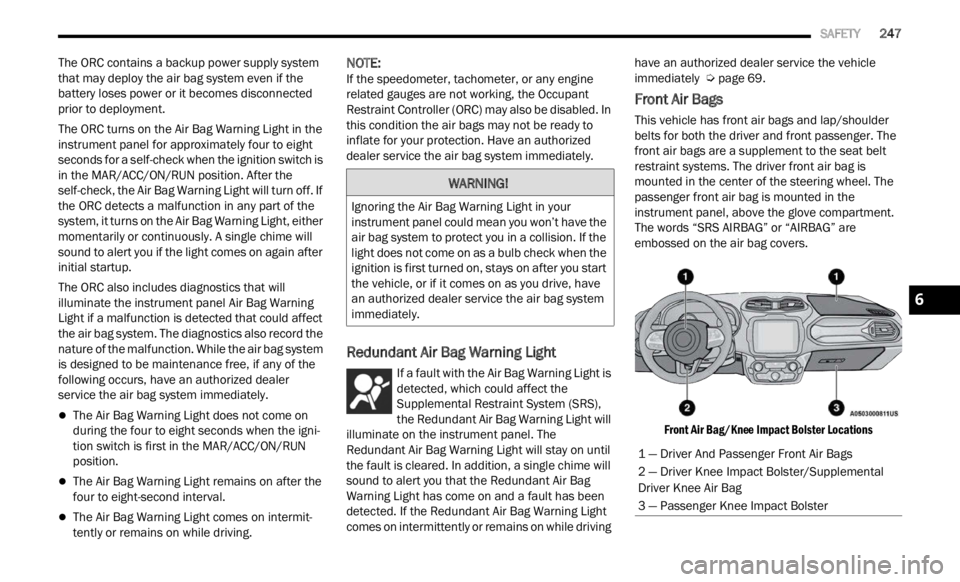
Front Air Bags
This vehicle has front air bags and lap/shoulder
belts for both the driver and front passenger. The
front air bags are a supplement to the seat belt
restraint systems. The driver front air bag is
mounted in the center of the steering wheel. The
passenger front air bag is mounted in the
instrument panel, above the glove compartment.
The words “SRS AIRBAG” or “AIRBAG” are
embossed on the air bag covers.
Front Air Bag/Knee Impact Bolster Locations
WARNING!
Ignoring the Air Bag Warning Light in your
instrument panel could mean you won’t have the
air bag system to protect you in a collision. If the
light does not come on as a bulb check when the
ignition is first turned on, stays on after you start
the vehicle, or if it comes on as you drive, have
an authorized dealer service the air bag system
immediately.
1 — Driver And Passenger Front Air Bags
2 — Driver Knee Impact Bolster/Supplemental
Driver Knee Air Bag
3 — Passenger Knee Impact Bolster
6