center console JEEP RENEGADE 2023 Owners Manual
[x] Cancel search | Manufacturer: JEEP, Model Year: 2023, Model line: RENEGADE, Model: JEEP RENEGADE 2023Pages: 364, PDF Size: 18.65 MB
Page 42 of 364
40 GETTING TO KNOW YOUR VEHICLE
NOTE:
Before exiting the vehicle, make sure that the
interior lights are turned off. This will prevent the
battery from discharging once the doors are
closed.
If a light is left on, it will automatically be turned
off after approximately 15 minutes after the
ignit i
on is in the OFF position.
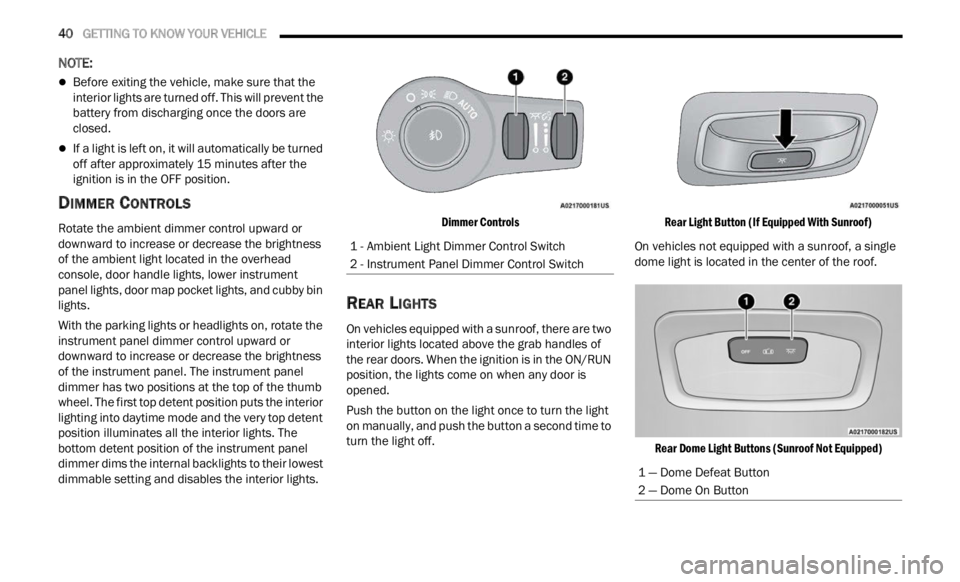
DIMMER CONTROLS
Rotate the ambient dimmer control upward or
downward to increase or decrease the brightness
of the ambient light located in the overhead
console, door handle lights, lower instrument
panel lights, door map pocket lights, and cubby bin
lights.
With the parking lights or headlights on, rotate the
instru
ment panel dimmer control upward or
downward to increase or decrease the brightness
of the instrument panel. The instrument panel
dimmer has two positions at the top of the thumb
wheel. The first top detent position puts the interior
lighting into daytime mode and the very top detent
position illuminates all the interior lights. The
bottom detent position of the instrument panel
dimmer dims the internal backlights to their lowest
dimmable setting and disables the interior lights.
Dimmer Controls
REAR LIGHTS
On vehicles equipped with a sunroof, there are two
interior lights located above the grab handles of
the rear doors. When the ignition is in the ON/RUN
position, the lights come on when any door is
opened.
Push the button on the light once to turn the light
on man
u
ally, and push the button a second time to
turn the light off.
Rear Light Button (If Equipped With Sunroof)
On vehicles not equipped with a sunroof, a single
dome l i
ght is located in the center of the roof.
Rear Dome Light Buttons (Sunroof Not Equipped)
1 - Ambient Light Dimmer Control Switch
2 - Instrument Panel Dimmer Control Switch
1 — Dome Defeat Button
2 — Dome On Button
Page 51 of 364
GETTING TO KNOW YOUR VEHICLE 49
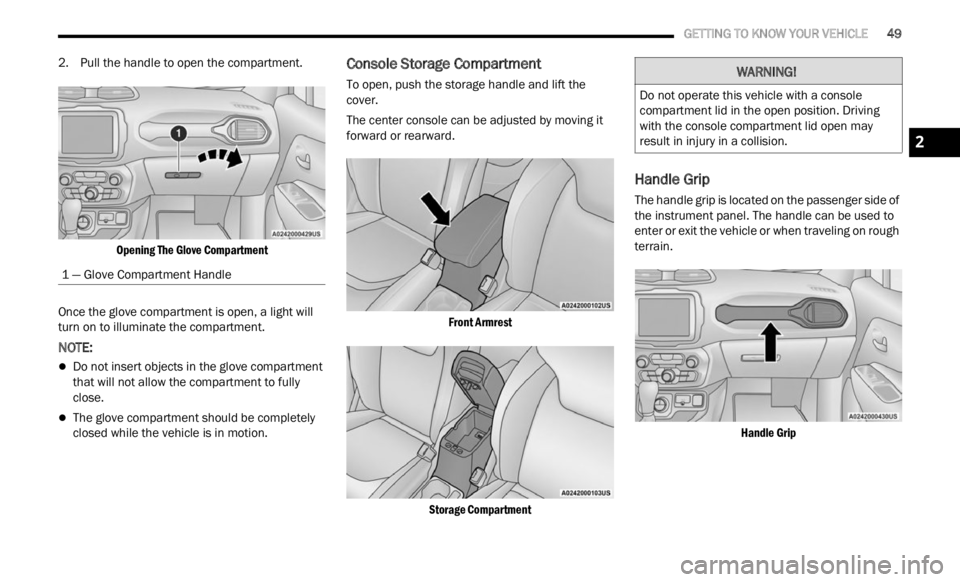
2. Pull the handle to open the compartment.
Opening The Glove Compartment
Once the glove compartment is open, a light will
turn on
to illuminate the compartment.
NOTE:
Do not insert objects in the glove compartment
that will not allow the compartment to fully
close.
The glove compartment should be completely
closed while the vehicle is in motion.
Console Storage Compartment
To open, push the storage handle and lift the
cover.
The center console can be adjusted by moving it
forward
or rearward.
Front Armrest
Storage Compartment
Handle Grip
The handle grip is located on the passenger side of
the instrument panel. The handle can be used to
enter or exit the vehicle or when traveling on rough
terrain.
Handle Grip
1 — Glove Compartment Handle
WARNING!
Do not operate this vehicle with a console
compartment lid in the open position. Driving
with the console compartment lid open may
result in injury in a collision.
2
Page 52 of 364
50 GETTING TO KNOW YOUR VEHICLE
USB/AUX CONTROL
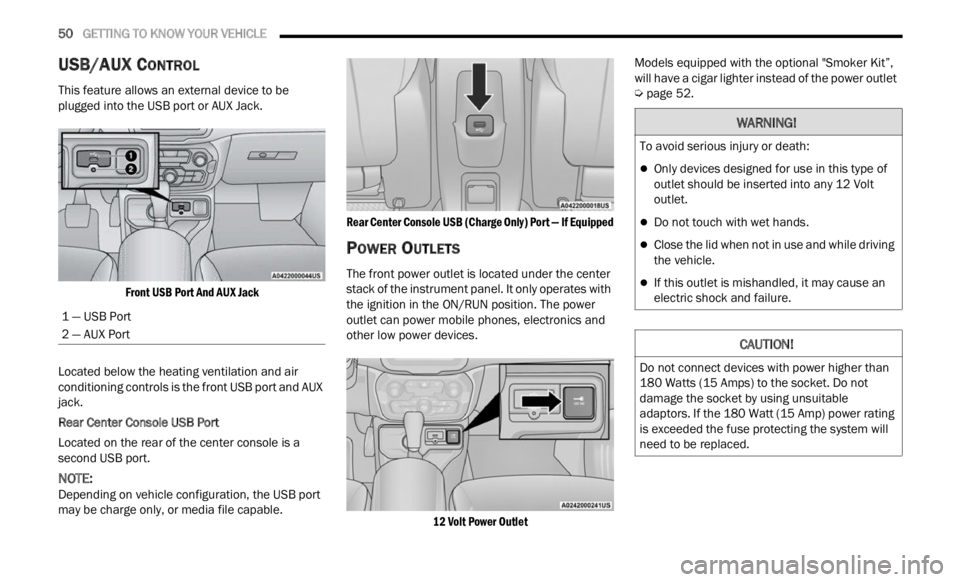
This feature allows an external device to be
plugged into the USB port or AUX Jack.
Front USB Port And AUX Jack
Located below the heating ventilation and air
condit i
oning controls is the front USB port and AUX
jack.
Rear Center Console USB Port
Located on the rear of the center console is a
s econd
USB port.
NOTE:
Depending on vehicle configuration, the USB port
may b e
charge only, or media file capable.
Rear Center Console USB (Charge Only) Port — If Equipped
POWER OUTLETS
The front power outlet is located under the center
stack of the instrument panel. It only operates with
the ignition in the ON/RUN position. The power
outlet can power mobile phones, electronics and
other low power devices.
12 Volt Power Outlet
Models equipped with the optional "Smoker Kit”,
will h
ave a cigar lighter instead of the power outlet
Ú page 52.
1 — USB Port
2 — AUX Port
WARNING!
To avoid serious injury or death:
Only devices designed for use in this type of
outlet should be inserted into any 12 Volt
outlet.
Do not touch with wet hands.
Close the lid when not in use and while driving
the vehicle.
If this outlet is mishandled, it may cause an
electric shock and failure.
CAUTION!
Do not connect devices with power higher than
180 Watts (15 Amps) to the socket. Do not
damage the socket by using unsuitable
adaptors. If the 180 Watt (15 Amp) power rating
is exceeded the fuse protecting the system will
need to be replaced.
Page 53 of 364
GETTING TO KNOW YOUR VEHICLE 51
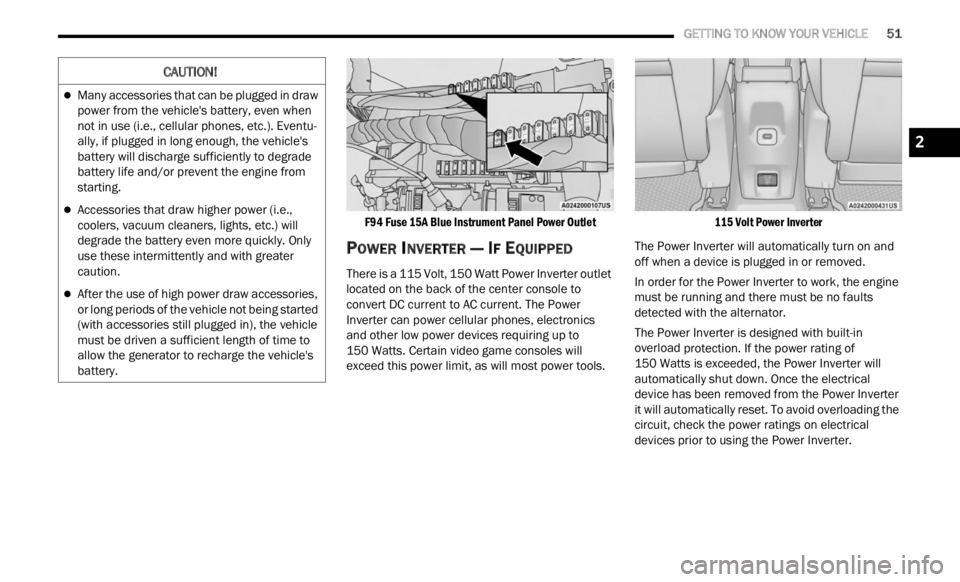
F94 Fuse 15A Blue Instrument Panel Power Outlet
POWER INVERTER — IF EQUIPPED
There is a 115 Volt, 150 Watt Power Inverter outlet
located on the back of the center console to
convert DC current to AC current. The Power
Inverter can power cellular phones, electronics
and other low power devices requiring up to
150 Watts. Certain video game consoles will
excee d
this power limit, as will most power tools.
115 Volt Power Inverter
The Power Inverter will automatically turn on and
off wh e
n a device is plugged in or removed.
In order for the Power Inverter to work, the engine
must b
e running and there must be no faults
detected with the alternator.
The Power Inverter is designed with built-in
overloa d
protection. If the power rating of
150 Watts is exceeded, the Power Inverter will
a utomat
ically shut down. Once the electrical
device has been removed from the Power Inverter
it will automatically reset. To avoid overloading the
circuit, check the power ratings on electrical
devices prior to using the Power Inverter.
CAUTION!
Many accessories that can be plugged in draw
power from the vehicle's battery, even when
not in use (i.e., cellular phones, etc.). Eventu -
ally, if plugged in long enough, the vehicle's
batte r
y will discharge sufficiently to degrade
battery life and/or prevent the engine from
starting.
Accessories that draw higher power (i.e.,
coolers, vacuum cleaners, lights, etc.) will
degrade the battery even more quickly. Only
use these intermittently and with greater
caution.
After the use of high power draw accessories,
or long periods of the vehicle not being started
(with accessories still plugged in), the vehicle
must be driven a sufficient length of time to
allow the generator to recharge the vehicle's
battery.
2
Page 84 of 364

82 STARTING AND OPERATING
NOTE:
If the vehicle fails to shut off using the ignition
Ú page 64.
Opening the driver side door with the ignition in
R UN w i
ll sound a short chime that reminds the
driver to place the ignition to OFF.
When the ignition is in the OFF position, the
window
switches remain active for three minutes.
Opening a front door will cancel this function.
After severe driving, idle the engine to allow the
tempe r
ature inside the engine compartment to
cool before shutting off the engine.
TURBOCHARGER “COOL DOWN” —
I
F EQUIPPED
This vehicle is equipped with an after-run pump to
cool the turbocharger after the engine is shut off.
Depending on the type of driving and the amount
of cargo, the pump will run for up to 10 minutes
after
the engine has been shut off to circulate
coolant through the turbocharger. Although the
pump is rubber-mounted for quiet operation, it is
normal to hear it running during this time.
ENGINE BREAK-IN RECOMMENDATIONS
A long break-in period is not required for the engine
and drivetrain (transmission and axle) in your
vehicle.
Drive moderately during the first 300 miles
(500 km
). After the initial 60 miles (100 km),
s p e
ed
s
up to 50 or 55 mph (80 or 90 km/h) are
desir a
ble.
While cruising, brief full-throttle acceleration within
the li
mits of local traffic laws contributes to a good
break-in. Wide-open throttle acceleration in low
gear can be detrimental and should be avoided.
The engine oil installed in the engine at the factory
is a h
igh-quality energy conserving type lubricant.
Oil changes should be consistent with anticipated
climate conditions under which vehicle operations
will occur. For the recommended viscosity and
quality grades Ú page 345.
NOTE:
A new engine may consume some oil during its first
few t h
ousand miles (kilometers) of operation. This
should be considered a normal part of the break-in
and not interpreted as a problem.
ELECTRIC PARK BRAKE (EPB)
Your vehicle is equipped with an EPB that offers
simple operation, and some additional features
that make the parking brake more convenient and
useful.
The parking brake is primarily intended to prevent
the ve
hicle from rolling while parked. Before
leaving the vehicle, make sure that the parking
brake is applied. Also, be certain to leave the
transmission in PARK.
The EPB switch is located in the center console.
You can engage the EPB in two ways:
Manually, by applying the parking brake switch.
Automatically, by enabling the Auto Park Brake
feature in the customer programmable features
section of the Uconnect settings or in “Safe
Hold” conditions.CAUTION!
Never use Non-Detergent Oil or Straight Mineral
Oil in the engine or damage may result.
Page 97 of 364
STARTING AND OPERATING 95
TO MANUALLY TURN OFF THE STOP/
S
TART SYSTEM
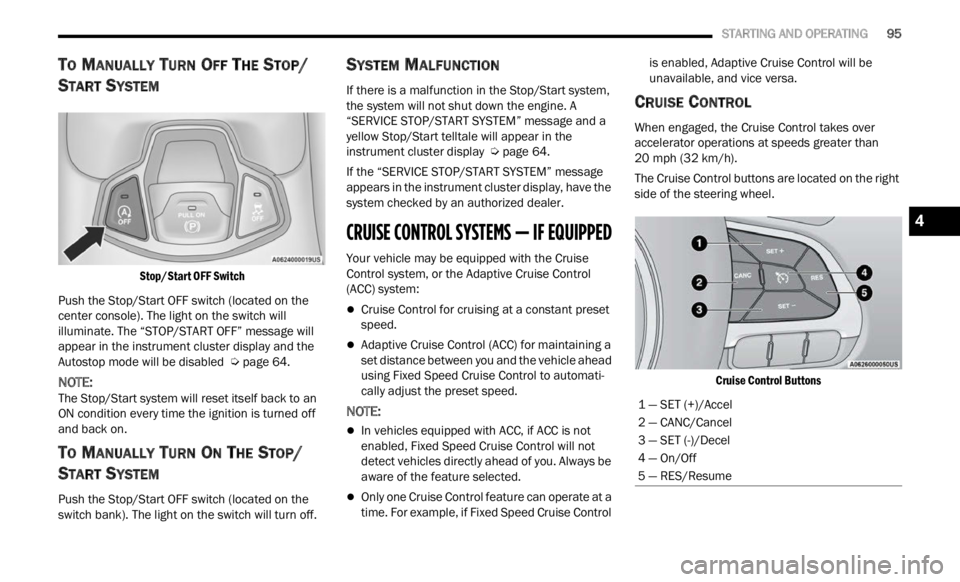
Stop/Start OFF Switch
Push the Stop/Start OFF switch (located on the
center
console). The light on the switch will
illuminate. The “STOP/START OFF” message will
appear in the instrument cluster display and the
Autostop mode will be disabled Ú page 64.
NOTE:
The Stop/Start system will reset itself back to an
ON con d
ition every time the ignition is turned off
and back on.
TO MANUALLY TURN ON THE STOP/
S
TART SYSTEM
Push the Stop/Start OFF switch (located on the
switch bank). The light on the switch will turn off.
SYSTEM MALFUNCTION
If there is a malfunction in the Stop/Start system,
the system will not shut down the engine. A
“SERVICE STOP/START SYSTEM” message and a
yellow Stop/Start telltale will appear in the
instrument cluster display Ú page 64.
If the “SERVICE STOP/START SYSTEM” message
appea r
s in the instrument cluster display, have the
system checked by an authorized dealer.
CRUISE CONTROL SYSTEMS — IF EQUIPPED
Your vehicle may be equipped with the Cruise
Control system, or the Adaptive Cruise Control
(ACC) system:
Cruise Control for cruising at a constant preset
speed.
Adaptive Cruise Control (ACC) for maintaining a
set distance between you and the vehicle ahead
using Fixed Speed Cruise Control to automati -
cally adjust the preset speed.
NOTE:
In vehicles equipped with ACC, if ACC is not
enabled, Fixed Speed Cruise Control will not
detect vehicles directly ahead of you. Always be
aware of the feature selected.
Only one Cruise Control feature can operate at a
time. For example, if Fixed Speed Cruise Control is enabled, Adaptive Cruise Control will be
unavailable, and vice versa.
CRUISE CONTROL
When engaged, the Cruise Control takes over
accelerator operations at speeds greater than
20
mph (32 km/h).
The Cruise Control buttons are located on the right
side of
the steering wheel.
Cruise Control Buttons
1 — SET (+)/Accel
2 — CANC/Cancel
3 — SET (-)/Decel
4 — On/Off
5 — RES/Resume
4
Page 181 of 364
MULTIMEDIA 179
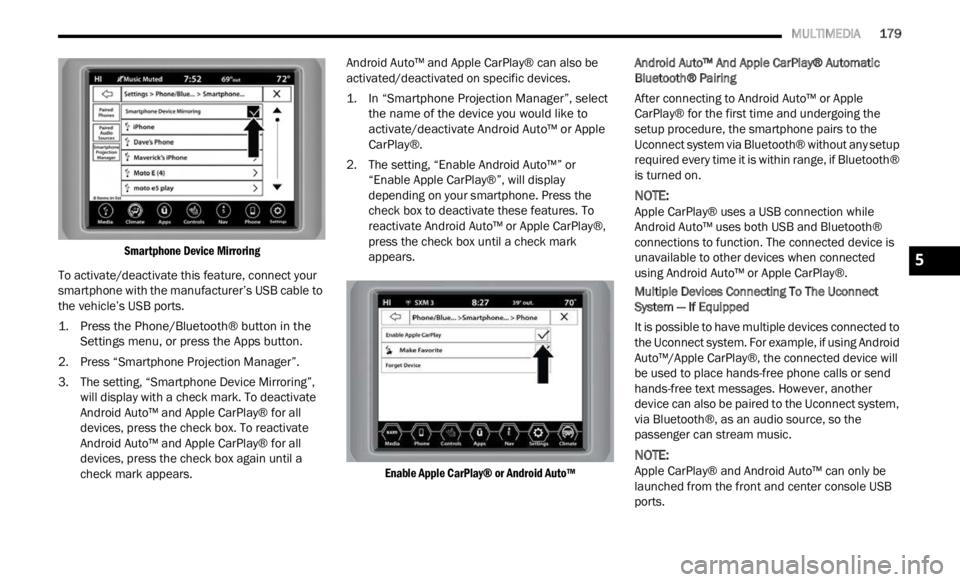
Smartphone Device Mirroring
To activate/deactivate this feature, connect your
smartp
hone with the manufacturer’s USB cable to
the vehicle’s USB ports.
1. Press the Phone/Bluetooth® button in the Sett i
ngs menu, or press the Apps button.
2. Press “Smartphone Projection Manager”.
3. The
setting, “Smartphone Device Mirroring”,
will
display with a check mark. To deactivate
Android Auto™ and Apple CarPlay® for all
devices, press the check box. To reactivate
Android Auto™ and Apple CarPlay® for all
devices, press the check box again until a
check mark appears. Android Auto™ and Apple CarPlay® can also be
activ
a
ted/deactivated on specific devices.
1. In “Smartphone Projection Manager”, select the na
me of the device you would like to
activate/deactivate Android Auto™ or Apple
CarPlay®.
2. The setting, “Enable Android Auto™” or “Enab
le Apple CarPlay®”, will display
depending on your smartphone. Press the
check box to deactivate these features. To
reactivate Android Auto™ or Apple CarPlay®,
press the check box until a check mark
appears.
Enable Apple CarPlay® or Android Auto™
Android Auto™ And Apple CarPlay® Automatic
Bluetoot
h® Pairing
After connecting to Android Auto™ or Apple
CarPla
y® for the first time and undergoing the
setup procedure, the smartphone pairs to the
Uconnect system via Bluetooth® without any setup
required every time it is within range, if Bluetooth®
is turned on.
NOTE:
Apple CarPlay® uses a USB connection while
Androi d
Auto™ uses both USB and Bluetooth®
connections to function. The connected device is
unavailable to other devices when connected
using Android Auto™ or Apple CarPlay®.
Multiple Devices Connecting To The Uconnect
Syste m
— If Equipped
It is possible to have multiple devices connected to
the Uc
onnect system. For example, if using Android
Auto™/Apple CarPlay®, the connected device will
be used to place hands-free phone calls or send
hands-free text messages. However, another
device can also be paired to the Uconnect system,
via Bluetooth®, as an audio source, so the
passenger can stream music.
NOTE:
Apple CarPlay® and Android Auto™ can only be
launc h
ed from the front and center console USB
ports.
5
Page 204 of 364

202 MULTIMEDIA
service is integrated with a vehicle's Navigation
system, SiriusXM® Traffic Plus can help drivers
pick the fastest route based on traffic conditions.
1. Detailed information on traffic speed,
accid
ents, construction, and road closings.
2. Traffic information from multiple sources, inclu
ding police and emergency services,
cameras and road sensors.
3. Coast-to-coast delivery of traffic information.
4. Vi e
w conditions for points along your route and
beyon d
.
CONNECTED VEHICLE SERVICES —
IF EQUIPPED
IS MY VEHICLE CONNECTED?
If equipped, vehicles with an ASSIST and an SOS
button are connected vehicles. These buttons will
be located on either the rearview mirror or
overhead console, depending on the vehicle. If
these buttons are present in your vehicle, you have
a connected radio and can take advantage of the
many connected vehicle features.
For further information about the ASSIST and SOS
button s
Ú page 268.
INTRODUCTION TO CONNECTED VEHICLE
S
ERVICES
One of the many benefits of your vehicle’s
Uconnect system is that you can now take
advantage of SiriusXM Guardian™ connected
services. To unlock the full potential of SiriusXM
Guardian™ in your vehicle, you first need to
activate SiriusXM Guardian™ connected services.
NOTE:
SiriusXM Guardian™ involves the collection, trans -
mission and use of data from your vehicle
Ú page 220.
SiriusXM Guardian™ Contact Information
SiriusXM Guardian™/Care
US residents visit: https://www.driveucon -
nect.com/sirius-xm-guardian.html or call
1-844-796-4827
Canadian residents visit: https://www.driveuco-
nnect.ca/en/sirius-xm-guardian or call
1-877-324-9091
What Is SiriusXM Guardian™?
SiriusXM Guardian™ uses an embedded device in
the Uconnect system installed in your vehicle,
which receives GPS signals and communicates
with the SiriusXM Guardian™ Customer Care
center via wireless and landline communications
networks. Depending on the type of device in your
vehicle, some SiriusXM Guardian™ connected
services require an operable LTE (voice/data) or
3G or 4G (data) network compatible with your
device. SiriusXM Guardian™ is available only on
equipped vehicles purchased within the
continental United States, Alaska, Hawaii, Puerto
Rico and Canada.WARNING!
ALWAYS obey traffic laws and pay attention to
the road. ALWAYS drive safely with your hands on
the steering wheel. You have full responsibility
and assume all risks related to the use of the
features and applications in this vehicle. Only
use the features and applications when it is safe
to do so. Failure to comply may result in an
accident involving serious injury or death.
Page 205 of 364

MULTIMEDIA 203
NOTE:
Certain SiriusXM Guardian™ connected
services are dependent upon an operative
telematics device, a cellular connection, naviga
-
tion map data, and GPS satellite signal recep -
tion, which can limit the ability to reach the
r espons
e center or reach emergency support.
Not all features of SiriusXM Guardian™ are
available everywhere at all times, particularly in
remote or enclosed areas.
Other factors outside the control of SiriusXM
Guardian™ that may limit or prevent service
delivery are hills, structures, buildings, tunnels,
weather, damage to the electrical system or
other important parts of your vehicle, network
congestion, civil disturbances, actions of third
parties or the government, Internet failure, and/
or the physical location of your vehicle, such as
in an underground parking structure or under a
bridge.
Not all SiriusXM Guardian™ features are available
for al l
models.
SiriusXM Guardian™ provides:
The ability to remotely lock/unlock and remote
start your vehicle from virtually anywhere by
using the Mobile App or your computer.
If equipped — Send & Go capability with the
Mobile App. Use the Mobile App to easily search, map and send your locations directly to your
Uconnect Navigation.
The ability to locate your vehicle, when you
forget where you parked, using the Vehicle
Finder function of the Mobile App.
Before you drive, familiarize yourself with the
easy- t
o-use Uconnect system and SiriusXM
Guardian™ connected services.
The ASSIST and SOS Call Buttons On Your
Rearv i
ew Mirror Or Overhead Console
If equipped, the ASSIST Button is used for
contact
ing Roadside Assistance, Vehicle Care,
Uconnect Care, and SiriusXM Guardian™
Customer Care. The SOS Call button connects you
directly to SiriusXM Guardian™ Customer Care for
assistance in an emergency.
Activation — If Equipped
To unlock the full potential of SiriusXM Guardian™
in your vehicle, you must activate your SiriusXM
Guardian™ connected services.
1. Press the Apps icon on the bottom of your in-ve hi
cle touchscreen.
2. Select the Activate Services icon from your list of app
s.
3. For customers in the United States , sel
ect
“Customer Care” to speak with a SiriusXM
Guardian™ Customer Care agent who will activate services in your vehicle, or select
“Enter Email” to activate on the web.
For customers in Canada
, ente
r your email ad-
dress to activate services in your vehicle.
Included Trial Period For New Vehicles
Your new vehicle may come with an included trial*
period for use of SiriusXM Guardian™ connected
services starting on the date of vehicle purchase.
To get started with your trial, enrollment in
SiriusXM Guardian™ is required.
* Included trial applies to new vehicles only.
Features And Packages
After the trial period, you must purchase a
subscription to continue your services by calling a
SiriusXM Guardian™ Customer Care agent.
GETTING STARTED WITH CONNECTED
V
EHICLE SERVICES
Download The Mobile App
Once you have activated your services, you’re only
a few steps away from using connected services.
Download the Mobile App to your mobile device.
Use your Owner Account login and password to
open the app and then set up a PIN.
5
Page 207 of 364

MULTIMEDIA 205
Editing Your Notifications
Notifications are an important element of your
Sirius
XM Guardian™ account. For example, any
time you use your remote services (such as
Remote Door Unlock), you can elect to receive a
text message, push notification, and/or E-mail to
notify you of the event. To set up the notifications,
please follow these instructions:
1. Log on to your Owner’s Account at
https:// www. m
opar.com/en-us.html (US Residents)
and select “Dashboard”, or www.mopar.ca
(Canadian Residents), select “My Vehicle”
a nd t he
n “Dashboard”.
2. Click the Edit/Edit Profile button. 3. Onc
e there, select “SiriusXM Guardian™”
wher e
you can edit Notification Preferences.
4. You can enter a mobile phone and/or email addre
ss to notify you, and you can customize
the types of messages.
USING SIRIUSXM GUARDIAN™
SOS Call — If Equipped
Access To Emergency Services At The Push Of A
Button
SiriusXM Guardian™ In-Vehicle Assistance Features
With SiriusXM Guardian™, your vehicle has
onboard
assistance features located on the
rearview mirror or overhead console designed to
enhance your driving experience if you should ever
need assistance or support.
Description
SOS Call offers a convenient way to get in contact
w ith a
SiriusXM Guardian™ Customer Care agent
in the event of an emergency. When the
connection between the vehicle and the live agent
is made, your vehicle will automatically transmit
location information. In the event of a minor
collision, medical or any other emergency, press
the SOS button to be connected to a call center
agent who can send emergency assistance to your
vehicle’s location.
NOTE:
Certain SiriusXM Guardian™ connected services
are d e
pendent on an operational Uconnect
system, cellular network availability that is compatible with the device in your vehicle, and
GPS network availability. Not all features of
SiriusXM Guardian™ are available everywhere at
all times, particularly in remote or enclosed areas.
How It Works
1. Push the SOS Call button; the indicator light will
turn green indicating a call has been
placed.
NOTE:
In case the SOS Call button is accidentally
pushed, there is a 10-second delay before
the SOS call is placed. The system will
verbally alert you that a call is about to be
made. To cancel the SOS Call connection,
push the SOS Call button on the rearview
mirror or overhead console or press the
Cancel button on the touchscreen within 10
seconds.
During an SOS Call, the Bluetooth®-paired
phone is disconnected so incoming or
outgoing calls will go through your mobile
device versus the hands-free system which
is not available due to the SOS Call.
2. Once a connection between the vehicle and a Siriu
sXM Guardian™ Customer Care agent is
made, the agent will stay on the line with you.
NOTE:
Calls between the vehicle occupants and the
Siriu s
XM Guardian™ Customer Care center may be
WARNING!
Some SiriusXM Guardian™ connected services,
including SOS Call and Roadside Assistance
Call, will NOT work without a network connection
compatible with your device.
Center Light StatusDescription
Off No call activated
Green Active call in progress
Red System error
5