buttons JEEP WAGONEER 2023 Owner's Manual
[x] Cancel search | Manufacturer: JEEP, Model Year: 2023, Model line: WAGONEER, Model: JEEP WAGONEER 2023Pages: 396, PDF Size: 15.17 MB
Page 73 of 396
GETTING TO KNOW YOUR VEHICLE71
REAR CLIMATE CONTROL OFF
To turn the rear climate controls off, push the
OFF button below the rear climate control
display, or if equipped, press and release the
OFF button on the Rear Comfort And
Convenience Display touchscreen, near the blower
buttons.
AUTOMATIC TEMPERATURE CONTROL
(ATC)
Automatic Operation
1. Push the AUTO button on the front climate control
display, and the word “AUTO” will illuminate along
with two temperatures for the driver and front
passenger. The system will then automatically
regulate the amount of airflow.
2. Adjust the temperature you would like the system to maintain, by adjusting the driver, passenger, and rear
temperatures. Once the desired temperature is
displayed, the system will achieve, and automatically
maintain, that comfort level.
3. When the system is set up for your comfort level, it is not necessary to change the settings. You will
experience the greatest efficiency by simply allowing
the system to function automatically.
NOTE:It is not necessary to move the temperature settings. The
system automatically adjusts the temperature, mode, and
fan speed to provide comfort as quickly as possible. To provide you with maximum comfort in the automatic
mode during cold start-ups, the blower fan will remain on
low until the engine warms up. The fan will engage
immediately if the Defrost mode is selected, or by
changing the front blower setting.
Manual Operation Override
This system offers a full complement of manual override
features. The AUTO symbol in the front climate control
display will no longer be illuminated when the system is
being used in the manual mode.
NOTE:The system will not automatically sense the presence of
fog, mist or ice on the windshield. Defrost mode must be
manually selected to clear the windshield and side glass.
CLIMATE VOICE RECOGNITION
Adjust vehicle temperatures hands-free and keep
everyone comfortable while you keep moving ahead (If
vehicle is equipped with climate control).
Push the VR/Phone button . After the beep, say one of
the following commands:
“Set the driver temperature to 70 degrees”
“Set the passenger temperature to 70 degrees”
Did You Know: Voice Command for Climate may only be
used to adjust the interior temperature of your vehicle.
Voice Command will not work to adjust the heated seats
or steering wheel if equipped.
OPERATING TIPS
Refer to the chart at the end of this section for suggested
control settings for various weather conditions.
Summer Operation
The engine cooling system must be protected with a
high-quality antifreeze coolant to provide proper corrosion
protection and to protect against engine overheating. OAT
coolant (conforming to MS.90032) is recommended.
Winter Operation
To ensure the best possible heater and defroster
performance, make sure the engine cooling system is
functioning properly and the proper amount, type, and
concentration of coolant is used. Use of the Air
Recirculation mode during Winter months is not
recommended, because it may cause window fogging.
Vacation/Storage
For information on maintaining the Climate Control system
when the vehicle is being stored for an extended period of
time, see
Úpage 368.
CAUTION!
Interior air enters the Rear Climate Control system
through an intake grille, located in the right side trim
panel behind the third row seats. The heater outlets are
located in the right side trim panel, just behind the rear
doors. Do not block or place objects directly in front of
the inlet grille or heater outlets. The electrical system
could overload causing damage to the blower motor.
2
23_WS_OM_EN_USC_t.book Page 71
Page 77 of 396
GETTING TO KNOW YOUR VEHICLE75
CENTER CONSOLE COOLER —
I
F EQUIPPED
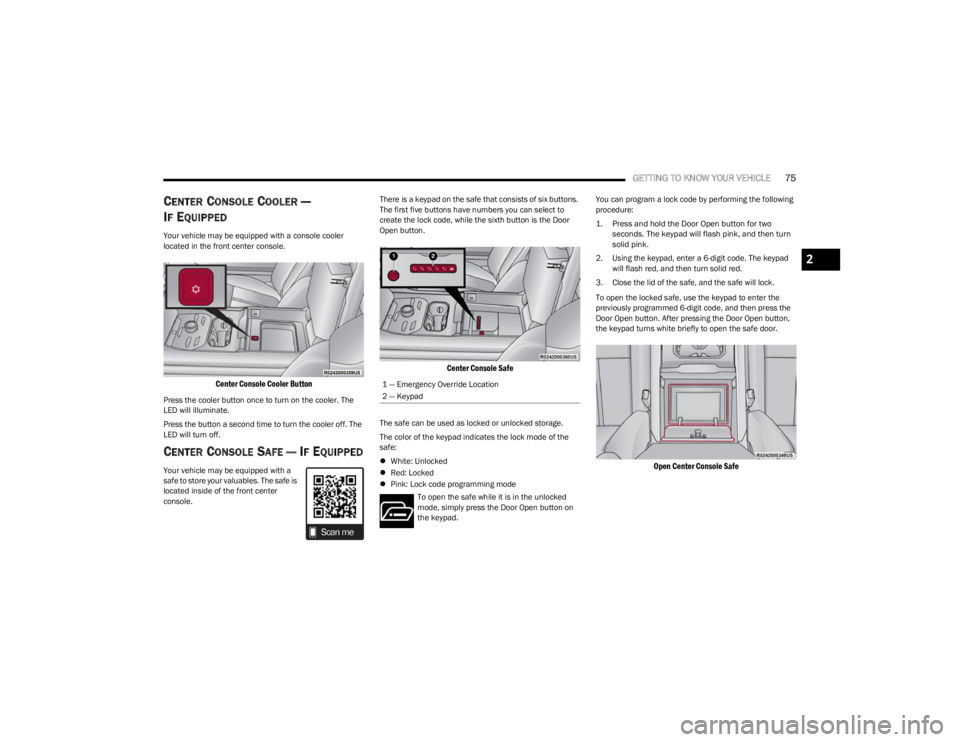
Your vehicle may be equipped with a console cooler
located in the front center console.
Center Console Cooler Button
Press the cooler button once to turn on the cooler. The
LED will illuminate.
Press the button a second time to turn the cooler off. The
LED will turn off.
CENTER CONSOLE SAFE — IF EQUIPPED
Your vehicle may be equipped with a
safe to store your valuables. The safe is
located inside of the front center
console. There is a keypad on the safe that consists of six buttons.
The first five buttons have numbers you can select to
create the lock code, while the sixth button is the Door
Open button.
Center Console Safe
The safe can be used as locked or unlocked storage.
The color of the keypad indicates the lock mode of the
safe:
White: Unlocked
Red: Locked
Pink: Lock code programming mode
To open the safe while it is in the unlocked
mode, simply press the Door Open button on
the keypad. You can program a lock code by performing the following
procedure:
1. Press and hold the Door Open button for two
seconds. The keypad will flash pink, and then turn
solid pink.
2. Using the keypad, enter a 6-digit code. The keypad will flash red, and then turn solid red.
3. Close the lid of the safe, and the safe will lock.
To open the locked safe, use the keypad to enter the
previously programmed 6-digit code, and then press the
Door Open button. After pressing the Door Open button,
the keypad turns white briefly to open the safe door.
Open Center Console Safe
1 — Emergency Override Location
2 — Keypad
2
23_WS_OM_EN_USC_t.book Page 75
Page 80 of 396
78GETTING TO KNOW YOUR VEHICLE
Once a device is connected to the USB port, it will begin
charging and is ready for use with the system. Type C and
Type A charge-only USB ports can be used at the same
time but cannot be used simultaneously while playing
media. When both Type C and Type A charge-only USB
ports are in use they will be charged at a reduced rate.
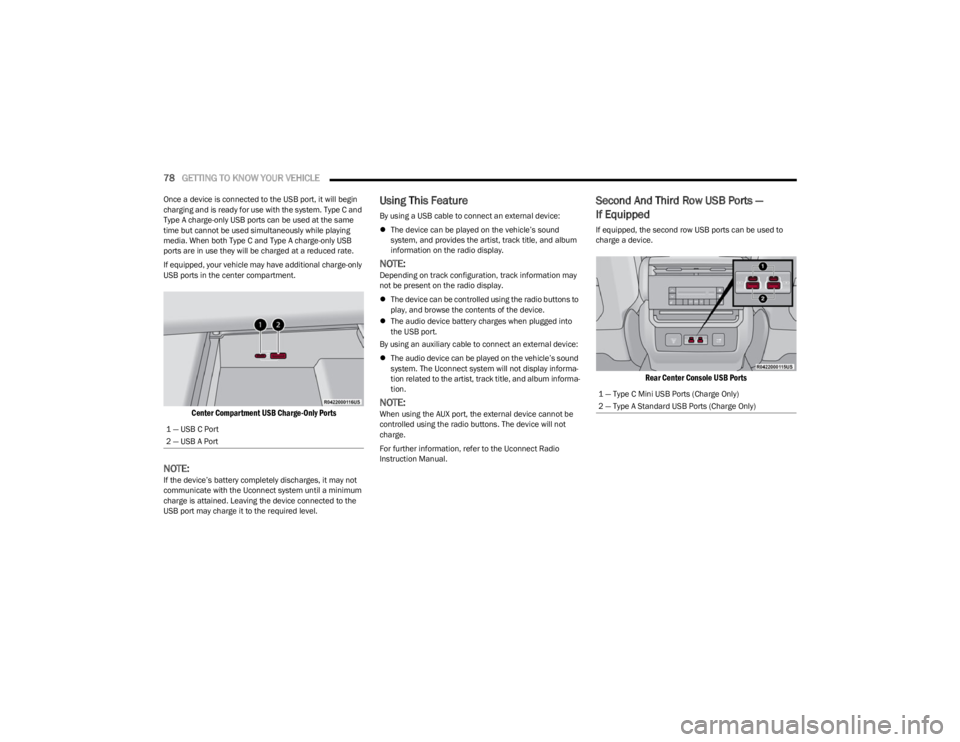
If equipped, your vehicle may have additional charge-only
USB ports in the center compartment.
Center Compartment USB Charge-Only Ports
NOTE:If the device’s battery completely discharges, it may not
communicate with the Uconnect system until a minimum
charge is attained. Leaving the device connected to the
USB port may charge it to the required level.
Using This Feature
By using a USB cable to connect an external device:
The device can be played on the vehicle’s sound
system, and provides the artist, track title, and album
information on the radio display.
NOTE:Depending on track configuration, track information may
not be present on the radio display.
The device can be controlled using the radio buttons to
play, and browse the contents of the device.
The audio device battery charges when plugged into
the USB port.
By using an auxiliary cable to connect an external device:
The audio device can be played on the vehicle’s sound
system. The Uconnect system will not display informa -
tion related to the artist, track title, and album informa -
tion.
NOTE:When using the AUX port, the external device cannot be
controlled using the radio buttons. The device will not
charge.
For further information, refer to the Uconnect Radio
Instruction Manual.
Second And Third Row USB Ports —
If Equipped
If equipped, the second row USB ports can be used to
charge a device.
Rear Center Console USB Ports
1 — USB C Port
2 — USB A Port
1 — Type C Mini USB Ports (Charge Only)
2 — Type A Standard USB Ports (Charge Only)
23_WS_OM_EN_USC_t.book Page 78
Page 102 of 396
100GETTING TO KNOW YOUR INSTRUMENT PANEL
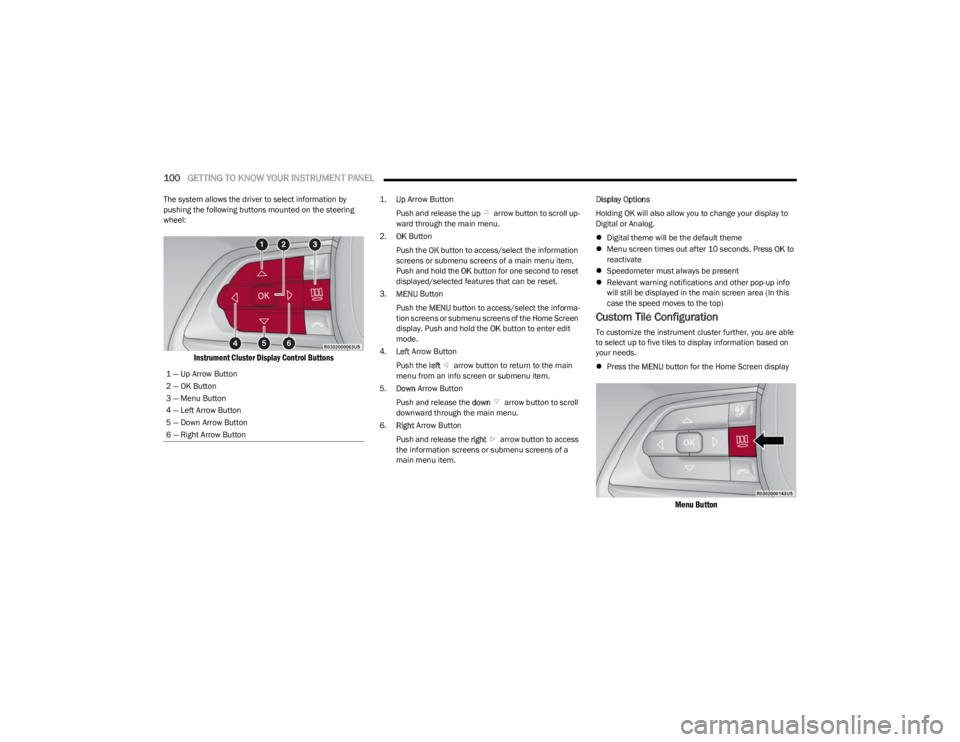
The system allows the driver to select information by
pushing the following buttons mounted on the steering
wheel:
Instrument Cluster Display Control Buttons
1.
Up
Arrow Button
Push and release the up arrow button to scroll up -
ward through the main menu.
2. OK Button
Push the OK button to access/select the information
screens or submenu screens of a main menu item.
Push and hold the OK button for one second to reset
displayed/selected features that can be reset.
3. MENU Button
Push the MENU button to access/select the informa -
tion screens or submenu screens of the Home Screen
display. Push and hold the OK button to enter edit
mode.
4. Left Arrow Button
Push the left arrow button to return to the main
menu from an info screen or submenu item.
5. Down Arrow Button
Push and release the down arrow button to scroll
downward through the main menu.
6. Right Arrow Button
Push and release the right arrow button to access
the information screens or submenu screens of a
main menu item. Display Options
Holding
OK will also allow you to change your display to
Digital or Analog.
Digital theme will be the default theme
Menu screen times out after 10 seconds. Press OK to
reactivate
Speedometer must always be present
Relevant warning notifications and other pop-up info
will still be displayed in the main screen area (In this
case the speed moves to the top)
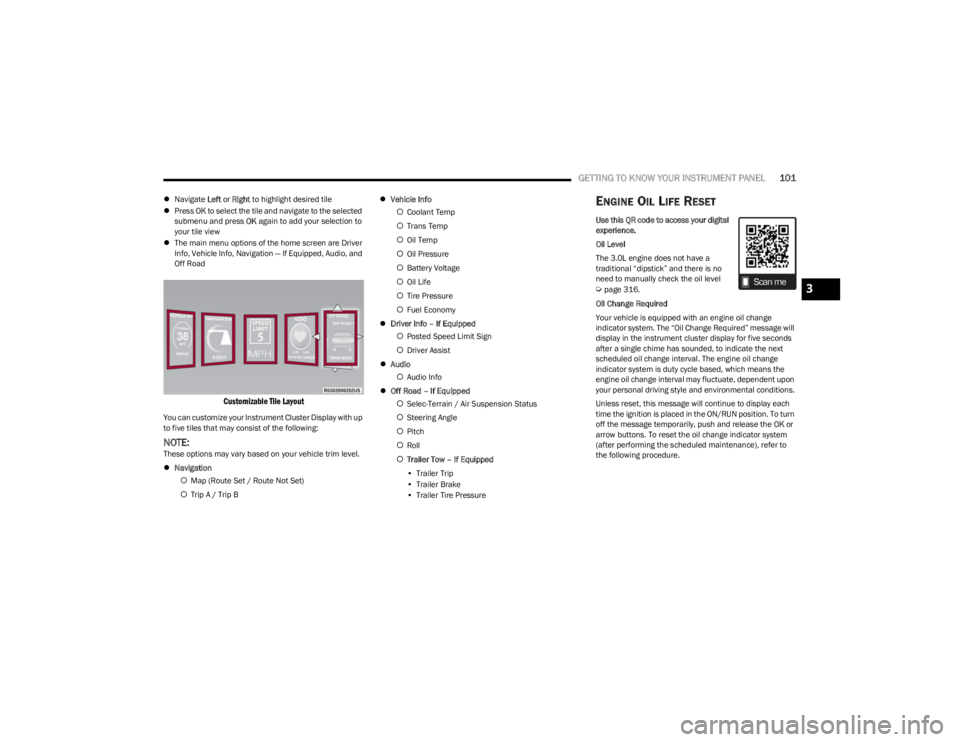
Custom Tile Configuration
To customize the instrument cluster further, you are able
to select up to five tiles to display information based on
your needs.
Press the MENU button for the Home Screen display
Menu Button
1 — Up Arrow Button
2 — OK Button
3 — Menu Button
4 — Left Arrow Button
5 — Down Arrow Button
6 — Right Arrow Button
23_WS_OM_EN_USC_t.book Page 100
Page 103 of 396
GETTING TO KNOW YOUR INSTRUMENT PANEL101
Navigate Left or Right to highlight desired tile
Press OK to select the tile and navigate to the selected
submenu and press OK again to add your selection to
your tile view
The main menu options of the home screen are Driver
Info, Vehicle Info, Navigation — If Equipped, Audio, and
Off Road
Customizable Tile Layout
You can customize your Instrument Cluster Display with up
to five tiles that may consist of the following:
NOTE:These options may vary based on your vehicle trim level.
Navigation
Map (Route Set / Route Not Set)
Trip A / Trip B
Vehicle Info
Coolant Temp
Trans Temp
Oil Temp
Oil Pressure
Battery Voltage
Oil Life
Tire Pressure
Fuel Economy
Driver Info – If Equipped
Posted Speed Limit Sign
Driver Assist
Audio
Audio Info
Off Road – If Equipped
Selec-Terrain / Air Suspension Status
Steering Angle
Pitch
Roll
Trailer Tow – If Equipped
• Trailer Trip
• Trailer Brake
• Trailer Tire Pressure
ENGINE OIL LIFE RESET
Use this QR code to access your digital
experience.
Oil Level
The 3.0L engine does not have a
traditional “dipstick” and there is no
need to manually check the oil level
Úpage 316.
Oil Change Required
Your vehicle is equipped with an engine oil change
indicator system. The “Oil Change Required” message will
display in the instrument cluster display for five seconds
after a single chime has sounded, to indicate the next
scheduled oil change interval. The engine oil change
indicator system is duty cycle based, which means the
engine oil change interval may fluctuate, dependent upon
your personal driving style and environmental conditions.
Unless reset, this message will continue to display each
time the ignition is placed in the ON/RUN position. To turn
off the message temporarily, push and release the OK or
arrow buttons. To reset the oil change indicator system
(after performing the scheduled maintenance), refer to
the following procedure.3
23_WS_OM_EN_USC_t.book Page 101
Page 106 of 396
104GETTING TO KNOW YOUR INSTRUMENT PANEL
INSTRUMENT CLUSTER DISPLAY MENU
I
TEMS
The instrument cluster display can be used to view the
main menu items for several features. Use the up and
down arrow buttons to scroll through the driver
interactive display menu options until the desired menu is
reached.
NOTE:Depending on the vehicle’s options, feature settings may
vary.
Main Menu
DRIVER INFO
Push and release the up or down arrow button until
the Driver Info icon/title is highlighted in the instrument
cluster display. Push the left or right arrow button to
scroll through the information submenus.
Speedometer
Push and release the OK button to toggle units (mph or
km/h) of the speedometer. Hold the OK button to toggle
between Analog and Digital speedometer. Night Vision — If Equipped
Arrow buttons and submenu indicators
disappear after five seconds of menu
navigation inactivity. Pedestrian/Animal icons
will be displayed in the top left location
Úpage 172.
Driver Assist — If Equipped
The Driver Assist screen indicates the current status of
ACC, Active Lane Management and Active Driving Assist/
Assist+/Pilot
Úpage 247.
VEHICLE INFO
Push and release the up or down arrow button until
the Vehicle Info icon/title is highlighted in the instrument
cluster display. Push the left or right arrow button to
scroll through the information submenus.
Fuel Economy
Average Fuel Economy
Current Fuel Economy
Range To Empty
Press the OK button to reset the average fuel economy
NOTE:The Range feature is not able to be reset through the
instrument cluster display controls. Gauge Summary
Coolant Temperature — If Equipped
Displays the current temperature of the coolant.
Transmission Temperature
Displays the actual transmission temperature.
Oil Temperature
Displays the actual oil temperature.
Oil Pressure
Displays the actual oil pressure.
Battery Voltage
Displays the current voltage level of the battery.
Oil Life
Displays the current oil life of the vehicle.
Tire Pressure Monitoring System
If tire pressure is OK for all tires a vehicle icon is
displayed with tire pressure values in each corner of
the icon.
If one or more tires have low pressure, “Inflate Tire To
XX” is displayed with the vehicle icon and the tire pres -
sure values in each corner of the icon with the pressure
value of the low tire are displayed in a different color
than the other tire pressure value.
If the Tire Pressure system requires service, “Service
Tire Pressure System” is displayed.
Tire Pressure is an information only function, and cannot
be reset
Úpage 252.
Stop/Start Status — If Equipped
Display current status of Stop/Start system.
23_WS_OM_EN_USC_t.book Page 104
Page 134 of 396
132STARTING AND OPERATING
Selec-Terrain consists of the following positions:
ROCK (if equipped) – Off-road calibration is only avail -
able in 4WD LOW. The vehicle is raised (if equipped
with Air Suspension) for improved ground clearance.
Traction-based tuning with improved steerability for
use on high traction off-road surfaces. Use for low
speed obstacles such as large rocks, deep ruts, etc. If
equipped with air suspension, the vehicle level will
change to Off-Road 2 (OR2). If the Selec-Terrain switch
is in ROCK mode, and the transfer case is switched
from 4WD LOW to 4WD HI, the Selec-Terrain system
will return to AUTO.
SAND (if equipped) – Off-road calibration for use on low
traction surfaces such as sand or wet grass. Driveline
is maximized for traction. Some binding may be felt on
less forgiving surfaces. The electronic brake controls
are set to limit traction control management of throttle
and wheel spin. If equipped with air suspension, the
default ride height for SAND is Normal Ride Height
(NRH).
MUD (if equipped) – Off-road calibration for use on low
traction surfaces such as mud. Driveline is maximized
for traction. Some binding may be felt on less forgiving
surfaces. The electronic brake controls are set to limit
traction control management of throttle and wheel
spin. If equipped with air suspension, the level will
change to Off-Road 1 (OR1).
SNOW – Tuning set for additional stability in inclement
weather. Use on and off road on loose traction surfaces
such as snow. When in SNOW mode (depending on
certain operating conditions), the transmission may
use SECOND gear (rather than FIRST gear) during
launches, to minimize wheel slippage. If equipped with
air suspension, the default ride height for SNOW is
Normal Ride Height (NRH).
AUTO – Fully automatic full-time four-wheel drive oper -
ation can be used on and off road. Balances traction
with seamless steering feel to provide improved
handling and acceleration over two-wheel drive vehi -
cles. If equipped with air suspension, the level will
change to Normal Ride Height (NRH).
SPORT – This mode alters the transmission's auto -
matic shift schedule for sportier driving. Upshift speeds
are increased to make full use of available engine
power. Steering efforts are modified for sporty driving.
If equipped with air suspension, the level will change to
Aero Height.
INSTRUMENT CLUSTER DISPLAY
M
ESSAGES
When the appropriate conditions exist, a message will
appear in the instrument cluster Úpage 99.
QUADRA-LIFT — IF EQUIPPED
DESCRIPTION
The Quadra-Lift Air Suspension system provides full-time
load leveling capability along with the benefit of vehicle
height adjustment by a toggle switch. The vehicle will automatically raise and lower the ride
height to adapt to the appropriate driving conditions. At
higher speeds, the vehicle will lower to an aerodynamic
ride height and when operating in off-road modes (if
equipped), the vehicle will raise the ride height
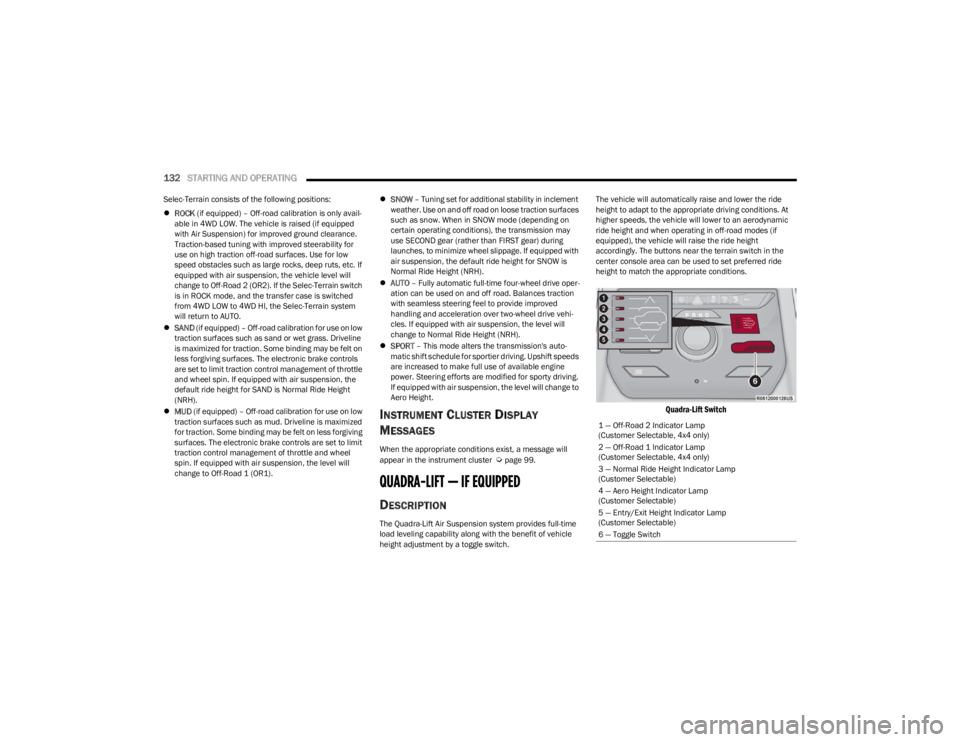
accordingly. The buttons near the terrain switch in the
center console area can be used to set preferred ride
height to match the appropriate conditions.
Quadra-Lift Switch
1 — Off-Road 2 Indicator Lamp
(Customer Selectable, 4x4 only)
2 — Off-Road 1 Indicator Lamp
(Customer Selectable, 4x4 only)
3 — Normal Ride Height Indicator Lamp
(Customer Selectable)
4 — Aero Height Indicator Lamp
(Customer Selectable)
5 — Entry/Exit Height Indicator Lamp
(Customer Selectable)
6 — Toggle Switch
23_WS_OM_EN_USC_t.book Page 132
Page 135 of 396

STARTING AND OPERATING133
Normal Ride Height (NRH) – This is the standard posi -
tion of the suspension and is meant for normal driving.
Off-Road 1 (OR1) (Raises the vehicle approximately
1.2 inches [30 mm]) – This is the primary position for
all off-road driving until OR2 is needed. A smoother and
more comfortable ride will result. Push the toggle
switch forward once from the NRH position while the
vehicle speed is below 38 mph (61 km/h). When in the
OR1 position, if the vehicle speed remains between
40 mph (64 km/h) and 50 mph (80 km/h) for greater than 20 seconds or if the vehicle speed exceeds
50 mph (80 km/h), the vehicle will be automatically
lowered to NRH
Úpage 193. OR1 is unavailable on
4x2 air suspension vehicles.
Off-Road 2 (OR2) (Raises the vehicle approximately
2.0 inches [51 mm]) – This position is intended for
off-roading use only where maximum ground clearance
is required. To enter OR2, push the toggle switch
forward twice from the NRH position or once from the
OR1 position while vehicle speed is below 20 mph
(32 km/h). While in OR2, if the vehicle speed exceeds
25 mph (40 km/h) the vehicle height will be automati -
cally lowered to OR1
Úpage 193. OR2 is unavailable
on 4x2 air suspension vehicles.
Aero Height (Lowers the vehicle approximately
-0.6 inches [-15 mm]) – This position provides
improved aerodynamics by lowering the vehicle. The
vehicle will automatically enter Aero Height when the
vehicle speed remains between 62 mph (100 km/h)
and 66 mph (106 km/h) for greater than 20 seconds
or if the vehicle speed exceeds 66 mph (106 km/h). The vehicle will return to Default Ride Height from Aero
Height if the vehicle speed remains between 30 mph
(48 km/h) and 35 mph (56 km/h) for greater than
20 seconds or if the vehicle speed falls below 30 mph
(48 km/h). The vehicle will enter Aero Height, regard
-
less of vehicle speed if the vehicle is in “SPORT” mode.
Entry/Exit Height (Lowers the vehicle approximately
-1.6 inches [-40 mm]) – This position lowers the
vehicle for easier passenger entry and exit as well as
lowering the rear of the vehicle for easier loading and
unloading of cargo. To enter Entry/Exit Height, push the
toggle switch down twice from NRH while the vehicle
speed is below 6 mph (10 km/h). To exit Entry/Exit
Height, push the UP button once while in Entry/Exit
Height or drive the vehicle over 4 mph (6 km/h).
NOTE:Automatic lowering of the vehicle into Entry/Exit Height
can be enabled through the Uconnect Touchscreen Radio.
If this feature is enabled, the vehicle will only lower if the
gear selector is in PARK, the terrain switch is in AUTO, the
transfer case is in AUTO and the vehicle level is either in
Normal or Aero Height. The vehicle will not automatically
lower if the air suspension level is in OR2 or OR1. When
towing, the automatic Entry/Exit feature may be disabled
through the Uconnect Touchscreen Radio to prevent
vehicle and trailer movement when gear selector is moved
to PARK. The Selec-Terrain system will automatically change the
vehicle to the proper height based on the position of the
Selec-Terrain switch. The height can be changed from the
default Selec-Terrain setting by normal use of the air
suspension buttons
Úpage 131.
The system requires that the engine be running for all
changes. When lowering the vehicle all of the doors,
including the liftgate, must be closed. If a door is opened
at any time while the vehicle is lowering the change will not
be completed until the open door(s) is/are closed.
The Quadra-Lift Air Suspension system uses a lifting and
lowering pattern which keeps the headlights from
incorrectly shining into oncoming traffic. When raising the
vehicle, the rear of the vehicle will move up first and then
the front. When lowering the vehicle, the front will move
down first and then the rear.
After the engine is turned off, it may be noticed that the air
suspension system operates briefly; this is normal. The
system is correcting the position of the vehicle to ensure a
proper appearance.
To assist with changing a spare tire, the Quadra-Lift Air
Suspension system has a feature which allows the
automatic leveling to be disabled
Úpage 197.
4
23_WS_OM_EN_USC_t.book Page 133
Page 140 of 396
138STARTING AND OPERATING
CRUISE CONTROL
When engaged, the Cruise Control takes over accelerator
operations at speeds greater than 20 mph (32 km/h).
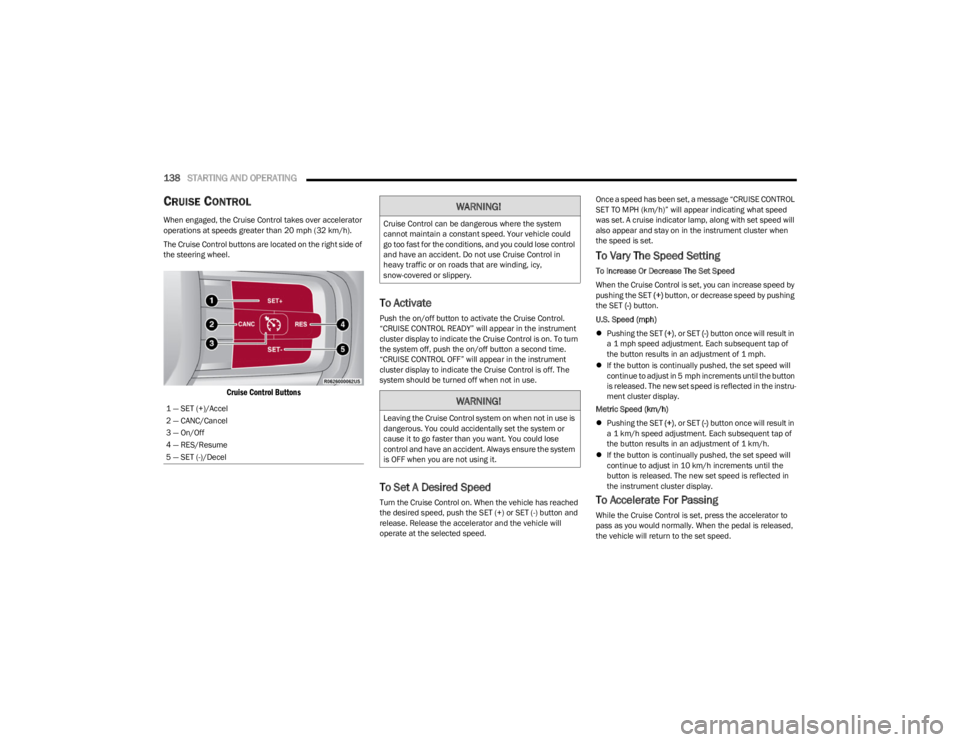
The Cruise Control buttons are located on the right side of
the steering wheel.
Cruise Control Buttons
To Activate
Push the on/off button to activate the Cruise Control.
“CRUISE CONTROL READY” will appear in the instrument
cluster display to indicate the Cruise Control is on. To turn
the system off, push the on/off button a second time.
“CRUISE CONTROL OFF” will appear in the instrument
cluster display to indicate the Cruise Control is off. The
system should be turned off when not in use.
To Set A Desired Speed
Turn the Cruise Control on. When the vehicle has reached
the desired speed, push the SET (+) or SET (-) button and
release. Release the accelerator and the vehicle will
operate at the selected speed. Once a speed has been set, a message “CRUISE CONTROL
SET TO MPH (km/h)” will appear indicating what speed
was set. A cruise indicator lamp, along with set speed will
also appear and stay on in the instrument cluster when
the speed is set.
To Vary The Speed Setting
To Increase Or Decrease The Set Speed
When the Cruise Control is set, you can increase speed by
pushing the SET
(+) button, or decrease speed by pushing
the SET (-) button.
U.S. Speed (mph)
Pushing the SET (+), or SET (-) button once will result in
a 1 mph speed adjustment. Each subsequent tap of
the button results in an adjustment of 1 mph.
If the button is continually pushed, the set speed will
continue to adjust in 5 mph increments until the button
is released. The new set speed is reflected in the instru -
ment cluster display.
Metric Speed (km/h)
Pushing the SET (+), or SET (-) button once will result in
a 1 km/h speed adjustment. Each subsequent tap of
the button results in an adjustment of 1 km/h.
If the button is continually pushed, the set speed will
continue to adjust in 10 km/h increments until the
button is released. The new set speed is reflected in
the instrument cluster display.
To Accelerate For Passing
While the Cruise Control is set, press the accelerator to
pass as you would normally. When the pedal is released,
the vehicle will return to the set speed.
1 — SET (+)/Accel
2 — CANC/Cancel
3 — On/Off
4 — RES/Resume
5 — SET (-)/Decel
WARNING!
Cruise Control can be dangerous where the system
cannot maintain a constant speed. Your vehicle could
go too fast for the conditions, and you could lose control
and have an accident. Do not use Cruise Control in
heavy traffic or on roads that are winding, icy,
snow-covered or slippery.
WARNING!
Leaving the Cruise Control system on when not in use is
dangerous. You could accidentally set the system or
cause it to go faster than you want. You could lose
control and have an accident. Always ensure the system
is OFF when you are not using it.
23_WS_OM_EN_USC_t.book Page 138
Page 142 of 396
140STARTING AND OPERATING
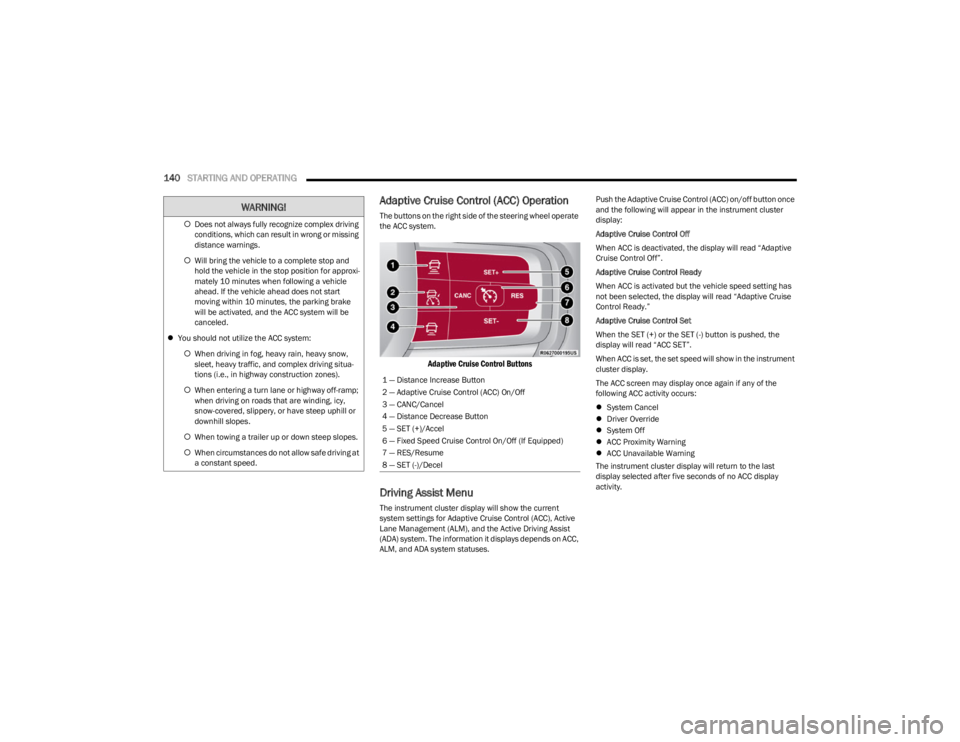
Adaptive Cruise Control (ACC) Operation
The buttons on the right side of the steering wheel operate
the ACC system.
Adaptive Cruise Control Buttons
Driving Assist Menu
The instrument cluster display will show the current
system settings for Adaptive Cruise Control (ACC), Active
Lane Management (ALM), and the Active Driving Assist
(ADA) system. The information it displays depends on ACC,
ALM, and ADA system statuses. Push the Adaptive Cruise Control (ACC) on/off button once
and the following will appear in the instrument cluster
display:
Adaptive Cruise Control Off
When ACC is deactivated, the display will read “Adaptive
Cruise Control Off”.
Adaptive Cruise Control Ready
When ACC is activated but the vehicle speed setting has
not been selected, the display will read “Adaptive Cruise
Control Ready.”
Adaptive Cruise Control Set
When the SET (+) or the SET (-) button is pushed, the
display will read “ACC SET”.
When ACC is set, the set speed will show in the instrument
cluster display.
The ACC screen may display once again if any of the
following ACC activity occurs:
System Cancel
Driver Override
System Off
ACC Proximity Warning
ACC Unavailable Warning
The instrument cluster display will return to the last
display selected after five seconds of no ACC display
activity.
Does not always fully recognize complex driving
conditions, which can result in wrong or missing
distance warnings.
Will bring the vehicle to a complete stop and
hold the vehicle in the stop position for approxi -
mately 10 minutes when following a vehicle
ahead. If the vehicle ahead does not start
moving within 10 minutes, the parking brake
will be activated, and the ACC system will be
canceled.
You should not utilize the ACC system:
When driving in fog, heavy rain, heavy snow,
sleet, heavy traffic, and complex driving situa-
tions (i.e., in highway construction zones).
When entering a turn lane or highway off-ramp;
when driving on roads that are winding, icy,
snow-covered, slippery, or have steep uphill or
downhill slopes.
When towing a trailer up or down steep slopes.
When circumstances do not allow safe driving at
a constant speed.
WARNING!
1 — Distance Increase Button
2 — Adaptive Cruise Control (ACC) On/Off
3 — CANC/Cancel
4 — Distance Decrease Button
5 — SET (+)/Accel
6 — Fixed Speed Cruise Control On/Off (If Equipped)
7 — RES/Resume
8 — SET (-)/Decel
23_WS_OM_EN_USC_t.book Page 140