seats JEEP WAGONEER 2023 Owner's Manual
[x] Cancel search | Manufacturer: JEEP, Model Year: 2023, Model line: WAGONEER, Model: JEEP WAGONEER 2023Pages: 396, PDF Size: 15.17 MB
Page 71 of 396
GETTING TO KNOW YOUR VEHICLE69
REAR MODE CONTROL
Two airflow distribution modes for the rear seat
passengers can be selected on/off from the front climate
screen by individually by pressing the icons on the
touchscreen for up to three combinations of airflow. The
icons on the screen will illuminate when selected, and turn
off when deselected.
The two airflow modes are:
NOTE:If Auto is selected, these icons will no longer be available
and the current mode selection will be overwritten.
REAR CLIMATE CONTROL OFF
To turn the rear climate controls off, press the
OFF button on the touchscreen, near the
blower buttons.
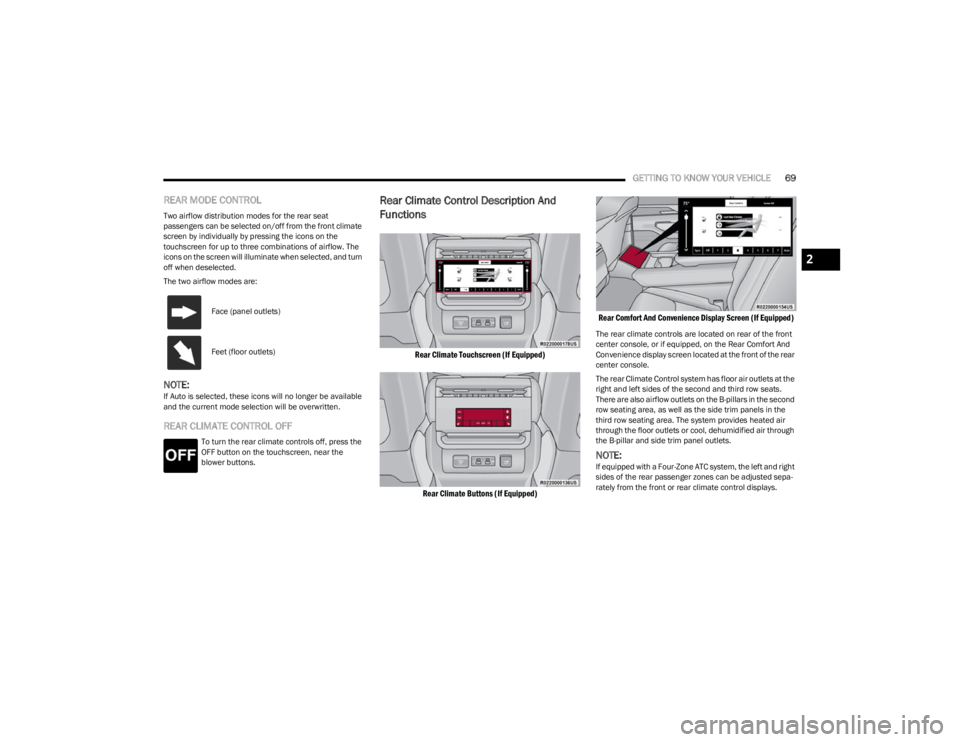
Rear Climate Control Description And
Functions
Rear Climate Touchscreen (If Equipped)
Rear Climate Buttons (If Equipped) Rear Comfort And Convenience Display Screen (If Equipped)
The rear climate controls are located on rear of the front
center console, or if equipped, on the Rear Comfort And
Convenience display screen located at the front of the rear
center console.
The rear Climate Control system has floor air outlets at the
right and left sides of the second and third row seats.
There are also airflow outlets on the B-pillars in the second
row seating area, as well as the side trim panels in the
third row seating area. The system provides heated air
through the floor outlets or cool, dehumidified air through
the B-pillar and side trim panel outlets.
NOTE:If equipped with a Four-Zone ATC system, the left and right
sides of the rear passenger zones can be adjusted sepa
-
rately from the front or rear climate control displays.
Face (panel outlets)
Feet (floor outlets)
2
23_WS_OM_EN_USC_t.book Page 69
Page 73 of 396
GETTING TO KNOW YOUR VEHICLE71
REAR CLIMATE CONTROL OFF
To turn the rear climate controls off, push the
OFF button below the rear climate control
display, or if equipped, press and release the
OFF button on the Rear Comfort And
Convenience Display touchscreen, near the blower
buttons.
AUTOMATIC TEMPERATURE CONTROL
(ATC)
Automatic Operation
1. Push the AUTO button on the front climate control
display, and the word “AUTO” will illuminate along
with two temperatures for the driver and front
passenger. The system will then automatically
regulate the amount of airflow.
2. Adjust the temperature you would like the system to maintain, by adjusting the driver, passenger, and rear
temperatures. Once the desired temperature is
displayed, the system will achieve, and automatically
maintain, that comfort level.
3. When the system is set up for your comfort level, it is not necessary to change the settings. You will
experience the greatest efficiency by simply allowing
the system to function automatically.
NOTE:It is not necessary to move the temperature settings. The
system automatically adjusts the temperature, mode, and
fan speed to provide comfort as quickly as possible. To provide you with maximum comfort in the automatic
mode during cold start-ups, the blower fan will remain on
low until the engine warms up. The fan will engage
immediately if the Defrost mode is selected, or by
changing the front blower setting.
Manual Operation Override
This system offers a full complement of manual override
features. The AUTO symbol in the front climate control
display will no longer be illuminated when the system is
being used in the manual mode.
NOTE:The system will not automatically sense the presence of
fog, mist or ice on the windshield. Defrost mode must be
manually selected to clear the windshield and side glass.
CLIMATE VOICE RECOGNITION
Adjust vehicle temperatures hands-free and keep
everyone comfortable while you keep moving ahead (If
vehicle is equipped with climate control).
Push the VR/Phone button . After the beep, say one of
the following commands:
“Set the driver temperature to 70 degrees”
“Set the passenger temperature to 70 degrees”
Did You Know: Voice Command for Climate may only be
used to adjust the interior temperature of your vehicle.
Voice Command will not work to adjust the heated seats
or steering wheel if equipped.
OPERATING TIPS
Refer to the chart at the end of this section for suggested
control settings for various weather conditions.
Summer Operation
The engine cooling system must be protected with a
high-quality antifreeze coolant to provide proper corrosion
protection and to protect against engine overheating. OAT
coolant (conforming to MS.90032) is recommended.
Winter Operation
To ensure the best possible heater and defroster
performance, make sure the engine cooling system is
functioning properly and the proper amount, type, and
concentration of coolant is used. Use of the Air
Recirculation mode during Winter months is not
recommended, because it may cause window fogging.
Vacation/Storage
For information on maintaining the Climate Control system
when the vehicle is being stored for an extended period of
time, see
Úpage 368.
CAUTION!
Interior air enters the Rear Climate Control system
through an intake grille, located in the right side trim
panel behind the third row seats. The heater outlets are
located in the right side trim panel, just behind the rear
doors. Do not block or place objects directly in front of
the inlet grille or heater outlets. The electrical system
could overload causing damage to the blower motor.
2
23_WS_OM_EN_USC_t.book Page 71
Page 91 of 396
GETTING TO KNOW YOUR VEHICLE89
(Continued)
CARGO AREA FEATURES
Cargo Storage
The load floor is designed for a maximum load of 300 lb
(136 kg), and should be uniformly distributed over the
load floor.
Additional storage can be found under the storage lid. To
access the lower storage, lift the handle and raise the
storage lid.
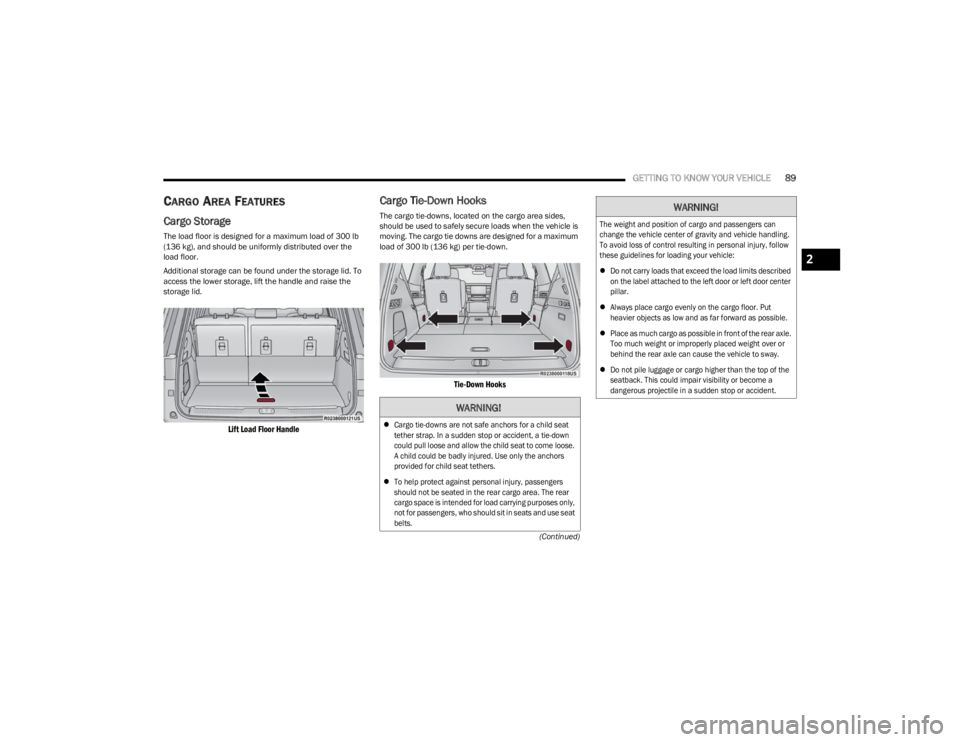
Lift Load Floor Handle
Cargo Tie-Down Hooks
The cargo tie-downs, located on the cargo area sides,
should be used to safely secure loads when the vehicle is
moving. The cargo tie downs are designed for a maximum
load of 300 lb (136 kg) per tie-down.
Tie-Down Hooks
WARNING!
Cargo tie-downs are not safe anchors for a child seat
tether strap. In a sudden stop or accident, a tie-down
could pull loose and allow the child seat to come loose.
A child could be badly injured. Use only the anchors
provided for child seat tethers.
To help protect against personal injury, passengers
should not be seated in the rear cargo area. The rear
cargo space is intended for load carrying purposes only,
not for passengers, who should sit in seats and use seat
belts.
The weight and position of cargo and passengers can
change the vehicle center of gravity and vehicle handling.
To avoid loss of control resulting in personal injury, follow
these guidelines for loading your vehicle:
Do not carry loads that exceed the load limits described
on the label attached to the left door or left door center
pillar.
Always place cargo evenly on the cargo floor. Put
heavier objects as low and as far forward as possible.
Place as much cargo as possible in front of the rear axle.
Too much weight or improperly placed weight over or
behind the rear axle can cause the vehicle to sway.
Do not pile luggage or cargo higher than the top of the
seatback. This could impair visibility or become a
dangerous projectile in a sudden stop or accident.
WARNING!
2
23_WS_OM_EN_USC_t.book Page 89
Page 110 of 396
108GETTING TO KNOW YOUR INSTRUMENT PANEL
When load reduction is activated, the message “Battery
Saver On” or “Battery Saver Mode” will appear in the
instrument cluster.
These messages indicate the vehicle battery has a low
state of charge and continues to lose electrical charge at
a rate that the charging system cannot sustain.
NOTE:
The charging system is independent from load reduc -
tion. The charging system performs a diagnostic on the
charging system continuously.
If the Battery Charge Warning Light is on it may indicate
a problem with the charging system
Úpage 109.
The electrical loads that may be switched off (if equipped),
and vehicle functions which can be affected by load
reduction:
Heated Seat/Vented Seats/Heated Wheel
Rear Defroster And Heated Mirrors
HVAC System
115 Volt AC Power Inverter System
Audio and Telematics System
Loss of the battery charge may indicate one or more of the
following conditions:
The charging system cannot deliver enough electrical
power to the vehicle system because the electrical
loads are larger than the capability of the charging
system. The charging system is still functioning
properly.
Turning on all possible vehicle electrical loads (e.g.
HVAC to max settings, exterior and interior lights, over -
loaded power outlets +12 Volt, 115 Volt AC, USB ports)
during certain driving conditions (city driving, towing,
frequent stopping, etc.).
Installing options like additional lights, upfitter elec -
trical accessories, audio systems, alarms and similar
devices.
Unusual driving cycles (short trips separated by long
parking periods).
The vehicle was parked for an extended period of time
(weeks, months).
The battery was recently replaced and was not charged
completely.
The battery was discharged by an electrical load left on
when the vehicle was parked.
The battery was used for an extended period with the
engine not running to supply radio, lights, chargers,
+12 Volt portable appliances like vacuum cleaners,
game consoles and similar devices.
What to do when an electrical load reduction action
message is present (“Battery Saver On” or “Battery Saver
Mode”)
During a trip:
Reduce power to unnecessary loads if possible:
Turn off redundant lights (interior or exterior)
Check what may be plugged in to power outlets
+12 Volt, 115 Volt AC, USB ports
Check HVAC settings (blower, temperature)
Check the audio settings (volume) After a trip:
Check if any aftermarket equipment was installed
(additional lights, upfitter electrical accessories, audio
systems, alarms) and review specifications if any (load
and Ignition Off Draw currents).
Evaluate the latest driving cycles (distance, driving
time and parking time).
The vehicle should have service performed if the
message is still present during consecutive trips, and if
the evaluation and driving pattern of the vehicle did not
help to identify the cause.WARNING LIGHTS AND MESSAGES
The warning/indicator lights will illuminate in the
instrument panel together with a dedicated message and/
or acoustic signal when applicable. These indications are
indicative and precautionary and as such must not be
considered as exhaustive and/or alternative to the
information contained in the Owner’s Manual, which you
are advised to read carefully in all cases. Always refer to
the information in this chapter in the event of a failure
indication. All active telltales will display first if applicable.
The system check menu may appear different based upon
equipment options and current vehicle status. Some
telltales are optional and may not appear.
23_WS_OM_EN_USC_t.book Page 108
Page 119 of 396
GETTING TO KNOW YOUR INSTRUMENT PANEL117
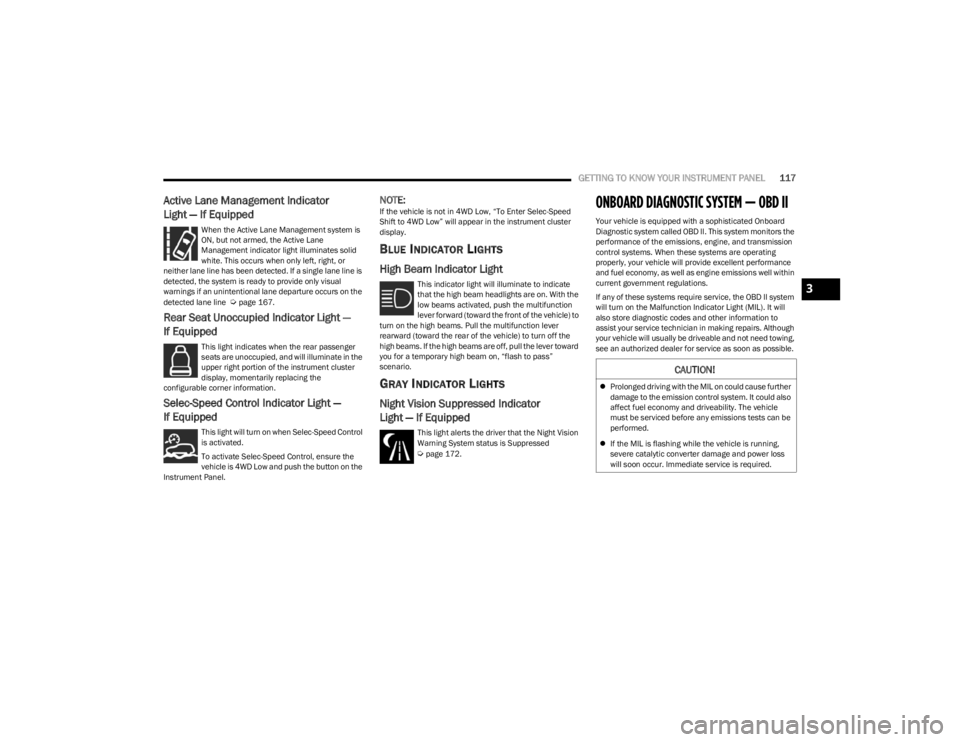
Active Lane Management Indicator
Light — If Equipped
When the Active Lane Management system is
ON, but not armed, the Active Lane
Management indicator light illuminates solid
white. This occurs when only left, right, or
neither lane line has been detected. If a single lane line is
detected, the system is ready to provide only visual
warnings if an unintentional lane departure occurs on the
detected lane line
Úpage 167.
Rear Seat Unoccupied Indicator Light —
If Equipped
This light indicates when the rear passenger
seats are unoccupied, and will illuminate in the
upper right portion of the instrument cluster
display, momentarily replacing the
configurable corner information.
Selec-Speed Control Indicator Light —
If Equipped
This light will turn on when Selec-Speed Control
is activated.
To activate Selec-Speed Control, ensure the
vehicle is 4WD Low and push the button on the
Instrument Panel.
NOTE:If the vehicle is not in 4WD Low, “To Enter Selec-Speed
Shift to 4WD Low” will appear in the instrument cluster
display.
BLUE INDICATOR LIGHTS
High Beam Indicator Light
This indicator light will illuminate to indicate
that the high beam headlights are on. With the
low beams activated, push the multifunction
lever forward (toward the front of the vehicle) to
turn on the high beams. Pull the multifunction lever
rearward (toward the rear of the vehicle) to turn off the
high beams. If the high beams are off, pull the lever toward
you for a temporary high beam on, “flash to pass”
scenario.
GRAY INDICATOR LIGHTS
Night Vision Suppressed Indicator
Light — If Equipped
This light alerts the driver that the Night Vision
Warning System status is Suppressed
Úpage 172.
ONBOARD DIAGNOSTIC SYSTEM — OBD II
Your vehicle is equipped with a sophisticated Onboard
Diagnostic system called OBD II. This system monitors the
performance of the emissions, engine, and transmission
control systems. When these systems are operating
properly, your vehicle will provide excellent performance
and fuel economy, as well as engine emissions well within
current government regulations.
If any of these systems require service, the OBD II system
will turn on the Malfunction Indicator Light (MIL). It will
also store diagnostic codes and other information to
assist your service technician in making repairs. Although
your vehicle will usually be driveable and not need towing,
see an authorized dealer for service as soon as possible.
CAUTION!
Prolonged driving with the MIL on could cause further
damage to the emission control system. It could also
affect fuel economy and driveability. The vehicle
must be serviced before any emissions tests can be
performed.
If the MIL is flashing while the vehicle is running,
severe catalytic converter damage and power loss
will soon occur. Immediate service is required.
3
23_WS_OM_EN_USC_t.book Page 117
Page 204 of 396
202MULTIMEDIA
Missed Calls Message This setting will allow you to have pop-up notifications for missed calls. Setting options
are “On” and “Off”.
Navigation Pop-ups This setting will allow you to have pop-up notifications for Navigation. Setting options are
“On” and “Off”.
Navigation Settings This setting will redirect to the list of Navigation settings. Refer to your Uconnect Radio
Instruction Manual for further information.
Auto-On Driver Heated/Ventilated Seat & Heated Steering Wheel With Vehicle Start This setting will activate the vehicle’s comfort system and heated seats or heated
steering wheel when the vehicle is remote started or ignition is started. The “Off” setting
will not activate the comfort systems. The “Remote Start” setting will only activate the
comfort systems when using Remote Start. The “All Start” setting will activate the comfort
systems whenever the vehicle is started.
Audio Settings This setting will open the submenu containing the audio settings
Úpage 216.
TomTom Traffic And Travel Services This setting will turn TomTom® Traffic And Travel Services (if equipped) on or off. An
active subscription is required for this feature to work.
Reset App Drawer to Default Order This setting will reset the app drawer to its factory default layout.
Restore Settings to Default This setting will return all the previously changed settings to their factory defaults.
More Profile Options This setting will give access to more profile options.
Setting NameDescription
23_WS_OM_EN_USC_t.book Page 202
Page 215 of 396
MULTIMEDIA213
Seats & Comfort
Hands-Free Power Liftgate This setting will use hands-free technology to automatically open or close the power
liftgate. Selectable options are “On” and “Off”.
Auto Relock This setting will lock the doors after 30 seconds of the doors remaining unlocked. The
available options are “On” and “Off”.
Setting Name
Description
When Seats & Comfort button is pressed on the touchscreen, the system displays the options related to the vehicle’s comfort systems when remote start has been activated or the
vehicle has been started.
NOTE:Depending on the vehicle’s options, feature settings may vary.
Setting NameDescription
Easy Exit Seats This setting will automatically move the driver seat rearward when the engine is shut off.
The available settings are “On” and “Off”.
Auto-On Driver Heated/Ventilated Seat & Heated Steering Wheel With Vehicle Start This setting will activate the vehicle’s comfort systems and heated seats or heated
steering wheel when the vehicle is remote started or ignition is started. The “Off” setting
will not activate the comfort systems. The “Remote Start” setting will only activate the
comfort systems when using Remote Start. The “All Start” setting will activate the comfort
systems whenever the vehicle is started.
3rd Row Seat Recline Lockout This setting will activate the 3rd Row Seat Recline Lockout. Selectable options are “Off”,
“Lock On Ignition” and “Always Locked”.
5
23_WS_OM_EN_USC_t.book Page 213
Page 216 of 396
214MULTIMEDIA
Key Off Options
When the Key Off Options button is pressed on the touchscreen, the system displays the options related to vehicle shutoff. These settings will only activate when the ignition is set to
OFF.
NOTE:Depending on the vehicle’s options, feature settings may vary.
Setting Name Description
Easy Exit Seat This setting adjusts the seats to make exiting the vehicle easier.
Key Off Power Delay This setting will keep certain electrical features running after the engine is turned off.
When any door is opened, the electronics will deactivate. The available settings are
“0 sec”, “45 sec”, “5 min”, and “10 min”.
Headlight Off Delay This setting will allow you to set the amount of time the headlights remain on after the
vehicle has been turned off. The available settings are “0 sec”, “30 sec”, “60 sec”, and
“90 sec”.
Auto Entry/Exit Suspension This setting will turn the Auto Entry/Exit Suspension system on or off.
Radio Off Delay This setting will keep the radio on for the selected amount of time after vehicle shut off.
The available options are “0 sec”, “45 sec”, “5 min”, and “10 min”.
Radio Off With Door This setting will keep the radio on when a door is opened or until the Radio Off Delay time
is reached. The available settings are “On” and “Off”.
Windows With Key Fob This setting will allow you to control window function while the vehicle is off. The available
options are “On” and “Off”.
23_WS_OM_EN_USC_t.book Page 214
Page 235 of 396
MULTIMEDIA233
FIRE TV APPS/GAMES
(U
SING THE REAR SCREENS)
Apps and games can be accessed using Rear Seat
Entertainment with Fire TV built-in.
To access Apps on the rear screen, turn on the system and
select “Find” in the top menu. On the Find page, select
“Appstore”. Within the Appstore® you can purchase apps
and games. From here you can also select from all the
apps and games that have been purchased.
ARE WE THERE YET?
When a navigation route has been set from the Uconnect
system, the second-row passengers can use “Are We
There Yet?” for an animated screen showing distance and
time remaining on navigation routes, as well as the
estimated time of arrival with pop-up notifications.
Some screen information includes:
Decrease Timing Between Notifications Button
Notifications ON/OFF Button
Increase Timing Between Notifications Button
Arrival Time
Time Remaining Until Destination Is Reached
Distance Remaining
To access “Are We There Yet?” from the rear screens,
follow these steps:
1. Tap one of the rear screens and select the Vehicle icon or push the Vehicle button on the Voice Remote
with Alexa.
2. Select “Are We There Yet?” near the bottom of the menu on the first page of options.
USING THE VIDEO USB PORT
Plug in a USB drive or mass storage device and play your
favorite music or movies.
NOTE:To view USB media on the rear screens, insert a USB drive
into the port. The USB drive port is located under the radio
controls in the instrument panel.
On the rear screen you can browse the content of the USB
device by going to the USB source in the inputs. Use the
search feature to find your media faster.
PLAY VIDEO GAMES
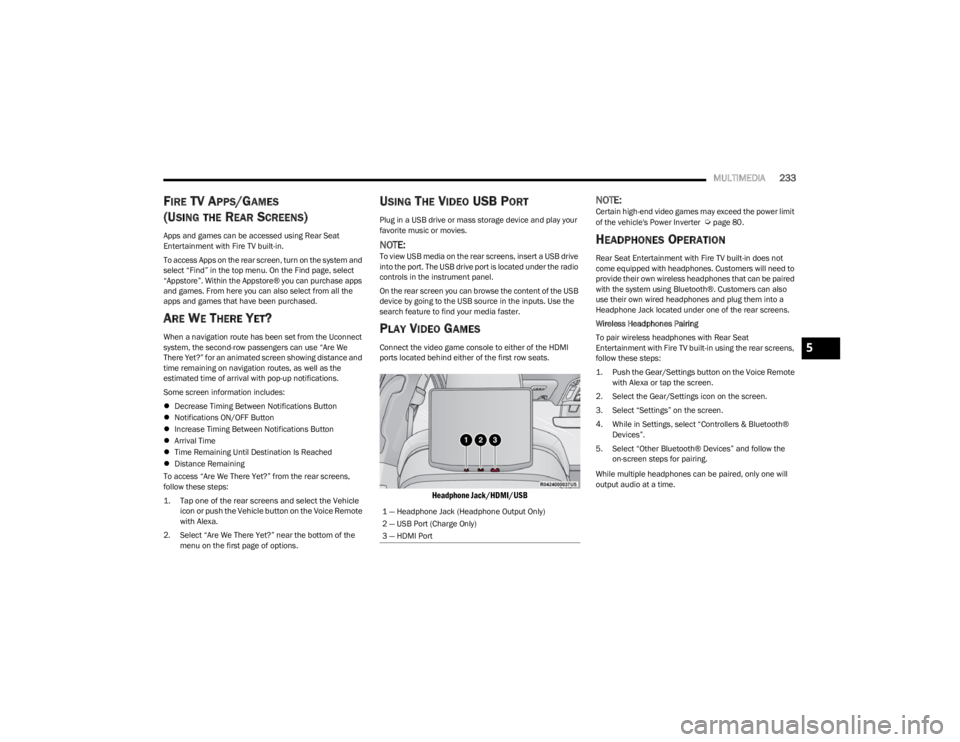
Connect the video game console to either of the HDMI
ports located behind either of the first row seats.
Headphone Jack/HDMI/USB
NOTE:Certain high-end video games may exceed the power limit
of the vehicle's Power Inverter Úpage 80.
HEADPHONES OPERATION
Rear Seat Entertainment with Fire TV built-in does not
come equipped with headphones. Customers will need to
provide their own wireless headphones that can be paired
with the system using Bluetooth®. Customers can also
use their own wired headphones and plug them into a
Headphone Jack located under one of the rear screens.
Wireless Headphones Pairing
To pair wireless headphones with Rear Seat
Entertainment with Fire TV built-in using the rear screens,
follow these steps:
1. Push the Gear/Settings button on the Voice Remote with Alexa or tap the screen.
2. Select the Gear/Settings icon on the screen.
3. Select “Settings” on the screen.
4. While in Settings, select “Controllers & Bluetooth® Devices”.
5. Select “Other Bluetooth® Devices” and follow the on-screen steps for pairing.
While multiple headphones can be paired, only one will
output audio at a time.
1 — Headphone Jack (Headphone Output Only)
2 — USB Port (Charge Only)
3 — HDMI Port
5
23_WS_OM_EN_USC_t.book Page 233
Page 242 of 396
240SAFETY
REAR SEAT REMINDER ALERT (RSRA)
RSRA alerts you of the possible presence of an object,
passenger, or pet in the rear seats through a visual and
auditory notification. The system will activate
automatically if a rear door was opened within 10 minutes
of the ignition being placed in the ON/RUN position. RSRA
does not directly detect objects, passengers, or pets in the
rear seats. When the previous conditions are met, RSRA
displays the message “Check Rear Seat” on the
instrument cluster display and sounds an auditory alert
upon the driver placing the ignition in the OFF position to
exit the vehicle.
To enable or disable RSRA, see
Úpage 197.
DROWSY DRIVER DETECTION (DDD) —
I
F EQUIPPED
DDD detects when the driver is feeling fatigued and warns
the driver to pull over and take a break.
To Activate/Deactivate
DDD can be activated and deactivated through the
Uconnect system by selecting the following in order:
1. “Safety & Driving Assistance”
2. “Drowsy Driver Detection”
System Intervention
Using feedback obtained from the driver’s steering
patterns, any buttons/switches that are pressed, and from
the front camera, the system implements two operating
logics:
The first operating logic takes the driving style into
account, observing the road and detecting to what
extent the driver can continue driving with few lane
crossing events.
The second operating logic measures the time spent
behind the wheel with the vehicle speed above 40 mph
(60 km/h) and below 100 mph (160 km/h).
If the driving style indicates that the driver is unable to
follow the road trajectory and respect the horizontal lane
markings while within the operating speed range of the
system, a pop up will display on the instrument cluster
display to suggest that the driver should stop for a break.
An audible signal will also sound.
If the driver accepts the suggestion provided by the
system by pushing the “OK” button on the left side of the
steering wheel, the message will disappear from the
display.
If the driver does not acknowledge the warning it will be
displayed for 60 seconds and then disappear.
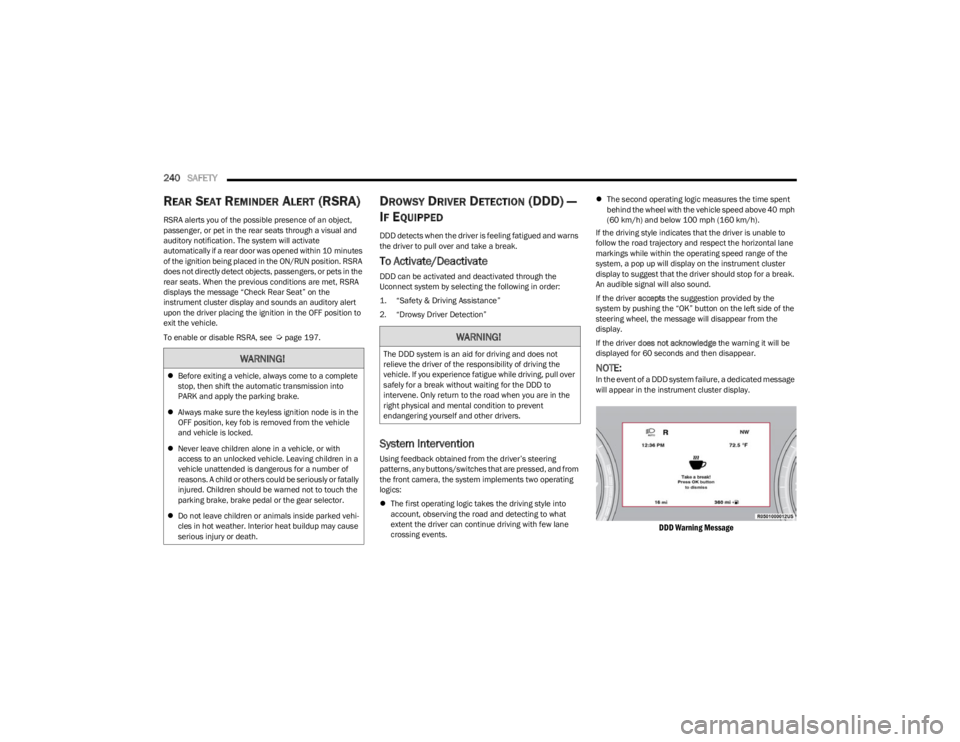
NOTE:In the event of a DDD system failure, a dedicated message
will appear in the instrument cluster display.
DDD Warning Message
WARNING!
Before exiting a vehicle, always come to a complete
stop, then shift the automatic transmission into
PARK and apply the parking brake.
Always make sure the keyless ignition node is in the
OFF position, key fob is removed from the vehicle
and vehicle is locked.
Never leave children alone in a vehicle, or with
access to an unlocked vehicle. Leaving children in a
vehicle unattended is dangerous for a number of
reasons. A child or others could be seriously or fatally
injured. Children should be warned not to touch the
parking brake, brake pedal or the gear selector.
Do not leave children or animals inside parked vehi -
cles in hot weather. Interior heat buildup may cause
serious injury or death.
WARNING!
The DDD system is an aid for driving and does not
relieve the driver of the responsibility of driving the
vehicle. If you experience fatigue while driving, pull over
safely for a break without waiting for the DDD to
intervene. Only return to the road when you are in the
right physical and mental condition to prevent
endangering yourself and other drivers.
23_WS_OM_EN_USC_t.book Page 240