rear entertainment JEEP WAGONEER 2023 Owners Manual
[x] Cancel search | Manufacturer: JEEP, Model Year: 2023, Model line: WAGONEER, Model: JEEP WAGONEER 2023Pages: 396, PDF Size: 15.17 MB
Page 7 of 396

5
SURROUND VIEW CAMERA SYSTEM —
IF EQUIPPED ..................................................................... 175Zoom View ................................................................. 176
REFUELING THE VEHICLE .............................................. 177
VEHICLE LOADING ........................................................ 178 Gross Vehicle Weight Rating (GVWR) ..................... 178
Payload ...................................................................... 178
Gross Axle Weight Rating (GAWR)............................ 178
Tire Size ..................................................................... 178Rim Size ..................................................................... 178Inflation Pressure ...................................................... 178Curb Weight ............................................................... 178
Loading ...................................................................... 178
TRAILER TOWING............................................................. 178 Common Towing Definitions .................................... 179
Trailer Hitch Classification........................................ 182Trailer Towing Weights (Maximum Trailer
Weight Ratings) ......................................................... 182
Trailer Hitch Receiver Cover Removal —
If Equipped ................................................................ 184
Trailer And Tongue Weight ...................................... 185
Towing Requirements .............................................. 185
Towing Tips ............................................................... 189
RECREATIONAL TOWING (BEHIND MOTORHOME) ..... 190 Towing This Vehicle Behind Another Vehicle .......... 190
Recreational Towing — Two-Wheel
Drive Models ............................................................. 190Recreational Towing — Quadra-Trac I
(Single-Speed Transfer Case) Four-Wheel
Drive Models ............................................................. 191Recreational Towing — Quadra–Trac II/
Quadra–Drive II Four-Wheel Drive Models .............. 191
DRIVING TIPS ................................................................... 193 On-Road Driving Tips ................................................ 193Off-Road Driving Tips ................................................ 193MULTIMEDIA
UCONNECT SYSTEMS ..................................................... 196
CYBERSECURITY ............................................................. 196
UCONNECT SETTINGS ..................................................... 197 Customer Programmable Features ......................... 197
STEERING WHEEL AUDIO CONTROLS .......................... 221 Radio Operation ........................................................ 221Media Mode .............................................................. 221
PASSENGER SCREEN — IF EQUIPPED .......................... 221 Passenger Screen Permissions ............................... 222
Home Screen ............................................................ 222
Audio And Video ........................................................ 223Rear Seat Entertainment with Amazon Fire TV
Built-in — If Equipped................................................ 224
HDMI Projecting ........................................................ 225Device Manager........................................................ 225Navigation ................................................................. 226Camera ...................................................................... 226
3RD PARTY APPS — IF EQUIPPED ................................ 226
REAR SEAT ENTERTAINMENT (RSE) WITH
AMAZON FIRE TV BUILT-IN — IF EQUIPPED.................. 228 Overview .................................................................... 228
Getting Started.......................................................... 228
Accessing Rear Seat Entertainment with
Fire TV built-in from the Front Radio Screen........... 228
Accessing Rear Seat Entertainment with
Fire TV built-in from the Rear Screens .................... 229
Accessing Rear Seat Entertainment with
Fire TV built-in from the Passenger Screen —
If Equipped ................................................................ 229 First Time Starting Up
(Using the Rear Screens) .......................................... 229
Alexa Voice Control.................................................... 230
Listen Via Vehicle Speakers ..................................... 230
Quick Menu................................................................ 230
Parental Controls (Using the Rear Screens) ............ 230
Voice Remote with Alexa Pairing
(Using the Rear Screens) .......................................... 230
Media Sources Input (Using the Front Radio
and Rear Screens)..................................................... 230
Voice Remote with Alexa........................................... 231
Replacing the Voice Remote with
Alexa Batteries........................................................... 231
Rear Seat Entertainment with Fire TV Built-In
streaming (Using the Front Radio and
Rear Screens) ............................................................ 232Fire TV Apps/Games
(Using the Rear Screens) .......................................... 233
Are We There Yet? ..................................................... 233Using The Video USB Port ......................................... 233
Play Video Games...................................................... 233Headphones Operation ............................................. 233
Rear Climate Controls ............................................... 234Legal & Compliance .................................................. 235
OFF-ROAD PAGES — IF EQUIPPED .................................236 Off-Road Pages Status Bar ....................................... 236Vehicle Dynamics ...................................................... 236Accessory Gauges ..................................................... 237Pitch & Roll ................................................................ 237
Selec-Terrain — If Equipped ...................................... 237Suspension — If Equipped ........................................ 238
RADIO OPERATION AND MOBILE PHONES ..................238 Regulatory And Safety Information .......................... 238
23_WS_OM_EN_USC_t.book Page 5
Page 36 of 396
34GETTING TO KNOW YOUR VEHICLE
Second Row Bench Seat — If Equipped
SECOND ROW BENCH SEAT FORWARD/REAR -
WARD ADJUSTMENT
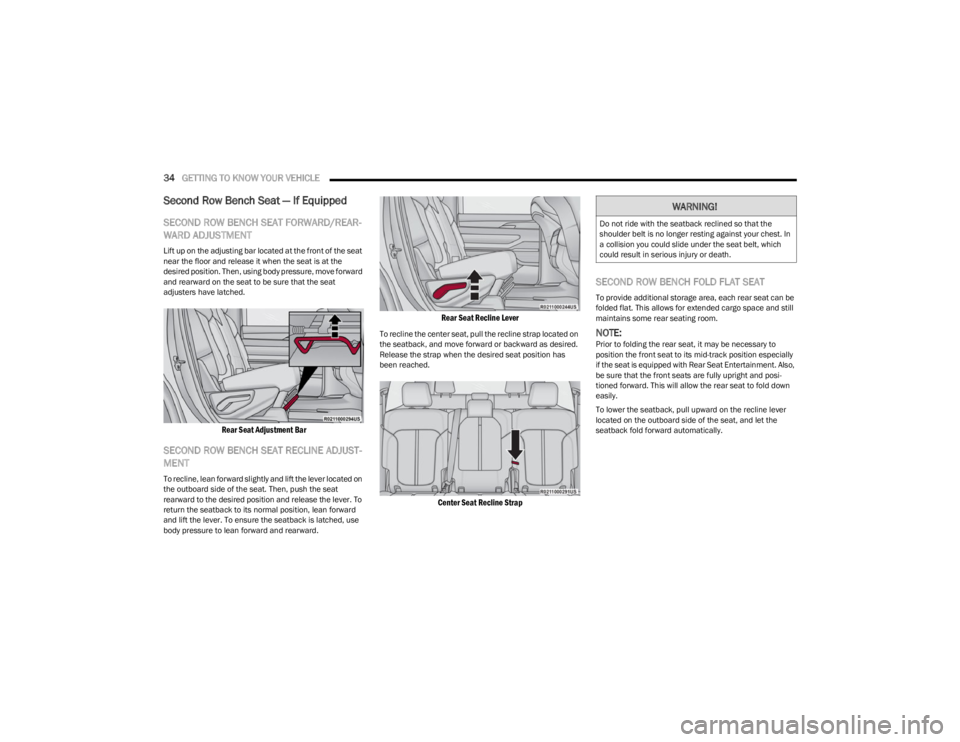
Lift up on the adjusting bar located at the front of the seat
near the floor and release it when the seat is at the
desired position. Then, using body pressure, move forward
and rearward on the seat to be sure that the seat
adjusters have latched.
Rear Seat Adjustment Bar
SECOND ROW BENCH SEAT RECLINE ADJUST -
MENT
To recline, lean forward slightly and lift the lever located on
the outboard side of the seat. Then, push the seat
rearward to the desired position and release the lever. To
return the seatback to its normal position, lean forward
and lift the lever. To ensure the seatback is latched, use
body pressure to lean forward and rearward.
Rear Seat Recline Lever
To recline the center seat, pull the recline strap located on
the seatback, and move forward or backward as desired.
Release the strap when the desired seat position has
been reached.
Center Seat Recline Strap
SECOND ROW BENCH FOLD FLAT SEAT
To provide additional storage area, each rear seat can be
folded flat. This allows for extended cargo space and still
maintains some rear seating room.
NOTE:Prior to folding the rear seat, it may be necessary to
position the front seat to its mid-track position especially
if the seat is equipped with Rear Seat Entertainment. Also,
be sure that the front seats are fully upright and posi -
tioned forward. This will allow the rear seat to fold down
easily.
To lower the seatback, pull upward on the recline lever
located on the outboard side of the seat, and let the
seatback fold forward automatically.
WARNING!
Do not ride with the seatback reclined so that the
shoulder belt is no longer resting against your chest. In
a collision you could slide under the seat belt, which
could result in serious injury or death.
23_WS_OM_EN_USC_t.book Page 34
Page 38 of 396
36GETTING TO KNOW YOUR VEHICLE
Second Row Captain’s Chairs —
If Equipped
SECOND ROW CAPTAIN’S CHAIRS FORWARD/
REARWARD ADJUSTMENT
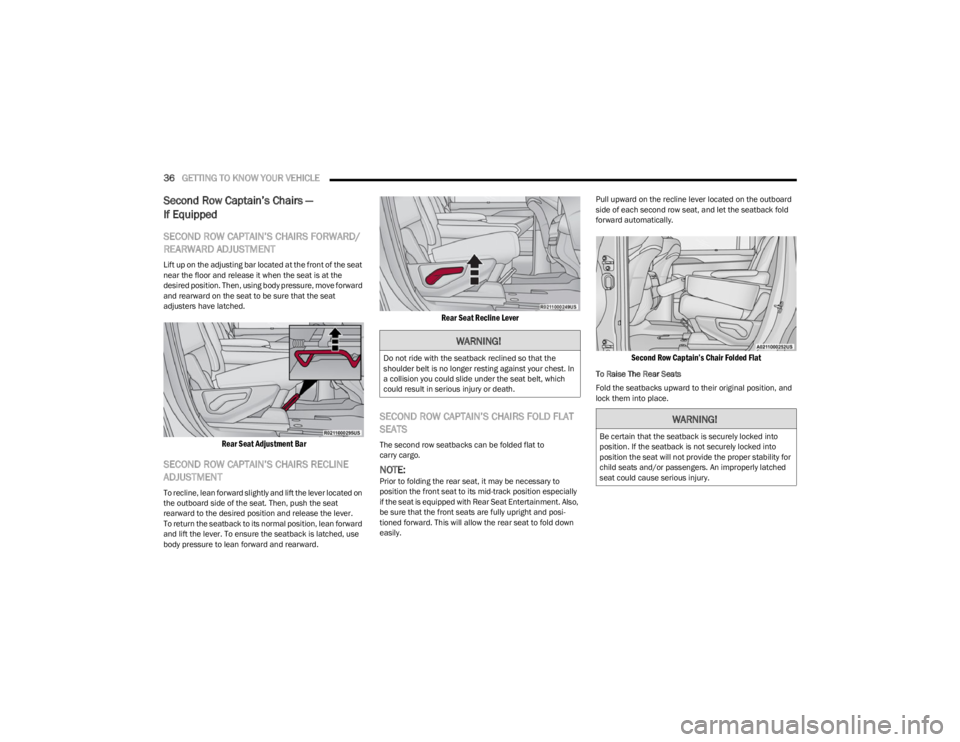
Lift up on the adjusting bar located at the front of the seat
near the floor and release it when the seat is at the
desired position. Then, using body pressure, move forward
and rearward on the seat to be sure that the seat
adjusters have latched.
Rear Seat Adjustment Bar
SECOND ROW CAPTAIN’S CHAIRS RECLINE
ADJUSTMENT
To recline, lean forward slightly and lift the lever located on
the outboard side of the seat. Then, push the seat
rearward to the desired position and release the lever.
To return the seatback to its normal position, lean forward
and lift the lever. To ensure the seatback is latched, use
body pressure to lean forward and rearward.
Rear Seat Recline Lever
SECOND ROW CAPTAIN’S CHAIRS FOLD FLAT
SEATS
The second row seatbacks can be folded flat to
carry cargo.
NOTE:Prior to folding the rear seat, it may be necessary to
position the front seat to its mid-track position especially
if the seat is equipped with Rear Seat Entertainment. Also,
be sure that the front seats are fully upright and posi -
tioned forward. This will allow the rear seat to fold down
easily. Pull upward on the recline lever located on the outboard
side of each second row seat, and let the seatback fold
forward automatically.
Second Row Captain’s Chair Folded Flat
To Raise The Rear Seats
Fold the seatbacks upward to their original position, and
lock them into place.
WARNING!
Do not ride with the seatback reclined so that the
shoulder belt is no longer resting against your chest. In
a collision you could slide under the seat belt, which
could result in serious injury or death.
WARNING!
Be certain that the seatback is securely locked into
position. If the seatback is not securely locked into
position the seat will not provide the proper stability for
child seats and/or passengers. An improperly latched
seat could cause serious injury.
23_WS_OM_EN_USC_t.book Page 36
Page 201 of 396
MULTIMEDIA199
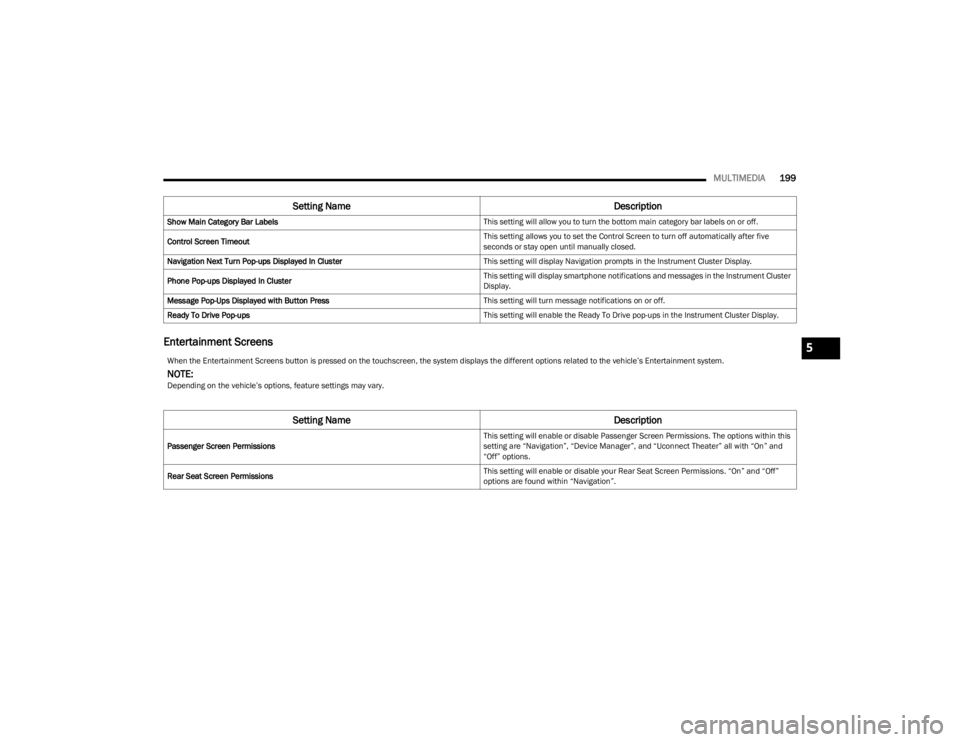
Entertainment Screens
Show Main Category Bar Labels This setting will allow you to turn the bottom main category bar labels on or off.
Control Screen Timeout This setting allows you to set the Control Screen to turn off automatically after five
seconds or stay open until manually closed.
Navigation Next Turn Pop-ups Displayed In Cluster This setting will display Navigation prompts in the Instrument Cluster Display.
Phone Pop-ups Displayed In Cluster This setting will display smartphone notifications and messages in the Instrument Cluster
Display.
Message Pop-Ups Displayed with Button Press This setting will turn message notifications on or off.
Ready To Drive Pop-ups This setting will enable the Ready To Drive pop-ups in the Instrument Cluster Display.
Setting NameDescription
When the Entertainment Screens button is pressed on the touchscreen, the system displays the different options related to the vehicle’s Entertainment system.
NOTE:Depending on the vehicle’s options, feature settings may vary.
Setting NameDescription
Passenger Screen Permissions This setting will enable or disable Passenger Screen Permissions. The options within this
setting are “Navigation”, “Device Manager”, and “Uconnect Theater” all with “On” and
“Off” options.
Rear Seat Screen Permissions This setting will enable or disable your Rear Seat Screen Permissions. “On” and “Off”
options are found within “Navigation”.
5
23_WS_OM_EN_USC_t.book Page 199
Page 223 of 396
MULTIMEDIA221
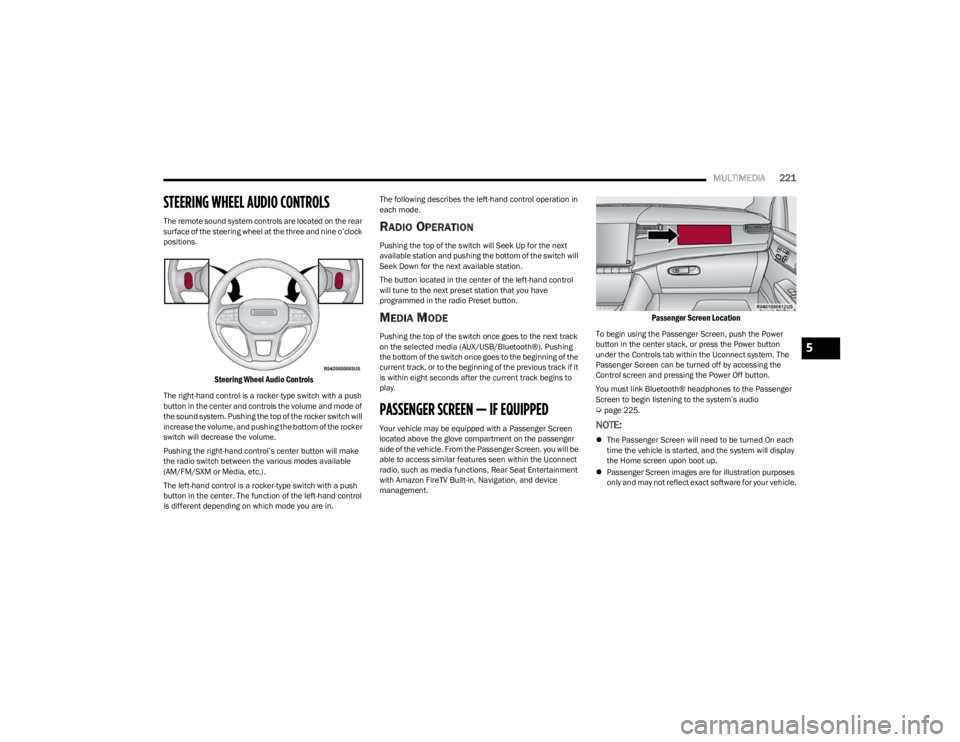
STEERING WHEEL AUDIO CONTROLS
The remote sound system controls are located on the rear
surface of the steering wheel at the three and nine o’clock
positions.
Steering Wheel Audio Controls
The right-hand control is a rocker-type switch with a push
button in the center and controls the volume and mode of
the sound system. Pushing the top of the rocker switch will
increase the volume, and pushing the bottom of the rocker
switch will decrease the volume.
Pushing the right-hand control’s center button will make
the radio switch between the various modes available
(AM/FM/SXM or Media, etc.).
The left-hand control is a rocker-type switch with a push
button in the center. The function of the left-hand control
is different depending on which mode you are in. The following describes the left-hand control operation in
each mode.
RADIO OPERATION
Pushing the top of the switch will Seek Up for the next
available station and pushing the bottom of the switch will
Seek Down for the next available station.
The button located in the center of the left-hand control
will tune to the next preset station that you have
programmed in the radio Preset button.
MEDIA MODE
Pushing the top of the switch once goes to the next track
on the selected media (AUX/USB/Bluetooth®). Pushing
the bottom of the switch once goes to the beginning of the
current track, or to the beginning of the previous track if it
is within eight seconds after the current track begins to
play.
PASSENGER SCREEN — IF EQUIPPED
Your vehicle may be equipped with a Passenger Screen
located above the glove compartment on the passenger
side of the vehicle. From the Passenger Screen, you will be
able to access similar features seen within the Uconnect
radio, such as media functions, Rear Seat Entertainment
with Amazon FireTV Built-in, Navigation, and device
management.
Passenger Screen Location
To begin using the Passenger Screen, push the Power
button in the center stack, or press the Power button
under the Controls tab within the Uconnect system. The
Passenger Screen can be turned off by accessing the
Control screen and pressing the Power Off button.
You must link Bluetooth® headphones to the Passenger
Screen to begin listening to the system’s audio
Úpage 225.
NOTE:
The Passenger Screen will need to be turned On each
time the vehicle is started, and the system will display
the Home screen upon boot up.
Passenger Screen images are for illustration purposes
only and may not reflect exact software for your vehicle.
5
23_WS_OM_EN_USC_t.book Page 221
Page 224 of 396
222MULTIMEDIA
PASSENGER SCREEN PERMISSIONS
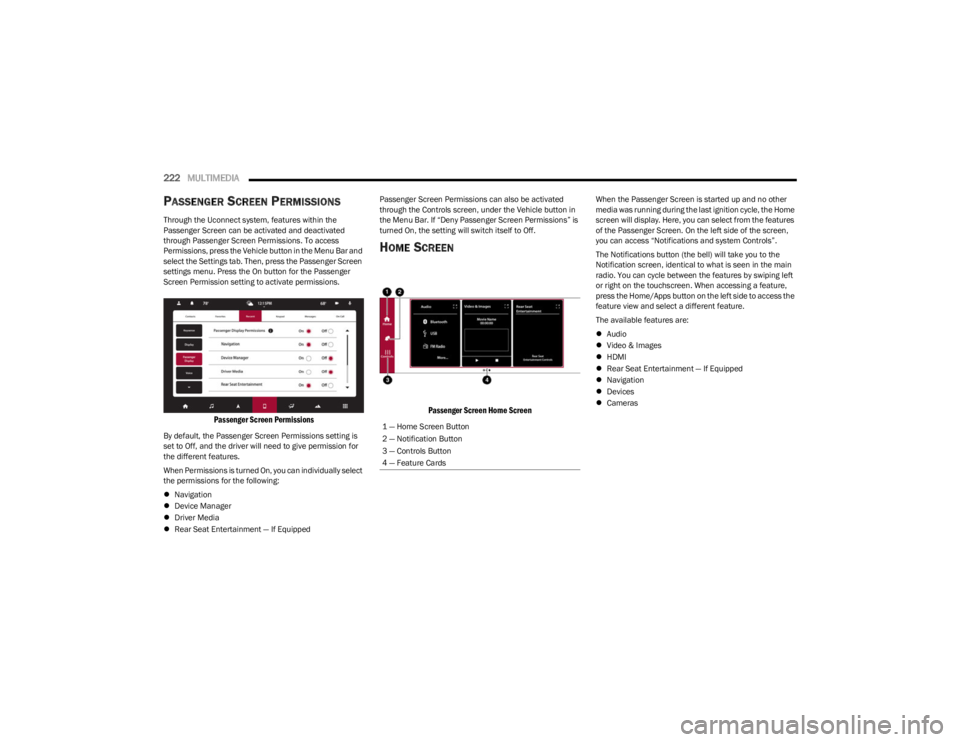
Through the Uconnect system, features within the
Passenger Screen can be activated and deactivated
through Passenger Screen Permissions. To access
Permissions, press the Vehicle button in the Menu Bar and
select the Settings tab. Then, press the Passenger Screen
settings menu. Press the On button for the Passenger
Screen Permission setting to activate permissions.
Passenger Screen Permissions
By default, the Passenger Screen Permissions setting is
set to Off, and the driver will need to give permission for
the different features.
When Permissions is turned On, you can individually select
the permissions for the following:
Navigation
Device Manager
Driver Media
Rear Seat Entertainment — If Equipped Passenger Screen Permissions can also be activated
through the Controls screen, under the Vehicle button in
the Menu Bar. If “Deny Passenger Screen Permissions” is
turned On, the setting will switch itself to Off.
HOME SCREEN
Passenger Screen Home Screen
When the Passenger Screen is started up and no other
media was running during the last ignition cycle, the Home
screen will display. Here, you can select from the features
of the Passenger Screen. On the left side of the screen,
you can access “Notifications and system Controls”.
The Notifications button (the bell) will take you to the
Notification screen, identical to what is seen in the main
radio. You can cycle between the features by swiping left
or right on the touchscreen. When accessing a feature,
press the Home/Apps button on the left side to access the
feature view and select a different feature.
The available features are:
Audio
Video & Images
HDMI
Rear Seat Entertainment — If Equipped
Navigation
Devices
Cameras
1 — Home Screen Button
2 — Notification Button
3 — Controls Button
4 — Feature Cards
23_WS_OM_EN_USC_t.book Page 222
Page 226 of 396
224MULTIMEDIA
To change the media source, press the Source button and
then press on the desired source. The available sources
are:
Live Radio (FM, AM, SXM)
Bluetooth®
USB 1
USB 2
AUX
AV 1 — If Equipped
AV 2 — If Equipped
Rear Screen 1 Listen In — If Equipped
Rear Screen 2 Listen In — If Equipped
NOTE:
Audio devices connected via Bluetooth® must be done
through the Device Manager in the radio. For more
information on pairing a device, refer to your Uconnect
Radio Instruction Manual.
If the driver is listening to “Live Radio”, the option will
not be available in the Passenger Screen. Select “Now
Playing On Radio” to listen to the currently playing
station. If the driver selects a radio station while the
Passenger Screen is playing live radio content, the feed
will end on the Passenger Screen and control will be
given to the Uconnect system.
On the Preset menu, you will be able to listen to saved
radio presets. Press the desired preset to begin listening. The Browse tab will let you browse through different radio
stations or audio saved onto a USB or audio device. Press
“Browse” and select from the different folders. You can
scroll up and down to view the options within those
folders. Press on the desired radio station or audio track
to begin playing it.
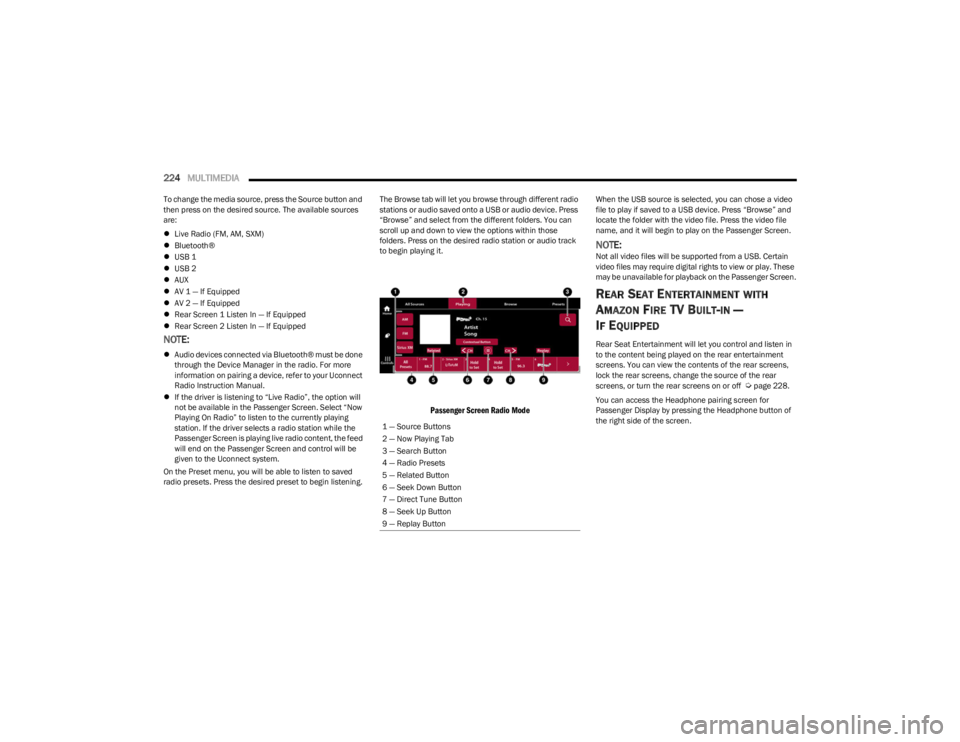
Passenger Screen Radio Mode
When the USB source is selected, you can chose a video
file to play if saved to a USB device. Press “Browse” and
locate the folder with the video file. Press the video file
name, and it will begin to play on the Passenger Screen.
NOTE:Not all video files will be supported from a USB. Certain
video files may require digital rights to view or play. These
may be unavailable for playback on the Passenger Screen.
REAR SEAT ENTERTAINMENT WITH
A
MAZON FIRE TV BUILT-IN —
I
F EQUIPPED
Rear Seat Entertainment will let you control and listen in
to the content being played on the rear entertainment
screens. You can view the contents of the rear screens,
lock the rear screens, change the source of the rear
screens, or turn the rear screens on or off
Úpage 228.
You can access the Headphone pairing screen for
Passenger Display by pressing the Headphone button of
the right side of the screen.
1 — Source Buttons
2 — Now Playing Tab
3 — Search Button
4 — Radio Presets
5 — Related Button
6 — Seek Down Button
7 — Direct Tune Button
8 — Seek Up Button
9 — Replay Button
23_WS_OM_EN_USC_t.book Page 224
Page 230 of 396
228MULTIMEDIA
REAR SEAT ENTERTAINMENT (RSE) WITH
AMAZON FIRE TV BUILT-IN — IF EQUIPPED
OVERVIEW
Rear Seat Entertainment with Fire TV built-in is designed
to give your family years of enjoyment.
Fire TV lets passengers enjoy a wide variety of content
from popular apps (subscriptions may be required).
Stream videos, play games, listen to music, get
information, and watch downloaded programs all while on
the road. Two Voice Remotes with Alexa are included with
the system. Press the Microphone button on the Voice
Remote with Alexa to easily find, launch, and control
content. Check sports scores, play music, control smart
home devices, or see your live camera feeds (compatible
smart home device required and sold separately). In
addition to streaming and downloaded content, changing
the input in Fire TV also enables you to:
Mirror what’s on your phone or tablet to Fire TV via
Miracast capable devices
Stream your favorite shows with Fire TV
Plug and play a variety of standard video games or
devices into the HDMI port
Listen to audio over wired or wireless headphones (not
included, customer will have to provide their own)
Plug and play a variety of devices into the front seat
Video USB port. USB ports located under the rear
screens are charge only.
Watch content individually on each rear display or
mirror across both displays to watch together
NOTE:The vehicle must be in an active and usable cellular range
and properly equipped with a Uconnect 5 NAV system and
Rear Seat Entertainment with Fire TV package. Streaming
requires a Wi-Fi connection and registered Amazon
account to run Fire TV in the vehicle. Streaming service
subscriptions are not included. Services and features are
subject to change or withdrawal at any time, may not be
available in all areas and languages, and may require
separate subscriptions.
Please review this Owner's Manual to become familiar
with RSE features and operation.
GETTING STARTED
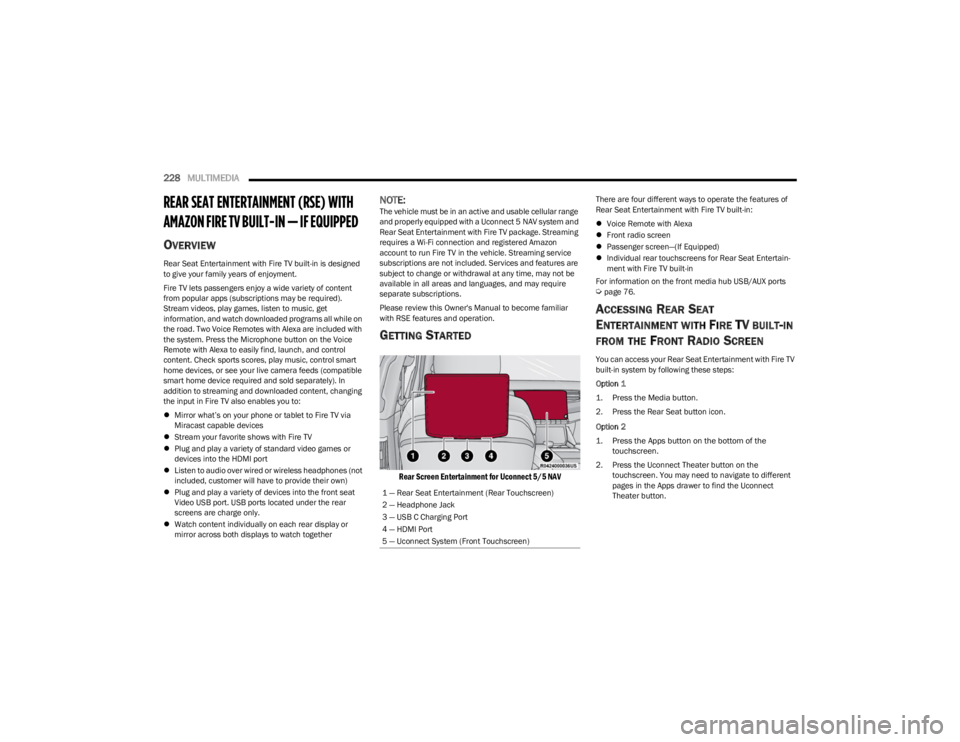
Rear Screen Entertainment for Uconnect 5/5 NAV
There are four different ways to operate the features of
Rear Seat Entertainment with Fire TV built-in:
Voice Remote with Alexa
Front radio screen
Passenger screen—(If Equipped)
Individual rear touchscreens for Rear Seat Entertain -
ment with Fire TV built-in
For information on the front media hub USB/AUX ports
Úpage 76.
ACCESSING REAR SEAT
E
NTERTAINMENT WITH FIRE TV BUILT-IN
FROM THE FRONT RADIO SCREEN
You can access your Rear Seat Entertainment with Fire TV
built-in system by following these steps:
Option 1
1. Press the Media button.
2. Press the Rear Seat button icon.
Option 2
1. Press the Apps button on the bottom of the
touchscreen.
2. Press the Uconnect Theater button on the touchscreen. You may need to navigate to different
pages in the Apps drawer to find the Uconnect
Theater button.
1 — Rear Seat Entertainment (Rear Touchscreen)
2 — Headphone Jack
3 — USB C Charging Port
4 — HDMI Port
5 — Uconnect System (Front Touchscreen)
23_WS_OM_EN_USC_t.book Page 228
Page 231 of 396
MULTIMEDIA229
ACCESSING REAR SEAT
E
NTERTAINMENT WITH FIRE TV BUILT-IN
FROM THE REAR SCREENS
You can also access your Rear Seat Entertainment with
Fire TV built-in by choosing one of the following options:
Option 1
The system will automatically turn on when the vehicle
is started. Pushing the power button on the Voice
Remote with Alexa will turn the system back on if it was
manually shut off. If the screen is inactive and goes to
a screen saver, the system can be woken up by either
tapping the screen or pushing any button on the Voice
Remote with Alexa.
Option 2
Swiping on either of the rear touchscreens.
NOTE:While accessing on the rear screens, the system will
launch with the integrated Fire TV.
ACCESSING REAR SEAT
E
NTERTAINMENT WITH FIRE TV BUILT-IN
FROM THE PASSENGER SCREEN —
I
F EQUIPPED
You can also access Rear Seat Entertainment with Fire TV
built-in content from the Passenger Screen.
Follow these steps:
1. Access the Home screen for the Passenger Screen.
2. Swipe right on the Home screen and select Fire TV
Rear Seat Entertainment Controls.
FIRST TIME STARTING UP
(U
SING THE REAR SCREENS)
Boot-up Screen
When turning on the system for the first time from the rear
screens, a boot-up screen will appear on the system
displaying the Fire TV logo.
During this boot-up sequence, language options will be
available for the system.
Voice Remote with Alexa Pairing
After the boot-up sequence is complete, the system will
then give the option to pair a Voice Remote with Alexa (two
are included with the system).
Follow the on-screen instructions for how to pair a Voice
Remote with Alexa to the system. Two Voice Remotes with
Alexa are included to be paired with each rear screen.
A Voice Remote with Alexa can be paired to each rear
screen. It will function with the rear screen it was paired
with. The pairing steps will need to be done for each rear
screen.
NOTE:If the Voice Remote with Alexa pairing fails, on-screen
instructions will appear for trying to pair again.
Connecting to a Network
During the start-up process, the system will need to be
connected to a network to function. Multiple network
sources can be options for the system. Some options for a network connection are:
Wi-Fi Hotspot using a capable smartphone (if activated,
it will show as a possible network for the system on the
screen).
Outside connection like a home Wi-Fi network.
In-vehicle Wi-Fi.
NOTE:When a network is connected to the system for the first
time, an over-the-air-software update will take place using
the Wi-Fi connection. It is recommended that an unlimited
Wi-Fi connection, if available, be used during this update.
After this first-time update, updates will only occur when
one is available.
Account Sign-in
The next step will be the option to sign in to your Amazon
account.
There are two options to sign into the system:
I already have an Amazon account: Sign in with an
already existing Amazon account
I am new to Amazon: Create a new Amazon Account
If “I am new to Amazon” is selected, follow the on-screen
steps to set up an Amazon account with the system.
Parental Controls
Another feature that will appear during this first time set
up is parental controls.
When the parental controls page appears, it will give the
options “Enable Parental Controls” and “No Parental
Controls”. If “Enable Parental Controls” is selected, follow
the on-screen steps to set up parental controls for the
system.
5
23_WS_OM_EN_USC_t.book Page 229
Page 232 of 396
230MULTIMEDIA
ALEXA VOICE CONTROL
A feature with Rear Seat Entertainment with Fire TV
built-in that enhances your experience is Alexa. It is simple
to get started using this feature. Push the Microphone
button at the top of the Voice Remote with Alexa to
activate Alexa and get started.
LISTEN VIA VEHICLE SPEAKERS
A feature within Rear Seat Entertainment with Fire TV
built-in is the front radio Listen feature. On the front radio
Home screen for Fire TV, select the Listen button in the top
right corner on either card for Screen 1 or 2. This will allow
you to have either rear screen play audio through all the
speakers in the vehicle.
QUICK MENU
Accessing the quick menu will give you more options for
Fire TV.
To access the quick menu, tap the screen and it will
appear. The quick menu is also accessible by pushing the
Gear/Settings button on the Voice Remote with Alexa.
Some options of the quick menu are:
Power — This will power the screen off.
On-Screen Remote — This will bring up the on-screen
remote to use with the system.
Back — This will let you go back a page.
Home — This will take you to the Home screen.
Gear/Settings — This will let you access certain settings
in the system. For more setting options, select
“Settings” within the on-screen Gear/Settings menu.
Vehicle — This will bring up the Vehicle menu. From
here you can adjust rear climate controls and the Are
We There Yet? app.
PARENTAL CONTROLS (USING THE REAR
S
CREENS)
If parental controls were not set during the first time start
up of the system, they can be set by following these steps:
1. Push the Gear/Settings button on the Voice Remote
with Alexa or tap the screen to access Settings in the
“quick menu”.
2. Select the Gear/Settings icon on the screen.
3. Select “Settings” on the screen.
4. While in Settings, select “Preferences”.
5. Select “Parental Controls”; from here you can turn Parental Controls on or off and set up a PIN for the
controls using the Voice Remote with Alexa.
VOICE REMOTE WITH ALEXA PAIRING
(U
SING THE REAR SCREENS)
If the Voice Remote with Alexa needs to be paired again or
a new remote is being paired, follow these procedures:
1. Install batteries into the remote.
2. Tap the screen and Select the Gear/Settings icon on
the screen.
3. Select “Settings” on the screen. 4. In Settings, select “Controllers & Bluetooth®
Devices”.
5. From this menu, select “Add New Remote”.
6. Follow the on-screen steps for Voice Remote with Alexa pairing.
A long press on the Home button can also re-pair a Voice
Remote with Alexa that has become disconnected.
NOTE:Your vehicle is included with two Voice Remotes with
Alexa. A Voice Remote with Alexa can be paired to each
rear screen. It will function with the rear screen it was
paired with. The pairing steps will need to be done for each
rear screen.
MEDIA SOURCES INPUT (USING THE
F
RONT RADIO AND REAR SCREENS)
Front Radio Screen
Users can select inputs for each rear screen from the front
radio touchscreen by selecting the Rear Seat tab and
choosing the desired content by selecting “Launch
Source” on the Screen 1 or Screen 2 tab.
Inputs available within Launch Source under “Inputs” are
“Fire TV”, “HDMI”, and “USB”.
Rear Screens
To select inputs on the rear screen, scroll down on the Fire
TV Home screen and select your desired input under
“Input”.
Inputs can also be selected from the Brand tab in the top
menu. While in this tab, scroll down to “Inputs” for
selection options.
23_WS_OM_EN_USC_t.book Page 230