radio JEEP WRANGLER 2015 JK / 3.G User Guide
[x] Cancel search | Manufacturer: JEEP, Model Year: 2015, Model line: WRANGLER, Model: JEEP WRANGLER 2015 JK / 3.GPages: 695, PDF Size: 20.64 MB
Page 136 of 695
•After the “Ready” prompt and the following beep, say
“Setup Select Phone” and follow the prompts.
•You can also push thebutton at any time while
the list is being played, and then choose the phone
that you wish to select.
•The selected phone will be used for the next phone
call. If the selected phone is not available, the
Uconnect® Phone will return to using the highest
priority phone present in or near (approximately
within 30 ft (9 m)) the vehicle.
Delete Uconnect® Phone Paired Mobile Phones
•Push thebutton to begin.
•After the “Ready” prompt and the following beep, say
“Setup Phone Pairing.”
•At the next prompt, say “Delete” and follow the
prompts.
•You can also push thebutton at any time while
the list is being played, and then choose the phone
you wish to delete.
Things You Should Know About Your Uconnect®
Phone
Uconnect® Phone Tutorial
To hear a brief tutorial of the system features, push the
button and say “Uconnect® Tutorial.”
Voice Training
For users experiencing difficulty with the system recog-
nizing their voice commands or numbers, the Uconnect®
Phone Voice Training feature may be used. To enter this
training mode, follow one of the two following proce-
dures:
•From outside the Uconnect® Phone mode (e.g., from
radio mode), push and hold thebutton for five
seconds until the session begins, or,
134 UNDERSTANDING THE FEATURES OF YOUR VEHICLE
Page 147 of 695
General Information
This device complies with Part 15 of the FCC rules and
RSS 210 of Industry Canada. Operation is subject to the
following conditions:
•Changes or modifications not expressly approved by
the party responsible for compliance could void the
user’s authority to operate the equipment.
•This device may not cause harmful interference.
•This device must accept any interference received,
including interference that may cause undesired op-
eration.
VOICE COMMAND — IF EQUIPPED
Voice Command System Operation
The Uconnect® Voice Command system allows
you to control your AM, FM radio, disk player,
USB mass storage class device, iPod® family of
devices, Bluetooth® Streaming Audio Device,
satellite radio, and a memo recorder.
NOTE:Take care to speak into the Voice Interface System
as calmly and normally as possible. The ability of the
Voice Interface System to recognize user voice commands
may be negatively affected by rapid speaking or a raised
voice level.
3
UNDERSTANDING THE FEATURES OF YOUR VEHICLE 145
Page 149 of 695
To hear the first available Menu, push the Voice Com-
mandbutton and say “Help” or “Main Menu.”
Commands
The Voice Command system understands two types of
commands, Universal commands and Local commands.
Universal commands are available at all times. Local
commands are available if the supported radio mode is
active.
Changing The Volume
1. Start a dialogue by pushing the Voice Command
button.
2. Say a command (e.g., “Help”).
3.Use the ON/OFF VOLUME rotary knob to adjust the
volume to a comfortable level while the Voice Command
system is speaking. Please note the volume setting for
Voice Command is different than the audio system.
Main Menu
Start a dialogue by pushing the Voice Command
button. You may say “Main Menu” to switch to
the main menu.
In this mode, you can say the following commands:
•“Radio AM” (to switch to the radio AM mode)
•“Radio FM” (to switch to radio FM mode)
•“Sat” (to switch to Satellite radio mode)
•“Disc” (to switch to the disc mode)
•“USB” (to switch to USB mode)
•“Bluetooth Streaming” (to switch to Bluetooth®
Streaming mode)
•“Memo” (to switch to the memo recorder)
•“System Setup” (to switch to system setup)
3
UNDERSTANDING THE FEATURES OF YOUR VEHICLE 147
Page 150 of 695
Radio AM
To switch to the AM band, say “AM” or “Radio AM.” In
this mode, you may say the following commands:
•“Frequency #” (to change the frequency)
•“Next Station” (to select the next station)
•“Previous Station” (to select the previous station)
•“Radio Menu” (to switch to the radio menu)
•“Main Menu” (to switch to the main menu)
Radio FM
To switch to the FM band, say “FM” or “Radio FM.” In
this mode, you may say the following commands:
•“Frequency #” (to change the frequency)
•“Next Station” (to select the next station)
•“Previous Station” (to select the previous station)
•“Menu Radio” (to switch to the radio menu)
•“Main Menu” (to switch to the main menu)
Satellite Radio
To switch to satellite radio mode, say “Sat” or “Satellite
Radio.” In this mode, you may say the following com-
mands:
•“Channel Number” (to change the channel by its
spoken number)
•“Next Channel” (to select the next channel)
•“Previous Channel” (to select the previous channel)
•“List Channel” (to hear a list of available channels)
•“Select Name” (to say the name of a channel)
•“Menu Radio” (to switch to the radio menu)
•“Main Menu” (to switch to the main menu)
148 UNDERSTANDING THE FEATURES OF YOUR VEHICLE
Page 172 of 695
High/Low Beam Switch
Push the multifunction lever away from you to switch
the headlights to high beam. Pull the lever toward you, to
switch the headlights back to low beam.
Flash-To-Pass
You can signal another vehicle with your headlights by
lightly pulling the multifunction lever toward you. This
will turn on the high beams headlights until the lever is
released.
Front Fog Lights
The front fog light switch is located on the multi-
function lever. To activate the front fog lights, turn
on the parking or low beam headlights and pull out the
end of the lever.
NOTE:The fog lights will only operate with the parking
lights or the headlights on low beam. Selecting high
beam headlights will turn off the fog lights.
Instrument Panel Dimmer
Rotate the center portion of the lever to the extreme
bottom position to fully dim the instrument panel lights
and prevent the interior lights from illuminating when a
door is opened.
Rotate the center portion of the lever up to increase the
brightness of the instrument panel lights when the park-
ing lights or headlights are on.
Rotate the center portion of the lever upward to the next
detent position to brighten the odometer and radio when
the parking lights or headlights are on.
Rotate the center portion of the lever upward to the last
detent to turn on the interior lighting.
170 UNDERSTANDING THE FEATURES OF YOUR VEHICLE
Page 304 of 695
▫Advanced EVIC Messages (Customer Information
Features)............................337
▫System Status........................337
▫Personal Settings (Customer-Programmable
Features)...........................338
!Uconnect® 230 – AM/FM STEREO RADIO AND
6–DISC CD/DVD CHANGER (MP3/WMA AUX
JACK)..............................342
▫Operating Instructions — Radio Mode.......342
▫Operation Instructions — DISC Mode For CD And
MP3/WMA Audio Play, DVD – Video.......350
▫Notes On Playing MP3/WMA Files.........352
▫LIST Button — DISC Mode For MP3/WMA
Play...............................355
▫INFO Button — DISC Mode For MP3/WMA
Play...............................355
▫Uconnect® (Satellite Radio) — If Equipped . . .358
!Uconnect® 730N/430/430N CD/DVD/HDD/NAV
— IF EQUIPPED.......................362
▫Operating Instructions (Voice Command System)
— If Equipped.......................362
▫Operating Instructions (Uconnect® Phone) — If
Equipped...........................362
!Uconnect® 130........................362
▫Operating Instructions — Radio Mode.......363
▫Operation Instructions — CD MODE For CD And
MP3 Audio Play......................366
▫Notes On Playing MP3 Files..............368
▫Operation Instructions — Auxiliary Mode . . . .371
302 UNDERSTANDING YOUR INSTRUMENT PANEL
Page 305 of 695
!Uconnect® 130 WITH SATELLITE RADIO.....372
▫Operating Instructions — Radio Mode......372
▫Operation Instructions — CD MODE For CD And
MP3 Audio Play......................378
▫Notes On Playing MP3 Files.............380
▫LIST Button — CD Mode For MP3 Play......383
▫INFO Button — CD Mode For MP3 Play.....384
▫Uconnect® (Satellite Radio) — If Equipped . . .384
!iPod®/USB/MP3 CONTROL — IF EQUIPPED . .389
▫Connecting The iPod® Or External USB
Device.............................389
▫Using This Feature.....................390
▫Controlling The iPod® Or External USB Device
Using Radio Buttons...................390
▫Play Mode..........................390
▫List Or Browse Mode...................392
▫Bluetooth® Streaming Audio (BTSA).......394
!STEERING WHEEL AUDIO CONTROLS......396
▫Radio Operation......................397
▫CD Player...........................397
!CD/DVD DISC MAINTENANCE...........397
!RADIO OPERATION AND MOBILE PHONES . . .398
▫Regulatory And Safety Information.........398
!CLIMATE CONTROLS...................400
▫Manual Heating And Air Conditioning......400
▫Automatic Temperature Control (ATC) — If
Equipped...........................404
▫Operating Tips.......................412
4
UNDERSTANDING YOUR INSTRUMENT PANEL 303
Page 306 of 695
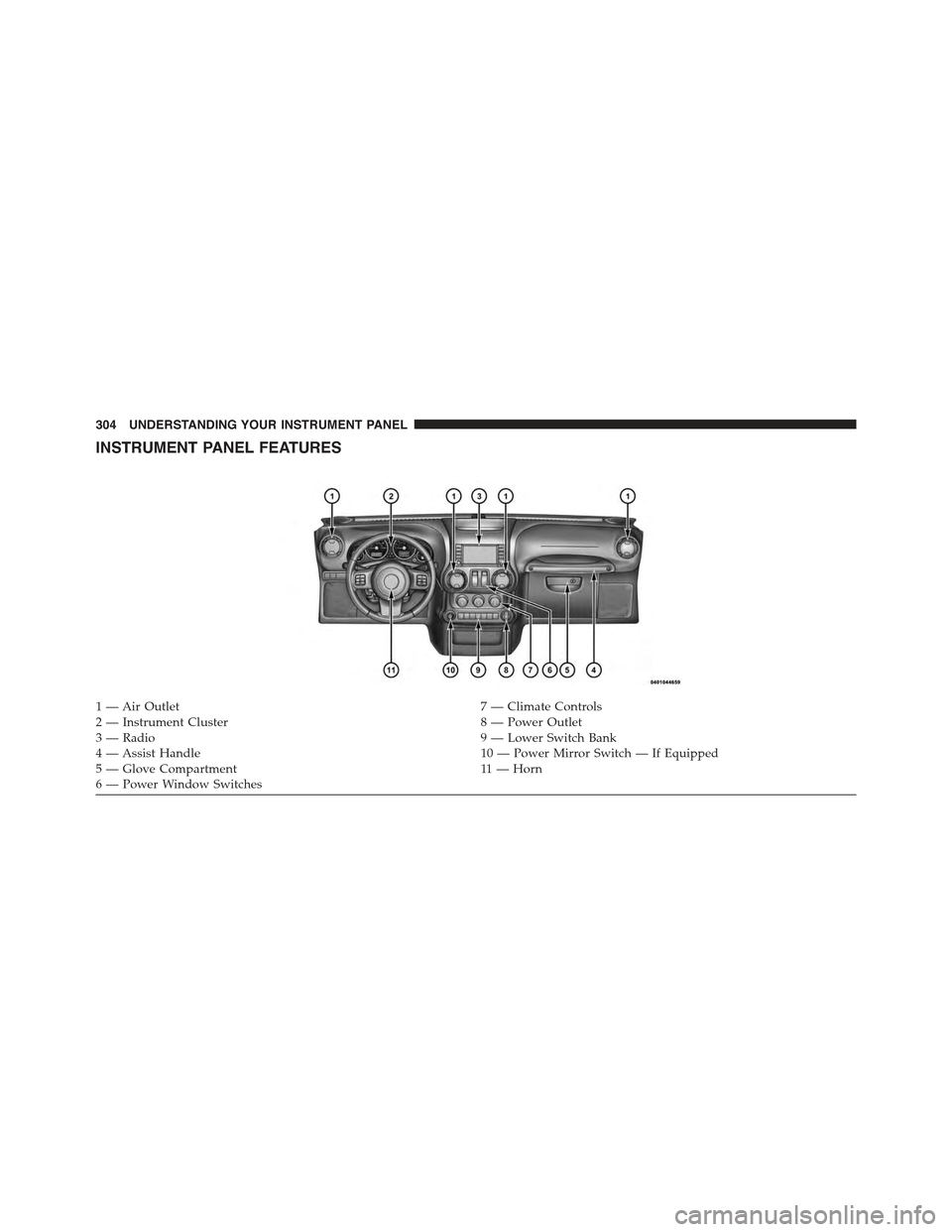
INSTRUMENT PANEL FEATURES
1 — Air Outlet7 — Climate Controls2 — Instrument Cluster8 — Power Outlet3—Radio9—LowerSwitchBank4 — Assist Handle10 — Power Mirror Switch — If Equipped5—GloveCompartment11 — H o r n6—PowerWindowSwitches
304 UNDERSTANDING YOUR INSTRUMENT PANEL
Page 326 of 695
Compass/Temperature Display
NOTE:If the vehicle is equipped with a Chrysler
Uconnect® gps (Navigation Radio), the NAV system will
provide the compass direction, and the variance and
calibration menus will be unavailable. The compass will
perform accurately, based on GPS signals instead of the
Earth’s magnetic field.
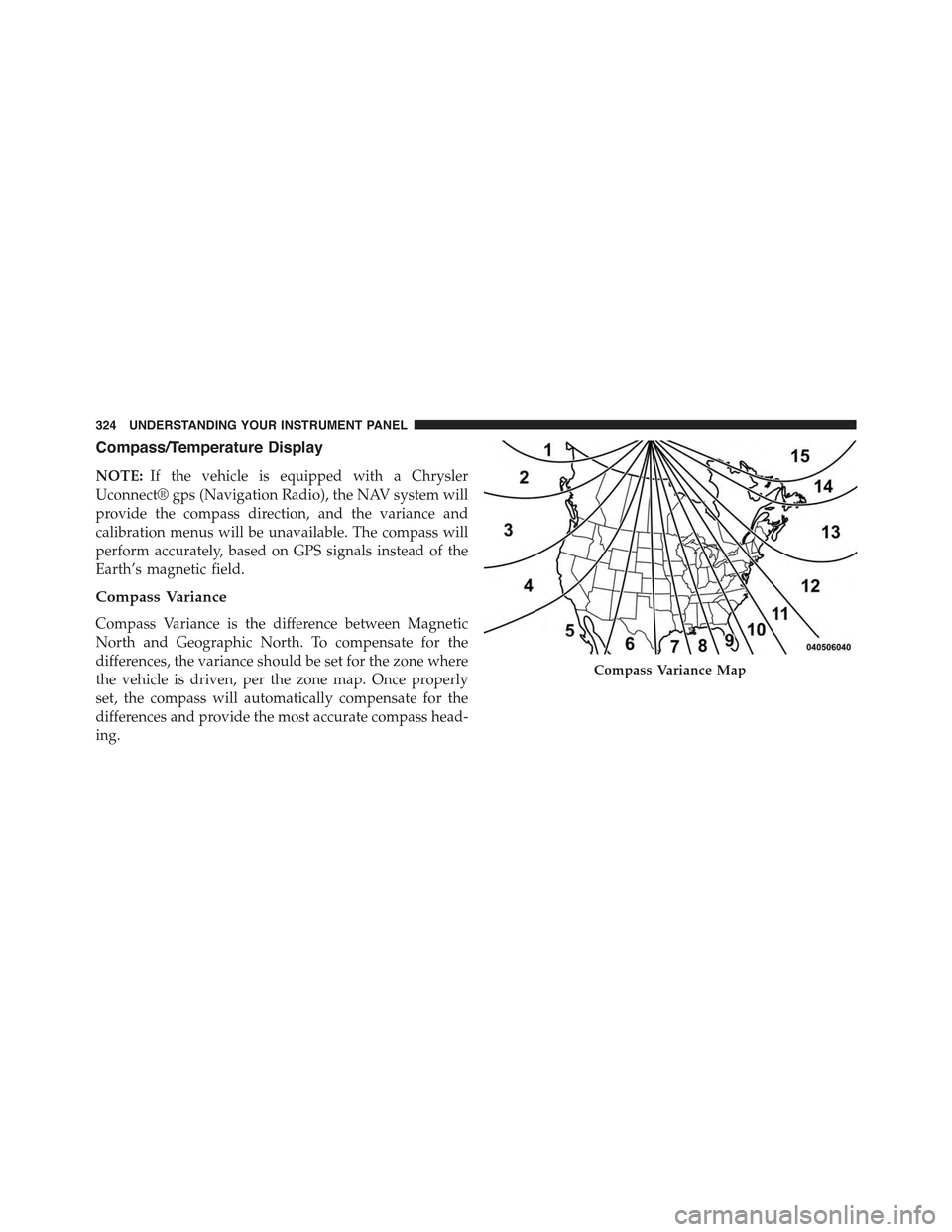
Compass Variance
Compass Variance is the difference between Magnetic
North and Geographic North. To compensate for the
differences, the variance should be set for the zone where
the vehicle is driven, per the zone map. Once properly
set, the compass will automatically compensate for the
differences and provide the most accurate compass head-
ing.
Compass Variance Map
324 UNDERSTANDING YOUR INSTRUMENT PANEL
Page 342 of 695
Headlamps with Wipers (Available with Auto
Headlights Only)
When on is selected, and the headlight switch is in the
AUTO position, the headlights will turn on approxi-
mately 10 seconds after the wipers are turned on. If the
headlights were turned on by this feature they will also
turn off when the wipers are turned off. To make your
selection, press and release the SELECT button until
“ON” or “OFF” appears.
NOTE:Turning the headlights on during the daytime
causes the instrument panel lights to dim. To increase the
brightness, refer to “Lights” in “Understanding The
Features Of Your Vehicle.”
Key Off Power Delay
When this feature is selected, the power window
switches, radio, hands–free system (if equipped), DVD
video system (if equipped), power sunroof (if equipped),
and power outlets will remain active for up to 10 minutes
after the ignition switch is turned to the LOCK position.
Opening either front vehicle door will cancel this feature.
To make your selection, press and release the SELECT
button until “Off,” “45 sec.,” “5 min.,” or “10 min.”
appears.
Illumin. Approach
When this feature is selected, the headlights will activate
and remain on for up to 90 seconds when the doors are
unlocked with the RKE transmitter. To make your selec-
tion, press and hold the SELECT button until “Off,” “30
sec,” “60 sec,” or “90 sec” appears.
Hill Start Assist (HSA) — If Equipped
When on is selected, the HSA system is active. Refer to
“Electronic Brake Control System” in “Starting And
Operating” for system function and operating informa-
tion. To make your selection, push and release the
SELECT button until “On” or “Off” appears.
340 UNDERSTANDING YOUR INSTRUMENT PANEL