start stop button JEEP WRANGLER 2023 Owner's Manual
[x] Cancel search | Manufacturer: JEEP, Model Year: 2023, Model line: WRANGLER, Model: JEEP WRANGLER 2023Pages: 396, PDF Size: 25.15 MB
Page 155 of 396
STARTING AND OPERATING153
(Continued)
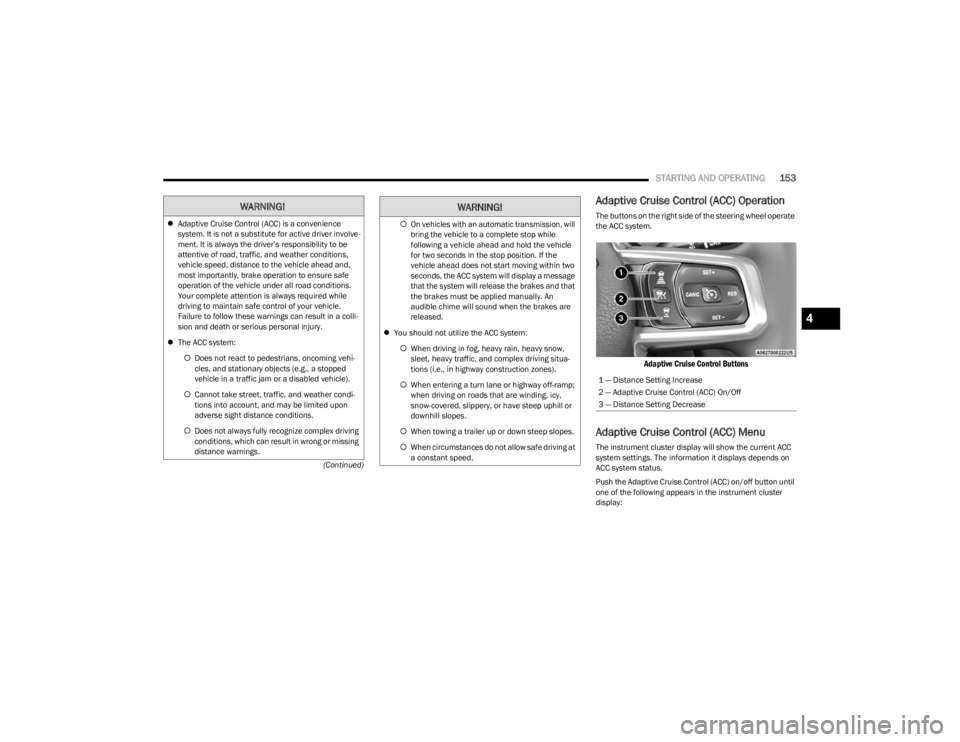
Adaptive Cruise Control (ACC) Operation
The buttons on the right side of the steering wheel operate
the ACC system.
Adaptive Cruise Control Buttons
Adaptive Cruise Control (ACC) Menu
The instrument cluster display will show the current ACC
system settings. The information it displays depends on
ACC system status.
Push the Adaptive Cruise Control (ACC) on/off button until
one of the following appears in the instrument cluster
display:
WARNING!
Adaptive Cruise Control (ACC) is a convenience
system. It is not a substitute for active driver involve -
ment. It is always the driver’s responsibility to be
attentive of road, traffic, and weather conditions,
vehicle speed, distance to the vehicle ahead and,
most importantly, brake operation to ensure safe
operation of the vehicle under all road conditions.
Your complete attention is always required while
driving to maintain safe control of your vehicle.
Failure to follow these warnings can result in a colli -
sion and death or serious personal injury.
The ACC system:
Does not react to pedestrians, oncoming vehi -
cles, and stationary objects (e.g., a stopped
vehicle in a traffic jam or a disabled vehicle).
Cannot take street, traffic, and weather condi -
tions into account, and may be limited upon
adverse sight distance conditions.
Does not always fully recognize complex driving
conditions, which can result in wrong or missing
distance warnings.On vehicles with an automatic transmission, will
bring the vehicle to a complete stop while
following a vehicle ahead and hold the vehicle
for two seconds in the stop position. If the
vehicle ahead does not start moving within two
seconds, the ACC system will display a message
that the system will release the brakes and that
the brakes must be applied manually. An
audible chime will sound when the brakes are
released.
You should not utilize the ACC system:
When driving in fog, heavy rain, heavy snow,
sleet, heavy traffic, and complex driving situa-
tions (i.e., in highway construction zones).
When entering a turn lane or highway off-ramp;
when driving on roads that are winding, icy,
snow-covered, slippery, or have steep uphill or
downhill slopes.
When towing a trailer up or down steep slopes.
When circumstances do not allow safe driving at
a constant speed.
WARNING!
1 — Distance Setting Increase
2 — Adaptive Cruise Control (ACC) On/Off
3 — Distance Setting Decrease
4
23_JL_OM_EN_USC_t.book Page 153
Page 157 of 396
STARTING AND OPERATING155
If ACC is set when the vehicle speed is below 20 mph
(32 km/h), the set speed will default to 20 mph
(32 km/h).
NOTE:Fixed Speed Cruise Control cannot be set below 20 mph
(32 km/h).
If either system is set when the vehicle speed is above
20 mph (32 km/h), the set speed shall be the current speed of the vehicle.
On vehicles equipped with a manual transmission, the
ACC system cannot be set when the vehicle speed is below
20 mph (32 km/h) or when the vehicle is in FIRST gear.
NOTE:
Keeping your foot on the accelerator pedal can cause
the vehicle to continue to accelerate beyond the set
speed. If this occurs, the message “DRIVER OVERRIDE”
will display in the instrument cluster display.
If you continue to accelerate beyond the set speed
while ACC is enabled, the system will not be controlling
the distance between your vehicle and the vehicle
ahead. The vehicle speed will only be determined by
the position of the accelerator pedal.
To Cancel
The following conditions cancel the ACC or Fixed Speed
Cruise Control systems:
The brake pedal is applied
The CANC button is pushed
The Anti-Lock Brake System (ABS) activates
The gear selector is removed from the DRIVE position
The Electronic Stability Control/Traction Control
System (ESC/TCS) activates
The vehicle parking brake is applied
The braking temperature exceeds normal range (over -
heated)
The Trailer Sway Control (TSC) activates
The vehicle speed is less than 15 mph (24 km/h)
(manual transmission only)
The clutch is pressed for more than 10 seconds
(manual transmission only)
The vehicle is placed in NEUTRAL for more than
10 seconds (manual transmission only)
The driver shifts to FIRST gear (manual transmission
only)
The following conditions will only cancel the ACC system:
Driver seat belt is unbuckled at low speeds
Driver door is opened at low speeds
To Turn Off
The system will turn off and erase the set speed in
memory if:
The Adaptive Cruise Control (ACC) on/off button is
pushed
The Fixed Speed Cruise Control on/off button is pushed
The ignition is placed in the OFF position
4WD Low is engaged
To Resume
If there is a set speed in the memory, push the RES button
and then remove your foot from the accelerator pedal. The
instrument cluster display will show the last set speed. Resume can be used at any speed above 20 mph
(32 km/h) when only Fixed Speed Cruise Control is being
used.
Resume can be used at any speed above 0 mph (0 km/h)
when ACC is active.
NOTE:
While in ACC mode, when the vehicle comes to a
complete stop longer than two seconds, the system will
cancel. The driver will have to apply the brakes to keep
the vehicle at a standstill.
ACC cannot be resumed if there is a stationary vehicle
in front of your vehicle in close proximity.
To Vary The Speed Setting
To Increase Or Decrease The Set Speed
After setting a speed, you can increase the set speed by
pushing the SET (+) button, or decrease speed by pushing
the SET (-) button.
WARNING!
The Resume function should only be used if traffic and
road conditions permit. Resuming a set speed that is
too high or too low for prevailing traffic and road condi -
tions could cause the vehicle to accelerate or deceler -
ate too sharply for safe operation. Failure to follow
these warnings can result in a collision and death or
serious personal injury.
4
23_JL_OM_EN_USC_t.book Page 155
Page 158 of 396
156STARTING AND OPERATING
U.S. Speed (mph)
Pushing the SET (+), or SET (-) button once will result in
a 1 mph speed adjustment. Each subsequent tap of
the button results in an adjustment of 1 mph.
If the button is continually pushed, the set speed will
continue to adjust in 5 mph increments until the button
is released. The new set speed is reflected in the instru -
ment cluster display.
Metric Speed (km/h)
Pushing the SET (+), or SET (-) button once will result in
a 1 km/h speed adjustment. Each subsequent tap of
the button results in an adjustment of 1 km/h.
If the button is continually pushed, the set speed will
continue to adjust in 10 km/h increments until the
button is released. The new set speed is reflected in
the instrument cluster display.
NOTE:When you override and push the SET (+) button or SET (-)
buttons, the new set speed will be the current speed of the
vehicle.
When ACC Is Active
When you use the SET (-) button to decelerate, if the
engine’s braking power does not slow the vehicle suffi -
ciently to reach the set speed, the brake system will
automatically slow the vehicle.
The ACC system applies the brake down to a full stop
when following the vehicle in front. If your vehicle
follows the vehicle in front to a standstill, your vehicle
will release the brakes two seconds after coming to a
full stop.
The ACC system maintains set speed when driving
uphill and downhill. However, a slight speed change on moderate hills is normal. In addition, downshifting may
occur while climbing uphill or descending downhill. This
is normal operation and necessary to maintain set
speed. When driving uphill and downhill, the ACC
system will cancel if the braking temperature exceeds
normal range (overheated).
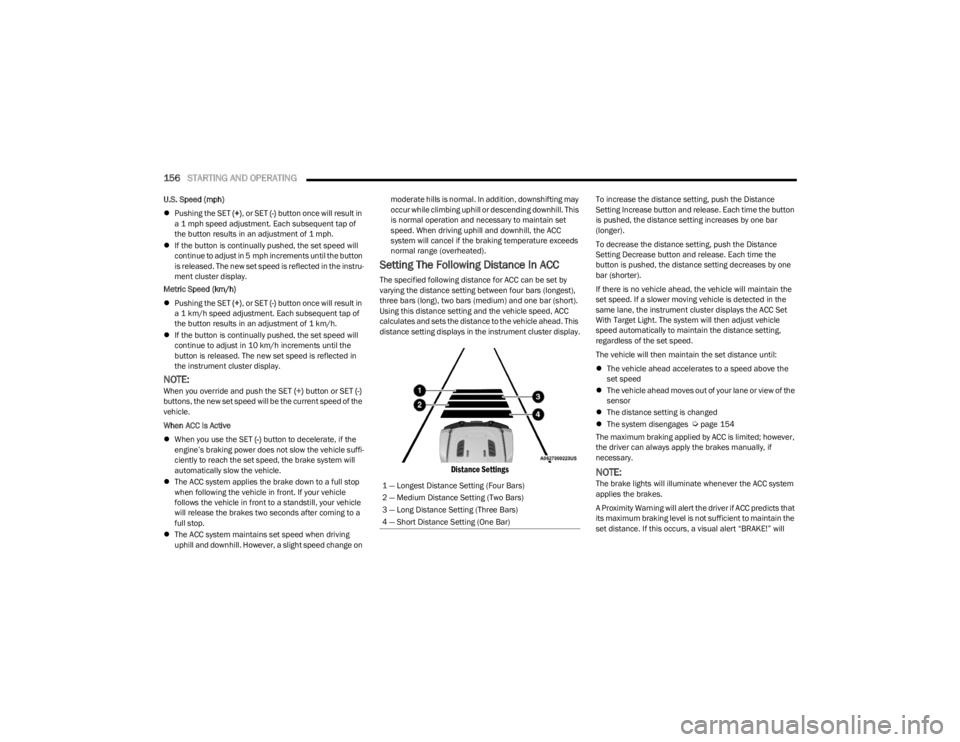
Setting The Following Distance In ACC
The specified following distance for ACC can be set by
varying the distance setting between four bars (longest),
three bars (long), two bars (medium) and one bar (short).
Using this distance setting and the vehicle speed, ACC
calculates and sets the distance to the vehicle ahead. This
distance setting displays in the instrument cluster display.
Distance Settings
To increase the distance setting, push the Distance
Setting Increase button and release. Each time the button
is pushed, the distance setting increases by one bar
(longer).
To decrease the distance setting, push the Distance
Setting Decrease button and release. Each time the
button is pushed, the distance setting decreases by one
bar (shorter).
If there is no vehicle ahead, the vehicle will maintain the
set speed. If a slower moving vehicle is detected in the
same lane, the instrument cluster displays the ACC Set
With Target Light. The system will then adjust vehicle
speed automatically to maintain the distance setting,
regardless of the set speed.
The vehicle will then maintain the set distance until:
The vehicle ahead accelerates to a speed above the
set speed
The vehicle ahead moves out of your lane or view of the
sensor
The distance setting is changed
The system disengages
Úpage 154
The maximum braking applied by ACC is limited; however,
the driver can always apply the brakes manually, if
necessary.
NOTE:The brake lights will illuminate whenever the ACC system
applies the brakes.
A Proximity Warning will alert the driver if ACC predicts that
its maximum braking level is not sufficient to maintain the
set distance. If this occurs, a visual alert “BRAKE!” will
1 — Longest Distance Setting (Four Bars)
2 — Medium Distance Setting (Two Bars)
3 — Long Distance Setting (Three Bars)
4 — Short Distance Setting (One Bar)
23_JL_OM_EN_USC_t.book Page 156
Page 165 of 396
STARTING AND OPERATING163
CLEANING THE PARKSENSE SYSTEM
Clean the Rear Park Assist sensors with water, car wash
soap and a soft cloth. Do not use rough or hard cloths. In
washing stations, clean sensors quickly keeping the vapor
jet/high pressure washing nozzles at least 4 inches (10
cm) from the sensors. Do not scratch or poke the sensors.
PARKSENSE SYSTEM USAGE
P
RECAUTIONS
NOTE:
Ensure that the rear fascia/bumper is free of snow, ice,
mud, dirt and debris to keep the ParkSense system
operating properly.
Jackhammers, large trucks, and other vibrations could
affect the performance of ParkSense.
When you turn ParkSense off, the instrument cluster
display will read “PARKSENSE OFF.” Furthermore, once
you turn ParkSense off, it remains off until you turn it
on again, even if you cycle the ignition.
ParkSense, when on, will reduce the volume of the
radio when it is sounding a tone.
Clean the ParkSense sensors regularly, taking care not
to scratch or damage them. The sensors must not be
covered with ice, snow, slush, mud, dirt or debris.
Failure to do so can result in the system not working
properly. The ParkSense system might not detect an
obstacle behind the fascia/bumper, or it could provide
a false indication that an obstacle is behind the fascia/
bumper.
Use the ParkSense switch to turn the ParkSense
system off if objects such as bicycle carriers, trailer
hitches, etc. are placed within 12 inches (30 cm) of the
rear fascia/bumper. Failure to do so can result in the
system misinterpreting a close object as a sensor
problem, causing the “PARKSENSE UNAVAILABLE
SERVICE REQUIRED” message to be displayed in the
instrument cluster display.
PARKVIEW REAR BACK UP CAMERA
The ParkView Rear Back Up Camera allows you to see an
on-screen image of the rear surroundings of your vehicle
whenever the gear selector is put into REVERSE. The
image will be displayed in the touchscreen display along
with a caution note to “Check Entire Surroundings” across
the top of the screen. After five seconds this note will
disappear. The ParkView camera is located on the rear of
the vehicle in the center of the spare tire.
Manual Activation Of The Rear View Camera
1. Press the Controls button located on the bottom of
the Uconnect display.
2. Press the Back Up Camera button to turn the Rear View Camera system on.
WARNING!
Drivers must be careful when backing up even when
using ParkSense. Always check carefully behind your
vehicle, look behind you, and be sure to check for
pedestrians, animals, other vehicles, obstructions,
and blind spots before backing up. You are respon -
sible for safety and must continue to pay attention to
your surroundings. Failure to do so can result in
serious injury or death.
Before using ParkSense, it is strongly recommended
that the ball mount and hitch ball assembly be
disconnected from the vehicle when the vehicle is
not used for towing. Failure to do so can result in
injury or damage to vehicles or obstacles because
the hitch ball will be much closer to the obstacle than
the rear fascia when the vehicle sounds the contin -
uous tone. Also, the sensors could detect the ball
mount and hitch ball assembly, depending on its size
and shape, giving a false indication that an obstacle
is behind the vehicle.
CAUTION!
ParkSense is only a parking aid and it is unable to
recognize every obstacle, including small obstacles.
Parking curbs might be temporarily detected or not
detected at all. Obstacles located above or below the
sensors will not be detected when they are in close
proximity.
The vehicle must be driven slowly when using Park -
Sense in order to be able to stop in time when an
obstacle is detected. It is recommended that the
driver looks over his/her shoulder when using Park -
Sense.
4
23_JL_OM_EN_USC_t.book Page 163
Page 166 of 396
164STARTING AND OPERATING
(Continued)
When the vehicle is shifted out of REVERSE with Camera
delay turned off, the rear Camera mode is exited and the
previous screen appears again.
When the vehicle is shifted out of REVERSE with Camera
delay turned on, the rear Camera image will be displayed
for up to 10 seconds unless the vehicle speed exceeds
8 mph (13 km/h), the transmission is shifted into PARK,
the ignition is placed in the OFF position, or the
touchscreen X button to disable display of the Rear View
Camera image is pressed.
Whenever the Rear View Camera image is activated
through the Back Up Camera button in the Controls menu,
and the vehicle speed is greater than, or equal to, 8 mph
(13 km/h), a display timer for the image is initiated. The
image will continue to be displayed until the display timer
exceeds 10 seconds.
NOTE:
If the vehicle speed remains below 8 mph (13 km/h),
the Rear View Camera image will be displayed continu -
ously until deactivated via the touchscreen X button,
the transmission is shifted into PARK, or the ignition is
placed in the OFF position.
The touchscreen X button to disable display of the
camera image is made available ONLY when the
vehicle is not in REVERSE.
When enabled, active guidelines are overlaid on the image
to illustrate the width of the vehicle and its projected back
up path based on the steering wheel position. A dashed
center line overlay indicates the center of the vehicle to
assist with parking or aligning to a hitch/receiver.
When enabled, fixed guidelines are overlaid on the image
to illustrate the width of the vehicle. Different colored zones indicate the distance to the rear of
the vehicle.
The following table shows the approximate distances for
each zone:
NOTE:If snow, ice, mud, or any foreign substance builds up on
the camera lens, clean the lens, rinse with water, and dry
with a soft cloth. Do not cover the lens.
TRAILCAM SYSTEM — IF EQUIPPED
Your vehicle may be equipped with a TrailCam that allows
you to you see an on-screen image of the front view of your
vehicle. The image will be displayed on the touchscreen
display along with a caution note “Check Entire
Surroundings” across the top of the screen.
Front View Camera
Zone
Distance To The Rear Of The
Vehicle
Red 0 - 1 ft (0 - 30 cm)
Yellow 1 ft - 6.5 ft (30 cm - 2 m)
Green 6.5 ft or greater
(2 m or greater)
WARNING!
Drivers must be careful when backing up even when
using the ParkView Rear Back Up Camera. Always
check carefully behind your vehicle, and be sure to
check for pedestrians, animals, other vehicles,
obstructions, or blind spots before backing up. You are
responsible for the safety of your surroundings and
must continue to pay attention while backing up.
Failure to do so can result in serious injury or death.
CAUTION!
To avoid vehicle damage, ParkView should only be
used as a parking aid. The ParkView camera is
unable to view every obstacle or object in your drive
path.
To avoid vehicle damage, the vehicle must be driven
slowly when using ParkView to be able to stop in time
when an obstacle is seen. It is recommended that
the driver look frequently over his/her shoulder when
using ParkView.
CAUTION!
23_JL_OM_EN_USC_t.book Page 164
Page 167 of 396
STARTING AND OPERATING165
NOTE:The system will stay active while in 4WD Low.
The TrailCam system has programmable settings that may
be selected through the Uconnect system
Úpage 184.
Manual Activation Of The TrailCam
TrailCam view can be activated via the below methods:
Press the FWD Camera button on the controls screen.
Press the Forward Facing Camera button on the apps
menu.
Press the TrailCam button on the Off Road Pages.
Press the Off Road+ button when “Auto Launch Off
Road+” (if equipped) has been selected under camera
settings.
The TrailCam view can also be activated by pressing the icon on the Back Up Camera view. The Back Up
Camera view can also be activated by pressing the
icon on the TrailCam view.
When the vehicle is shifted out of REVERSE with Camera
Delay turned off and TrailCam view is active, the TrailCam
mode is exited and the previous screen appears again.
When the vehicle is shifted out of REVERSE with Camera
Delay turned on and the TrailCam view is active, the
TrailCam image will be displayed for up to 10 seconds
unless the vehicle speed exceeds 8 mph (13 km/h), the
transmission is shifted into PARK, the ignition is placed in
the OFF position, or the touchscreen X button to disable
display of the TrailCam view is pressed.
Whenever the TrailCam image is activated through the
Manual Activation Methods, and the vehicle speed is
greater than or equal to 8 mph (13 km/h), a display timer for the image is initiated. The image will continue to be
displayed until the display timer exceeds 10 seconds.
NOTE:
If the vehicle speed remains below 8 mph (13 km/h)
while in 2WD or 4WD High, the TrailCam image will be
displayed continuously until deactivated via the touch -
screen X button, the transmission is shifted into PARK,
or the ignition is placed in the OFF position.
The touchscreen X button to disable the display of the
camera image is made available ONLY when the
vehicle is not in REVERSE.
The TrailCam view will stay active regardless of the
vehicle speed and time while in 4WD Low.
Cleaning The TrailCam
Press and hold the Clean Camera button located on the
TrailCam view to wash the TrailCam. Washer fluid will stop
when the button is released.
The camera can be washed up to 20 seconds at a time
while holding the button.
The Clean Camera system is not available when wind -
shield washing is in process.
When enabled, active dynamic tire lines are projected on
the ground plane of the TrailCam view based on the
steering wheel position.
REFUELING THE VEHICLE — GASOLINE
ENGINE (IF EQUIPPED)
FUEL FILLER CAP
The fuel filler cap is located on the driver's side of the
vehicle. If the fuel filler cap is lost or damaged, be sure the
replacement cap is the correct one for this vehicle.
1. Open the fuel filler door.
Fuel Filler Door
2. Remove the fuel cap by rotating it counterclockwise.
Fuel Filler Cap
3. Fully insert the fuel nozzle into the filler pipe.
4
23_JL_OM_EN_USC_t.book Page 165
Page 204 of 396
202MULTIMEDIA
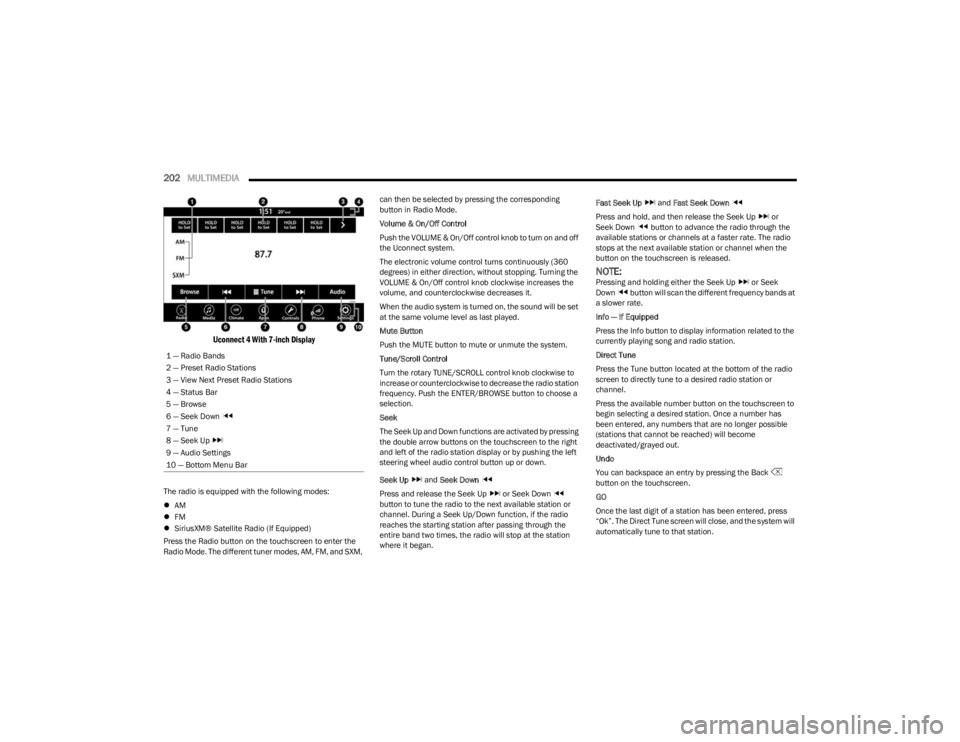
Uconnect 4 With 7-inch Display
The radio is equipped with the following modes:
AM
FM
SiriusXM® Satellite Radio (If Equipped)
Press the Radio button on the touchscreen to enter the
Radio Mode. The different tuner modes, AM, FM, and SXM, can then be selected by pressing the corresponding
button in Radio Mode.
Volume & On/Off Control
Push the VOLUME & On/Off control knob to turn on and off
the Uconnect system.
The electronic volume control turns continuously (360
degrees) in either direction, without stopping. Turning the
VOLUME & On/Off control knob clockwise increases the
volume, and counterclockwise decreases it.
When the audio system is turned on, the sound will be set
at the same volume level as last played.
Mute Button
Push the MUTE button to mute or unmute the system.
Tune/Scroll Control
Turn the rotary TUNE/SCROLL control knob clockwise to
increase or counterclockwise to decrease the radio station
frequency. Push the ENTER/BROWSE button to choose a
selection.
Seek
The Seek Up and Down functions are activated by pressing
the double arrow buttons on the touchscreen to the right
and left of the radio station display or by pushing the left
steering wheel audio control button up or down.
Seek Up
and Seek Down
Press and release the Seek Up or Seek Down
button to tune the radio to the next available station or
channel. During a Seek Up/Down function, if the radio
reaches the starting station after passing through the
entire band two times, the radio will stop at the station
where it began. Fast Seek Up
and Fast Seek Down
Press and hold, and then release the Seek Up or
Seek Down button to advance the radio through the
available stations or channels at a faster rate. The radio
stops at the next available station or channel when the
button on the touchscreen is released.
NOTE:Pressing and holding either the Seek Up or Seek
Down button will scan the different frequency bands at
a slower rate.
Info — If Equipped
Press the Info button to display information related to the
currently playing song and radio station.
Direct Tune
Press the Tune button located at the bottom of the radio
screen to directly tune to a desired radio station or
channel.
Press the available number button on the touchscreen to
begin selecting a desired station. Once a number has
been entered, any numbers that are no longer possible
(stations that cannot be reached) will become
deactivated/grayed out.
Undo
You can backspace an entry by pressing the Back
button on the touchscreen.
GO
Once the last digit of a station has been entered, press
“Ok”. The Direct Tune screen will close, and the system will
automatically tune to that station.
1 — Radio Bands
2 — Preset Radio Stations
3 — View Next Preset Radio Stations
4 — Status Bar
5 — Browse
6 — Seek Down
7 — Tune
8 — Seek Up
9 — Audio Settings
10 — Bottom Menu Bar
23_JL_OM_EN_USC_t.book Page 202
Page 238 of 396

236MULTIMEDIA
Google Assistant — If Equipped
With the Google Assistant, you can get help and keep tabs
on your car. Google Assistant is available across your
devices, including Android™ phones, iPhone® devices, or
voice-activated speakers, like Google Home. If you need
assistance, ask Google for help, or for a complete list of
commands by saying: “Hey Google, ask
help with my car.”
Here are a few examples of commands:
“Hey Google, ask
“Hey Google, ask
“Hey Google, ask
Chrysler Drive, Auburn Hills, Michigan to my
“Hey Google, ask
of my
To link your Uconnect account with Google Assistant,
follow these steps:
1. Download and install the Google Assistant app on your smart phone from the App Store® or Google
Play.
2. After installation, log in to the Google Assistant app with your Gmail ID. Verify your account by pressing
the icon in the upper right-hand corner.
3. Press the Discover button in the bottom left corner of the screen. Enter the vehicle brand name.
4. A prompt will appear to link your Uconnect account. Press “Link Uconnect to Google”. 5. Press “Sign In” and enter the email address and
password you created when you activated SiriusXM
Guardian™. There will be additional settings to
confirm on the following screen.
6. Lastly, press “Authorize” to complete the linking process.
Now, you can ask Google Assistant to help you:
Remotely start the engine, or cancel a remote start
Send a destination to your vehicle’s built-in Uconnect
Navigation system
Monitor vehicle vitals, such as tire pressure, fuel level
and oil life
And more!
Family Drive Alerts — If Equipped
Description
Family Drive Alerts help promote safer driving and give you
peace of mind when your loved ones are out on the road.
You can set boundary limits, monitor driving speed, and
pinpoint your vehicle’s location any time, any place. Use
the Vehicle Branded App to set alerts:
Boundary Alert
Receive a notification the moment your vehicle is
driven either out of or into a geographic boundary that
you set.
Curfew Alert
Receive a notification when your car is being driven
outside of the curfew time.
Speed Alert
Receive a notification whenever your car exceeds a
speed limit you set.
Valet Alert
Receive a notification if and when your vehicle is driven
outside a quarter-mile radius of a valet drop-off zone.
SmartWatch Integration — If Equipped
Description
SmartWatch Integration puts the Vehicle Branded App
right on your Apple® Watch or Android™ Wear. To get
started, follow these steps:
1. Download the Vehicle Branded App from the App
Store® or Google Play.
2. Log onto the app from your smartphone using the username and password you created when you first
set up your account.
3. Make sure your watch and smartphone are connected through Bluetooth®.
4. The Vehicle Branded App should appear on your SmartWatch.
Once the app is downloaded on your SmartWatch, you can
enjoy these features:
Lock or unlock your vehicle by tapping the remote lock
button in the app and entering your security PIN.
Remote start or stop your vehicle.
View important vehicle stats, such as fuel level, vehicle
location, tire pressure warning, and more.
23_JL_OM_EN_USC_t.book Page 236
Page 241 of 396

MULTIMEDIA239
5.Can I stop a vehicle that is being driven with the
cancel Remote Vehicle Start command? No. If the
vehicle is in motion, the cancel Remote Vehicle Start
button will not stop the vehicle.
6. Why can’t all mobile devices use the Vehicle Branded
App? The Vehicle Branded App has been designed to
work on most devices with the Apple® and Android™
operating systems. The capabilities of these devices
allow us to remotely command your vehicle. Other
operating systems may be supported in the future.
CONNECTED SERVICES REMOTE HORN
& L
IGHTS FAQS
1.
How long does it take to sound my horn and flash the
lights?
Depending on various conditions, it can take
three minutes or more for the request to get through
to your vehicle.
2. Which is faster, my key fob or the Vehicle Branded
App? Your key fob will sound the horn and flash the
lights quicker; however, its range is limited.
3. How do I turn off the horn and lights after I turn them
on? If you are close enough to the vehicle, you can
use the key fob to turn off the horn and lights by
pressing the red Panic button. Otherwise, Remote
Horn & Lights will continue for a maximum of three
minutes.
4. Why can’t all mobile devices use the Vehicle Branded
App? The Vehicle Branded App has been designed to
work on most devices with the Apple® and Android™
operating systems. The capabilities of these devices
allow us to remotely command your vehicle. Other
operating systems may be supported in the future.
CONNECTED SERVICES ACCOUNT FAQS —
I
F EQUIPPED
1.
How do I register for my SiriusXM Guardian™
account? There are three ways that you can register
your SiriusXM Guardian™ Account:
Push the ASSIST button. A call will be placed to an
agent who can assist in registering your new
account.
Press the Activate Services icon in the Apps menu.
Select the button to speak with an agent, who can
assist in registering your new account.
Press the Activate Services icon in the Apps menu.
Enter your email on the touchscreen and then
follow the prompts from the provided email. You
will receive an email with an activation link that
will be good for 72 hours. Once you click the acti -
vation link, you will be prompted to fill out your
information and accept Terms and Conditions.
Then, you will be directed to the SiriusXM
Guardian™ home page to complete your profile
and demo the remote services.
2. Why do I need an email address? Without an email
address, customers cannot register for SiriusXM
Guardian™. Customers need to register so they can
subscribe to receive additional services and create a
SiriusXM Guardian™ Security PIN for remote
command requests.
3. How do I create a SiriusXM Guardian™ security PIN?
Set up your SiriusXM Guardian™ Security PIN during
the registration process. The SiriusXM Guardian™
Security PIN will be required to authenticate you
when accessing your account via SiriusXM Guardian™ Call or performing any remote services,
such as Remote Door Lock/Unlock, Remote Horn &
Lights, or Remote Vehicle Start.
4. What if I forgot my SiriusXM Guardian™ security PIN?
If you’ve already activated services and forgot your
SiriusXM Guardian™ Security PIN, you can reset the
PIN by selecting Edit Profile on your Owner’s Site.
5. How do I update my SiriusXM Guardian™ payment
account address? Your SiriusXM Guardian™ Payment
Account address can be updated online, or by calling
SiriusXM Guardian™ Customer Care from ASSIST in
your vehicle. To update online: login to your Owner’s
Site, and select Edit Profile > SiriusXM Guardian™
Payment Account.
6. How do I update my SiriusXM Guardian™ profile?
Your name, home address, phone number, email
address and SiriusXM Guardian™ Security PIN can be
updated online on your Owner’s Site. Log in to your
Owner’s Site then select Edit Profile to edit your
personal information. Make your edits and click Save.
7. Can I try features or packages before I buy them?
Your new vehicle purchase may have come with an
included trial period for certain Apps and services.
8. Can I access every App and service while driving? No,
some applications and services are not available
while driving. For your own safety, it is not possible to
use some of the touchscreen features while the
vehicle is in motion (e.g. key pad).
9. What happens when my subscription comes up for
renewal? If you have added a credit card to your
account information, your subscription will be
automatically renewed for a term length in
accordance with the service plan that you have
5
23_JL_OM_EN_USC_t.book Page 239
Page 249 of 396
SAFETY247
To enter the “Partial Off” mode, momentarily push the ESC
OFF button and the ESC OFF Indicator Light will illuminate.
To turn the ESC on again, momentarily push the ESC OFF
button and the ESC OFF Indicator Light will turn off.
NOTE:For vehicles with multiple partial ESC modes, the push and
release of the button will toggle the ESC modes. Multiple
attempts may be required to return to “ESC On”.
Full Off — If Equipped
The “Full Off” mode is intended for off-highway or off-road
use only and should not be used on any public roadways.
In this mode, TCS and ESC features are turned off. To
enter the “Full Off” mode, push and hold the ESC OFF
button for five seconds while the vehicle is stopped with
the engine running. After five seconds, a chime will sound,
the ESC OFF Indicator Light will illuminate, and the “ESC
Off” message will display in the instrument cluster. To turn
ESC on again, momentarily push the ESC OFF button.
NOTE:System may switch from ESC “Full Off” to “Partial Off”
mode when vehicle exceeds a predetermined speed.
When the vehicle speed slows below the predetermined
speed the system will return to ESC “Full Off”.
If equipped with Off Road+ and if Off Road+ is active when
"Full Off" mode is enabled by the driver, ESC will not switch
to "Partial Off" mode at any speed and will remain in "Full
Off" mode until Off Road+ is exited or ESC is re-enabled by
the driver.ESC Activation/Malfunction Indicator Light
And ESC OFF Indicator Light
The ESC Activation/Malfunction Indicator Light
in the instrument cluster will come on when the
ignition is turned to the “ESC On” mode. It
should go out with the engine running. If the
ESC Activation/Malfunction Indicator Light comes on
continuously with the engine running, a malfunction has
been detected in the ESC system. If this light remains on
after several ignition cycles, and the vehicle has been
driven several miles (km) at speeds greater than 30 mph
(48 km/h), see an authorized dealer as soon as possible
to have the problem diagnosed and corrected.
The ESC Activation/Malfunction Indicator Light starts to
flash as soon as the tires lose traction and the ESC system
becomes active. The ESC Activation/Malfunction Indicator
Light also flashes when TCS is active. If the ESC
Activation/Malfunction Indicator Light begins to flash
during acceleration, ease up on the accelerator and apply
as little throttle as possible. Be sure to adapt your speed
and driving to the prevailing road conditions.
The ESC OFF Indicator Light indicates the
customer has elected to have the Electronic
Stability Control (ESC) in a reduced mode.
NOTE:
The ESC Activation/Malfunction Indicator Light and the
ESC OFF Indicator Light come on momentarily each
time the ignition is placed in the ON position.
WARNING!
When in “Partial Off” mode, the TCS functionality of
ESC, except for the limited slip feature described in
the TCS section, has been disabled and the ESC OFF
Indicator Light will be illuminated. When in “Partial
Off” mode, the engine power reduction feature of
TCS is disabled, and the enhanced vehicle stability
offered by the ESC system is reduced.
Trailer Sway Control (TSC) is disabled when the ESC
system is in the “Partial Off” mode.WARNING!
In the ESC “Full Off” mode, the engine torque reduc -
tion and stability features are disabled. Therefore,
enhanced vehicle stability offered by the ESC system
is unavailable. In an emergency evasive maneuver,
the ESC system will not engage to assist in main -
taining stability. ESC “Full Off” mode is intended for
off-highway or off-road use only.
The Electronic Stability Control (ESC) cannot prevent
the natural laws of physics from acting on the
vehicle, nor can it increase the traction afforded by
prevailing road conditions. ESC cannot prevent all
accidents, including those resulting from excessive
speed in turns, driving on very slippery surfaces, or
hydroplaning. ESC also cannot prevent collisions.
6
23_JL_OM_EN_USC_t.book Page 247