lock JEEP WRANGLER 2023 Manual Online
[x] Cancel search | Manufacturer: JEEP, Model Year: 2023, Model line: WRANGLER, Model: JEEP WRANGLER 2023Pages: 396, PDF Size: 25.15 MB
Page 228 of 396
226MULTIMEDIA
INTRODUCTION TO CONNECTED VEHICLE
S
ERVICES
One of the many benefits of your vehicle’s Uconnect
system is that you can now take advantage of SiriusXM
Guardian™ connected services. To unlock the full
potential of SiriusXM Guardian™ in your vehicle, you first
need to activate SiriusXM Guardian™ connected services.
NOTE:
SiriusXM Guardian™ involves the collection, transmission
and use of data from your vehicle
Úpage 240.
SiriusXM Guardian™ Contact Information
SiriusXM Guardian™/Care
US residents visit: https://www.driveuconnect.com/
sirius-xm-guardian.html or call 1-844-796-4827
Canadian residents visit: https://www.driveucon -
nect.ca/en/sirius-xm-guardian or call 1-877-324-9091
What Is SiriusXM Guardian™?
SiriusXM Guardian™ uses an embedded device in the
Uconnect system installed in your vehicle, which receives
GPS signals and communicates with the SiriusXM Guardian™ Customer Care center via wireless and
landline communications networks. Depending on the
type of device in your vehicle, some SiriusXM Guardian™
connected services require an operable LTE (voice/data)
or 4G (data) network compatible with your device.
SiriusXM Guardian™ is available only on equipped
vehicles purchased within the continental United States,
Alaska, Hawaii, Puerto Rico and Canada.
NOTE:
Certain SiriusXM Guardian™ connected services are
dependent upon an operative telematics device, a
cellular connection, navigation map data, and GPS
satellite signal reception, which can limit the ability to
reach the response center or reach emergency
support.
Not all features of SiriusXM Guardian™ are available
everywhere at all times, particularly in remote or
enclosed areas.
Other factors outside the control of SiriusXM
Guardian™ that may limit or prevent service delivery
are hills, structures, buildings, tunnels, weather,
damage to the electrical system or other important
parts of your vehicle, network congestion, civil distur -
bances, actions of third parties or the government,
Internet failure, and/or the physical location of your
vehicle, such as in an underground parking structure or
under a bridge.
Not all SiriusXM Guardian™ features are available for all
models.
SiriusXM Guardian™ provides:
The ability to remotely lock/unlock and remote start
your vehicle from virtually anywhere by using the
Vehicle Branded App or your computer.
If equipped — Send & Go capability with the Vehicle
Branded App. Use the Vehicle Branded App to easily
search, map and send your locations directly to your
Uconnect Navigation.
The ability to locate your vehicle, when you forget
where you parked, using the Vehicle Finder function of
the Vehicle Branded App.
Before you drive, familiarize yourself with the easy-to-use
Uconnect system and SiriusXM Guardian™ connected
services.
The ASSIST and SOS Call Buttons On Your Rearview Mirror
Or Overhead Console
If equipped, the ASSIST Button is used for contacting
Roadside Assistance, Vehicle Care, Uconnect Care, and
SiriusXM Guardian™ Customer Care. The SOS Call button
connects you directly to SiriusXM Guardian™ Customer
Care for assistance in an emergency.
Activation — If Equipped
To unlock the full potential of SiriusXM Guardian™ in your
vehicle, you must activate your SiriusXM Guardian™
connected services.
1. Press the Apps icon on the bottom of your in-vehicle touchscreen.
2. Select the Activate Services icon from your list of apps.
3. For customers in the United States , select “Customer
Care” to speak with a SiriusXM Guardian™ Customer
Care agent who will activate services in your vehicle,
or select “Enter Email” to activate on the web.
For customers in Canada , enter your email address to
activate services in your vehicle.
WARNING!
ALWAYS obey traffic laws and pay attention to the road.
Your complete attention is always required while driving
to maintain safe control of your vehicle. Only use and
interact with the features and applications when it is
safe to do so. Failure to follow these warnings can
result in a collision and death or serious personal
injury.
23_JL_OM_EN_USC_t.book Page 226
Page 229 of 396
MULTIMEDIA227
Included Trial Period For New Vehicles
Your new vehicle may come with an included trial* period
for use of SiriusXM Guardian™ connected services
starting on the date of vehicle purchase. To get started
with your trial, enrollment in SiriusXM Guardian™ is
required.
* Included trial applies to new vehicles only.
Features And Packages
After the trial period, you must purchase a subscription to
continue your services by calling a SiriusXM Guardian™
Customer Care agent.
GETTING STARTED WITH CONNECTED
V
EHICLE SERVICES
Download The Vehicle Branded App
Once you have activated your services, you’re only a few
steps away from using connected services.
Download the Vehicle Branded App to your mobile
device.
Use your Owner Account login and password to open
the app and then set up a PIN.
For customers in the United States, if your vehicle is not
registered at the dealership, you will have to call the
Customer Care call center from inside your vehicle or
press the in-vehicle registration button. From there,
you will be able to register your vehicle and add your
vehicle’s VIN to your account.
For customers in Canada, register your account via
your vehicle.
a. Press the Apps button in the bottom menu bar.
b. Press the Activate Services button from the apps list.
c. Enter your email and press “OK”. A confirmation email will be sent to the provided email address.
d. Press “Continue Activation” from the confirmation email. It may take a short time before remote
services will be available, but you will be able to
log into the Vehicle Branded App and the Owner’s
Site.
Once on the Remote screen and you have set up your
four-digit PIN, you can begin using Remote Door Lock/
Unlock, Remote Vehicle Start, and activate your horn
and lights remotely, if equipped.
Press the Location button on the bottom menu bar of
the app to bring up a map to locate your vehicle or send
a location to your Mobile Navigation, if equipped.
Press the Settings side menu in the upper left corner of
the app to bring up app settings and access the Assist
Call Centers.
Using Your Owner’s Site
Your Owner’s Site website https://www.mopar.com/
en-us.html (US Residents), or www.mopar.ca (Canadian
Residents) provides you with all the information you need,
all in one place. You can track your service history, find
recommended accessories for your vehicle, watch videos
about your vehicle's features, and easily access your
manuals. It is also where you can manage your SiriusXM
Guardian™ account. This section will familiarize you with
the key elements of the website that will help you get the
most of your SiriusXM Guardian™ connected services.
For customers in the United States, press the Sign In/
Register button and enter your email address and
password.
5
23_JL_OM_EN_USC_t.book Page 227
Page 230 of 396
228MULTIMEDIA
For customers in Canada, press the My Vehicle button.
Select from “Dashboard”, “Vehicle Health Report”, and
“Recalls”. The website will then prompt you to log in using
your email address and password.
Edit/Edit Profile:
To manage the details of your SiriusXM Guardian™
account, such as your contact information, password
and SiriusXM Guardian™ PIN, click on the Edit/Edit
Profile button to access the details of your account.
Connected Services Status:
This statement will indicate your SiriusXM
Guardian™-equipped vehicle.
Remote Commands:
For vehicles with an active SiriusXM Guardian™
subscription, press one of these icons and enter your
four-digit SiriusXM Guardian™ Security PIN to remotely
start (if equipped), lock/unlock doors or sound the horn
and flash the lights.
Editing Your Notifications
Notifications are an important element of your SiriusXM
Guardian™ account. For example, any time you use your
remote services (such as Remote Door Unlock), you can
elect to receive a text message, push notification, and/or
E-mail to notify you of the event. To set up the
notifications, please follow these instructions.
1. Log on to your Owner’s Account at
https://
www.mopar.com/en-us.html (US Residents) and
select “Dashboard”, or www.mopar.ca
(Canadian
Residents), select “My Vehicle” and then
“Dashboard”.
2. Click the Edit/Edit Profile button. 3. Once there, select “SiriusXM Guardian™” where you
can edit Notification Preferences.
4. You can enter a mobile phone and/or email address to notify you, and you can customize the types of
messages.
USING SIRIUSXM GUARDIAN™
SOS Call — If Equipped
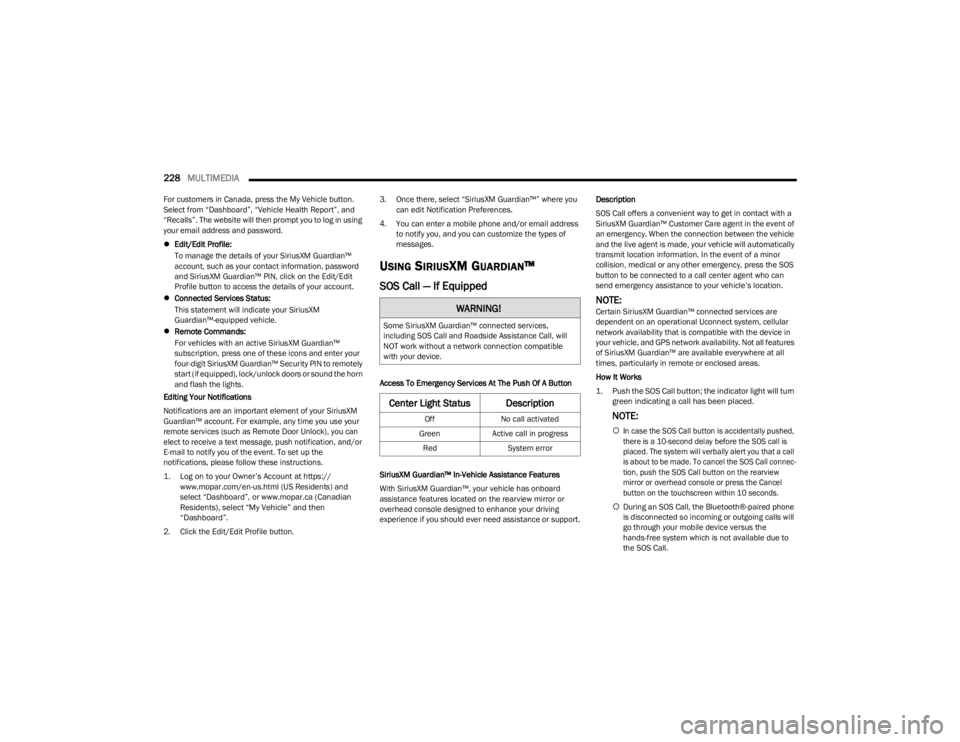
Access To Emergency Services At The Push Of A Button
SiriusXM Guardian™ In-Vehicle Assistance Features
With SiriusXM Guardian™, your vehicle has onboard
assistance features located on the rearview mirror or
overhead console designed to enhance your driving
experience if you should ever need assistance or support. Description
SOS Call offers a convenient way to get in contact with a
SiriusXM Guardian™ Customer Care agent in the event of
an emergency. When the connection between the vehicle
and the live agent is made, your vehicle will automatically
transmit location information. In the event of a minor
collision, medical or any other emergency, press the SOS
button to be connected to a call center agent who can
send emergency assistance to your vehicle’s location.
NOTE:Certain SiriusXM Guardian™ connected services are
dependent on an operational Uconnect system, cellular
network availability that is compatible with the device in
your vehicle, and GPS network availability. Not all features
of SiriusXM Guardian™ are available everywhere at all
times, particularly in remote or enclosed areas.
How It Works
1. Push the SOS Call button; the indicator light will turn green indicating a call has been placed.
NOTE:
In case the SOS Call button is accidentally pushed,
there is a 10-second delay before the SOS call is
placed. The system will verbally alert you that a call
is about to be made. To cancel the SOS Call connec -
tion, push the SOS Call button on the rearview
mirror or overhead console or press the Cancel
button on the touchscreen within 10 seconds.
During an SOS Call, the Bluetooth®-paired phone
is disconnected so incoming or outgoing calls will
go through your mobile device versus the
hands-free system which is not available due to
the SOS Call.
WARNING!
Some SiriusXM Guardian™ connected services,
including SOS Call and Roadside Assistance Call, will
NOT work without a network connection compatible
with your device.
Center Light Status Description
Off No call activated
Green Active call in progress
Red System error
23_JL_OM_EN_USC_t.book Page 228
Page 232 of 396
230MULTIMEDIA
Automatic SOS — If Equipped
Automatic SOS is a hands-free safety service that can
immediately connect you with help in the event that your
vehicle’s airbags deploy. After an accident, a live agent will
contact you through the Uconnect system and alert
emergency services.
NOTE:An active SiriusXM Guardian™ subscription is required for
this feature to function.
After a crash where the airbags deploy:
1. Automatic SOS will initiate a call with an agent.
2. An agent will receive the call and confirm the location
of the emergency.
3. If needed, the agent will request the assistance of emergency services.
4. First responders will arrive on scene. The agent will remain on the call until emergency services arrive.
NOTE:
Agents are available 24/7 to assist you in the case of
an emergency.
On your behalf, agents are able to notify family
members about the collision.
Agents can brief first responders of the situation before
they arrive on scene.
In the event vehicle occupants are unable to speak,
emergency services will be dispatched based on the
last known GPS coordinates.
SiriusXM Guardian™ connected services are depen -
dent upon an operative telematics device, a cellular
connection, navigation map data, and GPS satellite
reception, which can limit the ability to reach the
response center or reach emergency support.
Terms of service of the Uconnect and the SiriusXM
Guardian™ subscriber agreement apply. See terms of
services for complete service limitation.
Remote Commands
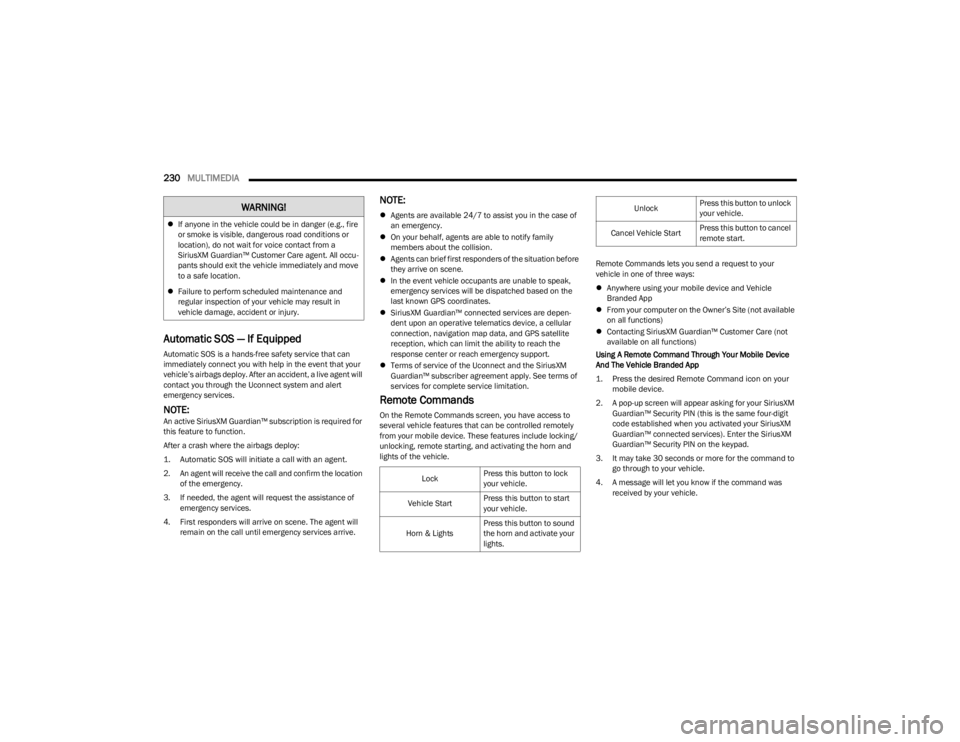
On the Remote Commands screen, you have access to
several vehicle features that can be controlled remotely
from your mobile device. These features include locking/
unlocking, remote starting, and activating the horn and
lights of the vehicle. Remote Commands lets you send a request to your
vehicle in one of three ways:
Anywhere using your mobile device and Vehicle
Branded App
From your computer on the Owner’s Site (not available
on all functions)
Contacting SiriusXM Guardian™ Customer Care (not
available on all functions)
Using A Remote Command Through Your Mobile Device
And The Vehicle Branded App
1. Press the desired Remote Command icon on your mobile device.
2. A pop-up screen will appear asking for your SiriusXM Guardian™ Security PIN (this is the same four-digit
code established when you activated your SiriusXM
Guardian™ connected services). Enter the SiriusXM
Guardian™ Security PIN on the keypad.
3. It may take 30 seconds or more for the command to go through to your vehicle.
4. A message will let you know if the command was received by your vehicle.
If anyone in the vehicle could be in danger (e.g., fire
or smoke is visible, dangerous road conditions or
location), do not wait for voice contact from a
SiriusXM Guardian™ Customer Care agent. All occu -
pants should exit the vehicle immediately and move
to a safe location.
Failure to perform scheduled maintenance and
regular inspection of your vehicle may result in
vehicle damage, accident or injury.
WARNING!
Lock Press this button to lock
your vehicle.
Vehicle Start Press this button to start
your vehicle.
Horn & Lights Press this button to sound
the horn and activate your
lights.
Unlock
Press this button to unlock
your vehicle.
Cancel Vehicle Start Press this button to cancel
remote start.
23_JL_OM_EN_USC_t.book Page 230
Page 233 of 396

MULTIMEDIA231
Using A Remote Command Through Your Owner’s Site
1. Log on to your Owner’s Site using the username and password you used when activating your SiriusXM
Guardian™ connected services in your vehicle.
NOTE:If you forgot your username or password, links are
provided on the website to help you retrieve them.
2. If you have more than one vehicle registered into your Owner’s Site, select the vehicle you want to send the
command to by clicking on its image along the top.
3. On your dashboard, you will see remote commands. Press the desired icon to activate that feature.
4. You will then be asked to enter your SiriusXM Guardian™ Security PIN (this is the same four-digit
code established when you activated your SiriusXM
Guardian™ connected services). Please enter your
SiriusXM Guardian™ Security PIN.
5. A message will appear on the screen to let you know if the command was received by your vehicle.
Contacting SiriusXM Guardian™ Customer Care (for
example, in case of an accidental lock-out):
1. Contact SiriusXM Guardian™ Customer Care if you are unable to lock your vehicle through the Vehicle
Branded App or your key fob.
2. For security purposes, the SiriusXM Guardian™ Customer Care agent will verify your identity by asking
for your four-digit SiriusXM Guardian™ Security PIN.
3. After providing your SiriusXM Guardian™ Security PIN, you can ask them to perform a remote
command.
NOTE:Anyone with access to your PIN may request Remote Door
Lock/Unlock. It is your responsibility to protect your PIN
appropriately.
Remote Door Lock/Unlock
Description
The Remote Door Lock/Unlock feature provides you the
ability to lock or unlock the door on your vehicle without
the keys and from virtually any distance.
Working Vehicle Conditions
The vehicle must in PARK or at a standstill.
The vehicle must be in an open area with cell tower
reception.
Your mobile device must have a cellular or Wi-Fi
connection.
Requirements
Vehicle must be properly equipped with SiriusXM
Guardian™.
Vehicle must have an operable LTE (voice/data) or 4G
(data) network connection. If using the Vehicle
Branded App to command your vehicle, your device
must be compatible and be connected to an operable
LTE (voice/data) or 4G (data) network connection.
Vehicle must be registered with SiriusXM Guardian™
and have an active subscription that includes the appli -
cable feature.
An ignition cycle is required for some remote
commands, such as Remote Vehicle Start and Remote
Door Lock/Unlock if following a Remote Horn & Lights
activation.
Your Remote Door Lock/Unlock request will not be
processed if the vehicle is in motion, the ignition key is
on or during an emergency call.NOTE:All other remote services should be performed via your
Owner’s Site or through the Vehicle Branded App on your
compatible device.
Remote Vehicle Start
Description
The Remote Vehicle Start feature provides you with the
ability to start the engine on your vehicle without the keys
and from virtually any distance. Once started, the preset
climate controls in your vehicle can warm up or cool down
the interior.
You can also send a command to turn off an engine that
has been started using Remote Vehicle Start. After
15 minutes, if you have not entered your vehicle with the
key, the engine will shut off automatically.
This remote function requires your vehicle to be equipped
with a factory-installed Remote Start system.
You can set up push notifications every time a command
is sent to activate or cancel Remote Start.5
23_JL_OM_EN_USC_t.book Page 231
Page 237 of 396

MULTIMEDIA235
In order to provide the Monthly Vehicle Health Report, the
Uconnect system in your vehicle may collect and transmit
vehicle data to SiriusXM Guardian™ and to FCA, such as
your vehicle’s health and performance, your vehicle’s
location, your utilization of the features in your vehicle,
and other data.
This data collection and transmission begins when you
enroll in SiriusXM Guardian™ and will continue even if you
cancel your SiriusXM Guardian™ subscription unless you
call SiriusXM Guardian™ Customer Care and tell them to
deactivate your Connected Services.
Please see the Uconnect Privacy Policy for more
information, located at www.driveuconnect.com/
connectedservices/privacy.html (US Residents) or
www.driveuconnect.ca (Canadian Residents).
For more information on SiriusXM Guardian™ private
policy, see https://siriusxmcvs.com/privacy-policy.
NOTE:Your vehicle must be enrolled in an active subscription
with Connected Services. If you have concerns about the
operation, function or performance of your vehicle, please
take it to an authorized dealer. This report does not
replace regularly scheduled maintenance. Check the
instrument cluster warning lights and cautions in your
vehicle for the most accurate vehicle health information.
Vehicle Health Alert —If Equipped
Description
Your vehicle will send you an email alert if it senses a
problem with one of your vehicle’s key systems. For further
information, go to your Owner’s website.
NOTE:Vehicle Health Alert emails require you to register and
activate services. During this process you will be asked to
provide an email address to which the reports will be sent.
In-Vehicle Notifications — If Equipped
Description
Your vehicle will send you notifications to remind you when
services are needed, or to alert you of other important
information, such as recall notices. When you receive a
notification through your touchscreen, press OK to dismiss
the message, or press Call Care to speak with a SiriusXM
Guardian™ Customer Care agent.
NOTE:Pressing “OK” or the X button on the pop-up screen will
dismiss or close the pop-up, and the In-Vehicle Messages
mailbox will display. In the Mailbox, you can reopen
messages or delete messages.
Amazon Alexa Skill — If Equipped
Enjoy the convenience of using your voice to command
your vehicle with Amazon Alexa!
With Amazon Alexa, you can connect to your vehicle and
remotely access key services and features.
If your vehicle is equipped with Uconnect Navigation, you
can send a destination directly to your vehicle using Alexa.
If you need assistance, you can always ask Alexa for help,
or complete a list of commands by saying: “Alexa, ask
“Alexa, ask
“Alexa, ask
with your Voice Code.”
“Alexa, ask
Drive, Auburn Hills, Michigan to my
“Alexa, ask
An active subscription to SiriusXM Guardian™ is required.
To use Amazon Alexa, first, register for SiriusXM
Guardian™
Úpage 226.
Next, link the Uconnect system on your vehicle to Amazon
Alexa:
1. Download the Amazon Alexa app on your mobile device (Apple® or Android™).
2. Once in the app, tap MENU and go to SKILLS.
3. Search for
4. Tap SAVE SETTINGS when prompted.
5. Link the vehicle brand name to the
6. Log in using your Owner Account credentials. This will be the same user name and password you used when
registering for SiriusXM Guardian™ connected
services. There will be additional settings to confirm
on the following screen.
7. AUTHORIZE the account to return to the
You can now begin using the
Alexa!
5
23_JL_OM_EN_USC_t.book Page 235
Page 238 of 396

236MULTIMEDIA
Google Assistant — If Equipped
With the Google Assistant, you can get help and keep tabs
on your car. Google Assistant is available across your
devices, including Android™ phones, iPhone® devices, or
voice-activated speakers, like Google Home. If you need
assistance, ask Google for help, or for a complete list of
commands by saying: “Hey Google, ask
help with my car.”
Here are a few examples of commands:
“Hey Google, ask
“Hey Google, ask
“Hey Google, ask
Chrysler Drive, Auburn Hills, Michigan to my
“Hey Google, ask
of my
To link your Uconnect account with Google Assistant,
follow these steps:
1. Download and install the Google Assistant app on your smart phone from the App Store® or Google
Play.
2. After installation, log in to the Google Assistant app with your Gmail ID. Verify your account by pressing
the icon in the upper right-hand corner.
3. Press the Discover button in the bottom left corner of the screen. Enter the vehicle brand name.
4. A prompt will appear to link your Uconnect account. Press “Link Uconnect to Google”. 5. Press “Sign In” and enter the email address and
password you created when you activated SiriusXM
Guardian™. There will be additional settings to
confirm on the following screen.
6. Lastly, press “Authorize” to complete the linking process.
Now, you can ask Google Assistant to help you:
Remotely start the engine, or cancel a remote start
Send a destination to your vehicle’s built-in Uconnect
Navigation system
Monitor vehicle vitals, such as tire pressure, fuel level
and oil life
And more!
Family Drive Alerts — If Equipped
Description
Family Drive Alerts help promote safer driving and give you
peace of mind when your loved ones are out on the road.
You can set boundary limits, monitor driving speed, and
pinpoint your vehicle’s location any time, any place. Use
the Vehicle Branded App to set alerts:
Boundary Alert
Receive a notification the moment your vehicle is
driven either out of or into a geographic boundary that
you set.
Curfew Alert
Receive a notification when your car is being driven
outside of the curfew time.
Speed Alert
Receive a notification whenever your car exceeds a
speed limit you set.
Valet Alert
Receive a notification if and when your vehicle is driven
outside a quarter-mile radius of a valet drop-off zone.
SmartWatch Integration — If Equipped
Description
SmartWatch Integration puts the Vehicle Branded App
right on your Apple® Watch or Android™ Wear. To get
started, follow these steps:
1. Download the Vehicle Branded App from the App
Store® or Google Play.
2. Log onto the app from your smartphone using the username and password you created when you first
set up your account.
3. Make sure your watch and smartphone are connected through Bluetooth®.
4. The Vehicle Branded App should appear on your SmartWatch.
Once the app is downloaded on your SmartWatch, you can
enjoy these features:
Lock or unlock your vehicle by tapping the remote lock
button in the app and entering your security PIN.
Remote start or stop your vehicle.
View important vehicle stats, such as fuel level, vehicle
location, tire pressure warning, and more.
23_JL_OM_EN_USC_t.book Page 236
Page 239 of 396

MULTIMEDIA237
MANAGE MY SIRIUSXM GUARDIAN™
A
CCOUNT
To manage your SiriusXM Guardian™ account, press the
ASSIST button in your vehicle, or call SiriusXM Guardian™
Customer Care.
NOTE:It is recommended, when selling your vehicle, or turning in
your lease, to call SiriusXM Guardian™ Care to remove
your personal data.
CONNECTED SERVICES FAQS
For additional information about SiriusXM Guardian™,
active subscribers can push the ASSIST button (if
equipped) and then select SiriusXM Guardian™ Call on
your in-vehicle touchscreen to contact SiriusXM
Guardian™. Your call will be directed to a SiriusXM
Guardian™ agent or held in a queue until an agent is
available. If you do not have an active subscription, push
the ASSIST button and press the Activate button on the
touchscreen to activate services.
CONNECTED SERVICES SOS FAQS —
I
F EQUIPPED
1.
What happens if I accidentally push the SOS Call
button on the mirror or overhead console?
You have
10 seconds after pushing the SOS Call button to
cancel the call. To cancel the call, either push the
SOS Call button again, or press the Cancel button on
the in-vehicle touchscreen.
2.
What type of information is sent when I use the SOS
Call button from my vehicle? Certain vehicle
information, such as make and model, is transmitted
along with the last known GPS location.
3. When could I use the SOS Call button? You can use
the SOS Call button to make a call if you or someone
else needs emergency assistance.
CONNECTED SERVICES REMOTE DOOR
L
OCK/UNLOCK FAQS
1.
How long does it take to unlock or lock the door?
Depending on various conditions, it can take up to
three minutes or more for the request to get to your
vehicle.
2. Which is faster, my key fob or the Vehicle Branded
App? Your key fob will lock/unlock the door more
quickly, however its range is limited and your Vehicle
Branded App comes in handy for these and other
situations.
3. Will my vehicle be safe if I lose my device? People
sometimes lose their mobile devices, which is why
security measures have been engineered into the
Vehicle Branded App. Asking for your username,
password and SiriusXM Guardian™ Security PIN are
required for the activation of Remote services
through your mobile device. It is your responsibility to
protect your passwords and PINs. 4.
Why can’t all mobile devices use the Vehicle Branded
App? The Vehicle Branded App is compatible with
most devices with the Apple® and Android™
operating systems. The capabilities of these devices
allow us to remotely command your vehicle. Other
operating systems may be supported in the future.
5. Why is the Vehicle Branded App running slow? The
Vehicle Branded App relies on a mobile network
connection from your device to send commands to
your vehicle which must have an operable LTE (voice/
data), 4G (data), or 5G (data) network connection. If
either your device or your vehicle is in an area with
below average coverage, it may take longer to log in
and send commands.
CONNECTED SERVICES ROADSIDE
A
SSISTANCE FAQS
1.
What is the phone number for roadside assistance
call? The phone number is:
US: 1-800-521-2779
Canada: 1-800-363-4869
2. If I am subscribed to SiriusXM Guardian™, does it
cover towing or other expenses incurred by using
roadside assistance? No, however your new vehicle
may include Roadside Assistance Call services.
5
23_JL_OM_EN_USC_t.book Page 237
Page 241 of 396

MULTIMEDIA239
5.Can I stop a vehicle that is being driven with the
cancel Remote Vehicle Start command? No. If the
vehicle is in motion, the cancel Remote Vehicle Start
button will not stop the vehicle.
6. Why can’t all mobile devices use the Vehicle Branded
App? The Vehicle Branded App has been designed to
work on most devices with the Apple® and Android™
operating systems. The capabilities of these devices
allow us to remotely command your vehicle. Other
operating systems may be supported in the future.
CONNECTED SERVICES REMOTE HORN
& L
IGHTS FAQS
1.
How long does it take to sound my horn and flash the
lights?
Depending on various conditions, it can take
three minutes or more for the request to get through
to your vehicle.
2. Which is faster, my key fob or the Vehicle Branded
App? Your key fob will sound the horn and flash the
lights quicker; however, its range is limited.
3. How do I turn off the horn and lights after I turn them
on? If you are close enough to the vehicle, you can
use the key fob to turn off the horn and lights by
pressing the red Panic button. Otherwise, Remote
Horn & Lights will continue for a maximum of three
minutes.
4. Why can’t all mobile devices use the Vehicle Branded
App? The Vehicle Branded App has been designed to
work on most devices with the Apple® and Android™
operating systems. The capabilities of these devices
allow us to remotely command your vehicle. Other
operating systems may be supported in the future.
CONNECTED SERVICES ACCOUNT FAQS —
I
F EQUIPPED
1.
How do I register for my SiriusXM Guardian™
account? There are three ways that you can register
your SiriusXM Guardian™ Account:
Push the ASSIST button. A call will be placed to an
agent who can assist in registering your new
account.
Press the Activate Services icon in the Apps menu.
Select the button to speak with an agent, who can
assist in registering your new account.
Press the Activate Services icon in the Apps menu.
Enter your email on the touchscreen and then
follow the prompts from the provided email. You
will receive an email with an activation link that
will be good for 72 hours. Once you click the acti -
vation link, you will be prompted to fill out your
information and accept Terms and Conditions.
Then, you will be directed to the SiriusXM
Guardian™ home page to complete your profile
and demo the remote services.
2. Why do I need an email address? Without an email
address, customers cannot register for SiriusXM
Guardian™. Customers need to register so they can
subscribe to receive additional services and create a
SiriusXM Guardian™ Security PIN for remote
command requests.
3. How do I create a SiriusXM Guardian™ security PIN?
Set up your SiriusXM Guardian™ Security PIN during
the registration process. The SiriusXM Guardian™
Security PIN will be required to authenticate you
when accessing your account via SiriusXM Guardian™ Call or performing any remote services,
such as Remote Door Lock/Unlock, Remote Horn &
Lights, or Remote Vehicle Start.
4. What if I forgot my SiriusXM Guardian™ security PIN?
If you’ve already activated services and forgot your
SiriusXM Guardian™ Security PIN, you can reset the
PIN by selecting Edit Profile on your Owner’s Site.
5. How do I update my SiriusXM Guardian™ payment
account address? Your SiriusXM Guardian™ Payment
Account address can be updated online, or by calling
SiriusXM Guardian™ Customer Care from ASSIST in
your vehicle. To update online: login to your Owner’s
Site, and select Edit Profile > SiriusXM Guardian™
Payment Account.
6. How do I update my SiriusXM Guardian™ profile?
Your name, home address, phone number, email
address and SiriusXM Guardian™ Security PIN can be
updated online on your Owner’s Site. Log in to your
Owner’s Site then select Edit Profile to edit your
personal information. Make your edits and click Save.
7. Can I try features or packages before I buy them?
Your new vehicle purchase may have come with an
included trial period for certain Apps and services.
8. Can I access every App and service while driving? No,
some applications and services are not available
while driving. For your own safety, it is not possible to
use some of the touchscreen features while the
vehicle is in motion (e.g. key pad).
9. What happens when my subscription comes up for
renewal? If you have added a credit card to your
account information, your subscription will be
automatically renewed for a term length in
accordance with the service plan that you have
5
23_JL_OM_EN_USC_t.book Page 239
Page 244 of 396
242MULTIMEDIA
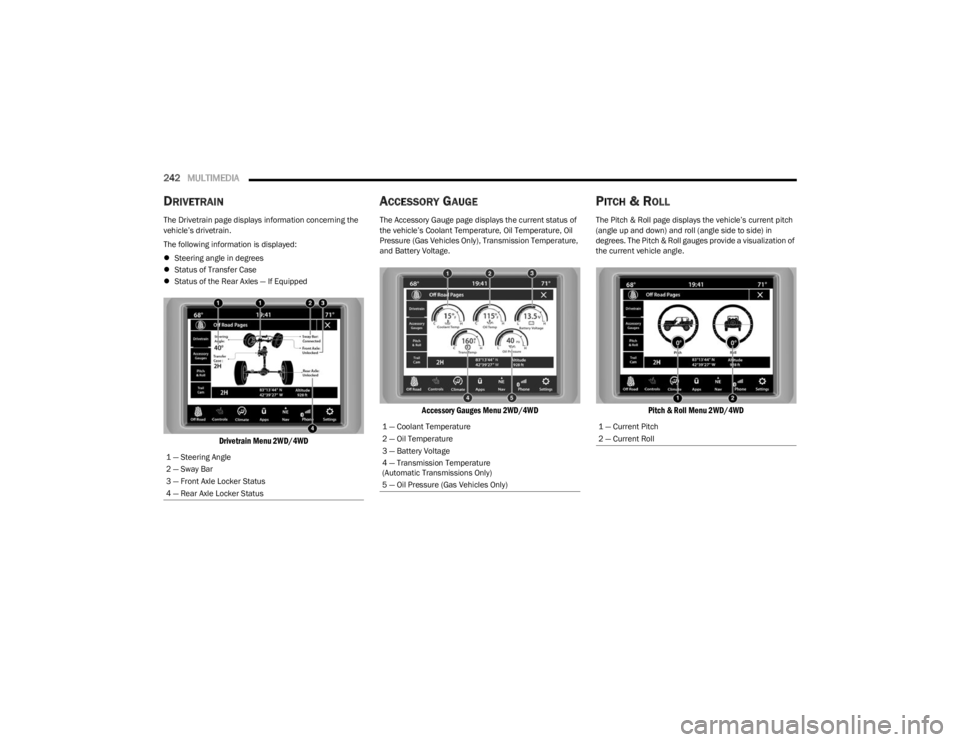
DRIVETRAIN
The Drivetrain page displays information concerning the
vehicle’s drivetrain.
The following information is displayed:
Steering angle in degrees
Status of Transfer Case
Status of the Rear Axles — If Equipped
Drivetrain Menu 2WD/4WD
ACCESSORY GAUGE
The Accessory Gauge page displays the current status of
the vehicle’s Coolant Temperature, Oil Temperature, Oil
Pressure (Gas Vehicles Only), Transmission Temperature,
and Battery Voltage.
Accessory Gauges Menu 2WD/4WD
PITCH & ROLL
The Pitch & Roll page displays the vehicle’s current pitch
(angle up and down) and roll (angle side to side) in
degrees. The Pitch & Roll gauges provide a visualization of
the current vehicle angle.
Pitch & Roll Menu 2WD/4WD
1 — Steering Angle
2 — Sway Bar
3 — Front Axle Locker Status
4 — Rear Axle Locker Status
1 — Coolant Temperature
2 — Oil Temperature
3 — Battery Voltage
4 — Transmission Temperature
(Automatic Transmissions Only)
5 — Oil Pressure (Gas Vehicles Only)1 — Current Pitch
2 — Current Roll
23_JL_OM_EN_USC_t.book Page 242