audio JEEP WRANGLER UNLIMITED 2014 User Guide
[x] Cancel search | Manufacturer: JEEP, Model Year: 2014, Model line: WRANGLER UNLIMITED, Model: JEEP WRANGLER UNLIMITED 2014Pages: 140, PDF Size: 12.72 MB
Page 58 of 140
Audio Jack Operation • The AUX/Audio Jack provides a means to connect a portable audio device, such as
an MP3 player or an iPod ®
, to the vehicle’s sound system. This requires the use of
a 3.5 mm stereo audio patch cable.
• Press the “MEDIA” hard-key then the “AUX” soft-key to change the mode to
auxiliary device if the Audio Jack is connected, allowing the music from your
portable device to play through the vehicle's speakers.
• The functions of the portable device are controlled using the device itself, not the
buttons on the radio. However, the volume may be controlled using the radio or
portable device.
Hard Disk Drive (HDD) Operation • The Hard Disk Drive (HDD) mode gives you access to the audio files on the internal
hard disk drive. It functions similar to a CD player, with the exception that the
internal HDD can hold more tracks.
• It is also possible to import display pictures to the internal hard disk drive. The
pictures can be displayed on the right half of the radio screen.
• Before using the HDD mode, you will need to copy songs and pictures to the
internal hard drive. Songs and pictures can be added to the hard drive by using a
CD or USB device (e.g. thumb drive or memory stick).
NOTE:
• HDD supports only .jpg/JPEG formats for photos.
• WMA/MP3 Files and Selective Songs from a CD can also be added to the HDD. See
the Uconnect ®
430/430N User's Manual for more information.
Copying Music From CD
• Press the “LOAD” hard-key.
• Insert a disc, then press the “MY FILES” hard-key and then select the “MY
MUSIC” soft-key.
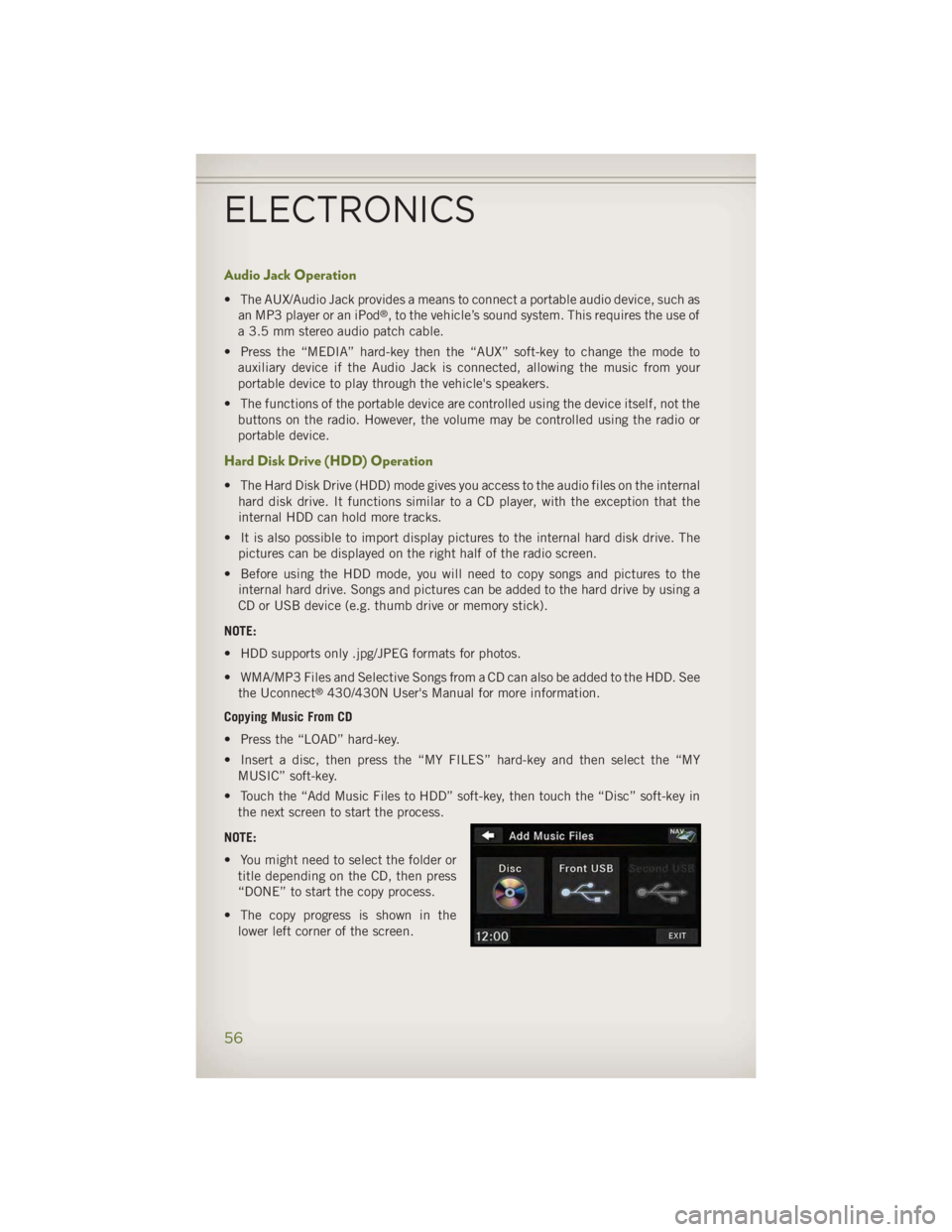
• Touch the “Add Music Files to HDD” soft-key, then touch the “Disc” soft-key in
the next screen to start the process.
NOTE:
• You might need to select the folder or
title depending on the CD, then press
“DONE” to start the copy process.
• The copy progress is shown in the
lower left corner of the screen.ELECTRONICS
56
Page 61 of 140
Garmin® Navigation • Uconnect ®
430N integrates Garmin’s consumer-friendly navigation into your
vehicle. Garmin ®
Navigation includes a database with over six million points of
interest.
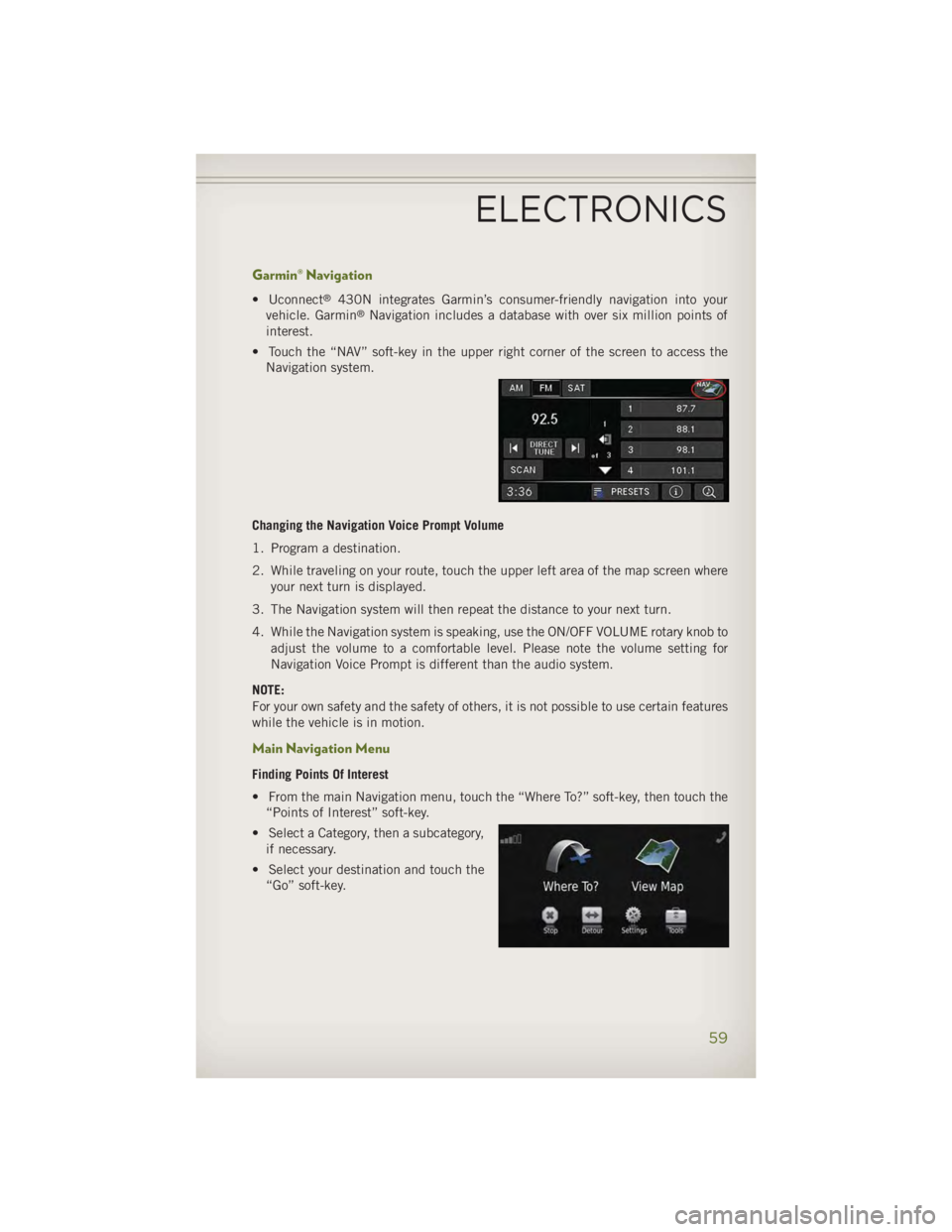
• Touch the “NAV” soft-key in the upper right corner of the screen to access the
Navigation system.
Changing the Navigation Voice Prompt Volume
1. Program a destination.
2. While traveling on your route, touch the upper left area of the map screen where
your next turn is displayed.
3. The Navigation system will then repeat the distance to your next turn.
4. While the Navigation system is speaking, use the ON/OFF VOLUME rotary knob to
adjust the volume to a comfortable level. Please note the volume setting for
Navigation Voice Prompt is different than the audio system.
NOTE:
For your own safety and the safety of others, it is not possible to use certain features
while the vehicle is in motion.
Main Navigation Menu Finding Points Of Interest
• From the main Navigation menu, touch the “Where To?” soft-key, then touch the
“Points of Interest” soft-key.
• Select a Category, then a subcategory,
if necessary.
• Select your destination and touch the
“Go” soft-key.ELECTRONICS
59
Page 65 of 140
Menu • Press the “MENU” hard-key to access the System Setup menu and the My Files
menu.
• Press the “MENU” hard-key in an active mode (SAT, CD, AUX, etc.) to change
mode specific settings.
Equalizer, Balance And Fade Audio Control Menu
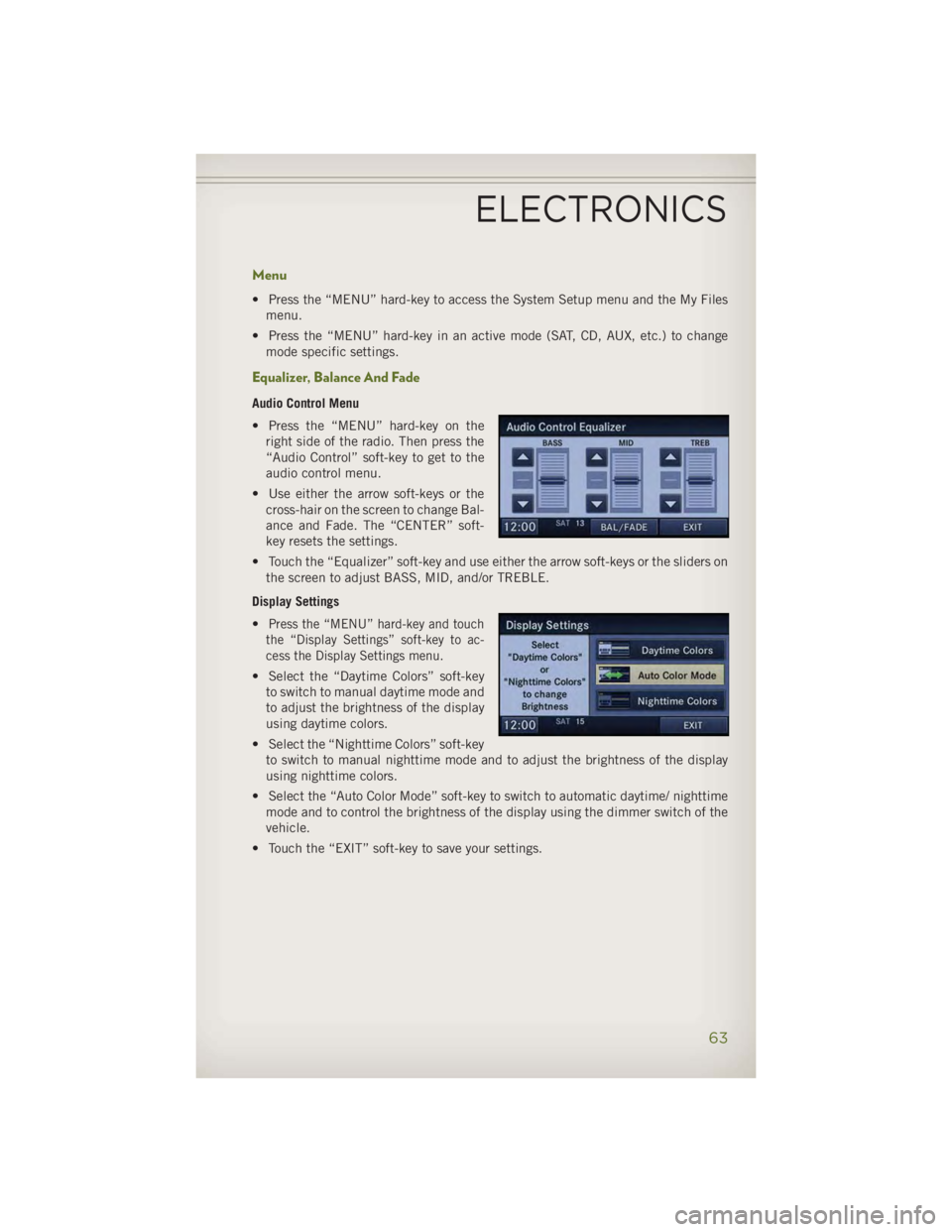
• Press the “MENU” hard-key on the
right side of the radio. Then press the
“Audio Control” soft-key to get to the
audio control menu.
• Use either the arrow soft-keys or the
cross-hair on the screen to change Bal-
ance and Fade. The “CENTER” soft-
key resets the settings.
• Touch the “Equalizer” soft-key and use either the arrow soft-keys or the sliders on
the screen to adjust BASS, MID, and/or TREBLE.
Display Settings
• Press the “MENU” hard-key and touch
the “Display Settings” soft-key to ac-
cess the Display Settings menu.
• Select the “Daytime Colors” soft-key
to switch to manual daytime mode and
to adjust the brightness of the display
using daytime colors.
• Select the “Nighttime Colors” soft-key
to switch to manual nighttime mode and to adjust the brightness of the display
using nighttime colors.
• Select the “Auto Color Mode” soft-key to switch to automatic daytime/ nighttime
mode and to control the brightness of the display using the dimmer switch of the
vehicle.
• Touch the “EXIT” soft-key to save your settings.
ELECTRONICS
63
Page 68 of 140
Audio Jack Operation • The AUX/Audio Jack provides a means to connect a portable audio device, such as
an MP3 player or an iPod ®
, to the vehicle’s sound system. This requires the use of
a 3.5 mm stereo audio patch cable.
• Press the “RADIO/MEDIA” hard-key, then the “AUX” soft-key to change the mode
to auxiliary device if the Audio Jack is connected, allowing the music from your
portable device to play through the vehicle's speakers.
• The functions of the portable device are controlled using the device itself, not the
buttons on the radio. The volume may be controlled using the radio or portable
device.
Hard Disk Drive (HDD) Operation • The Hard Disk Drive (HDD) mode gives you access to the audio files on the internal
hard disk drive. It functions similar to a CD player, with the exception that the
internal HDD can hold more tracks.
• It is also possible to import display pictures to the internal hard disk drive. The
pictures can be displayed on the right half of the radio screen.
• Before using the HDD mode, you will need to copy songs and pictures to the
internal hard drive. Songs and pictures can be added to the hard drive by using a
CD or USB device (e.g. thumb drive or memory stick).
NOTE:
• HDD supports only .jpg/JPEG formats for photos.
• WMA/MP3 Files and Selective Songs from a CD can also be added to the HDD.
See the Uconnect ®
730N Supplement Manual for more information.
Copying Music From CD
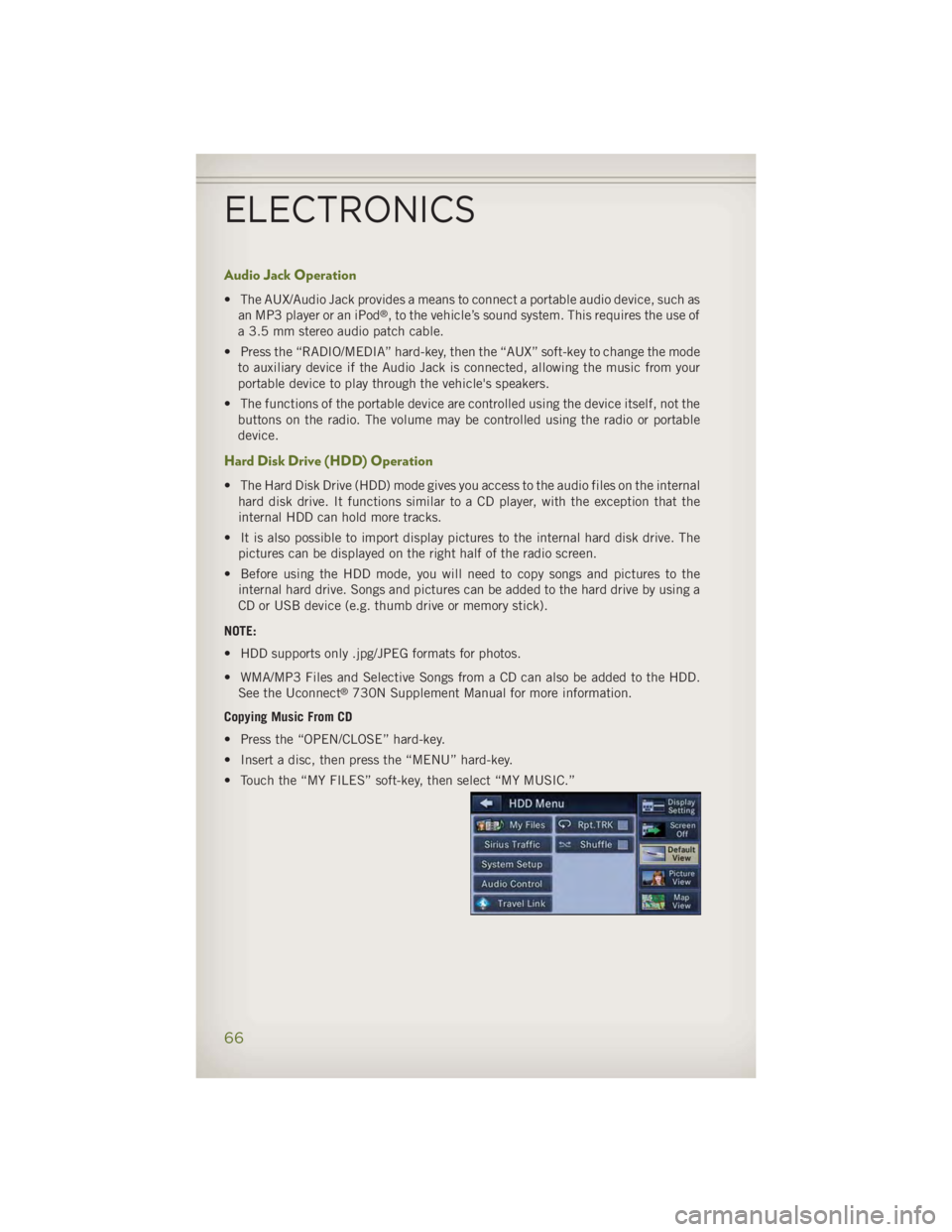
• Press the “OPEN/CLOSE” hard-key.
• Insert a disc, then press the “MENU” hard-key.
• Touch the “MY FILES” soft-key, then select “MY MUSIC.”
ELECTRONICS
66
Page 77 of 140
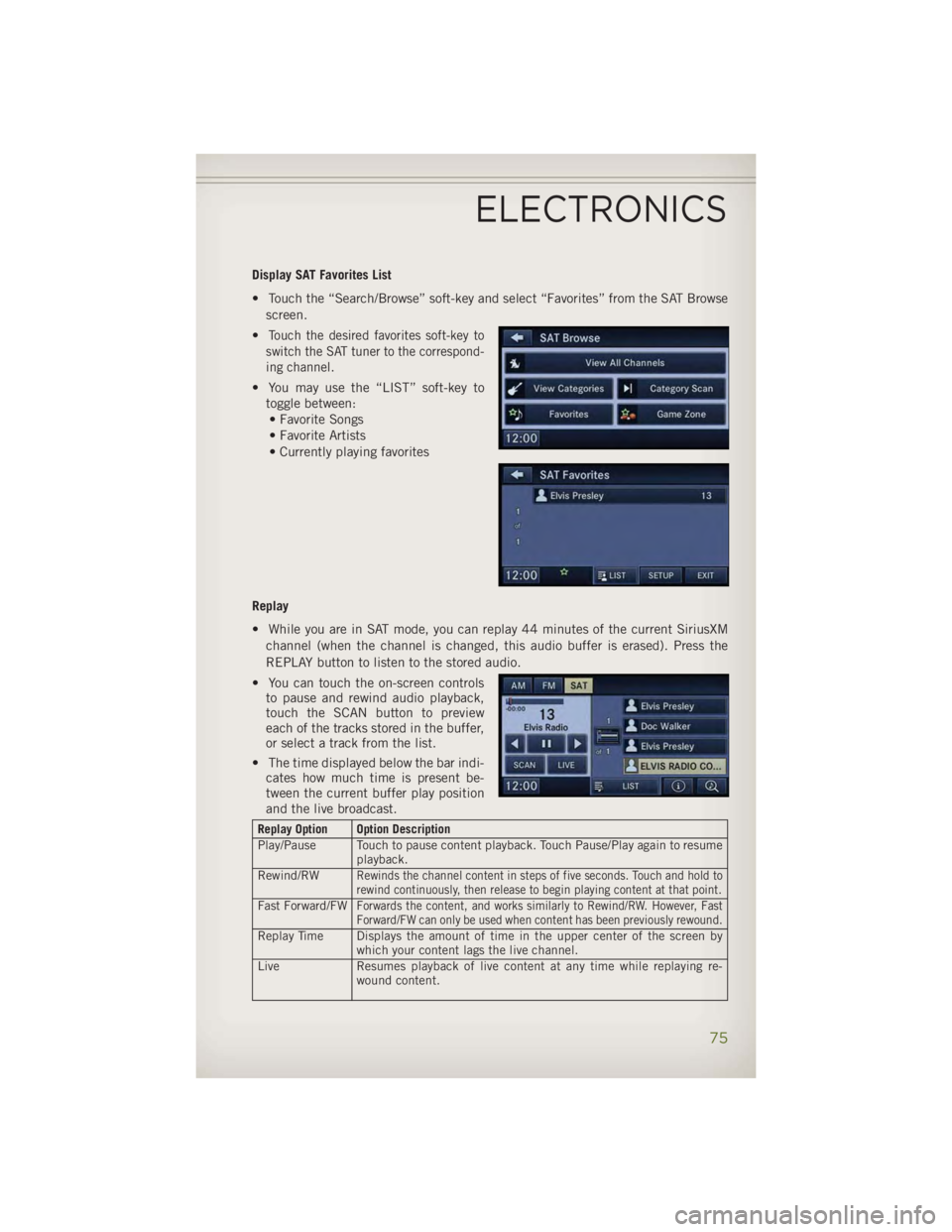
Display SAT Favorites List
• Touch the “Search/Browse” soft-key and select “Favorites” from the SAT Browse
screen.
• Touch the desired favorites soft-key to
switch the SAT tuner to the correspond-
ing channel.
• You may use the “LIST” soft-key to
toggle between:
• Favorite Songs
• Favorite Artists
• Currently playing favorites
Replay
• While you are in SAT mode, you can replay 44 minutes of the current SiriusXM
channel (when the channel is changed, this audio buffer is erased). Press the
REPLAY button to listen to the stored audio.
• You can touch the on-screen controls
to pause and rewind audio playback,
touch the SCAN button to preview
each of the tracks stored in the buffer,
or select a track from the list.
• The time displayed below the bar indi-
cates how much time is present be-
tween the current buffer play position
and the live broadcast. Replay Option Option Description
Play/Pause Touch to pause content playback. Touch Pause/Play again to resume
playback.
Rewind/RW
Rewinds the channel content in steps of five seconds. Touch and hold to
rewind continuously, then release to begin playing content at that point.
Fast Forward/FW Forwards the content, and works similarly to Rewind/RW. However, Fast
Forward/FW can only be used when content has been previously rewound.
Replay Time Displays the amount of time in the upper center of the screen by
which your content lags the live channel.
Live Resumes playback of live content at any time while replaying re-
wound content.ELECTRONICS
75
Page 79 of 140
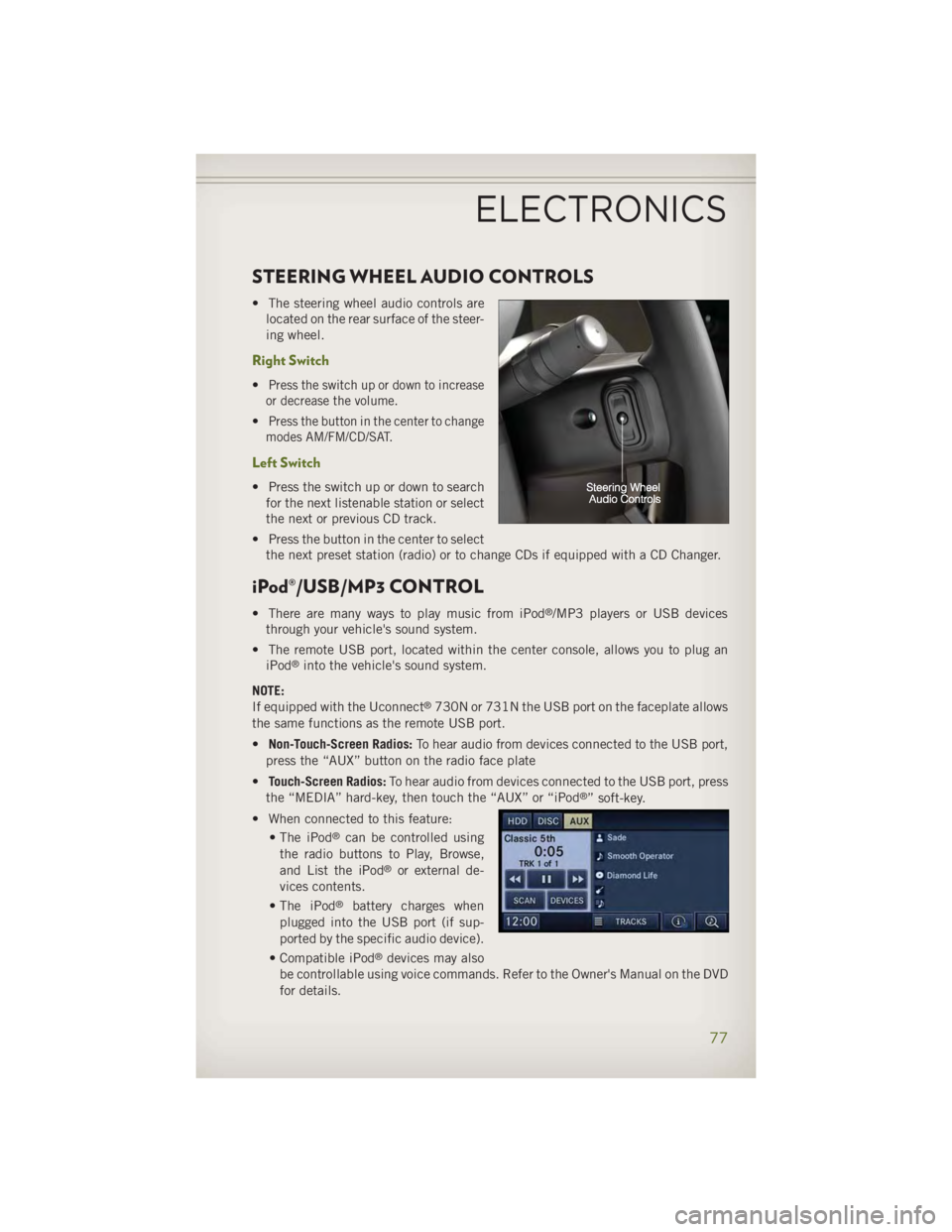
STEERING WHEEL AUDIO CONTROLS • The steering wheel audio controls are
located on the rear surface of the steer-
ing wheel.
Right Switch • Press the switch up or down to increase
or decrease the volume.
• Press the button in the center to change
modes AM/FM/CD/SAT.
Left Switch • Press the switch up or down to search
for the next listenable station or select
the next or previous CD track.
• Press the button in the center to select
the next preset station (radio) or to change CDs if equipped with a CD Changer.
iPod®/USB/MP3 CONTROL • There are many ways to play music from iPod ®
/MP3 players or USB devices
through your vehicle's sound system.
• The remote USB port, located within the center console, allows you to plug an
iPod ®
into the vehicle's sound system.
NOTE:
If equipped with the Uconnect ®
730N or 731N the USB port on the faceplate allows
the same functions as the remote USB port.
• Non-Touch-Screen Radios: To hear audio from devices connected to the USB port,
press the “AUX” button on the radio face plate
• Touch-Screen Radios: To hear audio from devices connected to the USB port, press
the “MEDIA” hard-key, then touch the “AUX” or “iPod ®
” soft-key.
• When connected to this feature:
• The iPod ®
can be controlled using
the radio buttons to Play, Browse,
and List the iPod ®
or external de-
vices contents.
• The iPod ®
battery charges when
plugged into the USB port (if sup-
ported by the specific audio device).
• Compatible iPod ®
devices may also
be controllable using voice commands. Refer to the Owner's Manual on the DVD
for details.ELECTRONICS
77
Page 80 of 140
NOTE:
The USB port supports certain Mini, Classic, Nano, Touch, and iPhone ®
devices. The
USB port also supports playing music from compatible external USB Mass Storage
Class memory devices. For supported audio file formats, refer to the USB Port section
in the Owner's Manual on the DVD. Refer to www.UconnectPhone.com website for a
list of tested iPod ®
s. Some iPod ®
software versions may not fully support the USB
port features. Please visit Apple’s website for iPod ®
software updates.
WARNING!Do not plug in or remove the iPod ®
or external device while driving. Failure to
follow this warning could result in a collision.
Uconnect® Phone • To determine if your vehicle is equipped with Uconnect ®
Phone, press the
“Uconnect ®
Phone” button located on the radio faceplate. If your vehicle has
this feature, you will hear a voice prompt. If not, you will see a message on the
radio “Uconnect ®
Phone not available.”
• The Uconnect ®
Phone is a voice-activated, hands-free, in-vehicle communica-
tions system with Voice Command Capability (see Voice Command section).
NOTE:
To access the tutorial, press the “Uconnect ®
Phone” button . After the BEEP,
say “tutorial.” Press any hard-key/button or touch the display (Touch-Screen radio) to
cancel the “tutorial.”
• The Uconnect ®
Phone allows you to dial a phone number with your mobile phone
using simple voice commands.
• Refer to your vehicle Owner's Manual on the DVD for further details.
NOTE:
The Uconnect ®
Phone requires a mobile phone equipped with the Bluetooth ®
Hands-Free Profile, Version 1.0 or higher. For Uconnect ®
Customer Support: U.S.
residents - visit www.UconnectPhone.com or call 1–877–855–8400. Canadian
residents - visit www.UconnectPhone.com or call, 1-800-465–2001 (English) or
1-800-387-9983 (French). This site will provide specific instructions based on the
type of mobile phone being paired.
ELECTRONICS
78
Page 83 of 140
Transfer Ongoing Call Between Handset And Vehicle • During a call, press the “Voice Command” button .
• After the BEEP, say “transfer call.”
Changing The Volume • Start a dialogue by pressing the “Phone” button , then adjust the volume
during a normal call.
• Use the radio ON/OFF VOLUME rotary knob to adjust the volume to a comfortable
level while the Uconnect ®
system is speaking. Please note the volume setting for
Uconnect ®
is different than the audio system.
WARNING!• Any voice commanded system should be used only in safe driving conditions
following applicable laws regarding phone use. Your attention should be
focused on safely operating the vehicle. Failure to do so may result in a
collision causing you and others to be severely injured or killed.
• In an emergency, to use Uconnect ®
Phone, your mobile phone must be:
• turned on,
• paired to Uconnect ®
Phone,
• and have network coverage.
Uconnect® VOICE COMMAND Voice Command Operation • The Uconnect ®
Voice Command system allows you to control your AM, FM radio,
satellite radio, disc player, HDD, Uconnect ®
Phone, a memo recorder, and
supported portable media devices.
• When you press the “Voice Command” button located on the radio
faceplate or steering wheel, you will hear a beep. The beep is your signal to give a
command. If you do not say a command within a few seconds, the system will
present you with a list of options. If you ever wish to interrupt the system while it
lists options, press the “Voice Command” button , listen for the BEEP, and
say your command.
NOTE:
Visit http://www.driveuconnect.com/features/voiceCommand/ for more info on which
voice command features apply to your vehicle.ELECTRONICS
81
Page 86 of 140
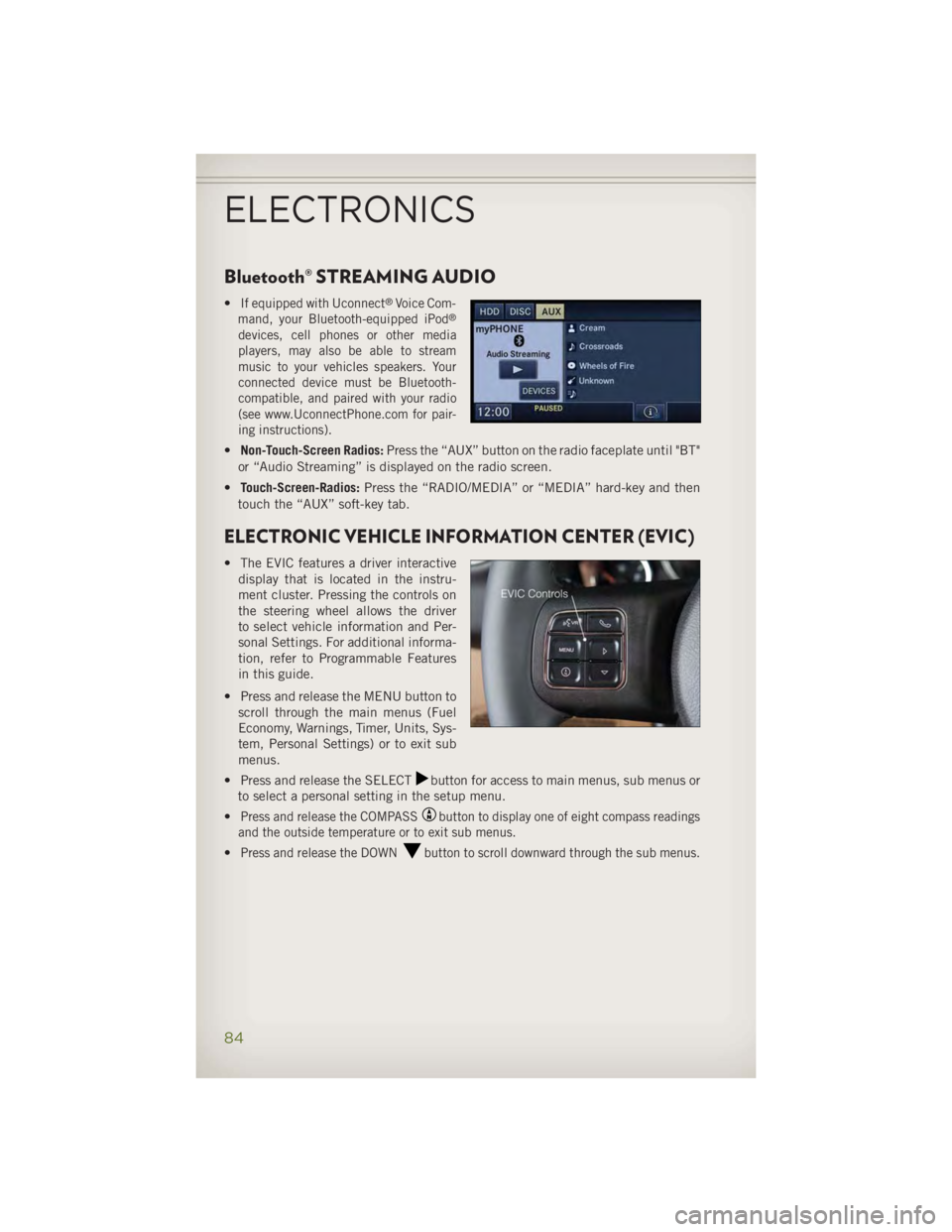
Bluetooth® STREAMING AUDIO • If equipped with Uconnect ®
Voice Com-
mand, your Bluetooth-equipped iPod ®
devices, cell phones or other media
players, may also be able to stream
music to your vehicles speakers. Your
connected device must be Bluetooth-
compatible, and paired with your radio
(see www.UconnectPhone.com for pair-
ing instructions).
• Non-Touch-Screen Radios: Press the “AUX” button on the radio faceplate until "BT"
or “Audio Streaming” is displayed on the radio screen.
• Touch-Screen-Radios: Press the “RADIO/MEDIA” or “MEDIA” hard-key and then
touch the “AUX” soft-key tab.
ELECTRONIC VEHICLE INFORMATION CENTER (EVIC) • The EVIC features a driver interactive
display that is located in the instru-
ment cluster. Pressing the controls on
the steering wheel allows the driver
to select vehicle information and Per-
sonal Settings. For additional informa-
tion, refer to Programmable Features
in this guide.
• Press and release the MENU button to
scroll through the main menus (Fuel
Economy, Warnings, Timer, Units, Sys-
tem, Personal Settings) or to exit sub
menus.
• Press and release the SELECT button for access to main menus, sub menus or
to select a personal setting in the setup menu.
• Press and release the COMPASS button to display one of eight compass readings
and the outside temperature or to exit sub menus.
• Press and release the DOWN button to scroll downward through the sub menus.
ELECTRONICS
84
Page 124 of 140
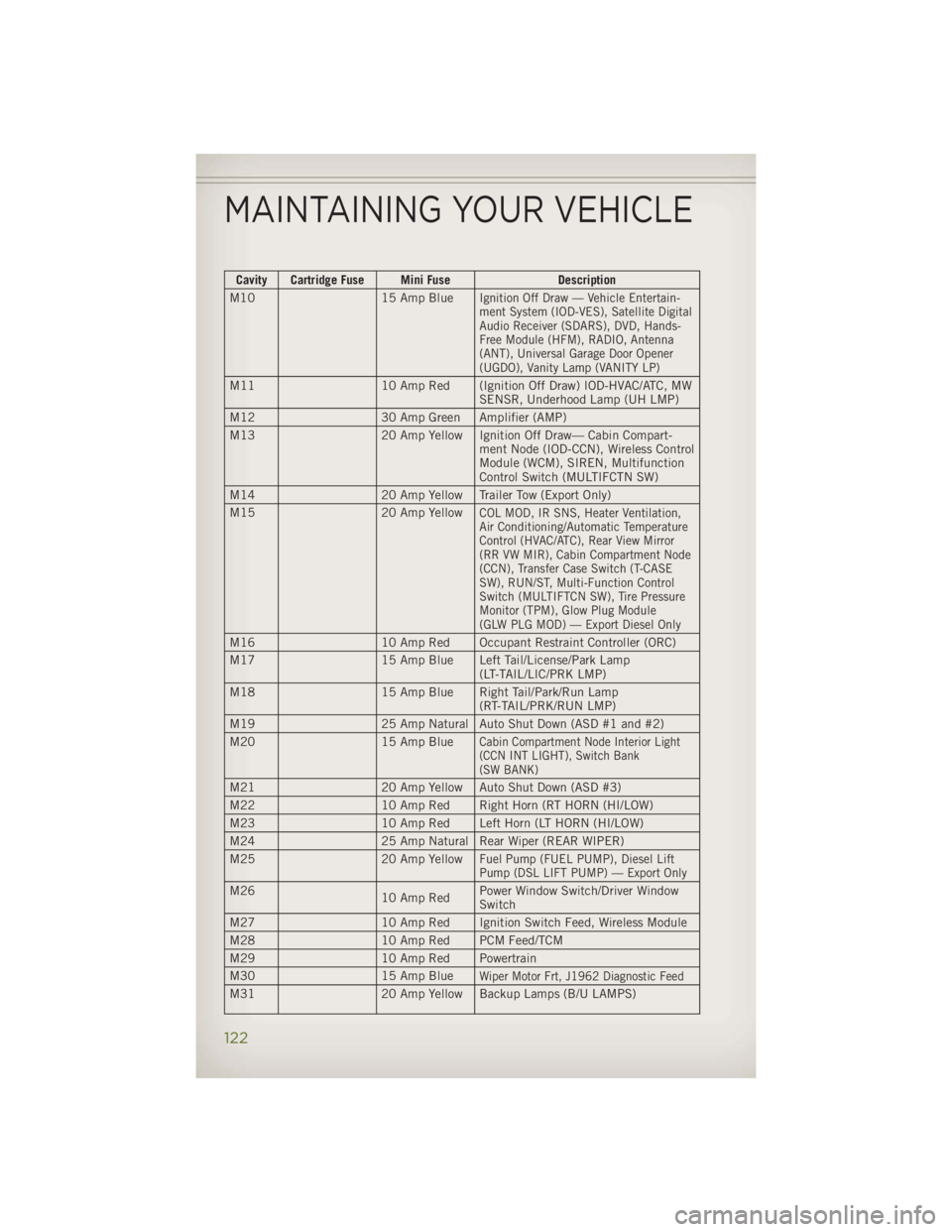
Cavity Cartridge Fuse Mini Fuse Description
M10 15 Amp Blue
Ignition Off Draw — Vehicle Entertain-
ment System (IOD-VES), Satellite Digital
Audio Receiver (SDARS), DVD, Hands-
Free Module (HFM), RADIO, Antenna
(ANT), Universal Garage Door Opener
(UGDO), Vanity Lamp (VANITY LP)
M11 10 Amp Red (Ignition Off Draw) IOD-HVAC/ATC, MW
SENSR, Underhood Lamp (UH LMP)
M12 30 Amp Green Amplifier (AMP)
M13 20 Amp Yellow Ignition Off Draw— Cabin Compart-
ment Node (IOD-CCN), Wireless Control
Module (WCM), SIREN, Multifunction
Control Switch (MULTIFCTN SW)
M14 20 Amp Yellow Trailer Tow (Export Only)
M15 20 Amp Yellow
COL MOD, IR SNS, Heater Ventilation,
Air Conditioning/Automatic Temperature
Control (HVAC/ATC), Rear View Mirror
(RR VW MIR), Cabin Compartment Node
(CCN), Transfer Case Switch (T-CASE
SW), RUN/ST, Multi-Function Control
Switch (MULTIFTCN SW), Tire Pressure
Monitor (TPM), Glow Plug Module
(GLW PLG MOD) — Export Diesel Only
M16 10 Amp Red Occupant Restraint Controller (ORC)
M17 15 Amp Blue Left Tail/License/Park Lamp
(LT-TAIL/LIC/PRK LMP)
M18 15 Amp Blue Right Tail/Park/Run Lamp
(RT-TAIL/PRK/RUN LMP)
M19 25 Amp Natural Auto Shut Down (ASD #1 and #2)
M20 15 Amp Blue
Cabin Compartment Node Interior Light
(CCN INT LIGHT), Switch Bank
(SW BANK)
M21 20 Amp Yellow Auto Shut Down (ASD #3)
M22 10 Amp Red Right Horn (RT HORN (HI/LOW)
M23 10 Amp Red Left Horn (LT HORN (HI/LOW)
M24 25 Amp Natural Rear Wiper (REAR WIPER)
M25 20 Amp Yellow
Fuel Pump (FUEL PUMP), Diesel Lift
Pump (DSL LIFT PUMP) — Export Only
M26
10 Amp Red Power Window Switch/Driver Window
Switch
M27 10 Amp Red Ignition Switch Feed, Wireless Module
M28 10 Amp Red PCM Feed/TCM
M29 10 Amp Red Powertrain
M30 15 Amp Blue
Wiper Motor Frt, J1962 Diagnostic Feed
M31 20 Amp Yellow Backup Lamps (B/U LAMPS)MAINTAINING YOUR VEHICLE
122