navigation JEEP WRANGLER UNLIMITED 2014 Owners Manual
[x] Cancel search | Manufacturer: JEEP, Model Year: 2014, Model line: WRANGLER UNLIMITED, Model: JEEP WRANGLER UNLIMITED 2014Pages: 140, PDF Size: 12.72 MB
Page 2 of 140
Driving after drinking can lead to a collision. Your perceptions are
less sharp, your reflexes are slower, and your judgment is impaired
when you have been drinking. Never drink and then drive. WARNING!
Important: This User Guide is intended to familiarize you with the important features
of your vehicle. The DVD enclosed contains your Owner’s Manual,
Navigation/Uconnect ®
Manuals, Warranty Booklets, Tire Warranty
and Roadside Assistance (new vehicles purchased in the U.S.) or
Roadside Assistance (new vehicles purchased in Canada) in electronic
format. We hope you find it useful. Replacement DVD kits may be
purchased by visiting www.techauthority.com. Jeep ®
is a registered
trademark of Chrysler Group LLC. Copyright 2013 Chrysler Group LLC.The driver’s primary responsibility is the safe operation of the vehicle.
Driving while distracted can result in loss of vehicle control, resulting in
a collision and personal injury. Chrysler Group LLC strongly recommends
that the driver use extreme caution when using any device or feature
that may take their attention off the road. Use of any electrical devices
such as cell phones, computers, portable radios, vehicle navigation or
other devices by the driver while the vehicle is moving is dangerous and
could lead to a serious collision. Texting while driving is also dangerous
and should never be done while the vehicle is moving. If you find
yourself unable to devote your full attention to vehicle operation, pull off
the road to a safe location and stop your vehicle. Some States or
Provinces prohibit the use of cellular telephones or texting while driving.
It is always the driver’s responsibility to comply with all local laws.
Driving and Alcohol: Drunken driving is one of the most frequent causes of collisions. Your
driving ability can be seriously impaired with blood alcohol levels far below
the legal minimum. If you are drinking, don’t drive. Ride with a designated
non-drinking driver, call a cab, a friend, or use public transportation.If you are the first registered retail owner of
your vehicle, you may obtain a complimentary
printed copy of the Owner’s Manual, Navigation/
Uconnect ®
Manuals or Warranty Booklet by calling
1-877-426-5337 (U.S.) or 1-800-387-1143 (Canada)
or by contacting your dealer. This guide has been prepared to help you get quickly
acquainted with your new Jeep and to provide a convenient
reference source for common questions. However, it is not a
substitute for your Owner’s Manual.
For complete operational instructions, maintenance
procedures and important safety messages, please consult
your Owner’s Manual, Navigation/Uconnect ®
Manuals and
other Warning Labels in your vehicle.
Not all features shown in this guide may apply to your vehicle.
For additional information on accessories to help personalize
your vehicle, visit www.mopar.com (U.S.), www.mopar.ca
(Canada) or your local Jeep dealer.
1571445_14_Wrangler_UG_071713.indd 2 7/17/13 2:03 PM
Page 54 of 140
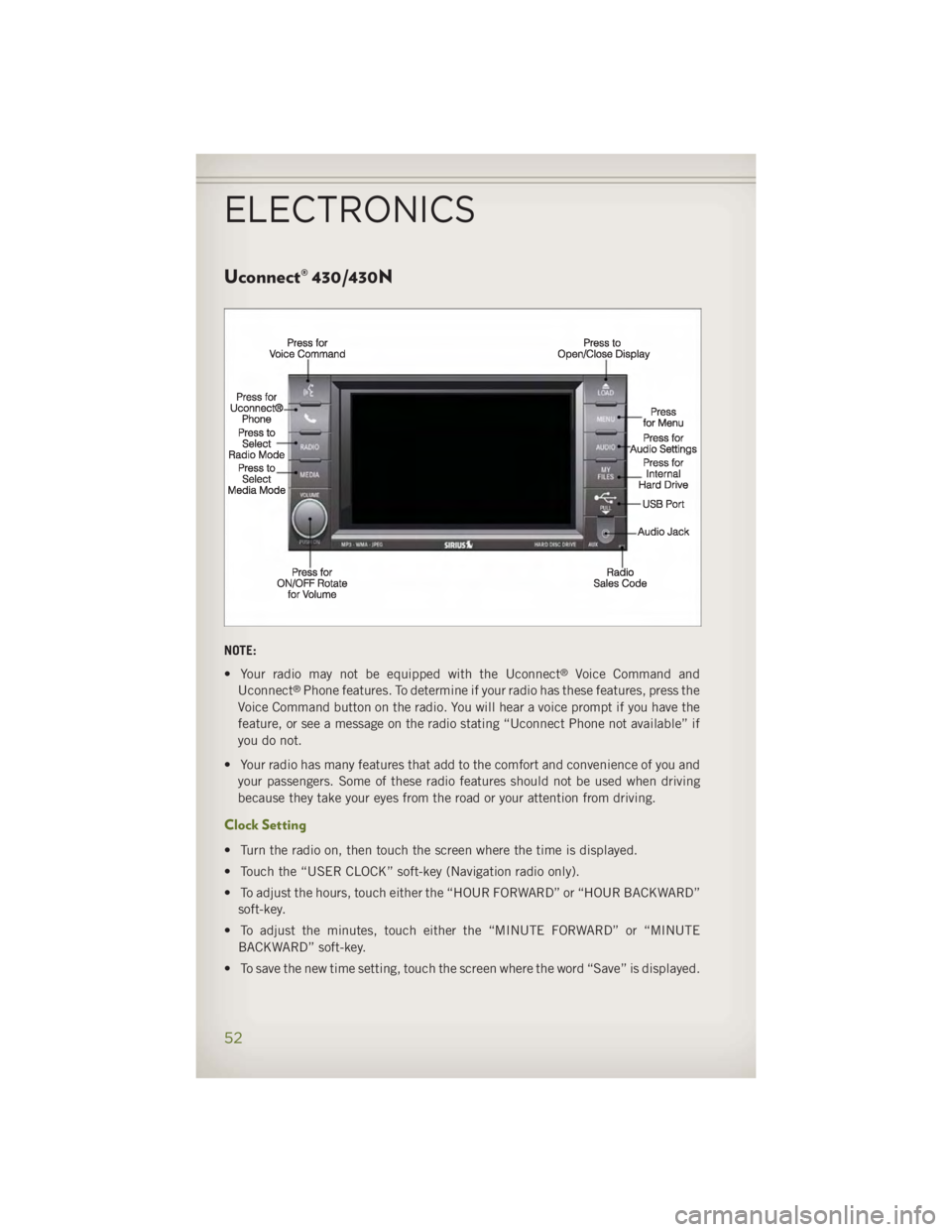
Uconnect® 430/430N
NOTE:
• Your radio may not be equipped with the Uconnect ®
Voice Command and
Uconnect ®
Phone features. To determine if your radio has these features, press the
Voice Command button on the radio. You will hear a voice prompt if you have the
feature, or see a message on the radio stating “Uconnect Phone not available” if
you do not.
• Your radio has many features that add to the comfort and convenience of you and
your passengers. Some of these radio features should not be used when driving
because they take your eyes from the road or your attention from driving.
Clock Setting
• Turn the radio on, then touch the screen where the time is displayed.
• Touch the “USER CLOCK” soft-key (Navigation radio only).
• To adjust the hours, touch either the “HOUR FORWARD” or “HOUR BACKWARD”
soft-key.
• To adjust the minutes, touch either the “MINUTE FORWARD” or “MINUTE
BACKWARD” soft-key.
• To save the new time setting, touch the screen where the word “Save” is displayed.ELECTRONICS
52
Page 61 of 140
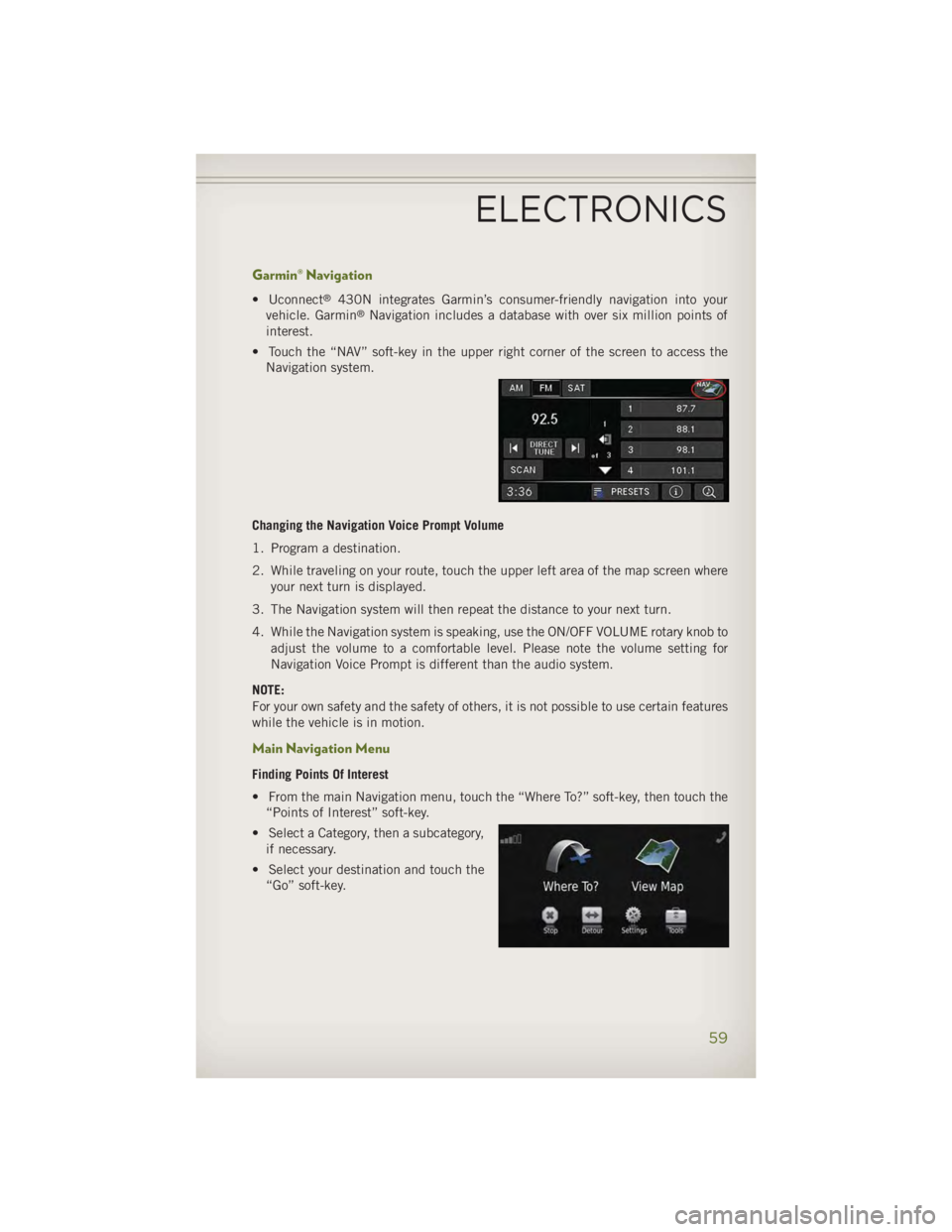
Garmin® Navigation • Uconnect ®
430N integrates Garmin’s consumer-friendly navigation into your
vehicle. Garmin ®
Navigation includes a database with over six million points of
interest.
• Touch the “NAV” soft-key in the upper right corner of the screen to access the
Navigation system.
Changing the Navigation Voice Prompt Volume
1. Program a destination.
2. While traveling on your route, touch the upper left area of the map screen where
your next turn is displayed.
3. The Navigation system will then repeat the distance to your next turn.
4. While the Navigation system is speaking, use the ON/OFF VOLUME rotary knob to
adjust the volume to a comfortable level. Please note the volume setting for
Navigation Voice Prompt is different than the audio system.
NOTE:
For your own safety and the safety of others, it is not possible to use certain features
while the vehicle is in motion.
Main Navigation Menu Finding Points Of Interest
• From the main Navigation menu, touch the “Where To?” soft-key, then touch the
“Points of Interest” soft-key.
• Select a Category, then a subcategory,
if necessary.
• Select your destination and touch the
“Go” soft-key.ELECTRONICS
59
Page 62 of 140
Finding A Place By Spelling The Name
• From the Main Navigation Menu touch the “Where To?” soft-key. Next, touch the
“Points of Interest” soft-key then touch the “Spell Name” soft-key.
• Enter the name of your destination.
• Touch the “Done” soft-key.
• Select your destination and touch the “Go” soft-key.
Entering A Destination Address
• From the main Navigation menu touch the “Where To?” soft-key, then touch the
“Address” soft-key.
• Follow the on-screen prompts to enter the address then touch the “Go” soft-key.
Setting Your Home Location
• From the main Navigation menu touch the "Tools" icon. Next select the "My Data"
folder icon. Then select "Set Home Location."
• You may enter your address directly, use your current location as your home
address, or choose from recently found locations.
Edit Home Location
• From the main Navigation menu touch the “Where To?” soft-key, then touch the
"Tools" icon. Next, touch the "My Data" folder.
• You may enter a new address directly, use your current location or choose from
recently found locations.
Go Home
• A Home location must be saved in the system. From the Main Navigation menu,
touch the “Where To?” soft-key, then touch the “Go Home” soft-key.
ELECTRONICS
60
Page 63 of 140
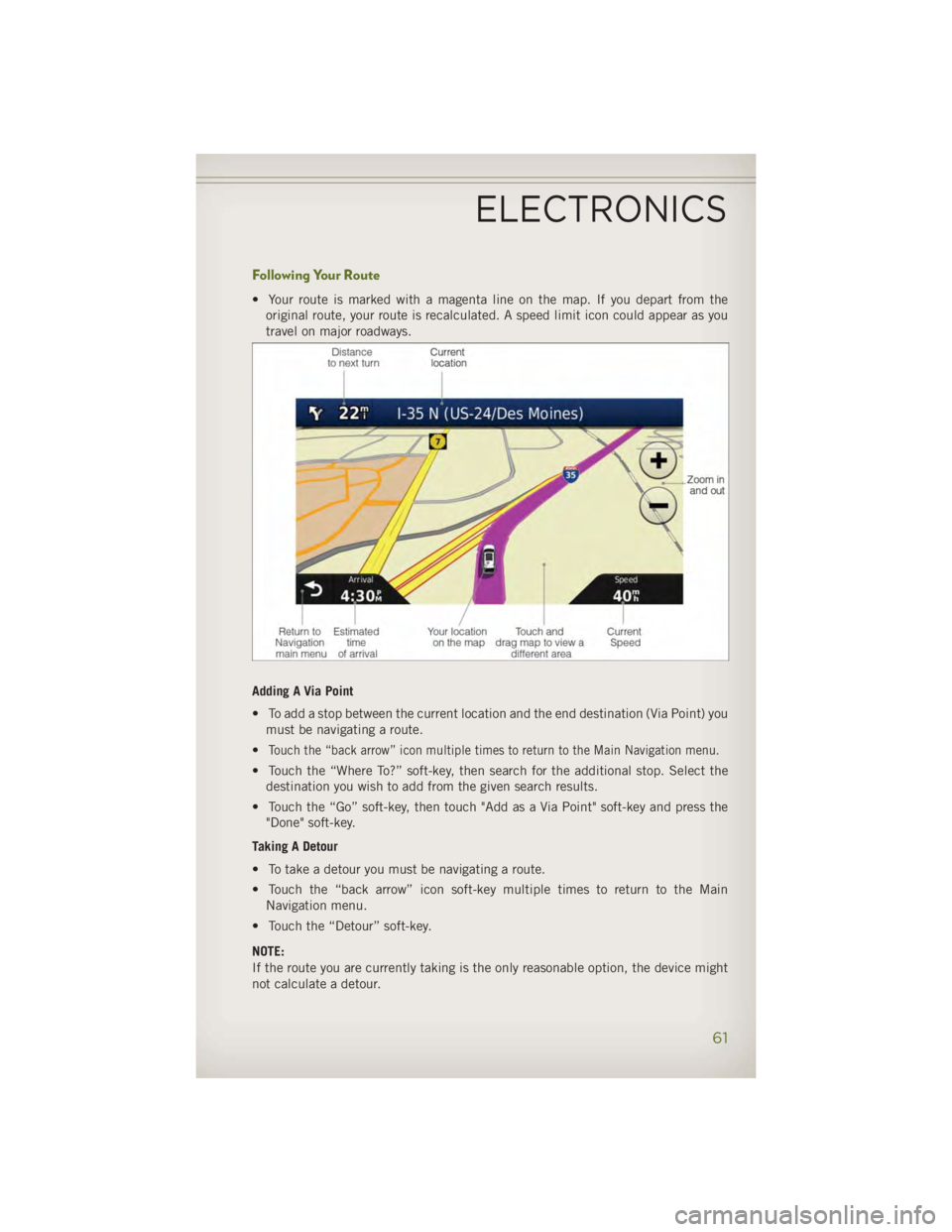
Following Your Route • Your route is marked with a magenta line on the map. If you depart from the
original route, your route is recalculated. A speed limit icon could appear as you
travel on major roadways.
Adding A Via Point
• To add a stop between the current location and the end destination (Via Point) you
must be navigating a route.
• Touch the “back arrow” icon multiple times to return to the Main Navigation menu.
• Touch the “Where To?” soft-key, then search for the additional stop. Select the
destination you wish to add from the given search results.
• Touch the “Go” soft-key, then touch "Add as a Via Point" soft-key and press the
"Done" soft-key.
Taking A Detour
• To take a detour you must be navigating a route.
• Touch the “back arrow” icon soft-key multiple times to return to the Main
Navigation menu.
• Touch the “Detour” soft-key.
NOTE:
If the route you are currently taking is the only reasonable option, the device might
not calculate a detour.ELECTRONICS
61
Page 71 of 140
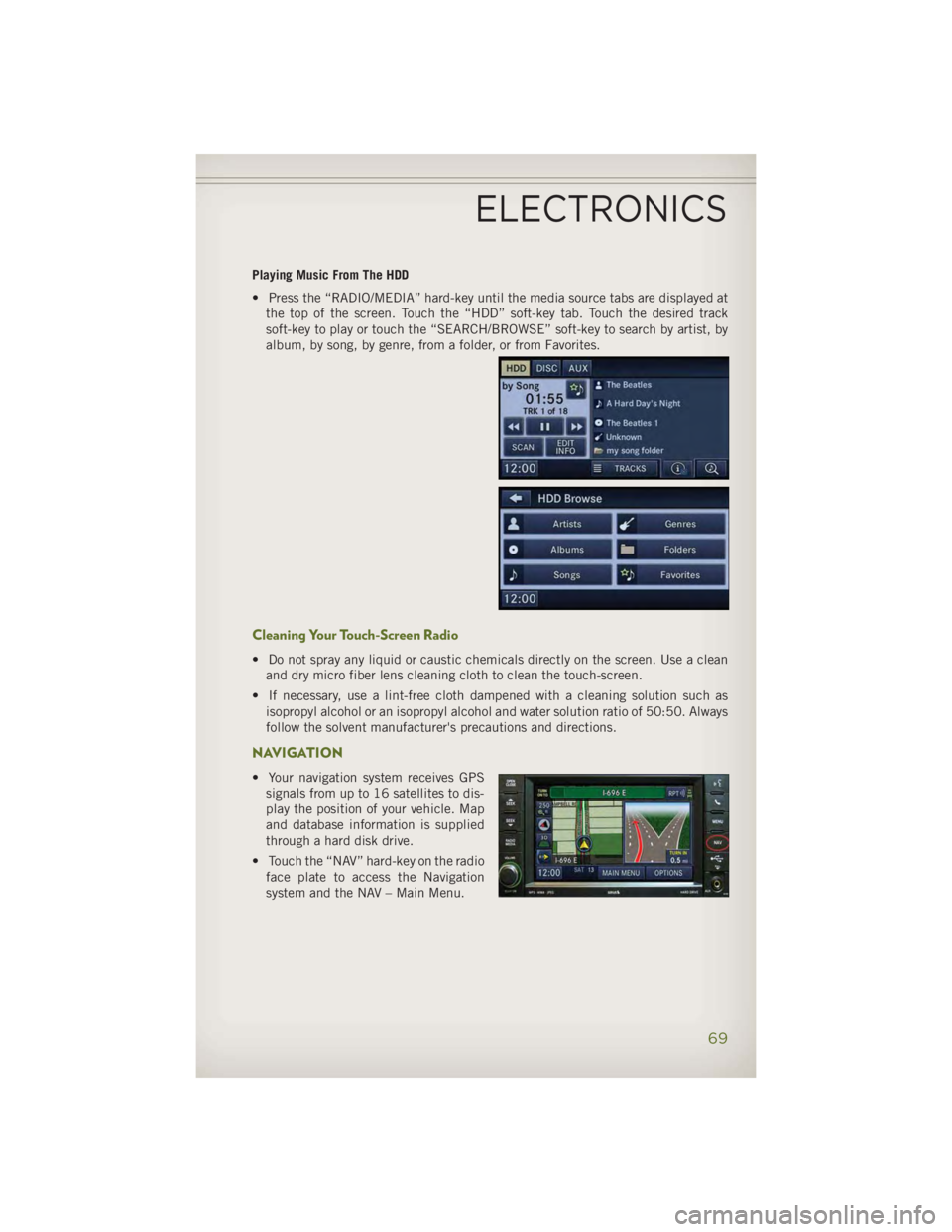
Playing Music From The HDD
• Press the “RADIO/MEDIA” hard-key until the media source tabs are displayed at
the top of the screen. Touch the “HDD” soft-key tab. Touch the desired track
soft-key to play or touch the “SEARCH/BROWSE” soft-key to search by artist, by
album, by song, by genre, from a folder, or from Favorites.
Cleaning Your Touch-Screen Radio • Do not spray any liquid or caustic chemicals directly on the screen. Use a clean
and dry micro fiber lens cleaning cloth to clean the touch-screen.
• If necessary, use a lint-free cloth dampened with a cleaning solution such as
isopropyl alcohol or an isopropyl alcohol and water solution ratio of 50:50. Always
follow the solvent manufacturer's precautions and directions.
NAVIGATION • Your navigation system receives GPS
signals from up to 16 satellites to dis-
play the position of your vehicle. Map
and database information is supplied
through a hard disk drive.
• Touch the “NAV” hard-key on the radio
face plate to access the Navigation
system and the NAV – Main Menu.ELECTRONICS
69
Page 72 of 140
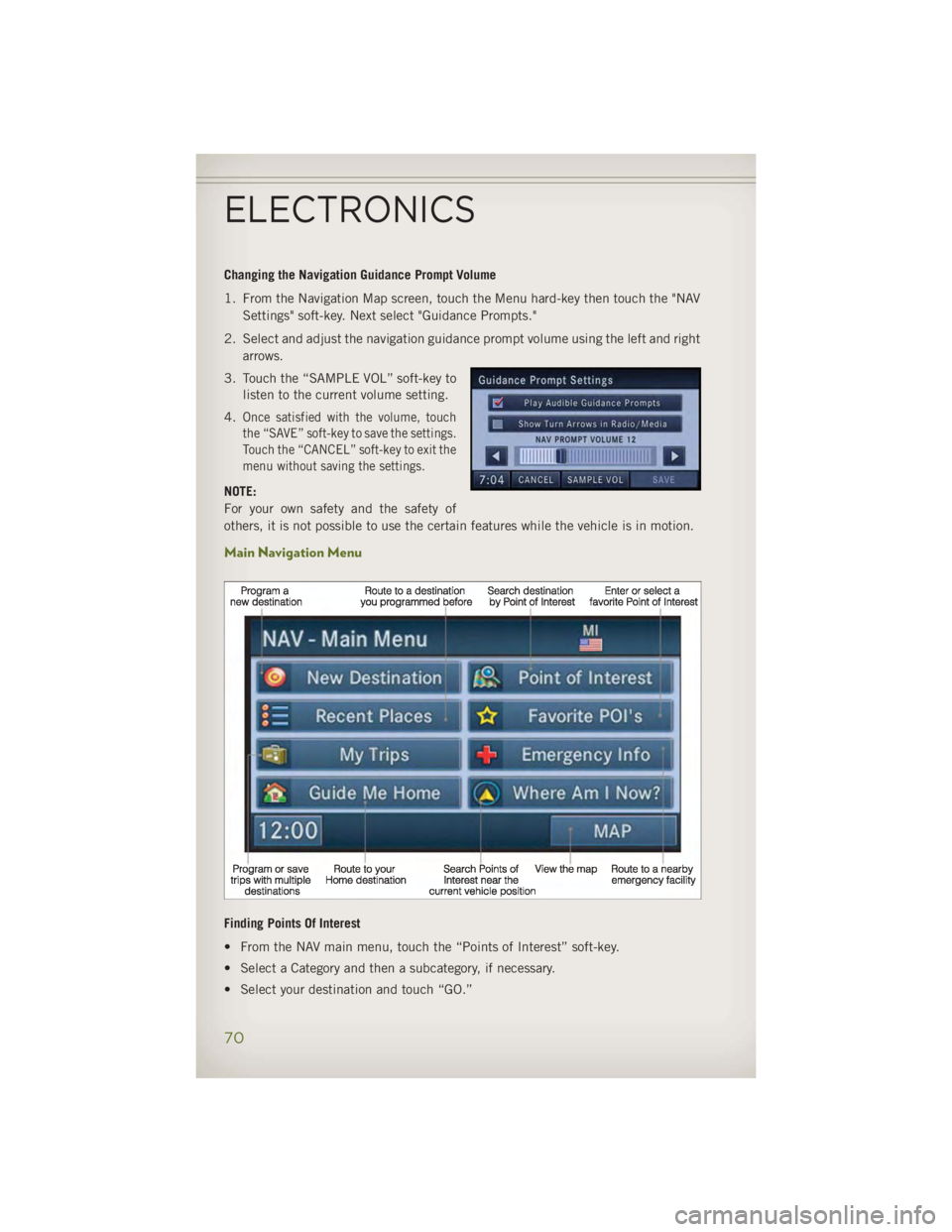
Changing the Navigation Guidance Prompt Volume
1. From the Navigation Map screen, touch the Menu hard-key then touch the "NAV
Settings" soft-key. Next select "Guidance Prompts."
2. Select and adjust the navigation guidance prompt volume using the left and right
arrows.
3. Touch the “SAMPLE VOL” soft-key to
listen to the current volume setting.
4. Once satisfied with the volume, touch
the “SAVE” soft-key to save the settings.
Touch the “CANCEL” soft-key to exit the
menu without saving the settings.
NOTE:
For your own safety and the safety of
others, it is not possible to use the certain features while the vehicle is in motion.
Main Navigation Menu
Finding Points Of Interest
• From the NAV main menu, touch the “Points of Interest” soft-key.
• Select a Category and then a subcategory, if necessary.
• Select your destination and touch “GO.”ELECTRONICS
70
Page 73 of 140
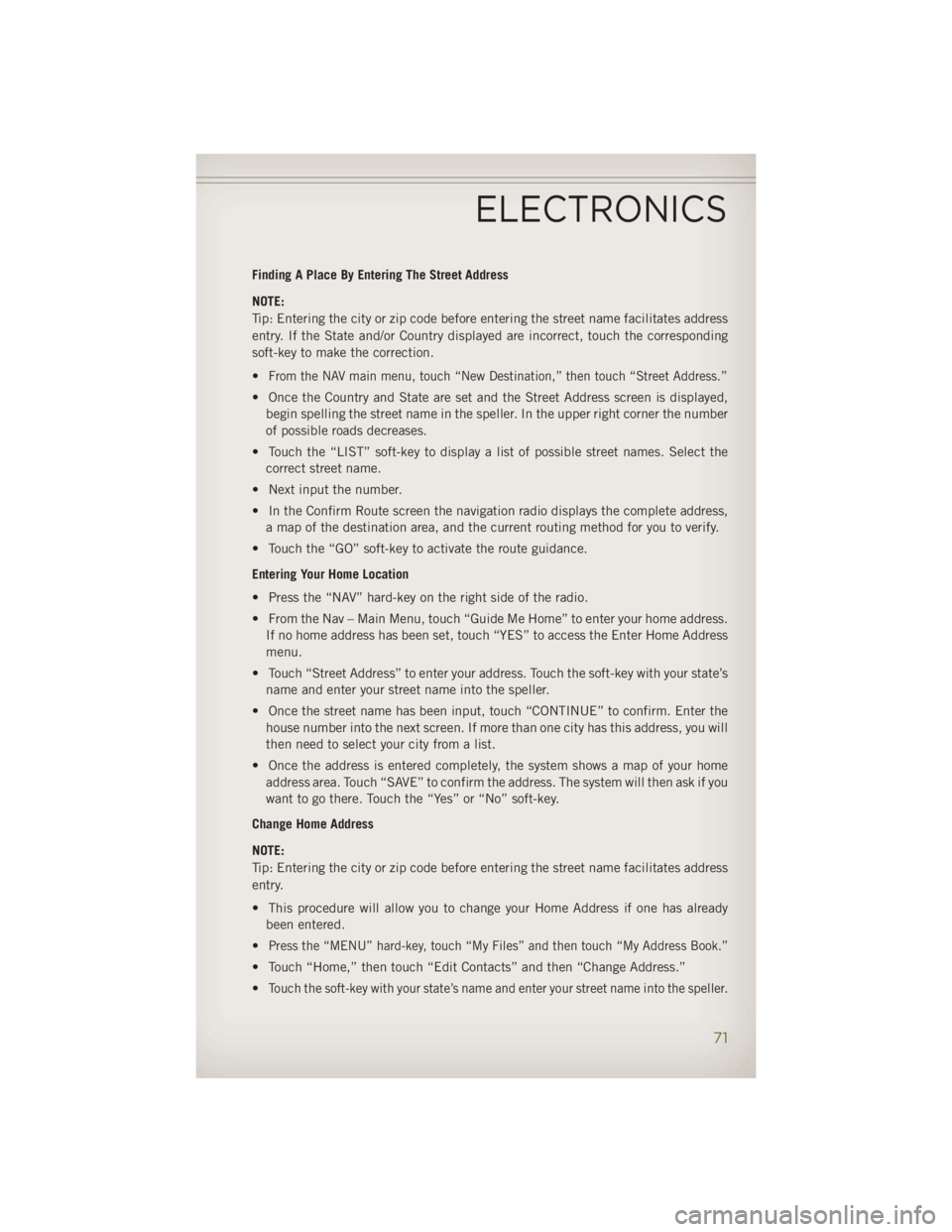
Finding A Place By Entering The Street Address
NOTE:
Tip: Entering the city or zip code before entering the street name facilitates address
entry. If the State and/or Country displayed are incorrect, touch the corresponding
soft-key to make the correction.
•
From the NAV main menu, touch “New Destination,” then touch “Street Address.”
• Once the Country and State are set and the Street Address screen is displayed,
begin spelling the street name in the speller. In the upper right corner the number
of possible roads decreases.
• Touch the “LIST” soft-key to display a list of possible street names. Select the
correct street name.
• Next input the number.
• In the Confirm Route screen the navigation radio displays the complete address,
a map of the destination area, and the current routing method for you to verify.
• Touch the “GO” soft-key to activate the route guidance.
Entering Your Home Location
• Press the “NAV” hard-key on the right side of the radio.
• From the Nav – Main Menu, touch “Guide Me Home” to enter your home address.
If no home address has been set, touch “YES” to access the Enter Home Address
menu.
• Touch “Street Address” to enter your address. Touch the soft-key with your state’s
name and enter your street name into the speller.
• Once the street name has been input, touch “CONTINUE” to confirm. Enter the
house number into the next screen. If more than one city has this address, you will
then need to select your city from a list.
• Once the address is entered completely, the system shows a map of your home
address area. Touch “SAVE” to confirm the address. The system will then ask if you
want to go there. Touch the “Yes” or “No” soft-key.
Change Home Address
NOTE:
Tip: Entering the city or zip code before entering the street name facilitates address
entry.
• This procedure will allow you to change your Home Address if one has already
been entered.
• Press the “MENU” hard-key, touch “My Files” and then touch “My Address Book.”
• Touch “Home,” then touch “Edit Contacts” and then “Change Address.”
• Touch the soft-key with your state’s name and enter your street name into the speller.ELECTRONICS
71
Page 74 of 140
• Once the street name has been input, touch “CONTINUE” to confirm.
• Enter the house number into the next screen. If more than one city has this address,
you will then need to select your city from a list.
• Touch the “SAVE” soft-key to confirm the address.
Go Home
• From the NAV main menu, touch “Guide Me Home” when you want to route to your
home destination.
Where Am I Now?
• From the NAV main menu, touch “Where Am I Now?” The Where Am I Now? menu
displays location information for the current vehicle position.
• Touch the “NEARBY POI” soft-key to search for a local Point of Interest.
• Touch the “SAVE LOCATION” soft-key to save the current location in the Saved
Locations memory.
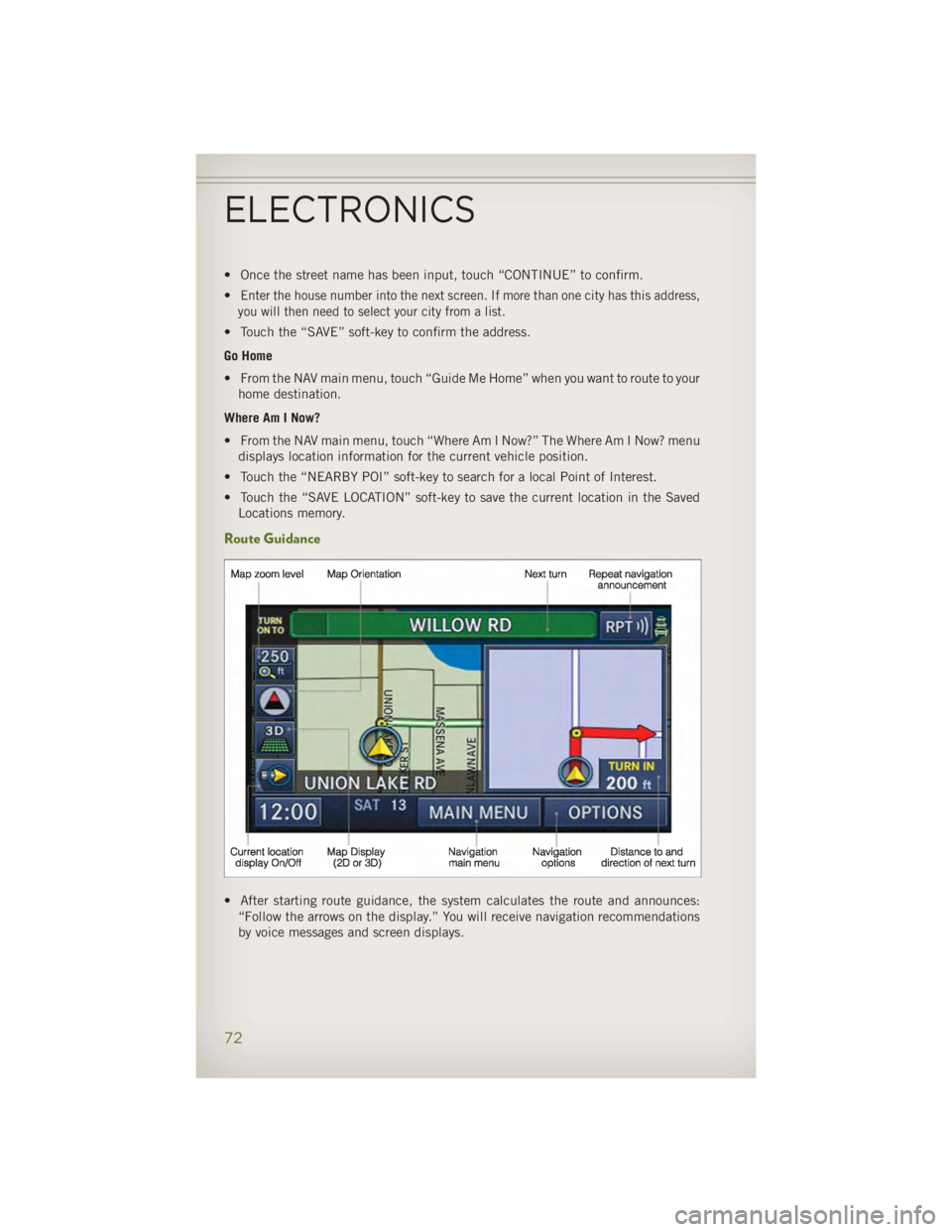
Route Guidance
• After starting route guidance, the system calculates the route and announces:
“Follow the arrows on the display.” You will receive navigation recommendations
by voice messages and screen displays.ELECTRONICS
72
Page 132 of 140
Jacking Instructions .........103
Jack Location .............102
Jack Operation ......... 102, 103
Jump Starting .............107
KeyFob.................10
Key Fob Programmable Features . . .86
LaneChangeandTurnSignals....24
Lane Change Assist ..........24
Lap/Shoulder Belts ...........12
LATCH (Lower Anchors and Tether for
CHildren).....14,15,16,17,18
Lights
Engine Temperature Warning . . .98
Tire Pressure Monitoring
(TPMS) ...............96
TurnSignal .............24
Warning (Instrument Cluster
Description) .............8
Lower Anchors and Tether for CHildren
(LATCH) ...............15
Maintenance Record .........119
MaintenanceSchedule........115
Malfunction Indicator Light
(CheckEngine) ...........98
Navigation Voice Prompt
Volume .............59,70
New Vehicle Break-In Period .....23
Oil Change Indicator .........100
Oil Change Indicator, Reset .....100
Oil, Engine
Capacity ..............114
Recommendation ........114
Viscosity .............114
Outlet
Power ................88
Overheating, Engine .........101
Placard, Tire and Loading
Information .............123
Power
Inverter ...............87
Outlet
(Auxiliary Electrical Outlet) ....88 Preparation for Jacking ........103
Programmable Electronic
Features ...............86
Rain Sensitive Wiper System .....25
RearSeat,Folding...........20
Recreational Towing ..........93
Shifting into Transfer Case
Neutral (N) .............94
Shifting out of Transfer Case
Neutral (N) .............94
Remote Starting System ........11
Replacement Bulbs ..........125
Reporting Safety Defects .......127
Schedule,Maintenance .......115
Seat Belts ................12
Seats ...................19
Adjustment .............19
EasyEntry .............19
Heated ...............22
RearFolding ............20
Security Against Theft .........11
Shifting
Transfer Case, Shifting into
Transfer Case Neutral (N) .....94
Transfer Case, Shifting out of
Transfer Case Neutral (N) .....94
Shift Lever Override .........109
Signals, Turn ..............24
SpareTire...............102
Speed Control (Cruise Control) ....26
Starting
Remote ...............11
Steering
TiltColumn .............21
Steering
Wheel Audio Controls ....
77
Stuck, Freeing .............110
Supplemental Restraint System -
Airbag ................13
Sway Bar Disconnect,
Electronic ..............90
Temperature Control,
Automatic (ATC) ...........28
Theft System Arming ..........11
Theft System Disarming ........12
Tilt Steering Column ..........21INDEX
130