ad blue JEEP WRANGLER UNLIMITED 2019 Owner handbook (in English)
[x] Cancel search | Manufacturer: JEEP, Model Year: 2019, Model line: WRANGLER UNLIMITED, Model: JEEP WRANGLER UNLIMITED 2019Pages: 348, PDF Size: 6.5 MB
Page 259 of 348
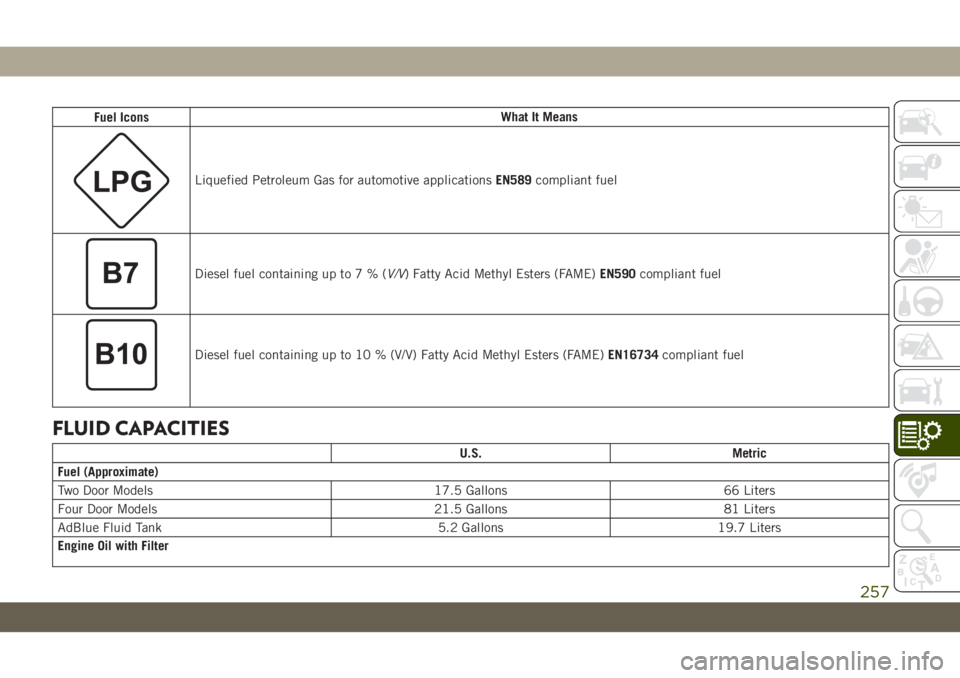
Fuel IconsWhat It Means
Liquefied Petroleum Gas for automotive applicationsEN589compliant fuel
Diesel fuel containing up to7%(V/V) Fatty Acid Methyl Esters (FAME)EN590compliant fuel
Diesel fuel containing up to 10 % (V/V) Fatty Acid Methyl Esters (FAME)EN16734compliant fuel
FLUID CAPACITIES
U.S. Metric
Fuel (Approximate)
Two Door Models 17.5 Gallons 66 Liters
Four Door Models 21.5 Gallons 81 Liters
AdBlue Fluid Tank 5.2 Gallons 19.7 Liters
Engine Oil with Filter
257
Page 262 of 348
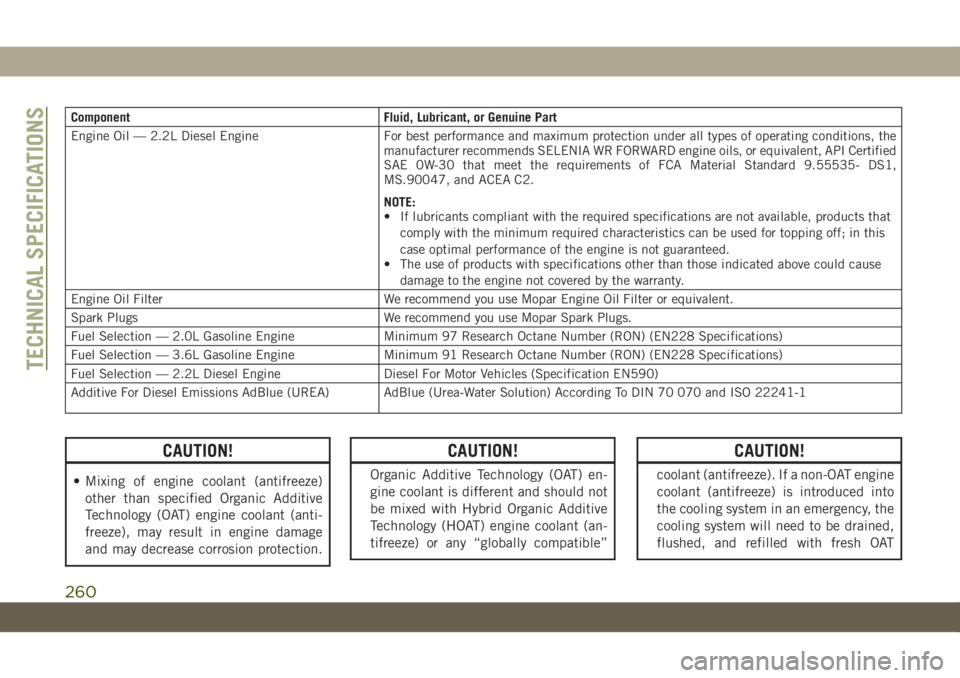
Component Fluid, Lubricant, or Genuine Part
Engine Oil — 2.2L Diesel Engine For best performance and maximum protection under all types of operating conditions, the
manufacturer recommends SELENIA WR FORWARD engine oils, or equivalent, API Certified
SAE 0W-30 that meet the requirements of FCA Material Standard 9.55535- DS1,
MS.90047, and ACEA C2.
NOTE:
• If lubricants compliant with the required specifications are not available, products that
comply with the minimum required characteristics can be used for topping off; in this
case optimal performance of the engine is not guaranteed.
• The use of products with specifications other than those indicated above could cause
damage to the engine not covered by the warranty.
Engine Oil Filter We recommend you use Mopar Engine Oil Filter or equivalent.
Spark Plugs We recommend you use Mopar Spark Plugs.
Fuel Selection — 2.0L Gasoline Engine Minimum 97 Research Octane Number (RON) (EN228 Specifications)
Fuel Selection — 3.6L Gasoline Engine Minimum 91 Research Octane Number (RON) (EN228 Specifications)
Fuel Selection — 2.2L Diesel Engine Diesel For Motor Vehicles (Specification EN590)
Additive For Diesel Emissions AdBlue (UREA) AdBlue (Urea-Water Solution) According To DIN 70 070 and ISO 22241-1
CAUTION!
• Mixing of engine coolant (antifreeze)
other than specified Organic Additive
Technology (OAT) engine coolant (anti-
freeze), may result in engine damage
and may decrease corrosion protection.
CAUTION!
Organic Additive Technology (OAT) en-
gine coolant is different and should not
be mixed with Hybrid Organic Additive
Technology (HOAT) engine coolant (an-
tifreeze) or any “globally compatible”
CAUTION!
coolant (antifreeze). If a non-OAT engine
coolant (antifreeze) is introduced into
the cooling system in an emergency, the
cooling system will need to be drained,
flushed, and refilled with fresh OAT
TECHNICAL SPECIFICATIONS
260
Page 263 of 348
CAUTION!
coolant (conforming to MS.90032), by
an authorized dealer as soon as possible.
• Do not use water alone or alcohol-based
engine coolant (antifreeze) products. Do
not use additional rust inhibitors or an-
tirust products, as they may not be com-
patible with the radiator engine coolant
and may plug the radiator.
• This vehicle has not been designed for
use with propylene glycol-based engine
coolant (antifreeze). Use of propylene
CAUTION!
glycol-based engine coolant (antifreeze)
is not recommended.
• The use of products with different speci-
fications than those indicated above
could cause damage to the engine that
is not covered by the warranty.
• Use AdBlue only according to DIN
70 070 and ISO 22241-1. Other fluids
may cause damage to the system: also
exhaust emissions would no longer com-
ply with the law.
CAUTION!
• The distribution companies are respon-
sible for the compliance of their prod-
uct. Observe the precautions of storage
and servicing, in order to preserve the
initial qualities. The manufacturer of the
vehicle does not recognize any guaran-
tee in case of malfunctions and damage
caused to the vehicle due to the use of
UREA (AdBlue) not in accordance with
regulations.
Chassis
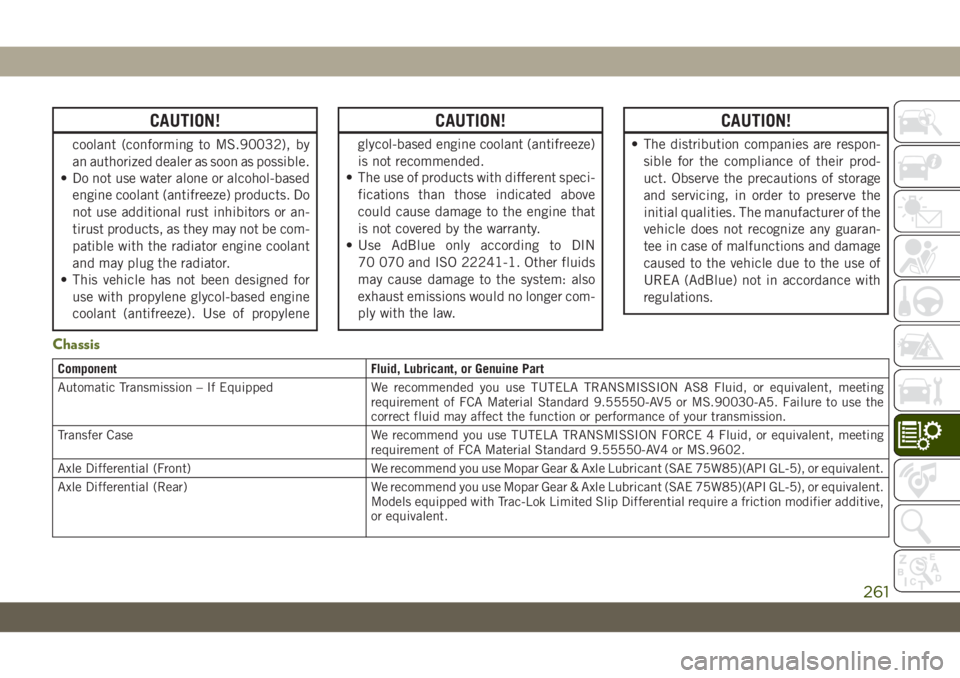
Component Fluid, Lubricant, or Genuine Part
Automatic Transmission – If Equipped We recommended you use TUTELA TRANSMISSION AS8 Fluid, or equivalent, meeting
requirement of FCA Material Standard 9.55550-AV5 or MS.90030-A5. Failure to use the
correct fluid may affect the function or performance of your transmission.
Transfer Case We recommend you use TUTELA TRANSMISSION FORCE 4 Fluid, or equivalent, meeting
requirement of FCA Material Standard 9.55550-AV4 or MS.9602.
Axle Differential (Front) We recommend you use Mopar Gear & Axle Lubricant (SAE 75W85)(API GL-5), or equivalent.
Axle Differential (Rear) We recommend you use Mopar Gear & Axle Lubricant (SAE 75W85)(API GL-5), or equivalent.
Models equipped with Trac-Lok Limited Slip Differential require a friction modifier additive,
or equivalent.
261
Page 267 of 348
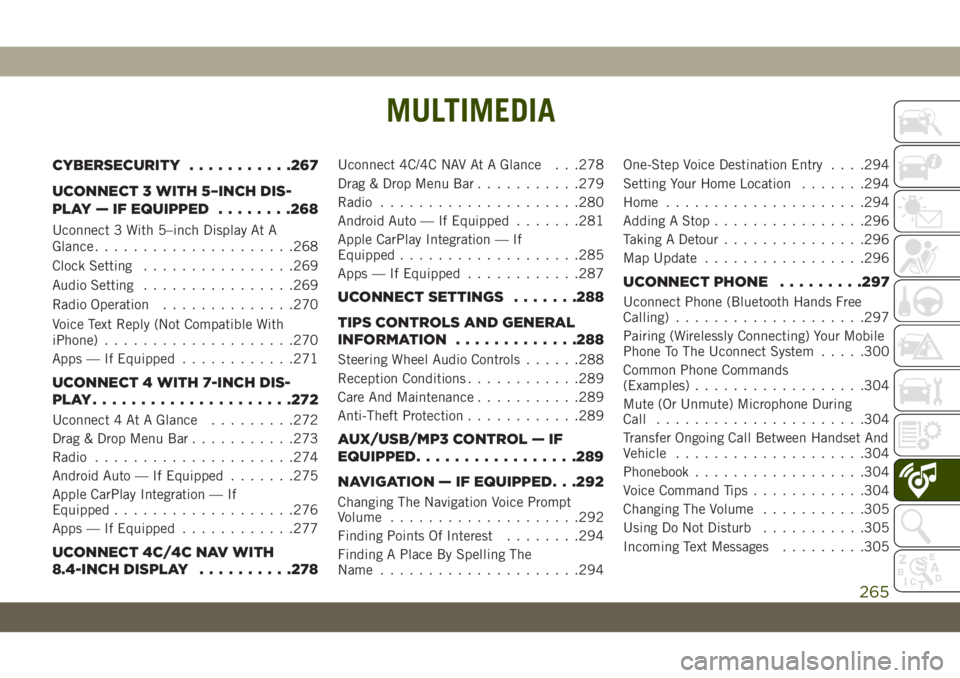
MULTIMEDIA
CYBERSECURITY...........267
UCONNECT 3 WITH 5–INCH DIS-
PLAY — IF EQUIPPED........268
Uconnect 3 With 5–inch Display At A
Glance.....................268
Clock Setting................269
Audio Setting................269
Radio Operation..............270
Voice Text Reply (Not Compatible With
iPhone)....................270
Apps — If Equipped............271
UCONNECT 4 WITH 7-INCH DIS-
PLAY.....................272
Uconnect 4 At A Glance.........272
Drag & Drop Menu Bar...........273
Radio.....................274
Android Auto — If Equipped.......275
Apple CarPlay Integration — If
Equipped...................276
Apps — If Equipped............277
UCONNECT 4C/4C NAV WITH
8.4-INCH DISPLAY..........278
Uconnect 4C/4C NAV At A Glance . . .278
Drag & Drop Menu Bar...........279
Radio.....................280
Android Auto — If Equipped.......281
Apple CarPlay Integration — If
Equipped...................285
Apps — If Equipped............287
UCONNECT SETTINGS.......288
TIPS CONTROLS AND GENERAL
INFORMATION.............288
Steering Wheel Audio Controls......288
Reception Conditions............289
Care And Maintenance...........289
Anti-Theft Protection............289
AUX/USB/MP3 CONTROL — IF
EQUIPPED.................289
NAVIGATION — IF EQUIPPED. . .292
Changing The Navigation Voice Prompt
Volume....................292
Finding Points Of Interest........294
Finding A Place By Spelling The
Name.....................294One-Step Voice Destination Entry. . . .294
Setting Your Home Location.......294
Home.....................294
Adding A Stop................296
Taking A Detour...............296
Map Update.................296
UCONNECT PHONE.........297
Uconnect Phone (Bluetooth Hands Free
Calling)....................297
Pairing (Wirelessly Connecting) Your Mobile
Phone To The Uconnect System.....300
Common Phone Commands
(Examples)..................304
Mute (Or Unmute) Microphone During
Call......................304
Transfer Ongoing Call Between Handset And
Vehicle....................304
Phonebook..................304
Voice Command Tips............304
Changing The Volume...........305
Using Do Not Disturb...........305
Incoming Text Messages.........305
MULTIMEDIA
265
Page 268 of 348
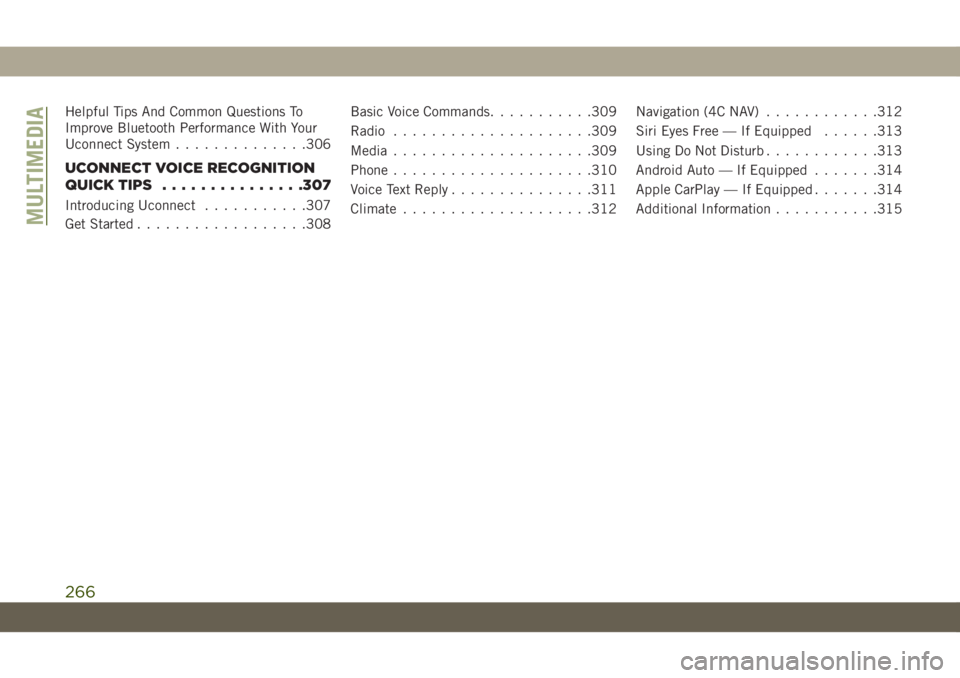
Helpful Tips And Common Questions To
Improve Bluetooth Performance With Your
Uconnect System..............306
UCONNECT VOICE RECOGNITION
QUICK TIPS...............307
Introducing Uconnect...........307
Get Started..................308Basic Voice Commands...........309
Radio.....................309
Media.....................309
Phone.....................310
Voice Text Reply...............311
Climate....................312Navigation (4C NAV)............312
Siri Eyes Free — If Equipped......313
Using Do Not Disturb............313
Android Auto — If Equipped.......314
Apple CarPlay — If Equipped.......314
Additional Information...........315MULTIMEDIA
266
Page 273 of 348
phone button and saying the phrase.
Uconnect will confirm the message by
reading it back to you.
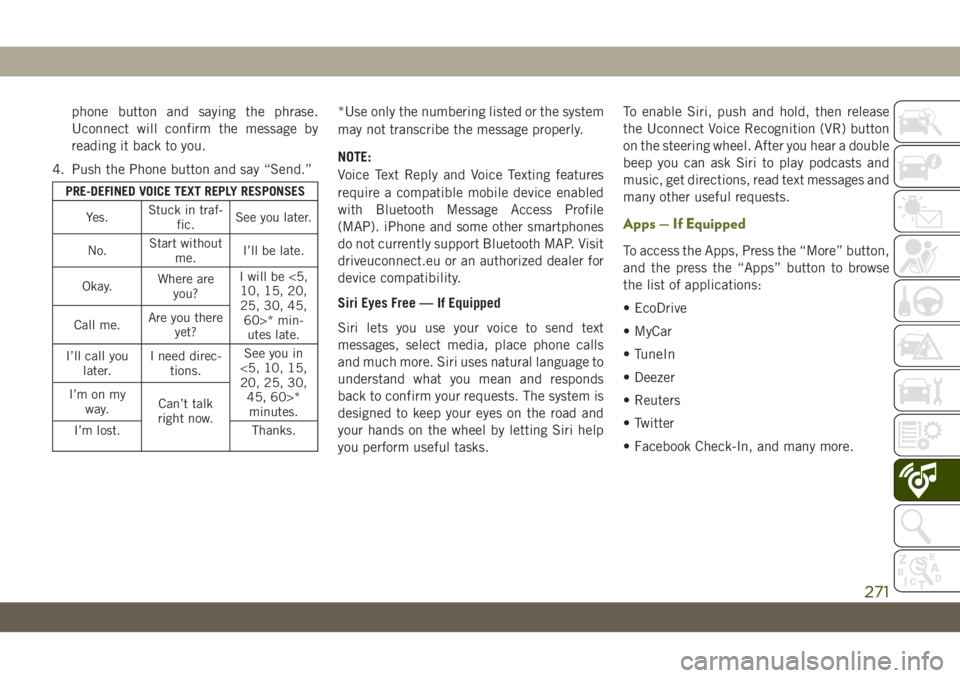
4. Push the Phone button and say “Send.”
PRE-DEFINED VOICE TEXT REPLY RESPONSES
Yes.Stuck in traf-
fic.See you later.
No.Start without
me.I’ll be late.
Okay.Where are
you?I will be <5,
10, 15, 20,
25, 30, 45,
60>* min-
utes late. Call me.Are you there
yet?
I’ll call you
later.I need direc-
tions.See you in
<5, 10, 15,
20, 25, 30,
45, 60>*
minutes. I’m on my
way.Can’t talk
right now.
I’m lost. Thanks.
*Use only the numbering listed or the system
may not transcribe the message properly.
NOTE:
Voice Text Reply and Voice Texting features
require a compatible mobile device enabled
with Bluetooth Message Access Profile
(MAP). iPhone and some other smartphones
do not currently support Bluetooth MAP. Visit
driveuconnect.eu or an authorized dealer for
device compatibility.
Siri Eyes Free — If Equipped
Siri lets you use your voice to send text
messages, select media, place phone calls
and much more. Siri uses natural language to
understand what you mean and responds
back to confirm your requests. The system is
designed to keep your eyes on the road and
your hands on the wheel by letting Siri help
you perform useful tasks.To enable Siri, push and hold, then release
the Uconnect Voice Recognition (VR) button
on the steering wheel. After you hear a double
beep you can ask Siri to play podcasts and
music, get directions, read text messages and
many other useful requests.
Apps — If Equipped
To access the Apps, Press the “More” button,
and the press the “Apps” button to browse
the list of applications:
• EcoDrive
• MyCar
• TuneIn
• Deezer
• Reuters
• Twitter
• Facebook Check-In, and many more.
271
Page 278 of 348
2. Connect your Android powered smart-
phone to one of the media USB ports in
your vehicle. If you have not downloaded
the Android Auto app to your smartphone
before plugging in the device for the first
time, the app begins to download.
NOTE:
Be sure to use the factory-provided USB
cable that came with your phone, as af-
termarket cables may not work.
Your phone may ask you to approve the
use of the Android Auto app before use.3. Once the device is connected and recog-
nized, Android Auto should automatically
launch, but you can also launch it by
touching the Android Auto icon on the
touchscreen, located under Apps.
Once Android Auto is up and running on your
Uconnect system, the following features can
be utilized using your smartphone’s data
plan:
• Google Maps for navigation
• Google Play Music, Spotify, iHeart Radio,
etc. for music
• Handsfree Calling, and Texting for commu-
nication
• Hundred of compatible apps, and many
more!
NOTE:
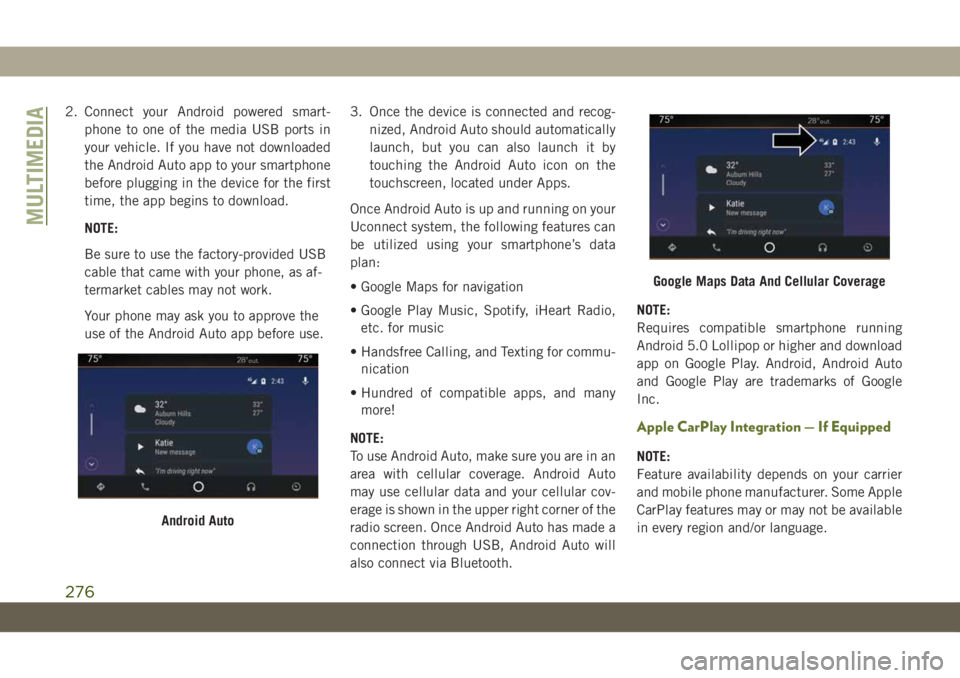
To use Android Auto, make sure you are in an
area with cellular coverage. Android Auto
may use cellular data and your cellular cov-
erage is shown in the upper right corner of the
radio screen. Once Android Auto has made a
connection through USB, Android Auto will
also connect via Bluetooth.NOTE:
Requires compatible smartphone running
Android 5.0 Lollipop or higher and download
app on Google Play. Android, Android Auto
and Google Play are trademarks of Google
Inc.
Apple CarPlay Integration — If Equipped
NOTE:
Feature availability depends on your carrier
and mobile phone manufacturer. Some Apple
CarPlay features may or may not be available
in every region and/or language.
Android Auto
Google Maps Data And Cellular Coverage
MULTIMEDIA
276
Page 284 of 348
2. Connect your Android powered smart-
phone to one of the media USB ports in
your vehicle. If you have not downloaded
the Android Auto app to your smartphone
before plugging in the device for the first
time, the app begins to download.
NOTE:
Be sure to use the factory-provided USB
cable that came with your phone, as af-
termarket cables may not work.
Your phone may ask you to approve the
use of the Android Auto app before use.3. Once Android Auto has made a connec-
tion through USB, Android Auto will also
connect via Bluetooth. The system dis-
plays the Android Auto home screen.
Android Auto automatically launches, but
if it does not, refer to the Uconnect Own-
er’s Manual Supplement for the proce-
dure to enable the feature “AutoShow.”
You can also launch it by pressing Android
Auto located in the “Apps” menu. If you
use Android Auto frequently you can move
the app to the menu bar at the bottom of
the touchscreen. Press the “Apps” button
and locate the Android Auto app; then
drag the selected App to replace an exist-
ing shortcut in the main menu bar.
Once Android Auto is up and running on your
Uconnect system, the following features can
be utilized using your smartphone’s data
plan:
• Google Maps for navigation
• Google Play Music, Spotify, iHeart Radio,
etc. for music
• Handsfree Calling, and Texting for commu-
nication• Hundred of compatible apps, and many
more!
NOTE:
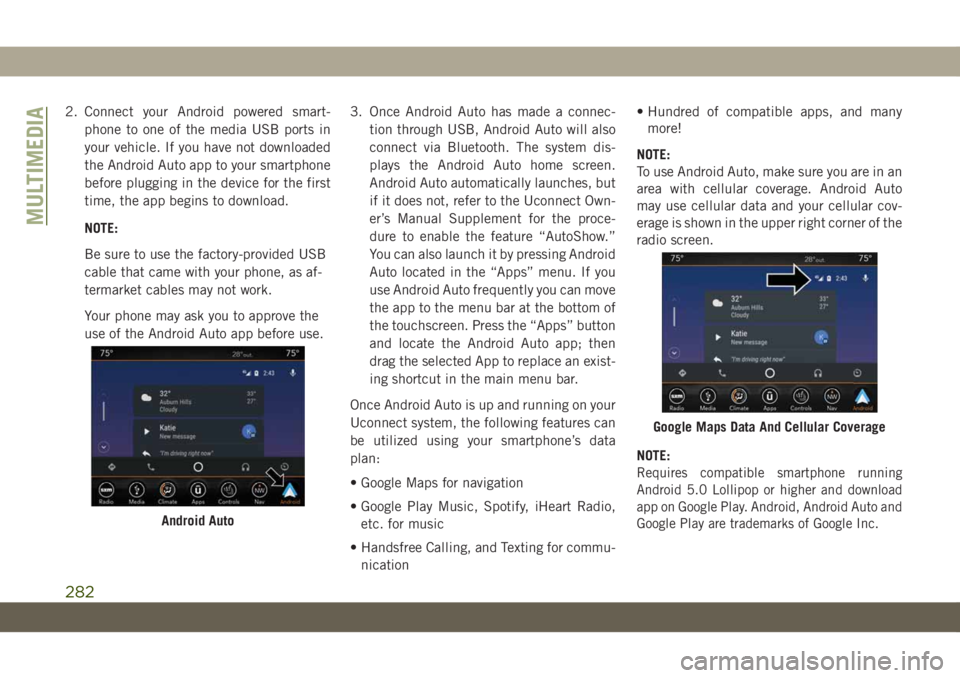
To use Android Auto, make sure you are in an
area with cellular coverage. Android Auto
may use cellular data and your cellular cov-
erage is shown in the upper right corner of the
radio screen.
NOTE:
Requires compatible smartphone running
Android 5.0 Lollipop or higher and download
app on Google Play. Android, Android Auto and
Google Play are trademarks of Google Inc.
Android Auto
Google Maps Data And Cellular Coverage
MULTIMEDIA
282
Page 290 of 348
UCONNECT SETTINGS
The Uconnect system allows you to access
Customer Programmable feature settings
such as Language, Display, Units, Voice,
Clock, Camera, Safety & Driving Assistance,
Mirrors & Wipers, Lights, Doors & Locks,
Auto-On Comfort, AUX Switches, Engine Off
Options, Compass Settings, Audio, Phone/
Bluetooth, Radio Setup, Restore Settings,
and System Information through buttons on
the touchscreen.
Push the SETTINGS button (Uconnect 3), or
press the “Apps” button (Uconnect 4 or
4C/4C NAV) located near the bottom of the
touchscreen, then press the “Settings” but-
ton on the touchscreen to access the Settings
screen. When making a selection, scroll up or
down until the preferred setting is high-
lighted, then press the preferred setting until
a check-mark appears next to the setting,
showing that setting has been selected. The
following feature settings are available:
• Language • Auto-On Comfort
• Display • AUX Switches
• Units • Engine Off Options• Voice • Compass — If
Equipped
• Clock • Audio
• Camera — If
Equipped• Phone/Bluetooth
• Safety & Driving As-
sistance• Radio Setup
• Mirrors & Wipers —
If Equipped• Restore Settings
• Lights • Clear Personal Data
• Doors & Locks • System Information
NOTE:
Depending on the vehicles options, feature
settings may vary.
Refer to “Uconnect Settings” in “Multime-
dia” in your Owner’s Manual for further infor-
mation.
TIPS CONTROLS AND
GENERAL INFORMATION
Steering Wheel Audio Controls
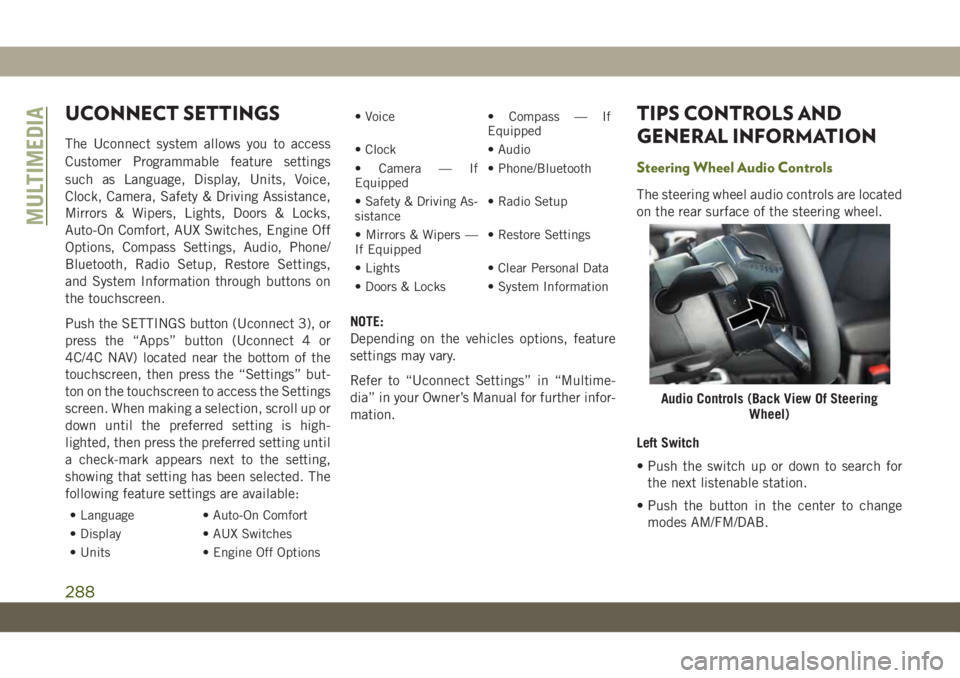
The steering wheel audio controls are located
on the rear surface of the steering wheel.
Left Switch
• Push the switch up or down to search for
the next listenable station.
• Push the button in the center to change
modes AM/FM/DAB.
Audio Controls (Back View Of Steering
Wheel)
MULTIMEDIA
288
Page 297 of 348
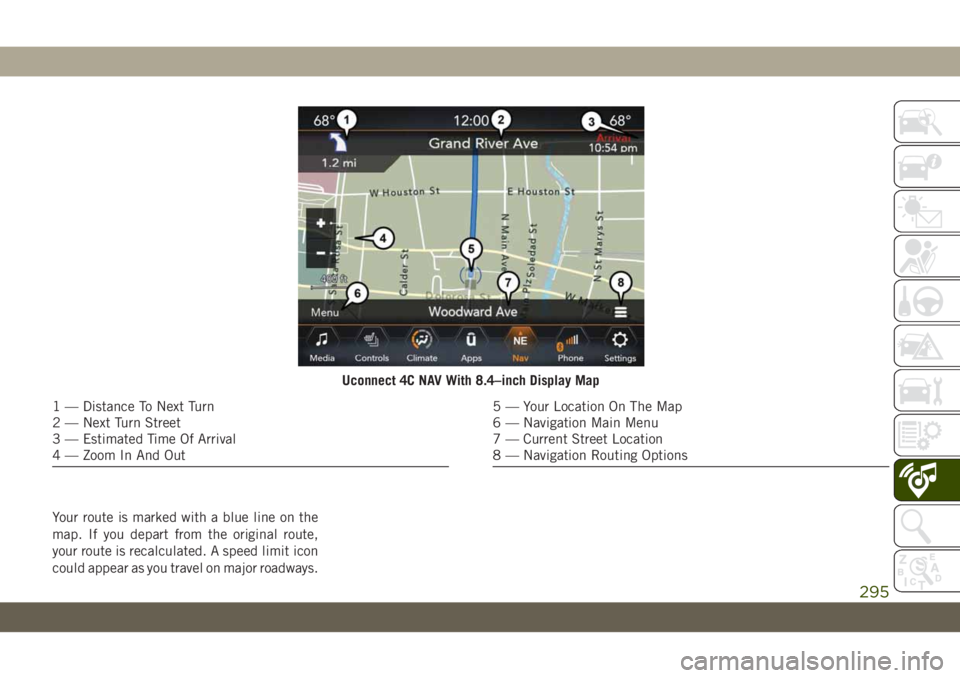
Your route is marked with a blue line on the
map. If you depart from the original route,
your route is recalculated. A speed limit icon
could appear as you travel on major roadways.
Uconnect 4C NAV With 8.4–inch Display Map
1 — Distance To Next Turn
2 — Next Turn Street
3 — Estimated Time Of Arrival
4 — Zoom In And Out5 — Your Location On The Map
6 — Navigation Main Menu
7 — Current Street Location
8 — Navigation Routing Options
295