ESP KIA AMANTI 2009 User Guide
[x] Cancel search | Manufacturer: KIA, Model Year: 2009, Model line: AMANTI, Model: KIA AMANTI 2009Pages: 321, PDF Size: 23.77 MB
Page 117 of 321
3105
Knowing your vehicle
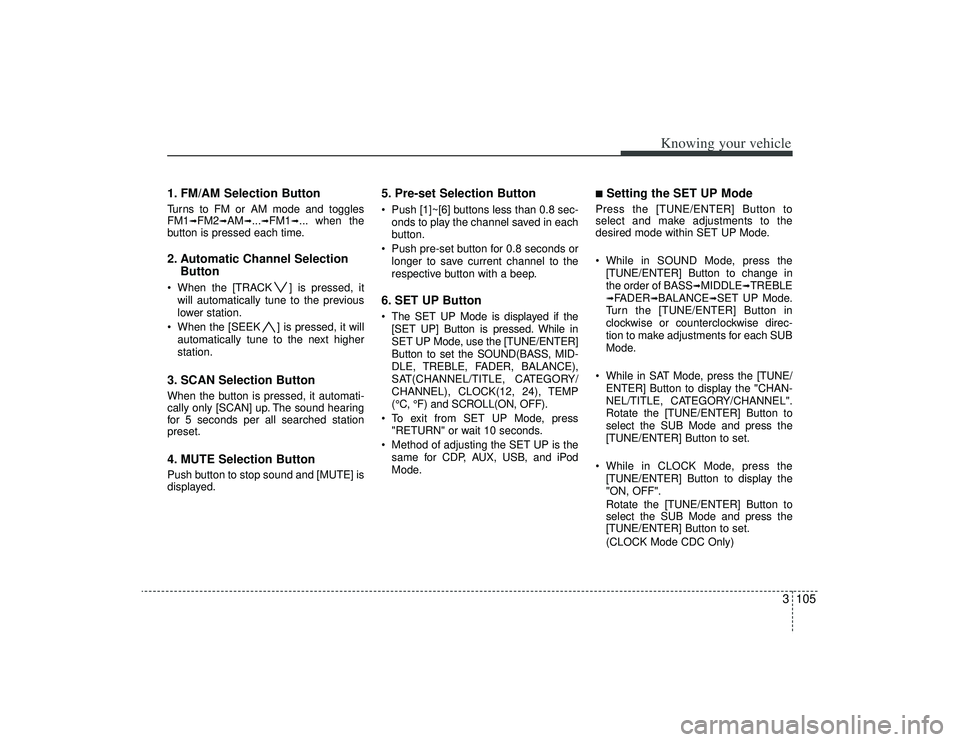
1. FM/AM Selection ButtonTurns to FM or AM mode and toggles
FM1
➟FM2
➟AM
➟...➟FM1
➟... when the
button is pressed each time.
2. Automatic Channel Selection Button When the [TRACK ] is pressed, it
will automatically tune to the previous
lower station.
When the [SEEK ] is pressed, it will automatically tune to the next higher
station.3. SCAN Selection ButtonWhen the button is pressed, it automati-
cally only [SCAN] up. The sound hearing
for 5 seconds per all searched station
preset.4. MUTE Selection ButtonPush button to stop sound and [MUTE] is
displayed.
5. Pre-set Selection Button Push [1]~[6] buttons less than 0.8 sec-onds to play the channel saved in each
button.
Push pre-set button for 0.8 seconds or longer to save current channel to the
respective button with a beep.6. SET UP Button The SET UP Mode is displayed if the[SET UP] Button is pressed. While in
SET UP Mode, use the [TUNE/ENTER]
Button to set the SOUND(BASS, MID-
DLE, TREBLE, FADER, BALANCE),
SAT(CHANNEL/TITLE, CATEGORY/
CHANNEL), CLOCK(12, 24), TEMP
(°C, °F) and SCROLL(ON, OFF).
To exit from SET UP Mode, press "RETURN" or wait 10 seconds.
Method of adjusting the SET UP is the same for CDP, AUX, USB, and iPod
Mode.
■Setting the SET UP Mode Press the [TUNE/ENTER] Button to
select and make adjustments to the
desired mode within SET UP Mode.
While in SOUND Mode, press the[TUNE/ENTER] Button to change in
the order of BASS
➟MIDDLE
➟TREBLE
➟FADER
➟BALANCE
➟SET UP Mode.
Turn the [TUNE/ENTER] Button in
clockwise or counterclockwise direc-
tion to make adjustments for each SUB
Mode.
While in SAT Mode, press the [TUNE/ ENTER] Button to display the "CHAN-
NEL/TITLE, CATEGORY/CHANNEL".
Rotate the [TUNE/ENTER] Button to
select the SUB Mode and press the
[TUNE/ENTER] Button to set.
While in CLOCK Mode, press the [TUNE/ENTER] Button to display the
"ON, OFF".
Rotate the [TUNE/ENTER] Button to
select the SUB Mode and press the
[TUNE/ENTER] Button to set.
(CLOCK Mode CDC Only)
Page 122 of 321
Knowing your vehicle110
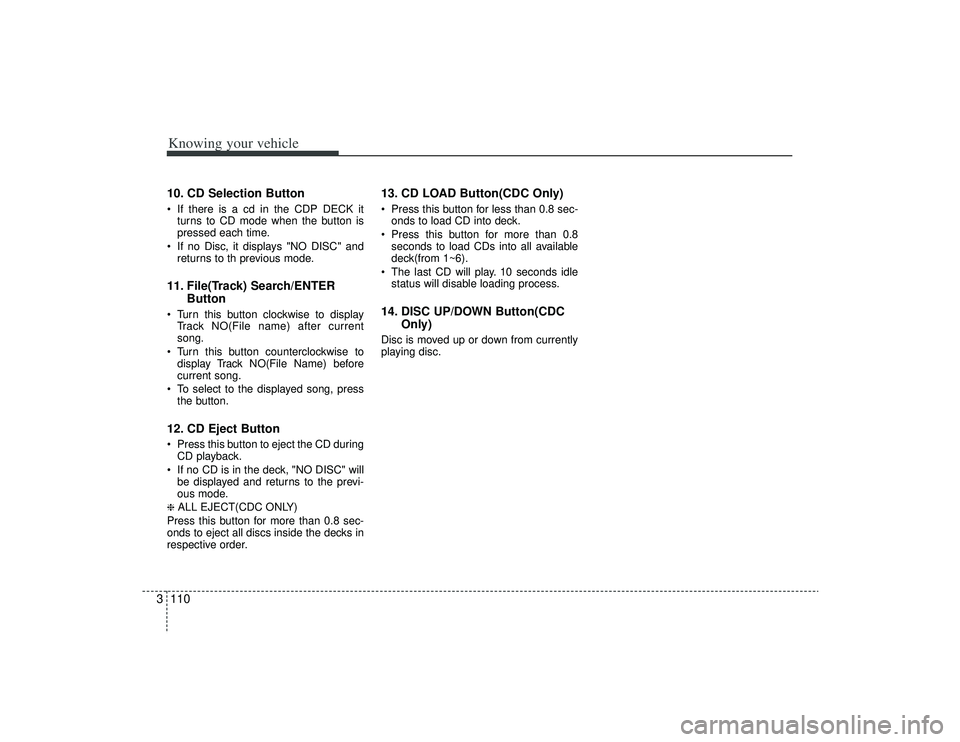
310. CD Selection Button If there is a cd in the CDP DECK it
turns to CD mode when the button is
pressed each time.
If no Disc, it displays "NO DISC" and returns to th previous mode.11. File(Track) Search/ENTER Button Turn this button clockwise to display
Track NO(File name) after current
song.
Turn this button counterclockwise to display Track NO(File Name) before
current song.
To select to the displayed song, press the button.12. CD Eject Button Press this button to eject the CD duringCD playback.
If no CD is in the deck, "NO DISC" will be displayed and returns to the previ-
ous mode.❈ ALL EJECT(CDC ONLY)
Press this button for more than 0.8 sec-
onds to eject all discs inside the decks in
respective order.
13. CD LOAD Button(CDC Only) Press this button for less than 0.8 sec- onds to load CD into deck.
Press this button for more than 0.8 seconds to load CDs into all available
deck(from 1~6).
The last CD will play. 10 seconds idle status will disable loading process.14. DISC UP/DOWN Button(CDC Only)Disc is moved up or down from currently
playing disc.
Page 133 of 321
3121
Knowing your vehicle
How to Use SIRIUS Satellite
RadioYour new Kia vehicle is equipped with 3
months complimentary period of SIRIUS
Satellite Radio so you have access to
over 130 channels of music, information
and entertainment programming.ActivationIn order to extend or reactivate your sub-
scription to SIRIUS Satellite Radio, you
will need to contact SIRIUS Customer
Care at 888-539-7474. Have your 12 digit
SID(Sirius Identification Number)/ESN
(Electronic Serial Number) ready. To
retrieve the SID/ESN, turn on the radio,
press the [SAT] button and tune to chan-
nel zero. please note that the vehicle will
need to be turned on, in Sirius mode, and
have an unobstructed view of the sky in
order for the radio to receive the activation
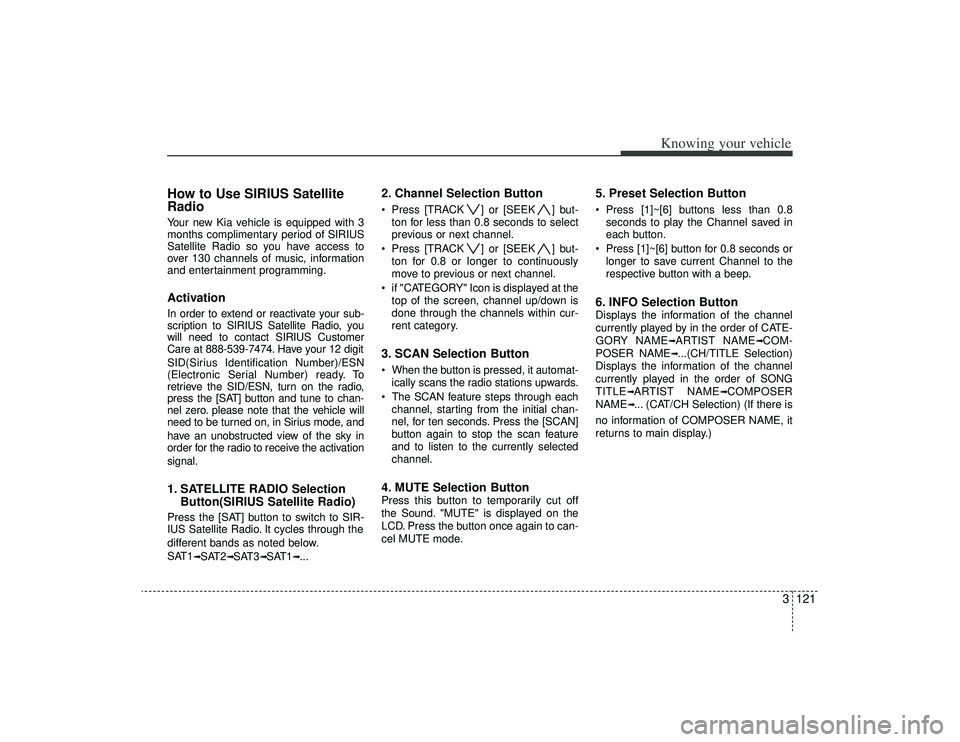
signal.1. SATELLITE RADIO SelectionButton(SIRIUS Satellite Radio)Press the [SAT] button to switch to SIR-
IUS Satellite Radio. It cycles through the
different bands as noted below.
SAT1
➟SAT2
➟SAT3
➟SAT1
➟...
2. Channel Selection Button Press [TRACK ] or [SEEK ] but-
ton for less than 0.8 seconds to select
previous or next channel.
Press [TRACK ] or [SEEK ] but- ton for 0.8 or longer to continuously
move to previous or next channel.
if "CATEGORY" Icon is displayed at the top of the screen, channel up/down is
done through the channels within cur-
rent category.3. SCAN Selection Button When the button is pressed, it automat-ically scans the radio stations upwards.
The SCAN feature steps through each channel, starting from the initial chan-
nel, for ten seconds. Press the [SCAN]
button again to stop the scan feature
and to listen to the currently selected
channel.4. MUTE Selection ButtonPress this button to temporarily cut off
the Sound. "MUTE" is displayed on the
LCD. Press the button once again to can-
cel MUTE mode.
5. Preset Selection Button Press [1]~[6] buttons less than 0.8seconds to play the Channel saved in
each button.
Press [1]~[6] button for 0.8 seconds or longer to save current Channel to the
respective button with a beep.6. INFO Selection ButtonDisplays the information of the channel
currently played by in the order of CATE-
GORY NAME
➟ARTIST NAME
➟COM-
POSER NAME
➟...(CH/TITLE Selection)
Displays the information of the channel
currently played in the order of SONG
TITLE
➟ARTIST NAME
➟COMPOSER
NAME
➟... (CAT/CH Selection) (If there is
no information of COMPOSER NAME, it
returns to main display.)
Page 136 of 321
![KIA AMANTI 2009 User Guide Knowing your vehicle124
31. DISPLAY ON/OFF This is the display window ON/OFF
function.
Each time the [DISP] button is pressed, the display window will be turned
ON/OFF.2. CLOCK Function This is the](/img/2/57931/w960_57931-135.png "KIA AMANTI 2009 User Guide Knowing your vehicle124
31. DISPLAY ON/OFF This is the display window ON/OFF
function.
Each time the [DISP] button is pressed, the display window will be turned
ON/OFF.2. CLOCK Function This is the")
Knowing your vehicle124
31. DISPLAY ON/OFF This is the display window ON/OFF
function.
Each time the [DISP] button is pressed, the display window will be turned
ON/OFF.2. CLOCK Function This is the clock adjustment function.
Each time [CLOCK] is pressed, thesecond
➟minute will blink once every
0.5 seconds and switch modes.
Pressing the [CLOCK] again while the "minute" mode is blinking or waiting 10
seconds will turn off time adjustment
mode and save the set time.
The clock can be set in 12 hour or 24 hour modes. The 12 hour system is the
default and can be changed to 24 hour
system within the SET-UP menu.
3. Time/Date Increase/Decrease Function While in Time/Date mode, pressing the
[ ], [ ] buttons will increase/
decrease the time/date.
This function will operate only after pressing the time/date button and the
hour/minute/month/day is blinking.
4. RESET Function The RESET function can be usedwhen adjusting the time.
If the [RESET] is pressed while adjust- ing the "hour", the hour will display
"AM12" when using 12 hour clock
mode and "00" when using 24 hour
clock mode.
If the RESET is pressed while adjust- ing the "min", the minute display will be
changed to "00".
The RESET function can be used while adjusting the date.
If the [RESET] is pressed while adjust- ing the "month/day", the corresponding
display will be changed to "01month/
01day".
5. DATE Function This is used to adjust the date.
Each time [DATE] is pressed, the mon-th
➟day will blink once every 0.5 sec-
onds and switch modes.
Pressing the [DATE] again while the "day" is blinking or waiting 10 seconds
will turn off date adjustment mode and
save the set date.
❈Slight differences with actual time may
occur. Please readjust the time upon
the occurrence of such differences.
Page 142 of 321
Driving your vehicle64Automatic transaxle operationAll normal forward driving is done with
the shift lever in the D (Drive) position.
To move the shift lever from the P (Park)
position, the brake pedal must be
depressed and the lock release button
must be depressed.For smooth operation, depress the brakepedal when shifting from N (Neutral) to a forward or reverse gear.
✽ ✽
NOTICE• To avoid damage to your transaxle, do
not accelerate the engine in R
(Reverse) or any forward gear posi-
tion with the brakes on.
• When stopped on an upgrade, do not hold the vehicle stationary with
engine power. Use the service brake
or the parking brake.
• Do not shift from N (Neutral) or P (Park) into D (Drive), or R (Reverse)
when the engine is above idle speed.
Transaxle rangesP (park)This position locks the transaxle and pre-
vents the front wheels from rotating.
Always come to a complete stop before
shifting into this position.
WARNING
- Automatic
transaxle
Before leaving the driver’s seat,
always make sure the shift lever is
in the P (PARK) position; then set
the parking brake fully and shut the
engine off. Unexpected and sudden
vehicle movement can occur if
these precautions are not followed
in the order identified.
WARNING
Shifting into P (Park) while the
vehicle is in motion will cause the
drive wheels to lock which will
cause you to lose control of the
vehicle.
Do not use the P (Park) position in place of the parking brake.
Always make sure the shift lever
is latched in the P (Park) position
so that it cannot be moved unless
the lock release button is pushed
in, AND set the parking brake
fully.
(Continued)
Page 151 of 321
415
Driving your vehicle
Anti-lock brake system (ABS)
The ABS system continuously senses
the speed of the wheels. If the wheels are
going to lock, the ABS system repeated-
ly modulates the hydraulic brake pres-
sure to the wheels.
When you apply your brakes under con-
ditions which may lock the wheels, you
may hear a “tik-tik’’ sound from the
brakes, or feel a corresponding sensation
in the brake pedal. This is normal and it
means your ABS system is active.
In order to obtain the maximum benefit
from your ABS system in an emergency
situation, do not attempt to modulate
your brake pressure and do not try to
pump your brakes. Press your brake
pedal as hard as possible or as hard as
the situation warrants and allow the ABS
system to control the force being deliv-
ered to the brakes. Even with the anti-lock brake system,
your vehicle still requires sufficient
stopping distance. Always maintain a
safe distance from the vehicle in front
of you.
Always slow down when cornering. The anti-lock brake system cannot pre-
vent accidents resulting from exces-
sive speeds.
On loose or uneven road surfaces, operation of the anti-lock brake system
may result in a longer stopping dis-
tance than for vehicles equipped with a
conventional brake system.
WARNING
- ABS Brakes
Your ABS is not a substitute for
good driving judgement. You can
still have an accident. In fact, your
ABS system will probably not be
able to prevent an accident in the
following driving conditions:
Dangerous driving, such asneglecting safety precautions,
speeding, or driving too close to
the vehicle in front of you.
Driving at high speed in situa- tions providing considerably less
traction, such as wet conditions
where hydroplaning could occur.
Driving too fast on poor road sur- faces. The ABS is designed to
improve maximum braking effec-
tiveness on typical highways and
roads in good condition. On poor
road surfaces in poor condition,
the ABS may actually reduce
braking effectiveness.
Page 170 of 321
Driving your vehicle34
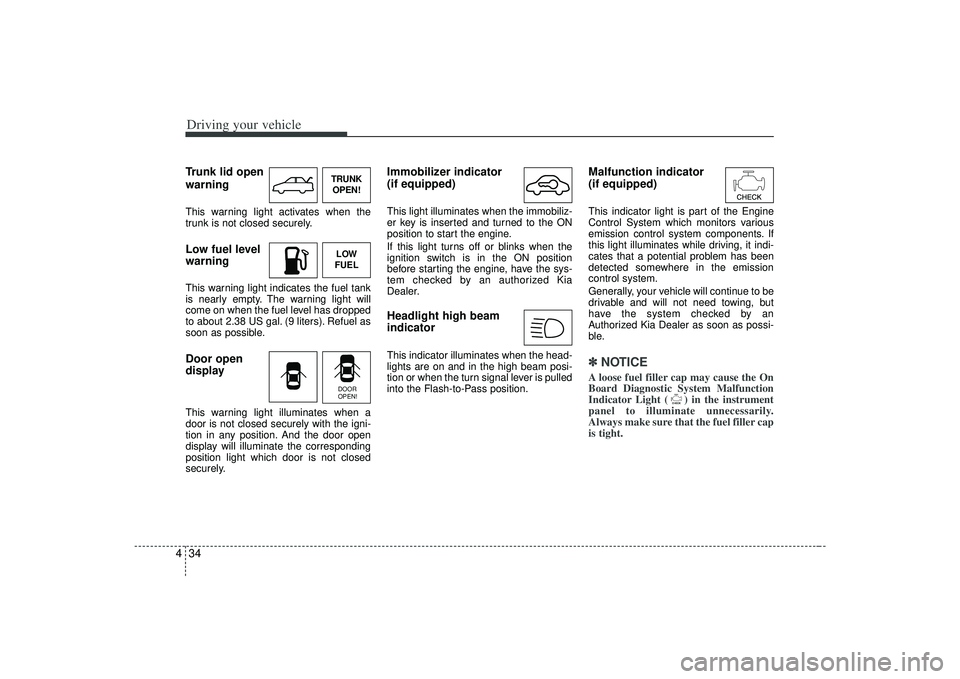
4Trunk lid open
warningThis warning light activates when the
trunk is not closed securely.Low fuel level
warningThis warning light indicates the fuel tank
is nearly empty. The warning light will
come on when the fuel level has dropped
to about 2.38 US gal. (9 liters). Refuel as
soon as possible.Door open
displayThis warning light illuminates when a
door is not closed securely with the igni-
tion in any position. And the door open
display will illuminate the corresponding
position light which door is not closed
securely.
Immobilizer indicator
(if equipped)This light illuminates when the immobiliz-
er key is inserted and turned to the ON
position to start the engine.
If this light turns off or blinks when the
ignition switch is in the ON position
before starting the engine, have the sys-
tem checked by an authorized Kia
Dealer.Headlight high beam
indicator This indicator illuminates when the head-
lights are on and in the high beam posi-
tion or when the turn signal lever is pulled
into the Flash-to-Pass position.
Malfunction indicator
(if equipped)This indicator light is part of the Engine
Control System which monitors various
emission control system components. If
this light illuminates while driving, it indi-
cates that a potential problem has been
detected somewhere in the emission
control system.
Generally, your vehicle will continue to be
drivable and will not need towing, but
have the system checked by an
Authorized Kia Dealer as soon as possi-
ble.✽ ✽
NOTICEA loose fuel filler cap may cause the On
Board Diagnostic System Malfunction
Indicator Light ( ) in the instrument
panel to illuminate unnecessarily.
Always make sure that the fuel filler cap
is tight.
TRUNK
OPEN!LOW
FUELDOOR
OPEN!
Page 200 of 321
Driving tips85✽
✽NOTICEProlonged rocking may cause engine
over-heating, transaxle damage or fail-
ure, and tire damage.
Driving at night Because night driving presents more
hazards than driving in the daylight, here
are some important tips to remember:
Slow down and keep more distance
between you and other vehicles, as it
may be more difficult to see at night,
especially in areas where there may
not be any street lights.
Adjust your mirrors to reduce the glare from other driver's headlights.
Keep your headlights clean and prop- erly aimed on vehicles not equipped
with the automatic headlight aiming
feature. Dirty or improperly aimed
headlights will make it much more diffi-
cult to see at night.
Avoid staring directly at the headlights of oncoming vehicles. You could be
temporarily blinded, and it will take
several seconds for your eyes to read-
just to the darkness.
Driving in the rain Rain and wet roads can make driving
dangerous, especially if you’re not pre-
pared for the slick pavement. Here are a
few things to consider when driving in the
rain:
A heavy rainfall will make it harder tosee and will increase the distance
needed to stop your vehicle, so slow
down.
Keep your windshield wiping equip- ment in good shape. Replace your
windshield wiper blades when they
show signs of streaking or missing
areas on the windshield.
If your tires are not in good condition, making a quick stop on wet pavement
can cause a skid and possibly lead to
an accident. Be sure your tires are in
good shape.
Turn on your headlights to make it eas- ier for others to see you.
WARNING
- Spinning tires
Do not spin the wheels, especially
at speeds more than 35 mph (56
km/h). Spinning the wheels at high
speeds when the vehicle is station-
ary could cause a tire to overheat,
explode and injure bystanders.
Page 213 of 321
521
Driving tips
Safety chains You should always attach chains
between your vehicle and your trailer.
Cross the safety chains under the tongue
of the trailer so that the tongue will not
drop to the road if it becomes separated
from the hitch.
Instructions about safety chains may be
provided by the hitch manufacturer or by
the trailer manufacturer. Follow the man-
ufacturer’s recommendation for attaching
safety chains. Always leave just enough
slack so you can turn with your trailer.
And, never allow safety chains to drag on
the ground.
Trailer brakes If your trailer weighs more than 1000 lbs.
(454 kg) loaded, then it needs its own
brakes and they must be adequate. Be
sure to read and follow the instructions
for the trailer brakes so you’ll be able to
install, adjust and maintain them proper-
ly.
Don’t tap into your vehicle's brake sys-tem.
Driving with a trailer Towing a trailer requires a certain
amount of experience. Before setting out
for the open road, you must get to know
your trailer. Acquaint yourself with the
feel of handling and braking with the
added weight of the trailer. And always
keep in mind that the vehicle you are
driving is now a good deal longer and not
nearly so responsive as your vehicle is
by itself.
Before you start, check the trailer hitch
and platform, safety chains, electrical
connector(s), lights, tires and mirror
adjustment. If the trailer has electric
brakes, start your vehicle and trailer mov-
ing and then apply the trailer brake con-
troller by hand to be sure the brakes are
working. This lets you check your electri-
cal connection at the same time.
During your trip, check occasionally to be
sure that the load is secure, and that the
lights and any trailer brakes are still work-
ing.
WARNING
Do not use a trailer with its own
brakes unless you are absolutely
certain that you have properly set
up the brake system. This is not a
task for amateurs. Use an experi-
enced, competent trailer shop for
this work.
Page 223 of 321
531
Driving tips
Reprogramming a single
HomeLink buttonTo program a device to HomeLink using
a HomeLink button previously trained,
follow these steps:
1. Press and hold the desired HomeLinkbutton. Do NOT release until step 4
has been completed.
2. When the indicator light begins to flash slowly (after 20 seconds), position the
hand-held transmitter 1 to 3 inches
away from the HomeLink surface.
3. Press and hold the hand-held trans- mitter button (or press and “cycle” - as
described in “Canadian Programming”
above).
4. The HomeLink indicator light will flash, first slowly and then rapidly. When the
indicator light begins to flash rapidly,
release both buttons.
The previous device has now been
erased and the new device can be acti-
vated by pushing the HomeLink button
that has just been programmed. This pro-
cedure will not affect any other pro-
grammed HomeLink buttons.
Gate operator programming &
canadian programmingDuring programming, your hand-held
transmitter may automatically stop trans-
mitting. Continue to press and hold the
HomeLink button (note steps 2 through 4
in the “Programming” portion of this text)
while you press and re-press (“cycle”)
your handheld transmitter every two sec-
onds until the frequency signal has been
learned. The indicator light will flash
slowly and then rapidly after several sec-
onds upon successful training.✽ ✽ NOTICEIf programming a garage door opener
or gate, it is advised to unplug the device
during the “cycling” process to prevent
possible motor burn-up.
AccessoriesIf you would like additional information on
the HomeLink Wireless Control System,
HomeLink compatible products, or to
purchase other accessories such as the
HomeLink® Lighting Package, please
contact HomeLink at 1-800-355-3515 or
on the internet at www.homelink.com.
This device complies with FCC rules part
15. Operation is subject to the following
two conditions:
(1) This device may not cause harmful
interference.
(2) This device must accept any interfer- ence that may be received including
interference that may cause unde-
sired operation.
CAUTION
The transmitter has been testedand complies with FCC and DOC/MDC rules. Changes or modifi-cations not expressly approved bythe party responsible for compli-ance could void the user’s authority to operate the device.
IC: 4112104541A Gentex MODEL/FCC ID: NZLSTDHL3