steering KIA Carens 2017 3.G Owner's Guide
[x] Cancel search | Manufacturer: KIA, Model Year: 2017, Model line: Carens, Model: KIA Carens 2017 3.GPages: 625, PDF Size: 19.69 MB
Page 174 of 625
477
Features of your vehicle
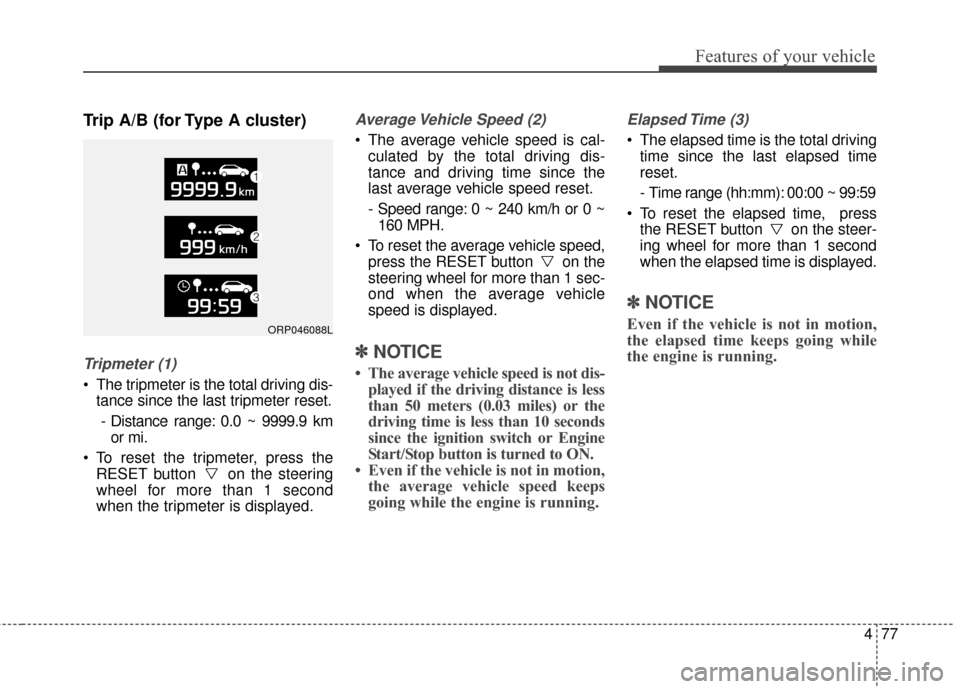
Trip A/B (for Type A cluster)
Tripmeter (1)
The tripmeter is the total driving dis-tance since the last tripmeter reset.
- Distance range: 0.0 ~ 9999.9 km or mi.
To reset the tripmeter, press the RESET button on the steering
wheel for more than 1 second
when the tripmeter is displayed.
Average Vehicle Speed (2)
The average vehicle speed is cal-culated by the total driving dis-
tance and driving time since the
last average vehicle speed reset.
- Speed range: 0 ~ 240 km/h or 0 ~160 MPH.
To reset the average vehicle speed, press the RESET button on the
steering wheel for more than 1 sec-
ond when the average vehicle
speed is displayed.
✽ ✽ NOTICE
• The average vehicle speed is not dis-
played if the driving distance is less
than 50 meters (0.03 miles) or the
driving time is less than 10 seconds
since the ignition switch or Engine
Start/Stop button is turned to ON.
• Even if the vehicle is not in motion, the average vehicle speed keeps
going while the engine is running.
Elapsed Time (3)
The elapsed time is the total driving
time since the last elapsed time
reset.
- Time range (hh:mm): 00:00 ~ 99:59
To reset the elapsed time, press the RESET button on the steer-
ing wheel for more than 1 second
when the elapsed time is displayed.
✽ ✽ NOTICE
Even if the vehicle is not in motion,
the elapsed time keeps going while
the engine is running.ORP046088L
Page 180 of 625
483
Features of your vehicle
✽ ✽NOTICE- Electronic Brake
force Distribution
(EBD) System
Warning Light
When the ABS Warning Light is on
or both ABS and Parking Brake &
Brake Fluid Warning Lights are on,
the speedometer, odometer, or trip-
meter may not work. Also, the EPS
Warning Light may illuminate and
the steering effort may increase or
decrease.
In this case, we recommend that you
have the vehicle inspected by an
authorized Kia dealer.
Electronic Parking Brake
(EPB) Warning Light (if equipped)
This warning light illuminates:
Once you set the ignition switch or Engine Start/Stop Button to the ON
position.
- It illuminates for approximately 3seconds and then goes off.
When there is a malfunction with the EPB.
In this case, we recommend you
have the vehicle inspected by an
authorized Kia dealer as soon as
possible.
WARNING - Electronic
Brake force Distribution
(EBD) System Warning Light
When both ABS and Parking
Brake & Brake Fluid Warning
Lights are on, the brake system
will not work normally and you
may experience an unexpected
and dangerous situation during
sudden braking.
In this case, avoid high speed
driving and abrupt braking.
Have your vehicle inspected by
an authorized Kia dealer as
soon as possible.EPB
Page 181 of 625
Features of your vehicle
84
4
✽ ✽
NOTICE- Electronic Parking
Brake (EPB) Warning Light
The Electronic Parking Brake
(EPB) Warning Light may illumi-
nates when the Electronic Stability
control (ESC) Indicator Light comes
on to indicates that the ESC is not
working properly (This does not
indicate malfunction of the EPB).
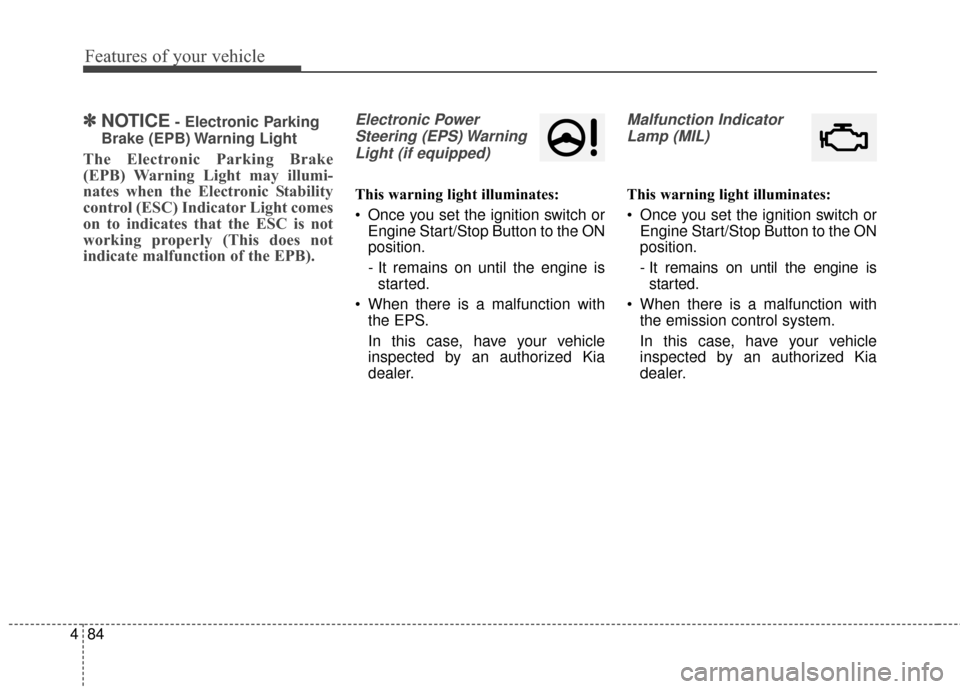
Electronic Power Steering (EPS) WarningLight (if equipped)
This warning light illuminates:
Once you set the ignition switch or Engine Start/Stop Button to the ON
position.
- It remains on until the engine isstarted.
When there is a malfunction with the EPS.
In this case, have your vehicle
inspected by an authorized Kia
dealer.
Malfunction Indicator
Lamp (MIL)
This warning light illuminates:
Once you set the ignition switch or Engine Start/Stop Button to the ON
position.
- It remains on until the engine isstarted.
When there is a malfunction with the emission control system.
In this case, have your vehicle
inspected by an authorized Kia
dealer.
Page 201 of 625
Features of your vehicle
104
4
Battery saver function
The purpose of this feature is to
prevent the battery from being dis-
charged. The system automatically
turns off the parking lights when
the driver removes the ignition key
and opens the driver- side door.
With this feature, the parking lights will turn off automatically if the driver
parks on the side of the road at night.
If necessary, to keep the lights on
when the ignition key is removed,
perform the following :
1) Open the driver-side door.
2) Turn the parking lights OFF and ON again using the light switch
on the steering column.
Headlamp delay function
(if equipped)
The headlamps (and/or taillights)
remain on for same minutes (5 min-
utes) after the ignition key is removed
or turned to the ACC or LOCK posi-
tion. However, if the driver’s door is
opened and closed, the headlights
are turned off after 15 seconds.
The headlights can be turned off by
pressing the lock button on the trans-
mitter or smart key twice or turning
off the light switch from the headlight
or Auto light position.
You can activate or deactivate the
headlamp delay function. Refer to
“User setting” in this chapter.
LIGHTING
CAUTION
If the driver gets out of the vehi-cle through other doors (exceptdriver’s door), the battery saverfunction does not operate andthe headlamp delay functiondoes not turn off automatically.Therefore, it causes the batteryto be discharged. In this case,make sure to turn off the lampbefore getting out of the vehicle.
Page 271 of 625

Audio system
Audio system . . . . . . . . . . . . . . . . . . . . . . . . . . . . . . . 5-2
• Antenna . . . . . . . . . . . . . . . . . . . . . . . . . . . . . . . . . . . . \
. 5-2
• Steering wheel audio control . . . . . . . . . . . . . . . . . . . . 5-3
• How vehicle audio works . . . . . . . . . . . . . . . . . . . . . . . 5-4
Audio (Without Touch Screen) . . . . . . . . . . . . . . . 5-15
• Feature of Your Audio. . . . . . . . . . . . . . . . . . . . . . . . . 5-16
• Setup . . . . . . . . . . . . . . . . . . . . . . . . . . . . . . . . . . . . \
. . . 5-19
• Radio : FM, AM or SiriusXM . . . . . . . . . . . . . . . . . . 5-23
• Media mode . . . . . . . . . . . . . . . . . . . . . . . . . . . . . . . . . 5-28
• Phone . . . . . . . . . . . . . . . . . . . . . . . . . . . . . . . . . . . . \
. . 5-37
• Bluetooth
®Wireless Technology . . . . . . . . . . . . . . . . . 5-44
• Voice recognition . . . . . . . . . . . . . . . . . . . . . . . . . . . . . 5-50
Audio (With Touch Screen) . . . . . . . . . . . . . . . . . . 5-59
• Feature of Your Audio. . . . . . . . . . . . . . . . . . . . . . . . . 5-60
• Radio Mode . . . . . . . . . . . . . . . . . . . . . . . . . . . . . . . . . 5-73
• SiriusXM Radio Mode . . . . . . . . . . . . . . . . . . . . . . . . 5-76
• Media Mode . . . . . . . . . . . . . . . . . . . . . . . . . . . . . . . . . 5-78
• Phone Mode . . . . . . . . . . . . . . . . . . . . . . . . . . . . . . . . . 5-93
• Bluetooth
®Wireless Technology . . . . . . . . . . . . . . . . . 5-94
• Voice Recognition Mode . . . . . . . . . . . . . . . . . . . . . . 5-101
• Setup Mode . . . . . . . . . . . . . . . . . . . . . . . . . . . . . . . . 5-109
Declaration of Conformity. . . . . . . . . . . . . . . . . . 5-118
• IC . . . . . . . . . . . . . . . . . . . . . . . . . . . . . . . . . . . . \
. . . . . 5-118
5
Page 273 of 625
Audio system
53
Steering wheel audio control
(if equipped)
The steering wheel may incorporate
audio control buttons. These buttons
are installed to promote safe driving.
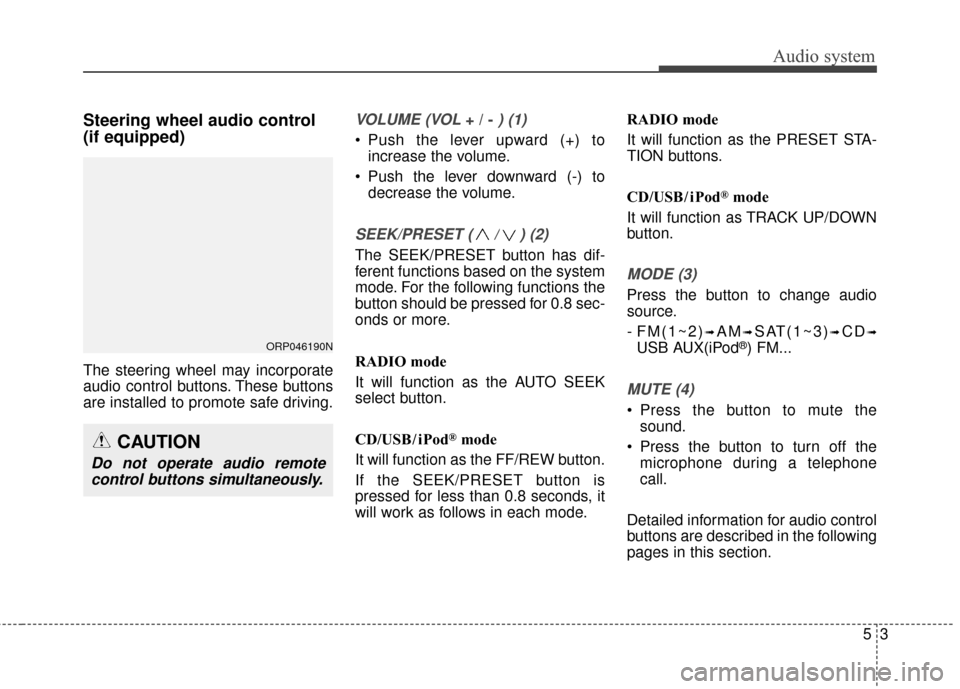
VOLUME (VOL + / - ) (1)
• Push the lever upward (+) toincrease the volume.
Push the lever downward (-) to decrease the volume.
SEEK/PRESET ( / ) (2)
The SEEK/PRESET button has dif-
ferent functions based on the system
mode. For the following functions the
button should be pressed for 0.8 sec-
onds or more.
RADIO mode
It will function as the AUTO SEEK
select button.
CD/USB/ iPod
®mode
It will function as the FF/REW button.
If the SEEK/PRESET button is
pressed for less than 0.8 seconds, it
will work as follows in each mode. RADIO mode
It will function as the PRESET STA-
TION buttons.
CD/USB/ iPod
®mode
It will function as TRACK UP/DOWN
button.
MODE (3)
Press the button to change audio
source.
- FM(1~2)
➟AM➟SAT(1~3)➟CD➟
USB AUX(iPod®) FM...
MUTE (4)
Press the button to mute the sound.
Press the button to turn off the microphone during a telephone
call.
Detailed information for audio control
buttons are described in the following
pages in this section.
CAUTION
Do not operate audio remote control buttons simultaneously.
ORP046190N
Page 291 of 625
![KIA Carens 2017 3.G Owners Guide Audio system
521
CLOCK SETTINGS
Press the key Select [Clock]
through TUNE knob or key
Select menu through TUNE knob
Sound Settings
This menu is used to set the time.
Select [Clock Settings] Set th](/img/2/2982/w960_2982-290.png "KIA Carens 2017 3.G Owners Guide Audio system
521
CLOCK SETTINGS
Press the key Select [Clock]
through TUNE knob or key
Select menu through TUNE knob
Sound Settings
This menu is used to set the time.
Select [Clock Settings] Set th")
Audio system
521
CLOCK SETTINGS
Press the key Select [Clock]
through TUNE knob or key
Select menu through TUNE knob
Sound Settings
This menu is used to set the time.
Select [Clock Settings] Set throughTUNE knob Press TUNE knob
❈Adjust the number currently in
focus to set the [hour] and press
the tune knob to set the [minute]
and [AM/FM].
Calendar Settings
This menu is used to set the date.
Select [Calendar Settings] Set through TUNE knob Press TUNE knob
❈Adjust the number currently in
focus to make the settings and
press the tune knob to move to the
next setting.
Time Format
This function is used to set the 12/24
hour time format of the audio system.
Select [Time Format] Set 12Hr / 24Hr
through TUNE knob.
Clock Display when Power is OFF
Select [Clock Disp.(Pwr Off)] Set
/through TUNEknob
: Displays time/date on screen
: Turn off.
Off
On
OffOn
3
SETUPCLOCK
WARNING- Clock Setting Distraction
Do not adjust the clock while
driving. You may lose your
steering control and cause
severe personal injury or acci-
dents.
Page 307 of 625
Audio system
537
PHONE
Before using the Bluetooth®Wireless
Technology phone features
In order to use
Bluetooth®Wireless
Technology phone, you must first
pair and connect the
Bluetooth®
Wireless Technology mobile phone.
If the mobile phone is not paired or connected, it is not possible to
enter Phone mode. Once a phone
is paired or connected, the guid-
ance screen will be displayed.
If Priority is set upon vehicle igni- tion (IGN/ACC ON), the
Bluetooth®
Wireless Technology phone will be
automatically connected. Even if
you are outside, the
Bluetooth®
Wireless Technology phone will be
automatically connected once you
are in the vicinity of the vehicle. If
you do not want automatic
Bluetooth®Wireless Technology
phone connection, set the
Bluetooth®Wireless Technology
power to OFF
Making a call using the
Steering-wheel mount controls
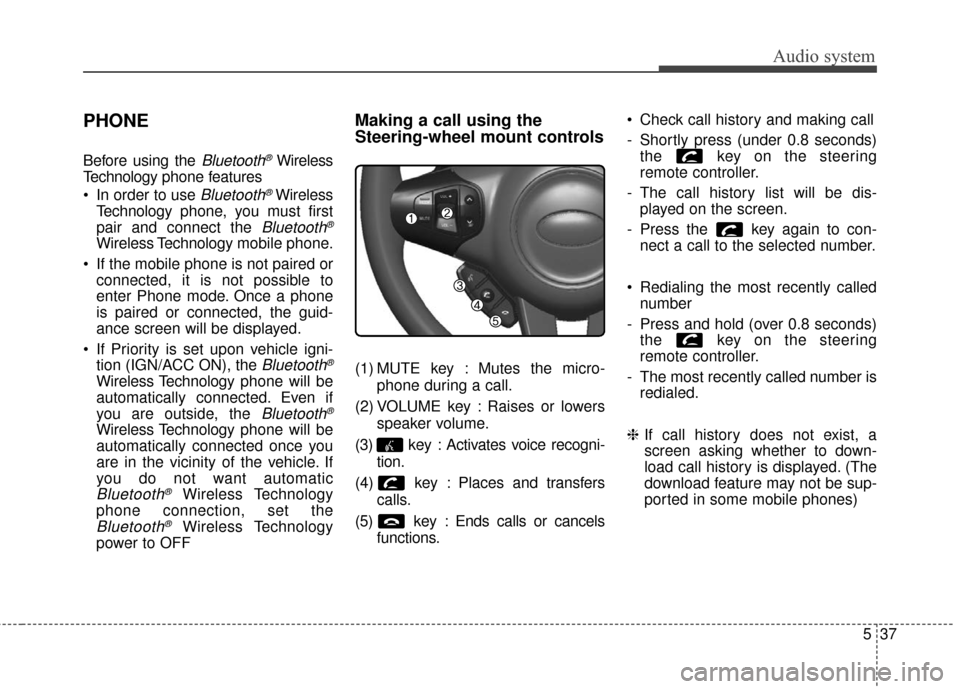
(1) MUTE key : Mutes the micro-
phone during a call.
(2) VOLUME key : Raises or lowers speaker volume.
(3) key : Activates voice recogni- tion.
(4) key : Places and transfers calls.
(5) key : Ends calls or cancels functions. Check call history and making call
- Shortly press (under 0.8 seconds)
the key on the steering
remote controller.
- The call history list will be dis- played on the screen.
- Press the key again to con- nect a call to the selected number.
Redialing the most recently called number
- Press and hold (over 0.8 seconds) the key on the steering
remote controller.
- The most recently called number is redialed.
❈ If call history does not exist, a
screen asking whether to down-
load call history is displayed. (The
download feature may not be sup-
ported in some mobile phones)
Page 308 of 625
Audio system
38
5
Bluetooth®Wireless Technology
Pairing a
Bluetooth®Wireless
Technology Device
What is Bluetooth®Wireless
Technology Pairing?
Pairing refers to the process of syn-
chronizing your
Bluetooth®Wireless
Technology phone or device with the
car audio system for connection.
Pairing is necessary to connect and
use the
Bluetooth®Wireless
Technology feature.
The Bluetooth
®word mark and logos
are registered trademarks owned by
Bluetooth
®SIG, Inc. and any use of
such marks by Kia is under license.
Other trademarks and trade names
are those of their respective owners.
A Bluetooth
® enabled cell phone is
required to use
Bluetooth®Wireless
Technology.
Pairing key / key
on the Steering Remote
Controller
When No Devices have been
Paired
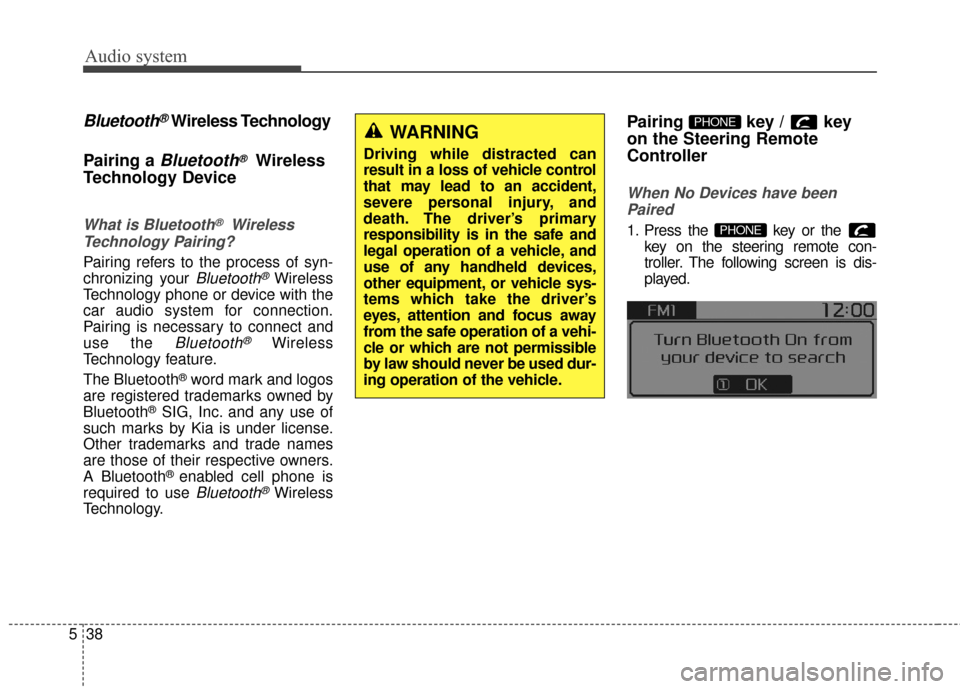
1. Press the key or the key on the steering remote con-
troller. The following screen is dis-
played.PHONE
PHONEWARNING
Driving while distracted can
result in a loss of vehicle control
that may lead to an accident,
severe personal injury, and
death. The driver’s primary
responsibility is in the safe and
legal operation of a vehicle, and
use of any handheld devices,
other equipment, or vehicle sys-
tems which take the driver’s
eyes, attention and focus away
from the safe operation of a vehi-
cle or which are not permissible
by law should never be used dur-
ing operation of the vehicle.
Page 309 of 625
![KIA Carens 2017 3.G Owners Guide Audio system
539
2. Select [OK] button to enter thePair Phone screen.
1) Vehicle Name : Name of device as shown when searching from your
Bluetooth®Wireless Technology
device
2) Passkey : Passkey used](/img/2/2982/w960_2982-308.png "KIA Carens 2017 3.G Owners Guide Audio system
539
2. Select [OK] button to enter thePair Phone screen.
1) Vehicle Name : Name of device as shown when searching from your
Bluetooth®Wireless Technology
device
2) Passkey : Passkey used")
Audio system
539
2. Select [OK] button to enter thePair Phone screen.
1) Vehicle Name : Name of device as shown when searching from your
Bluetooth®Wireless Technology
device
2) Passkey : Passkey used to pair the device
3. From your
Bluetooth®Wireless
Technology device (i.e. Mobile
Phone), search and select your
car audio system. [Non SSP supported device]
(SSP: Secure Simple Pairing)
4. After a few moments, a screen is
displayed where the passkey is
entered. Hear, enter the passkey
"0000" to pair your
Bluetooth®
Wireless Technology device with
the car audio system.
[SSP supported device]
4 After a few moments, a screen is displayed 6 digits passkey. Hear,
check the passkey on your
Bluetooth®Wireless Technology
device and confirm.
5. Once pairing is complete, the fol- lowing screen is displayed. Some phones (i.e., iPhone
®, Android
and Blackberry phones) may offer an
option to allow acceptance of all
future Bluetooth connection requests
by default.
Bluetooth®Wireless Technology
devices are paired but none are
currently connected, pressing the key or the key on the
steering wheel displays the follow-
ing screen. Select [Pair] button to
pair a new device or select
[Connect] to connect a previously
paired device.
PHONE