AUX KIA CARENS RHD 2017 User Guide
[x] Cancel search | Manufacturer: KIA, Model Year: 2017, Model line: CARENS RHD, Model: KIA CARENS RHD 2017Pages: 723, PDF Size: 40.8 MB
Page 348 of 723
565
Audio system
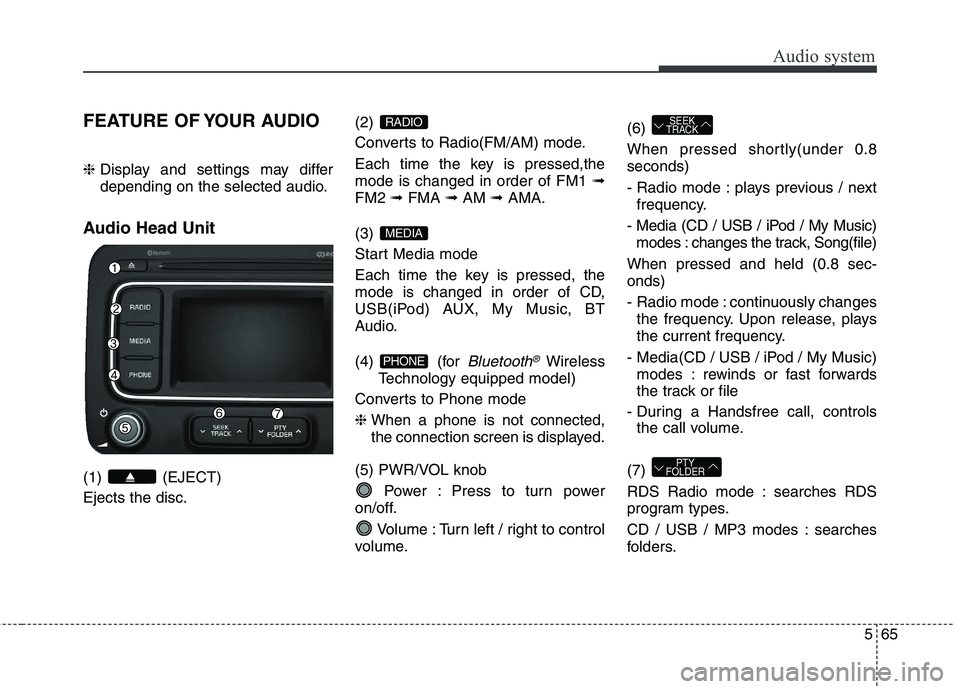
FEATURE OF YOUR AUDIO ❈ Display and settings may differ
depending on the selected audio.
Audio Head Unit (1) (EJECT) Ejects the disc. (2)
Converts to Radio(FM/AM) mode.
Each time the key is pressed,the mode is changed in order of FM1
➟
FM2 ➟FMA ➟AM ➟AMA.
(3)
Start Media mode
Each time the key is pressed, the
mode is changed in order of CD,
USB(iPod) AUX, My Music, BT
Audio.
(4) (for
Bluetooth®Wireless
Technology equipped model)
Converts to Phone mode ❈ When a phone is not connected,
the connection screen is displayed.
(5) PWR/VOL knob Power : Press to turn power
on/off.
Volume : Turn left / right to control
volume. (6)
When pressed shortly(under 0.8 seconds)
- Radio mode : plays previous / next
frequency.
- Media (CD / USB / iPod / My Music) modes : changes the track, Song(file)
When pressed and held (0.8 sec- onds)
- Radio mode : continuously changes the frequency. Upon release, plays
the current frequency.
- Media(CD / USB / iPod / My Music) modes : rewinds or fast forwards
the track or file
- During a Handsfree call, controls the call volume.
(7)
RDS Radio mode : searches RDS
program types.
CD / USB / MP3 modes : searches
folders.
PTY
FOLDER
SEEK
TRACK
PHONE
MEDIA
RADIO
Page 351 of 723
Audio system
68
5
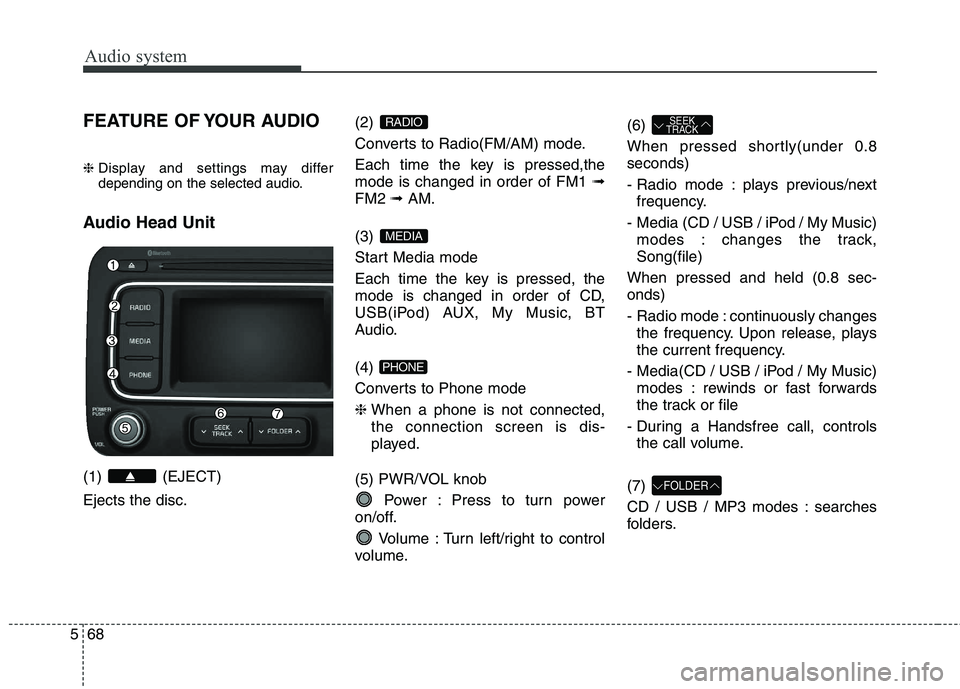
FEATURE OF YOUR AUDIO ❈ Display and settings may differ
depending on the selected audio.
Audio Head Unit (1) (EJECT) Ejects the disc. (2)
Converts to Radio(FM/AM) mode.
Each time the key is pressed,the mode is changed in order of FM1
➟
FM2 ➟ AM.
(3)
Start Media mode
Each time the key is pressed, the
mode is changed in order of CD,
USB(iPod) AUX, My Music, BT
Audio. (4)
Converts to Phone mode❈ When a phone is not connected, the connection screen is dis-
played.
(5) PWR/VOL knob Power : Press to turn power
on/off.
Volume : Turn left/right to control
volume. (6)
When pressed shortly(under 0.8 seconds)
- Radio mode : plays previous/next
frequency.
- Media (CD / USB / iPod / My Music) modes : changes the track, Song(file)
When pressed and held (0.8 sec-onds)
- Radio mode : continuously changes the frequency. Upon release, plays
the current frequency.
- Media(CD / USB / iPod / My Music) modes : rewinds or fast forwards
the track or file
- During a Handsfree call, controls the call volume.
(7)
CD / USB / MP3 modes : searches
folders.
FOLDER
SEEK
TRACK
PHONE
MEDIA
RADIO
Page 353 of 723
Audio system
70
5
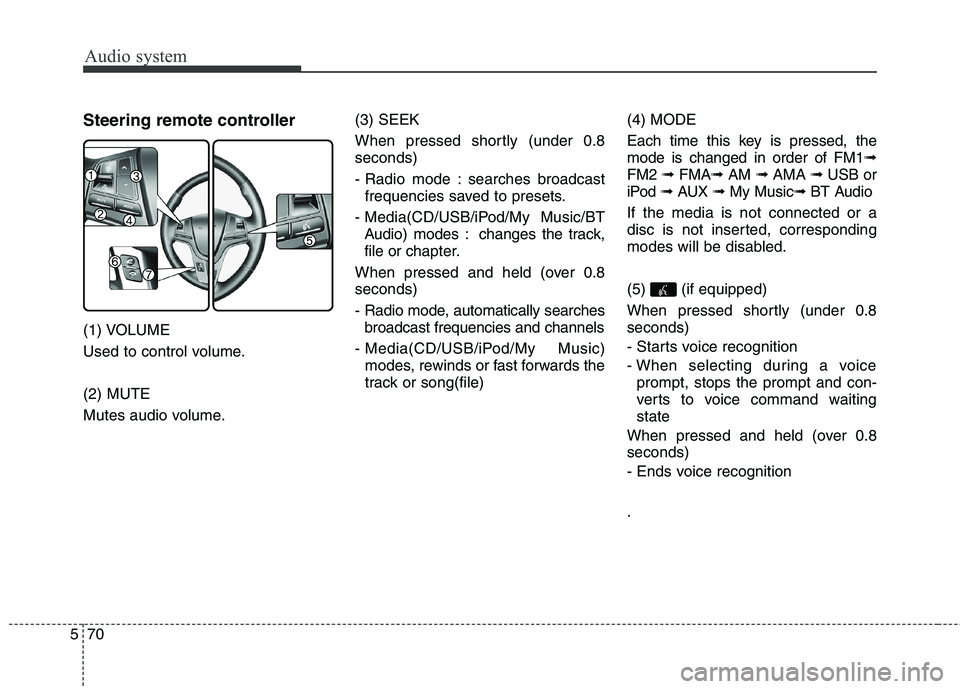
Steering remote controller
(1) VOLUME
Used to control volume. (2) MUTE
Mutes audio volume. (3) SEEK
When pressed shortly (under 0.8 seconds)
- Radio mode : searches broadcast
frequencies saved to presets.
- Media(CD/USB/iPod/My Music/BT Audio) modes : changes the track, file or ch apter.
When pressed and held (over 0.8seconds)
- Radio mode, automatically searches broadcast frequencies and channels
- Media(CD/USB/iPod/My Music) modes, rewinds or fast forwards the
track or song(file) (4) MODE
Each time this key is pressed, the mode is changed in order of FM1
➟
FM2 ➟ FMA ➟AM ➟ AMA ➟ USB or
iPod ➟ AUX ➟ My Music ➟ BT Audio
If the media is not connected or a
disc is not inserted, corresponding
modes will be disabled. (5) (if equipped)
When pressed shortly (under 0.8 seconds)
- Starts voice recognition
- When selecting during a voice prompt, stops the prompt and con-
verts to voice command waitingstate
When pressed and held (over 0.8seconds)
- Ends voice recognition .
Page 361 of 723
Audio system
78
5
MEDIA MODE
AM111A4GG, AM111A4GN
AM111A4GE, AM111A4GL AM111A4EE
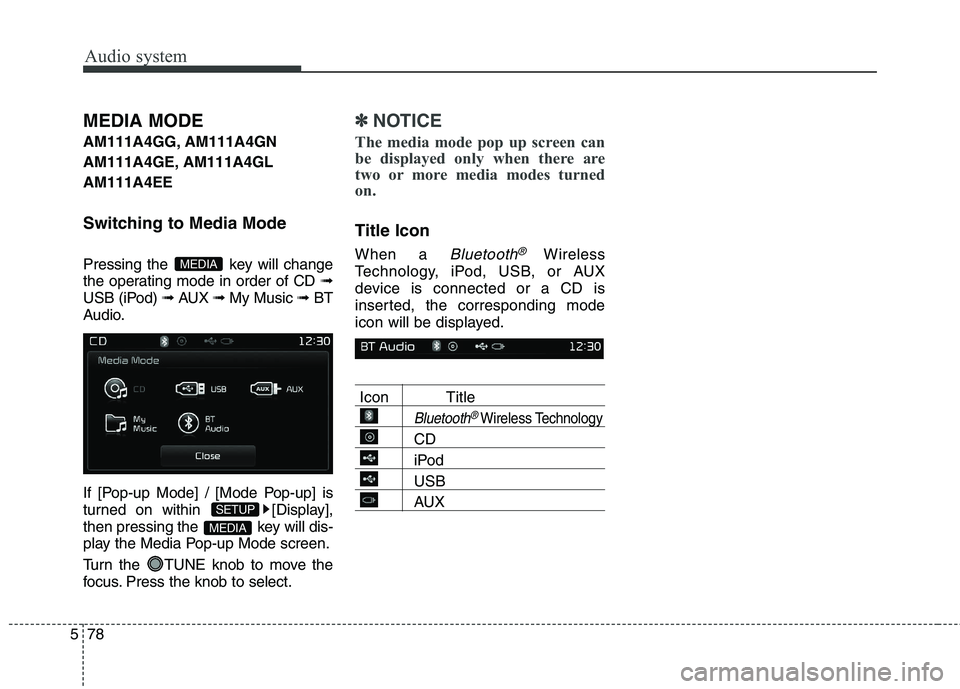
Switching to Media Mode
Pressing the key will change
the operating mode in order of CD ➟
USB (iPod) ➟ AUX ➟ My Music ➟BT
Audio.
If [Pop-up Mode] / [Mode Pop-up] is
turned on within [Display],
then pressing the key will dis-
play the Media Pop-up Mode screen.
Turn the TUNE knob to move the
focus. Press the knob to select.✽✽ NOTICE
The media mode pop up screen can
be displayed only when there are
two or more media modes turned
on.
Title Icon When a
Bluetooth®Wireless
Technology, iPod, USB, or AUX
device is connected or a CD is
inserted, the corresponding mode
icon will be displayed.
Icon Title
Bluetooth®Wireless Technology
CD
iPod
USB
AUX
MEDIA
SETUP
MEDIA
Page 371 of 723
Audio system
88
5
(Continued)
Charging through the USB may
not work for some mobile devices.
The device may not support nor- mal operation when using a USB
memory type besides (Metal
Cover Type) USB Memory.
The device may not support nor- mal operation when using formats
such as HDD Type, CF, or SD
Memory.
The device will not support files locked by DRM (Digital Rights
Management.)
USB memory sticks used by con- necting an Adaptor (SD Type or
CF Type) may not be properly rec-
ognized.
The device may not operate prop- erly when using USB HDDs or
USBs subject to connection fail-
ures caused by vehicle vibrations.
(e.g. i-stick type) (Continued)(Continued)
Avoid use of USB
memory products that
can also be used as key
chains or mobile phone
accessories. Use of such products
may cause damage to the USB
jack.
Connecting an MP3 device or phone through various channels,
such as AUX/BT or Audio/USB
mode may result in pop noises or
abnormal operation.
Page 377 of 723
Audio system
94
5
✽✽
NOTICE - USING THE
iPod®DEVICE
iPod ®
is a registered trademark of
Apple Inc.
In order to use the iPod whilst operating the keys, you must use a
dedicated iPod cable. (the cable
that is supplied when purchasing
iPod/iPhone products)
If the iPod is connected to the vehicle whilst it is playing, a high
pitch sound could occur for
approximately 1-2 seconds imme-
diately after connecting. If possi-
ble, connect the iPod to the vehicle
with the iPod stopped/paused.
During ACC ON state, connecting the iPod through the iPod cable
will charge the iPod through the
car audio system.
When connecting with the iPod cable, make sure to fully insert the
jack to prevent communication
interference. (Continued)(Continued)
When the EQ features of an exter-
nal device, such as the iPod, and the
audio system are both active, EQ
effects could overlap and cause
sound deterioration and distortion.
Whenever possible, turn off the EQ
feature within the external device
upon use by connecting with the
audio system.
Noise may occur when an iPod or AUX device is connected. When
such devices are not being used, dis-
connect the device for storage.
When the iPod or AUX device power is connected to the power
jack, playing the external device
may result in noise. In such cases,
disconnect the power connection
before use.
Skipping or improper operation may occur depending on the charac-
teristics of your iPod/Phone device.
If your iPh one is connected to both
the Bluetooth ®
Wireless Technology
and USB, the sound may not be
properly played. In your iPhone,
select the Dock connector or
Bluetooth ®
Wireless Technology to
change the sound output (source). (Continued)(Continued)
iPod mode cannot be operated
when the iPod cannot be recog-
nized due to the playing of ver-
sions that do not support commu-
nication protocols, cases of iPod
abnormalities and defects.
For fifth generation iPod Nano devices, the iPod may not be rec-
ognized when the battery level is
low. Please charge the iPod for
use.
Search/play orders shown within the iPod device may differ with the
orders shown within the audio sys-
tem.
If the iPod malfunctions due to an iPod device defect, reset the iPod
and try again. (To learn more,
refer to your iPod manual)
Some iPods may not sync with the System depending on its version.
If the Media is removed before the
Media is recognized, then the sys-
tem may not properly restore the
previously operated mode. (iPad
charging is not supported.)
Page 382 of 723
599
Audio system
List
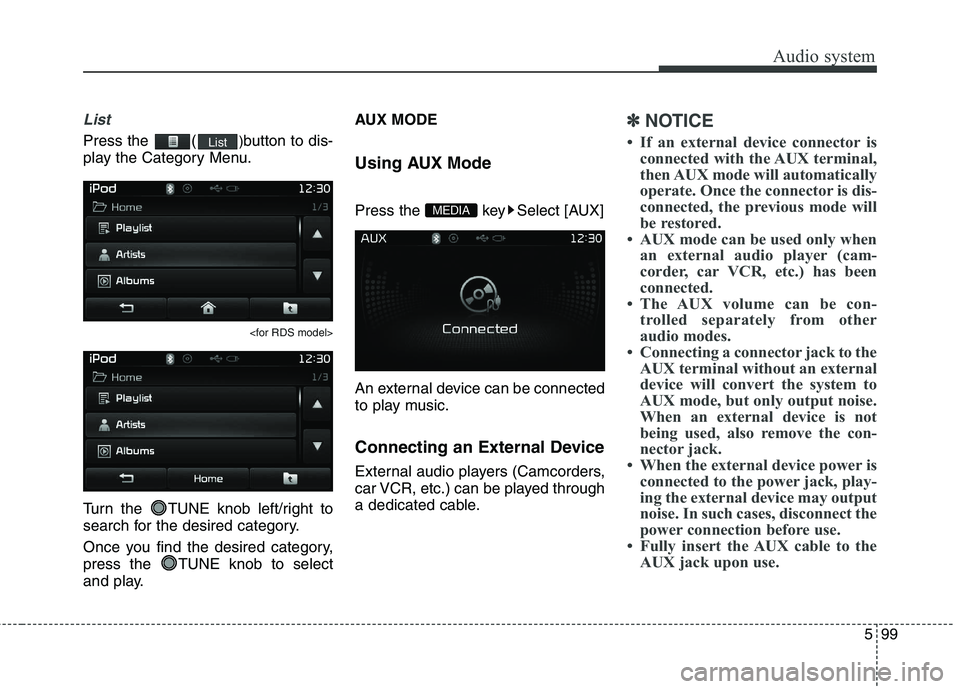
Press the ()button to dis-
play the Category Menu.
Turn the TUNE knob left/right to
search for the desired category.
Once you find the desired category,
press the TUNE knob to select
and play. AUX MODE
Using AUX Mode
Press the key Select [AUX]
An external device can be connected
to play music.
Connecting an External Device
External audio players (Camcorders,
car VCR, etc.) can be played through
a dedicated cable.
✽✽
NOTICE
If an external device connector is connected with the AUX terminal,
then AUX mode will automatically
operate. Once the connector is dis-
connected, the previous mode will
be restored.
AUX mode can be used only when an external audio player (cam-
corder, car VCR, etc.) has been
connected.
The AUX volume can be con- trolled separately from other
audio modes.
Connecting a connector jack to the AUX terminal without an external
device will convert the system to
AUX mode, but only output noise.
When an external device is not
being used, also remove the con-
nector jack.
When the external device power is connected to the power jack, play-
ing the external device may output
noise. In such cases, disconnect the
power connection before use.
Fully insert the AUX cable to the AUX jack upon use.
MEDIA
List
Page 411 of 723
Audio system
128
5
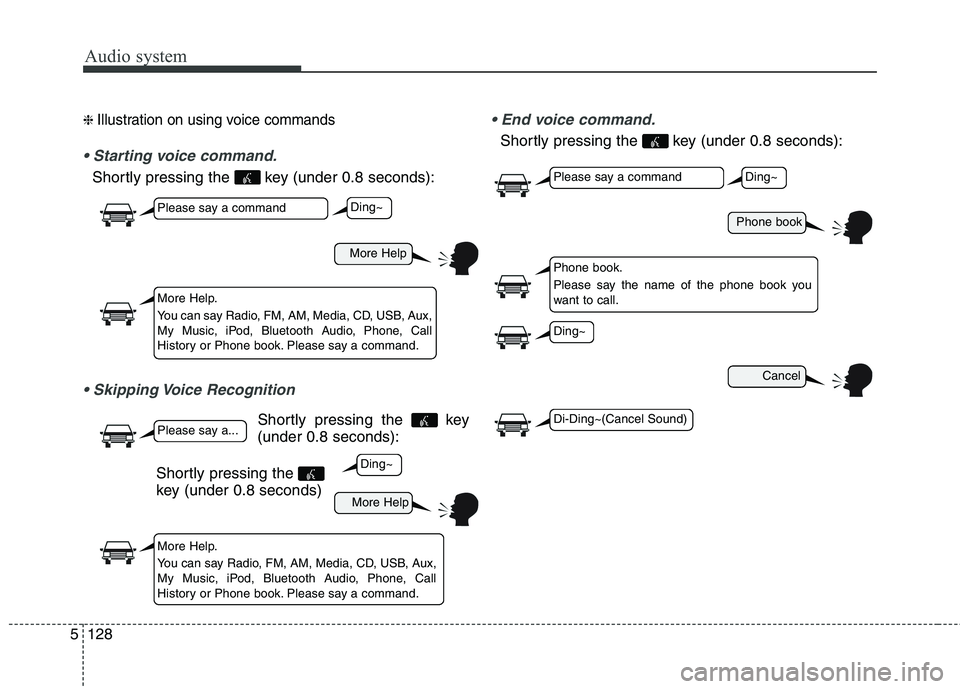
❈ Illustration on using voice commands
Shortly pressing the key (under 0.8 seconds):
Shortly pressing the key
(under 0.8 seconds):
Shortly pressing the key (under 0.8 seconds):
More Help
More Help
Please say a command
Please say a...
More Help.
You can say Radio, FM, AM, Media, CD, USB, Aux,
My Music, iPod, Bluetooth Audio, Phone, Call
History or Phone book. Please say a command.
More Help.
You can say Radio, FM, AM, Media, CD, USB, Aux,
My Music, iPod, Bluetooth Audio, Phone, Call
History or Phone book. Please say a command.
Ding~
Ding~
Shortly pressing the
key (under 0.8 seconds)
Phone book
Cancel
Please say a command
Phone book.
Please say the name of the phone book you
want to call.
Ding~
Di-Ding~(Cancel Sound)
Ding~
Page 413 of 723
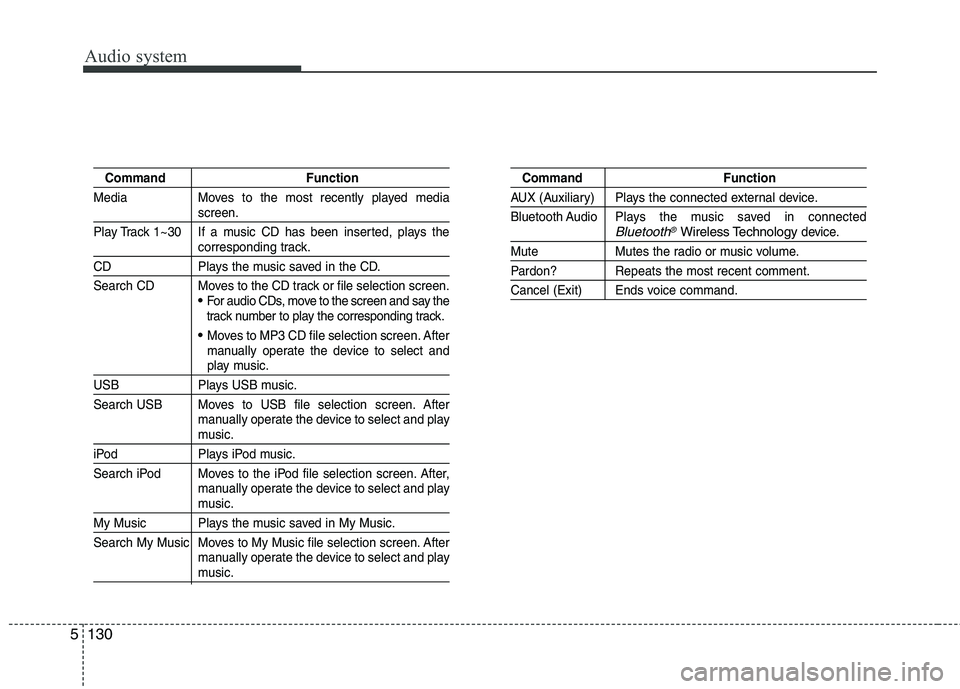
Audio system
130
5
Command Function
Media Moves to the most recently played media
screen.
Play Track 1~30 If a music CD has been inserted, plays the
corresponding track.
CD Plays the music saved in the CD.
Search CD Moves to the CD track or file selection screen.
For audio CDs, move to the screen and say the
track number to play the corresponding track.
Moves to MP3 CD file selection screen. After
manually operate the device to select and
play music.
USB Plays USB music.
Search USB Moves to USB file selection screen. After manually operate the device to select and play
music.
iPod Plays iPod music.
Search iPod Moves to the iPod file selection screen. After,manually operate the device to select and play
music.
My Music Plays the music saved in My Music.
Search My Music Moves to My Music file selection screen. Aftermanually operate the device to select and play
music.
Command Function
AUX (Auxiliary) Plays the connected external device.
Bluetooth Audio Plays the music saved in connected
Bluetooth®Wireless Technologydevice.
Mute Mutes the radio or music volume.
Pardon? Repeats the most recent comment.
Cancel (Exit) Ends voice command.
Page 434 of 723
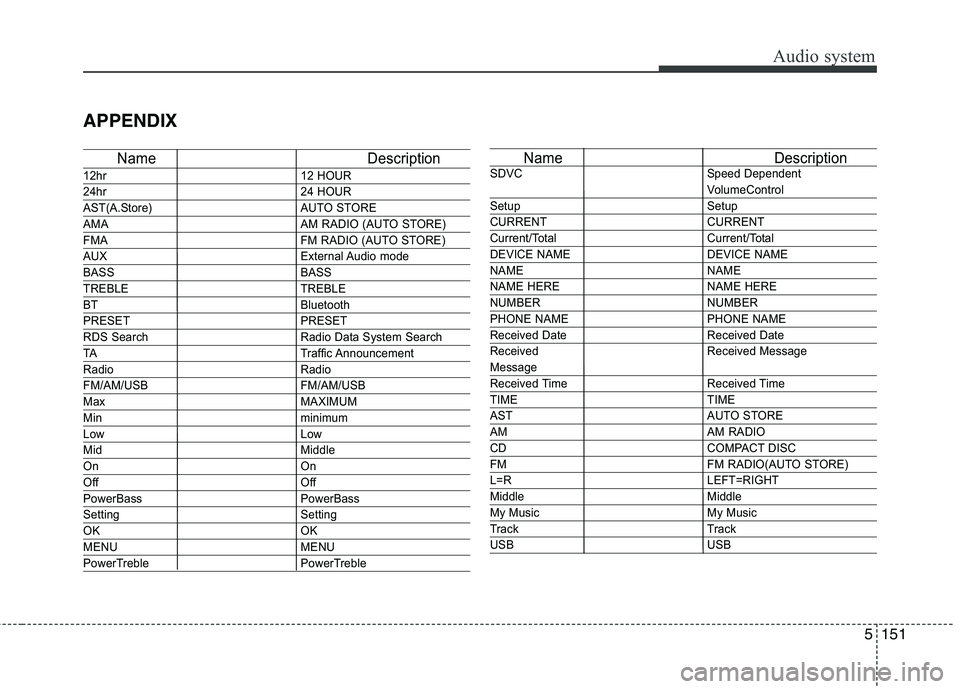
5151
Audio system
APPENDIX
Name Description
12hr12 HOUR
24hr24 HOUR
AST(A.Store) AUTO STORE
AMA AM RADIO (AUTO STORE)
FMA FM RADIO (AUTO STORE)
AUXExternal Audio mode
BASS BASS
TREBLE TREBLE
BT Bluetooth
PRESET PRESET
RDS Search Radio Data System Search
TATraffic Announcement
Radio Radio
FM/AM/USB FM/AM/USB
MaxMAXIMUM
Minminimum
LowLow
MidMiddle
On On
Off Off
PowerBass PowerBass
Setting Setting
OKOK
MENU MENU
PowerTreble PowerTreble
Name Description
SDVC Speed Dependent
VolumeControl
Setup Setup
CURRENT CURRENT
Current/Total Current/Total
DEVICE NAME DEVICE NAME
NAME NAME
NAME HERE NAME HERE
NUMBER NUMBER
PHONE NAME PHONE NAME
Received Date Received Date
Received Received Message
Message
Received Time Received Time
TIME TIME
AST AUTO STORE
AMAM RADIO
CDCOMPACT DISC
FM FM RADIO(AUTO STORE)
L=RLEFT=RIGHT
Middle Middle
My Music My Music
Track Track
USB USB