AUX KIA CEED 2015 Owner's Manual
[x] Cancel search | Manufacturer: KIA, Model Year: 2015, Model line: CEED, Model: KIA CEED 2015Pages: 1210, PDF Size: 35.92 MB
Page 879 of 1210
Features of your vehicle
194
4
BASIC METHOD OF USE :
Audio CD / MP3 CD / USB /
iPod / My Music
Press the key to change the mode in order of CD ➟USB(iPod) ➟AUX
➟ My Music ➟BT Audio.
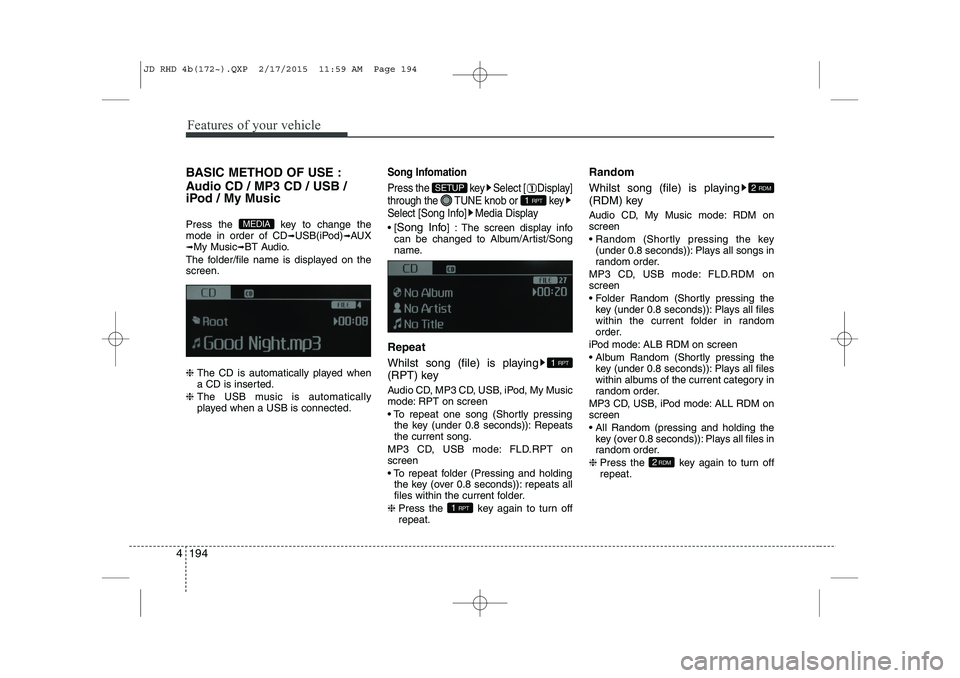
The folder/file name is displayed on thescreen. ❈ The CD is automatically played when
a CD is inserted.
❈ The USB music is automatically
played when a USB is connected.Song Infomation
Press the key Select [ Display]
through the TUNE knob or key
Select [Song Info] Media Display
[Song Info ] : The screen display info
can be changed to Album/Artist/Song
name.
Repeat
Whilst song (file) is playing
(RPT) key
Audio CD, MP3 CD, USB, iPod, My Music
mode: RPT on screen
To repeat one song (Shortly pressing the key (under 0.8 seconds)): Repeats the current song.
MP3 CD, USB mode: FLD.RPT onscreen
To repeat folder (Pressing and holding the key (over 0.8 seconds)): repeats all
files within the current folder.
❈ Press the key again to turn offrepeat. Random
Whilst song (file) is playing
(RDM) key
Audio CD, My Music mode: RDM on screen
Random (Shortly pressing the key
(under 0.8 seconds)): Plays all songs in
random order.
MP3 CD, USB mode: FLD.RDM onscreen
Folder Random (Shortly pressing the key (under 0.8 seconds)): Plays all files
within the current folder in random
order.
iPod mode: ALB RDM on screen
Album Random (Shortly pressing the key (under 0.8 seconds)): Plays all files
within albums of the current category in
random order.
MP3 CD, USB, iPod mode: ALL RDM onscreen
All Random (pressing and holding the key (over 0.8 seconds)): Plays all files in
random order.
❈ Press the key again to turn offrepeat.
2RDM
2 RDM
1 RPT
1 RPT
1 RPT
SETUP
MEDIA
JD RHD 4b(172~).QXP 2/17/2015 11:59 AM Page 194
Page 882 of 1210
![KIA CEED 2015 Owners Manual 4 197
Features of your vehicle
Folder Repeat
Press the key Set [ F.RPT] through the
TUNEknob or
key to repeat songs within the cur-
rent folder. All Random
Press the key Set [ A.RDM] through the](/img/2/57940/w960_57940-881.png "KIA CEED 2015 Owners Manual 4 197
Features of your vehicle
Folder Repeat
Press the key Set [ F.RPT] through the
TUNEknob or
key to repeat songs within the cur-
rent folder. All Random
Press the key Set [ A.RDM] through the")
4 197
Features of your vehicle
Folder Repeat
Press the key Set [ F.RPT] through the
TUNEknob or
key to repeat songs within the cur-
rent folder. All Random
Press the key Set [ A.RDM] through the
TUNEknob or key
to randomly play all songs within the
CD.
Information
Press the key Set [ Info] through the
TUNEknob or
key to display information of the cur-rent song. ❈ Press the key to turn off info
display. Copy
Press the key Set [ Copy] through the
TUNEknob or
key.
This is used to copy the current song into My Music. You can play the copied
Music in My Music mode.
❈ If another key is pressed whilst copy-
ing is in progress, a pop up asking you
whether to cancel copying is dis-
played.
❈ If another media is connected or
inserted (USB, CD, iPod, AUX) whilst
copying is in progress, copying is can-celed.
❈ Music will not be played whilst copying
is in progress. MENU : iPod
In iPod mode, press the key to
set the Repeat, Album Random, All
Random, Information and Search fea-
tures. Repeat
Press the key Set [ RPT] through the
TUNEknob or
key to repeat the current song.
Album Random
Press the key Set [ AlbRDM] through the TUNEknob or key.
Plays albums within the currently playing
category in random order.
2 RDM
MENU
1 RPT
MENU
MENU
6
MENU
MENU
5
MENU
4
MENU
3
MENU
JD RHD 4b(172~).QXP 2/17/2015 11:59 AM Page 197
Page 885 of 1210
Features of your vehicle
200
4
✽✽
NOTICE FOR USING THE My Music
Even if memory is available, a maxi- mum of 6,000 songs can be stored.
The same song can be copied up to
1,000 times.
Memory info can be checked in the
System menu of Setup.AUX
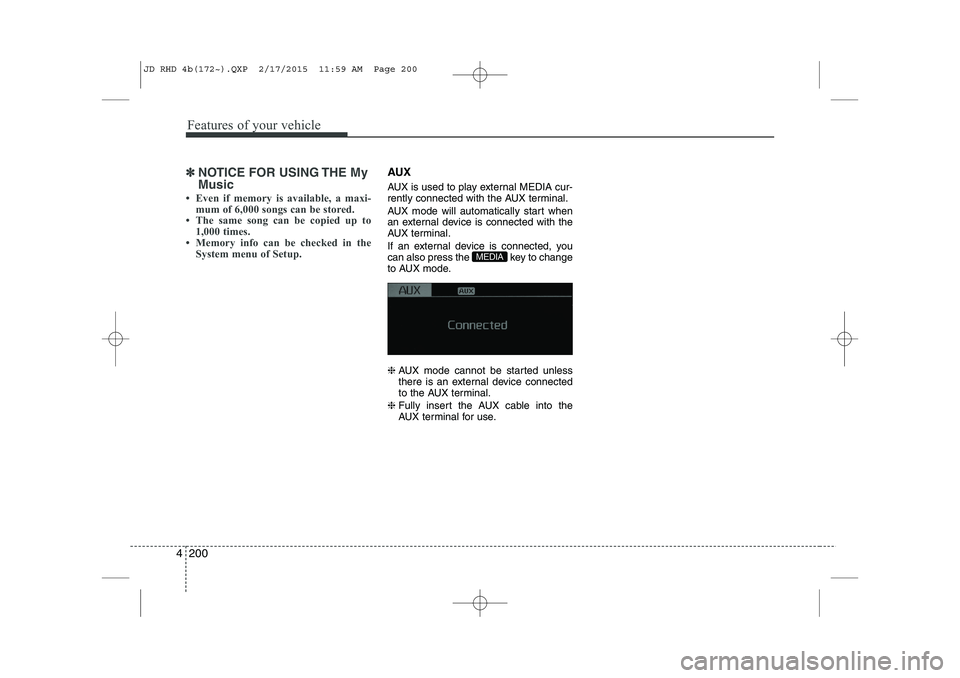
AUX is used to play external MEDIA cur-
rently connected with the AUX terminal.
AUX mode will automatically start when
an external device is connected with the
AUX terminal.
If an external device is connected, you
can also press the key to change
to AUX mode. ❈ AUX mode cannot be started unless
there is an external device connected
to the AUX terminal.
❈ Fully insert the AUX cable into the
AUX terminal for use.
MEDIA
JD RHD 4b(172~).QXP 2/17/2015 11:59 AM Page 200
Page 886 of 1210
Bluetooth®Wireless Technology
AUDIO
Before using
Bluetooth®Wireless
Technology
audio features
Bluetooth®Wireless Technology audio
may not be supported depending on
the compatibility of your
Bluetooth®
Wireless Technologymobile phone.
In order to use
Bluetooth®Wireless
Technologyaudio, you must first pair and
connect the Bluetooth®Wireless
Technologymobile phone.
Bluetooth®Wireless Technologyaudio
can be used only when the [Audio
Streaming] of Phone is turned .
❈ Setting
Bluetooth®Wireless TechnologyAudio Streaming : Press the
key Select [Phone] through the tune
knob or key Select [Audio
Streaming] through the TUNE
knob Set
/
Starting Bluetooth®Wireless
Technology
Audio
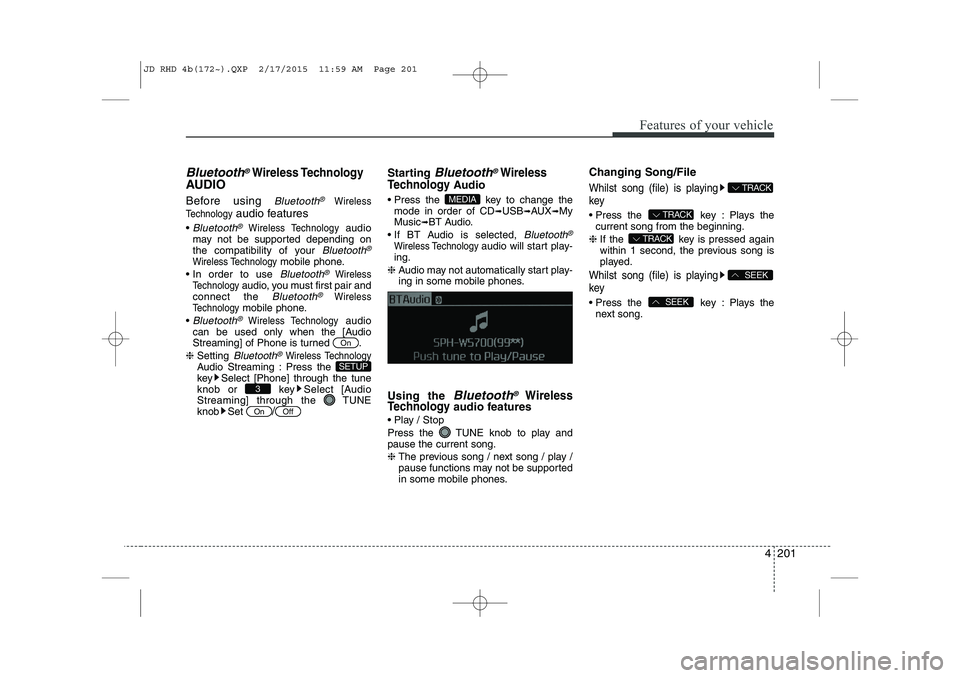
Press the key to change the mode in order of CD ➟USB ➟AUX ➟My
Music ➟BT Audio.
If BT Audio is selected,
Bluetooth®
Wireless Technology audio will start play-
ing.
❈ Audio may not automatically start play-
ing in some mobile phones.
Using the
Bluetooth®Wireless
Technologyaudio features
Play / Stop
Press the TUNE knob to play and pause the current song. ❈ The previous song / next song / play /
pause functions may not be supported
in some mobile phones. Changing Song/File
Whilst song (file) is playing key
Press the key : Plays the
current song from the beginning.
❈ If the key is pressed again
within 1 second, the previous song is
played.
Whilst song (file) is playing key
Press the key : Plays the
next song.SEEK
SEEK
TRACK
TRACK
TRACK
MEDIA
OffOn
3
SETUP
On
4 201
Features of your vehicle
JD RHD 4b(172~).QXP 2/17/2015 11:59 AM Page 201
Page 898 of 1210
4 213
Features of your vehicle
SYSTEM CONTROLLERS AND FUNCTIONS
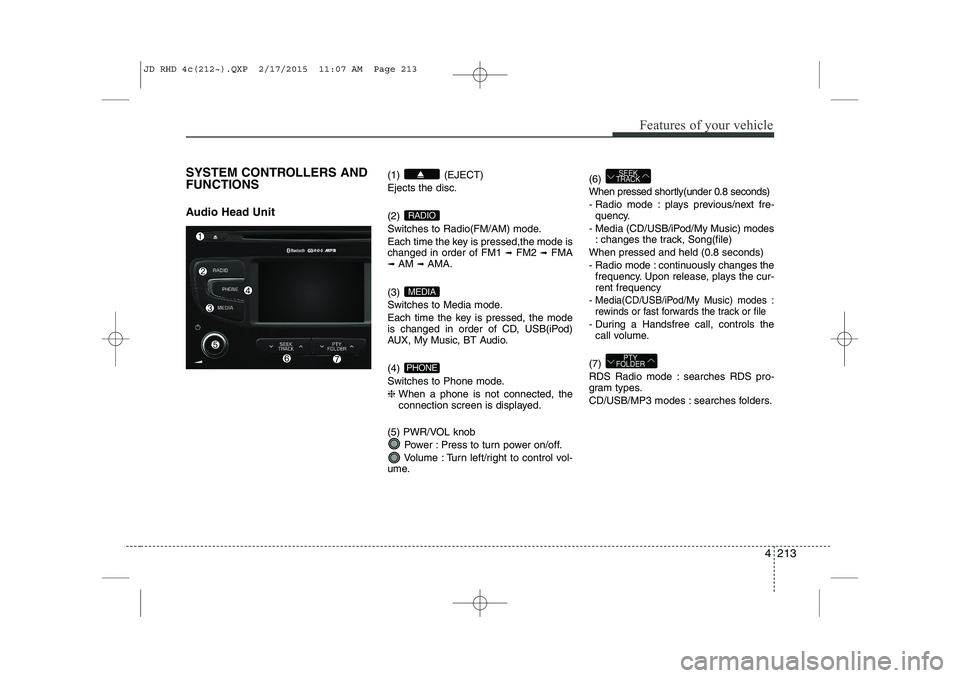
Audio Head Unit (1) (EJECT) Ejects the disc. (2)
Switches to Radio(FM/AM) mode.
Each time the key is pressed,the mode is changed in order of FM1
➟
FM2 ➟FMA
➟ AM ➟AMA.
(3)
Switches to Media mode.
Each time the key is pressed, the mode
is changed in order of CD, USB(iPod)
AUX, My Music, BT Audio. (4)
Switches to Phone mode.❈ When a phone is not connected, the
connection screen is displayed.
(5) PWR/VOL knob Power : Press to turn power on/off.
Volume : Turn left/right to control vol-
ume. (6)
When pressed shortly(under 0.8 seconds)
- Radio mode : plays previous/next fre-
quency.
- Media (CD/USB/iPod/My Music) modes : changes the track, Song(file)
When pressed and held (0.8 seconds)
- Radio mode : continuously changes the frequency. Upon release, plays the cur- rent frequency
-
Media(CD/USB/iPod/My Music) modes :
rewinds or fast forwards the track or file
- During a Handsfree call, controls the call volume.
(7)
RDS Radio mode : searches RDS pro-
gram types.
CD/USB/MP3 modes : searches folders.
PTY
FOLDER
SEEK
TRACK
PHONE
MEDIA
RADIO
JD RHD 4c(212~).QXP 2/17/2015 11:07 AM Page 213
Page 900 of 1210
4 215
Features of your vehicle
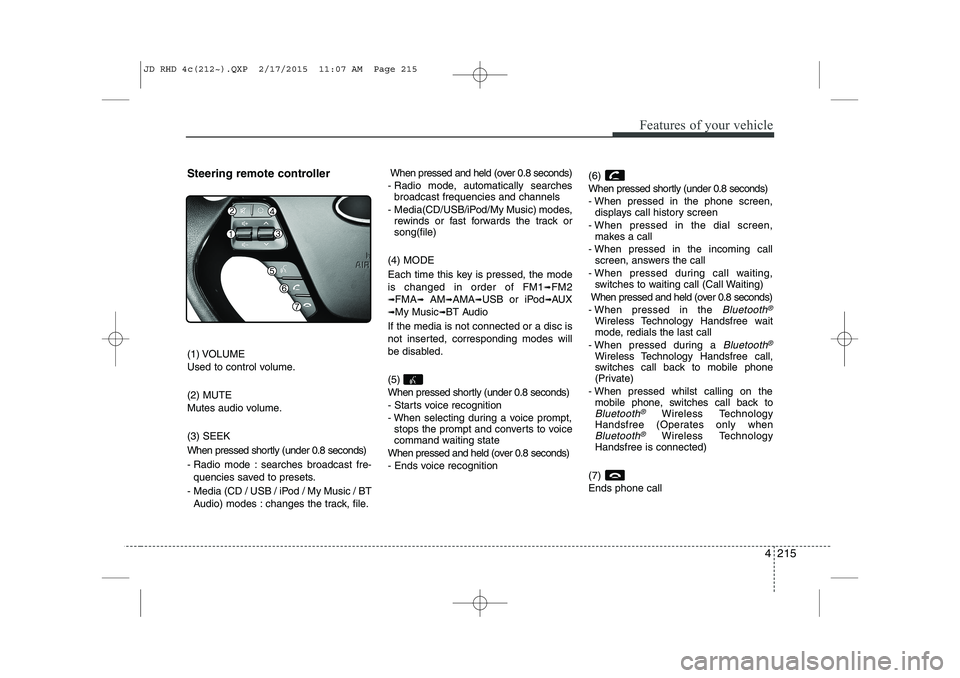
Steering remote controller
(1) VOLUME
Used to control volume. (2) MUTE
Mutes audio volume. (3) SEEK
When pressed shortly (under 0.8 seconds)
- Radio mode : searches broadcast fre-quencies saved to presets.
- Media (CD / USB / iPod / My Music / BT Audio) modes : changes the track, file. When pressed and held (over 0.8 seconds)
- Radio mode, automatically searches broadcast frequencies and channels
- Media(CD/USB/iPod/My Music) modes, rewinds or fast forwards the track or song(file)
(4) MODE
Each time this key is pressed, the mode is changed in order of FM1
➟FM2
➟FMA➟AM➟AMA➟USB or iPod➟AUX
➟My Music➟BT Audio
If the media is not connected or a disc is
not inserted, corresponding modes will
be disabled. (5)
When pressed shortly (under 0.8 seconds)
- Starts voice recognition
- When selecting during a voice prompt, stops the prompt and converts to voice
command waiting state
When pressed and held (over 0.8 seconds)
- Ends voice recognition (6)
When pressed shortly (under 0.8 seconds)
- When pressed in the phone screen,
displays call history screen
- When pressed in the dial screen, makes a call
- When pressed in the incoming call screen, answers the call
- When pressed during call waiting, switches to waiting call (Call Waiting)
When pressed and held (over 0.8 seconds)
- When pressed in the Bluetooth®
Wireless Technology Handsfree wait
mode, redials the last call
- When pressed during a
Bluetooth®
Wireless Technology Handsfree call,
switches call back to mobile phone
(Private)
- When pressed whilst calling on the mobile phone, switches call back to
Bluetooth®Wireless Technology
Handsfree (Operates only when
Bluetooth®Wireless Technology
Handsfree is connected)
(7) Ends phone call
JD RHD 4c(212~).QXP 2/17/2015 11:07 AM Page 215
Page 904 of 1210
![KIA CEED 2015 Owners Manual 4 219
Features of your vehicle
MEDIA MODE
Switching to Media Mode
Pressing the key will change
the operating mode in order ofCD
➟USB(iPod)➟AUX➟My Music ➟
BT Audio.
If [Pop-up Mode] is tur](/img/2/57940/w960_57940-903.png "KIA CEED 2015 Owners Manual 4 219
Features of your vehicle
MEDIA MODE
Switching to Media Mode
Pressing the key will change
the operating mode in order ofCD
➟USB(iPod)➟AUX➟My Music ➟
BT Audio.
If [Pop-up Mode] is tur")
4 219
Features of your vehicle
MEDIA MODE
Switching to Media Mode
Pressing the key will change
the operating mode in order ofCD
➟USB(iPod)➟AUX➟My Music ➟
BT Audio.
If [Pop-up Mode] is turned on within[Display], then pressing the
key will display the Media
Pop-up Mode screen.
Turn the TUNE knob to move the
focus. Press the knob to select.
✽✽ NOTICE
The media mode pop up screen can be
displayed only when there are two or
more media modes turned on.
Title Icon When a
Bluetooth®Wireless
Technology, iPod, USB, or AUX
device is connected or a CD is
inserted, the corresponding mode
icon will be displayed.
Icon Title
Bluetooth®Wireless Technology
CD
iPod
USB
AUX
MEDIA
SETUP
MEDIA
JD RHD 4c(212~).QXP 2/17/2015 11:07 AM Page 219
Page 919 of 1210
Features of your vehicle
234
4
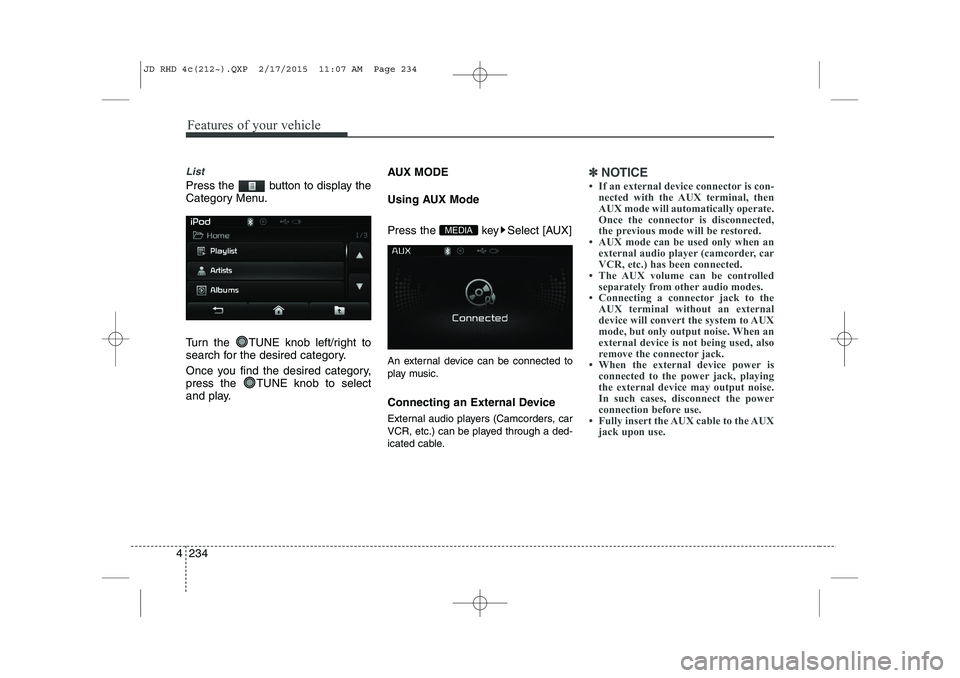
List
Press the button to display the
Category Menu.
Turn the TUNE knob left/right to
search for the desired category.
Once you find the desired category,
press the TUNE knob to select
and play. AUX MODE
Using AUX Mode
Press the key Select [AUX]
An external device can be connected to
play music.
Connecting an External Device
External audio players (Camcorders, car
VCR, etc.) can be played through a ded-
icated cable.
✽✽
NOTICE
If an external device connector is con- nected with the AUX terminal, then
AUX mode will automatically operate.
Once the connector is disconnected,
the previous mode will be restored.
AUX mode can be used only when an external audio player (camcorder, car
VCR, etc.) has been connected.
The AUX volume can be controlled
separately from other audio modes.
Connecting a connector jack to the
AUX terminal without an external
device will convert the system to AUX
mode, but only output noise. When an
external device is not being used, also
remove the connector jack.
When the external device power is
connected to the power jack, playing
the external device may output noise.
In such cases, disconnect the power
connection before use.
Fully insert the AUX cable to the AUX jack upon use.
MEDIA
JD RHD 4c(212~).QXP 2/17/2015 11:07 AM Page 234
Page 945 of 1210
Features of your vehicle
260
4
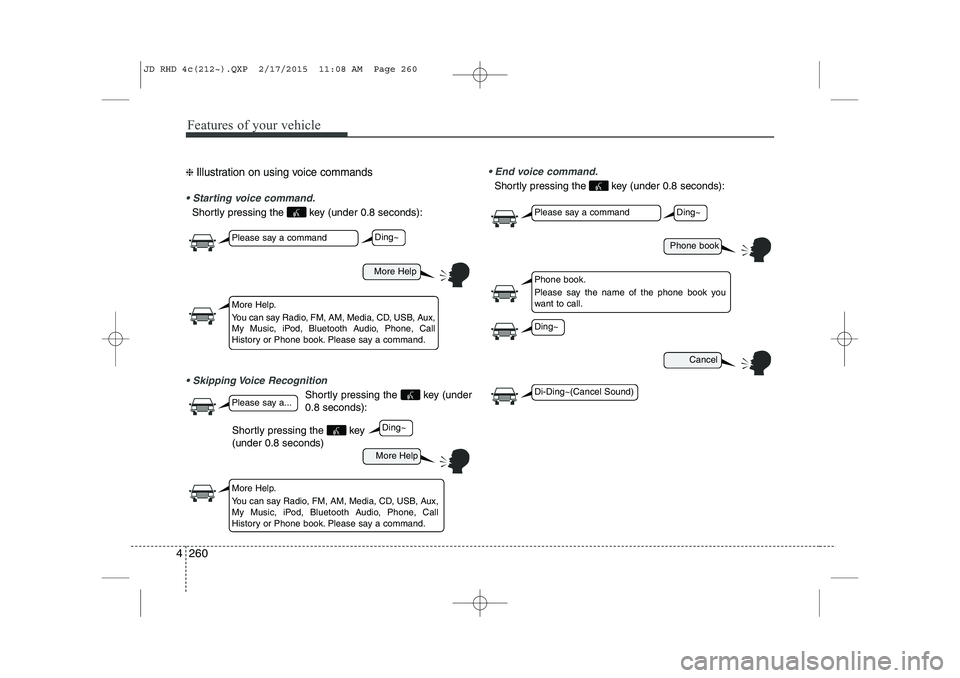
❈ Illustration on using voice commands
Starting voice command.
Shortly pressing the key (under 0.8 seconds):
Skipping Voice Recognition
Shortly pressing the key (under 0.8 seconds):
End voice command.
Shortly pressing the key (under 0.8 seconds):
More Help
Phone book
Cancel
More Help
Please say a command
Please say a command
Please say a...
More Help.
You can say Radio, FM, AM, Media, CD, USB, Aux,
My Music, iPod, Bluetooth Audio, Phone, Call
History or Phone book. Please say a command.
Phone book.
Please say the name of the phone book you
want to call.
More Help.
You can say Radio, FM, AM, Media, CD, USB, Aux,
My Music, iPod, Bluetooth Audio, Phone, Call
History or Phone book. Please say a command.
Ding~
Ding~
Ding~
Di-Ding~(Cancel Sound)
Ding~
Shortly pressing the key (under 0.8 seconds)
JD RHD 4c(212~).QXP 2/17/2015 11:08 AM Page 260
Page 947 of 1210
Features of your vehicle
262
4
Command Function
Media Moves to the most recently played media
screen.
Play Track 1~30 If a music CD has been inserted, plays the
corresponding track.
CD Plays the music saved in the CD.
Search CD Moves to the CD track or file selection screen.
For audio CDs, move to the screen and say the
track number to play the corresponding track.
Moves to MP3 CD file selection screen. After
manually operate the device to select and
play music.
USB Plays USB music.
Search USB Moves to USB file selection screen. After manually operate the device to select and play
music.
iPod Plays iPod music.
Search iPod Moves to the iPod file selection screen. After,manually operate the device to select and play
music.
My Music Plays the music saved in My Music.
Search My Music Moves to My Music file selection screen. Aftermanually operate the device to select and play
music.
Command Function
AUX (Auxiliary) Plays the connected external device.
Bluetooth Audio Plays the music saved in connected
Bluetooth®Wireless Technologydevice.
Mute Mutes the radio or music volume.
Pardon? Repeats the most recent comment.
Cancel (Exit) Ends voice command.
JD RHD 4c(212~).QXP 2/17/2015 11:08 AM Page 262