bluetooth KIA CEED 2015 Service Manual
[x] Cancel search | Manufacturer: KIA, Model Year: 2015, Model line: CEED, Model: KIA CEED 2015Pages: 1210, PDF Size: 35.92 MB
Page 874 of 1210
![KIA CEED 2015 Service Manual Bluetooth®Wireless Technology
System Off
This feature is used when you do not wish to use the
Bluetooth®Wireless
Technologysystem.
Select [Bluetooth®Wireless Technology
System Off] Set through T](/img/2/57940/w960_57940-873.png "KIA CEED 2015 Service Manual Bluetooth®Wireless Technology
System Off
This feature is used when you do not wish to use the
Bluetooth®Wireless
Technologysystem.
Select [Bluetooth®Wireless Technology
System Off] Set through T")
Bluetooth®Wireless Technology
System Off
This feature is used when you do not wish to use the
Bluetooth®Wireless
Technologysystem.
Select [Bluetooth®Wireless Technology
System Off] Set through TUNE knob
❈ If a phone is already connected, dis- connect the currently connected phone
and turn the
Bluetooth®Wireless
Technologysystem off.
Using the
Bluetooth®Wireless
Technology System
To use
Bluetooth®Wireless Technologywhen the system is currently off, follow
these next steps.
Turning On
Bluetooth®Wireless
Technologythrough the Key
Press the key Screen Guidance
❈ Moves to the screen where Bluetooth®
Wireless Technology functions can be
used and displays guidance. Turning On
Bluetooth®Wireless
Technologythrough the Key
Press the key Select [Phone]
through TUNE knob or key
➀ A screen asking whether to turn onBluetooth®Wireless Technologywill be
displayed.
➁ On the screen, select to turn on
Bluetooth®Wireless Technologyand
display guidance.
❈ If the
Bluetooth®Wireless Technologysystem is turned on, the system will
automatically try to connect the mostrecently connected
Bluetooth®
Wireless Technologymobile phone.
Bluetooth®Wireless Technology connection may become intermittently
disconnected in some mobile phones.
Follow these next steps to try again.
1) Turn the Bluetooth®Wireless Technologyfunction within the mobile phone
ON/OFF and try to connect again.
2) Turn the mobile phone power ON/OFF and
try to connect again.
3) Completely remove the mobile phone
battery, reboot, and then try to connectagain.
4) Reboot the audio system and try to con-
nect again
5) Delete all paired devices in your mobile phone and the audio system and pair
again for use.
YES
3
SETUP
SETUP
PHONE
PHONE
4 189
Features of your vehicle
JD RHD 4b(172~).QXP 2/17/2015 11:59 AM Page 189
Page 875 of 1210
![KIA CEED 2015 Service Manual Features of your vehicle
190
4
SYSTEM SETTINGS
If the Bluetooth®Wireless Technology
feature is supported
Press the key Select [ System] through tune knob or
key Select menu through TUNEknob
If the](/img/2/57940/w960_57940-874.png "KIA CEED 2015 Service Manual Features of your vehicle
190
4
SYSTEM SETTINGS
If the Bluetooth®Wireless Technology
feature is supported
Press the key Select [ System] through tune knob or
key Select menu through TUNEknob
If the")
Features of your vehicle
190
4
SYSTEM SETTINGS
If the Bluetooth®Wireless Technology
feature is supported
Press the key Select [ System] through tune knob or
key Select menu through TUNEknob
If the Bluetooth®Wireless Technology
feature is not supported
Press the key Select [System] through tune knob or
key Select menu through TUNEknob Memory Information
Displays currently used memory and
total system memory.
Select [Memory Information] OK
The currently used memory is displayed on the left side whilst the total system
memory is displayed on the right side.VRS Mode
This feature is used to change voice
command feedback between Normal and
Expert modes.
Select [VRS Mode] Set through
TUNEknob
Normal : This mode is for beginner users and provides detailed instructions
during voice command operation.
Expert : This mode is for expert users and omits some information during
voice command operation. (When using
Expert mode, guidance instructions can
be heard through the [Help] or [Menu]
commands.
3
SETUP
4
SETUP
JD RHD 4b(172~).QXP 2/17/2015 11:59 AM Page 190
Page 883 of 1210
![KIA CEED 2015 Service Manual Features of your vehicle
198
4
All Random
Press the key Set [ A.RDM] through the TUNEknob or
key.
Plays all songs within the currently play-
ing category in random order.
Information
Press the](/img/2/57940/w960_57940-882.png "KIA CEED 2015 Service Manual Features of your vehicle
198
4
All Random
Press the key Set [ A.RDM] through the TUNEknob or
key.
Plays all songs within the currently play-
ing category in random order.
Information
Press the")
Features of your vehicle
198
4
All Random
Press the key Set [ A.RDM] through the TUNEknob or
key.
Plays all songs within the currently play-
ing category in random order.
Information
Press the key Set [ Info] through the
TUNEknob or
key.
Displays information of the current song.
Search
Press the key Set [ Search] through the TUNEknob or
key.
Some iPod models may not support communication protocol and files may
not properly play.
Supported iPod models:
- iPod Mini ®
- iPod 4th(Photo) ~ 6th(Classic) genera- tion
- iPod Nano ®
1st~4th generation
- iPod Touch ®
1st~2nd generation The order of search or playback of
songs in the iPod can be different from the order searched in the audio system.
If the iPod is disabled due to its own malfunction, reset the iPod. (Reset:
Refer to iPod manual)
An iPod may not operate normally on low battery.
Some iPod devices, such as the iPhone, can be connected through the
-interface. The device must have audio
Bluetooth®Wireless Technology capa-
bility (such as for stereo headphone
Bluetooth®Wireless Technology ). The
device can play, but it will not be con-
trolled by the audio system.
To use iPod features within the audio, use the cable provided upon purchasing an
iPod device.
Skipping or improper operation may occur depending on the characteristics of your
iPod/Phone device.
If your iPhone is connected to both the
Bluetooth®Wireless Technology and
USB, the sound may not be properly
played. In your iPhone, select the Dockconnector or
Bluetooth®Wireless
Technology to change the sound output
(source). When connecting iPod with the iPod
Power Cable, insert the connector to the
multimedia socket completely. If not
inserted completely, communications
between iPod and audio may be inter-
rupted.
When adjusting the sound effects of the iPod and the audio system, the sound
effects of both devices will overlap and
might reduce or distort the quality of thesound.
Deactivate (turn off) the equalizer func- tion of an iPod when adjusting the audio
system’s volume, and turn off the
equalizer of the audio system whenusing the equaliz
er of an iPod.
When not using iPod with car audio, detach the iPod cable from iPod. Otherwise, iPod
may remain in accessory mode, and may
not work properly.
5
MENU
4
MENU
3
MENU
JD RHD 4b(172~).QXP 2/17/2015 11:59 AM Page 198
Page 886 of 1210
Bluetooth®Wireless Technology
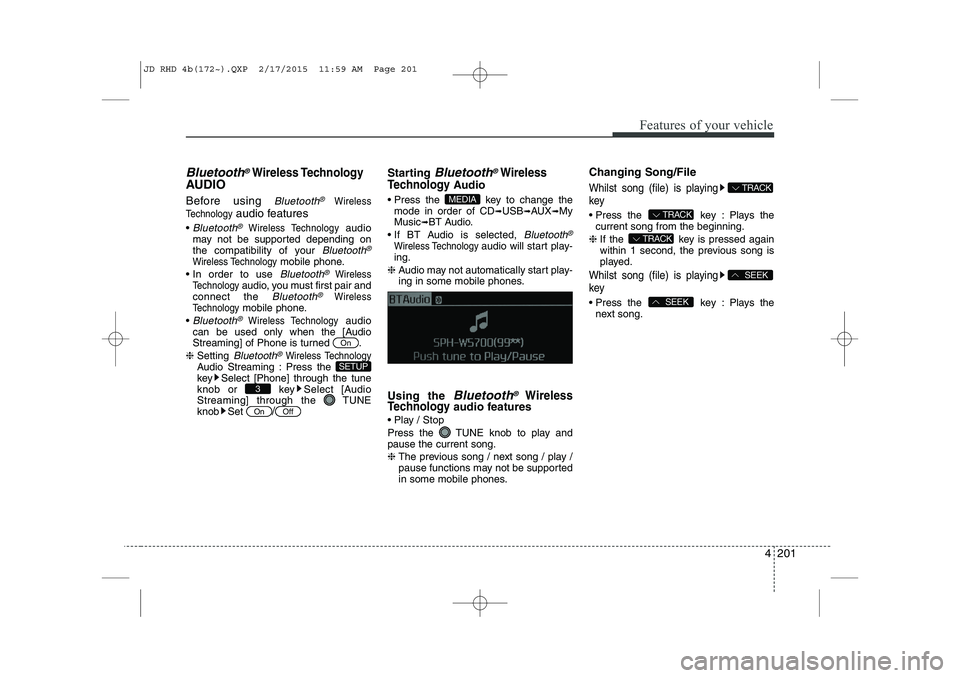
AUDIO
Before using
Bluetooth®Wireless
Technology
audio features
Bluetooth®Wireless Technology audio
may not be supported depending on
the compatibility of your
Bluetooth®
Wireless Technologymobile phone.
In order to use
Bluetooth®Wireless
Technologyaudio, you must first pair and
connect the Bluetooth®Wireless
Technologymobile phone.
Bluetooth®Wireless Technologyaudio
can be used only when the [Audio
Streaming] of Phone is turned .
❈ Setting
Bluetooth®Wireless TechnologyAudio Streaming : Press the
key Select [Phone] through the tune
knob or key Select [Audio
Streaming] through the TUNE
knob Set
/
Starting Bluetooth®Wireless
Technology
Audio
Press the key to change the mode in order of CD ➟USB ➟AUX ➟My
Music ➟BT Audio.
If BT Audio is selected,
Bluetooth®
Wireless Technology audio will start play-
ing.
❈ Audio may not automatically start play-
ing in some mobile phones.
Using the
Bluetooth®Wireless
Technologyaudio features
Play / Stop
Press the TUNE knob to play and pause the current song. ❈ The previous song / next song / play /
pause functions may not be supported
in some mobile phones. Changing Song/File
Whilst song (file) is playing key
Press the key : Plays the
current song from the beginning.
❈ If the key is pressed again
within 1 second, the previous song is
played.
Whilst song (file) is playing key
Press the key : Plays the
next song.SEEK
SEEK
TRACK
TRACK
TRACK
MEDIA
OffOn
3
SETUP
On
4 201
Features of your vehicle
JD RHD 4b(172~).QXP 2/17/2015 11:59 AM Page 201
Page 887 of 1210
Features of your vehicle
202
4
PHONE (if equipped)
Before using the
Bluetooth®Wireless
Technology
phone features
In order to use
Bluetooth®Wireless
Technologyphone, you must first pair
and connect the Bluetooth®Wireless
Technologymobile phone.
If the mobile phone is not paired or con- nected, it is not possible to enter Phone
mode. Once a phone is paired or con-nected, the guidance screen will be dis-
played.
If Priority is set upon vehicle ignition (IGN/ACC ON), the
Bluetooth®Wireless
Technologyphone will be automatically
connected. Even if you are outside, the
Bluetooth®Wireless Technologyphone
will be automatically connected once
you are in the vicinity of the vehicle. If
you do not want automatic
Bluetooth®
Wireless Technologyphone connection,
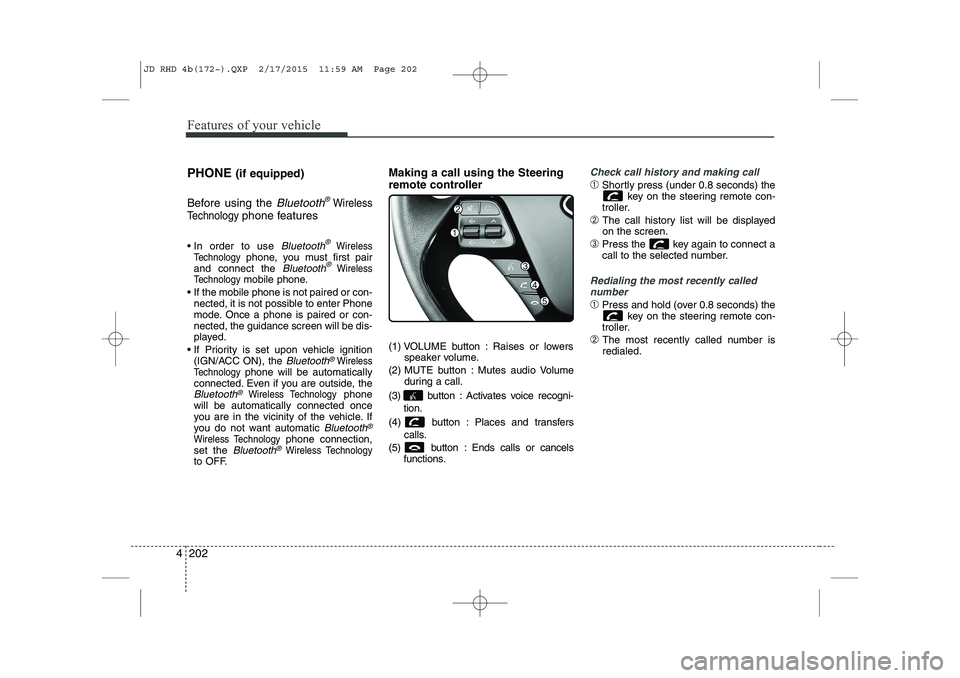
set the Bluetooth®Wireless Technologyto OFF. Making a call using the Steering
remote controller
(1) VOLUME button : Raises or lowers
speaker volume.
(2) MUTE button : Mutes audio Volume during a call.
(3) button : Activates voice recogni- tion.
(4) button : Places and transfers calls.
(5) button : Ends calls or cancels functions.
Check call history and making call
➀Shortly press (under 0.8 seconds) the
key on the steering remote con-
troller.
➁ The call history list will be displayed on the screen.
➂ Press the key again to connect a
call to the selected number.
Redialing the most recently called
number
➀ Press and hold (over 0.8 seconds) the
key on the steering remote con-
troller.
➁ The most recently called number is redialed.
JD RHD 4b(172~).QXP 2/17/2015 11:59 AM Page 202
Page 888 of 1210
![KIA CEED 2015 Service Manual 4 203
Features of your vehicle
Phone MENU
Press the key to display three
menus (Call History, Phone book, PhoneSetup).
Call History
Press the key Set [ History] through the TUNEknob or
key.
The](/img/2/57940/w960_57940-887.png "KIA CEED 2015 Service Manual 4 203
Features of your vehicle
Phone MENU
Press the key to display three
menus (Call History, Phone book, PhoneSetup).
Call History
Press the key Set [ History] through the TUNEknob or
key.
The")
4 203
Features of your vehicle
Phone MENU
Press the key to display three
menus (Call History, Phone book, PhoneSetup).
Call History
Press the key Set [ History] through the TUNEknob or
key.
The call history is displayed and can be
used to select a number and make a call.
If call history does not exist, a screen
asking whether to download call history
is displayed. (The download feature may
not be supported in some mobilephones) Phone Book
Press the key Set [P. Book]
through the TUNEknob or key.
The Phone book is displayed and can be
used to select a number and make a call. ❈ If more than one number is saved to
one contact, then a screen showing
the mobile phone number, house and
office number is displayed. Select the
desired number to make the call.
❈ If Phone book does not exist, a screen
asking whether to download Phone
book is displayed. (The download fea-
ture may not be supported in somemobile phones)
Phone Setup
Press the key Set [ Setup] through the TUNEknob or
key.
The Bluetooth®Wireless Technologymobile phone setup screen is displayed.
For more information, refer to “PhoneSetup”.
3
PHONE
2 RDM
PHONE
1 RPT
PHONE
PHONE
JD RHD 4b(172~).QXP 2/17/2015 11:59 AM Page 203
Page 889 of 1210
Features of your vehicle
204
4
NOTE:
If you need more information about
Kia’s
Bluetooth®
Wireless Technology.
Contact kia website “www.kia.com”
(OWNERS>General Info>
Bluetooth®
Wireless Technology
).
What is
Bluetooth® Wireless
Technology?
Bluetooth®Wireless Technology that
allows multiple devices to be connected
in a short range, low-powered devices
like hands-free, stereo headset, wireless
remote controller, etc. For more information,visit
the Bluetooth®Wireless Technologywebsite at www.Bluetooth.com
Bluetooth®Wireless Technology features
can be used only when the mobile phone has been paired and connected with the
device. For more information on pairingand connecting
Bluetooth®Wireless
Technology endbled mobile phones,
refer to the “Phone Setup” section.
When a
Bluetooth®Wireless
Technology mobile phone is connected,
a ( ) icon will appear at the top of the
screen. If a ( ) icon is not displayed,this indicates that a
Bluetooth®
Wireless Technology enabled device
has not been connected. Your must
connect the device before use. For
more information on
Bluetooth®
Wireless Technology mobile phones,
refer to the “Phone Setup” section.
Pairing and connecting a
Bluetooth®
Wireless Technology enabled mobile
phone will work only when the
Bluetooth®Wireless Technology option
within your mobile phone has been
turned on. (Methods of turning on the
Bluetooth®Wireless Technology
enabled feature may differ depending
on the mobile phone.)
In some mobile phones, starting the ignition whilst talking through
Bluetooth®Wireless Technology hands-
free call will result in the call becoming
disconnected. (Switch the call back to
your mobile phone when starting theignition.) Some features may not be supported in
some
Bluetooth®Wireless Technology
enabled mobile phone and devices.
Bluetooth®Wireless Technology func-
tions may operate unstably depending
on the communication state.
Do not use a mobile phone or perform
Bluetooth®Wireless Technologysettings
(e.g. pairing a phone) whilst driving.
Some
Bluetooth®Wireless Technology-
enabled phones ma y not be recognized
by the system or fully compatible withthe system.
Before using
Bluetooth®Wireless
Technologyrelated features of the audio
system, refer your phone’s User’s
Manual for phone-side
Bluetooth®
Wireless Technologyoperations.
The phone must be paired to the audiosystem to use Bluetooth®Wireless
Technologyrelated features.
You will not be able to use the hands- free feature when your phone (in the
car) is outside of the mobile service
area (e.g. in a tunnel, in a underground,in a mountainous area, etc.).
(Continued)
JD RHD 4b(172~).QXP 2/17/2015 11:59 AM Page 204
Page 890 of 1210
4 205
Features of your vehicle
(continued)
If the mobile phone signal is poor or thevehicles interior noise is too loud, it may
be difficult to hear the other person’s
voice during a call.
Do not place the phone near or inside metallic objects, otherwise communica-tions with
Bluetooth®Wireless
Technologysystem or mobile service
stations can be disturbed.
Whilst a phone is connected through
Bluetooth®Wireless Technologyyour
phone may discharge quicker than usual
for additional
Bluetooth®Wireless
Technology-related operations.
Some mobile phones or other devices may cause interference noise or mal-
function to audio system. In this case,
store the device in a different location
may resolve the situation.
Please save your phone name in English, or your phone name may not
be displayed correctly.
If Priority is set upon vehicle ignition(IGN/ACC ON), the
Bluetooth®
Wireless Technologyphone will be auto-
matically connected.
Even if you are outside, the
Bluetooth®
Wireless Technology phone will be auto-
matically connected once you are in the
vicinity of the vehicle. If you do not want automatic
Bluetooth®
Wireless Technologypower off.
JD RHD 4b(172~).QXP 2/17/2015 11:59 AM Page 205
Page 891 of 1210
Features of your vehicle
206
4
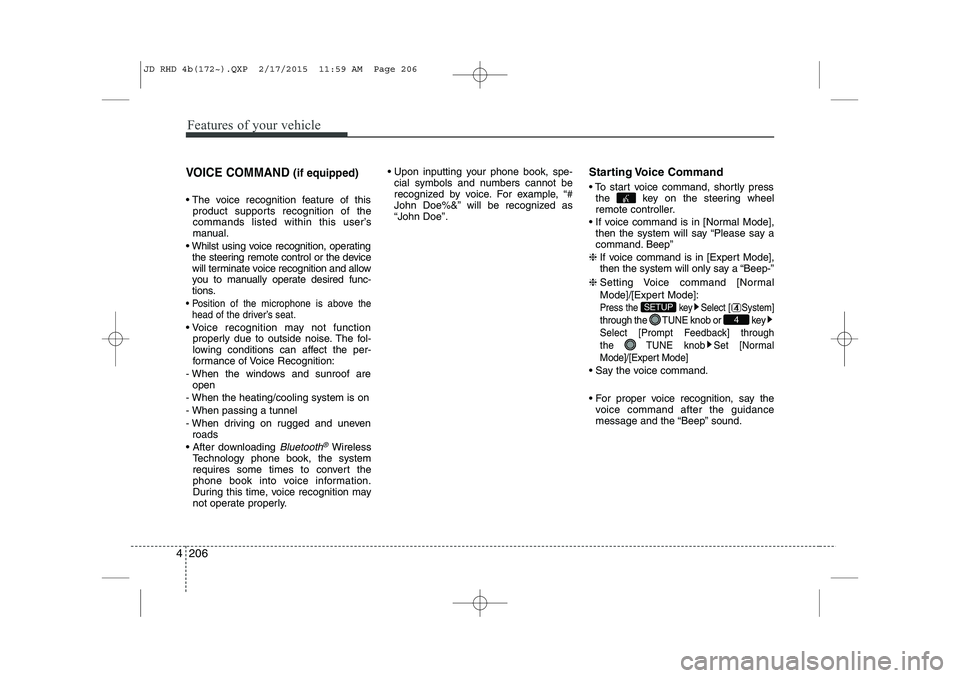
VOICE COMMAND (if equipped)
The voice recognition feature of this
product supports recognition of the
commands listed within this user’s
manual.
Whilst using voice recognition, operating the steering remote control or the device
will terminate voice recognition and allow
you to manually operate desired func-
tions.
Position of the microphone is above the head of the driver’s seat.
Voice recognition may not function properly due to outside noise. The fol-
lowing conditions can affect the per-
formance of Voice Recognition:
- When the windows and sunroof are open
- When the heating/cooling system is on
- When passing a tunnel
- When driving on rugged and uneven roads
After downloading
Bluetooth®Wireless
Technology phone book, the system
requires some times to convert the
phone book into voice information.
During this time, voice recognition may
not operate properly. Upon inputting your phone book, spe-
cial symbols and numbers cannot be
recognized by voice. For example, “#
John Doe%&” will be recognized as“John Doe”. Starting Voice Command
To start voice command, shortly press
the key on the steering wheel
remote controller.
If voice command is in [Normal Mode], then the system will say “Please say a
command. Beep”
❈ If voice command is in [Expert Mode],
then the system will only say a “Beep-”
❈ Setting Voice command [Normal
Mode]/[Expert Mode]:
Press the key Select [ System]
through the TUNE knob or key
Select [Prompt Feedback] through
the TUNE knob Set [Normal
Mode]/[Expert Mode]
Say the voice command.
For proper voice recognition, say the
voice command after the guidance
message and the “Beep” sound.
4
SETUP
JD RHD 4b(172~).QXP 2/17/2015 11:59 AM Page 206
Page 895 of 1210
Features of your vehicle
210
4
System?
activated
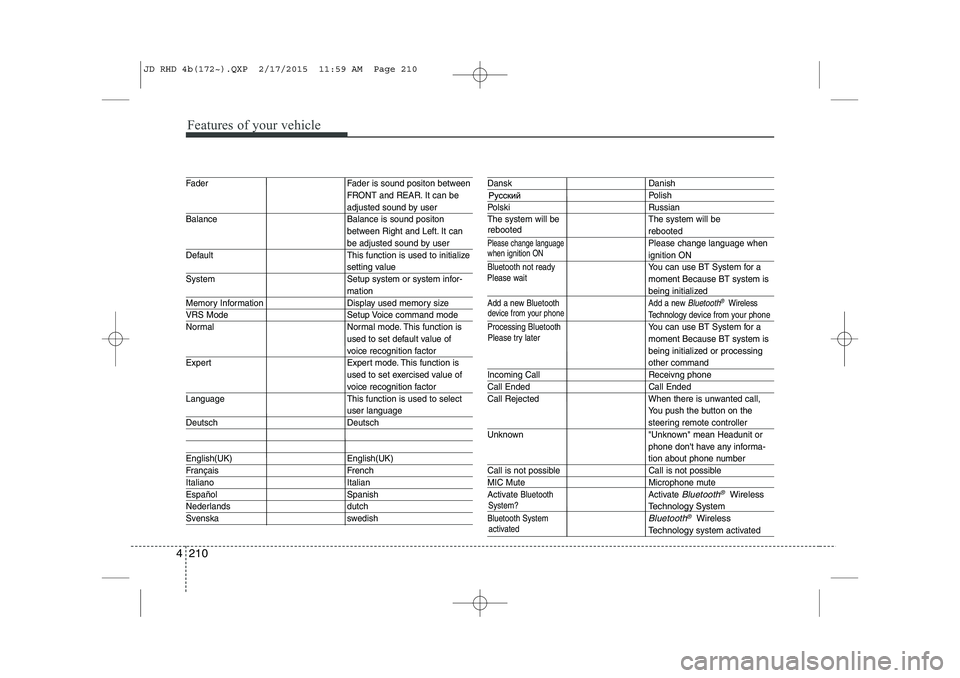
Fader Fader is sound positon between FRONT and REAR. It can be
adjusted sound by user
Balance Balance is sound positon between Right and Left. It can
be adjusted sound by user
Default This function is used to initialize
setting value
System Setup system or system infor-
mation
Memory Information Display used memory size
VRS Mode Setup Voice command mode
Normal Normal mode. This function is used to set default value of
voice recognition factor
Expert Expert mode. This function is used to set exercised value of
voice recognition factor
Language This function is used to select
user language
Deutsch Deutsch
English(UK) English(UK)
Français French
Italiano Italian
Español Spanish
Nederlands dutch
Svenska swedish
Dansk Danish
Polish
Polski Russian
The system will be The system will be
rebooted
Please change languagePlease change language when
ignition ON
Bluetooth not readyYou can use BT System for a moment Because BT system is
being initialized
Add a new Bluetooth Add a new Bluetooth®Wireless
Technology de vice from your phone
Processing Bluetooth
You can use BT System for a moment Because BT system is
being initialized or processing
other command
Incoming Call Receivng phone
Call Ended Call Ended
Call Rejected When there is unwanted call, You push the button on the
steering remote controller
Unknown "Unknown" mean Headunit or phone don't have any informa-
tion about phone number
Call is not possible Call is not possible
MIC Mute Microphone mute
Activate
BluetoothActivate Bluetooth®Wireless
TechnologySystem
Bluetooth SystemBluetooth®Wireless
Technologysystem activated
when ignition ON
device from your phone
Please try later
Please wait
rebooted
JD RHD 4b(172~).QXP 2/17/2015 11:59 AM Page 210