change time KIA CEED 2015 Repair Manual
[x] Cancel search | Manufacturer: KIA, Model Year: 2015, Model line: CEED, Model: KIA CEED 2015Pages: 1210, PDF Size: 35.92 MB
Page 833 of 1210
Features of your vehicle
148
4
✽NOTICE
• Replace the filter according to the Maintenance Schedule.
If the car is being driven in severe
conditions such as dusty, rough roads,
more frequent climate control air fil-
ter inspections and changes are
required.
• When the air flow rate suddenly
decreases, we recommend that the
system be checked by an authorised
Kia dealer.Checking the amount of air con-
ditioner refrigerant and compres-sor lubricant
When the amount of refrigerant is low,
the performance of the air conditioning is
reduced. Overfilling also has a bad influ-ence on the air conditioning system.
Therefore, if abnormal operation is
found, we recommend that the system be
inspected by an authorised Kia dealer.
*: Your vehicle is filled with R-134a or R-1234yf according to the regulation in
your country at the time of producing.
You can find out which air conditioning
refrigerant is applied your vehicle at
the label inside of bonnet. Refer to sec-
tion 8 for more detail location of air
conditioning refrigerant label.
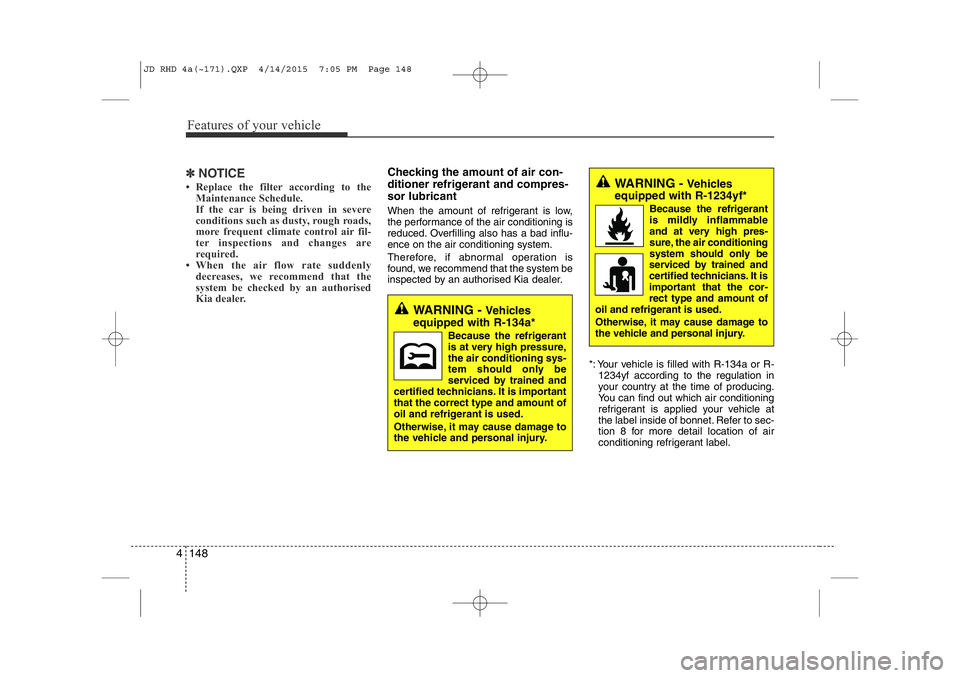
WARNING - Vehicles
equipped with R-1234yf*
Because the refrigerant
is mildly inflammable
and at very high pres-
sure, the air conditioning
system should only be
serviced by trained and
certified technicians. It is
important that the cor- rect type and amount of
oil and refrigerant is used.
Otherwise, it may cause damage to
the vehicle and personal injury.
WARNING - Vehicles
equipped with R-134a*
Because the refrigerant
is at very high pressure,the air conditioning sys-
tem should only be
serviced by trained and
certified technicians. It is important that the correct type and amount of
oil and refrigerant is used.
Otherwise, it may cause damage to
the vehicle and personal injury.
JD RHD 4a(~171).QXP 4/14/2015 7:05 PM Page 148
Page 838 of 1210
4 153
Features of your vehicle
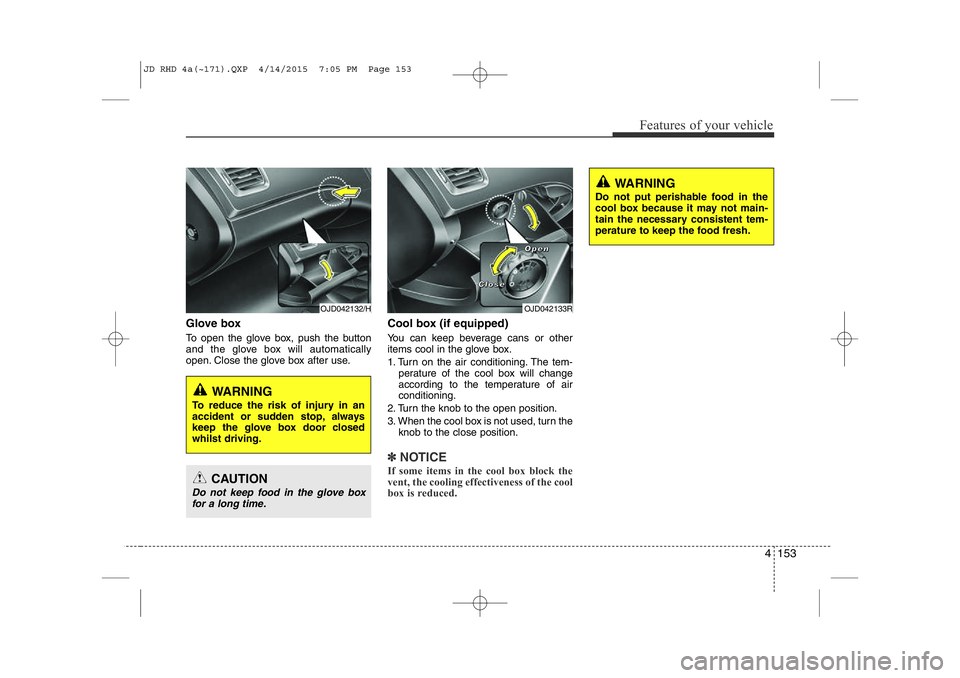
Glove box
To open the glove box, push the button
and the glove box will automatically
open. Close the glove box after use.Cool box (if equipped)
You can keep beverage cans or other
items cool in the glove box.
1. Turn on the air conditioning. The tem-
perature of the cool box will change
according to the temperature of airconditioning.
2. Turn the knob to the open position.
3. When the cool box is not used, turn the knob to the close position.
✽NOTICE
If some items in the cool box block the
vent, the cooling effectiveness of the cool
box is reduced.
OJD042133R
WARNING
Do not put perishable food in the
cool box because it may not main-
tain the necessary consistent tem-
perature to keep the food fresh.
OJD042132/H
WARNING
To reduce the risk of injury in an
accident or sudden stop, always
keep the glove box door closedwhilst driving.
CAUTION
Do not keep food in the glove box for a long time.
CClloossee
OOppeenn
JD RHD 4a(~171).QXP 4/14/2015 7:05 PM Page 153
Page 861 of 1210
Features of your vehicle
176
4
CAUTION
Operating the device whilst driv-
ing could lead to accidents due to
a lack of attention to external sur- roundings. First park the vehiclebefore operating the device.
Adjust the volume to levels that allow the driver to hear soundsfrom outside of the vehicle. Driving in a state where external sounds cannot be heard may lead
to accidents.
Pay attention to the volume set- ting when turning the device on.A sudden output of extreme vol-
ume upon turning the device oncould lead to hearing impairment. (Adjust the volume to a suitablelevels before turning off the
device.)
If you want to change the position of device installation, pleaseinquire with your place of pur-chase or service maintenance
centre. Technical expertise isrequired to install or disassemble the device.
(Continued)
WARNING
Do not stare at the screen whilst driving. Staring at the screen for
prolonged periods of time couldlead to traffic accidents.
Do not disassemble, assemble, or modify the audio system. Suchacts could result in accidents,
fire, or electric shock.
Using the phone whilst driving may lead to a lack of attention of trafficconditions and increase the likeli-
bonnet of accidents. Use the
phone feature after parking the
vehicle.
Heed caution not to spill water or introduce foreign objects into the
device. Such acts could lead to
smoke, fire, or product malfunc-tion.
Please refrain from use if the screen is blank or no sound can
be heard as these signs may indi-
cate product malfunction.
Continued use in such conditionscould lead to accidents(fires,
electric shock) or product mal-functions.
(Continued)(Continued)
Do not touch the antenna duringthunder or lightening as such
acts may lead to lightning
induced electric shock.
Do not stop or park in parking- restricted areas to operate the
product. Such acts could lead totraffic accidents.
Use the system with the vehicle ignition turned on. Prolonged usewith the ignition turned off could
result in battery discharge.
JD RHD 4b(172~).QXP 2/17/2015 11:59 AM Page 176
Page 867 of 1210
Features of your vehicle
182
4
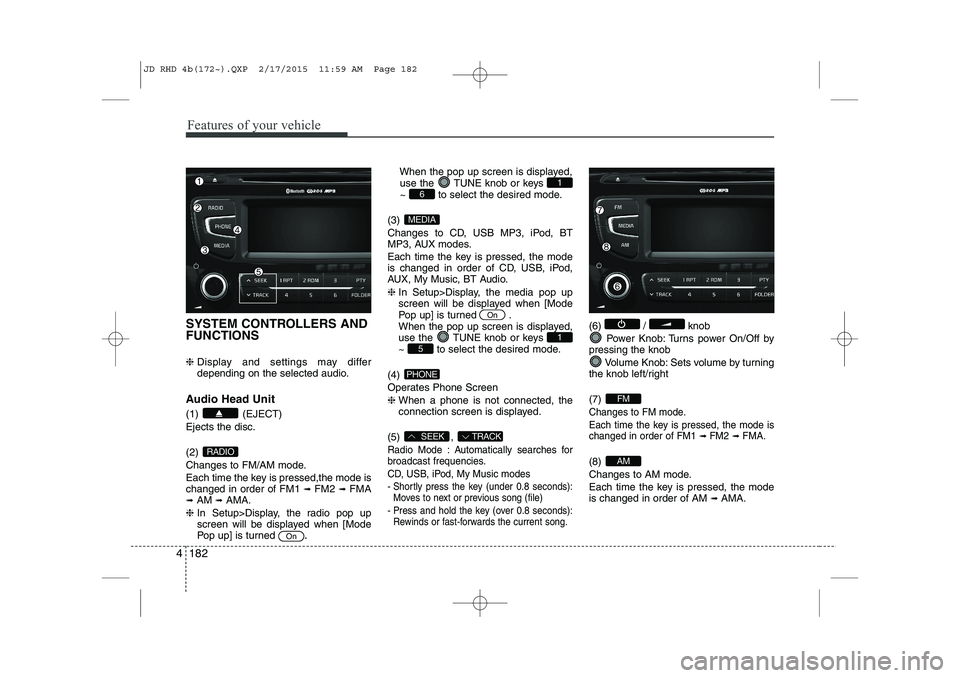
SYSTEM CONTROLLERS AND FUNCTIONS ❈ Display and settings may differ
depending on the selected audio.
Audio Head Unit (1) (EJECT) Ejects the disc. (2)
Changes to FM/AM mode.
Each time the key is pressed,the mode is changed in order of FM1 ➟
FM2 ➟FMA
➟ AM ➟AMA.
❈ In Setup>Display, the radio pop up
screen will be displayed when [Mode
Pop up] is turned .When the pop up screen is displayed,
use the TUNE knob or keys
~ to select the desired mode.
(3)
Changes to CD, USB MP3, iPod, BT
MP3, AUX modes.
Each time the key is pressed, the mode
is changed in order of CD, USB, iPod,
AUX, My Music, BT Audio. ❈ In Setup>Display, the media pop up
screen will be displayed when [Mode
Pop up] is turned .
When the pop up screen is displayed,
use the TUNE knob or keys
~ to select the desired mode.
(4)
Operates Phone Screen❈ When a phone is not connected, the
connection screen is displayed.
(5) ,
Radio Mode : Automatically searches for
broadcast frequencies.
CD, USB, iPod, My Music modes
- Shortly press the key (under 0.8 seconds): Moves to next or previous song (file)
- Press and hold the key (over 0.8 seconds): Rewinds or fast-forwards the current song.
(6) / knob
Power Knob: Turns power On/Off by
pressing the knob
Volume Knob: Sets volume by turning
the knob left/right (7)
Changes to FM mode.
Each time the key is pressed, the mode is changed in order of FM1
➟ FM2➟ FMA.
(8)
Changes to AM mode.
Each time the key is pressed, the mode is changed in order of AM ➟
AMA.AM
FM
TRACKSEEK
PHONE
51
On
MEDIA
61
On
RADIO
JD RHD 4b(172~).QXP 2/17/2015 11:59 AM Page 182
Page 868 of 1210
4 183
Features of your vehicle
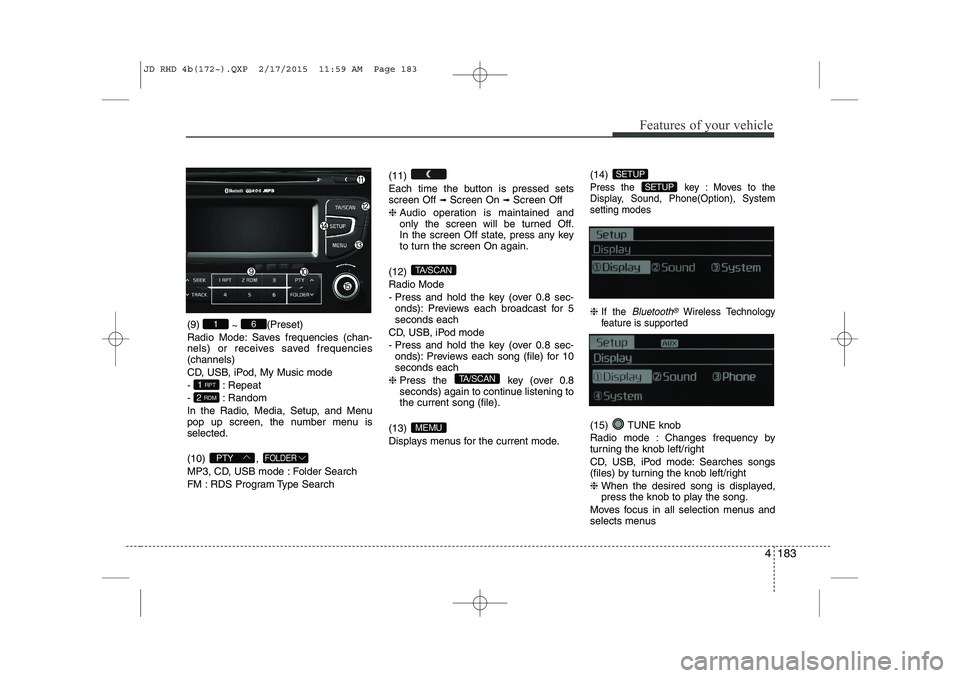
(9) ~ (Preset)
Radio Mode: Saves frequencies (chan-
nels) or receives saved frequencies(channels)
CD, USB, iPod, My Music mode
- : Repeat
- : Random
In the Radio, Media, Setup, and Menu
pop up screen, the number menu isselected. (10) ,
MP3, CD, USB mode : Folder Search
FM : RDS Program Type Search (11)
Each time the button is pressed sets screen Off
➟
Screen On ➟Screen Off
❈ Audio operation is maintained and
only the screen will be turned Off.
In the screen Off state, press any key
to turn the screen On again.
(12) Radio Mode
- Press and hold the key (over 0.8 sec- onds): Previews each broadcast for 5 seconds each
CD, USB, iPod mode
- Press and hold the key (over 0.8 sec- onds): Previews each song (file) for 10 seconds each
❈ Press the key (over 0.8
seconds) again to continue listening tothe current song (file).
(13)
Displays menus for the current mode. (14)
Press the key : Moves to the
Display, Sound, Phone(Option), Systemsetting modes
❈
If the Bluetooth®Wireless Technology
feature is supported
(15) TUNE knob
Radio mode : Changes frequency by
turning the knob left/right
CD, USB, iPod mode: Searches songs
(files) by turning the knob left/right ❈ When the desired song is displayed,
press the knob to play the song.
Moves focus in all selection menus and
selects menus
SETUP
SETUP
MEMU
TA/SCAN
TA/SCAN
FOLDERPTY
2 RDM
1 RPT
61
JD RHD 4b(172~).QXP 2/17/2015 11:59 AM Page 183
Page 869 of 1210
![KIA CEED 2015 Repair Manual Features of your vehicle
184
4
DISPLAY SETTINGS
Press the key Select [Display]
through TUNE knob or key
Select menu through TUNE knob
Mode Pop up
[Mode Pop up] Changes selection mode
During](/img/2/57940/w960_57940-868.png "KIA CEED 2015 Repair Manual Features of your vehicle
184
4
DISPLAY SETTINGS
Press the key Select [Display]
through TUNE knob or key
Select menu through TUNE knob
Mode Pop up
[Mode Pop up] Changes selection mode
During")
Features of your vehicle
184
4
DISPLAY SETTINGS
Press the key Select [Display]
through TUNE knob or key
Select menu through TUNE knob
Mode Pop up
[Mode Pop up] Changes selection mode
During On state, press the or
key to display the mode
change pop up screen.
Scroll Text
[Scroll Text] Set /
: Maintains scroll
: Scrolls only one (1) time.
Song Info
When playing an MP3 file, select the
desired display info from ‘Folder/File’ or
‘Album/Artist/Song’. SOUND SETTINGS
Press the key Select [Sound]
through TUNE knob or key
Select menu through TUNE knob
2
RDM
SETUP
Off
On
OffOn
MEDIA
RADIO
On
1 RPT
SETUP
JD RHD 4b(172~).QXP 2/17/2015 11:59 AM Page 184
Page 883 of 1210
![KIA CEED 2015 Repair Manual Features of your vehicle
198
4
All Random
Press the key Set [ A.RDM] through the TUNEknob or
key.
Plays all songs within the currently play-
ing category in random order.
Information
Press the](/img/2/57940/w960_57940-882.png "KIA CEED 2015 Repair Manual Features of your vehicle
198
4
All Random
Press the key Set [ A.RDM] through the TUNEknob or
key.
Plays all songs within the currently play-
ing category in random order.
Information
Press the")
Features of your vehicle
198
4
All Random
Press the key Set [ A.RDM] through the TUNEknob or
key.
Plays all songs within the currently play-
ing category in random order.
Information
Press the key Set [ Info] through the
TUNEknob or
key.
Displays information of the current song.
Search
Press the key Set [ Search] through the TUNEknob or
key.
Some iPod models may not support communication protocol and files may
not properly play.
Supported iPod models:
- iPod Mini ®
- iPod 4th(Photo) ~ 6th(Classic) genera- tion
- iPod Nano ®
1st~4th generation
- iPod Touch ®
1st~2nd generation The order of search or playback of
songs in the iPod can be different from the order searched in the audio system.
If the iPod is disabled due to its own malfunction, reset the iPod. (Reset:
Refer to iPod manual)
An iPod may not operate normally on low battery.
Some iPod devices, such as the iPhone, can be connected through the
-interface. The device must have audio
Bluetooth®Wireless Technology capa-
bility (such as for stereo headphone
Bluetooth®Wireless Technology ). The
device can play, but it will not be con-
trolled by the audio system.
To use iPod features within the audio, use the cable provided upon purchasing an
iPod device.
Skipping or improper operation may occur depending on the characteristics of your
iPod/Phone device.
If your iPhone is connected to both the
Bluetooth®Wireless Technology and
USB, the sound may not be properly
played. In your iPhone, select the Dockconnector or
Bluetooth®Wireless
Technology to change the sound output
(source). When connecting iPod with the iPod
Power Cable, insert the connector to the
multimedia socket completely. If not
inserted completely, communications
between iPod and audio may be inter-
rupted.
When adjusting the sound effects of the iPod and the audio system, the sound
effects of both devices will overlap and
might reduce or distort the quality of thesound.
Deactivate (turn off) the equalizer func- tion of an iPod when adjusting the audio
system’s volume, and turn off the
equalizer of the audio system whenusing the equaliz
er of an iPod.
When not using iPod with car audio, detach the iPod cable from iPod. Otherwise, iPod
may remain in accessory mode, and may
not work properly.
5
MENU
4
MENU
3
MENU
JD RHD 4b(172~).QXP 2/17/2015 11:59 AM Page 198
Page 885 of 1210
Features of your vehicle
200
4
✽✽
NOTICE FOR USING THE My Music
Even if memory is available, a maxi- mum of 6,000 songs can be stored.
The same song can be copied up to
1,000 times.
Memory info can be checked in the
System menu of Setup.AUX
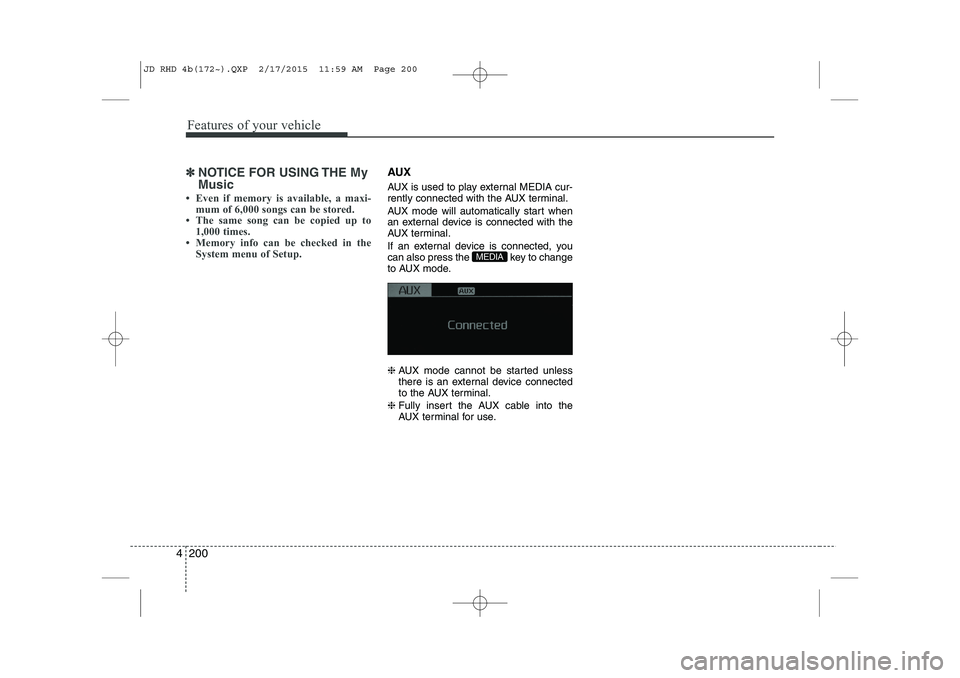
AUX is used to play external MEDIA cur-
rently connected with the AUX terminal.
AUX mode will automatically start when
an external device is connected with the
AUX terminal.
If an external device is connected, you
can also press the key to change
to AUX mode. ❈ AUX mode cannot be started unless
there is an external device connected
to the AUX terminal.
❈ Fully insert the AUX cable into the
AUX terminal for use.
MEDIA
JD RHD 4b(172~).QXP 2/17/2015 11:59 AM Page 200
Page 898 of 1210
4 213
Features of your vehicle
SYSTEM CONTROLLERS AND FUNCTIONS
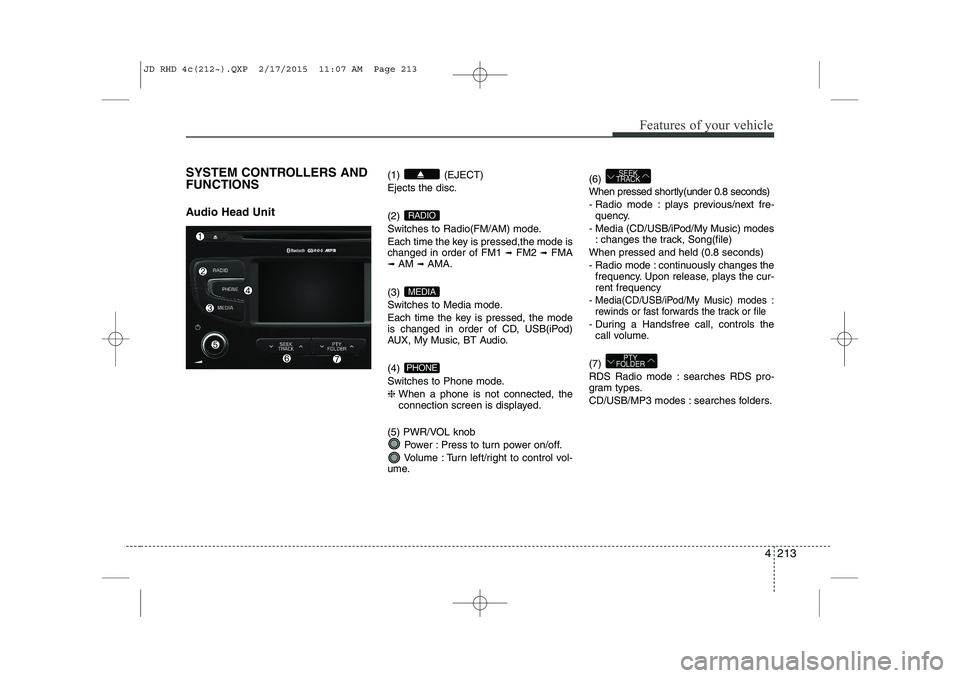
Audio Head Unit (1) (EJECT) Ejects the disc. (2)
Switches to Radio(FM/AM) mode.
Each time the key is pressed,the mode is changed in order of FM1
➟
FM2 ➟FMA
➟ AM ➟AMA.
(3)
Switches to Media mode.
Each time the key is pressed, the mode
is changed in order of CD, USB(iPod)
AUX, My Music, BT Audio. (4)
Switches to Phone mode.❈ When a phone is not connected, the
connection screen is displayed.
(5) PWR/VOL knob Power : Press to turn power on/off.
Volume : Turn left/right to control vol-
ume. (6)
When pressed shortly(under 0.8 seconds)
- Radio mode : plays previous/next fre-
quency.
- Media (CD/USB/iPod/My Music) modes : changes the track, Song(file)
When pressed and held (0.8 seconds)
- Radio mode : continuously changes the frequency. Upon release, plays the cur- rent frequency
-
Media(CD/USB/iPod/My Music) modes :
rewinds or fast forwards the track or file
- During a Handsfree call, controls the call volume.
(7)
RDS Radio mode : searches RDS pro-
gram types.
CD/USB/MP3 modes : searches folders.
PTY
FOLDER
SEEK
TRACK
PHONE
MEDIA
RADIO
JD RHD 4c(212~).QXP 2/17/2015 11:07 AM Page 213
Page 900 of 1210
4 215
Features of your vehicle
Steering remote controller
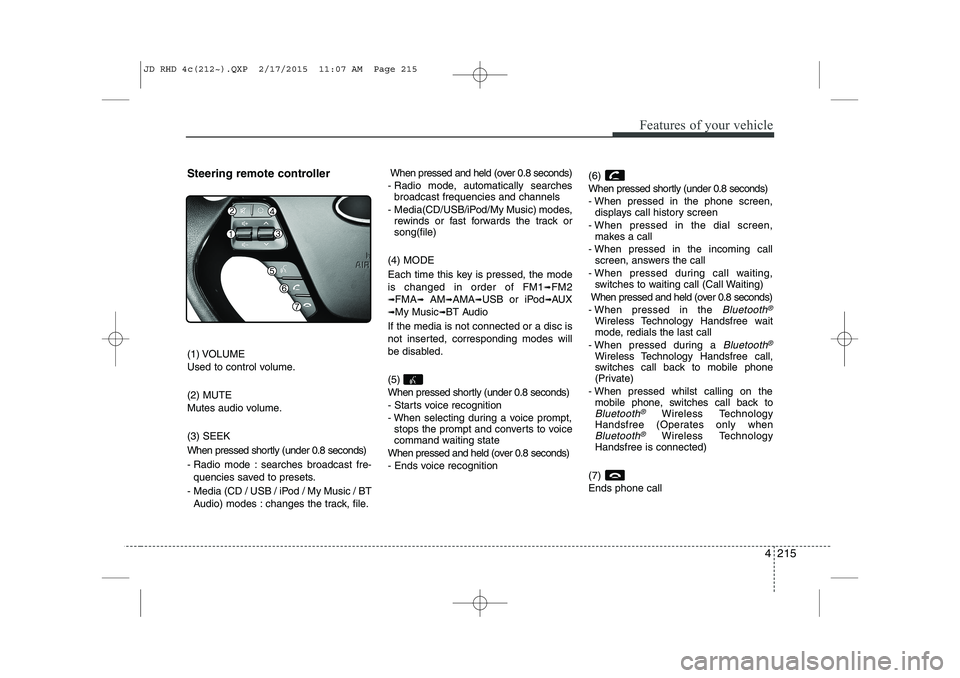
(1) VOLUME
Used to control volume. (2) MUTE
Mutes audio volume. (3) SEEK
When pressed shortly (under 0.8 seconds)
- Radio mode : searches broadcast fre-quencies saved to presets.
- Media (CD / USB / iPod / My Music / BT Audio) modes : changes the track, file. When pressed and held (over 0.8 seconds)
- Radio mode, automatically searches broadcast frequencies and channels
- Media(CD/USB/iPod/My Music) modes, rewinds or fast forwards the track or song(file)
(4) MODE
Each time this key is pressed, the mode is changed in order of FM1
➟FM2
➟FMA➟AM➟AMA➟USB or iPod➟AUX
➟My Music➟BT Audio
If the media is not connected or a disc is
not inserted, corresponding modes will
be disabled. (5)
When pressed shortly (under 0.8 seconds)
- Starts voice recognition
- When selecting during a voice prompt, stops the prompt and converts to voice
command waiting state
When pressed and held (over 0.8 seconds)
- Ends voice recognition (6)
When pressed shortly (under 0.8 seconds)
- When pressed in the phone screen,
displays call history screen
- When pressed in the dial screen, makes a call
- When pressed in the incoming call screen, answers the call
- When pressed during call waiting, switches to waiting call (Call Waiting)
When pressed and held (over 0.8 seconds)
- When pressed in the Bluetooth®
Wireless Technology Handsfree wait
mode, redials the last call
- When pressed during a
Bluetooth®
Wireless Technology Handsfree call,
switches call back to mobile phone
(Private)
- When pressed whilst calling on the mobile phone, switches call back to
Bluetooth®Wireless Technology
Handsfree (Operates only when
Bluetooth®Wireless Technology
Handsfree is connected)
(7) Ends phone call
JD RHD 4c(212~).QXP 2/17/2015 11:07 AM Page 215