phone KIA CEED 2017 User Guide
[x] Cancel search | Manufacturer: KIA, Model Year: 2017, Model line: CEED, Model: KIA CEED 2017Pages: 653, PDF Size: 54.59 MB
Page 278 of 653
Features of your vehicle
194
4
(Continued)
If you use devices such as a USB
hub purchased separately, the
vehicle’s audio system may not
recognize the USB device. In that
case, connect the USB device
directly to the multimedia termi-
nal of the vehicle.
If the USB device is divided by log- ical drives, only the music files on
the highest-priority drive are rec-
ognized by car audio.
Devices such as MP3 Player/ Cellular phone/Digital camera can
be unrecognizable by standard
USB I/F can be unrecognizable.
Charging through the USB may not be supported in some mobile
devices.
USB HDD or USB types liable to connection failures due to vehicle
vibrations are not supported. (i-
stick type)
Some non-standard USB devices (METAL COVER TYPE USB)
can be unrecognizable. (Continued)(Continued)
Some USB flash memory readers
(such as CF, SD, micro SD, etc.) or
external-HDD type devices can be
unrecognizable.
Music files protected by DRM (DIGITAL RIGHTS MANAGE-
MENT) are not recognizable.
The data in the USB memory may be lost while using this audio.
Always back up important data on
a personal storage device.
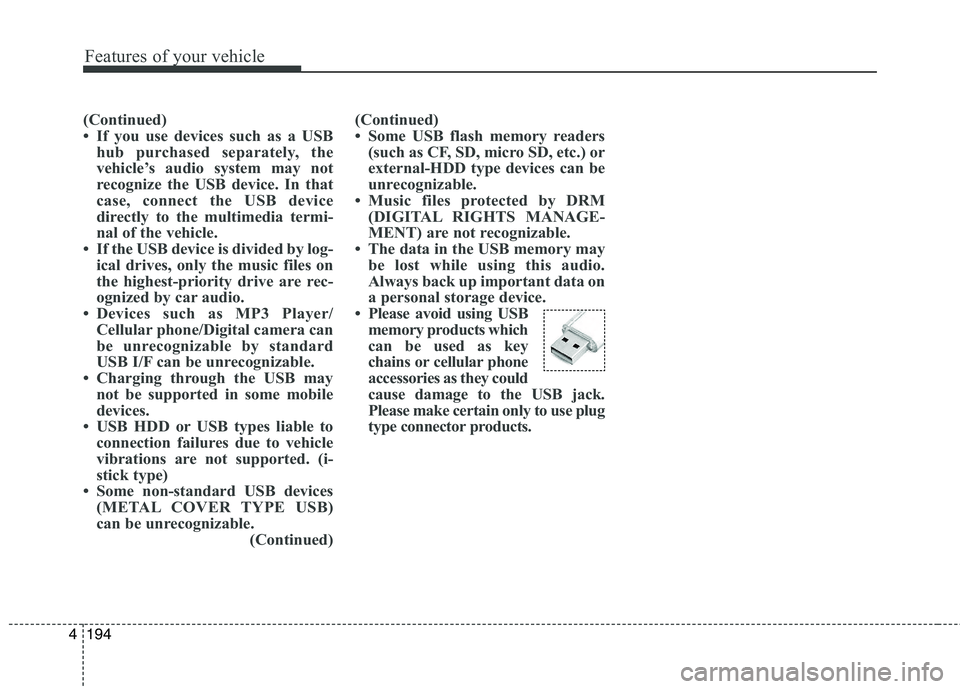
Please avoid using USB memory products which
can be used as key
chains or cellular phone
accessories as they could
cause damage to the USB jack.
Please make certain only to use plug
type connector products.
Page 279 of 653
Features of your vehicle
4 195
✽✽NOTICE - USING THE iPod ®
DEVICE
Some iPod models may not sup- port communication protocol and
files may not properly play.
Supported iPod models:
- iPhone 3GS/4
- iPod touch 1st~4th generation
- iPod nano 1st~6th generation
- iPod classic
The order of search or playback of songs in the iPod can be different
from the order searched in the
audio system.
If the iPod disabled due to its own malfunction, reset the iPod.
(Reset: Refer to iPod manual)
An iPod may not operate normal- ly on low battery. (Continued)(Continued)
Some iPod devices, such as the
iPhone, can be connected through
the Bluetooth ®
Wireless Technology
interface. The device must have
audio Bluetooth®
Wireless
Technology capability (such as for
stereo headphone Bluetooth®
Wireless Technology ). The device
can play, but it will not be con-
trolled by the audio system.
To use iPod features within the audio, use the cable provided upon purchas-
ing an iPod device.
Skipping or improper operation may occur depending on the characteris-
tics of your iPod/Phone device.
If your iPhone is connected to both the Bluetooth ®
Wireless Technology
and USB, the sound may not be prop-
erly played. In your iPhone, select the
Dock connector or Bluetooth®
Wireless Technology to change the
sound output (source). (Continued)(Continued)
When connecting iPod with the
iPod Power Cable, insert the con-
nector to the multimedia socket
completely. If not inserted com-
pletely, communications between
iPod and audio may be interrupted.
When adjusting the sound effects of the iPod and the audio system,
the sound effects of both devices
will overlap and might reduce or
distort the quality of the sound.
Deactivate (turn off) the equalizer function of an iPod when adjust-
ing the audio system’s volume, and
turn off the equalizer of the audio
system when using the equalizer of
an iPod.
When not using iPod with car audio, detach the iPod cable from
iPod. Otherwise, iPod may remain
in accessory mode, and may not
work properly.
Beside support 1M cable when purchasing iPod/iPhone products,
Long Cable cannot be recognized.
Page 280 of 653
Features of your vehicle
196
4
✽✽
NOTICE - USING THE
Bluetooth®Wireless
Technology CELLULAR PHONE
Do not use a cellular phone or per- form Bluetooth ®
Wireless Technology
settings (e.g. pairing a phone)
while driving.
Some Bluetooth ®
Wireless Technology
-enabled phones may not be recog-
nized by the system or fully com-
patible with the system.
Before using Bluetooth®
Wireless
Technology related features of the
audio system, refer your phone’s
User’s Manual for phone-side
Bluetooth ®
Wireless Technology
operations.
The phone must be paired to the audio system to use Bluetooth®
Wireless Technology related fea-
tures.
You will not be able to use the hands-free feature when your
phone (in the car) is outside of the
cellular service area (e.g. in a tun-
nel, in a underground, in a moun-
tainous area, etc.). (Continued)(Continued)
If the cellular phone signal is poor
or the vehicles interior noise is too
loud, it may be difficult to hear the
other person’s voice during a call.
Do not place the phone near or inside metallic objects, otherwise
communications with Bluetooth®
Wireless Technology system or cel-
lular service stations can be dis-
turbed.
While a phone is connected through Bluetooth ®
Wireless Technology
your phone may discharge quicker
than usual for additional Bluetooth®
Wireless Technology-related opera-
tions.
Some cellular phones or other devices may cause interference
noise or malfunction to audio sys-
tem. In this case, store the device
in a different location may resolve
the condition.
Phone contact names should be saved in English or they may not
be displayed correctly. (Continued)(Continued)
If Priority is set upon vehicle igni-
tion(IGN/ACC ON), the Bluetooth®
Wireless Technology phone will be
automatically connected.
Even if you are outside, the
Bluetooth ®
Wireless Technology
phone will be automatically con-
nected once you are in the vicinity
of the vehicle.
If you do not want automatic
Bluetooth ®
Wireless Technology
connection, turn the Bluetooth®
Wireless Technology feature off.
The hands-free call volume and quality may differ depending on
the mobile phone type.
Bluetooth ®
Wireless Technology
features can be used only when the
mobile phone has been paired and
connected with the device. For
more information on pairing and
connecting Bluetooth®
Wireless
Technology enabled mobile phones,
refer to the “Phone Setup” section. (Continued)
Page 281 of 653
Features of your vehicle
4 197
(Continued)
When a Bluetooth®
Wireless
Technology mobile phone is con-
nected, a ( ) icon will appear at
the top of the screen. If a ( ) icon
is not displayed, this indicates thata Bluetooth ®
Wireless Technology
enabled device has not been con-
nected. You must connect the
device before use. For more infor-
mation on Bluetooth®
Wireless
Technology mobile phones, refer
to the “Phone Setup” section.
Pairing and connecting a Bluetooth ®
Wireless Technology
enabled mobile phone will work
only when the Bluetooth®
Wireless
Technology option within your
mobile phone has been turned on.
(Methods of turning on the
Bluetooth ®
Wireless Technology
enabled feature may differ
depending on the mobile phone.) (Continued)(Continued)
In some mobile phones, starting
the ignition while talking through
Bluetooth ®
Wireless Technology
enabled handsfree call will result
in the call becoming disconnected.
(Switch the call back to your
mobile phone when starting the
ignition.)
Some features may not be sup port-
ed in some Bluetooth®
Wireless
Technology mobile phone and
devices.
Bluetooth ®
Wireless Technology
enabled operation may be unsta-
ble depending on the communica-
tion state.
Placing the audio system within an electromagnetic environment may
result in noise interference.
Page 282 of 653
Features of your vehicle
198
4
✽✽
NOTICE - USING VOICE
COMMAND
The voice recognition feature of this product supports recognition
of the commands listed within this
user’s manual.
While using voice recognition, operating the steering remote con-
trol or the device will terminate
voice recognition and allow you to
manually operate desired func-
tions.
Position the microphone above the head of the driver’s seat. For supe-
rior performance, maintain good
posture when saying voice com-
mands. (Continued)(Continued)
Voice recognition may not func-
tion properly due to outside noise.
The following conditions can
affect the performance of Voice
Recognition:
-When the windows and sunroofare open
-When the heating/cooling system is on
-When passing a tunnel
-When driving on rugged and uneven roads
After downloading Bluetooth®
Wireless Technology phone book,
the system requires some times to
convert the phone book into voice
information. During this time,
voice recognition may not operate
properly.
Upon inputting your phone book, special symbols and numbers can-
not be recognized by voice. For
example, “# John Doe%&” will be
recognized as “John Doe”.
Page 284 of 653
Features of your vehicle
200
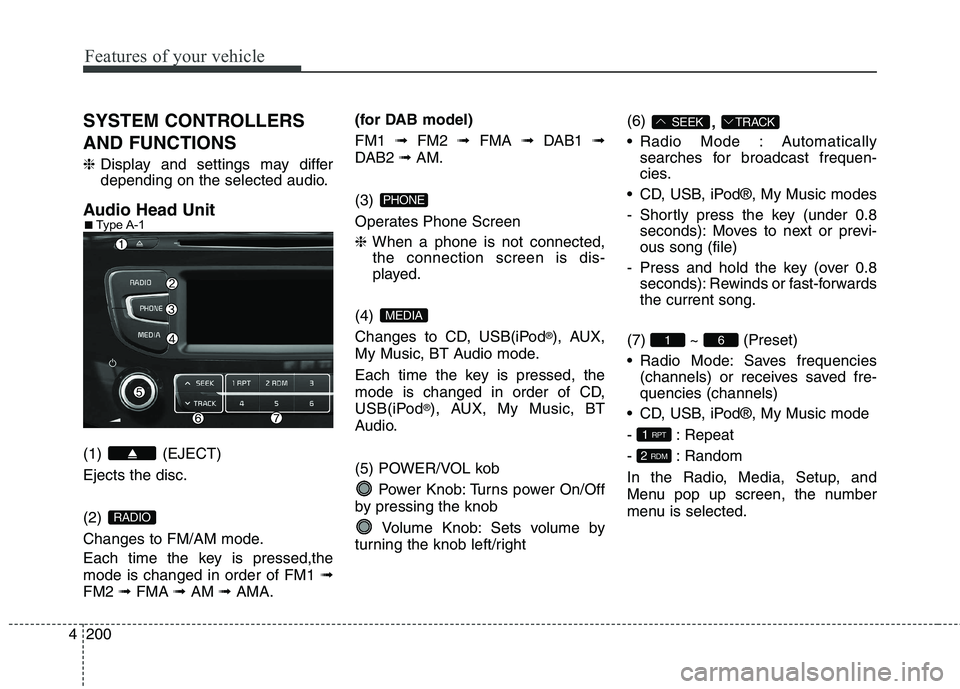
4 SYSTEM CONTROLLERS AND FUNCTIONS ❈
Display and settings may differ
depending on the selected audio.
Audio Head Unit (1) (EJECT) Ejects the disc. (2)
Changes to FM/AM mode.
Each time the key is pressed,the mode is changed in order of FM1 ➟
FM2 ➟FMA ➟AM ➟AMA. (for DAB model) FM1
➟FM2 ➟FMA ➟DAB1 ➟
DAB2 ➟AM.
(3)
Operates Phone Screen ❈ When a phone is not connected,
the connection screen is dis-
played.
(4)
Changes to CD, USB(iPod ®
), AUX,
My Music, BT Audio mode.
Each time the key is pressed, the
mode is changed in order of CD,
USB(iPod ®
), AUX, My Music, BT
Audio.
(5) POWER/VOL kob
Power Knob: Turns power On/Off
by pressing the knob
Volume Knob: Sets volume by
turning the knob left/right (6)
,
Radio Mode : Automatically searches for broadcast frequen-
cies.
CD, USB, iPod®, My Music modes
- Shortly press the key (under 0.8 seconds): Moves to next or previ- ous song (file)
- Press and hold the key (over 0.8 seconds): Rewinds or fast-forwardsthe current song.
(7) ~ (Preset)
Radio Mode: Saves frequencies (channels) or receives saved fre- quencies (channels)
CD, USB, iPod®, My Music mode
- : Repeat
- : Random
In the Radio, Media, Setup, and
Menu pop up screen, the number
menu is selected.
2 RDM
1 RPT
61
TRACKSEEK
MEDIA
PHONE
RADIO
■
Type A-1
Page 285 of 653
Features of your vehicle
4 201
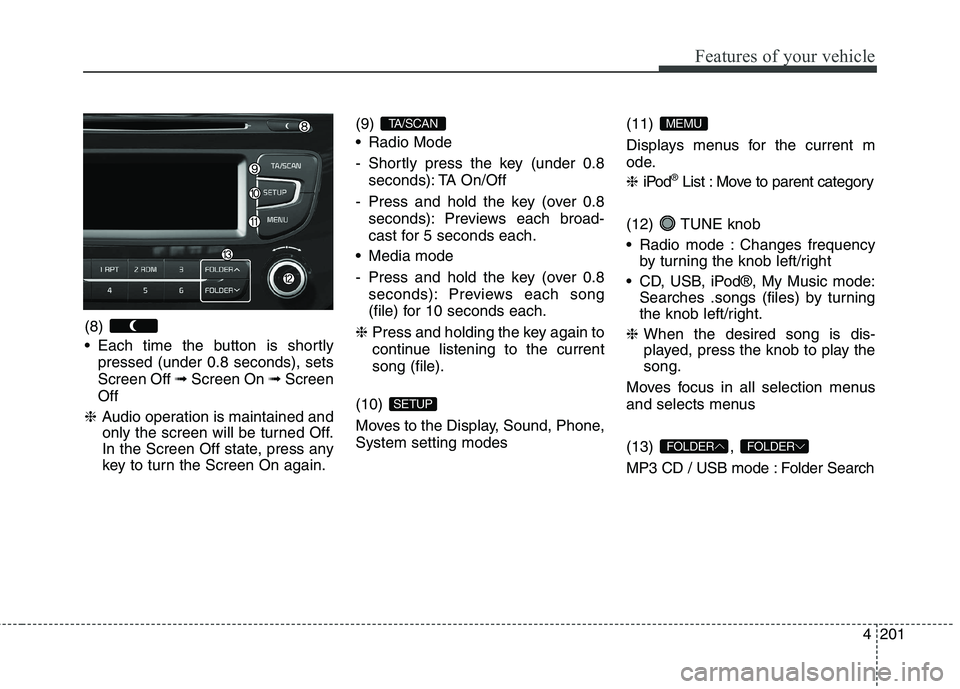
(8)
Each time the button is shortly
pressed (under 0.8 seconds), sets Screen Off ➟Screen On ➟Screen
Off
❈ Audio operation is maintained and
only the screen will be turned Off.
In the Screen Off state, press any
key to turn the Screen On again. (9)
Radio Mode
- Shortly press the key (under 0.8
seconds): TA On/Off
- Press and hold the key (over 0.8 seconds): Previews each broad-
cast for 5 seconds each.
Media mode
- Press and hold the key (over 0.8 seconds): Previews each song
(file) for 10 seconds each.
❈ Press and holding the key again to
continue listening to the currentsong (file).
(10)
Moves to the Display, Sound, Phone, System setting modes (11)
Displays menus for the current m
ode. ❈
iPod ®
List : Move to parent category
(12) TUNE knob
Radio mode : Changes frequency by turning the knob left/right
CD, USB, iPod®, My Music mode: Searches .songs (files) by turning
the knob left/right.
❈ When the desired song is dis-
played, press the knob to play the song.
Moves focus in all selection menus
and selects menus (13) ,
MP3 CD / USB mode : Folder Search
FOLDERFOLDER
MEMU
SETUP
TA/SCAN
Page 289 of 653
![KIA CEED 2017 User Guide Features of your vehicle
4 205
Phone Settings (
Bluetooth®Wireless
Technology equipped model)
Press the key Select [Phone]
Pair Phone
Select [Pair Phone] Set through TUNE knob
➀ Search for devic](/img/2/57941/w960_57941-288.png "KIA CEED 2017 User Guide Features of your vehicle
4 205
Phone Settings (
Bluetooth®Wireless
Technology equipped model)
Press the key Select [Phone]
Pair Phone
Select [Pair Phone] Set through TUNE knob
➀ Search for devic")
Features of your vehicle
4 205
Phone Settings (
Bluetooth®Wireless
Technology equipped model)
Press the key Select [Phone]
Pair Phone
Select [Pair Phone] Set through TUNE knob
➀ Search for device names as dis-
played on your mobile phone and connect.
[Non SSP supported device] (SSP: Secure Simple Pairing)
➁ After a few moments, a screen is
displayed where the passkey is entered. Enter the passkey “0000” to pair
your Bluetooth®Wireless
Technology device with the caraudio system.
[SSP supported device] ➁ After a few moments, a screen is
displayed 6 digits passkey.
Check the passkey on your
Bluetooth®Wireless Technology
device and confirm.
❈ The device name and passkey will
be displayed on the screen for up
to 3 minutes. If pairing is not com-
pleted within the 3 minutes, the
mobile phone pairing process willautomatically be canceled.
➂ Pairing completion is displayed.
❈ In some mobile phones, pairing
will automatically be followed byconnection.
❈ It is possible to pair up to five
Bluetooth®Wireless Technology
enabled mobile phones.
SETUPCAUTION
To pair a Bluetooth®Wireless
Technology enabled mobile phone, authentication and con-nection processes are firstrequired. As a result, you can- not pair your mobile phonewhile driving the vehicle. Firstpark your vehicle before use.
Page 290 of 653
![KIA CEED 2017 User Guide Features of your vehicle
206
4
Phone List
The names of up to 5 paired phones
will be displayed.
A [ ] is displayed in front of the cur-
rently connected phone. Select the desired name to setup the](/img/2/57941/w960_57941-289.png "KIA CEED 2017 User Guide Features of your vehicle
206
4
Phone List
The names of up to 5 paired phones
will be displayed.
A [ ] is displayed in front of the cur-
rently connected phone. Select the desired name to setup the")
Features of your vehicle
206
4
Phone List
The names of up to 5 paired phones
will be displayed.
A [ ] is displayed in front of the cur-
rently connected phone. Select the desired name to setup the
selected phone.
Connecting a phone
Select [Phone List] Select mobile
phone through TUNE knobSelect [Connect Phone] ➀ Select a mobile phone that is not
currently connected.
➁ Connect the selected mobile
phone.
➂ Connection completion is dis-
played.
❈ If a phone is already connected,
disconnect the currently connect-
ed phone and select a new phoneto connect.
Disconnecting a connected phone
Select [Phone List] Select mobile
phone through TUNE knobSelect [Disconnect Phone] ➀ Select the currently connected
mobile phone.
➁ Disconnect the selected mobile
phone.
➂ Disconnection completion is dis-
played.
Page 291 of 653
![KIA CEED 2017 User Guide Features of your vehicle
4 207
Changing connection sequence
(Priority)
This is used to change the order (pri-
ority) of automatic connection for the
paired mobile phones.
Select [Phone List] Select](/img/2/57941/w960_57941-290.png "KIA CEED 2017 User Guide Features of your vehicle
4 207
Changing connection sequence
(Priority)
This is used to change the order (pri-
ority) of automatic connection for the
paired mobile phones.
Select [Phone List] Select")
Features of your vehicle
4 207
Changing connection sequence
(Priority)
This is used to change the order (pri-
ority) of automatic connection for the
paired mobile phones.
Select [Phone List] Select [Priority]
through TUNE knob Select No. 1
Priority mobile phone ➀ Select [Priority].
➁ From the paired phones, select
the phone desired for No.1 priority.
➂ The changed priority sequence is
displayed.
❈ Once the connection sequence
(priority) is changed, the new no. 1
priority mobile phone will be con-nected.
- When the no. 1 priority cannot be connected: Automatically attemptsto connect the most recently con-
nected phone.
- Cases when the most recently con- nected phone cannot be connect-
ed: Attempts to connect in the orderin which paired phones are listed. - The connected phone will automat-
ically be changed to No. 1 priority.
Delete
Select [Phone List] Select mobile
phone through TUNE knobSelect [Delete] ➀ Select the desired mobile phone.
➁ Delete the selected mobile phone.
➂ Deletion completion is displayed.
❈ When attempting to delete a cur-
rently connected phone, the phone is first disconnected.
Phone book Download
This feature is used to download
phone book and call histories intothe audio system.
Select [Phone book Download]
Select through TUNE knob
CAUTION
The download feature may not
be supported in some mobilephones.
When downloading new phone book, delete all previouslysaved phone book before start-ing download.
CAUTION
When you delete a mobile phone, the mobile phonephone book will also be erased.
For stable Bluetooth ®
Wireless
Technology communication, delete the mobile phone fromthe audio and also delete theaudio from your mobile phone.