features KIA Cerato 2011 1.G Owner's Manual
[x] Cancel search | Manufacturer: KIA, Model Year: 2011, Model line: Cerato, Model: KIA Cerato 2011 1.GPages: 342, PDF Size: 7.23 MB
Page 200 of 342
Features of your vehicle
126
4
NOTE:
• If the phone is paired with two or
more vehicles of the same model,
some phones may not handle
Bluetooth
®devices of that name
correctly. In this case, you may need
to change the name displayed on
your phone.
For example, if the vehicles' name is
KMC CAR, you may need to change
the name displayed on you phone
from KMC_CAR to JOHNS_CAR or
KMC CAR_1 to avoid ambiguity.
Refer to your phone User’s Guide, or
contact your cellular carrier or phone
manufacturer for instructions.
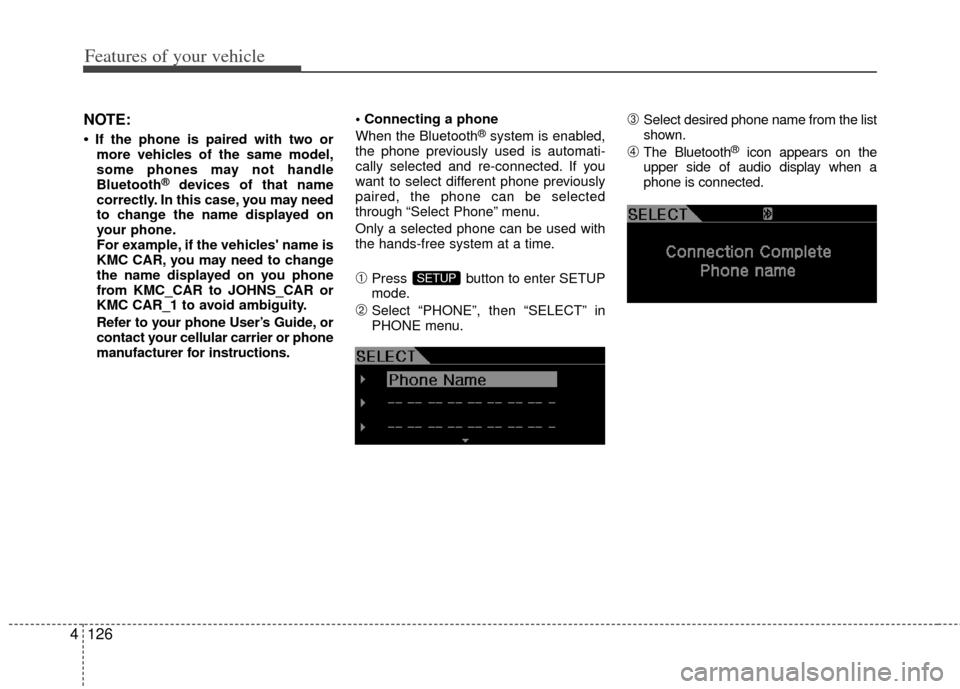
When the Bluetooth
®system is enabled,
the phone previously used is automati-
cally selected and re-connected. If you
want to select different phone previously
paired, the phone can be selected
through “Select Phone” menu.
Only a selected phone can be used with
the hands-free system at a time.
➀Press button to enter SETUP
mode.
\bSelect “PHONE”, then “SELECT” in
PHONE menu.
➂Select desired phone name from the list
shown.
➃The Bluetooth®icon appears on the
upper side of audio display when a
phone is connected.
SETUP
Page 201 of 342
4127
Features of your vehicle
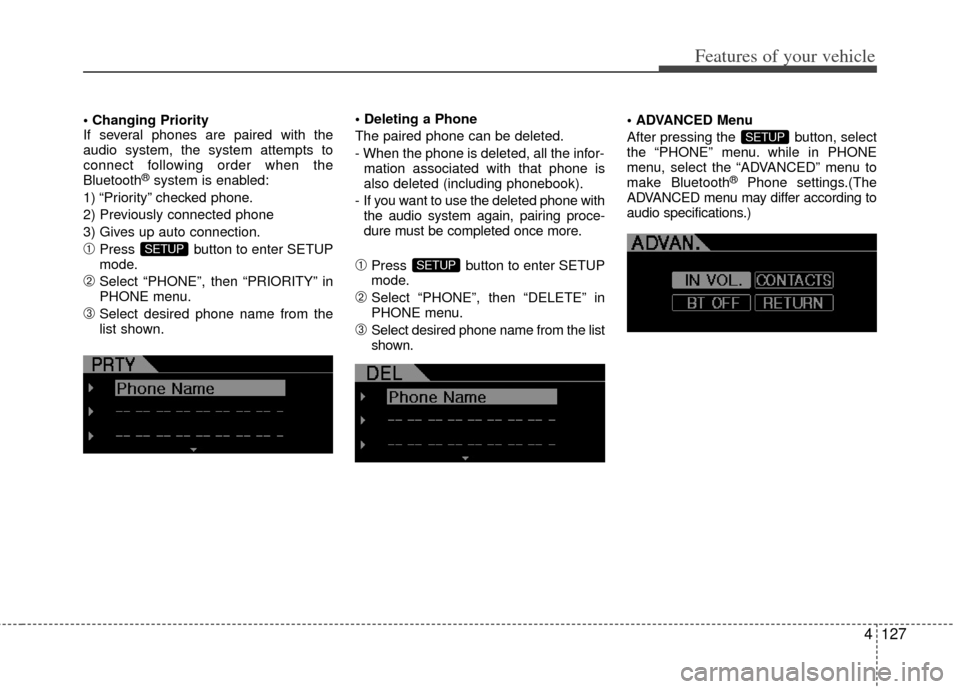
If several phones are paired with the
audio system, the system attempts to
connect following order when the
Bluetooth
®system is enabled:
1) “Priority” checked phone.
2) Previously connected phone
3) Gives up auto connection.
➀Press button to enter SETUP
mode.
\bSelect “PHONE”, then “PRIORITY” in
PHONE menu.
➂Select desired phone name from the
list shown.
The paired phone can be deleted.
- When the phone is deleted, all the infor-
mation associated with that phone is
also deleted (including phonebook).
- If you want to use the deleted phone with the audio system again, pairing proce-
dure must be completed once more.
➀Press button to enter SETUP
mode.
\bSelect “PHONE”, then “DELETE” in
PHONE menu.
➂Select desired phone name from the list
shown. Menu
After pressing the button, select
the “PHONE” menu. while in PHONE
menu, select the “ADVANCED” menu to
make Bluetooth
®Phone settings.(The
ADVANCED menu may differ according to
audio specifications.)
SETUP
SETUP
SETUP
Page 202 of 342
Features of your vehicle
128
4
Incoming Volume (Bluetooth®call vol-
ume adjustments)
While in ADVANCED menu, select
“IN VOL.” Use the knob key to set the
desired volume and press the
button.
Contacts Sync (Automatic Phonebook
download setting)
While in Advanced menu, select
"Contacts" To automatically save the
contacts and call history in your mobile
phone each time you connect a mobile
device, select ON. If you do not wish for
automatic download, select OFF.
It's not available to make a phone call by
bluetooth audio system while the phone-
book is being downloaded.
Bluetooth
®system off
While in Advanced menu, select
"BT Off" to turn off the Bluetooth
®
System.
■ ■
Voice Recognition Activation
in the Bluetooth®System can be acti-
vated in the following conditions:
- Button Activation
The voice recognition system will be
active when the button is pressed
and after the sound of a Beep.
- Active Listening The voice recognition system will be
active for a period of time when the
Voice Recognition system has asked
for a customer response.
from zero to nine while number greater
than ten will not be recognized.
tion mode in following cases : When
pressing the button and saying
“cancel” following the beep. When not
making a call and pressing the
button. When voice recognition has
failed 3 consecutive times.
will announce what commands are
available.
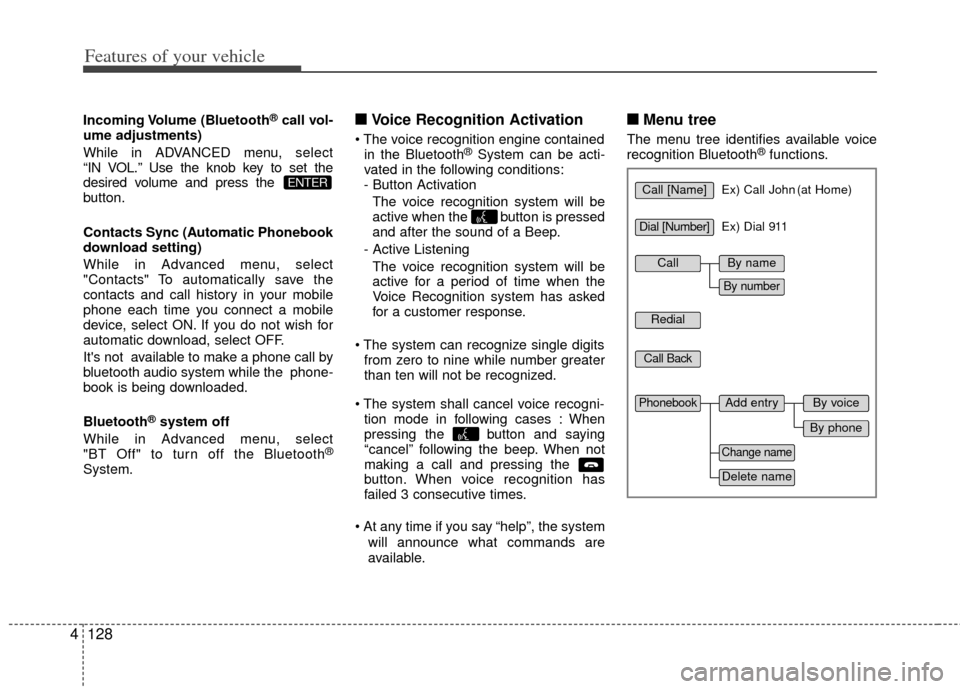
■ ■ Menu tree
The menu tree identifies available voice
recognition Bluetooth®functions.
ENTERCall [Name]Ex) Call John (at Home)
Ex) Dial 911
Dial [Number]
Redial
Call Back
Add entryPhonebook
Change name
Delete name
By phone
By voice
CallBy name
By number
Page 203 of 342
4129
Features of your vehicle
■Making a Phone Call
➀Press button.
\bSay the following command.- Call
- Call
- Call
- Call
Note:
Calls can be immediately connected
to contacts who name or voice tag are
saved in the phonebook(or contacts).
A phone call can be made by speaking
names registered in the audio system.
➀Press button.
\bSay “Call”.
➂Say “By name” when prompted.
➃Say desired name (in Phonebook or
voice tag).
➄Say desired location (phone number
type). Only stored locations can be
selected.
\f Say “Yes” to confirm and make a call.
✽
✽
Tip
■Voice Operation
To get the best performance out of the
Voice Recognition System, observe the
followings:
- Keep the interior of the vehicle as quiet as possible. Close the window
to eliminate surrounding noise
(traffic noise, vibration sounds,
etc), which may disturb recogniz-
ing the voice command correctly.
- Speak a command after a beep sound within 5 seconds. Otherwise
the command will not be received
properly.
- Speak in a natural voice without pausing between words.
- While receiving voice commands, press the button on the steer-
ing wheel remote controller to ter-
minate guidance. Voice command
will convert back to waiting mode
to allow the user to say a new voice
command.
Page 204 of 342
Features of your vehicle
130
4
✽
✽
Tip
A shortcut to each of the following func-
tions is available:
1. Say “Call Name”
A phone call can be made by dialing the
spoken numbers. The system can recog-
nize single digits from zero to nine.
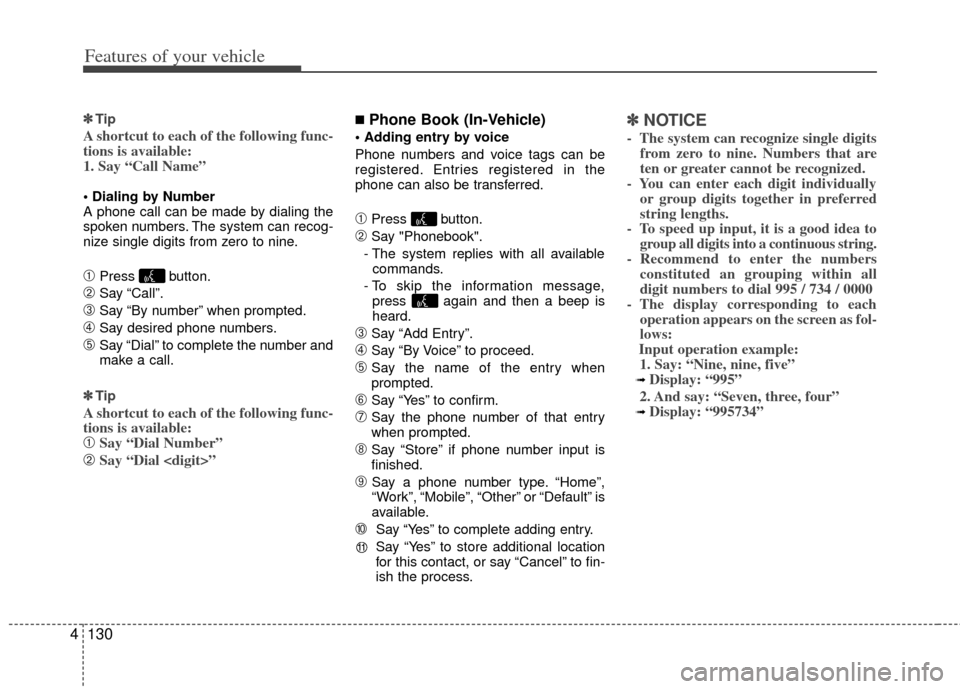
➀Press button.
\bSay “Call”.
➂Say “By number” when prompted.
➃Say desired phone numbers.
➄Say “Dial” to complete the number and
make a call.
✽ ✽ Tip
A shortcut to each of the following func-
tions is available:
➀Say “Dial Number”
\bSay “Dial
■Phone Book (In-Vehicle)
Phone numbers and voice tags can be
registered. Entries registered in the
phone can also be transferred.
➀Press button.
\bSay "Phonebook".
- The system replies with all available commands.
- To skip the information message, press again and then a beep is
heard.
➂Say “Add Entry”.
➃Say “By Voice” to proceed.
➄Say the name of the entry when
prompted.
\fSay “Yes” to confirm.
➆Say the phone number of that entry
when prompted.
➇Say “Store” if phone number input is
finished.
➈ Say a phone number type. “Home”,
“Work”, “Mobile”, “Other” or “Default” is
available.
➉ Say “Yes” to complete adding entry.
Say “Yes” to store additional location
for this contact, or say “Cancel” to fin-
ish the process.
✽ ✽ NOTICE
- The system can recognize single digits
from zero to nine. Numbers that are
ten or greater cannot be recognized.
- You can enter each digit individually or group digits together in preferred
string lengths.
- To speed up input, it is a good idea to group all digits into a continuous string.
- Recommend to enter the numbers constituted an grouping within all
digit numbers to dial 995 / 734 / 0000
- The display corresponding to each operation appears on the screen as fol-
lows:
Input operation example: 1. Say: “Nine, nine, five”
➟ Display: “995”
2. And say: “Seven, three, four”
➟ Display: “995734”
11
Page 205 of 342
4131
Features of your vehicle
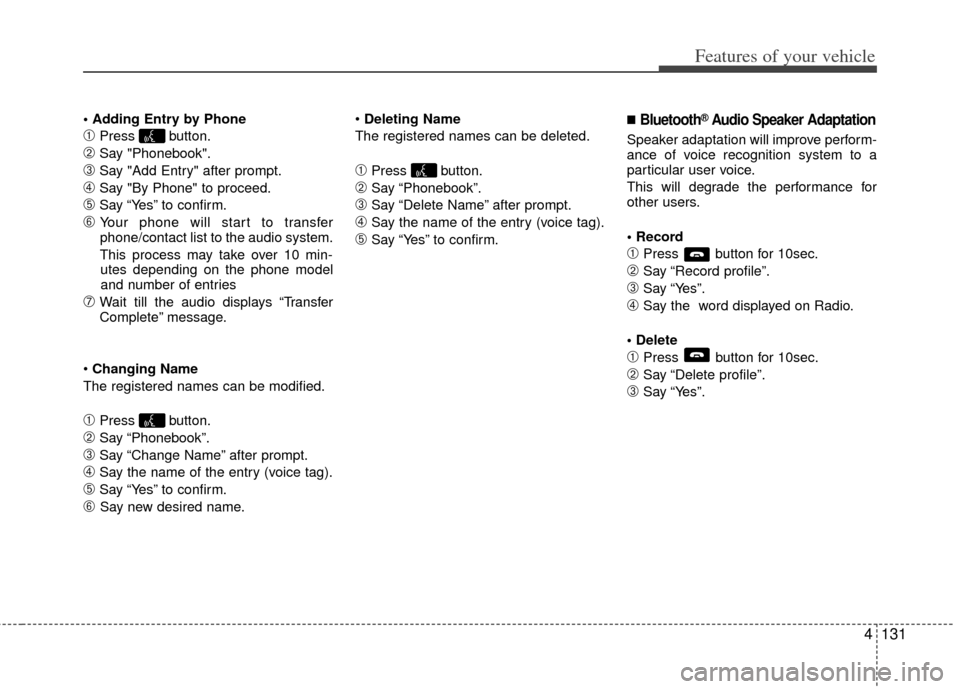
➀Press button.
\bSay "Phonebook".
➂Say "Add Entry" after prompt.
➃Say "By Phone" to proceed.
➄Say “Yes” to confirm.
\f Your phone will start to transfer
phone/contact list to the audio system.
This process may take over 10 min- utes depending on the phone model
and number of entries
➆Wait till the audio displays “Transfer
Complete” message.
Changing Name
The registered names can be modified.
➀Press button.
\bSay “Phonebook”.
➂Say “Change Name” after prompt.
➃Say the name of the entry (voice tag).
➄Say “Yes” to confirm.
\f Say new desired name.
Deleting Name
The registered names can be deleted.
➀Press button.
\bSay “Phonebook”.
➂Say “Delete Name” after prompt.
➃Say the name of the entry (voice tag).
➄Say “Yes” to confirm.
■Bluetooth®Audio Speaker Adaptation
Speaker adaptation will improve perform-
ance of voice recognition system to a
particular user voice.
This will degrade the performance for
other users.
➀Press button for 10sec.
\bSay “Record profile”.
➂Say “Yes”.
➃Say the word displayed on Radio.
➀Press button for 10sec.
\bSay “Delete profile”.
➂Say “Yes”.
Page 206 of 342
![KIA Cerato 2011 1.G Owners Manual ■ Key matrix
No.
Class
Paired H/P Empty Disconnected
1 SHORT
LONG
SHORT
SHORT LONG
[10sec]
LONG
[10sec] Normal mode
BT SETUP menuIncoming Call
Outgoing Call
Active Call2nd Call
Not Paired Not Connec](/img/2/2923/w960_2923-205.png "KIA Cerato 2011 1.G Owners Manual ■ Key matrix
No.
Class
Paired H/P Empty Disconnected
1 SHORT
LONG
SHORT
SHORT LONG
[10sec]
LONG
[10sec] Normal mode
BT SETUP menuIncoming Call
Outgoing Call
Active Call2nd Call
Not Paired Not Connec")
■ Key matrix
No.
Class
Paired H/P Empty Disconnected
1 SHORT
LONG
SHORT
SHORT LONG
[10sec]
LONG
[10sec] Normal mode
BT SETUP menuIncoming Call
Outgoing Call
Active Call2nd Call
Not Paired Not Connecting--Accept Call
Connected
-
2nd call
1st Call:waiting 2nd Call:active 2nd Call
2nd Call:waiting 1st Call:active
KEY
---
- -
-
Transfer call:secret call
End Call
VR
MODE Cancel VR
MODE Cancel VR
MODE Cancel VR
MODE Cancel Reject Call End Call End Call
-
Active
Change
language
-
Active Speaker
Adaptation
(Only English)
Change
language Active
Change
language Active
-Speaker
Adaptation
(Only English)
Change
language
- -
- -
- -
- -
-
--
2
3
Features of your vehicle
4132
Page 232 of 342
Driving your vehicle
26
5
E070300AHM-EC
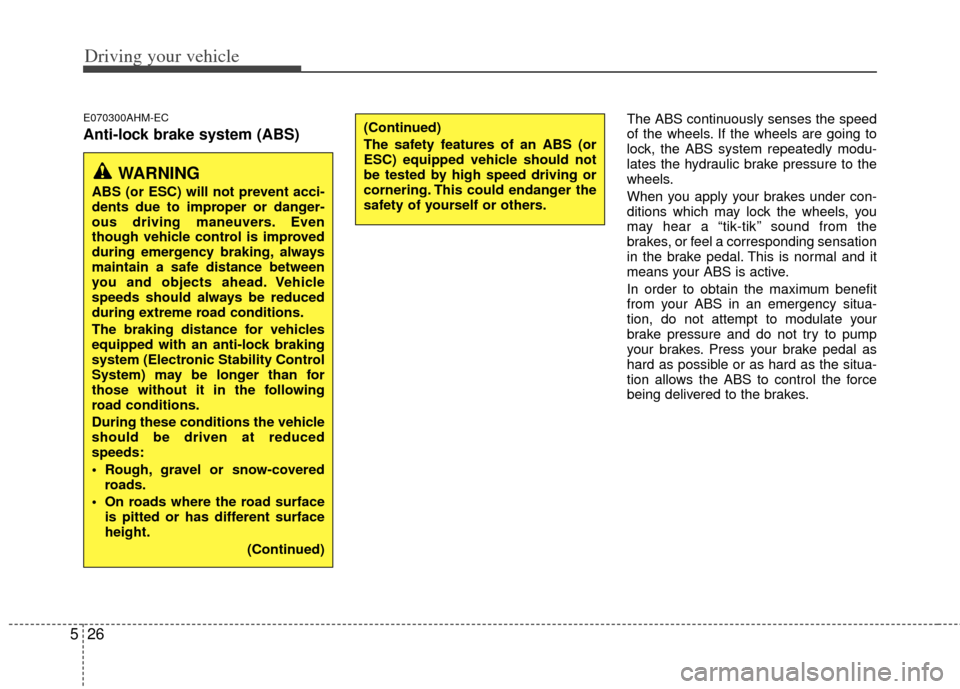
Anti-lock brake system (ABS)
The ABS continuously senses the speed
of the wheels. If the wheels are going to
lock, the ABS system repeatedly modu-
lates the hydraulic brake pressure to the
wheels.
When you apply your brakes under con-
ditions which may lock the wheels, you
may hear a “tik-tik’’ sound from the
brakes, or feel a corresponding sensation
in the brake pedal. This is normal and it
means your ABS is active.
In order to obtain the maximum benefit
from your ABS in an emergency situa-
tion, do not attempt to modulate your
brake pressure and do not try to pump
your brakes. Press your brake pedal as
hard as possible or as hard as the situa-
tion allows the ABS to control the force
being delivered to the brakes.
WARNING
ABS (or ESC) will not prevent acci-
dents due to improper or danger-
ous driving maneuvers. Even
though vehicle control is improved
during emergency braking, always
maintain a safe distance between
you and objects ahead. Vehicle
speeds should always be reduced
during extreme road conditions.
The braking distance for vehicles
equipped with an anti-lock braking
system (Electronic Stability Control
System) may be longer than for
those without it in the following
road conditions.
During these conditions the vehicle
should be driven at reduced
speeds:
Rough, gravel or snow-covered
roads.
On roads where the road surface is pitted or has different surface
height.
(Continued)
(Continued)
The safety features of an ABS (or
ESC) equipped vehicle should not
be tested by high speed driving or
cornering. This could endanger the
safety of yourself or others.
Page 341 of 342

I3
Index
In case of an emergency while driving ··················\
··········6-2
Indicator symbols on the instrument cluster ··················\
·1-5
Instrument cluster ··················\
··················\
··················\
····4-39
Instrument panel overview··················\
··················\
···········2-3
Interior features··················\
··················\
··················\
········4-96
Interior light ··················\
··················\
··················\
·············4-66
Interior overview··················\
··················\
··················\
········2-2
Key positions ··················\
··················\
··················\
·············5-4
Keys ··················\
··················\
··················\
··················\
·········4-2
Lighting··················\
··················\
··················\
··················\
··4-59
Maintenance schedule··················\
··················\
··················\
7-6
Maintenance services ··················\
··················\
··················\
·7-3
Manual climate control system··················\
··················\
··4-69
Manual transaxle··················\
··················\
··················\
······5-12
Mirrors ··················\
··················\
··················\
··················\
···4-35
Owner maintenance ··················\
··················\
··················\
···7-4Parking brake ··················\
··················\
··················\
···········7-20
Power steering fluid ··················\
··················\
··················\
·7-18
Rearview camera··················\
··················\
··················\
······4-58
Recommended lubricants and capacities ··················\
·······8-4
Remote keyless entry ··················\
··················\
··················\
·4-8
Road warning ··················\
··················\
··················\
·············6-2
Seat··················\
··················\
··················\
··················\
···········3-2
Seat belts ··················\
··················\
··················\
··················\
3-15
Smart key ··················\
··················\
··················\
··················\
·4-6
Special driving conditions ··················\
··················\
·········5-39
Starting the engine ··················\
··················\
··················\
·····5-9
Steering wheel ··················\
··················\
··················\
·········4-32
Storage compartment ··················\
··················\
·················4-88\
Sunroof··················\
··················\
··················\
··················\
···4-28
Tire specification and pressure label ··················\
·············8-7
Tires and wheels ··················\
··················\
··················\
7-26/8-3
Towing ··················\
··················\
··················\
··················\
···6-15
Trailer towing··················\
··················\
··················\
···········5-45
K
L
M
O
P
R
S
T