Sound KIA Cerato 2016 2.G Owner's Guide
[x] Cancel search | Manufacturer: KIA, Model Year: 2016, Model line: Cerato, Model: KIA Cerato 2016 2.GPages: 501, PDF Size: 14.8 MB
Page 225 of 501
Features of your vehicle
154
4
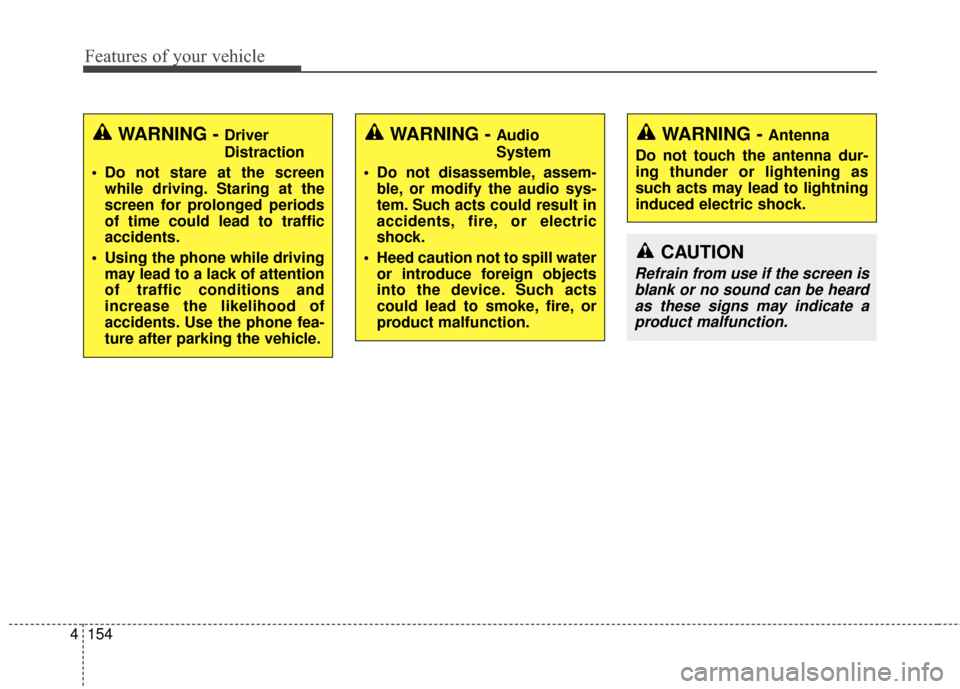
WARNING - Driver
Distraction
Do not stare at the screen while driving. Staring at the
screen for prolonged periods
of time could lead to traffic
accidents.
Using the phone while driving may lead to a lack of attention
of traffic conditions and
increase the likelihood of
accidents. Use the phone fea-
ture after parking the vehicle.WARNING - Audio
System
Do not disassemble, assem- ble, or modify the audio sys-
tem. Such acts could result in
accidents, fire, or electric
shock.
Heed caution not to spill water or introduce foreign objects
into the device. Such acts
could lead to smoke, fire, or
product malfunction.WARNING - Antenna
Do not touch the antenna dur-
ing thunder or lightening as
such acts may lead to lightning
induced electric shock.
CAUTION
Refrain from use if the screen is blank or no sound can be heardas these signs may indicate aproduct malfunction.
Page 226 of 501
4155
Features of your vehicle
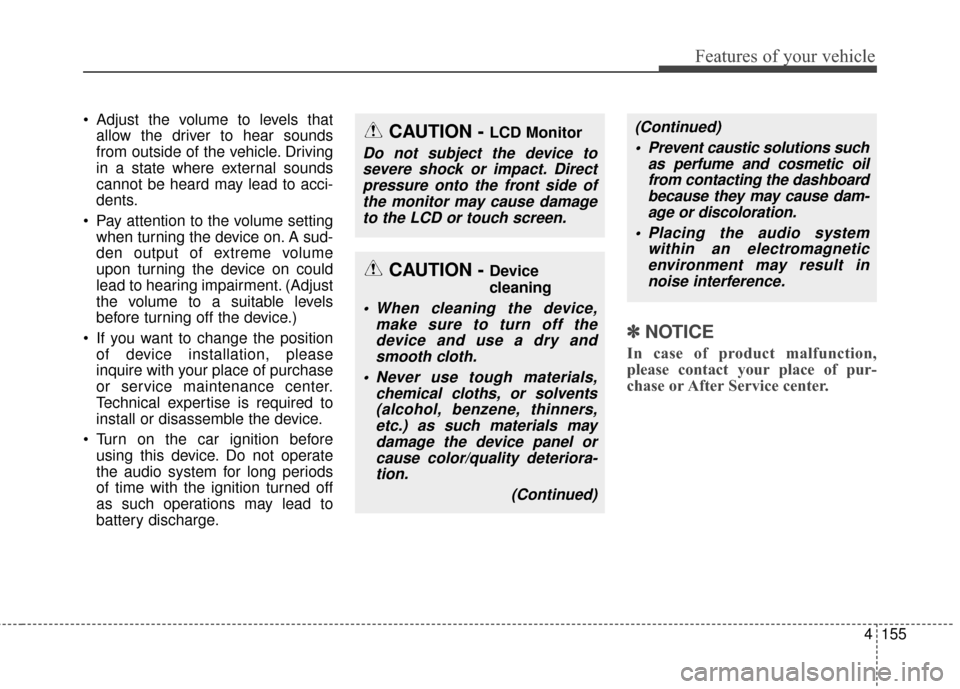
Adjust the volume to levels thatallow the driver to hear sounds
from outside of the vehicle. Driving
in a state where external sounds
cannot be heard may lead to acci-
dents.
Pay attention to the volume setting when turning the device on. A sud-
den output of extreme volume
upon turning the device on could
lead to hearing impairment. (Adjust
the volume to a suitable levels
before turning off the device.)
If you want to change the position of device installation, please
inquire with your place of purchase
or service maintenance center.
Technical expertise is required to
install or disassemble the device.
Turn on the car ignition before using this device. Do not operate
the audio system for long periods
of time with the ignition turned off
as such operations may lead to
battery discharge.
✽ ✽ NOTICE
In case of product malfunction,
please contact your place of pur-
chase or After Service center.
CAUTION - LCD Monitor
Do not subject the device to
severe shock or impact. Directpressure onto the front side ofthe monitor may cause damageto the LCD or touch screen.
CAUTION - Device
cleaning
When cleaning the device, make sure to turn off thedevice and use a dry andsmooth cloth.
Never use tough materials, chemical cloths, or solvents(alcohol, benzene, thinners,etc.) as such materials maydamage the device panel orcause color/quality deteriora-tion.
(Continued)
(Continued) Prevent caustic solutions such as perfume and cosmetic oilfrom contacting the dashboardbecause they may cause dam-age or discoloration.
Placing the audio system within an electromagneticenvironment may result innoise interference.
Page 229 of 501
Features of your vehicle
158
4
Bluetooth®Wireless
Technology
Bluetooth®Wireless Technology
The Bluetooth®word mark and logos
are registered trademarks owned by
Bluetooth SIG, lnc. and any use of
such marks by Kia is under license.
A
Bluetooth®enabled call phone is
required to use
Bluetooth®wireless
technology.
(Continued)
Some iPod
®devices, such as the
iPhone, can be connected
through the
Bluetooth®Wireless
Technology interface. The device
must have audio
Bluetooth®
Wireless Technology capability
(such as for stereo headphone
Bluetooth®Wireless Technology).
The device can play, but it will not
be controlled by the audio system.
To use iPod
®features within the
audio, use the cable provided
upon purchasing an iPod
®
device.
Skipping or improper operation may occur depending on the char-
acteristics of your iPod
®/Phone
device.
If your iPhone is connected to both the
Bluetooth®Wireless
Technology and USB, the sound
may not be properly played. In
your iPhone, select the Dock con-
nector or
Bluetooth®Wireless
Technology to change the sound
output (source).
(Continued)(Continued)
When connecting iPod
®with the
iPod®Power Cable, insert the
connector to the multimedia
socket completely. If not inserted
completely, communications
between iPod
®and audio may
be interrupted.
When adjusting the sound effects of the iPod
®and the
audio system, the sound effects
of both devices will overlap and
might reduce or distort the qual-
ity of the sound.
Deactivate (turn off) the equaliz- er function of an iPod
®when
adjusting the audio system’s vol-
ume, and turn off the equalizer
of the audio system when using
the equalizer of an iPod
®.
When not using iPod
®with car
audio, detach the iPod®cable
from iPod®. Otherwise, iPod®
may remain in accessory mode,
and may not work properly.
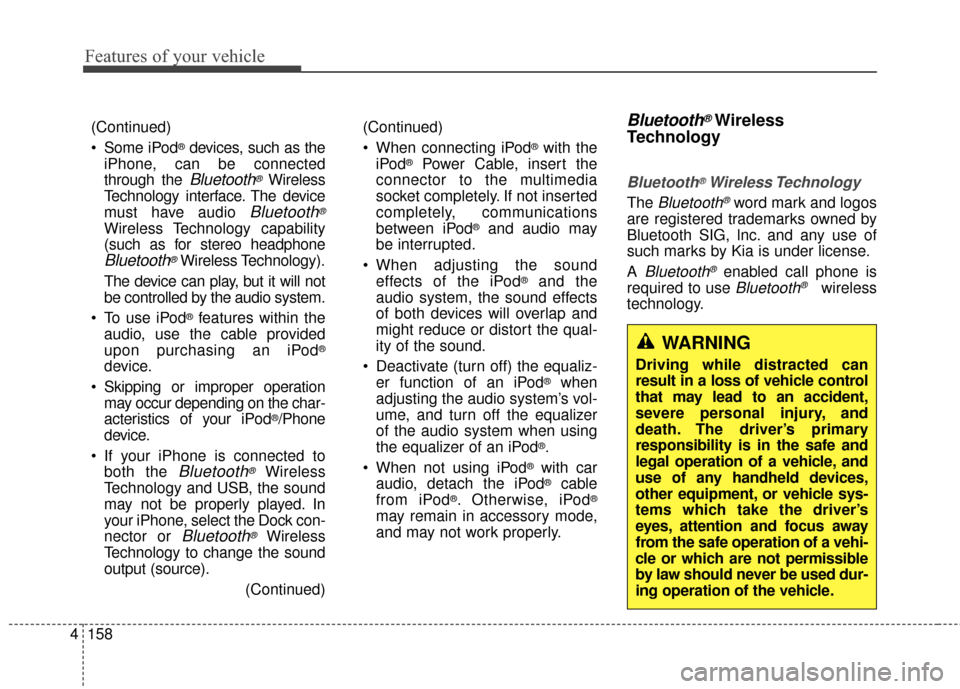
WARNING
Driving while distracted can
result in a loss of vehicle control
that may lead to an accident,
severe personal injury, and
death. The driver’s primary
responsibility is in the safe and
legal operation of a vehicle, and
use of any handheld devices,
other equipment, or vehicle sys-
tems which take the driver’s
eyes, attention and focus away
from the safe operation of a vehi-
cle or which are not permissible
by law should never be used dur-
ing operation of the vehicle.
Page 231 of 501
Features of your vehicle
160
4
(Continued)
Park the vehicle when connect-
ing the head unit with the mobile
phone.
Bluetooth®connection may
become intermittently discon-
nected in some mobile phones.
Follow these steps to try again.
1. Within the mobile phone, turn
the
Bluetooth®function off/on
and try again.
2. Turn the mobile phone power Off/On and try again.
3. Completely remove the mobile phone battery, reboot, and then
again.
4. Reboot the Audio Video Navigation System and try
again.
5. Delete all paired devices, pair and try again.
Handsfree call quality and volume may differ depending on the model
of your mobile phone.
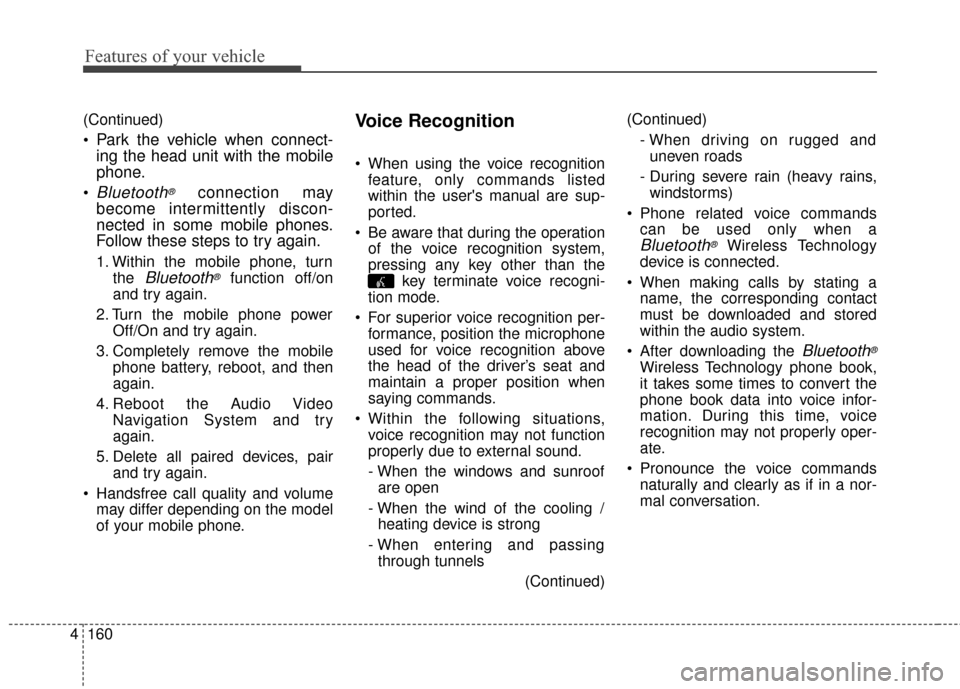
Voice Recognition
When using the voice recognitionfeature, only commands listed
within the user's manual are sup-
ported.
Be aware that during the operation of the voice recognition system,
pressing any key other than the key terminate voice recogni-
tion mode.
For superior voice recognition per- formance, position the microphone
used for voice recognition above
the head of the driver’s seat and
maintain a proper position when
saying commands.
Within the following situations, voice recognition may not function
properly due to external sound.
- When the windows and sunroofare open
- When the wind of the cooling / heating device is strong
- When entering and passing through tunnels
(Continued)(Continued)
- When driving on rugged anduneven roads
- During severe rain (heavy rains, windstorms)
Phone related voice commands can be used only when a
Bluetooth®Wireless Technology
device is connected.
When making calls by stating a name, the corresponding contact
must be downloaded and stored
within the audio system.
After downloading the
Bluetooth®
Wireless Technology phone book,
it takes some times to convert the
phone book data into voice infor-
mation. During this time, voice
recognition may not properly oper-
ate.
Pronounce the voice commands naturally and clearly as if in a nor-
mal conversation.
Page 235 of 501
Features of your vehicle
164
4
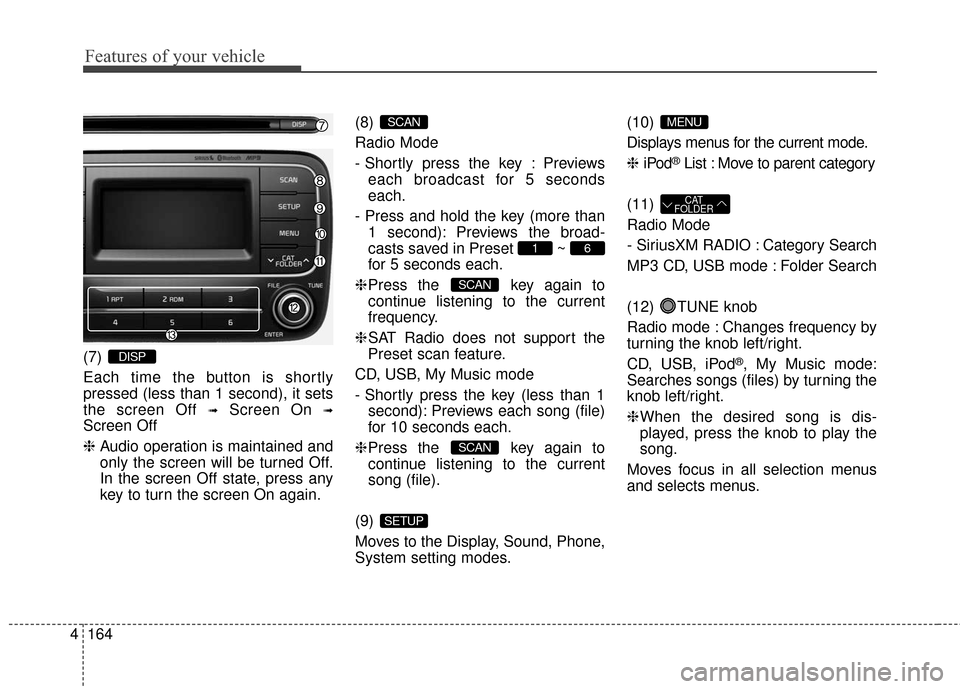
(7)
Each time the button is shortly
pressed (less than 1 second), it sets
the screen Off
➟Screen On ➟
Screen Off
❈ Audio operation is maintained and
only the screen will be turned Off.
In the screen Off state, press any
key to turn the screen On again. (8)
Radio Mode
- Shortly press the key : Previews
each broadcast for 5 seconds
each.
- Press and hold the key (more than 1 second): Previews the broad-
casts saved in Preset ~
for 5 seconds each.
❈ Press the key again to
continue listening to the current
frequency.
❈ SAT Radio does not support the
Preset scan feature.
CD, USB, My Music mode
- Shortly press the key (less than 1 second): Previews each song (file)
for 10 seconds each.
❈ Press the key again to
continue listening to the current
song (file).
(9)
Moves to the Display, Sound, Phone,
System setting modes. (10)
Displays menus for the current mode.
❈
iPod
®List : Move to parent category
(11)
Radio Mode
- SiriusXM RADIO : Category Search
MP3 CD, USB mode : Folder Search
(12) TUNE knob
Radio mode : Changes frequency by
turning the knob left/right.
CD, USB, iPod
®, My Music mode:
Searches songs (files) by turning the
knob left/right.
❈ When the desired song is dis-
played, press the knob to play the
song.
Moves focus in all selection menus
and selects menus.
CAT
FOLDER
MENU
SETUP
SCAN
SCAN
61
SCAN
DISP
Page 238 of 501
![KIA Cerato 2016 2.G Owners Guide 4167
Features of your vehicle
SOUND SETTINGS
Press the key Select [Sound]
through TUNE knob or key
Select menu through TUNE knob
Tone
This menu allows you to set the
Bass, Middle, Treble.
Select [](/img/2/2972/w960_2972-237.png "KIA Cerato 2016 2.G Owners Guide 4167
Features of your vehicle
SOUND SETTINGS
Press the key Select [Sound]
through TUNE knob or key
Select menu through TUNE knob
Tone
This menu allows you to set the
Bass, Middle, Treble.
Select [")
4167
Features of your vehicle
SOUND SETTINGS
Press the key Select [Sound]
through TUNE knob or key
Select menu through TUNE knob
Tone
This menu allows you to set the
Bass, Middle, Treble.
Select [Tone] Select menu through
TUNE knobTu r n TUNE knob
left/right to set
Bass, Middle, Treble : Selects thesound tone.
Default : Restores default settings.
❈ Return : While adjusting values,
pressing the TUNE knob will
restore the parent menu.
Position
This menu allows you to set the
Fader, Balance.
Select [Position] Select menu
through
TUNE knobTu r n
TUNE knobleft/right to set
Fader, Balance : Selects the sound fader and balance.
Default : Restores default settings.
❈ Return : While adjusting values,
pressing the TUNE knob will
restore the parent menu. Speed Dependent Volume Control
This feature is used to automatically
control the volume level according to
the speed of the vehicle.
Select [Speed Dependent Vol.] Set
[Off/On] of
TUNEknob
Voice Recognition Volume
Adjusts voice recognition volume.
Select [Voice Recognition Vol.] Set
volume of
TUNEknob
2
SETUP
Page 240 of 501
4169
Features of your vehicle
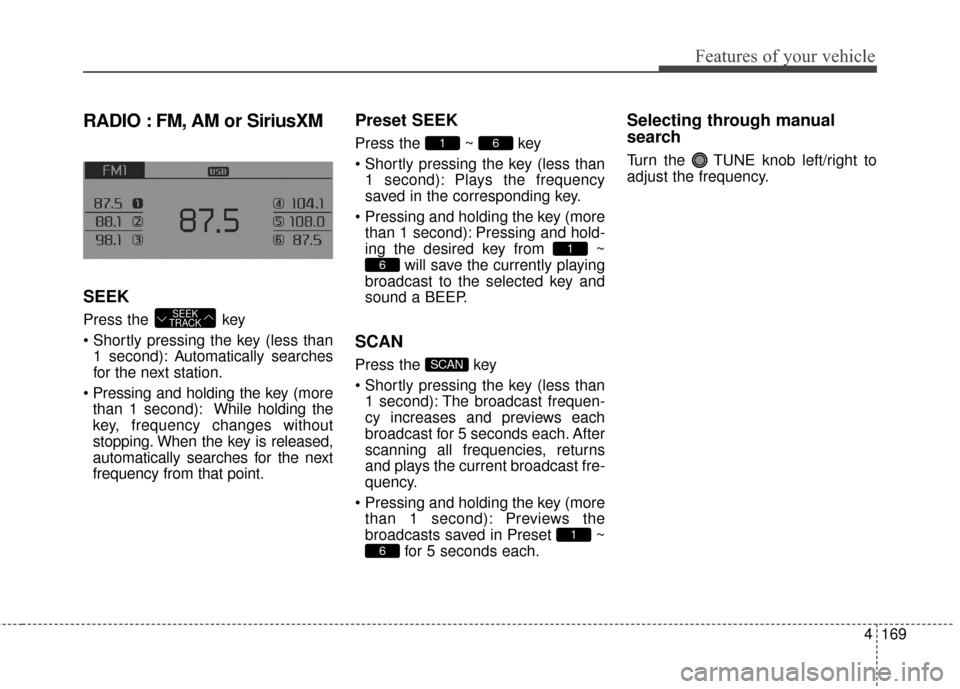
RADIO : FM, AM or SiriusXM
SEEK
Press the key
1 second): A utomatically searches
for the next station.
more than 1 second): While holding the
key, frequency changes without
stopping. When the key is released,
automatically searches for the next
frequency from that point.
Preset SEEK
Press the ~ key
1 second): Plays the frequency
saved in the corresponding key.
than 1 second): Pressing and hold-
ing the desired key from ~ will save the currently playing
broadcast to the selected key and
sound a BEEP.
SCAN
Press the key
1 second): The broadcast frequen-
cy increases and previews each
broadcast for 5 seconds each. After
scanning all frequencies, returns
and plays the current broadcast fre-
quency.
than 1 second): Previews the
broadcasts saved in Preset ~ for 5 seconds each.
Selecting through manual
search
Turn the TUNE knob left/right to
adjust the frequency.
6
1
SCAN
6
1
61
SEEK
TRACK
Page 244 of 501
4173
Features of your vehicle
Preset
Press the key ~
Shortly pressing the key (less than1 second): Plays the frequency
saved in the corresponding key.
Pressing and holding the key (more than 1 second): Pressing
and holding the desired key from ~ will save the current
broadcast to the selected key and
sound a BEEP.
✽ ✽ Troubleshooting
1. Antenna Error
If this message is displayed, the
antenna or antenna cable is bro-
ken or unplugged. Please consult
with your Kia dealership.
2. No Signal If this message is displayed, it
means that the antenna is covered
and that the SiriusXM Satellite
Radio signal is not available.
Ensure the antenna is uncovered
and has a clear view of the sky.
Tune
Rotate TUNE knob : Changes
the channel number or scrolls cat-
egory list.
Press TUNE knob : Selects the menu.
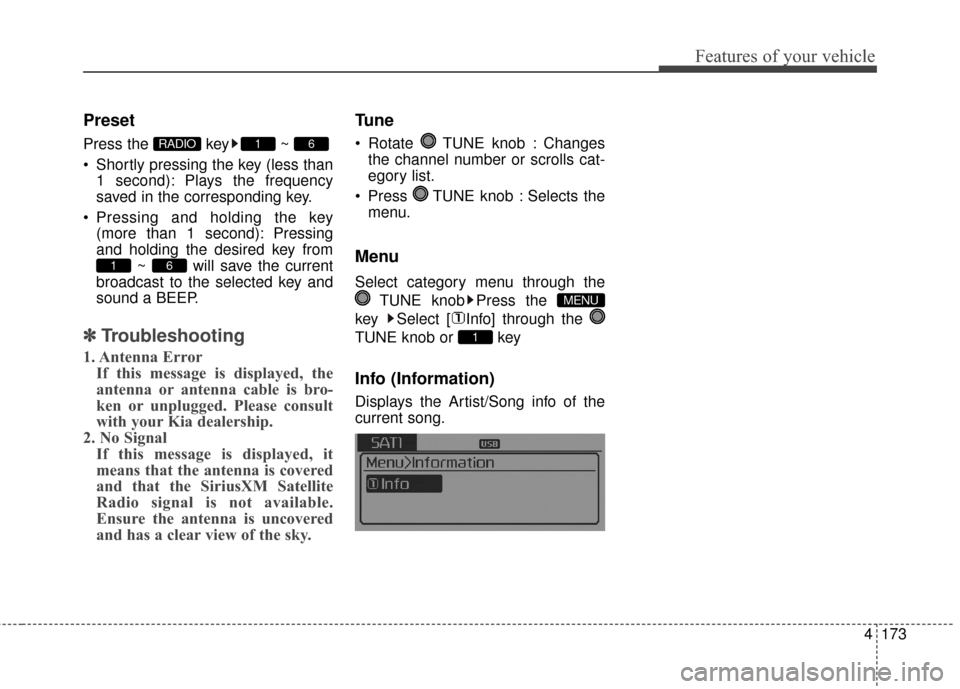
Menu
Select category menu through the
TUNE knob Press the
key Select [ Info] through the
TUNE knob or key
Info (Information)
Displays the Artist/Song info of the
current song.
1
MENU
61
61RADIO
Page 269 of 501
Features of your vehicle
198
4
Skipping Prompt Messages
While prompt message is being stat-
ed Shortly press the key on the
steering remote controller.
The prompt message is immediately
ended and the beep tone will sound.
After the “beep”, say the voice com-
mand.
Re-starting Voice Recognition
While system waits for a command
Shortly press the key on the
steering remote controller.
The command wait state is immedi-
ately ended and the beep ton will
sound. After the “beep”, say the voice
command.
ENDING VOICE
RECOGNITION
While Voice Recognition is operating
Press and hold the key on the
steering remote controller
ing any steering wheel control or a
different key will end voice com-
mand.
voice command, say “cancel” or
“end” to end voice command.
voice command, press and hold the key on the steering wheel to
end voice command.
Voice Recognition and Phone
Contact Tips:
The Kia Voice Recognition System
may have difficulty understanding
some accents or uncommon names.
When using Voice Recognition to
place a call, speak in a moderate
tone, with clear pronunciation.
To maximize the use of Voice
Recognition, consider these guide-
lines when storing contacts:
Do not store single-name entries (e.g., “Bob”, “Mom”, etc.). Instead,
always use full names (including
first and last names) for these con-
tacts.
Do not use special characters (e.g., '@', '-', '*', '&', etc.).
Do not use abbreviations (i.e., use "Lieutenant" instead of "Lt.") or
acronyms (i.e., use "County
Finance Department" instead of
"C. F. D."; Be sure to say the name
exactly as it is entered in the con-
tacts list.
Page 272 of 501
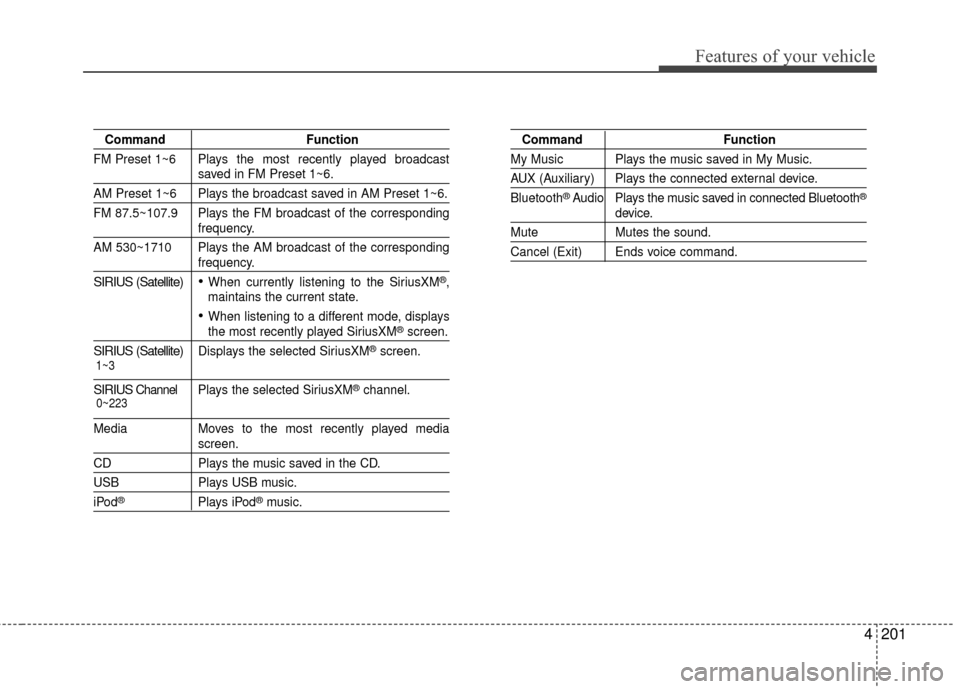
4201
Features of your vehicle
CommandFunction
FM Preset 1~6 Plays the most recently played broadcast
saved in FM Preset 1~6.
AM Preset 1~6 Plays the broadcast saved in AM Preset 1~6.
FM 87.5~107.9 Plays the FM broadcast of the corresponding
frequency.
AM 530~1710 Plays the AM broadcast of the corresponding
frequency.
SIRIUS (Satellite)When currently listening to the SiriusXM®,
maintains the current state.
When listening to a different mode, displaysthe most recently played SiriusXM®screen.
SIRIUS (Satellite)Displays the selected SiriusXM®screen.
SIRIUSChannel P l ay s the selected SiriusXM®channel.
Media Moves to the most recently played mediascreen.
CD Plays the music saved in the CD.
USBPlays USB music.
iPod®Plays iPod®music.
Command Function
My Music Plays the music saved in My Music.
AUX (Auxiliary) Plays the connected external device.
Bluetooth
®Audio Plays the music saved in connected Bluetooth®
device.
Mute Mutes the sound.
Cancel (Exit) Ends voice command.
0~223
1~3