ECO mode KIA FORTE 2017 Owner's Manual
[x] Cancel search | Manufacturer: KIA, Model Year: 2017, Model line: FORTE, Model: KIA FORTE 2017Pages: 595, PDF Size: 11.5 MB
Page 225 of 595
153 4
Features of your vehicle
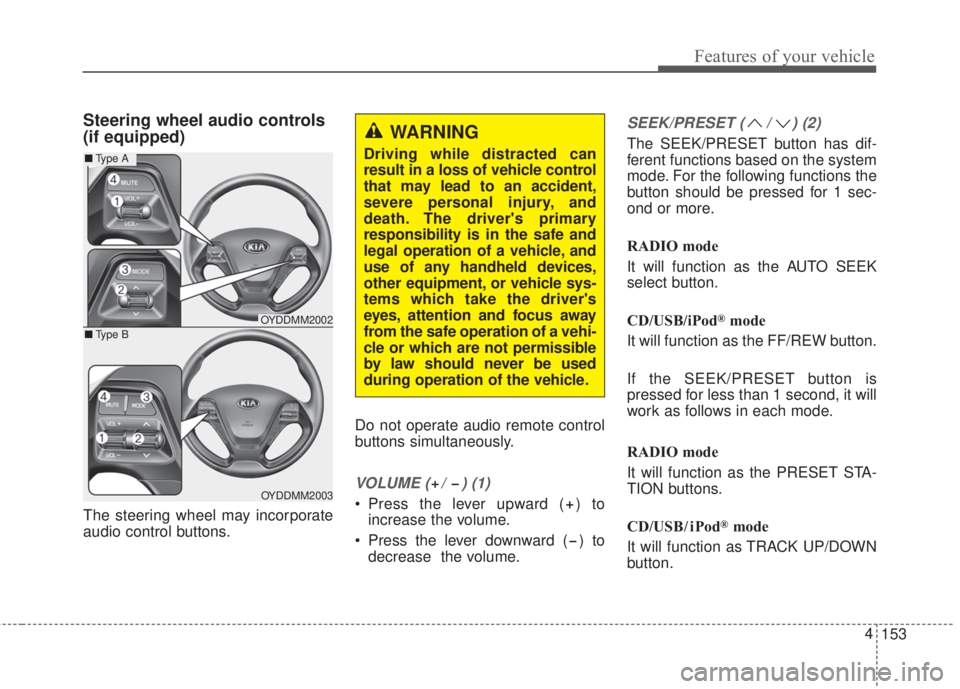
Steering wheel audio controls
(if equipped)
The steering wheel may incorporate
audio control buttons.Do not operate audio remote control
buttons simultaneously.
VOLUME ( / ) (1)
• Press the lever upward ( ) to
increase the volume.
• Press the lever downward ( ) to
decrease the volume.
SEEK/PRESET ( / ) (2)
The SEEK/PRESET button has dif-
ferent functions based on the system
mode. For the following functions the
button should be pressed for 1 sec-
ond or more.
RADIO mode
It will function as the AUTO SEEK
select button.
CD/USB/iPod
®mode
It will function as the FF/REW button.
If the SEEK/PRESET button is
pressed for less than 1 second, it will
work as follows in each mode.
RADIO mode
It will function as the PRESET STA-
TION buttons.
CD/USB / i Pod
®mode
It will function as TRACK UP/DOWN
button.
OYDDMM2002
OYDDMM2003
■Type A
■Type B
WARNING
Driving while distracted can
result in a loss of vehicle control
that may lead to an accident,
severe personal injury, and
death. The driver's primary
responsibility is in the safe and
legal operation of a vehicle, and
use of any handheld devices,
other equipment, or vehicle sys-
tems which take the driver's
eyes, attention and focus away
from the safe operation of a vehi-
cle or which are not permissible
by law should never be used
during operation of the vehicle.
Page 226 of 595
4 154
Features of your vehicle
MODE (3)
Press the button to change audio
source.
FM(1~2)
➟AM➟SAT(1~3)➟CD➟USB
AUX(iPod®)➟FM...
In addition to mode change, Power
on/off can be made by pressing this
button when the ignition switch is on
ACC or ON.
- Power ON: Press the button when
the audio is off
- Power OFF: Press the button for
more than 1 second when the
audio is on.
MUTE (4, if equipped)
• Press the button to mute the
sound.
• Press the button to turn off the
microphone during a telephone
call.
Detailed information for audio control
buttons are described in the following
pages in this chapter.
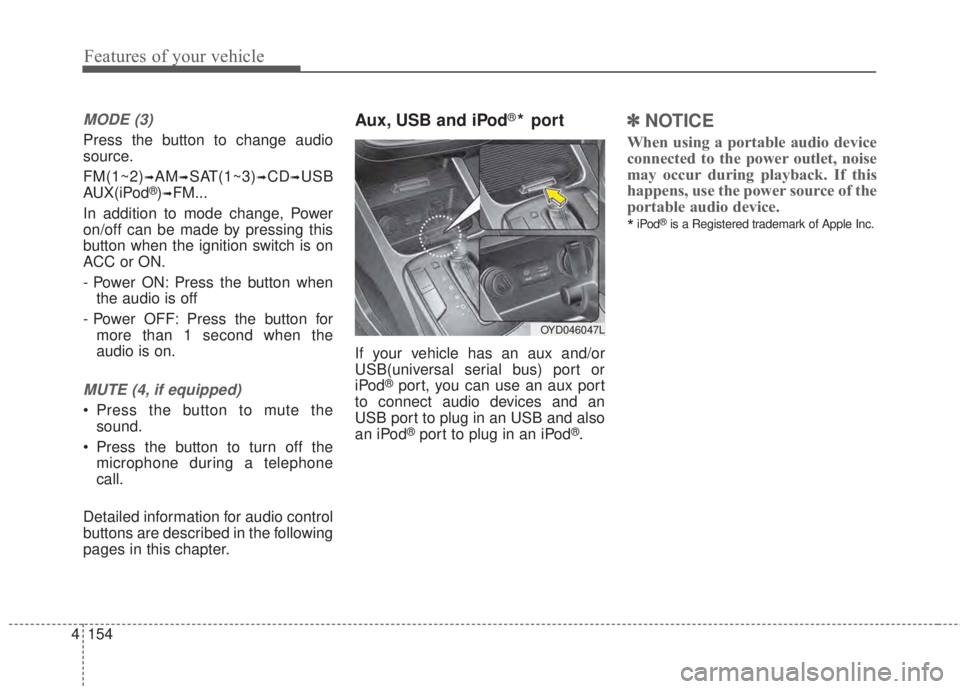
Aux, USB and iPod®* port
If your vehicle has an aux and/or
USB(universal serial bus) port or
iPod
®port, you can use an aux port
to connect audio devices and an
USB port to plug in an USB and also
an iPod
®port to plug in an iPod®.
✽NOTICE
When using a portable audio device
connected to the power outlet, noise
may occur during playback. If this
happens, use the power source of the
portable audio device.
*iPod®is a Registered trademark of Apple Inc.
OYD046047L
Page 233 of 595
161 4
Features of your vehicle
USING THE USB DEVICE
• To use an external USB device,
make sure the device is not con-
nected when starting up the
vehicle. Connect the device after
starting up.
• If you start the engine when the
USB device is connected, it may
damage the USB device. (USB
flashdrives are very sensitive to
electric shock.)
• If the engine is started up or
turned off while the external USB
device is connected, the external
USB device may not work.
• The System may not play unau-
thenticated MP3 or WMA files.
1) It can only play MP3 files with
the compression rate between
8Kbps ~ 320Kbps.
2) It can only play WMA music
files with the compression rate
between 8Kbps ~ 320Kbps.
• Take precautions for static elec-
tricity when connecting or discon-
necting the external USB device.
(Continued)(Continued)
• An encrypted MP3 PLAYER is
not recognizable.
• Depending on the condition of
the external USB device, the
connected external USB device
can be unrecognizable.
• When the formatted byte/sector
setting of External USB device is
not either 512BYTE or
2048BYTE, then the device will
not be recognized.
• Use only a USB device format-
ted to FAT 12/16/32.
• USB devices without USB I/F
authentication may not be recog-
nizable.
• Make sure the USB connection
terminal does not come in con-
tact with the human body or
other objects.
• If you repeatedly connect or dis-
connect the USB device in a
short period of time, it may break
the device.
(Continued)(Continued)
• You may hear a strange noise
when connecting or disconnect-
ing a USB device.
• If you disconnect the external
USB device during playback in
USB mode, the external USB
device can be damaged or may
malfunction. Therefore, discon-
nect the external USB device
when the audio is turned off or in
another mode. (e.g, Radio, CD)
• Depending on the type and
capacity of the external USB
device or the type of the files
stored in the device, there is a
difference in the time taken for
recognition of the device.
• Do not use the USB device for
purposes other than playing
music files.
• Playing videos through the USB
is not supported.
• Use of USB accessories such as
rechargers or heaters using USB
I/F may lower performance or
cause trouble.
(Continued)
Page 235 of 595
163 4
Features of your vehicle
(Continued)
• Some iPod
®devices, such as the
iPhone®, can be connected
through the
Bluetooth®Wireless
Technology interface. The device
must have audio
Bluetooth®
Wireless Technology capability
(such as for stereo headphone
Bluetooth®Wireless Technology
). The device can play, but it will
not be controlled by the audio
system.
• To use iPod
®features within the
audio, use the cable provided
upon purchasing an iPod
®
device.
• Skipping or improper operation
may occur depending on the
characteristics of your
iPod
®/iPhone®device.
• If your iPhone
®is connected to
both the
Bluetooth®Wireless
Technology and USB, the sound
may not be properly played. In
your iPhone
®, select the Dock
connector or
Bluetooth®
Wireless Technology to change
the sound output (source).
(Continued)(Continued)
• When connecting iPod
®with the
iPod®Power Cable, insert the
connector to the multimedia
socket completely. If not inserted
completely, communications
between iPod
®and audio may
be interrupted.
• When adjusting the sound
effects of the iPod
®and the
audio system, the sound effects
of both devices will overlap and
might reduce or distort the qual-
ity of the sound.
• Deactivate (turn off) the equaliz-
er function of an iPod
®when
adjusting the audio system’s vol-
ume, and turn off the equalizer
of the audio system when using
the equalizer of an iPod
®.
• When not using iPod
®with car
audio, detach the iPod®cable
from iPod®. Otherwise, iPod®
may remain in accessory mode,
and may not work properly.
• Beside support 1M cable when
purchasing iPod/iPhone products,
Long Cable cannot be recognized.
USING THE iPod®DEVICE
• Some iPod®models may not
support communication protocol
and files may not properly play.
Supported iPod
®models:
- iPhone
®3GS/4
- iPod
®touch 1st~4th generation
- iPod
®nano 1st~6th generation
- iPod
®classic
• The order of search or playback
of songs in the iPod
®can be dif-
ferent from the order searched in
the audio system.
• If the iPod
®is disabled due to its
own malfunction, reset the
iPod
®. (Reset: Refer to iPod®
manual)
• An iPod
®may not operate nor-
mally on low battery.
(Continued)
Page 237 of 595
165 4
Features of your vehicle
When connecting aBluetooth®
Phone
• Before connecting the head unit
with the mobile phone, check to
see that the mobile phone sup-
ports
Bluetooth®features.
• Even if the phone supports
Bluetooth®, the phone will not be
found during device searches if
the phone has been set to hidden
state or the
Bluetooth®power is
turned off. Disable the hidden
state or turn on the
Bluetooth®
power prior to searching/connect-
ing with the Head unit.
• Bluetooth phone is automatically
connected when the ignition on.
• If you do not want automatic con-
nection with your
Bluetooth®
device, turn off the Bluetooth®
feature within your mobile phone.
• The Handsfree call volume and
quality may differ depending on
the mobile phone.• Park the vehicle when connecting
the head unit with the mobile
phone.
•
Bluetooth®connection may
become intermittently discon-
nected in some mobile phones.
Follow these steps to try again.
1. Within the mobile phone, turn
the
Bluetooth®function off/on
and try again.
2. Turn the mobile phone power
Off/On and try again.
3. Completely remove the mobile
phone battery, reboot, and then
again.
4. Reboot the Audio System and
try again.
5. Delete all paired devices, pair
and try again.
• Handsfree call quality and volume
may differ depending on the
model of your mobile phone.
Page 238 of 595
4 166
Features of your vehicle
Voice Recognition
• When using the voice recognition
feature, only commands listed with-
in the user's manual are supported.
• Be aware that during the operation
of the voice recognition system,
pressing any key other than the
key terminate voice recognition
mode.
• For superior voice recognition per-
formance, position the microphone
used for voice recognition above
the head of the driver’s seat and
maintain a proper position when
saying commands.
• Within the following situations,
voice recognition may not function
properly due to external sound.
- When the windows and sunroof
are open
- When the wind of the cooling /
heating device is strong
- When entering and passing
through tunnels
(Continued)(Continued)
- When driving on rugged and
uneven roads
- During severe rain (heavy rains,
windstorms)
• Phone related voice commands
can be used only when a
Bluetooth®Wireless Technology
device is connected.
• When making calls by stating a
name, the corresponding contact
must be downloaded and stored
within the audio system.
• After downloading the
Bluetooth®
Wireless Technology phone book, it
takes some times to convert the
phone book data into voice infor-
mation. During this time, voice
recognition may not properly oper-
ate.
• Pronounce the voice commands
naturally and clearly as if in a nor-
mal conversation.
Page 241 of 595
![KIA FORTE 2017 Owners Manual 169 4
Features of your vehicle
(7)[1] ~ [6](Preset)
• Radio mode: Saves frequencies
(channels) or receives saved fre-
quencies (channels).
• CD, USB, iPod
®, My Music mode
-[RPT]button: Repeat
-[](/img/2/40398/w960_40398-240.png "KIA FORTE 2017 Owners Manual 169 4
Features of your vehicle
(7)[1] ~ [6](Preset)
• Radio mode: Saves frequencies
(channels) or receives saved fre-
quencies (channels).
• CD, USB, iPod
®, My Music mode
-[RPT]button: Repeat
-[")
169 4
Features of your vehicle
(7)[1] ~ [6](Preset)
• Radio mode: Saves frequencies
(channels) or receives saved fre-
quencies (channels).
• CD, USB, iPod
®, My Music mode
-[RPT]button: Repeat
-[RDM]button: Random
In the Radio, Media, Setup and
Menu pop up screen, the number
menu is selected.
(8)DISP
• Each time the button is shortly
pressed, sets the Screen Off
➟
Screen On ➟Screen Off.
• Audio operation is maintained and
only the Screen will be turned Off.
• In the Screen Off state, press any
button to turn the Screen On again.(9)SCAN
• Radio mode
- Shortly press the button:
Previews each broadcast for 5
seconds each.
- Press and hold the button:
Previews the broadcasts saved
in preset [1]~[6]buttons for 5
seconds each.
- Press the [SCAN]button again
to continue listening to the cur-
rent frequency.
- SAT Radio does not support the
preset scan feature.
• CD, USB, My Music mode
- Shortly press the button:
Previews each song (file) for 10
seconds each.
- Press the [SCAN]button again
to continue listening to the cur-
rent song (file).
(10)SETUP
• Moves to the Display, Sound,
Phone, System setting modes.
Page 246 of 595
4 174
Features of your vehicle
✽NOTICE - Using the USB
Devices
• To use an external USB device,
make sure the device is not con-
nected when starting up the vehi-
cle. Connect the device after start-
ing up.
• If you start the engine when the
USB device is connected, it may
damage the USB device. (USB
flashdrives are very sensitive to
electric shock.)
• If the engine is started up or
turned off while the external USB
device is connected, the external
USB device may not work.
• The System may not play unau-
thenticated MP3 or WMA files.
1) It can only play MP3 files with the
compression rate between 8Kbps
~ 320Kbps.
2) It can only play WMA music files
with the compression rate
between 8Kbps ~ 320Kbps.
• Take precautions for static electric-
ity when connecting or disconnect-
ing the external USB device.
(Continued)(Continued)
• An encrypted MP3 PLAYER is
not recognizable.
• Depending on the condition of the
external USB device, the connect-
ed external USB device can be
unrecognizable.
• When the formatted byte/sector
setting of External USB device is
not either 512BYTE or
2048BYTE, then the device will
not be recognized.
• Use only a USB device formatted
to FAT 12/16/32.
• USB devices without USB I/F
authentication may not be recog-
nizable.
• Make sure the USB connection
terminal does not come in contact
with the human body or other
objects.
• If you repeatedly connect or dis-
connect the USB device in a short
period of time, it may break the
device.
(Continued)(Continued)
• You may hear a strange noise
when connecting or disconnecting
a USB device.
• If you disconnect the external USB
device during playback in USB
mode, the external USB device can
be damaged or may malfunction.
Therefore, disconnect the external
USB device when the audio is
turned off or in another mode.
(e.g, Radio)
• Depending on the type and capac-
ity of the external USB device or
the type of files stored in the
device, there is a difference in the
time for recognition the device.
• Do not use the USB device for pur-
poses other than playing music
files.
• Playing videos through the USB is
not supported.
• Use of USB accessories such as
rechargers or heaters using USB
I/F may lower performance or
cause trouble.
(Continued)
Page 248 of 595
4 176
Features of your vehicle
✽NOTICE - Using iPod®Device
iPod®is a registered trademark of
Apple inc.
• Some iPod
®models may not sup-
port communication protocol and
files may not play properly.
Supported iPod
®models:
- iPhone®3GS/4
- iPod®touch 1st~4th generation
- iPod®nano 1st~6th generation
- iPod®classic
• The order of search or playback of
songs in the iPod
®can be different
from the order searched in the
audio system.
• If the iPod
®is disabled due to its
own malfunction, reset the iPod®.
(Reset: Refer to iPod®manual)
• An iPod®may not operate nor-
mally on low battery.
(Continued)(Continued)
• Some iPod
®devices, such as the
iPhone®, can be connected
through the Bluetooth®Wireless
Technology interface. The device
must have audio Bluetooth
®
Wireless Technology capability
(such as for stereo headphone
Bluetooth
®Wireless Technology ).
The device can play, but it will not
be controlled by the audio system.
• To use iPod
®features within the
audio mode, use the cable provid-
ed upon purchasing an iPod
®
device.
• Skipping or improper operation
may occur depending on the char-
acteristics of your iPod
®/iPhone®
device.
• If your iPhone®is connected to
both the Bluetooth®Wireless
Technology and USB, only iPod®
mode will be supported during
Bluetooth®Audio Streaming. To
use Bluetooth®Audio Streaming,
disconnect iPod®cable with
iPhone®.
(Continued)(Continued)
• When connecting iPod
®with the
iPod®Power Cable, insert the con-
nector to the multimedia socket
completely. If not inserted com-
pletely, communications between
iPod
®and audio may be interrupt-
ed.
• When adjusting the sound effects
of the iPod
®and the audio system,
the sound effects of both devices
will overlap and might reduce or
distort the quality of the sound.
• Deactivate (turn off) the equalizer
function of an iPod
®when adjust-
ing the audio system’s volume, and
turn off the equalizer of the audio
system when using the equalizer of
an iPod
®.
• When not using iPod®with car
audio, detach the iPod®cable from
iPod®. Otherwise, iPod®may
remain in accessory mode, and
may not work properly.
• Use an iPod
®/iPhone®USB cable
shorter than 1 meter in length,
longer cables cannot be recognized.
Page 251 of 595
179 4
Features of your vehicle
(Continued)
• Phone contact names should be
saved in English or they may not
be displayed correctly.
• The Handsfree call volume and
quality may differ depending on
the mobile phone.
• Only one Bluetooth
®Wireless
Technology device can be connect-
ed at a time.
• In some mobile phones, starting
the ignition while talking through
Bluetooth
®Wireless Technology
enabled handsfree call will result
in the call becoming disconnected.
(Switch the call back to your
mobile phone when starting the
ignition.)
• If the mobile phone is not paired
or connected, it is not possible to
enter Phone mode. Once a phone
is paired or connected, the guid-
ance screen will be displayed.
• Bluetooth
®Handsfree may not be
supported in some mobile phones.
✽NOTICE
•Bluetooth®Wireless Technology
Handsfree is a feature that enables
drivers to practice safe driving.
Connecting the car audio system
with a Bluetooth
®Wireless
Technology phone allows the user
to conveniently make calls, receive
calls, and manage the phone book.
Before using the Bluetooth
®
Wireless Technology, carefully
read the contents of this user’s
manual.
WARNING
• Excessive use or operations
while driving may lead to neg-
ligent driving practices and be
the cause of accidents.
• Do not operate the device
excessively while driving.
• Viewing the screen for pro-
longed periods of time while
driving is dangerous and may
lead to accidents.