power KIA FORTE 2022 Navigation System Quick Reference Guide
[x] Cancel search | Manufacturer: KIA, Model Year: 2022, Model line: FORTE, Model: KIA FORTE 2022Pages: 316, PDF Size: 10.52 MB
Page 217 of 316
9-29
Door (if equipped)
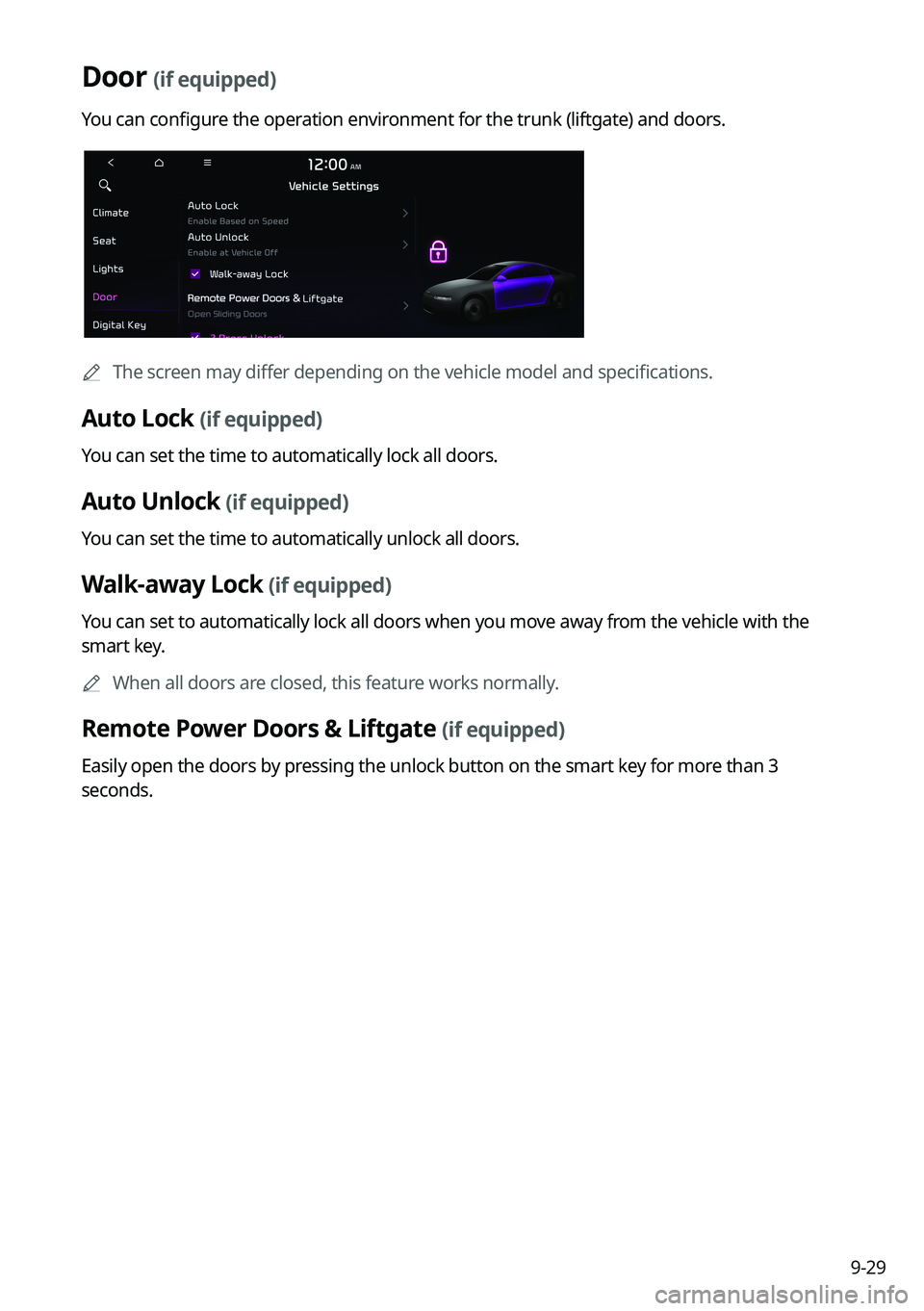
You can configure the operation environment for the trunk (liftgate) and doors.
0000
A
The screen may differ depending on the vehicle model and specifications.
Auto Lock (if equipped)
You can set the time to automatically lock all doors.
Auto Unlock (if equipped)
You can set the time to automatically unlock all doors.
Walk-away Lock (if equipped)
You can set to automatically lock all doors when you move away from the vehicle with the
smart key.
0000
A
When all doors are closed, this feature works normally.
Remote Power Doors & Liftgate (if equipped)
Easily open the doors by pressing the unlock button on the smart key for more than 3
seconds.
Page 218 of 316

9-30
2 Press Unlock (if equipped)
You can set to unlock all doors by pressing the door unlock button twice.0000
A
When you press the door unlock button once, only the driver's seat door is unlocked.
Smart Sliding Door (if equipped)
Set the sliding door to automatically open when you move close to the sliding door carrying
your smart key.
Power Trunk Opening Speed or Power Liftgate Opening Speed
(if equipped)
Set the opening speed for the power trunk (liftgate).
Power Trunk Opening Height or Power Liftgate Opening Height
(if equipped)
Set the opening height for the power trunk (liftgate).
Smart Trunk or Smart Liftgate (if equipped)
Opens the trunk (liftgate) automatically when approaching the trunk (liftgate) with the smart
key.
0000
A
The displayed name may differ depending on the vehicle model and specifications.
Liftgate Auto Close (if equipped)
Set the liftgate to automatically close when you move away from the back of the liftgate while
carrying the smart key.
Page 273 of 316

9-85
Configuring the screen theme/layout
settings (Type2)
(if equipped)
You can configure the settings for the display and themes.0000
A
Available settings may differ depending on the vehicle model and specifications.
1 On the All Menus screen, press Setup >
Screen Theme/Layout.
The theme/layout settings screen appears.
2 Configure the settings required:
0000
A
Press >
Search for Settings or press and enter a keyword to search for a
setting item. You can also search for a setting item by voice.
0000
A
If you press Display Off at the top of the screen, the screen is switched off. To switch the
screen back on, press the screen or briefly press the power button.
Screen Saver
You can select the items to display on the screen saver in standby mode.
Analog Clock
Displays the analog clock on the system screen saver.
0000
A
Press
to choose the Analog Clock to show on the screen.
Digital Clock
Displays the digital clock on the system screen saver.
None
Displays nothing on the system screen saver.
Page 274 of 316
9-86
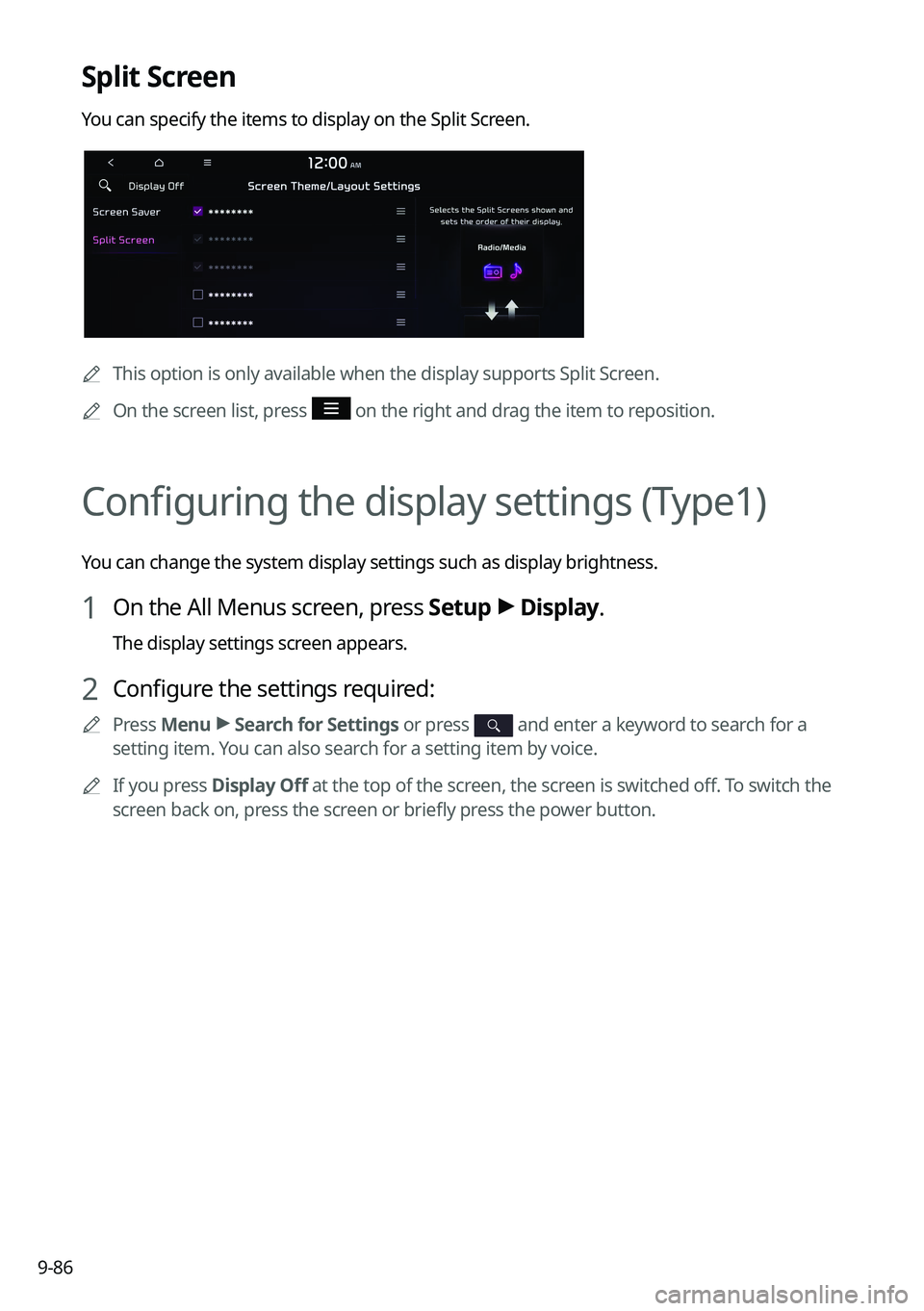
Split Screen
You can specify the items to display on the Split Screen.
0000
A
This option is only available when the display supports Split Screen.
0000
A
On the screen list, press
on the right and drag the item to reposition.
Configuring the display settings (Type1)
You can change the system display settings such as display brightness.
1 On the All Menus screen, press Setup >
Display.
The display settings screen appears.
2 Configure the settings required:
0000
A
Press Menu >
Search for Settings or press and enter a keyword to search for a
setting item. You can also search for a setting item by voice.
0000
A
If you press Display Off at the top of the screen, the screen is switched off. To switch the
screen back on, press the screen or briefly press the power button.
Page 278 of 316
9-90
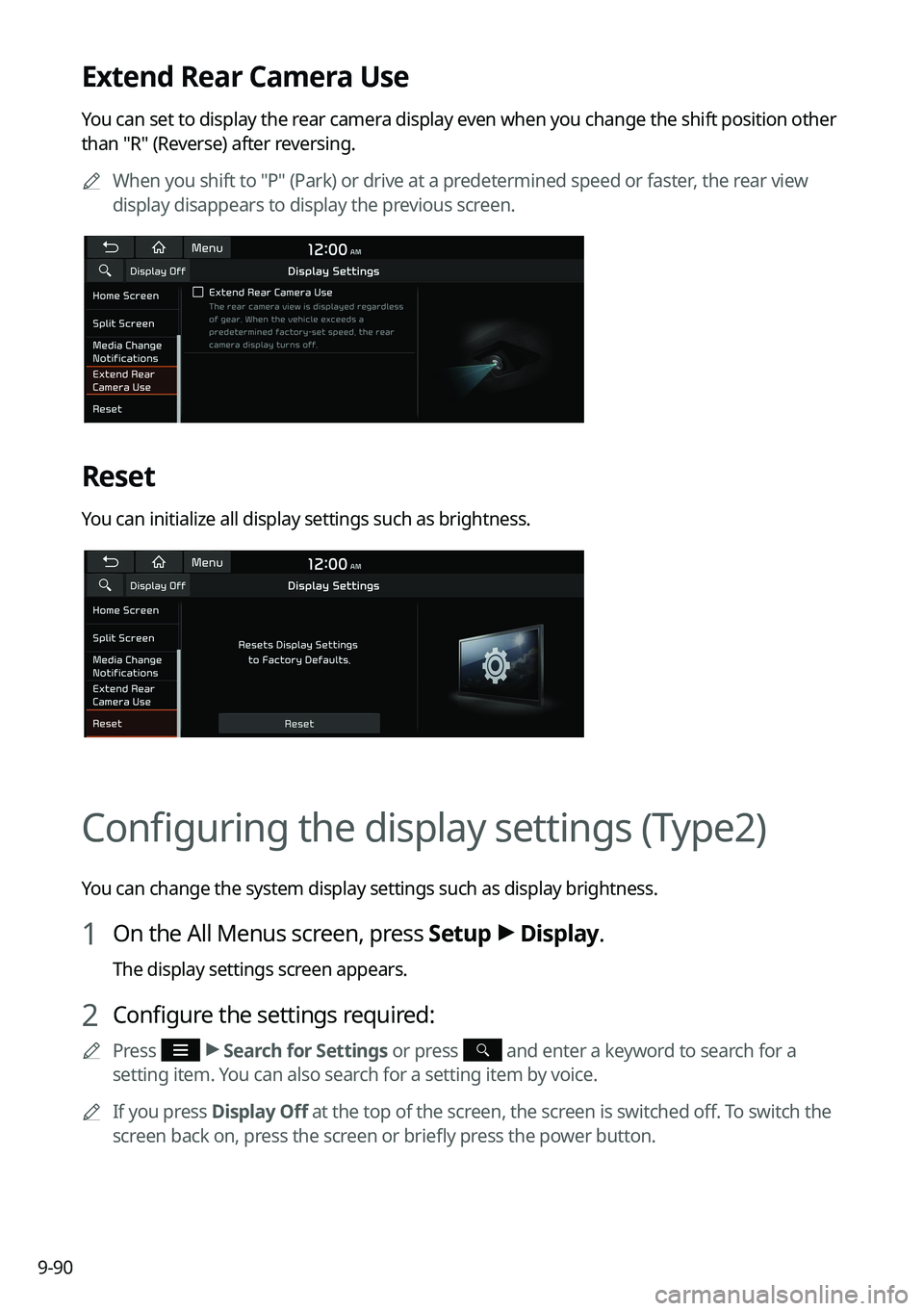
Extend Rear Camera Use
You can set to display the rear camera display even when you change the shift position other
than "R" (Reverse) after reversing.0000
A
When you shift to "P" (Park) or drive at a predetermined speed or faster, the rear view
display disappears to display the previous screen.
Reset
You can initialize all display settings such as brightness.
Configuring the display settings (Type2)
You can change the system display settings such as display brightness.
1 On the All Menus screen, press Setup >
Display.
The display settings screen appears.
2 Configure the settings required:
0000
A
Press >
Search for Settings or press and enter a keyword to search for a
setting item. You can also search for a setting item by voice.
0000
A
If you press Display Off at the top of the screen, the screen is switched off. To switch the
screen back on, press the screen or briefly press the power button.
Page 285 of 316
9-97
Updating the software and map
1 Connect a USB device to the computer and run Navigation Updater for
downloading the update files.
2 Follow the instructions on the screen to download the update files.
3 Remove the USB device from the computer and then connect it to the
USB port in your vehicle.
4 Start the vehicle to turn on the system.
0000
A
You can perform update without starting the vehicle by simply locating the start
switch to "ON".
\334\334Caution
\225Perform update with the start switch "ON" when the battery is sufficiently charged
by driving the vehicle. When the battery is discharged while updating, the system
may get damaged with the update stopped.
-Note that the battery may be discharged easily in winter.
-The battery may also be discharged easily when the vehicle is not used for a long
time. Caution is required.
\225
When you start the vehicle while updating with the start switch "ON", power supply
to the system may be cut off.
5 On the All Menus screen, press Setup >
General >
SW Info/Update.
0000
A
After the system is turned on, press Yes when a pop-up window appears whether
to proceed with update. In this case, the screen changes to allow you to select the
update method.
[ Updating immediately
You can finish the update quickly.
1 On the SW Info/Update screen, press Update.
2 Press Update Now.
3 Press OK.
The update is performed immediately after the system reboots.
Page 290 of 316
10-2
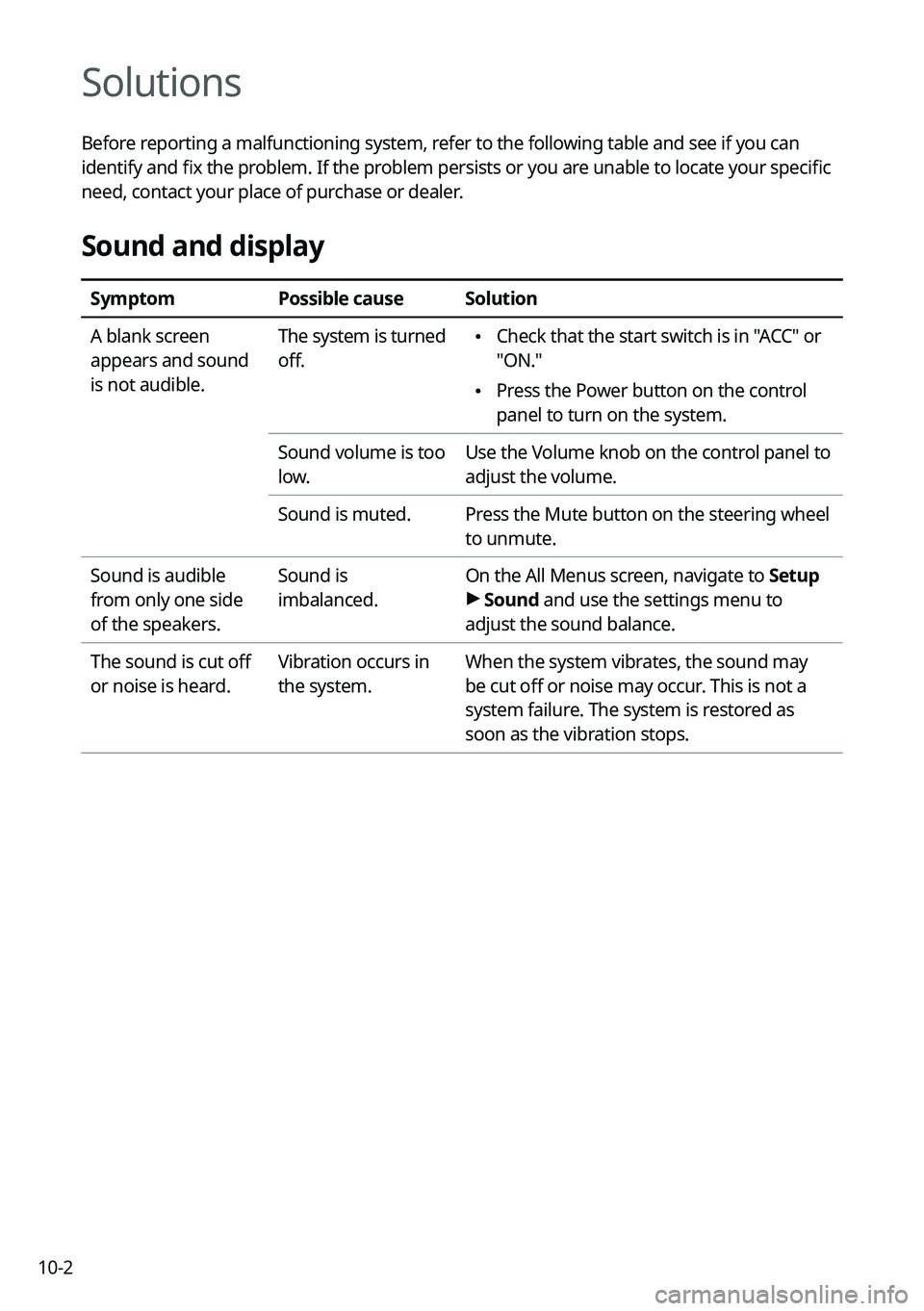
Solutions
Before reporting a malfunctioning system, refer to the following table and see if you can
identify and fix the problem. If the problem persists or you are unable to locate your specific
need, contact your place of purchase or dealer.
Sound and display
SymptomPossible causeSolution
A blank screen
appears and sound
is not audible. The system is turned
off.
\225
Check that the start switch is in "ACC" or
"ON."
\225Press the Power button on the control
panel to turn on the system.
Sound volume is too
low. Use the Volume knob on the control panel to
adjust the volume.
Sound is muted. Press the Mute button on the steering wheel
to unmute.
Sound is audible
from only one side
of the speakers. Sound is
imbalanced.
On the All Menus screen, navigate to Setup
>
Sound and use the settings menu to
adjust the sound balance.
The sound is cut off
or noise is heard. Vibration occurs in
the system.When the system vibrates, the sound may
be cut off or noise may occur. This is not a
system failure. The system is restored as
soon as the vibration stops.
Page 303 of 316
10-15
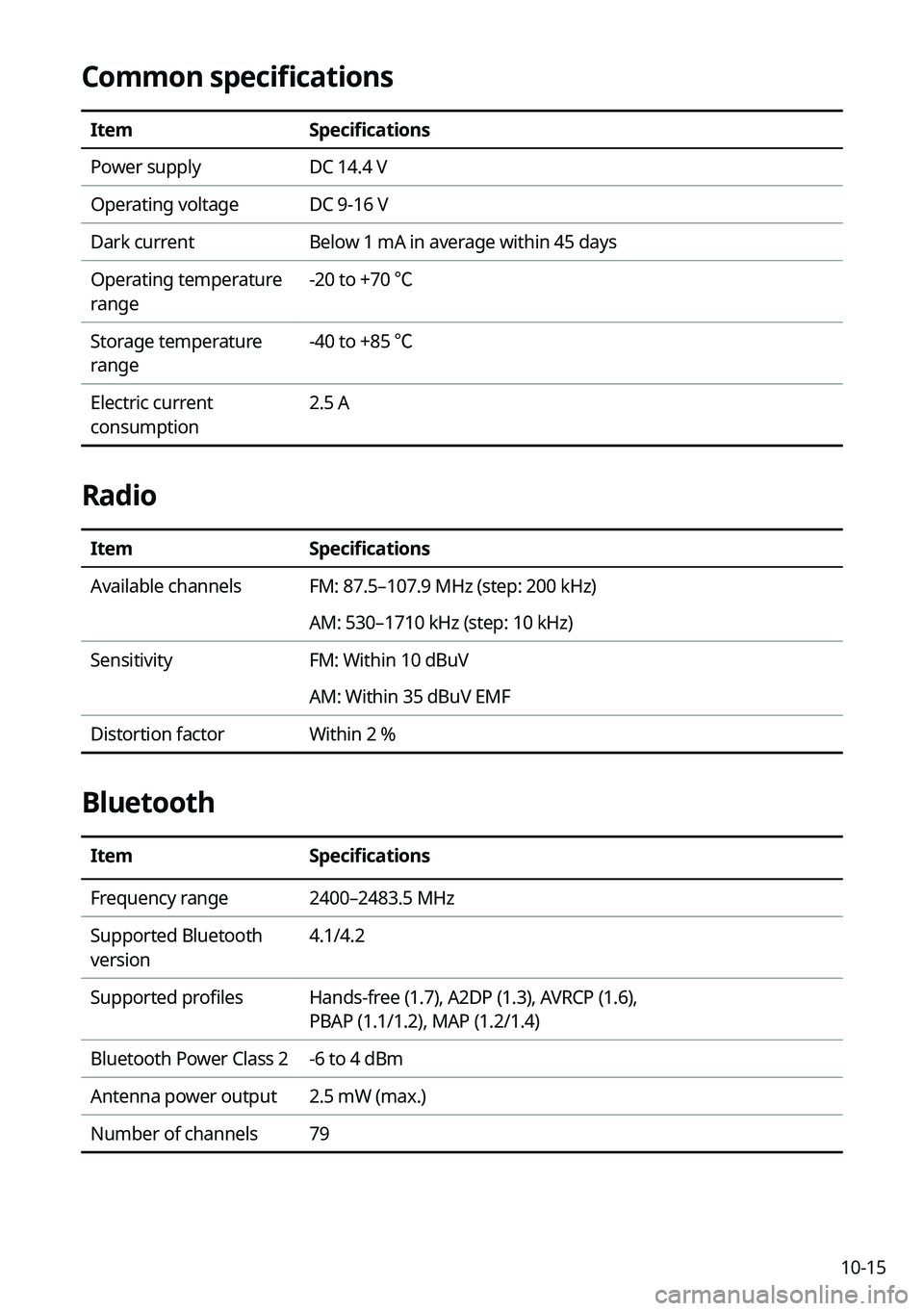
Common specifications
ItemSpecifications
Power supply DC 14.4 V
Operating voltage DC 9-16 V
Dark current Below 1 mA in average within 45 days
Operating temperature
range -20 to +70 ℃
Storage temperature
range -40 to +85 ℃
Electric current
consumption 2.5 A
Radio
Item
Specifications
Available channels FM: 87.5–107.9 MHz (step: 200 kHz)
AM: 530–1710 kHz (step: 10 kHz)
Sensitivity FM: Within 10 dBuV
AM: Within 35 dBuV EMF
Distortion factor Within 2 %
Bluetooth
ItemSpecifications
Frequency range 2400–2483.5 MHz
Supported Bluetooth
version 4.1/4.2
Supported profiles Hands-free (1.7), A2DP (1.3), AVRCP (1.6),
PBAP (1.1/1.2), MAP (1.2/1.4)
Bluetooth Power Class 2 -6 to 4 dBm
Antenna power output 2.5 mW (max.)
Number of channels 79
Page 304 of 316
10-16
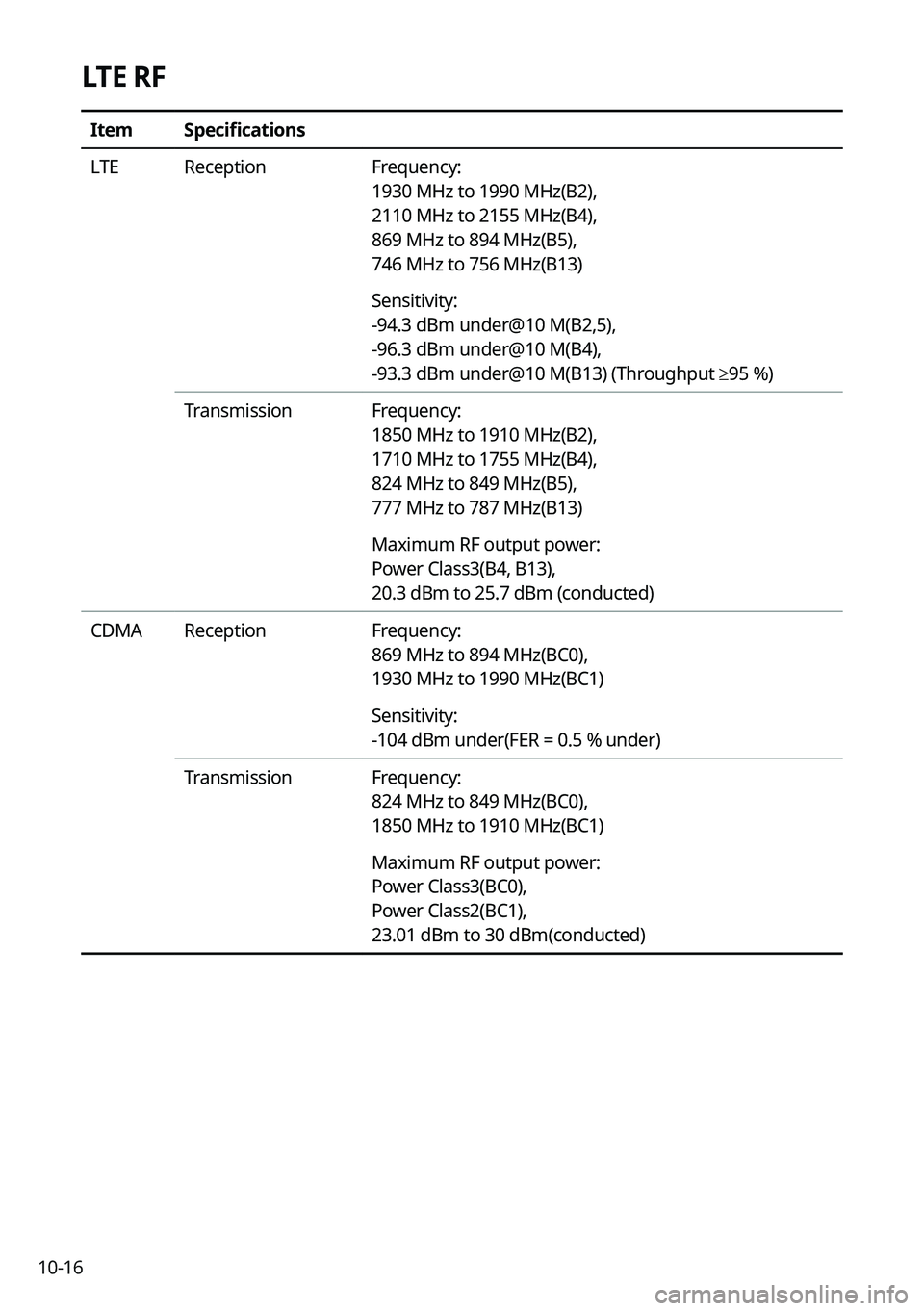
LTE RF
ItemSpecifications
LTE Reception Frequency:
1930 MHz to 1990 MHz(B2),
2110 MHz to 2155 MHz(B4),
869 MHz to 894 MHz(B5),
746 MHz to 756 MHz(B13)
Sensitivity:
-94.3 dBm under@10 M(B2,5),
-96.3 dBm under@10 M(B4),
-93.3 dBm under@10 M(B13) (Throughput ≥ 95 %)
Transmission Frequency:
1850 MHz to 1910 MHz(B2),
1710 MHz to 1755 MHz(B4),
824 MHz to 849 MHz(B5),
777 MHz to 787 MHz(B13)
Maximum RF output power:
Power Class3(B4, B13),
20.3 dBm to 25.7 dBm (conducted)
CDMA Reception Frequency:
869 MHz to 894 MHz(BC0),
1930 MHz to 1990 MHz(BC1)
Sensitivity:
-104 dBm under(FER = 0.5 % under)
Transmission Frequency:
824 MHz to 849 MHz(BC0),
1850 MHz to 1910 MHz(BC1)
Maximum RF output power:
Power Class3(BC0),
Power Class2(BC1),
23.01 dBm to 30 dBm(conducted)
Page 307 of 316
10-19
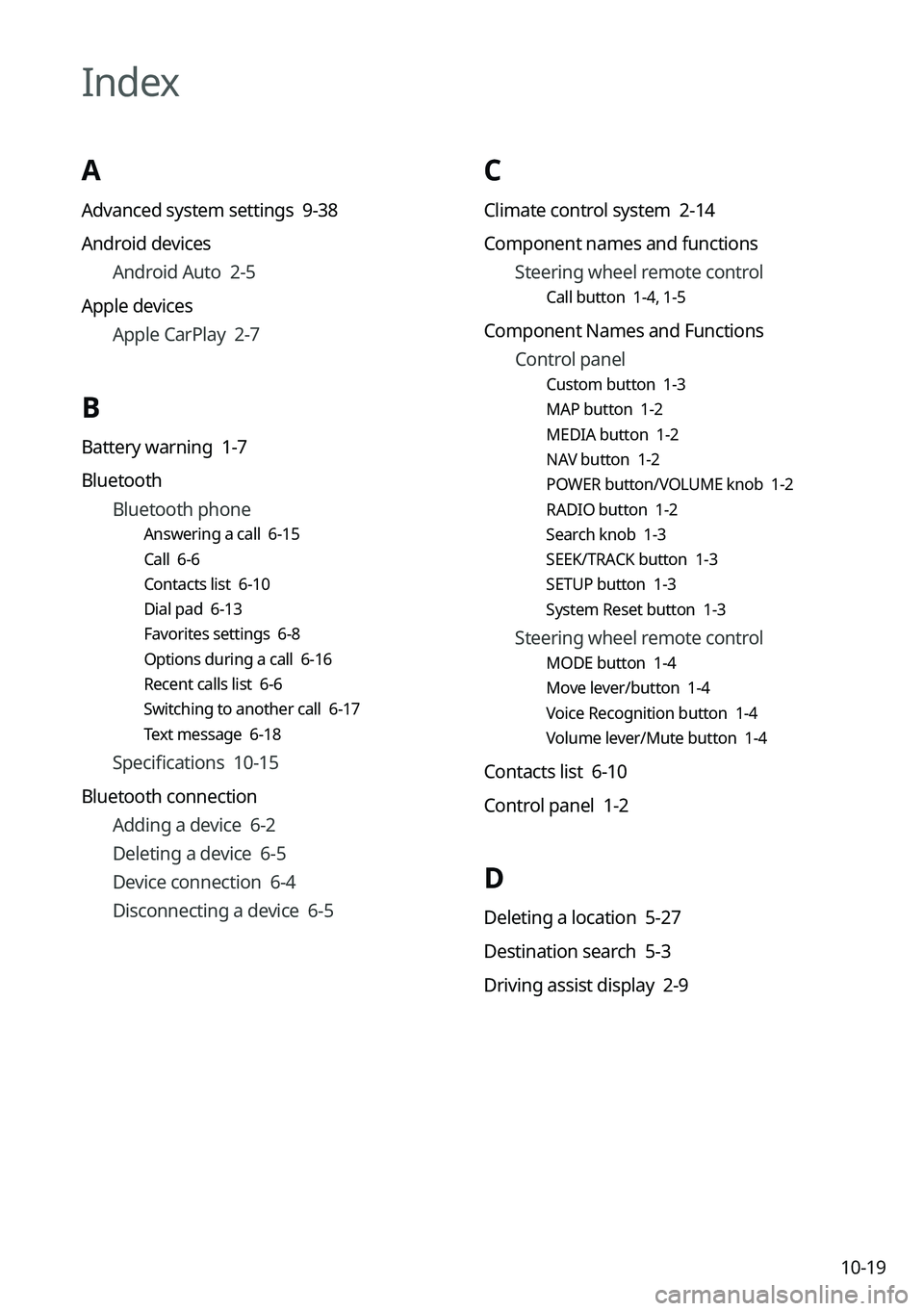
C
Climate control system 2-14
Component names and functionsSteering wheel remote control
Call button 1-4, 1-5
Component Names and Functions
Control panel
Custom button 1-3
MAP button 1-2
MEDIA button 1-2
NAV button 1-2
POWER button/VOLUME knob 1-2
RADIO button 1-2
Search knob 1-3
SEEK/TRACK button 1-3
SETUP button 1-3
System Reset button 1-3
Steering wheel remote control
MODE button 1-4
Move lever/button 1-4
Voice Recognition button 1-4
Volume lever/Mute button 1-4
Contacts list 6-10
Control panel 1-2
D
Deleting a location 5-27
Destination search 5-3
Driving assist display 2-9
Index
A
Advanced system settings 9-38
Android devicesAndroid Auto 2-5
Apple devices Apple CarPlay 2-7
B
Battery warning 1-7
BluetoothBluetooth phone
Answering a call 6-15
Call 6-6
Contacts list 6-10
Dial pad 6-13
Favorites settings 6-8
Options during a call 6-16
Recent calls list 6-6
Switching to another call 6-17
Text message 6-18
Specifications 10-15
Bluetooth connection Adding a device 6-2
Deleting a device 6-5
Device connection 6-4
Disconnecting a device 6-5