power KIA FORTE 2022 Navigation System Quick Reference Guide
[x] Cancel search | Manufacturer: KIA, Model Year: 2022, Model line: FORTE, Model: KIA FORTE 2022Pages: 316, PDF Size: 10.52 MB
Page 142 of 316
6-12
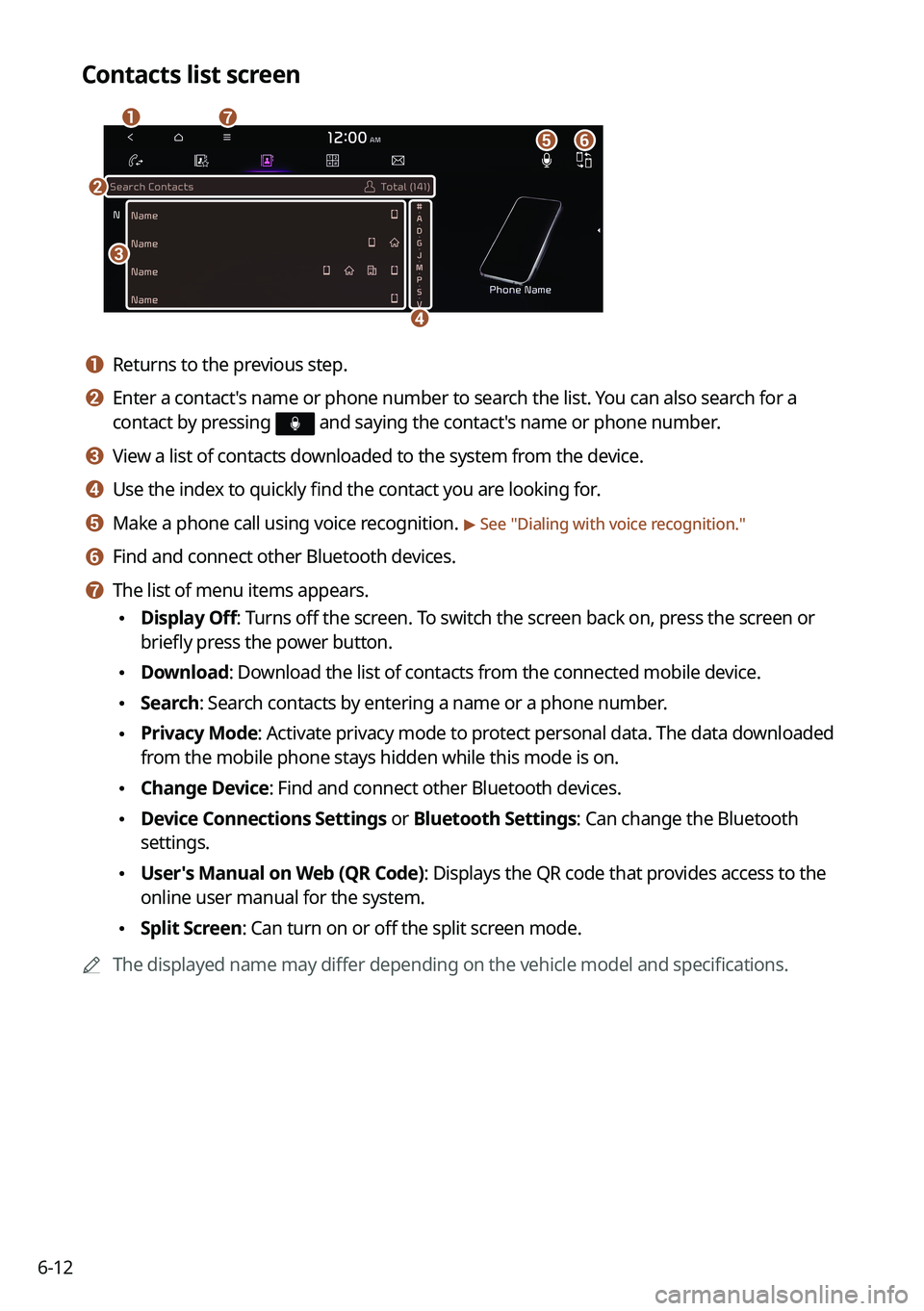
Contacts list screen
\037
\036
\035
\034
\033
\032
\031
a a Returns to the previous step.
b b Enter a contact's name or phone number to search the list. You can also search for a
contact by pressing
and saying the contact's name or phone number.
c c View a list of contacts downloaded to the system from the device.
d d Use the index to quickly find the contact you are looking for.
e e Make a phone call using voice recognition. > See "Dialing with voice recognition."
f f Find and connect other Bluetooth devices.
g g The list of menu items appears.
\225 Display Off: Turns off the screen. To switch the screen back on, press the screen or
briefly press the power button.
\225Download: Download the list of contacts from the connected mobile device.
\225Search: Search contacts by entering a name or a phone number.
\225Privacy Mode: Activate privacy mode to protect personal data. The data downloaded
from the mobile phone stays hidden while this mode is on.
\225Change Device: Find and connect other Bluetooth devices.
\225Device Connections Settings or Bluetooth Settings: Can change the Bluetooth
settings.
\225User's Manual on Web (QR Code): Displays the QR code that provides access to the
online user manual for the system.
\225Split Screen: Can turn on or off the split screen mode.
0000
A
The displayed name may differ depending on the vehicle model and specifications.
Page 144 of 316
6-14
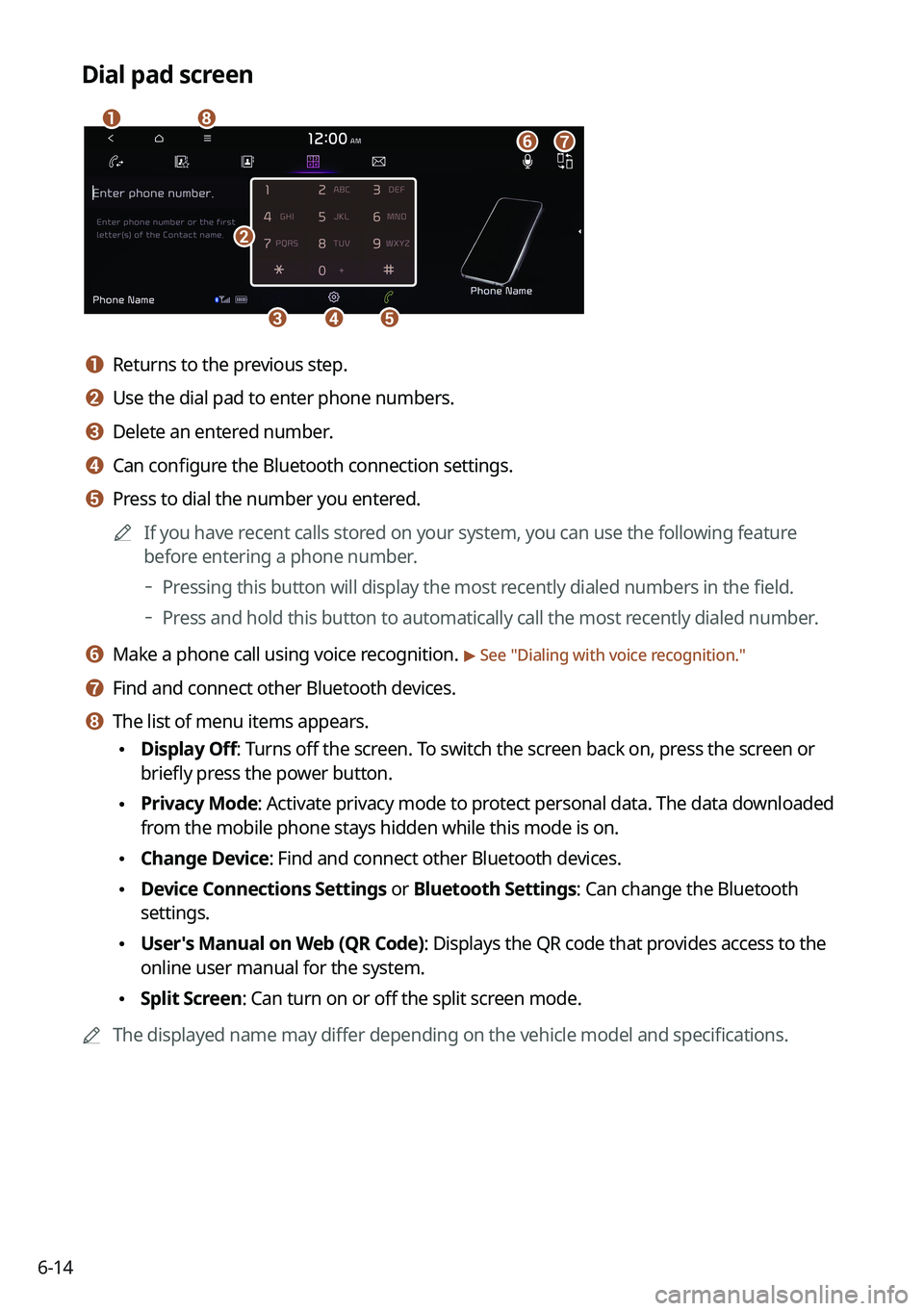
Dial pad screen
\037
\036\035\034
\033
\032
\031
\030
a a Returns to the previous step.
b b Use the dial pad to enter phone numbers.
c c Delete an entered number.
d d Can configure the Bluetooth connection settings.
e e Press to dial the number you entered.0000
A
If you have recent calls stored on your system, you can use the following feature
before entering a phone number.
000DPressing this button will display the most recently dialed numbers in the field.
000DPress and hold this button to automatically call the most recently dialed number.
f f Make a phone call using voice recognition. > See "
Dialing with voice recognition."
g g Find and connect other Bluetooth devices.
h h The list of menu items appears.
\225 Display Off: Turns off the screen. To switch the screen back on, press the screen or
briefly press the power button.
\225Privacy Mode: Activate privacy mode to protect personal data. The data downloaded
from the mobile phone stays hidden while this mode is on.
\225Change Device: Find and connect other Bluetooth devices.
\225Device Connections Settings or Bluetooth Settings: Can change the Bluetooth
settings.
\225User's Manual on Web (QR Code): Displays the QR code that provides access to the
online user manual for the system.
\225Split Screen: Can turn on or off the split screen mode.
0000
A
The displayed name may differ depending on the vehicle model and specifications.
Page 147 of 316

6-17
d d Displays or hides the dial pad screen.
e e Used to switch the call to the mobile phone. This option may not be avai\
lable in some
phone models.
f f Used to end a call.
g g The list of menu items appears.
\225Display Off: Turns off the screen. To switch the screen back on, press the screen or
briefly press the power button.
\225Privacy Mode: Activate privacy mode to protect personal data. The data downloaded
from the mobile phone stays hidden while this mode is on.
\225Split Screen: Can turn on or off the split screen mode.
0000
A
If you set the microphone volume too high, the other party may have a difficulty
understanding you due to noise or echoing, depending on their mobile pho\
ne and
surroundings. Setting the volume to 30 or lower is recommended.
0000
A
When the caller is in the contact list, the caller's name and phone number of the caller are
displayed. Otherwise, only the phone number appears.
0000
A
During a call with a Bluetooth connection, you cannot switch to another \
screen such as
Radio/Media mode.
0000
A
Depending on the phone model, the call volume of the other party may differ.
0000
A
Depending on the phone model, the smartphone number may not appear.
Switching to another call
You can receive another incoming call while in a call. This option is available o\
nly when the
connected mobile phone supports the call hold function. The original cal\
l is put on hold.
To switch between two calls, use either option.
\225Press
Switch.
\225Press a displayed phone number.
0000A
This option may not be available in some phone models.
Page 149 of 316
6-19
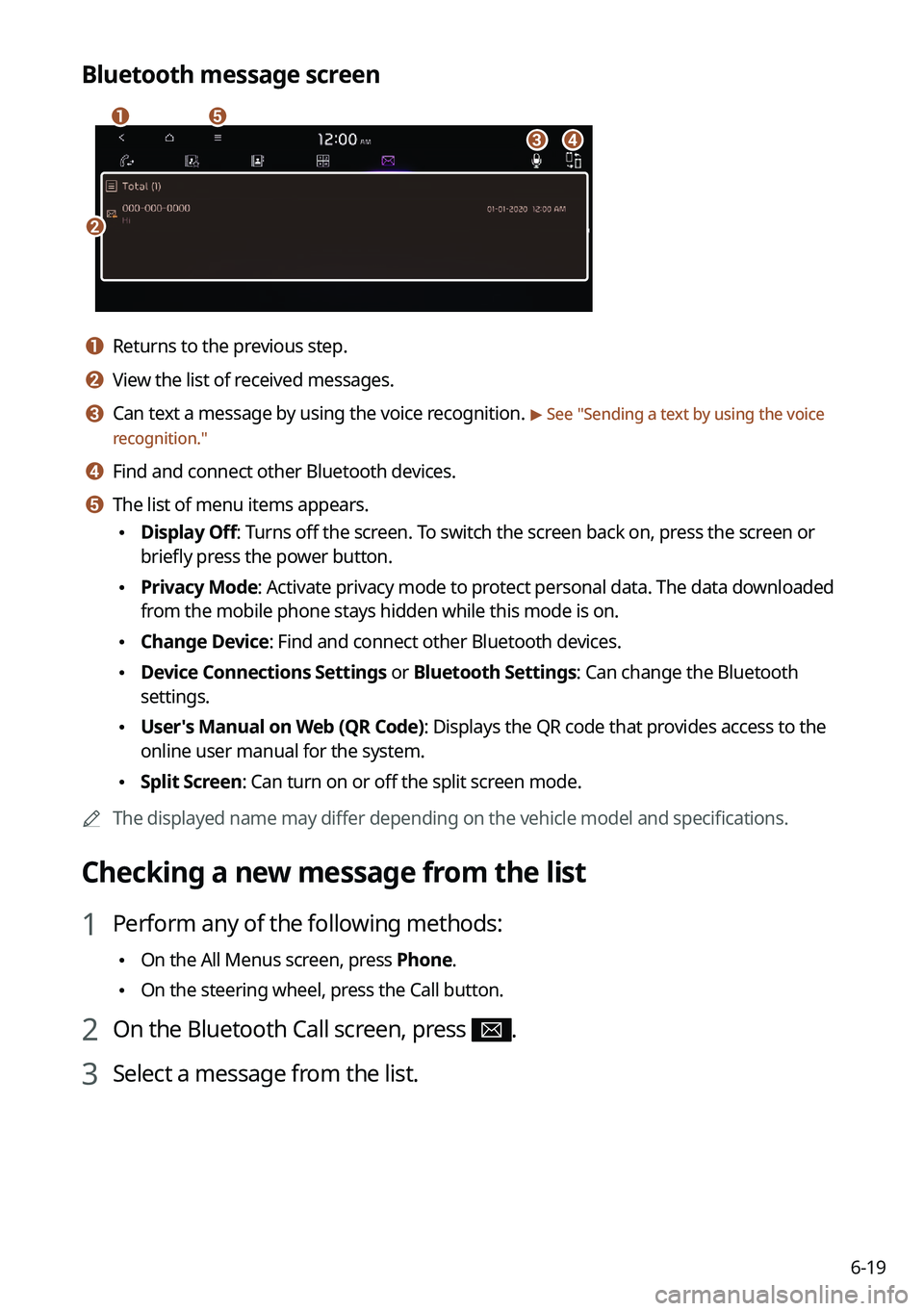
Bluetooth message screen
\037
\036
\035
\034
\033
a a Returns to the previous step.
b b View the list of received messages.
c c Can text a message by using the voice recognition. > See "Sending a text by using the voice
recognition."
d d Find and connect other Bluetooth devices.
e e The list of menu items appears.
\225 Display Off: Turns off the screen. To switch the screen back on, press the screen or
briefly press the power button.
\225Privacy Mode: Activate privacy mode to protect personal data. The data downloaded
from the mobile phone stays hidden while this mode is on.
\225Change Device: Find and connect other Bluetooth devices.
\225Device Connections Settings or Bluetooth Settings: Can change the Bluetooth
settings.
\225User's Manual on Web (QR Code): Displays the QR code that provides access to the
online user manual for the system.
\225Split Screen: Can turn on or off the split screen mode.
0000
A
The displayed name may differ depending on the vehicle model and specifications.
Checking a new message from the list
1 Perform any of the following methods:
\225On the All Menus screen, press Phone.
\225On the steering wheel, press the Call button.
2 On the Bluetooth Call screen, press .
3 Select a message from the list.
Page 150 of 316
6-20
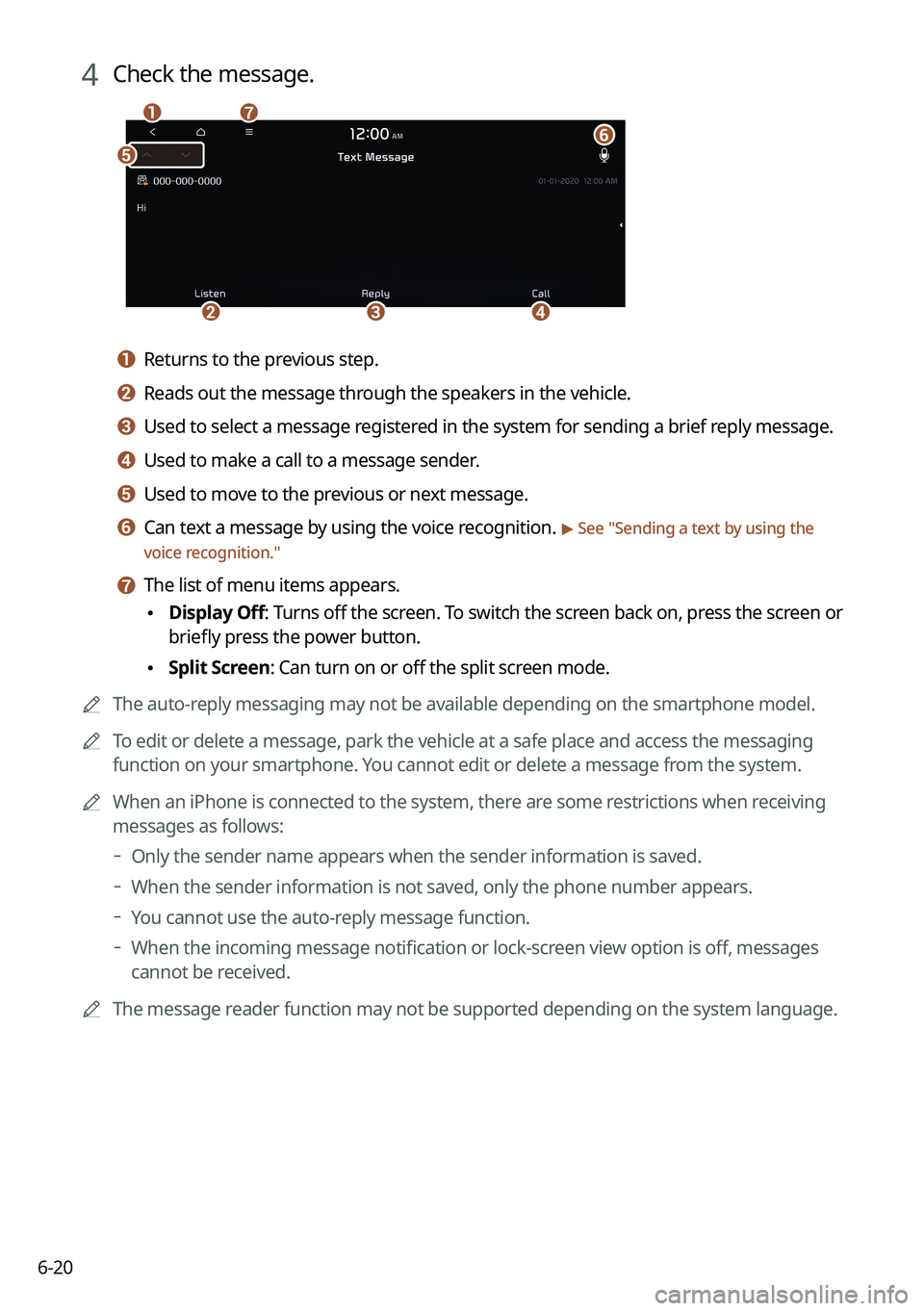
4 Check the message.
\037
\036
\035
\034
\033\032
\031
a a Returns to the previous step.
b b Reads out the message through the speakers in the vehicle.
c c Used to select a message registered in the system for sending a brief reply message.
d d Used to make a call to a message sender.
e e Used to move to the previous or next message.
f f Can text a message by using the voice recognition. > See "Sending a text by using the
voice recognition."
g g The list of menu items appears.
\225 Display Off
: Turns off the screen. To switch the screen back on, press the screen or
briefly press the power button.
\225 Split Screen: Can turn on or off the split screen mode.
0000
A
The auto-reply messaging may not be available depending on the smartphone model.
0000
A
To edit or delete a message, park the vehicle at a safe place and access \
the messaging
function on your smartphone. You cannot edit or delete a message from the system.
0000
A
When an iPhone is connected to the system, there are some restrictions when receiving
messages as follows:
000DOnly the sender name appears when the sender information is saved.
000DWhen the sender information is not saved, only the phone number appears.\
000DYou cannot use the auto-reply message function.
000DWhen the incoming message notification or lock-screen view option is off, messages
cannot be received.
0000
A
The message reader function may not be supported depending on the system language.
Page 174 of 316
7-22
Voice Memo
You can use the microphone on the vehicle to record and play voice memos.
Using the voice memos
On the All Menus screen, press Voice Memo.
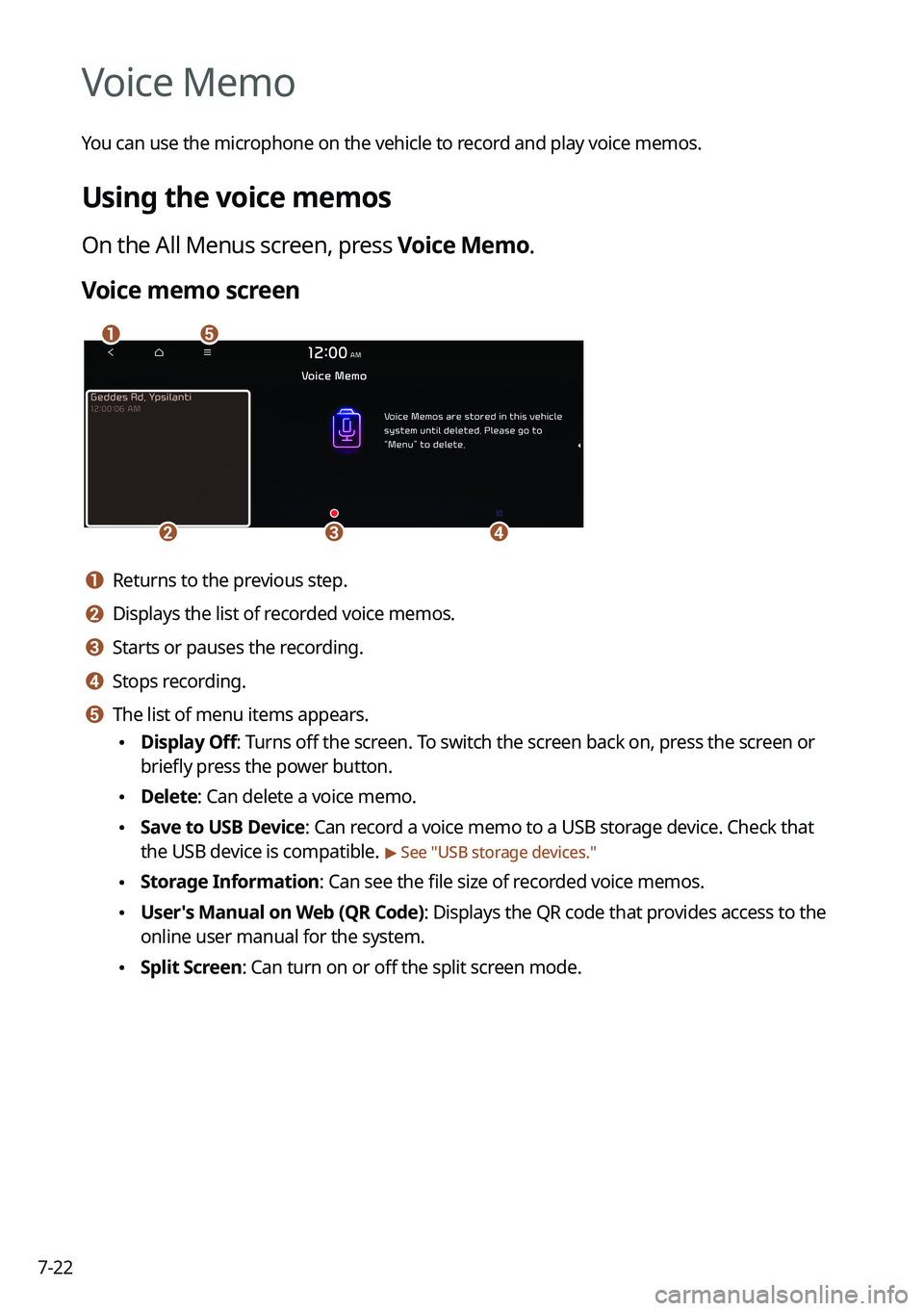
Voice memo screen
\037\036
\035\034\033
a a Returns to the previous step.
b b Displays the list of recorded voice memos.
c c Starts or pauses the recording.
d d Stops recording.
e e The list of menu items appears.
\225Display Off: Turns off the screen. To switch the screen back on, press the screen or
briefly press the power button.
\225Delete: Can delete a voice memo.
\225Save to USB Device: Can record a voice memo to a USB storage device. Check that
the USB device is compatible.
> See "USB storage devices."
\225Storage Information: Can see the file size of recorded voice memos.
\225User's Manual on Web (QR Code): Displays the QR code that provides access to the
online user manual for the system.
\225Split Screen: Can turn on or off the split screen mode.
Page 180 of 316
8-4
Running the UVO
You can run the UVO in the system to use the service.
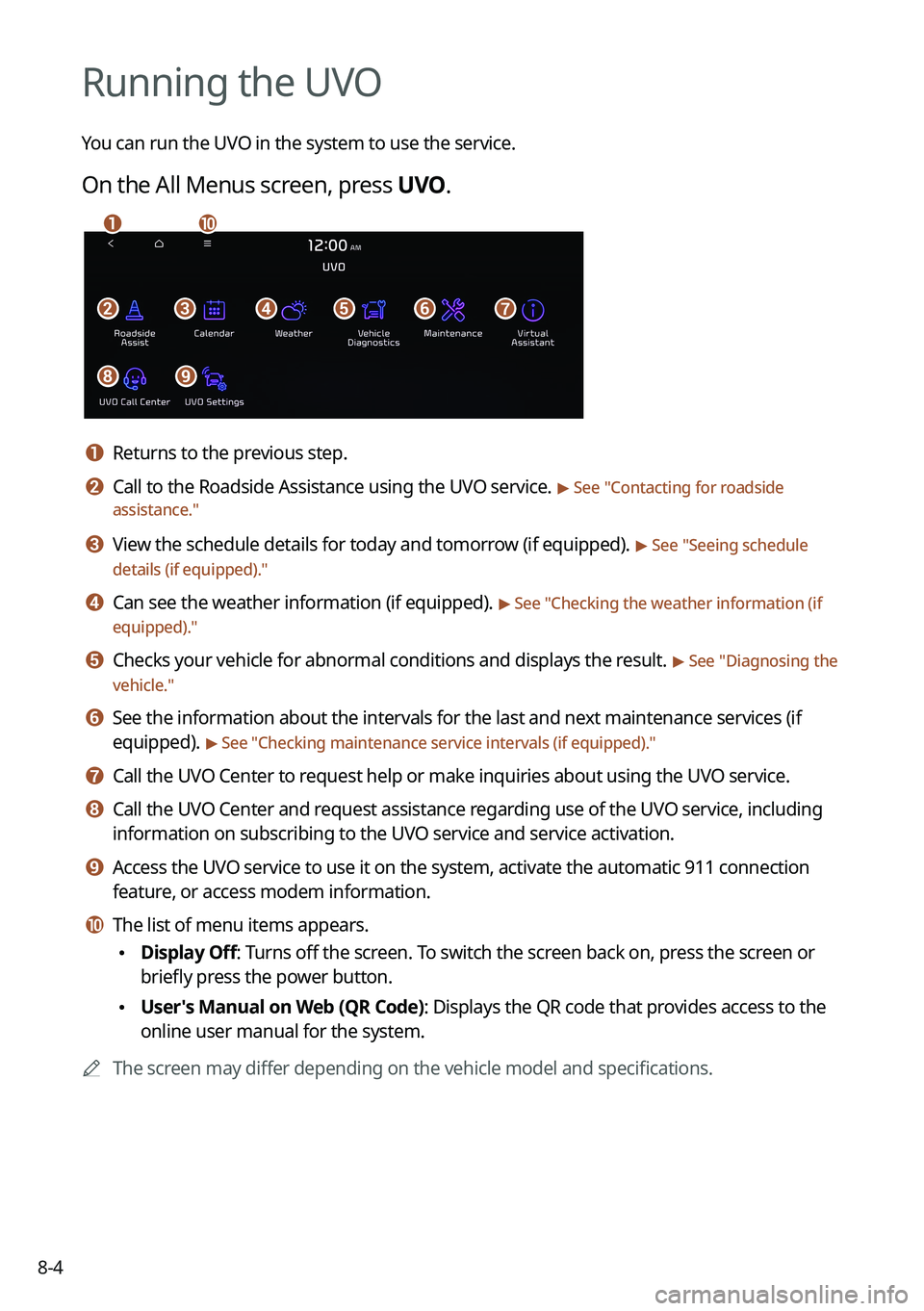
On the All Menus screen, press UVO.
\037\036\035\034\033\032
\031\030
\027\026
a a Returns to the previous step.
b b Call to the Roadside Assistance using the UVO service. > See "Contacting for roadside
assistance."
c c View the schedule details for today and tomorrow (if equipped). > See " Seeing schedule
details (if equipped)."
d d Can see the weather information (if equipped). > See "Checking the weather information (if
equipped)."
e e Checks your vehicle for abnormal conditions and displays the result. > See " Diagnosing the
vehicle."
f f See the information about the intervals for the last and next maintenance services (if
equipped).
> See "Checking maintenance service intervals (if equipped) ."
g g Call the UVO Center to request help or make inquiries about using the UVO service.
h h Call the UVO Center and request assistance regarding use of the UVO service, including
information on subscribing to the UVO service and service activation.
i i Access the UVO service to use it on the system, activate the automatic 911 connection\
feature, or access modem information.
j j The list of menu items appears.
\225Display Off: Turns off the screen. To switch the screen back on, press the screen or
briefly press the power button.
\225User's Manual on Web (QR Code): Displays the QR code that provides access to the
online user manual for the system.
0000
A
The screen may differ depending on the vehicle model and specifications.
Page 184 of 316
8-8
Schedule reminder
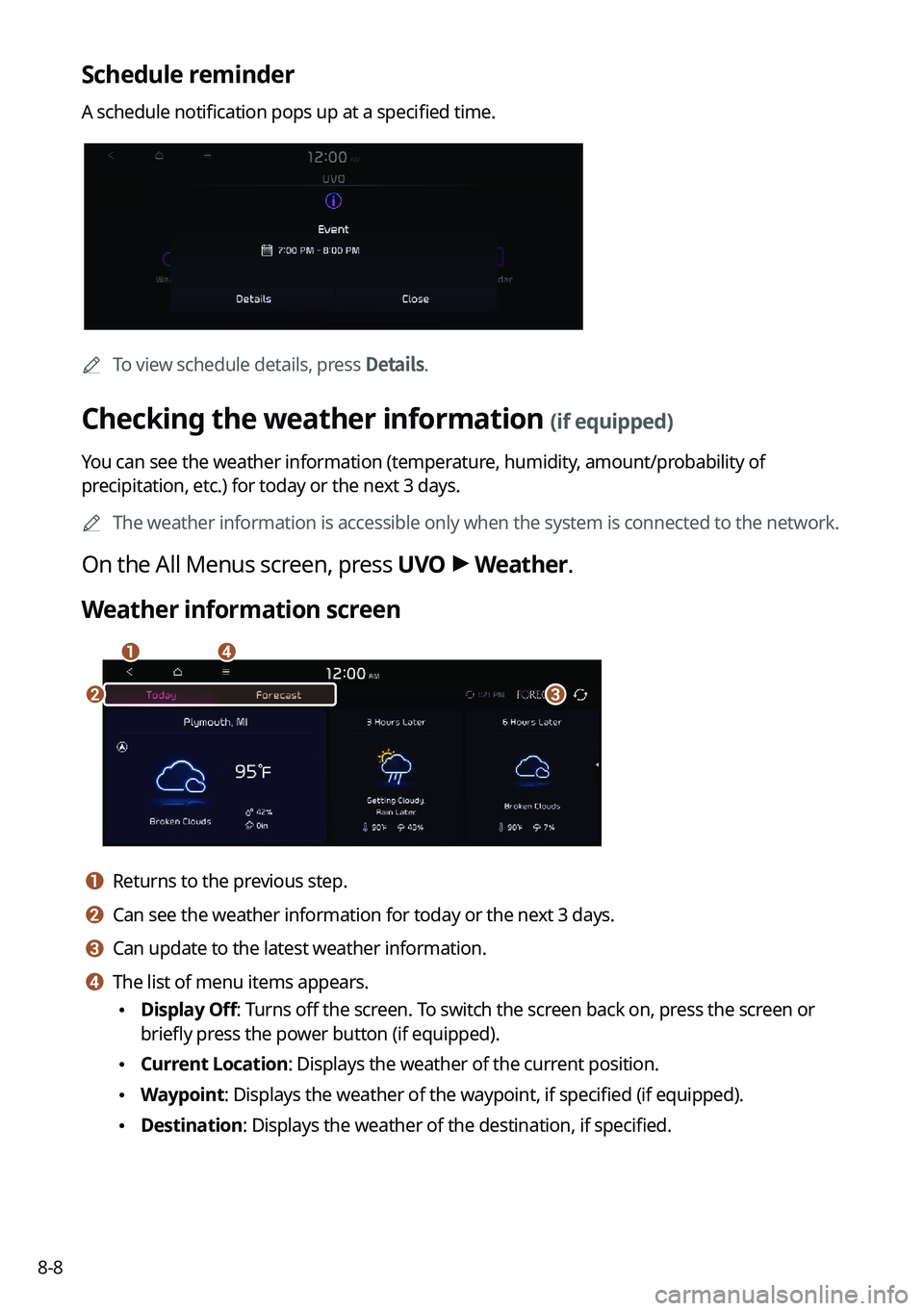
A schedule notification pops up at a specified time.
0000
A
To view schedule details, press Details.
Checking the weather information (if equipped)
You can see the weather information (temperature, humidity, amount/probability of
precipitation, etc.) for today or the next 3 days.
0000
A
The weather information is accessible only when the system is connected \
to the network.
On the All Menus screen, press UVO >
Weather.
Weather information screen
\037\036
\035\034
a a Returns to the previous step.
b b Can see the weather information for today or the next 3 days.
c c Can update to the latest weather information.
d d The list of menu items appears.
\225 Display Off: Turns off the screen. To switch the screen back on, press the screen or
briefly press the power button (if equipped).
\225Current Location: Displays the weather of the current position.
\225Waypoint: Displays the weather of the waypoint, if specified (if equipped).
\225Destination: Displays the weather of the destination, if specified.
Page 190 of 316
9-2
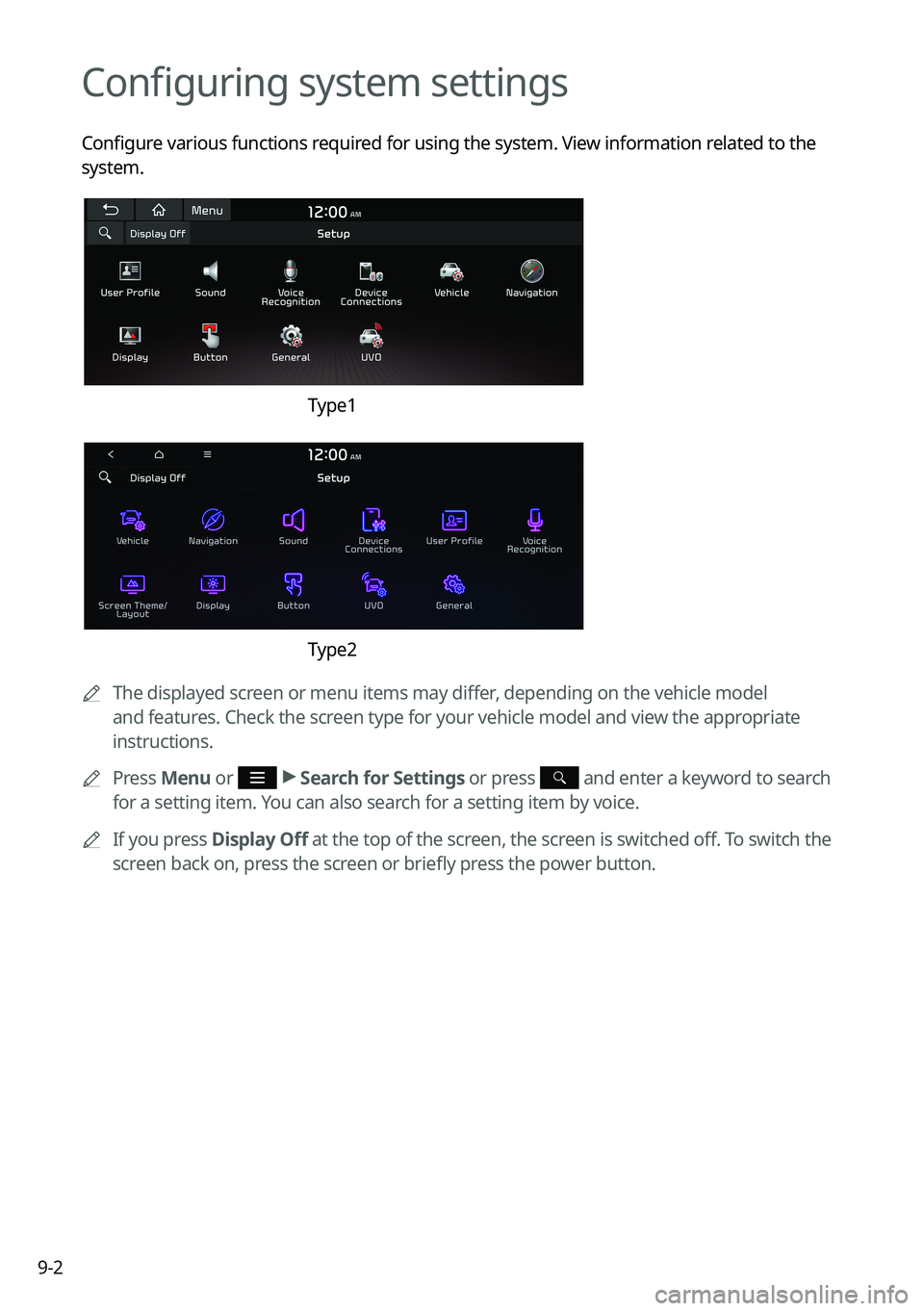
Configuring system settings
Configure various functions required for using the system. View information related to the
system.
Type1
Type2
0000
A
The displayed screen or menu items may differ, depending on the vehicle model
and features. Check the screen type for your vehicle model and view the appropriate
instructions.
0000
A
Press Menu or
>
Search for Settings or press and enter a keyword to search
for a setting item. You can also search for a setting item by voice.
0000
A
If you press Display Off at the top of the screen, the screen is switched off. To switch the
screen back on, press the screen or briefly press the power button.
Page 209 of 316

9-21
CUSTOM (if equipped)
You can set to select the drive mode optimized for the driving habits or road conditions.
\225Powertrain: Select a drive mode that performs optimum engine and transmission
control depending on the driving situation.
000DNORMAL: Optimized for balanced comfort.
000DSPORT: Optimized for agile driving.
\225
Steering: Select a drive mode that performs optimum steering wheel control depending
on the driving situation.
000DNORMAL: Optimized for smooth steering.
000DSPORT: Optimized for agile steering.
ECO (EV only)
This is a drive mode for increasing the vehicle's fuel efficiency. You can change the climate
control mode, the active coast energy regeneration level, and speed limit settings.
NORMAL (EV only)
This is a drive mode focused on the driver and passenger's comfort. You can change the
climate control mode and the active coast energy regeneration level.
SPORT (EV only)
This drive mode enables a more dynamic driving performance. You can change the climate
control mode and the active coast energy regeneration level.
Drive Mode Change Alert (if equipped)
You can set how to display the notification message when the drive mode is changed.
\225
Detailed Alert: Displays a detailed notification message along with the vehicle image
when the drive mode is changed.
\225Simple Alert: Displays the notification at the top or on the split screen when the drive
mode is changed.
\225Off: When the drive mode changes, no notification is provided.