change KIA FORTE 2022 Navigation System Quick Reference Guide
[x] Cancel search | Manufacturer: KIA, Model Year: 2022, Model line: FORTE, Model: KIA FORTE 2022Pages: 316, PDF Size: 10.52 MB
Page 209 of 316

9-21
CUSTOM (if equipped)
You can set to select the drive mode optimized for the driving habits or road conditions.
\225Powertrain: Select a drive mode that performs optimum engine and transmission
control depending on the driving situation.
000DNORMAL: Optimized for balanced comfort.
000DSPORT: Optimized for agile driving.
\225
Steering: Select a drive mode that performs optimum steering wheel control depending
on the driving situation.
000DNORMAL: Optimized for smooth steering.
000DSPORT: Optimized for agile steering.
ECO (EV only)
This is a drive mode for increasing the vehicle's fuel efficiency. You can change the climate
control mode, the active coast energy regeneration level, and speed limit settings.
NORMAL (EV only)
This is a drive mode focused on the driver and passenger's comfort. You can change the
climate control mode and the active coast energy regeneration level.
SPORT (EV only)
This drive mode enables a more dynamic driving performance. You can change the climate
control mode and the active coast energy regeneration level.
Drive Mode Change Alert (if equipped)
You can set how to display the notification message when the drive mode is changed.
\225
Detailed Alert: Displays a detailed notification message along with the vehicle image
when the drive mode is changed.
\225Simple Alert: Displays the notification at the top or on the split screen when the drive
mode is changed.
\225Off: When the drive mode changes, no notification is provided.
Page 214 of 316
9-26
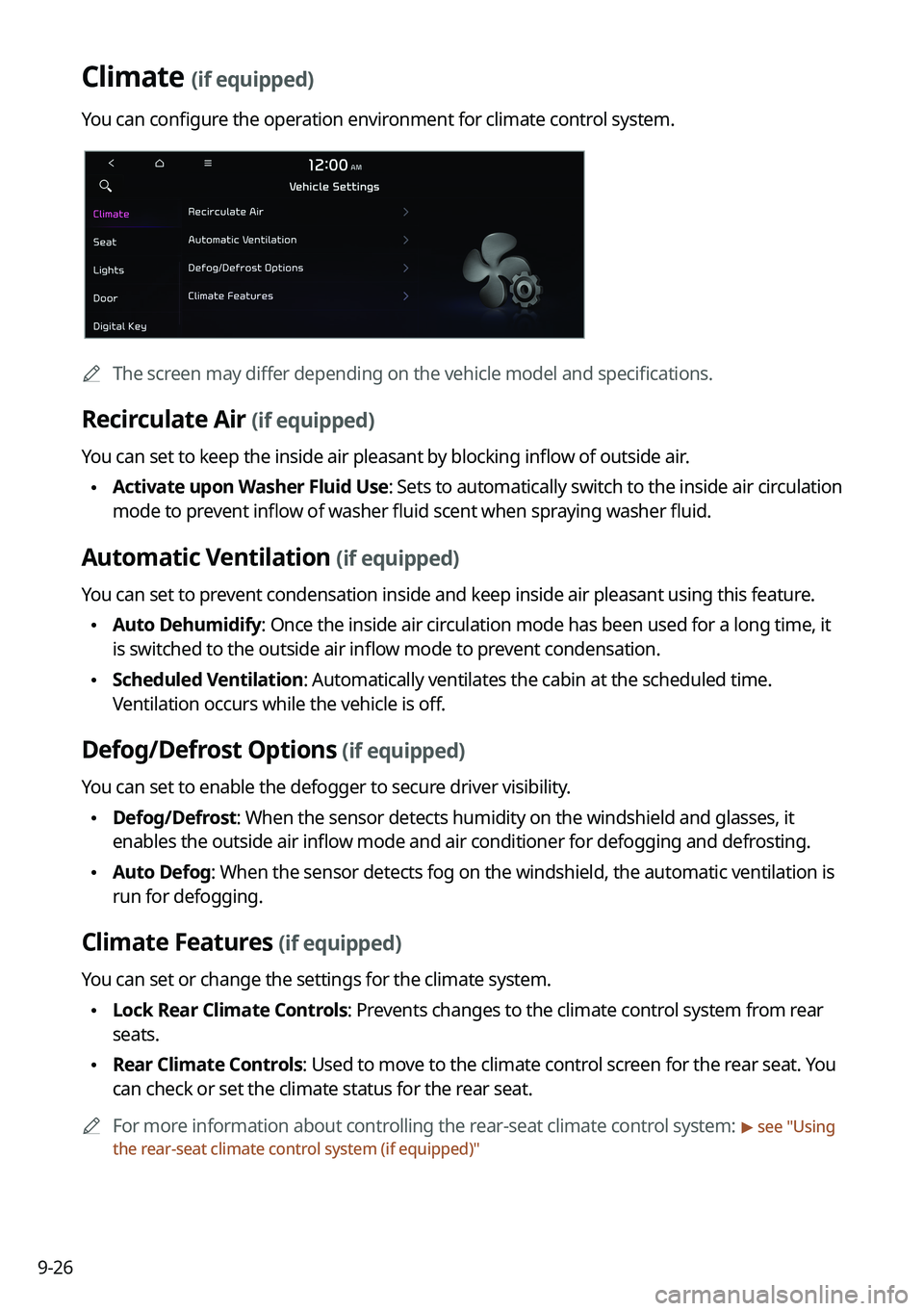
Climate (if equipped)
You can configure the operation environment for climate control system.
0000
A
The screen may differ depending on the vehicle model and specifications.
Recirculate Air (if equipped)
You can set to keep the inside air pleasant by blocking inflow of outside air.
\225Activate upon Washer Fluid Use
: Sets to automatically switch to the inside air circulation
mode to prevent inflow of washer fluid scent when spraying washer fluid.
Automatic Ventilation (if equipped)
You can set to prevent condensation inside and keep inside air pleasant using this feature.
\225 Auto Dehumidify: Once the inside air circulation mode has been used for a long time, it
is switched to the outside air inflow mode to prevent condensation.
\225Scheduled Ventilation: Automatically ventilates the cabin at the scheduled time.
Ventilation occurs while the vehicle is off.
Defog/Defrost Options (if equipped)
You can set to enable the defogger to secure driver visibility.
\225Defog/Defrost: When the sensor detects humidity on the windshield and glasses, it
enables the outside air inflow mode and air conditioner for defogging and defrosting.
\225Auto Defog: When the sensor detects fog on the windshield, the automatic ventilation is
run for defogging.
Climate Features (if equipped)
You can set or change the settings for the climate system.
\225Lock Rear Climate Controls: Prevents changes to the climate control system from rear
seats.
\225Rear Climate Controls: Used to move to the climate control screen for the rear seat. You
can check or set the climate status for the rear seat.
0000
A
For more information about controlling the rear-seat climate control system:
> see "Using
the rear-seat climate control system (if equipped)"
Page 215 of 316

9-27
Seat (if equipped)
You can configure the settings of the steering wheel or seats, such as seat position change
notification and automatic control of the steering wheel warmer.
0000
A
The screen may differ depending on the vehicle model and specifications.
Seat Position Change Alert (if equipped)
You can set the system to display a notification message along with the seat image on the
screen when a seat position is changed.
Recline 2nd Row Seat Backs (if equipped)
Adjust the second-row seat back angle.
Smart Posture Care (if equipped)
You can see the recommended driving posture according to your physical data, and the
clinical inspection result for your waist.
Heated/Ventilated Features (if equipped)
You can set to make the driving environment pleasant by controlling the steering wheel
warmer and driver's seat warmer/ventilation.
\225Auto. Controls That Use Climate Control Settings: Automatically controls the heating
wire or ventilation for the driver's seat and steering wheel, in sync with the climate control
function.
000DSteering Wheel Warmer: Steering Wheel Warmer adjusts automatically based on
Climate settings.
000DSeat Warmer/Ventilation: Seat Warmer/Ventilation adjusts automatically based on
Climate settings.
Page 226 of 316
9-38
Configuring the advanced system settings
(Type1)
(if equipped)
You can configure the settings for notification and button actions.
1 On the All Menus screen, press Setup >
Advanced.
The advanced settings screen appears.
2 Configure the settings required:
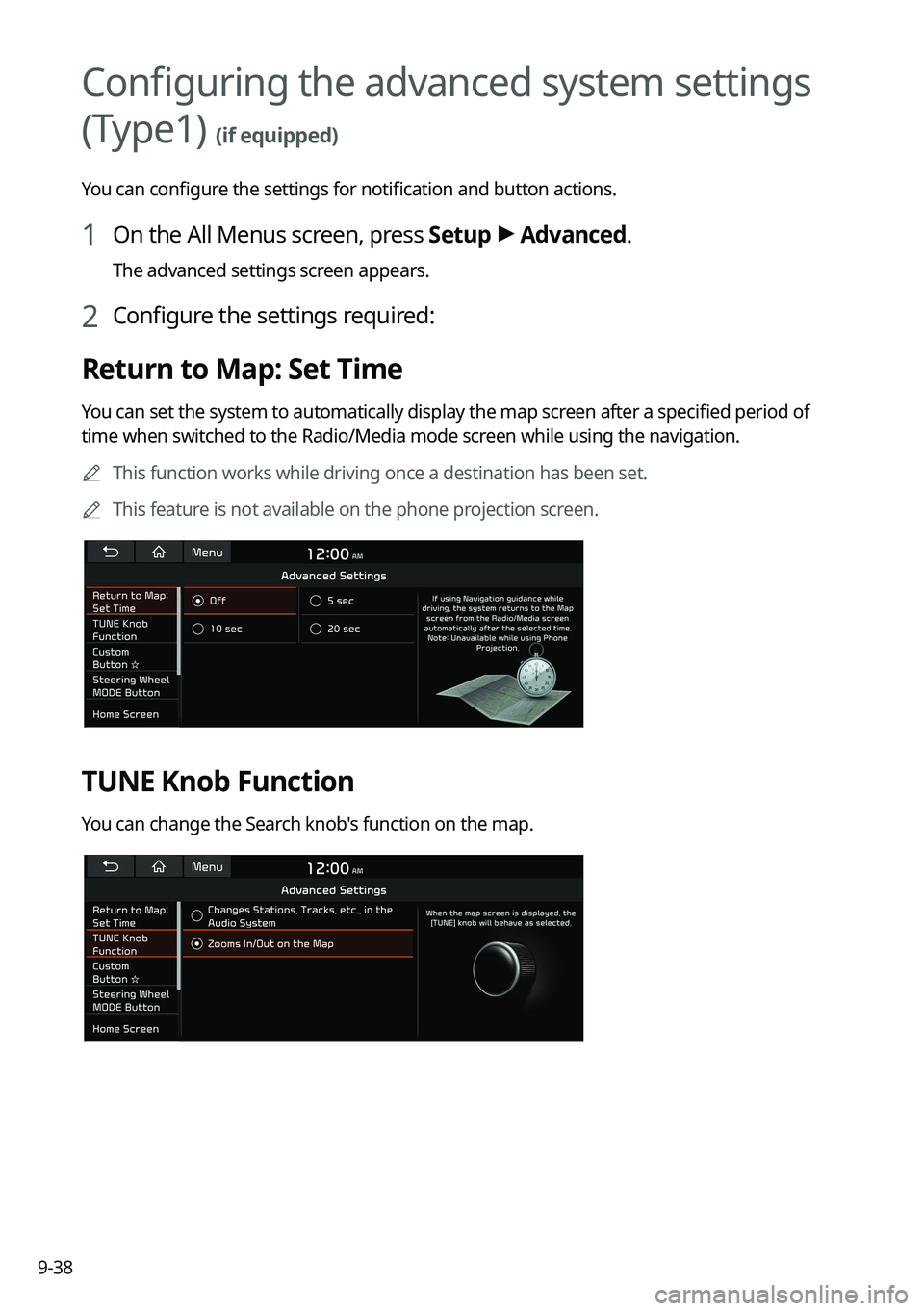
Return to Map: Set Time
You can set the system to automatically display the map screen after a specified period of
time when switched to the Radio/Media mode screen while using the navigation.
0000
A
This function works while driving once a destination has been set.
0000
A
This feature is not available on the phone projection screen.
TUNE Knob Function
You can change the Search knob's function on the map.
Page 227 of 316
9-39
Changes Stations, Tracks, etc., in the Audio System
You can search music or adjust the radio frequency by using the Search knob on the map.
Zooms In/Out on the Map
You can zoom in or out the map by using the Search knob on the map.
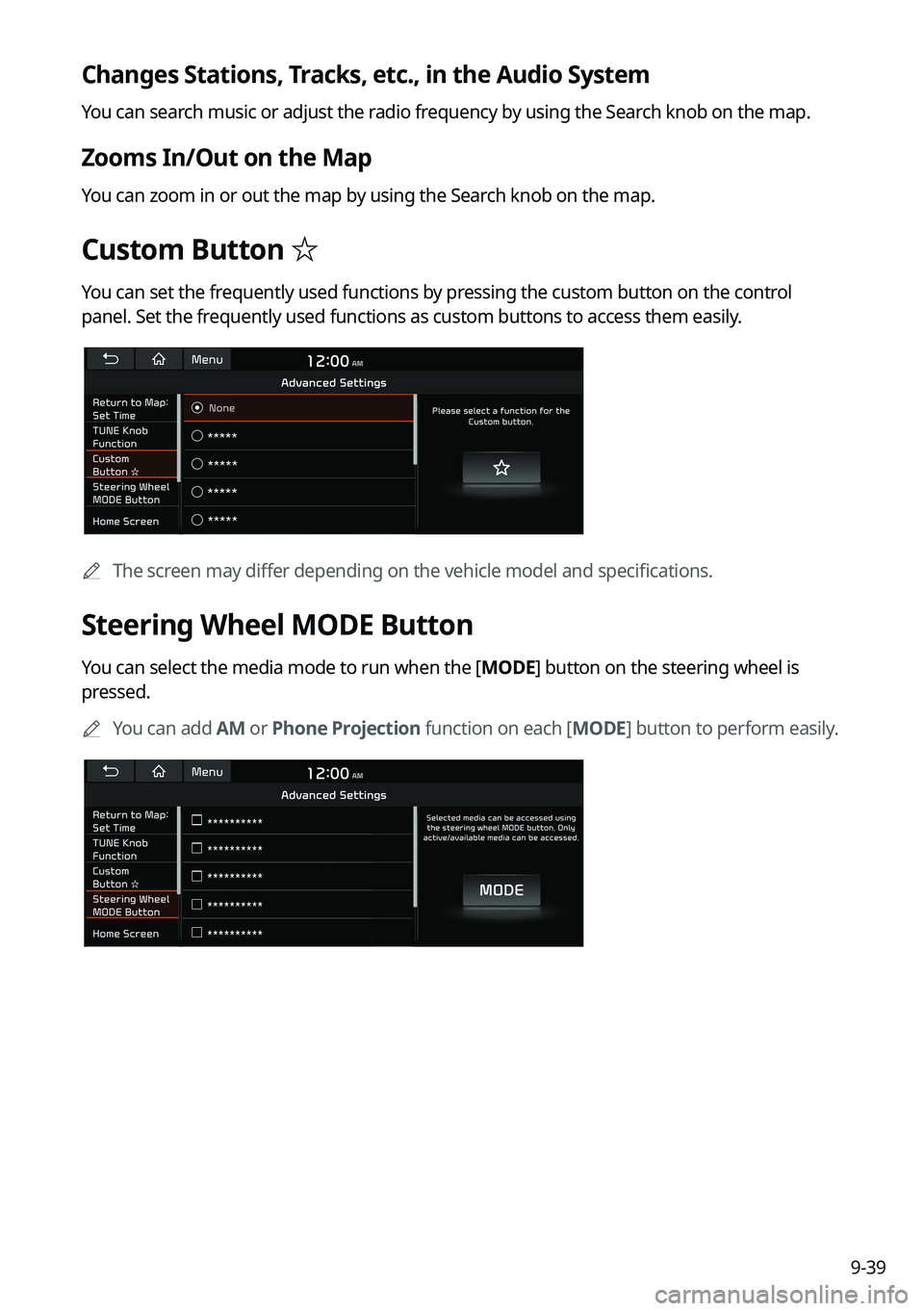
Custom Button ☆
You can set the frequently used functions by pressing the custom button on the control
panel. Set the frequently used functions as custom buttons to access them easily.
0000
A
The screen may differ depending on the vehicle model and specifications.
Steering Wheel MODE Button
You can select the media mode to run when the [ MODE] button on the steering wheel is
pressed.
0000
A
You can add AM or Phone Projection function on each [ MODE] button to perform easily.
Page 228 of 316
9-40
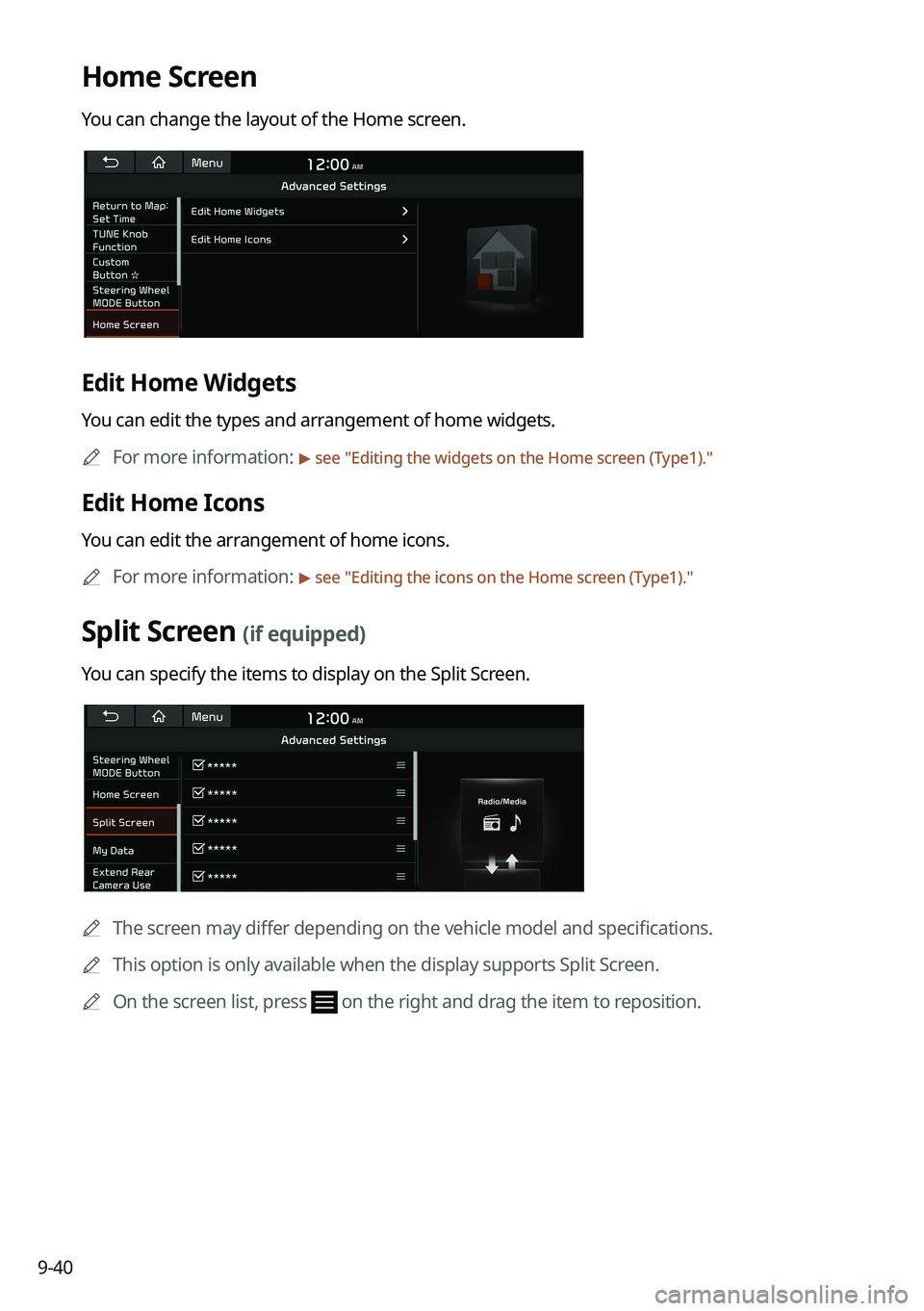
Home Screen
You can change the layout of the Home screen.
Edit Home Widgets
You can edit the types and arrangement of home widgets.0000
A
For more information:
> see "Editing the widgets on the Home screen (Type1)."
Edit Home Icons
You can edit the arrangement of home icons.
0000
A
For more information:
> see "Editing the icons on the Home screen (Type1)."
Split Screen (if equipped)
You can specify the items to display on the Split Screen.
0000A
The screen may differ depending on the vehicle model and specifications.
0000
A
This option is only available when the display supports Split Screen.
0000
A
On the screen list, press
on the right and drag the item to reposition.
Page 229 of 316
9-41
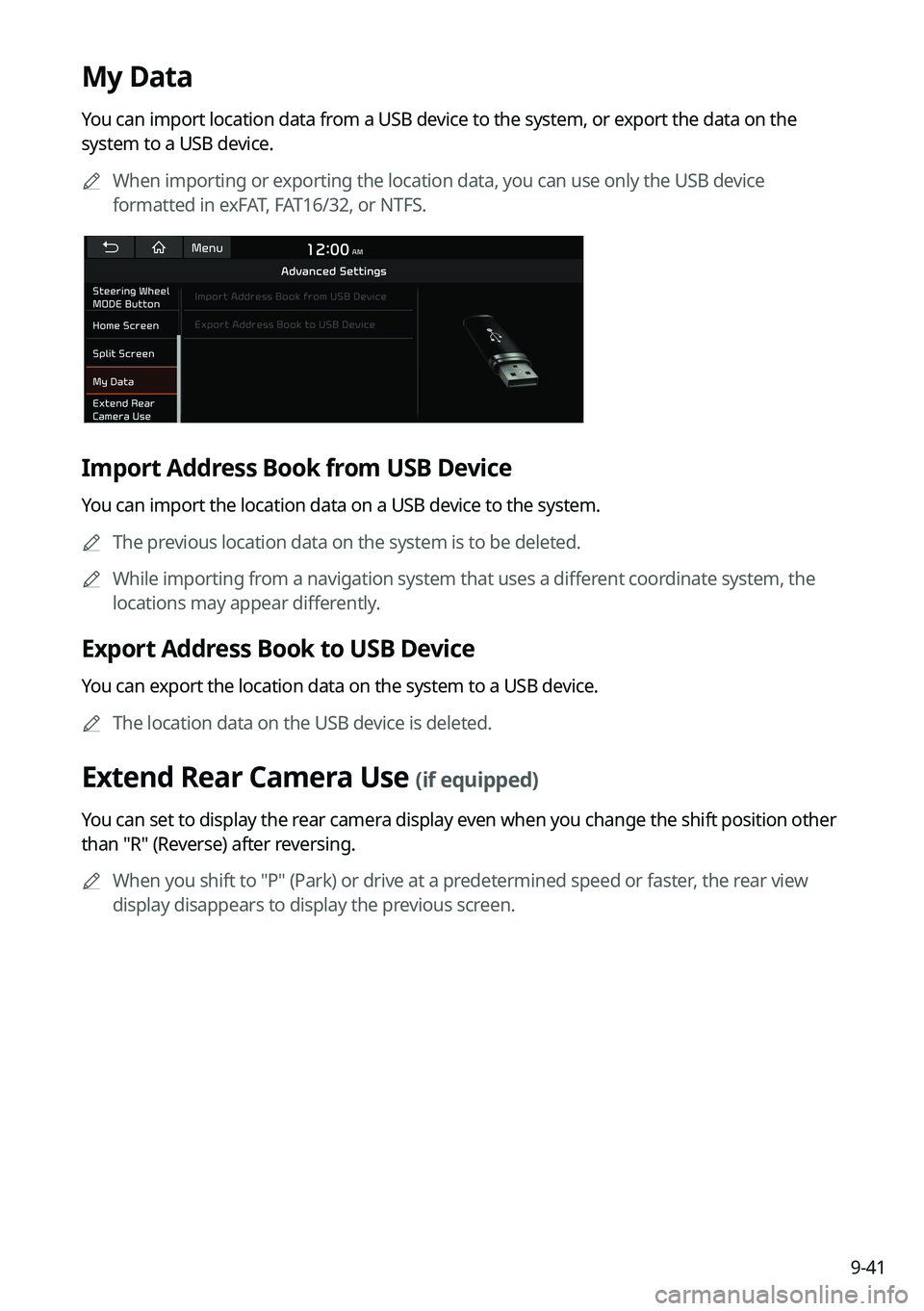
My Data
You can import location data from a USB device to the system, or export the data on the
system to a USB device.0000
A
When importing or exporting the location data, you can use only the USB device
formatted in exFAT, FAT16/32, or NTFS.
Import Address Book from USB Device
You can import the location data on a USB device to the system.
0000
A
The previous location data on the system is to be deleted.
0000
A
While importing from a navigation system that uses a different coordinate system, the
locations may appear differently.
Export Address Book to USB Device
You can export the location data on the system to a USB device.
0000
A
The location data on the USB device is deleted.
Extend Rear Camera Use (if equipped)
You can set to display the rear camera display even when you change the shift position other
than "R" (Reverse) after reversing.
0000
A
When you shift to "P" (Park) or drive at a predetermined speed or faster, the rear view
display disappears to display the previous screen.
Page 230 of 316
9-42
Configuring the button settings (Type1)
You can configure features to activate when pressing buttons on the control panel or steering
wheel.
1 On the All Menus screen, press Setup >
Button.
The button settings screen appears.
2 Configure the settings required:
0000
A
Press Menu >
Search for Settings or press and enter a keyword to search for a
setting item. You can also search for a setting item by voice.
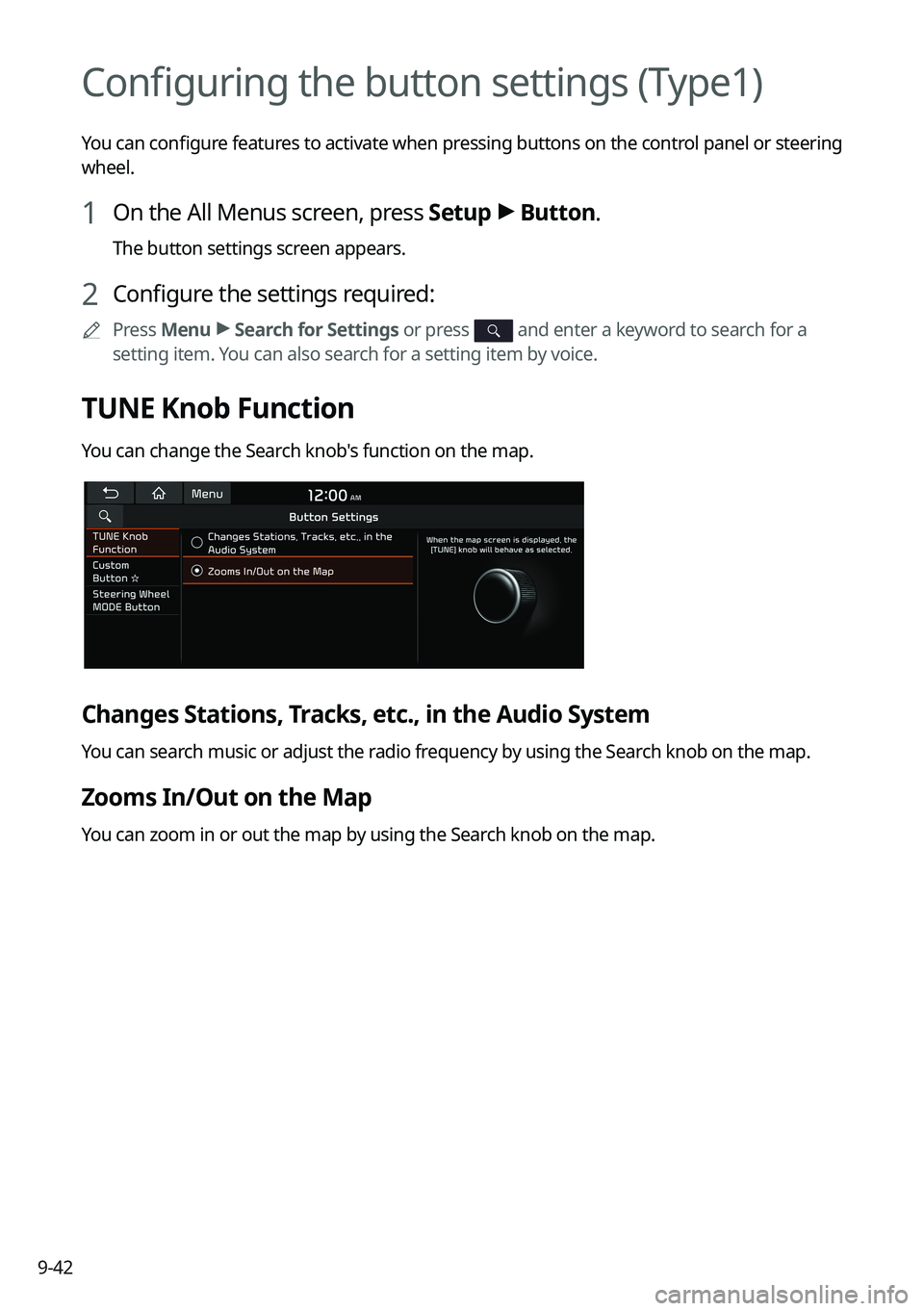
TUNE Knob Function
You can change the Search knob's function on the map.
Changes Stations, Tracks, etc., in the Audio System
You can search music or adjust the radio frequency by using the Search knob on the map.
Zooms In/Out on the Map
You can zoom in or out the map by using the Search knob on the map.
Page 234 of 316
9-46
Configuring the sound settings (Type1)
You can change the sound settings such as speaker volume and sound effects.0000
A
Available settings may differ depending on the vehicle model and specifications.
0000
A
Some functions may not be available depending on the infotainment system and
amplifier specifications on the vehicle.
1 On the All Menus screen, press Setup >
Sound.
The sound settings screen appears.
2 Configure the settings required:
0000
A
Press Menu >
Search for Settings or press and enter a keyword to search for a
setting item. You can also search for a setting item by voice.
Premium Sound (if equipped)
You can change the system sound settings and apply various sound effects.
0000
A
Available sound effects may differ depending on the specifications of the amplifier.
Live Dynamic (if equipped)
Provides natural and vivid sound like real performance.
Bass Boost (if equipped)
Provides magnificent and dynamic sound by amplifying the bass.
Quantum Logic Surround (if equipped)
Provides the surround sound that can give spatial depth of field as on an actual stage.
Centerpoint® Surround Technology (if equipped)
Provides rich surround sound after converting the sound sources such as digital files and
satellite radio to stereophonic sound.
Page 238 of 316
9-50
Configuring the sound settings (Type2)
You can change the sound settings such as speaker volume and sound effects.0000
A
Available settings may differ depending on the vehicle model and specifications.
0000
A
Some functions may not be available depending on the infotainment system and
amplifier specifications on the vehicle.
1 On the All Menus screen, press Setup >
Sound.
The sound settings screen appears.
2 Configure the settings required:
0000
A
Press >
Search for Settings or press and enter a keyword to search for a
setting item. You can also search for a setting item by voice.
Premium Sound (if equipped)
You can change the system sound settings and apply various sound effects.
0000
A
Available sound effects may differ depending on the specifications of the amplifier.
Live Dynamic (if equipped)
Provides natural and vivid sound like real performance.
Bass Boost (if equipped)
Provides magnificent and dynamic sound by amplifying the bass.
Quantum Logic Surround (if equipped)
Provides the surround sound that can give spatial depth of field as on an actual stage.
Centerpoint® Surround Technology (if equipped)
Provides rich surround sound after converting the sound sources such as digital files and
satellite radio to stereophonic sound.