turn KIA FORTE 2023 Navigation System Quick Reference Guide
[x] Cancel search | Manufacturer: KIA, Model Year: 2023, Model line: FORTE, Model: KIA FORTE 2023Pages: 324, PDF Size: 10.59 MB
Page 6 of 324
4
AThe system shape and menu arrangement may differ depending on the vehicle model
and specifications.
Component names and functions
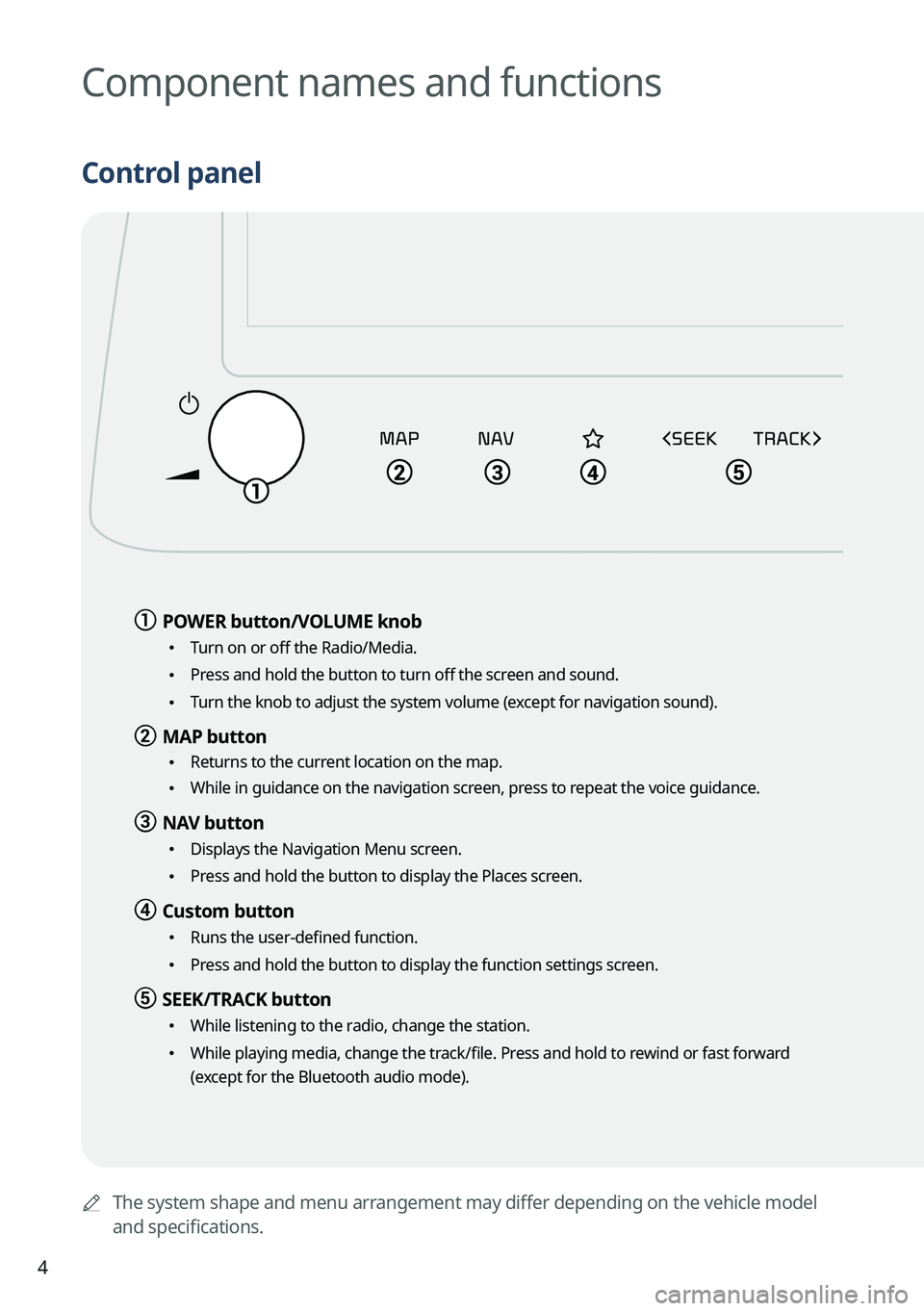
Control panel
a a POWER button/VOLUME knob
•
Turn on or off the Radio/Media.
•Press and hold the button to turn off the screen and sound.
•Turn the knob to adjust the system volume (except for navigation sound).
b b MAP button
•
Returns to the current location on the map.
•While in guidance on the navigation screen, press to repeat the voice guidance.
c c NAV button
•
Displays the Navigation Menu screen.
•Press and hold the button to display the Places screen.
d d Custom button
•Runs the user-defined function.
•Press and hold the button to display the function settings screen.
e e SEEK/TRACK button
•
While listening to the radio, change the station.
•While playing media, change the track/file. Press and hold to rewind or fast forward
(except for the Bluetooth audio mode).
Page 7 of 324
5
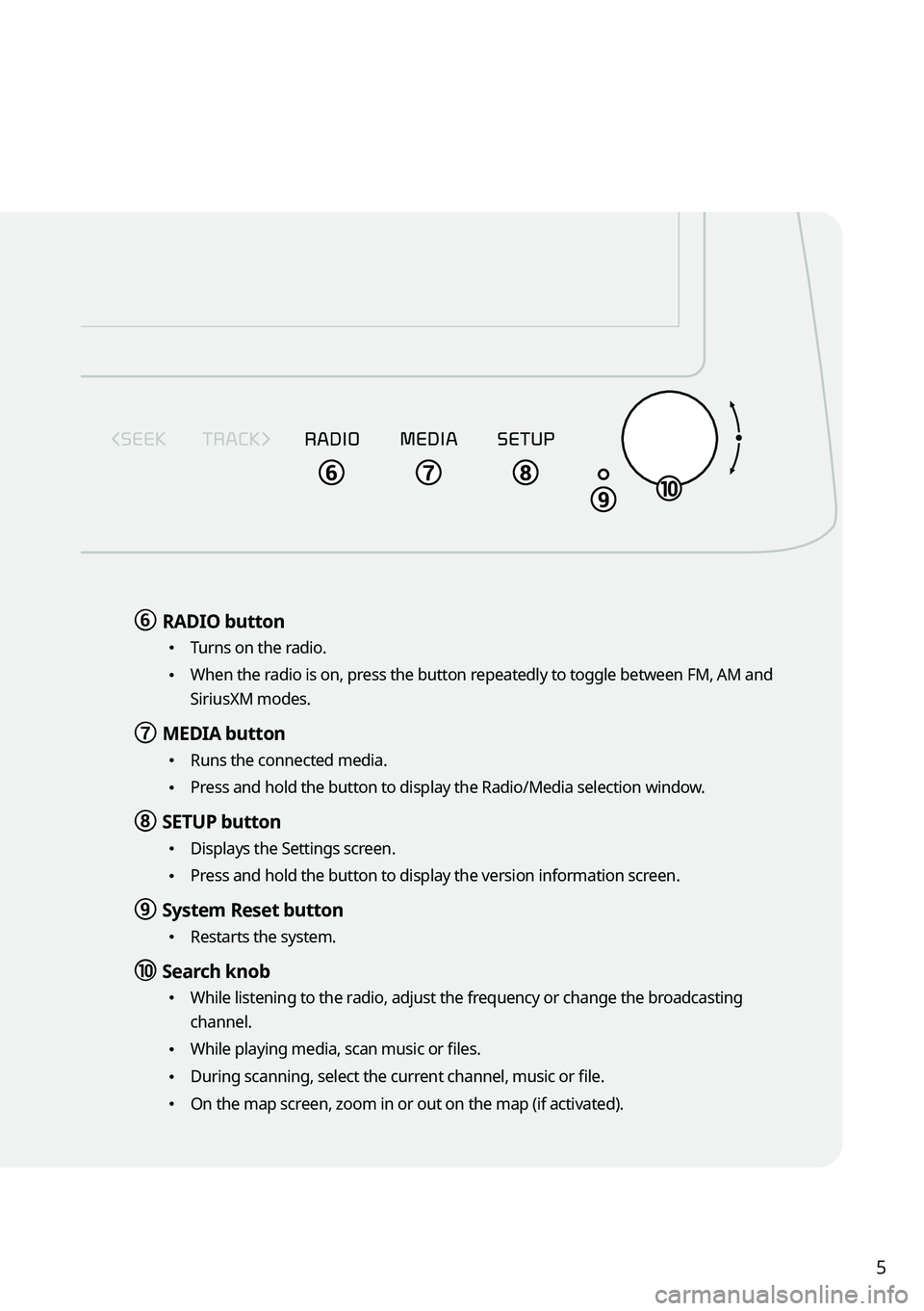
f f RADIO button
•
Turns on the radio.
•When the radio is on, press the button repeatedly to toggle between FM, AM and
SiriusXM modes.
g g MEDIA button
•
Runs the connected media.
•Press and hold the button to display the Radio/Media selection window.
h h SETUP button
•
Displays the Settings screen.
•Press and hold the button to display the version information screen.
i i System Reset button
•Restarts the system.
j j Search knob
•While listening to the radio, adjust the frequency or change the broadcasting
channel.
•While playing media, scan music or files.
•During scanning, select the current channel, music or file.
•On the map screen, zoom in or out on the map (if activated).
Page 9 of 324
7
Turning on/off the system
Turning on the system
1 Turn on the vehicle.
2 When a safety warning message appears, read it and press Confirm.
A
To change the display language, press Language.
Turning off the system
To turn off the system while driving, press and hold the Power button on
the panel.
The screen and sound will be turned off.
A
To use the system again, press the Power button.
A
When a specified period of time elapses after turning off the vehicle, the system
automatically shuts down. When you open the driver's door, the system immediately
shuts down.
ÝWarning
•Driving while distracted can result in a loss of vehicle control that may lead to an accident,
severe bodily injury, or death. The driver's primary responsibility is the safe and legal
operation of the vehicle, and the use of any vehicle systems, including the \
touch screen
and steering wheel controls, which take the driver's eyes, attention, and focus away from
the safe operation of the vehicle, or which are not permissible by law, should never be
used during the operation of the vehicle.
•Some functions may not be active while driving to ensure safety. Those functions run only
when the vehicle is stationary. In order to use them, first stop the vehicle.
•When the screen is not displayed, the volume is muted, or other system failures occur,
immediately stop using the system. When you use the faulty system contin\
uously, it may
cause fire, electric shock, or fatal system failure.
Page 12 of 324

10
FCC Certification
This equipment has been tested and found to comply with the limits for a\
Class B digital
device, pursuant to part 15 of the FCC Rules. These limits are designed to provide reasonable
protection against harmful interference in a residential installation.
This equipment generates, uses and can radiate radio frequency energy and, if not
installed and used in accordance with the instructions, may cause harmful interference
to radio communications. However, there is no guarantee that interference will not occur
in a particular installation. If this equipment does cause harmful inter\
ference to radio or
television reception, which can be determined by turning the equipment off and on, the user
is encouraged to try to correct the interference by one or more of the following measures:
•Reorient or relocate the receiving antenna.
•Increase the separation between the equipment and receiver.
•Connect the equipment into an outlet on a circuit different from that to which the receiver
is connected.
•Consult the dealer or an experienced radio/TV technician for help.
Caution: Any changes or modifications to this device not explicitly approved by manufacturer
could void your authority to operate this equipment.
This device complies with part 15 of the FCC Rules. Operation is subject to the following
two conditions: (1) This device may not cause harmful interference, and (2) this device must
accept any interference received, including interference that may cause undesired operation.
This equipment complies with FCC radiation exposure limits set forth for an uncontrolled
environment.
This equipment should be installed and operated with minimum 20 cm between the radiator
and your body. This transmitter must not be co-located or operating in conjunction with any
other antenna or transmitter unless authorized to do so by the FCC.
Page 19 of 324
7
Contents
01 System overview
Component names and functions 1-2
Turning on/off the system 1-6
Using the touch screen 1-8
Using the Home screen 1-11
Accessing the All Menus screen 1-14
Using the split screen 1-15
02 Useful functions
Using the First Run Setup 2-2
Using the phone projection function 2-4
Viewing the driving assistance screen 2-9
Using the climate control function 2-14
Using the rear-seat climate control function 2-15
Using the rear-seat conversation mode 2-17
Using the rear-seat view 2-18
Using the rear-seat quiet mode 2-19
Using the sound mood lamp 2-20
Playing Sounds of Nature 2-21
Using the HD Radio Data 2-22
Viewing the driving information 2-25
Viewing notifications 2-26
Using the Valet mode 2-27
Page 20 of 324
8
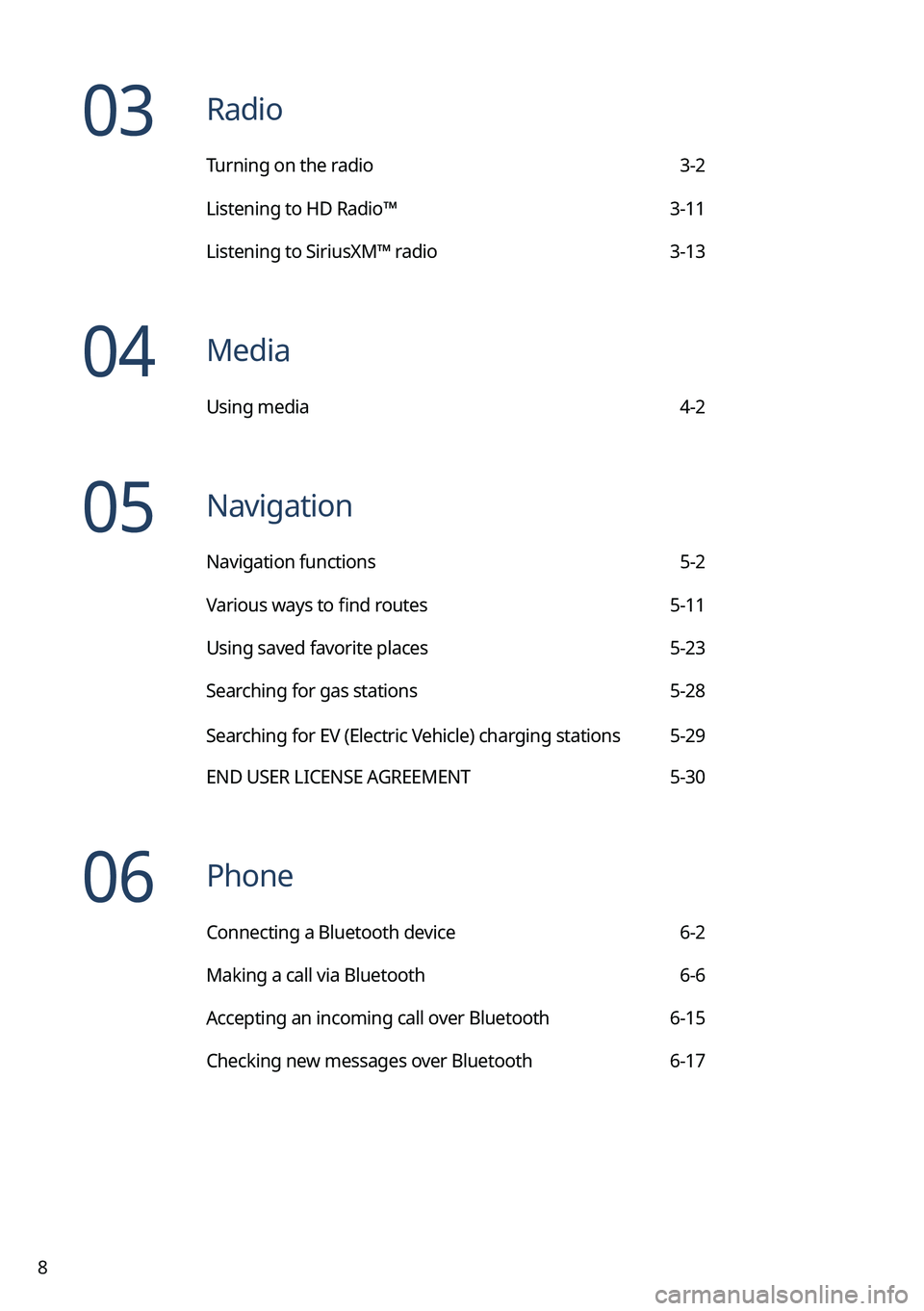
03 Radio
Turning on the radio 3-2
Listening to HD Radio™ 3-11
Listening to SiriusXM™ radio 3-13
04 Media
Using media 4-2
05 Navigation
Navigation functions 5-2
Various ways to find routes 5-11
Using saved favorite places 5-23
Searching for gas stations 5-28
Searching for EV (Electric Vehicle) charging stations 5-29
END USER LICENSE AGREEMENT 5-30
06 Phone
Connecting a Bluetooth device 6-2
Making a call via Bluetooth 6-6
Accepting an incoming call over Bluetooth 6-15
Checking new messages over Bluetooth 6-17
Page 23 of 324
System overview
Component names and functionsTurning on/off the systemUsing the touch screen
Using the Home screen
Accessing the All Menus screen Using the split screen
01
Page 24 of 324
1-2
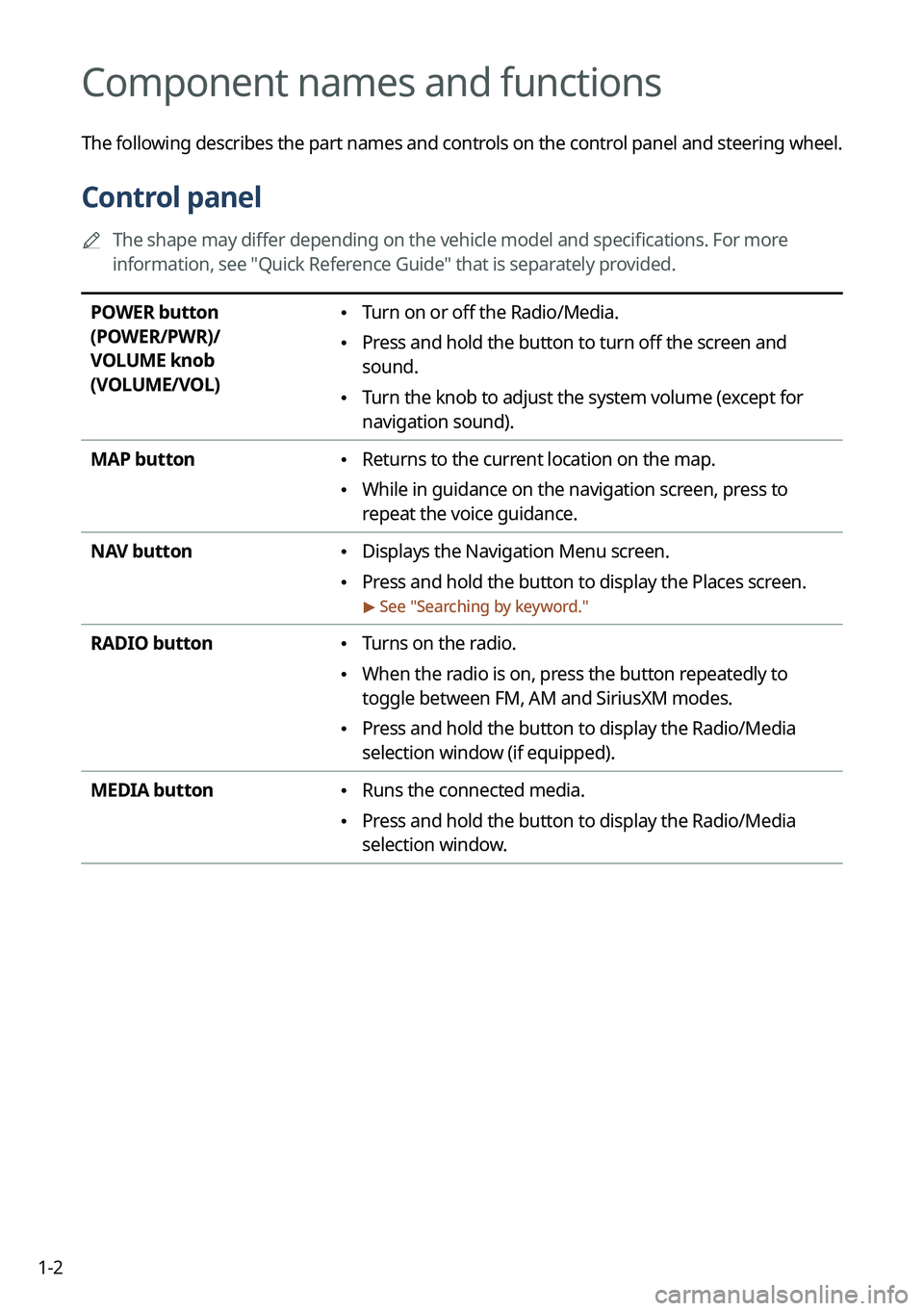
Component names and functions
The following describes the part names and controls on the control panel and steering wheel.
Control panel
A
The shape may differ depending on the vehicle model and specifications. For more
information, see "Quick Reference Guide" that is separately provided.
POWER button
(POWER/PWR)/
VOLUME knob
(VOLUME/VOL) • Turn on or off the Radio/Media.
•Press and hold the button to turn off the screen and
sound.
•Turn the knob to adjust the system volume (except for
navigation sound).
MAP button
• Returns to the current location on the map.
•While in guidance on the navigation screen, press to
repeat the voice guidance.
NAV button
• Displays the Navigation Menu screen.
•Press and hold the button to display the Places screen.
> See "
Searching by keyword."
RADIO button • Turns on the radio.
•When the radio is on, press the button repeatedly to
toggle between FM, AM and SiriusXM modes.
•Press and hold the button to display the Radio/Media
selection window (if equipped).
MEDIA button
• Runs the connected media.
•Press and hold the button to display the Radio/Media
selection window.
Page 28 of 324
1-6
Turning on/off the system
The following explains how to turn on or off the system. Before using the system, be sure to
read the user's manual for safe and convenient manipulation.
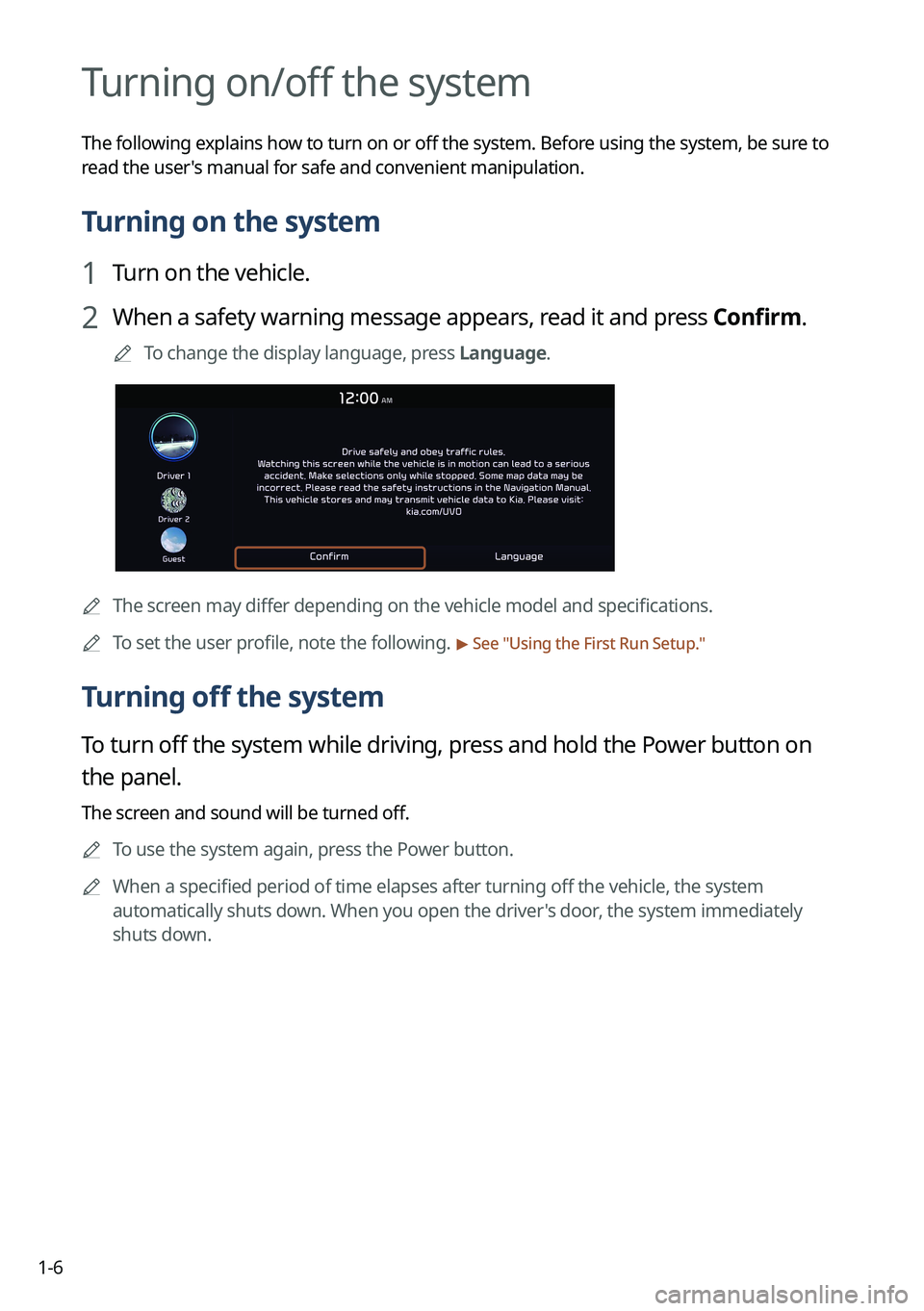
Turning on the system
1 Turn on the vehicle.
2 When a safety warning message appears, read it and press Confirm.
A
To change the display language, press Language.
AThe screen may differ depending on the vehicle model and specifications.
A
To set the user profile, note the following.
> See "Using the First Run Setup."
Turning off the system
To turn off the system while driving, press and hold the Power button on
the panel.
The screen and sound will be turned off.
A
To use the system again, press the Power button.
A
When a specified period of time elapses after turning off the vehicle, the system
automatically shuts down. When you open the driver's door, the system immediately
shuts down.
Page 33 of 324
1-11
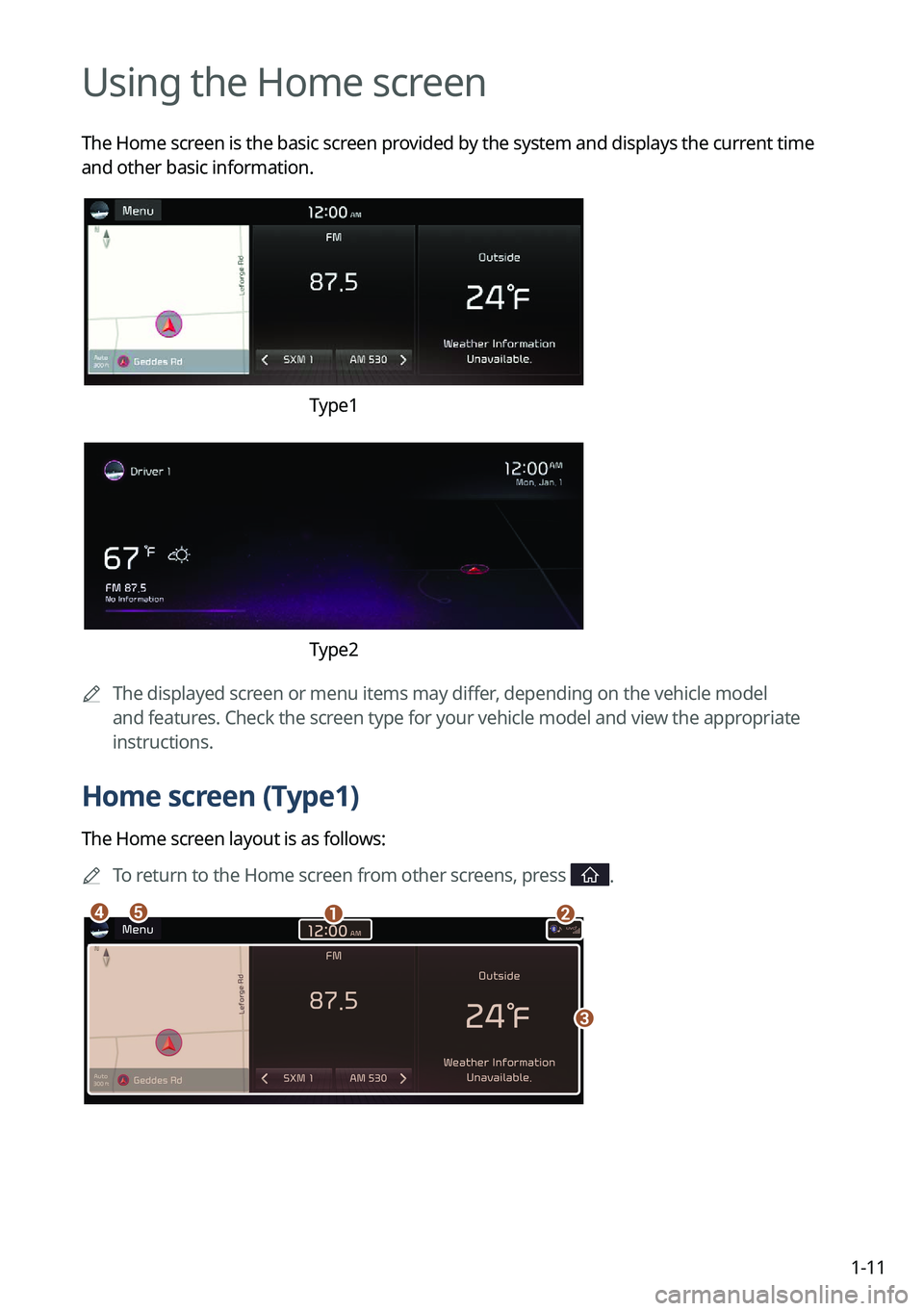
Using the Home screen
The Home screen is the basic screen provided by the system and displays the current time
and other basic information.
Type1
Type2
A
The displayed screen or menu items may differ, depending on the vehicle model
and features. Check the screen type for your vehicle model and view the appropriate
instructions.
Home screen (Type1)
The Home screen layout is as follows:
A
To return to the Home screen from other screens, press
.
ab
c
de