turn KIA FORTE 2023 Navigation System Quick Reference Guide
[x] Cancel search | Manufacturer: KIA, Model Year: 2023, Model line: FORTE, Model: KIA FORTE 2023Pages: 324, PDF Size: 10.59 MB
Page 104 of 324

5-8
Using the detailed guidance
When the vehicle needs to change the driving direction or lanes, a zoomed-in map
automatically appears.
A
To display or hide the detailed guidance, press
or .
When the detailed guidance appears while driving, select and perform the
desired function.
•To view basic information including sections for turns, press Simple.
•To check the types of convenience facilities in a rest area, press Rest Areas.
•For information details about each zone such as intersections, interchanges, and rest
areas, press Details.
Page 105 of 324

5-9
Adjusting the navigation volume
You can adjust the volume of navigation or GPS warning sound.
On the map screen, press and then press or , or use the control bar
to adjust the volume.
A
To have the navigation sound always output first over media sound, check Navigation
Volume Priority.
A
To turn off the navigation voice, press
and then press .
A
To turn off the navigation sound effects, press and then press .
Canceling the route guidance
To cancel route guidance, press Cancel Route. Alternatively, press
Navigation Menu >
Cancel Route on the All Menus screen.
The destination displayed at the bottom of the screen disappears and changes to .
A
Press to search for the target destination to obtain an optimum route.
A
To maintain the specified destination and stop the route guidance, press and hold Cancel
Route at the bottom of the screen. The guidance stops and the Resume Route button
appears. You can use the button to search for a previous destination and resume route
guidance.
Page 127 of 324

5-31
COPYING OR USE OF THE PRODUCT EXCEPT AS PERMITTED BY THIS EULA IS
UNAUTHORIZED AND IS COPYRIGHT INFRINGEMENT UNDER THE LAWS OF YOUR
COUNTRY. IF YOU COPY OR USE THE PRODUCT WITHOUT COMPANY'S PERMISSION,
EXCEPT AS PERMITTED BY THIS EULA, YOU ARE VIOLATING THE LAW AND LIABLE TO
COMPANY AND ITS LICENSORS FOR DAMAGES, AND YOU MAY BE SUBJECT TO CRIMINAL
PENALTIES.
THE PRODUCT MAY INCLUDE ENFORCEMENT TECHNOLOGY DESIGNED TO PREVENT (i)
UNAUTHORIZED COPYING OF THE PRODUCT ONTO PHYSICAL STORAGE MEDIA OR VIA
TRANSFER OVER THE INTERNET OR OTHER ELECTRONIC COMMUNICATION MEANS AND/OR
(ii) ILLEGAL USAGE OF THE PRODUCT OTHER THAN BY A SPECIFICALLY AHTORIZED DEVICE.
YOU AGREE THAT COMPANY MAY USE THESE MEASURES TO PROTECT COMPANY AND THE
LICENSORS AGAINST COPYRIGHT INFRINGEMENT.
Uploads. The Product may provide functionality through which you are able to upload
certain information about your use of the Product (collectively, "Uploads") to COMPANY's
servers or receive other services from COMPANY (collectively, the "Services"). If you use such
functionality, you authorize COMPANY to retain your Uploads on its servers. COMPANY will
have no obligation to provide any Services, may change the form and nature of any Services
at any time with or without notice to you, will have no liability whatsoever to you for any
failure of the Product or Services to transmit your Uploads to or from COMPANY's servers,
may cease providing any Services at any time with or without notice to you, and will have no
obligation to retain your Uploads (or any other materials you may provide to COMPANY) on
its servers or return your Uploads (or any other materials you may provide to COMPANY) to
you before deleting them from its servers.
Storage. The Product may provide functionality through which you are able to store
information (such as images) on the device on which you are using the Product. COMPANY
will have no liability whatsoever to you or any third party for any failure of the Product to
store any such information on such device.
Personal Information. By using the Product, you agree to the collection, retention and
processing of your personal data (including the location of your mobile device) by COMPANY
and to the storage and processing of such personal information on computers located
outside of the country in which you reside. Even though COMPANY has taken steps intended
to protect your personal information from being intercepted, accessed, used, or disclosed by
unauthorized persons, COMPANY cannot fully eliminate security risks associated with your
personal information and cannot guarantee that its systems will not be breached. See [*] for
additional information regarding COMPANY's use of your personal information.
Page 135 of 324

6-3
2 Turn on Bluetooth on the Bluetooth device to connect and select the
vehicle system on the list of searched devices.
A
The system's Bluetooth name can be seen on the Add New Device window.
3 Check that the authentication code on the Bluetooth device screen
matches the one on the system screen and approve the connection on
the device.
4 When your smartphone is using Bluetooth communication, to download
contacts from the phone to the system or use the text message
notification, allow access to your phone.
A
Access is only required to use Bluetooth calling. There will be no access request when
you connect an audio device.
A
After the access request is approved, it may take a while until the Bluetooth connection is
completed. As soon as the Bluetooth connection is completed, the Bluetoo\
th connection
indicator icon appears at the top of the screen.
A
Access to data can be enabled or disabled by using the Bluetooth Settings menu on the
mobile phone. For more details, refer to the mobile phone's user manual.
A
You cannot register another device while operating a Bluetooth device.
A
In order not to use the automatic Bluetooth connection, turn off the Bluetooth function
on the device. To use this function again, turn on the Bluetooth function on the device.
A
You can add Bluetooth devices up to 6.
Page 136 of 324

6-4
Connecting a registered device
To use a Bluetooth device, first connect a registered Bluetooth device to the system.
A
You can add one Bluetooth hands-free kit or up to two Bluetooth audio devices.
1 On the All Menus screen, press Setup >
Device Connections >
Device
Connections.
2 Press the icons to connect.
A If you cannot connect your device, check to make sure its Bluetooth option is enabled.
A
When the connection is terminated abnormally due to being out of range or device
failures, the connection is automatically restored as soon as the device returns to the
connection range or normal state.
Bluetooth connection screen
d
a
c
e
f
b
Page 137 of 324

6-5
a a Returns to the previous step.
b b Search for a setting item by voice or by entering a keyword.
c c Select hands-free or Bluetooth audio to connect or disconnect Bluetooth devices.
d d Add a new device to the system.
e e Delete a registered device from the system.
f f The list of menu items appears.
•Display Off: Turns off the screen. To switch the screen back on, press the screen or
briefly press the power button.
•Auto Connection Priority: Set the priority order for automatic Bluetooth connection
to the system when it turns on (if equipped).
•Search for Settings: Search for a setting item by voice or by entering a keyword.
•Phone Projection Settings: Change the settings related to phone projection (if
equipped).
•User's Manual on Web (QR Code): Displays the QR code that provides access to the
online user manual for the system.
Disconnecting a registered device
1 On the All Menus screen, press Setup >
Device Connections >
Device
Connections.
2 Press the connected icons.
Deleting a registered device
If you will no longer use a Bluetooth device or you want to add a new device when 6 devices
are already registered, delete an existing registered device.
1 On the All Menus screen, press Setup >
Device Connections >
Device
Connections >
Delete Device(s).
2 Select a device to delete and press Delete.
To delete all registered devices, press Mark All >
Delete.
3 Press Yes.
A
When you delete a registered device, all related contacts, call logs, and text messages are
removed from the system.
Page 139 of 324
6-7
A
The download may not work in some phone models.
A
You can download up to 50 call records for each list.
A
Call durations do not appear on the system screen.
A
You cannot download call records when the download is prohibited by the phone. Some
phone models may require approval for a download. When a successful download is not
made, check the phone screen or its settings.
A
When call records are newly downloaded, the previous records are removed.
A
Learn more about receiving calls while using a Bluetooth connection.
> See "Accepting an
incoming call over Bluetooth."
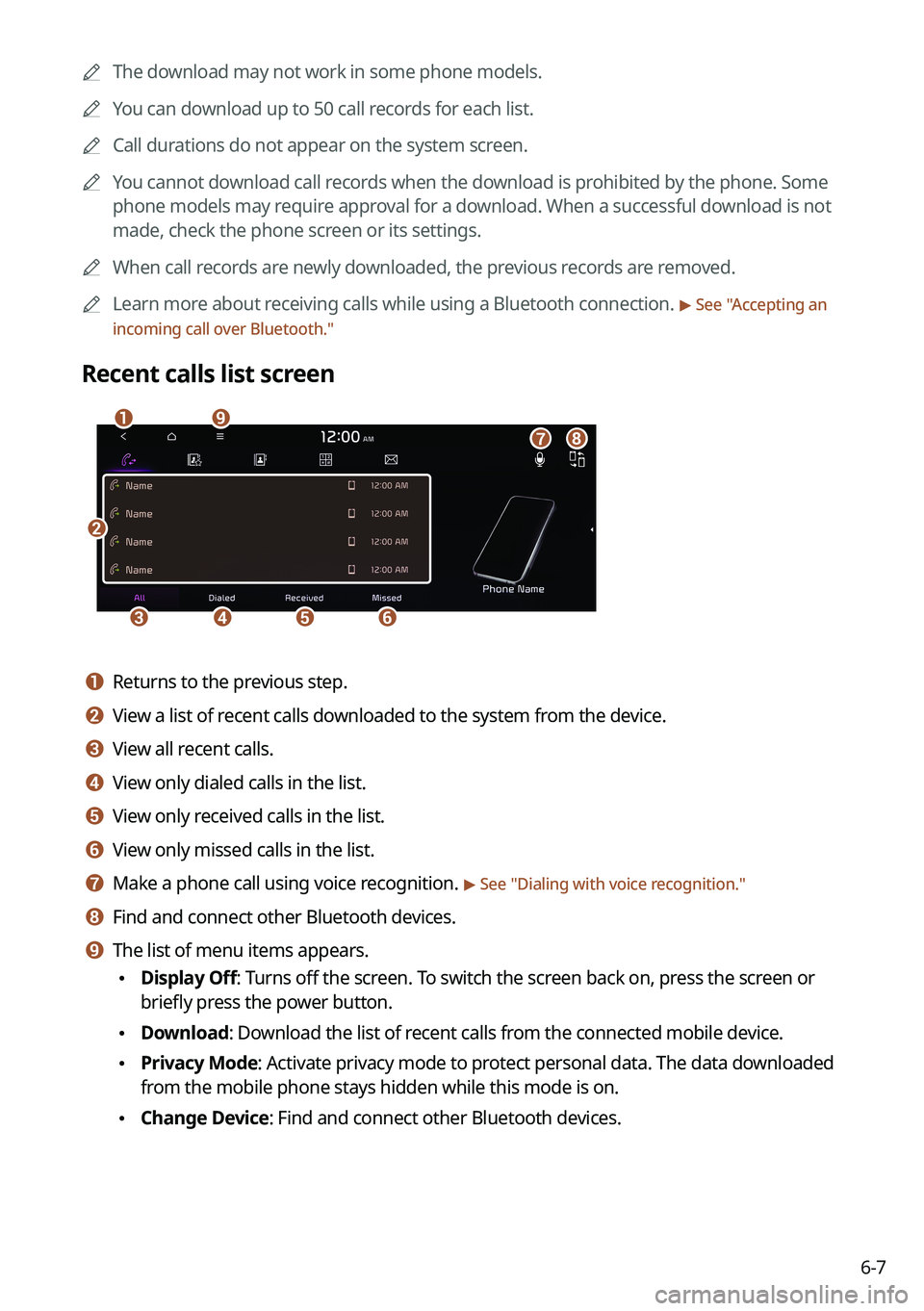
Recent calls list screen
b
cdef
agih
a a Returns to the previous step.
b b View a list of recent calls downloaded to the system from the device.
c c View all recent calls.
d d View only dialed calls in the list.
e e View only received calls in the list.
f f View only missed calls in the list.
g g Make a phone call using voice recognition. > See " Dialing with voice recognition."
h h Find and connect other Bluetooth devices.
i i The list of menu items appears.
• Display Off: Turns off the screen. To switch the screen back on, press the screen or
briefly press the power button.
•Download: Download the list of recent calls from the connected mobile device.
•Privacy Mode: Activate privacy mode to protect personal data. The data downloaded
from the mobile phone stays hidden while this mode is on.
•Change Device: Find and connect other Bluetooth devices.
Page 140 of 324
6-8
•Device Connections Settings: Can change the Bluetooth settings.
•User's Manual on Web (QR Code): Displays the QR code that provides access to the
online user manual for the system.
•Split Screen: Can turn on or off the split screen mode.
A
The displayed name may differ depending on the vehicle model and specifications.
Dialing from the favorite contacts list
Make a list of frequently used phone numbers to call them quickly in the future.
When you connect your mobile device and system over Bluetooth, your contacts stored
on the device will be downloaded to the system, and you can add frequently used phone
numbers to the favorites list. Call your favorite contacts quickly and e\
asily by selecting them
from the list.
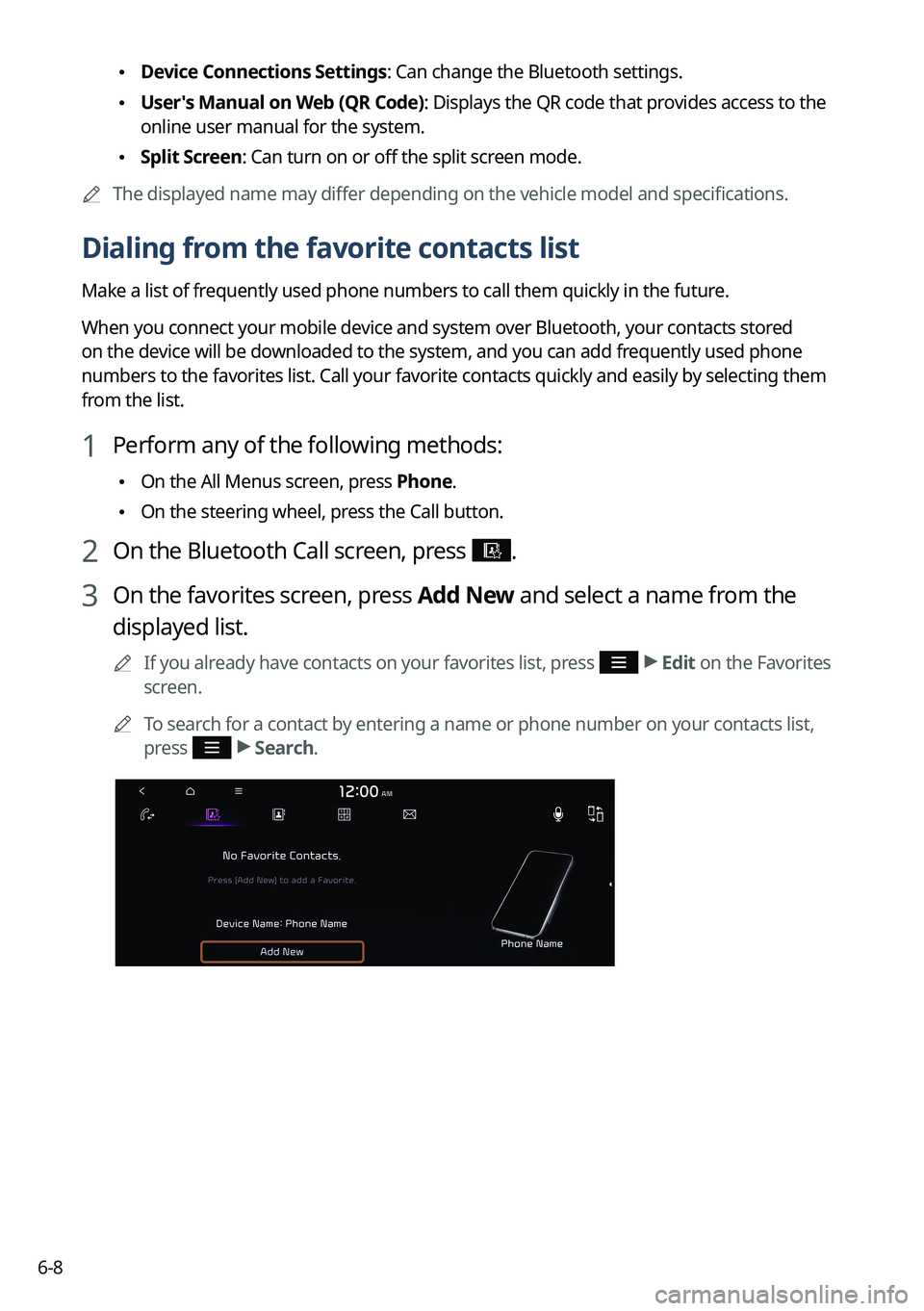
1 Perform any of the following methods:
•On the All Menus screen, press Phone.
•On the steering wheel, press the Call button.
2 On the Bluetooth Call screen, press .
3 On the favorites screen, press Add New and select a name from the
displayed list.
A
If you already have contacts on your favorites list, press >
Edit on the Favorites
screen.
A
To search for a contact by entering a name or phone number on your contacts list,
press
>
Search.
Page 141 of 324

6-9
4 To set a phone number as a favorite, press the button next to it.
The phone number is now added to your favorites list.
5 Choose a contact from the list.
The system dials the selected contact.
A
You can add up to 10 favorite contacts for each device.
A
When another mobile phone is connected, the screen does not display the contacts from
the previous phone, but they are kept in the system until the phone is deleted from the
list.
A
Learn more about receiving calls while using a Bluetooth connection.
> See "Accepting an
incoming call over Bluetooth."
Favorites screen
c
b
aed
a a Returns to the previous step.
b b View a list of favorite contacts.
c c Make a phone call using voice recognition. > See " Dialing with voice recognition."
d d Find and connect other Bluetooth devices.
Page 142 of 324
6-10
e e The list of menu items appears.
•Display Off: Turns off the screen. To switch the screen back on, press the screen or
briefly press the power button.
•Add New/Edit: Add a new contact or edit the favorites list from downloaded contacts.
•Delete: Delete a contact from the favorites list.
•Privacy Mode: Activate privacy mode to protect personal data. The data downloaded
from the mobile phone stays hidden while this mode is on.
•Change Device: Find and connect other Bluetooth devices.
•Device Connections Settings: Can change the Bluetooth settings.
•User's Manual on Web (QR Code): Displays the QR code that provides access to the
online user manual for the system.
•Split Screen: Can turn on or off the split screen mode.
A
The displayed name may differ depending on the vehicle model and specifications.
Dialing from the contacts
You can use contacts from the connected mobile device on the system.
When you connect your mobile device with the system via Bluetooth, contacts from the
device are downloaded to the system, and you can choose to call them from the system
screen. The system has a built-in microphone and speaker that make using mobile phones
safe and easy.
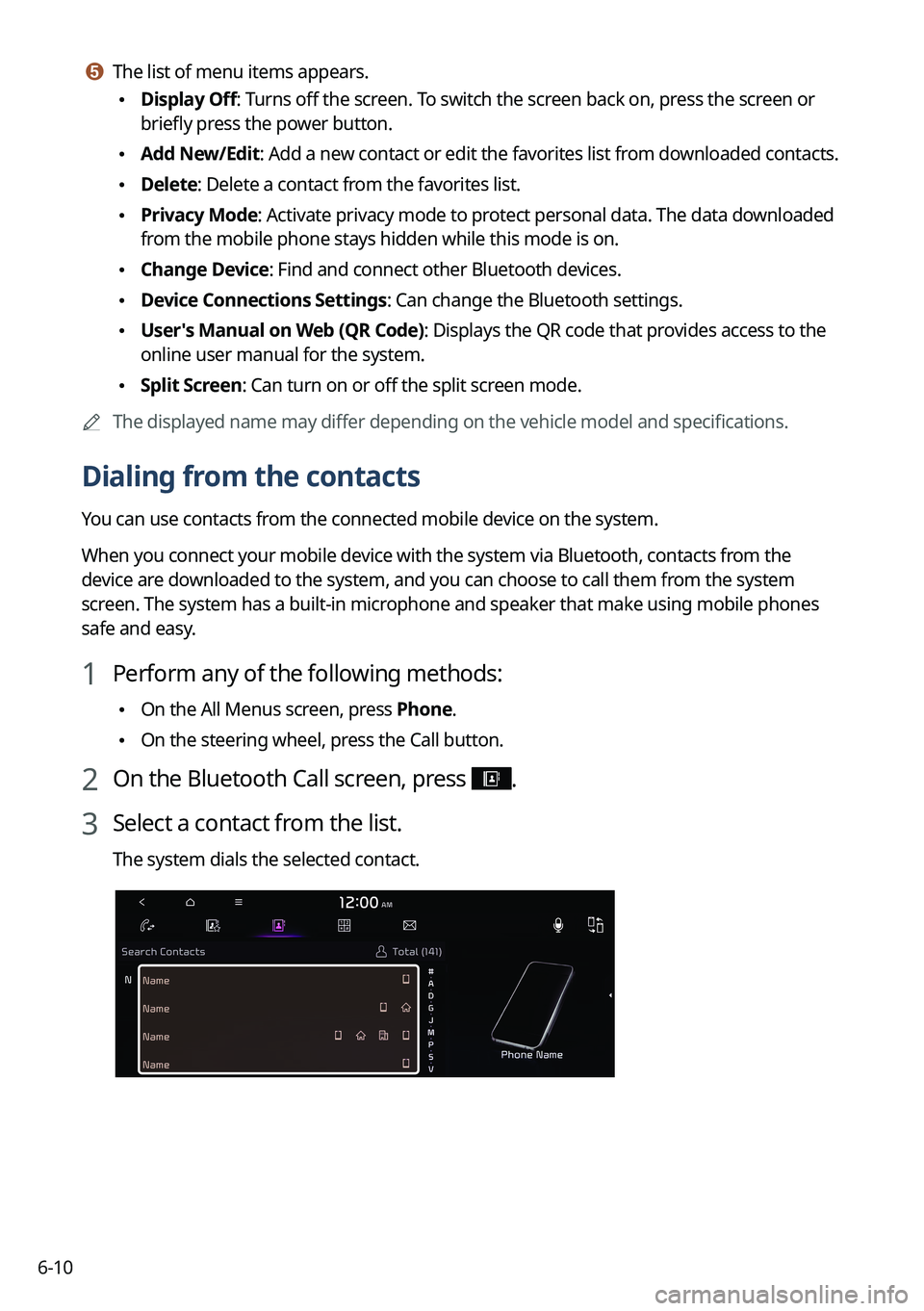
1 Perform any of the following methods:
•On the All Menus screen, press Phone.
•On the steering wheel, press the Call button.
2 On the Bluetooth Call screen, press .
3 Select a contact from the list.
The system dials the selected contact.