ignition KIA FORTE 5 2017 Repair Manual
[x] Cancel search | Manufacturer: KIA, Model Year: 2017, Model line: FORTE 5, Model: KIA FORTE 5 2017Pages: 595, PDF Size: 11.53 MB
Page 215 of 595
4 143
Features of your vehicle
Sunvisor
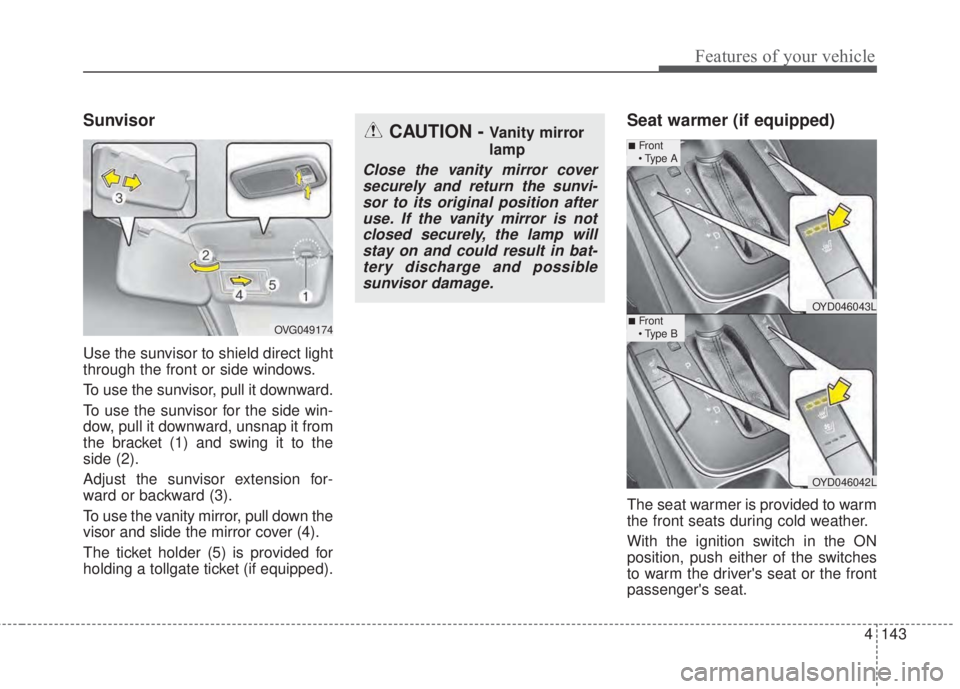
Use the sunvisor to shield direct light
through the front or side windows.
To use the sunvisor, pull it downward.
To use the sunvisor for the side win-
dow, pull it downward, unsnap it from
the bracket (1) and swing it to the
side (2).
Adjust the sunvisor extension for-
ward or backward (3).
To use the vanity mirror, pull down the
visor and slide the mirror cover (4).
The ticket holder (5) is provided for
holding a tollgate ticket (if equipped).
Seat warmer (if equipped)
The seat warmer is provided to warm
the front seats during cold weather.
With the ignition switch in the ON
position, push either of the switches
to warm the driver's seat or the front
passenger's seat.
CAUTION - Vanity mirror
lamp
Close the vanity mirror cover
securely and return the sunvi-
sor to its original position after
use. If the vanity mirror is not
closed securely, the lamp will
stay on and could result in bat-
tery discharge and possible
sunvisor damage.
OVG049174
OYD046043L
OYD046042L
■Front
• Type A
■Front
• Type B
Page 216 of 595
Features of your vehicle
144 4
During mild weather or under condi-
tions where the operation of the seat
warmer is not needed, keep the
switches in the OFF position.
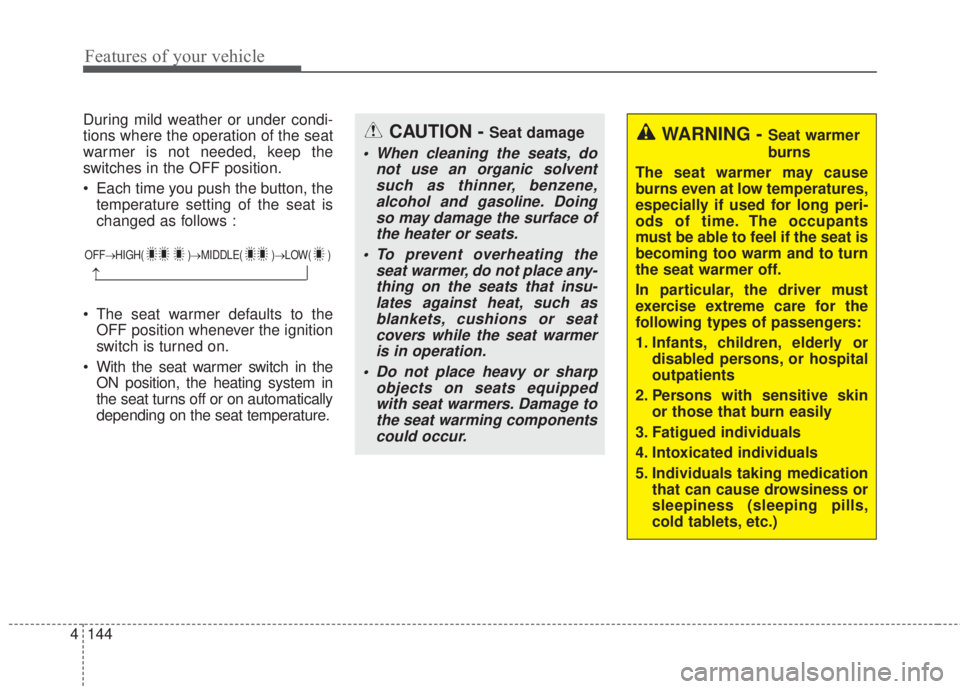
• Each time you push the button, the
temperature setting of the seat is
changed as follows :
• The seat warmer defaults to the
OFF position whenever the ignition
switch is turned on.
• With the seat warmer switch in the
ON position, the heating system in
the seat turns off or on automatically
depending on the seat temperature.
OFF→HIGH( )→MIDDLE( )→LOW( )
→
CAUTION - Seat damage
• When cleaning the seats, do
not use an organic solvent
such as thinner, benzene,
alcohol and gasoline. Doing
so may damage the surface of
the heater or seats.
• To prevent overheating the
seat warmer, do not place any-
thing on the seats that insu-
lates against heat, such as
blankets, cushions or seat
covers while the seat warmer
is in operation.
• Do not place heavy or sharp
objects on seats equipped
with seat warmers. Damage to
the seat warming components
could occur.
WARNING - Seat warmer
burns
The seat warmer may cause
burns even at low temperatures,
especially if used for long peri-
ods of time. The occupants
must be able to feel if the seat is
becoming too warm and to turn
the seat warmer off.
In particular, the driver must
exercise extreme care for the
following types of passengers:
1. Infants, children, elderly or
disabled persons, or hospital
outpatients
2. Persons with sensitive skin
or those that burn easily
3. Fatigued individuals
4. Intoxicated individuals
5. Individuals taking medication
that can cause drowsiness or
sleepiness (sleeping pills,
cold tablets, etc.)
Page 219 of 595
4 147
Features of your vehicle
LCD monitor (clock)Whenever the battery terminals or
related fuses are disconnected, you
must reset the time.
When the ignition switch is in the
ACC or ON position, the clock but-
tons operate as follows:
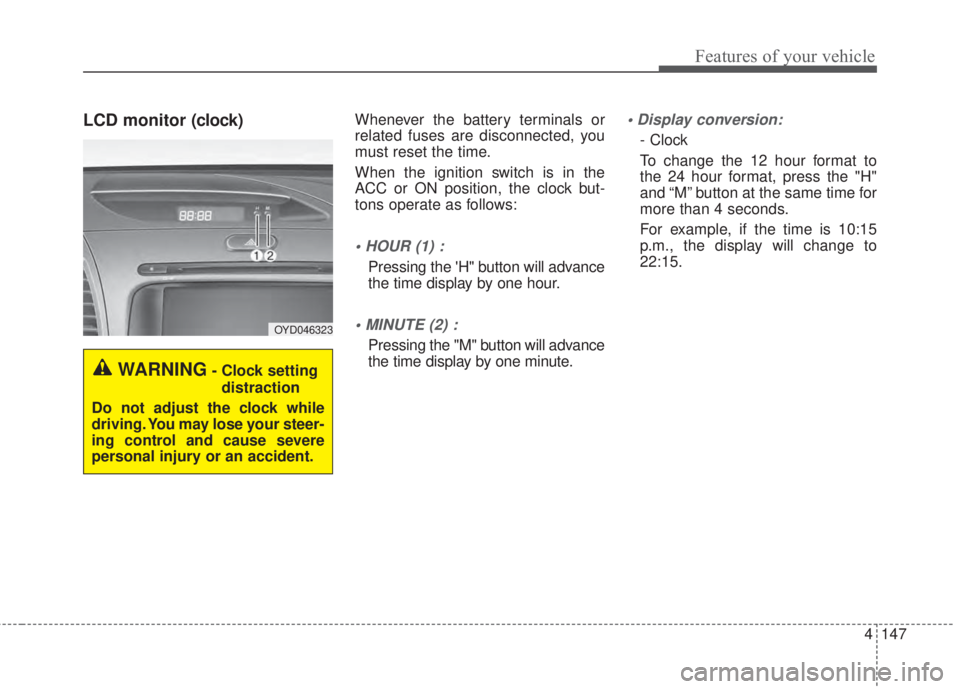
• HOUR (1) :
Pressing the 'H" button will advance
the time display by one hour.
• MINUTE (2) :
Pressing the "M" button will advance
the time display by one minute.
• Display conversion:
- Clock
To change the 12 hour format to
the 24 hour format, press the "H"
and “M” button at the same time for
more than 4 seconds.
For example, if the time is 10:15
p.m., the display will change to
22:15.
WARNING- Clock setting
distraction
Do not adjust the clock while
driving. You may lose your steer-
ing control and cause severe
personal injury or an accident.
OYD046323
Page 224 of 595
4 152
Features of your vehicle
✽NOTICE
If you install an after market HID
head lamp, your vehicle’s audio and
electronic device may malfunction.
Glass antenna (if equipped)
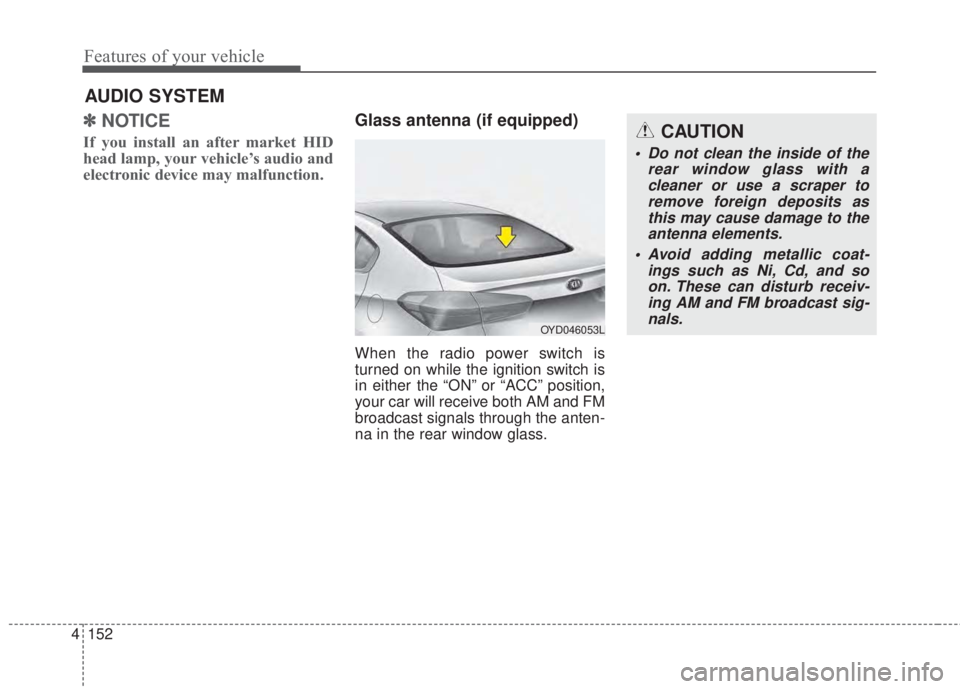
When the radio power switch is
turned on while the ignition switch is
in either the “ON” or “ACC” position,
your car will receive both AM and FM
broadcast signals through the anten-
na in the rear window glass.
AUDIO SYSTEM
CAUTION
• Do not clean the inside of the
rear window glass with a
cleaner or use a scraper to
remove foreign deposits as
this may cause damage to the
antenna elements.
• Avoid adding metallic coat-
ings such as Ni, Cd, and so
on. These can disturb receiv-
ing AM and FM broadcast sig-
nals.
OYD046053L
Page 226 of 595
4 154
Features of your vehicle
MODE (3)
Press the button to change audio
source.
FM(1~2)
➟AM➟SAT(1~3)➟CD➟USB
AUX(iPod®)➟FM...
In addition to mode change, Power
on/off can be made by pressing this
button when the ignition switch is on
ACC or ON.
- Power ON: Press the button when
the audio is off
- Power OFF: Press the button for
more than 1 second when the
audio is on.
MUTE (4, if equipped)
• Press the button to mute the
sound.
• Press the button to turn off the
microphone during a telephone
call.
Detailed information for audio control
buttons are described in the following
pages in this chapter.
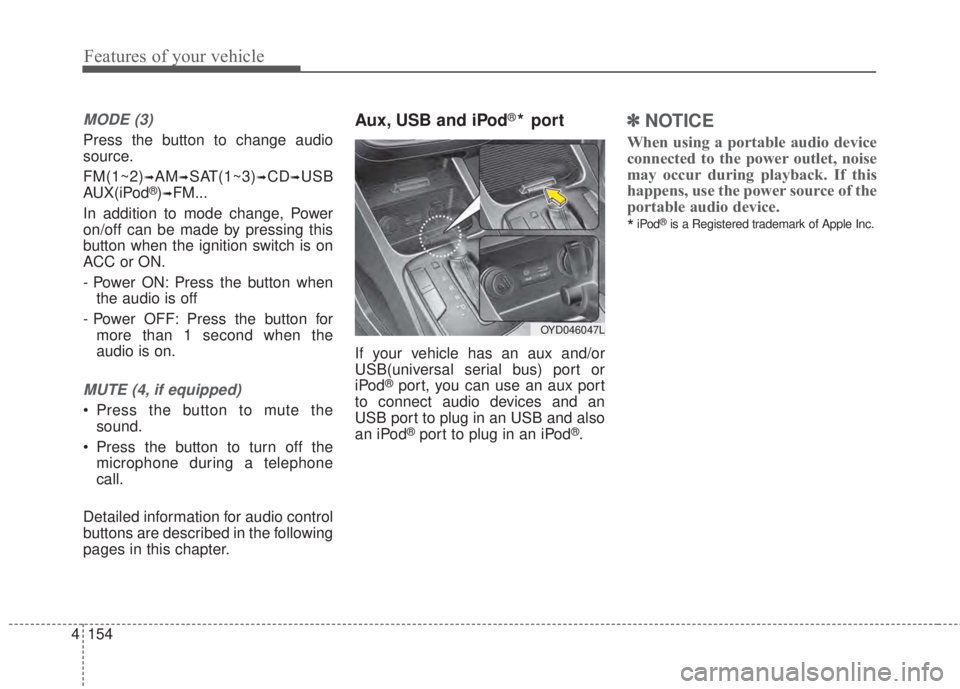
Aux, USB and iPod®* port
If your vehicle has an aux and/or
USB(universal serial bus) port or
iPod
®port, you can use an aux port
to connect audio devices and an
USB port to plug in an USB and also
an iPod
®port to plug in an iPod®.
✽NOTICE
When using a portable audio device
connected to the power outlet, noise
may occur during playback. If this
happens, use the power source of the
portable audio device.
*iPod®is a Registered trademark of Apple Inc.
OYD046047L
Page 232 of 595
4 160
Features of your vehicle
• Adjust the volume to levels that
allow the driver to hear sounds
from outside of the vehicle. Driving
in a state where external sounds
cannot be heard may lead to acci-
dents.
• Pay attention to the volume setting
when turning the device on. A sud-
den output of extreme volume
upon turning the device on could
lead to hearing impairment. (Adjust
the volume to a suitable levels
before turning off the device.)
• If you want to change the position
of device installation, please
inquire with your place of purchase
or service maintenance center.
Technical expertise is required to
install or disassemble the device.
• Turn on the car ignition before
using this device. Do not operate
the audio system for long periods
of time with the ignition turned off
as such operations may lead to
battery discharge.
✽NOTICE
In case of product malfunction,
please contact your place of pur-
chase or After Service center.
CAUTION - LCD Monitor
Do not subject the device to
severe shock or impact. Direct
pressure onto the front side of
the monitor may cause damage
to the LCD or touch screen.
CAUTION - Device
cleaning
• When cleaning the device,
make sure to turn off the
device and use a dry and
smooth cloth.
• Never use tough materials,
chemical cloths, or solvents
(alcohol, benzene, thinners,
etc.) as such materials may
damage the device panel or
cause color/quality deteriora-
tion.
(Continued)
(Continued)
• Prevent caustic solutions such
as perfume and cosmetic oil
from contacting the dashboard
because they may cause dam-
age or discoloration.
• Placing the audio system
within an electromagnetic
environment may result in
noise interference.
Page 237 of 595
165 4
Features of your vehicle
When connecting aBluetooth®
Phone
• Before connecting the head unit
with the mobile phone, check to
see that the mobile phone sup-
ports
Bluetooth®features.
• Even if the phone supports
Bluetooth®, the phone will not be
found during device searches if
the phone has been set to hidden
state or the
Bluetooth®power is
turned off. Disable the hidden
state or turn on the
Bluetooth®
power prior to searching/connect-
ing with the Head unit.
• Bluetooth phone is automatically
connected when the ignition on.
• If you do not want automatic con-
nection with your
Bluetooth®
device, turn off the Bluetooth®
feature within your mobile phone.
• The Handsfree call volume and
quality may differ depending on
the mobile phone.• Park the vehicle when connecting
the head unit with the mobile
phone.
•
Bluetooth®connection may
become intermittently discon-
nected in some mobile phones.
Follow these steps to try again.
1. Within the mobile phone, turn
the
Bluetooth®function off/on
and try again.
2. Turn the mobile phone power
Off/On and try again.
3. Completely remove the mobile
phone battery, reboot, and then
again.
4. Reboot the Audio System and
try again.
5. Delete all paired devices, pair
and try again.
• Handsfree call quality and volume
may differ depending on the
model of your mobile phone.
Page 245 of 595
173 4
Features of your vehicle
✽NOTICE
• If you want to change the position
of device installation, please
inquire with your place of pur-
chase or service maintenance cen-
ter. Technical expertise is required
to install or disassemble the
device.
• Turn on the car ignition before
using this device. Do not operate
the audio system for long periods
of time with the ignition turned off
as such operations may lead to
battery discharge.
✽NOTICE
In case of product malfunction,
please contact your dealer or vehicle
service center.CAUTION
• Do not subject the device to
severe shock or impact. Direct
pressure onto the front side of
the monitor may cause damage
to the LCD or touch screen.
• When cleaning the device,
make sure to turn off the
device and use a dry and
smooth cloth. Never use
tough materials, chemical
cloths, or solvents (alcohol,
benzene, thinners, etc.) as
such materials may damage
the device panel or cause
color/quality deterioration
• Do not place beverages close
to the audio system. Spilling
beverages may lead to system
malfunction.
• Placing the audio system with-
in an electromagnetic environ-
ment may result in noise inter-
ference.
Page 251 of 595
179 4
Features of your vehicle
(Continued)
• Phone contact names should be
saved in English or they may not
be displayed correctly.
• The Handsfree call volume and
quality may differ depending on
the mobile phone.
• Only one Bluetooth
®Wireless
Technology device can be connect-
ed at a time.
• In some mobile phones, starting
the ignition while talking through
Bluetooth
®Wireless Technology
enabled handsfree call will result
in the call becoming disconnected.
(Switch the call back to your
mobile phone when starting the
ignition.)
• If the mobile phone is not paired
or connected, it is not possible to
enter Phone mode. Once a phone
is paired or connected, the guid-
ance screen will be displayed.
• Bluetooth
®Handsfree may not be
supported in some mobile phones.
✽NOTICE
•Bluetooth®Wireless Technology
Handsfree is a feature that enables
drivers to practice safe driving.
Connecting the car audio system
with a Bluetooth
®Wireless
Technology phone allows the user
to conveniently make calls, receive
calls, and manage the phone book.
Before using the Bluetooth
®
Wireless Technology, carefully
read the contents of this user’s
manual.
WARNING
• Excessive use or operations
while driving may lead to neg-
ligent driving practices and be
the cause of accidents.
• Do not operate the device
excessively while driving.
• Viewing the screen for pro-
longed periods of time while
driving is dangerous and may
lead to accidents.
Page 291 of 595
219 4
Features of your vehicle
✽NOTICE - Using the USB
Devices
• Connect the USB device after
turning on the engine. The USB
device may become damaged if it
is already connected when the
ignition is turned on. The USB
device may not operate properly if
the car ignition is turned on or off
with the USB device connected.
• Be careful for static electricity
when connecting/disconnecting
USB devices.
• Encoded MP3 Players will not be
recognized when connected as an
external device.
• When connecting an external USB
device, the vehicle's audio system
may not recognize the USB
depending on what firmware is
used by USB device or what files
are on the USB.
• Only products formatted with
byte/sectors under 64Kbyte will be
recognized.
• This device recognizes USB
devices formatted in FAT 12/16/32
file formats. This device does not
recognize files in NTFS file for-
mat.
(Continued)(Continued)
• Some USB devices may not be sup-
ported due to compatibility issues.
• Avoid contact between the USB
connector and bodily parts or for-
eign objects.
• Repeated connecting/disconnect-
ing of USB devices within short
periods of time may result in prod-
uct malfunction.
• A strange noise may occur when
disconnecting the USB.
• Make sure to connect/disconnect
external USB devices with the
audio power turned off.
• The amount of time required to
recognize the USB device may dif-
fer depending on the type, size or
file formats stored on the USB.
Such differences in time are not
indications of malfunctions.
• The vehicle audio system only sup-
ports USB devices designed to
play music files.
• USB images and videos are not
supported.
(Continued)(Continued)
• Do not use the USB I/F to charge
batteries or USB accessories that
generate heat. Doing so may lead
to worsened performance or dam-
age to the audio system.
• The audio system may not recog-
nize the USB device if separately
purchased USB hubs and exten-
sion cables are being used.
Connect the USB device directly
with the USB port of the vehicle.
• When using mass storage USB
devices with separate logical
drives, only files saved to the root
drive can be played.
• Files may not properly operate if
application programs are installed
on the USBs.
• The audio system may not operate
normally if MP3 Players, cellular
phones, digital cameras, or other
electronic devices (USB devices
not recognized as portable disk
drives) are connected with the
audio system.
(Continued)