check KIA FORTE KOUP 2016 Service Manual
[x] Cancel search | Manufacturer: KIA, Model Year: 2016, Model line: FORTE KOUP, Model: KIA FORTE KOUP 2016Pages: 501, PDF Size: 14.8 MB
Page 190 of 501
4119
Features of your vehicle
Checking the amount of air
conditioner refrigerant and
compressor lubricant
When the amount of refrigerant is
low, the performance of the air con-
ditioning is reduced. Overfilling also
has a negative influence on the air
conditioning system.
Therefore, if abnormal operation is
found, have the system inspected by
an authorized Kia dealer.The air conditioning system should
be serviced by an authorized Kia
dealer.
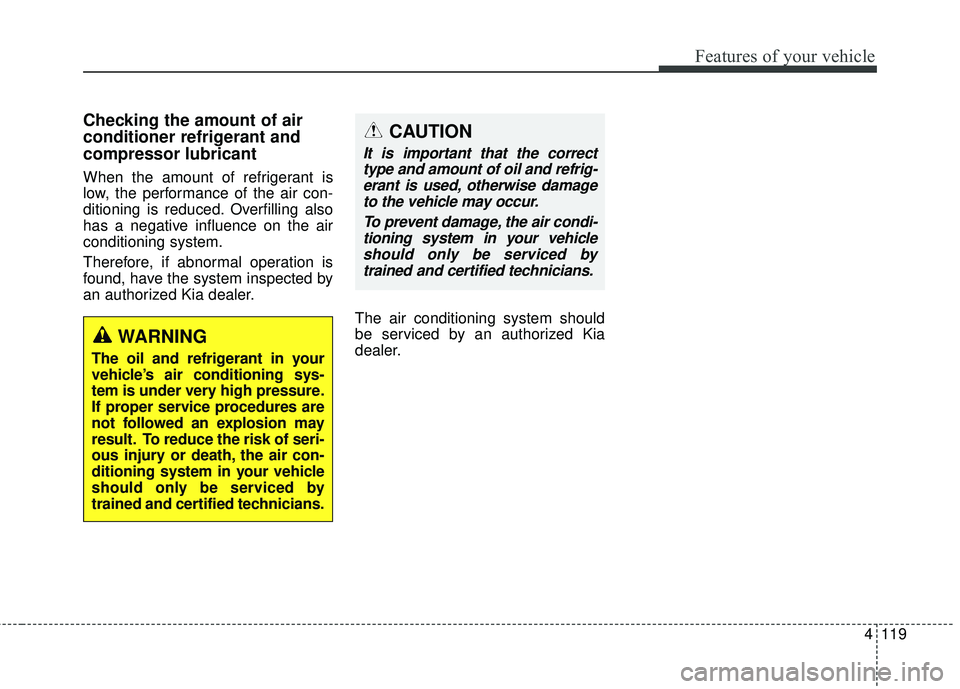
CAUTION
It is important that the correcttype and amount of oil and refrig-erant is used, otherwise damageto the vehicle may occur.
To prevent damage, the air condi-tioning system in your vehicleshould only be serviced bytrained and certified technicians.
WARNING
The oil and refrigerant in your
vehicle’s air conditioning sys-
tem is under very high pressure.
If proper service procedures are
not followed an explosion may
result. To reduce the risk of seri-
ous injury or death, the air con-
ditioning system in your vehicle
should only be serviced by
trained and certified technicians.
Page 230 of 501
4159
Features of your vehicle
Before Using the Bluetooth®
Handsfree
What is Bluetooth®?
Bluetooth®refers to a short-dis-
tance wireless networking technol-
ogy which uses a 2.4GHz
~2.48GHz frequency to connect
various devices within a certain
distance.
Supported within PCs, external devices,
Bluetooth®phones, PDAs,
various electronic devices, and
automotive environments,
Bluetooth®allows data to be trans-
mitted at high speeds without hav-
ing to use a connector cable.
Bluetooth®Handsfree refers to a
device which allows the user to
conveniently make phone calls with
Bluetooth®mobile phones through
the AV/Navigation system.
Bluetooth®Handsfree may not be
supported in some mobile phones.
To learn more about mobile device
compatibility, visit
http://www
.kia.com/us/en/con-
tent/owners/bluetooth.
Precautions for Safe Driving
Bluetooth®Handsfree is a feature
that enables drivers to practice
safe driving. Connecting the head
unit with a
Bluetooth®phone allows
the user to conveniently make and
receive calls and use contacts.
Before using
Bluetooth®, carefully
read the contents of this user’s
manual.
Excessive use or operations while driving may lead to negligent driv-
ing practices and result in acci-
dents. Refrain from excessive
operations while driving.
Viewing the screen for prolonged periods of time is dangerous and
may lead to accidents. When driv-
ing, view the screen only for short
periods of time.
When connecting a Bluetooth®
Phone
Before connecting the head unit
with the mobile phone, check to
see that the mobile phone sup-
ports
Bluetooth®features.
Even if the phone supports
Bluetooth®, the phone will not be
found during device searches if
the phone has been set to hidden
state or the
Bluetooth®power is
turned off. Disable the hidden
state or turn on the
Bluetooth®
power prior to searching/con-
necting with the Head unit.
Bluetooth phone is automatically
connected when the ignition on.
If you do not want automatic con-
nection with your
Bluetooth®
device, turn off the Bluetooth®
feature within your mobile phone.
The Handsfree call volume and
quality may differ depending on
the mobile phone.
(Continued)
Page 232 of 501
4161
Features of your vehicle
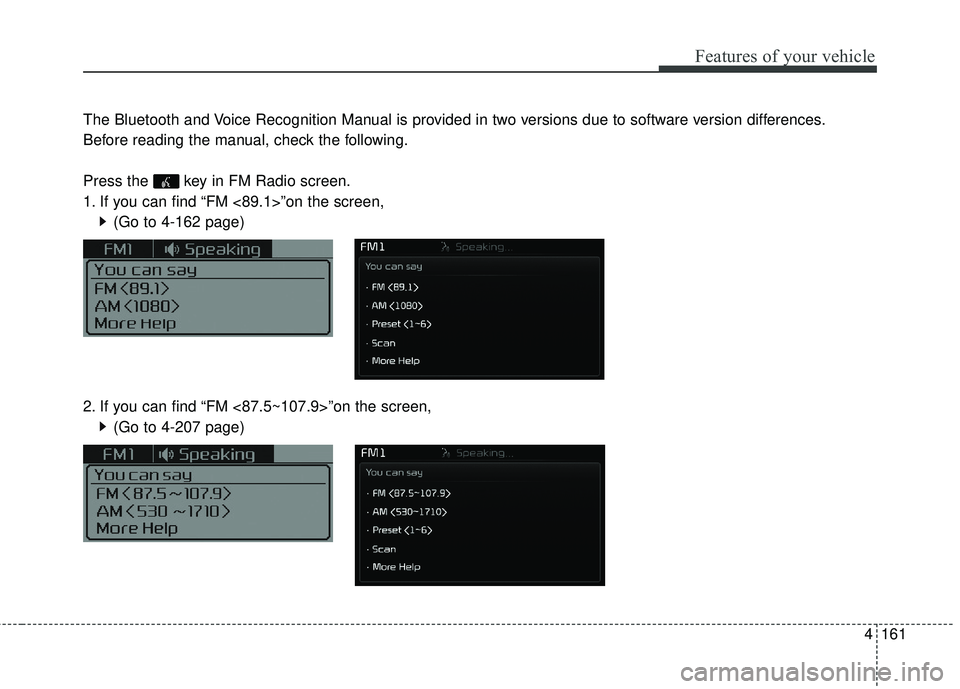
The Bluetooth and Voice Recognition Manual is provided in two versions due to software version differences.
Before reading the manual, check the following.
Press the key in FM Radio screen.
1. If you can find “FM <89.1>”on the screen,(Go to 4-162 page)
2. If you can find “FM <87.5~107.9>”on the screen, (Go to 4-207 page)
Page 251 of 501
Features of your vehicle
180
4
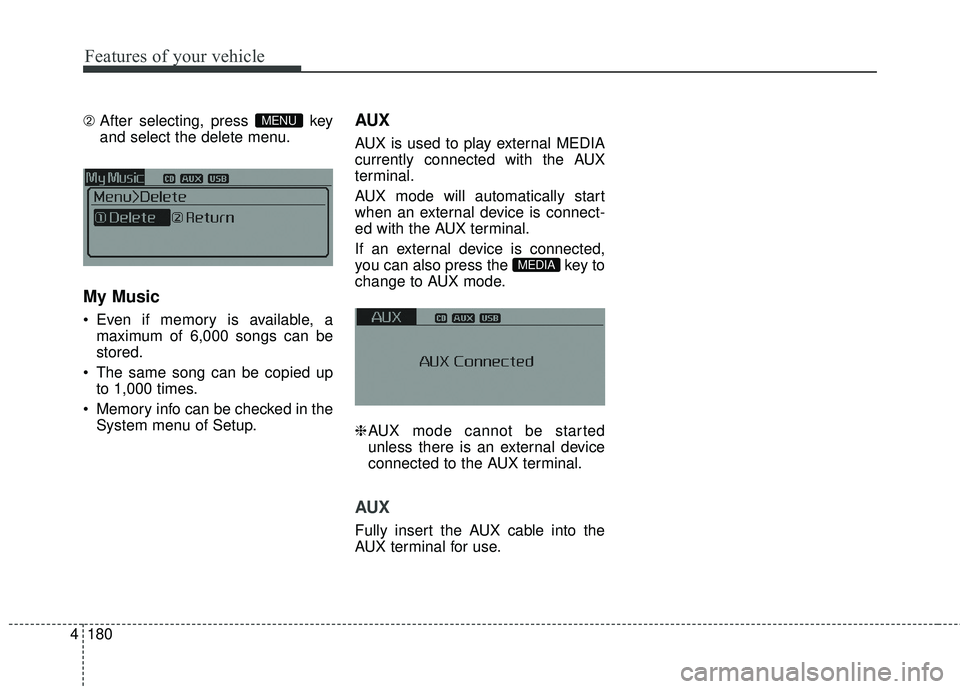
\b After selecting, press key
and select the delete menu.
My Music
Even if memory is available, a
maximum of 6,000 songs can be
stored.
The same song can be copied up to 1,000 times.
Memory info can be checked in the System menu of Setup.
AUX
AUX is used to play external MEDIA
currently connected with the AUX
terminal.
AUX mode will automatically start
when an external device is connect-
ed with the AUX terminal.
If an external device is connected,
you can also press the key to
change to AUX mode.
❈AUX mode cannot be started
unless there is an external device
connected to the AUX terminal.
AUX
Fully insert the AUX cable into the
AUX terminal for use.
MEDIA
MENU
Page 254 of 501
4183
Features of your vehicle
PHONE
Before using the Bluetooth®Wireless
Technology phone features
Bluetooth®Wireless
Technology phone, you must first
pair and connect the
Bluetooth®
Wireless Technology mobile phone.
connected, it is not possible to
enter Phone mode. Once a phone
is paired or connected, the guid-
ance screen will be displayed.
tion (IGN/ACC ON), the
Bluetooth®
Wireless Technology phone will be
automatically connected. Even if
you are outside, the
Bluetooth®
Wireless Technology phone will be
automatically connected once you
are in the vicinity of the vehicle. If
you do not want automatic
Bluetooth®Wireless Technology
phone connection, set the
Bluetooth®Wireless Technology
power to OFF.
Making a call using the
Steering-wheel mount controls
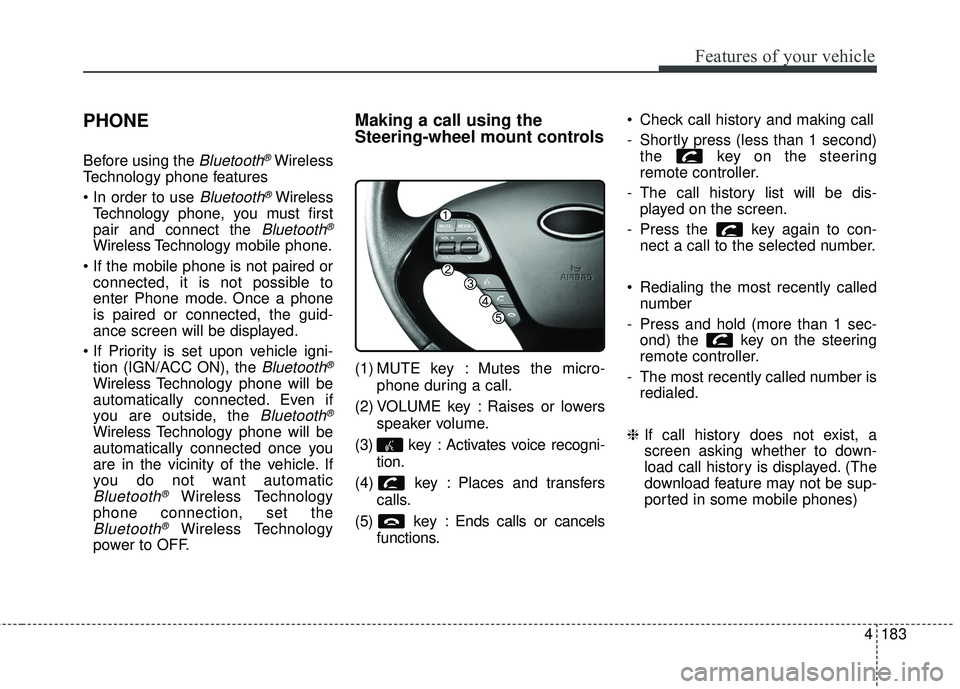
(1) MUTE key : Mutes the micro-
phone during a call.
(2) VOLUME key : Raises or lowers speaker volume.
(3) key : Activates voice recogni- tion.
(4) key : Places and transfers calls.
(5) key : Ends calls or cancels functions. Check call history and making call
- Shortly press (less than 1 second)
the key on the steering
remote controller.
- The call history list will be dis- played on the screen.
- Press the key again to con- nect a call to the selected number.
Redialing the most recently called number
- Press and hold (more than 1 sec- ond) the key on the steering
remote controller.
- The most recently called number is redialed.
❈ If call history does not exist, a
screen asking whether to down-
load call history is displayed. (The
download feature may not be sup-
ported in some mobile phones)
Page 256 of 501
4185
Features of your vehicle
Pairing key / key on
the Steering Remote Controller
When No Devices have been Paired
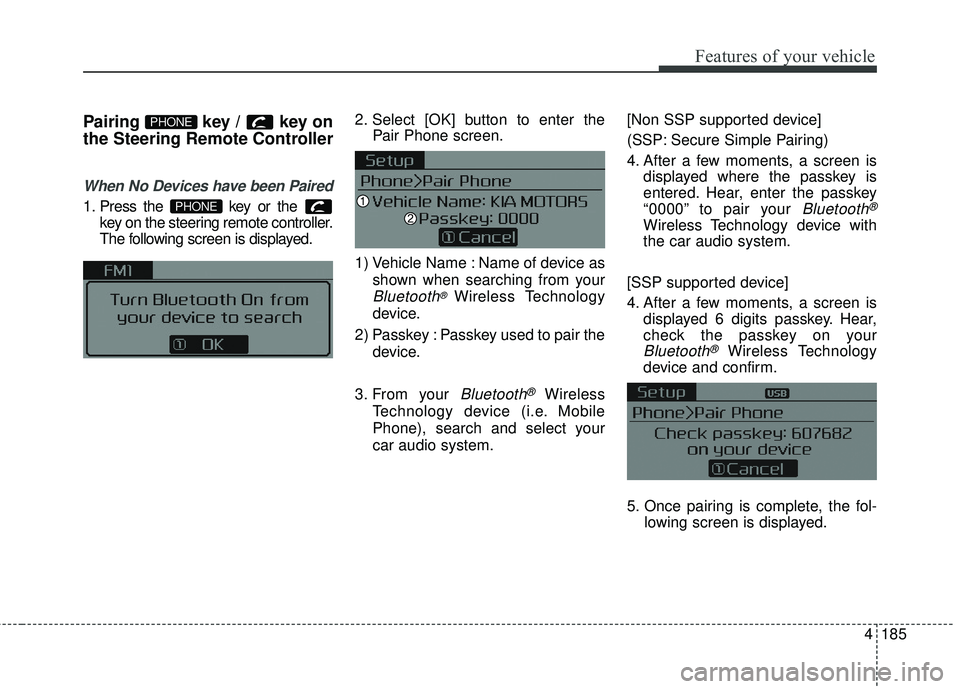
1. Press the key or the key on the steering remote controller.
The following screen is displayed. 2. Select [OK] button to enter the
Pair Phone screen.
1) Vehicle Name : Name of device as shown when searching from your
Bluetooth®Wireless Technology
device.
2) Passkey : Passkey used to pair the device.
3. From your
Bluetooth®Wireless
Technology device (i.e. Mobile
Phone), search and select your
car audio system. [Non SSP supported device]
(SSP: Secure Simple Pairing)
4. After a few moments, a screen is
displayed where the passkey is
entered. Hear, enter the passkey
“0000” to pair your
Bluetooth®
Wireless Technology device with
the car audio system.
[SSP supported device]
4. After a few moments, a screen is displayed 6 digits passkey. Hear,
check the passkey on your
Bluetooth®Wireless Technology
device and confirm.
5. Once pairing is complete, the fol- lowing screen is displayed.
PHONE
PHONE
Page 264 of 501
![KIA FORTE KOUP 2016 Service Manual 4193
Features of your vehicle
Contacts
Press the key Select
[Contacts]
The list of saved phone book entries
is displayed.
NOTE:
Find a contact in an alphabetical
order, press the key.
Bluetooth®Wir](/img/2/57958/w960_57958-263.png "KIA FORTE KOUP 2016 Service Manual 4193
Features of your vehicle
Contacts
Press the key Select
[Contacts]
The list of saved phone book entries
is displayed.
NOTE:
Find a contact in an alphabetical
order, press the key.
Bluetooth®Wir")
4193
Features of your vehicle
Contacts
Press the key Select
[Contacts]
The list of saved phone book entries
is displayed.
NOTE:
Find a contact in an alphabetical
order, press the key.
Bluetooth®Wireless Technology
phone can be downloaded into the
car contacts. Contacts that have
been downloaded to the car cannot
be edited or deleted on the phone.
aged separately for each paired
Bluetooth®Wireless Technology
device (max 5 devices x 1,000 con-
tacts each). Previously downloaded
data is maintained even if the
Bluetooth®Wireless Technology
device has been disconnected.
(However, the contacts and call his-
tory saved to the phone will be
deleted if a paired phone is delet-
ed.)
during Bluetooth streaming audio.
icon will be displayed within the sta-
tus bar.
loading a contact list when the con-
tact download feature has been
turned off within the
Bluetooth®
Wireless Technology device. In
addition, some devices may require
device authorization upon attempt-
ing to download contacts. If down-
loading does not normally occur,
check the
Bluetooth®Wireless
Technology device settings or the
screen state.
not be supported in some mobile
phones. For more information of
supported
Bluetooth®devices and
function support, refer to your
phone’s user manual.
MENU
PHONE
Page 296 of 501
4225
Features of your vehicle
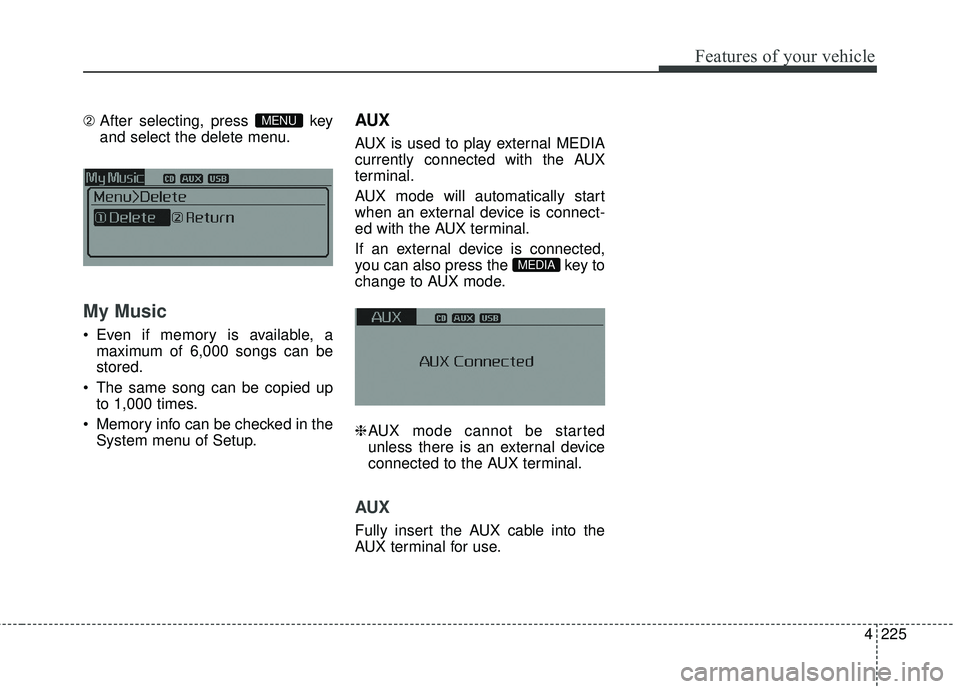
\b After selecting, press key
and select the delete menu.
My Music
Even if memory is available, a
maximum of 6,000 songs can be
stored.
The same song can be copied up to 1,000 times.
Memory info can be checked in the System menu of Setup.
AUX
AUX is used to play external MEDIA
currently connected with the AUX
terminal.
AUX mode will automatically start
when an external device is connect-
ed with the AUX terminal.
If an external device is connected,
you can also press the key to
change to AUX mode.
❈AUX mode cannot be started
unless there is an external device
connected to the AUX terminal.
AUX
Fully insert the AUX cable into the
AUX terminal for use.
MEDIA
MENU
Page 301 of 501
Features of your vehicle
230
4
Pairing Key / Key on
the Steering Remote Controller
When No Devices have been Paired
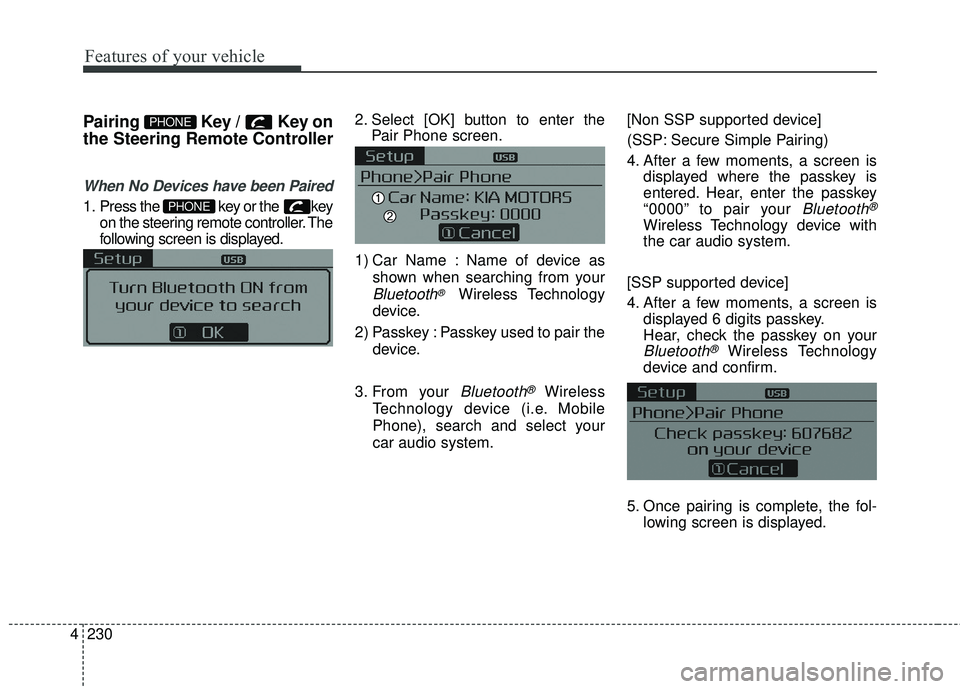
1. Press the key or the key
on the steering remote controller. The
following screen is displayed. 2. Select [OK] button to enter the
Pair Phone screen.
1) Car Name : Name of device as shown when searching from your
Bluetooth®Wireless Technology
device.
2) Passkey : Passkey used to pair the device.
3. From your
Bluetooth®Wireless
Technology device (i.e. Mobile
Phone), search and select your
car audio system. [Non SSP supported device]
(SSP: Secure Simple Pairing)
4. After a few moments, a screen is
displayed where the passkey is
entered. Hear, enter the passkey
“0000” to pair your
Bluetooth®
Wireless Technology device with
the car audio system.
[SSP supported device]
4. After a few moments, a screen is displayed 6 digits passkey.
Hear, check the passkey on your
Bluetooth®Wireless Technology
device and confirm.
5. Once pairing is complete, the fol- lowing screen is displayed.
PHONE
PHONE
Page 309 of 501
![KIA FORTE KOUP 2016 Service Manual Features of your vehicle
238
4
Contacts
Press the key Select
[Contacts]
The list of saved phone book entries
is displayed.
NOTE:
Find a contact in an alphabetical
order, press the key.
Bluetooth®W](/img/2/57958/w960_57958-308.png "KIA FORTE KOUP 2016 Service Manual Features of your vehicle
238
4
Contacts
Press the key Select
[Contacts]
The list of saved phone book entries
is displayed.
NOTE:
Find a contact in an alphabetical
order, press the key.
Bluetooth®W")
Features of your vehicle
238
4
Contacts
Press the key Select
[Contacts]
The list of saved phone book entries
is displayed.
NOTE:
Find a contact in an alphabetical
order, press the key.
Bluetooth®Wireless Technology
phone can be downloaded into the
car contacts. Contacts that have
been downloaded to the car cannot
be edited or deleted on the phone.
aged separately for each paired
Bluetooth®Wireless Technology
device (max 5 devices x 1,000 con-
tacts each). Previously downloaded
data is maintained even if the
Bluetooth®Wireless Technology
device has been disconnected.
(However, the contacts and call his-
tory saved to the phone will be
deleted if a paired phone is delet-
ed.)
during Bluetooth streaming audio.
icon will be displayed within the sta-
tus bar.
loading a contact list when the con-
tact download feature has been
turned off within the
Bluetooth®
Wireless Technology device. In
addition, some devices may require
device authorization upon attempt-
ing to download contacts. If down-
loading does not normally occur,
check the
Bluetooth®Wireless
Technology device settings or the
screen state.
not be supported in some mobile
phones. For more information of
supported
Bluetooth®devices and
function support, refer to your
phone’s user manual.
MENU
PHONE