phone KIA NIRO 2017 User Guide
[x] Cancel search | Manufacturer: KIA, Model Year: 2017, Model line: NIRO, Model: KIA NIRO 2017Pages: 552, PDF Size: 14.92 MB
Page 199 of 552
Features of your vehicle
96
4
✽
✽
NOTICE
• This system can only sense objects
within the range and location of
the sensors; It can not detect
objects in other areas where sen-
sors are not installed. Also, small
or slim objects, such as poles or
objects located between sensors
may not be detected by the sen-
sors. Always visually check behind
the vehicle when backing up.
• Be sure to inform any drivers of the vehicle that may be unfamiliar
with the system regarding the sys-
tems capabilities and limitations.
Non-operational conditions of
parking assist system
Parking assist system may not
operate normally when:
1. Moisture is frozen to the sensor. (It will operate normally when mois-
ture melts.)
2. Sensor is covered with foreign matter, such as snow or water, or
the sensor cover is blocked. (It will
operate normally when the materi-
al is removed or the sensor is no
longer blocked.)
3. Sensor is stained with foreign mat- ter such as snow or water.
(Sensing range will return to nor-
mal when removed.)
4.The parking assist button is off.
There is a possibility of parking assist system malfunction when:
1. Driving on uneven road surfaces such as unpaved roads, gravel,
bumps, or gradient.
2. Objects generating excessive noise such as vehicle horns, loud
motorcycle engines, or truck air
brakes can interfere with the sen-
sor.
3. Heavy rain or water spray.
4. Wireless transmitters or mobile phones present near the sensor.
5. Sensor is covered with snow.
Page 242 of 552
4139
Features of your vehicle
Sunvisor
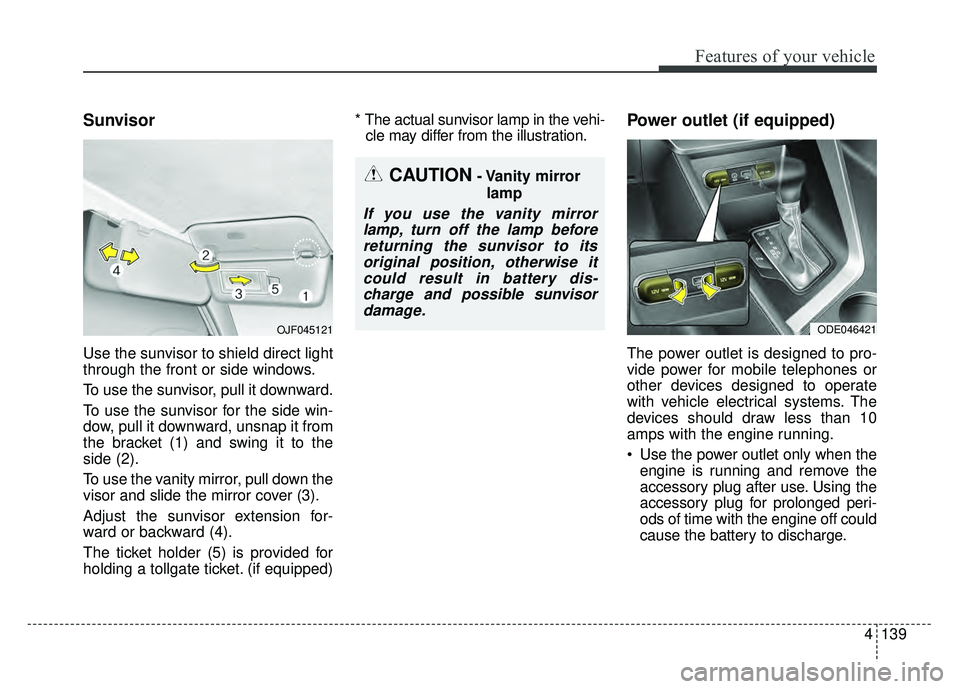
Use the sunvisor to shield direct light
through the front or side windows.
To use the sunvisor, pull it downward.
To use the sunvisor for the side win-
dow, pull it downward, unsnap it from
the bracket (1) and swing it to the
side (2).
To use the vanity mirror, pull down the
visor and slide the mirror cover (3).
Adjust the sunvisor extension for-
ward or backward (4).
The ticket holder (5) is provided for
holding a tollgate ticket. (if equipped)* The actual sunvisor lamp in the vehi-
cle may differ from the illustration.
Power outlet (if equipped)
The power outlet is designed to pro-
vide power for mobile telephones or
other devices designed to operate
with vehicle electrical systems. The
devices should draw less than 10
amps with the engine running.
Use the power outlet only when the engine is running and remove the
accessory plug after use. Using the
accessory plug for prolonged peri-
ods of time with the engine off could
cause the battery to discharge.
CAUTION- Vanity mirror
lamp
If you use the vanity mirrorlamp, turn off the lamp beforereturning the sunvisor to itsoriginal position, otherwise itcould result in battery dis-charge and possible sunvisordamage.
ODE046421OJF045121
Page 245 of 552
Features of your vehicle
142
4
To prevent the battery from being dis-
charged, do not use the AC inverter
while the engine is not running.
After using an electric accessory or equipment, pull the plug out. Leaving
the accessory or equipment plugged
in for a long time may cause battery
discharge.
Do not use an electric accessory or equipment the power consumption of
which is greater than 150W (115V).
When the AC inverter input voltage is less than 11.3V, automatically turn off
the power.
AC inverter will operate as normal
when the voltage is increased.
When the AC inverter input voltage is less than 10.7V, power will turn
off. The AC inverter will operate as
normal when the voltage is
increased. While the power consumption of
some electrical devices/appliances
may be within the AC inverter’s
electric power range, it may mal-
function in below cases.
- If the device/appliance requireshigh electric power for initial start
up
- If the device/appliance processes precise/very accurate data
- If the device/appliance requires very stable supply of electricityWireless smart phone charg-
ing system (if equipped)
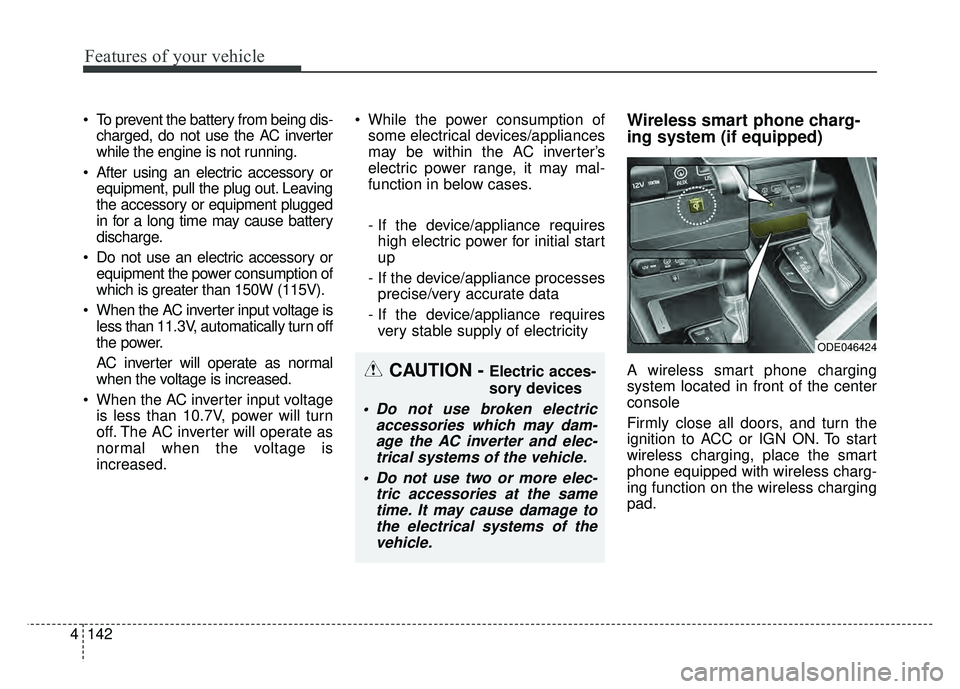
A wireless smart phone charging
system located in front of the center
console
Firmly close all doors, and turn the
ignition to ACC or IGN ON. To start
wireless charging, place the smart
phone equipped with wireless charg-
ing function on the wireless charging
pad.CAUTION - Electric acces-
sory devices
Do not use broken electric accessories which may dam-age the AC inverter and elec-trical systems of the vehicle.
Do not use two or more elec- tric accessories at the sametime. It may cause damage tothe electrical systems of thevehicle.
ODE046424
Page 246 of 552
4143
Features of your vehicle
For best wireless charging results,
place the smart phone on the center
of the charging pad.
The wireless charging system is
designed for one smart phone
equipped with QI per single usage
only. Please refer to the smart phone
accessory cover or the smart phone
manufacturer homepage to check
whether your smart phone supports
QI function.Wireless smart phone charging
1. Remove any object on the smartphone charging pad including the
smart key. If there is any foreign
object on the pad other than a
smart phone, the wireless charging
function may not operate properly.
2. Place the smart phone on the cen- ter of the wireless charging pad.
3. The indicator light will change to orange once the wireless charging
begins. After the charging is com-
plete, the orange light will change
to green.
4. You can choose to turn the wireless charging function to either ON or
OFF by selecting the USM on the
instrument cluster. (Please refer to
“Instrument Cluster” for details).
If the wireless charging does not
work, gently move your smart phone
around the pad until the charging
indicator light turns orange.
Depending on the smart phone, the
charging indicator light may not turn
green even after the charging is com-
plete. If the wireless charging is not func-
tioning properly, the orange light will
blink and flash for ten seconds then
turn off. In such cases, remove the
smart phone from the pad and
replace it on the pad again, or double
check the charging status.
If you leave the smart phone on the
charging pad when the vehicle igni-
tion is in OFF, the vehicle will alert
you through warning messages and
sound (applicable for vehicles with
voice guidance function) after the
‘Good bye’ function on the instru-
ment cluster ends.
Page 247 of 552
Features of your vehicle
144
4
✽
✽
NOTICE
• When the interior temperature of
the wireless charging system rises
above a set temperature, the wire-
less charging will cease to func-
tion. After the interior tempera-
ture drops below the threshold,
the wireless charging function will
resume.
• The wireless charging may not function properly when there is a
heavy accessory cover on the
smart phone.
• The wireless charging will stop when using the wireless smart key
search function to prevent radio
wave disruption.
• The wireless charging will stop when the smart key is moved out
of the vehicle with the ignition in
ON.
• The wireless charging will stop when any of the doors is opened
(applicable for vehicles equipped
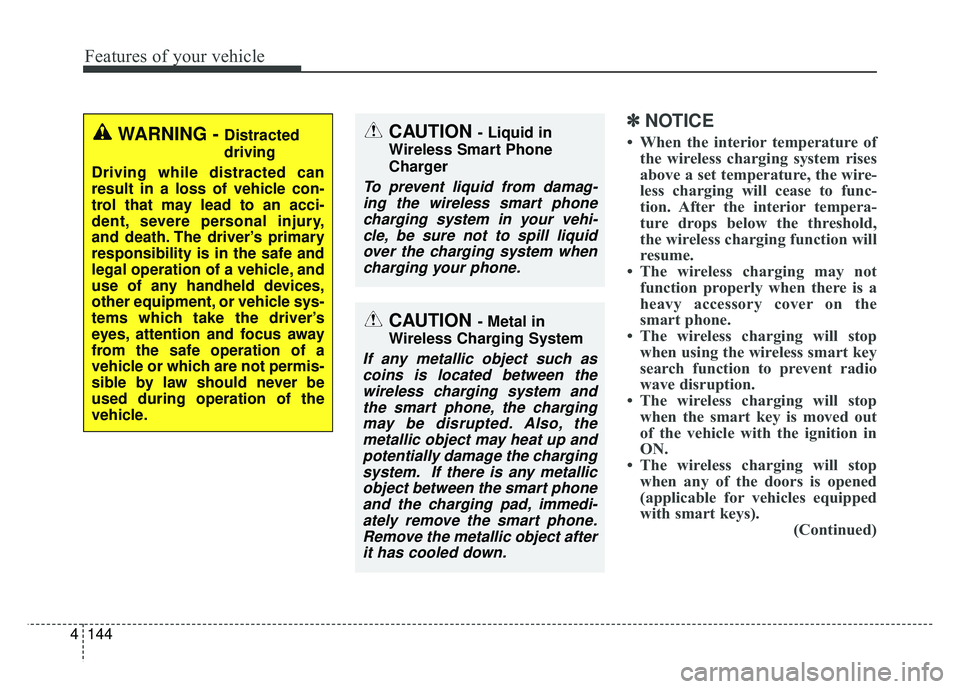
with smart keys). (Continued)CAUTION - Liquid in
Wireless Smart Phone
Charger
To prevent liquid from damag- ing the wireless smart phonecharging system in your vehi-cle, be sure not to spill liquidover the charging system whencharging your phone.
CAUTION - Metal in
Wireless Charging System
If any metallic object such as coins is located between thewireless charging system andthe smart phone, the chargingmay be disrupted. Also, themetallic object may heat up andpotentially damage the chargingsystem. If there is any metallicobject between the smart phoneand the charging pad, immedi-ately remove the smart phone.Remove the metallic object afterit has cooled down.
WARNING - Distracted
driving
Driving while distracted can
result in a loss of vehicle con-
trol that may lead to an acci-
dent, severe personal injury,
and death. The driver’s primary
responsibility is in the safe and
legal operation of a vehicle, and
use of any handheld devices,
other equipment, or vehicle sys-
tems which take the driver’s
eyes, attention and focus away
from the safe operation of a
vehicle or which are not permis-
sible by law should never be
used during operation of the
vehicle.
Page 248 of 552
4145
Features of your vehicle
(Continued)
• The wireless charging will stopwhen the vehicle is turned OFF.
• The wireless charging will stop when the smart phone is not in
complete contact with the wireless
charging pad.
• Items equipped with magnetic components such as credit card,
telephone card, bankbook, any
transportation ticket and such
may become damaged during
wireless charging.
• Place the smart phone on the cen- ter of the charge pad for best
results. The smart phone may not
charge when placed near the rim
of the charging pad. When the
smart phone does get charged, it
may heat up excessively.
• For smart phones without built-in wireless charging system, an
appropriate accessory has to be
equipped. (Continued)(Continued)
• Smart phones of some manufac-
turers may display messages on
weak current. This is due to the
particular characteristic of the
smart phone and does not imply a
malfunction on wireless charging
function.
• The indicator light of some manu- facturers’ smart phones may still
be orange after the smart phone is
fully charged. This is due to the
particular characteristic of the
smart phone and not a malfunc-
tion of the wireless charging.
• When any smart phone without a wireless charging function or a
metallic object is placed on the
charging pad, a small noise may
sound. This small sound is due to
the vehicle discerning compatibili-
ty of the object placed on the
charging pad. It does not affect
your vehicle or the smart phone in
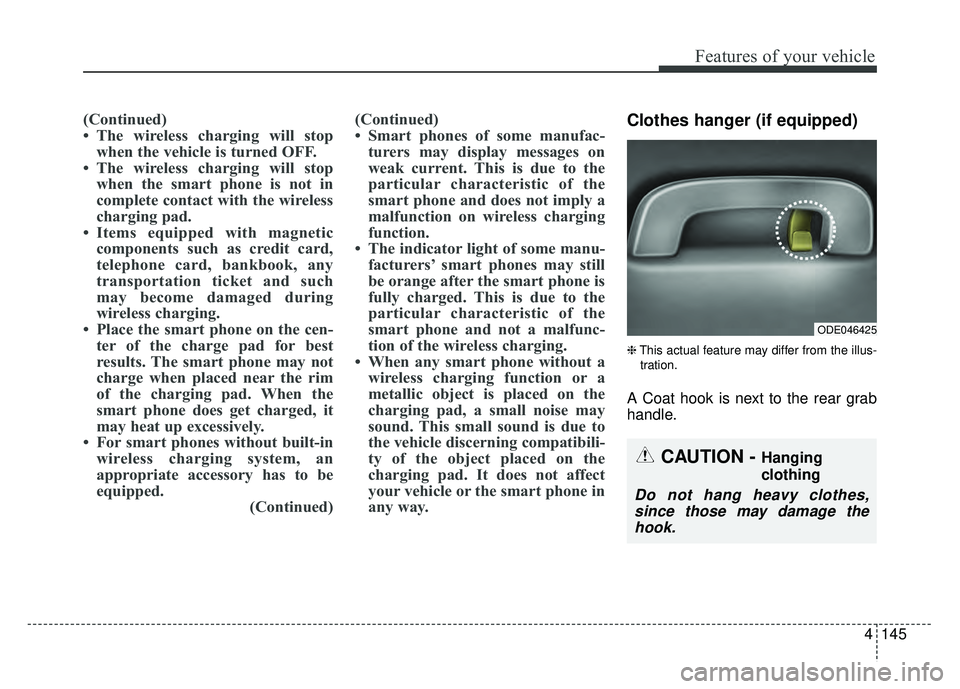
any way. Clothes hanger (if equipped)
❈ This actual feature may differ from the illus-
tration.
A Coat hook is next to the rear grab
handle.
ODE046425
CAUTION - Hanging
clothing
Do not hang heavy clothes, since those may damage thehook.
Page 254 of 552

Audio system
Audio System . . . . . . . . . . . . . . . . . . . . . . . . . . . . . . 5-2
• Antenna . . . . . . . . . . . . . . . . . . . . . . . . . . . . . . . . . . . . \
. 5-2
• AUX, USB port . . . . . . . . . . . . . . . . . . . . . . . . . . . . . . . 5-3
Audio (With Touch Screen) . . . . . . . . . . . . . . . . . . . 5-5
• Feature of Your Audio. . . . . . . . . . . . . . . . . . . . . . . . . . 5-6
• Radio . . . . . . . . . . . . . . . . . . . . . . . . . . . . . . . . . . . . \
. . . 5-10
• Media . . . . . . . . . . . . . . . . . . . . . . . . . . . . . . . . . . . . \
. . 5-11
• Phone . . . . . . . . . . . . . . . . . . . . . . . . . . . . . . . . . . . . \
. . 5-24
• Siri . . . . . . . . . . . . . . . . . . . . . . . . . . . . . . . . . . . . \
. . . . . 5-32
• Setup . . . . . . . . . . . . . . . . . . . . . . . . . . . . . . . . . . . . \
. . . 5-33
Declaration of Conformity . . . . . . . . . . . . . . . . . . 5-35
• FCC . . . . . . . . . . . . . . . . . . . . . . . . . . . . . . . . . . . . \
. . . . 5-355
Page 257 of 552
Audio system
54
iPod®
iPod®is a registered trademark of Apple Inc.
Bluetooth®Wireless Technology
A compatible Bluetooth®Wireless Technology-enabled
cell phone is required to use
Bluetooth®Wireless
Technology.
The Bluetooth
®word mark and logos are registered
trademarks owned by Bluetooth SIG, Inc. and any use of
such marks by Kia is under license.
Other trademarks and trade names are those of their
respective owners.
A Bluetooth
®enabled cell phone is required to use
Bluetooth®Wireless Technology.
Page 259 of 552
Audio system
56
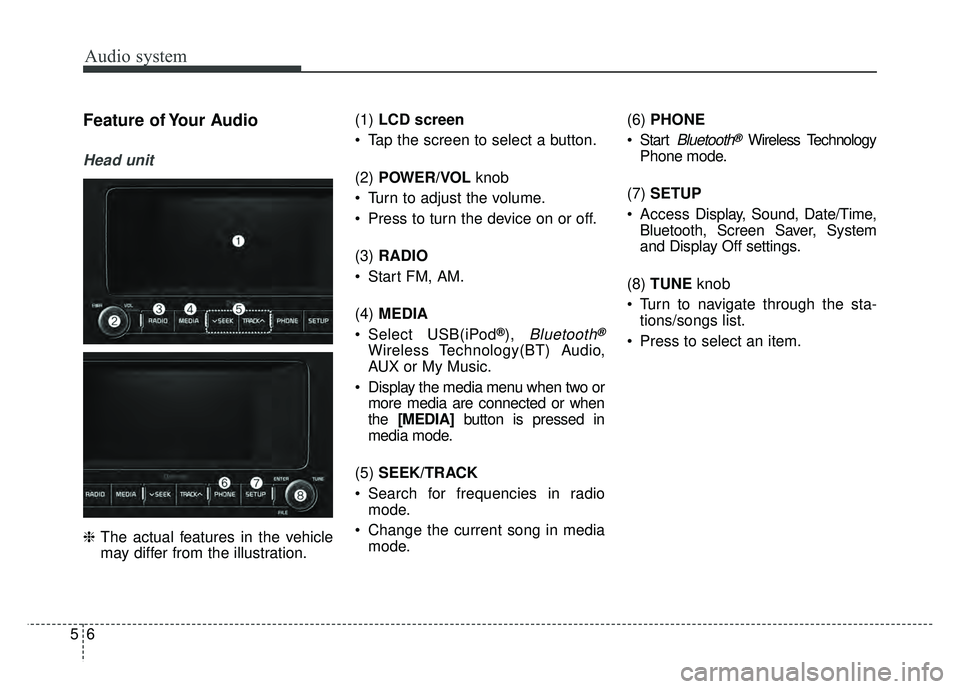
Feature of Your Audio
Head unit
❈The actual features in the vehicle
may differ from the illustration. (1)
LCD screen
Tap the screen to select a button.
(2) POWER/VOL knob
Turn to adjust the volume.
Press to turn the device on or off.
(3) RADIO
Start FM, AM.
(4) MEDIA
Select USB(iPod
®), Bluetooth®
Wireless Technology(BT) Audio,
AUX or My Music.
Display the media menu when two or more media are connected or when
the [MEDIA] button is pressed in
media mode.
(5) SEEK/TRACK
Search for frequencies in radio mode.
Change the current song in media mode. (6)
PHONE
Start
Bluetooth®Wireless Technology
Phone mode.
(7) SETUP
Access Display, Sound, Date/Time,
Bluetooth, Screen Saver, System
and Display Off settings.
(8) TUNE knob
Turn to navigate through the sta- tions/songs list.
Press to select an item.
Page 260 of 552
Audio system
75
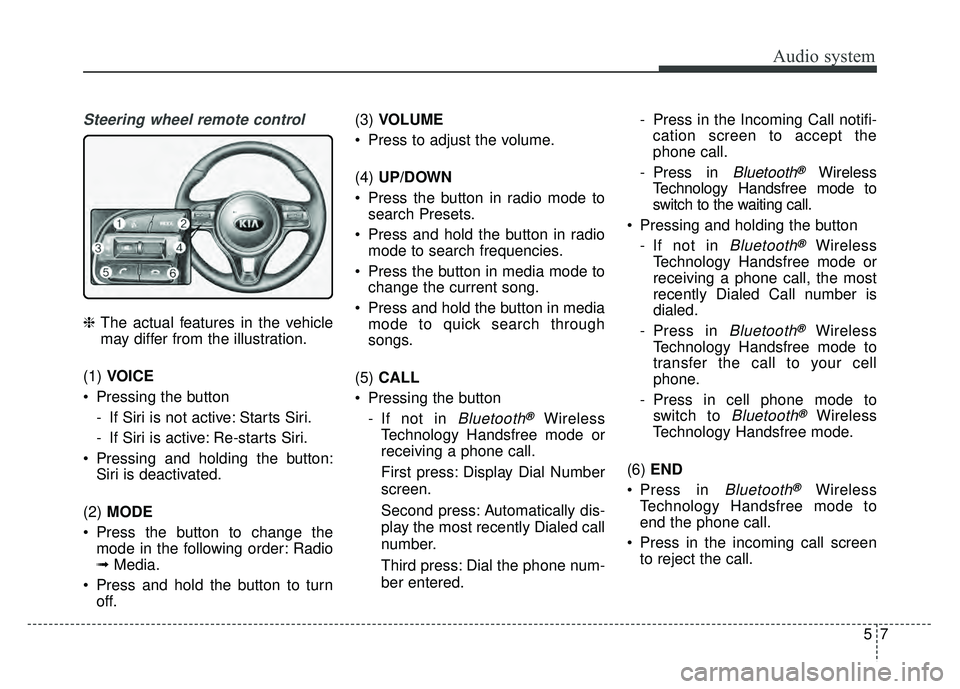
Steering wheel remote control
❈The actual features in the vehicle
may differ from the illustration.
(1) VOICE
Pressing the button - If Siri is not active: Starts Siri.
- If Siri is active: Re-starts Siri.
Pressing and holding the button: Siri is deactivated.
(2) MODE
Press the button to change the mode in the following order: Radio
➟ Media.
Press and hold the button to turn off. (3)
VOLUME
Press to adjust the volume.
(4) UP/DOWN
Press the button in radio mode to search Presets.
Press and hold the button in radio mode to search frequencies.
Press the button in media mode to change the current song.
Press and hold the button in media mode to quick search through
songs.
(5) CALL
Pressing the button - If not in
Bluetooth®Wireless
Technology Handsfree mode or
receiving a phone call.
First press: Display Dial Number
screen.
Second press: Automatically dis-
play the most recently Dialed call
number.
Third press: Dial the phone num-
ber entered. - Press in the Incoming Call notifi-
cation screen to accept the
phone call.
- Press in
Bluetooth®Wireless
Technology Handsfree mode to
switch to the waiting call.
Pressing and holding the button - If not in
Bluetooth®Wireless
Technology Handsfree mode or
receiving a phone call, the most
recently Dialed Call number is
dialed.
- Press in
Bluetooth®Wireless
Technology Handsfree mode to
transfer the call to your cell
phone.
- Press in cell phone mode to switch to
Bluetooth®Wireless
Technology Handsfree mode.
(6) END
Press in
Bluetooth®Wireless
Technology Handsfree mode to
end the phone call.
Press in the incoming call screen to reject the call.