phone KIA NIRO 2023 Quick Start Guide Base Audio
[x] Cancel search | Manufacturer: KIA, Model Year: 2023, Model line: NIRO, Model: KIA NIRO 2023Pages: 164, PDF Size: 4.61 MB
Page 104 of 164

7-2
Using Voice Memo
You can record voice memos using the
microphone installed in your vehicle and
play voice memos on your system.
\334Warning
Driving while distracted can result in a
loss of vehicle control that may lead to an
accident, severe bodily injury, or death.
The driver′s primary responsibility is the
safe and legal operation of the vehicle,
and the use of any vehicle systems,
including the touch screen and steering
wheel controls, which take the driver′s
eyes, attention, and focus away from the
safe operation of the vehicle, or which are
not permissible by law, should never be
used during the operation of the vehicle.
Starting Voice Memo
On the Home screen, press All
Menus > Voice Memo.
dd
cc
eeff
aabb
a a Display the options list.
\225 Display Off (if equipped): Turn off
the screen. Press the screen to turn
it back on.
\225Delete: Delete voice memos.
\225Save to USB Device : Save voice
memos to a USB storage device.
Check the specifications of USB
storage devices to determine
whether they are compatible.
> See
″ USB storage devices .″
\225Storage Information : View
information on the storage space
used for your voice memos.
\225 User′s Manual on Web (QR Code) :
Access the web manual via the QR
code. For safety reasons, you can
access the QR code only when your
vehicle is stationary.
b b Return to the previous level.
c c Adjust the recording volume (if
equipped).
d d List of your voice memos. Press a voice
memo to play it.
e e Start or pause recording.
f f Stop recording.
Page 109 of 164

8-3
Activating Kia Connect
services
You must activate Kia Connect services to
use them. An account with Owners.kia.
com is required for activation. If you do
not already have an account, enter your
information to create one. If you already
have an account, enter the verification
code you received from Owners.kia.com.
1 Park your vehicle in a safe
location.
\225You cannot enter information for
service activation while your vehicle
is moving.
2 On the Home screen, press All
Menus > Kia Connect > Kia
Connect Settings > Activate
Service.
3 Enter your phone number
or email address and press
Submit.
\225 Once your account has been
successfully registered, a verification
code will be sent to you by phone or
email.
\225If you have a registered account
and your verification code, press I
already have a code .
4 Enter the verification code you
received from Owners.kia.com
and press Submit.
\225 Activation will begin. While the
activation is in progress, the system
buttons will be locked.
\335 Caution
Do not turn off the engine while activation
is in progress. Doing so may cause the
system to malfunction.
\333Note
\225To call the Kia Connect Center to request
help for service activation, press All
Menus > Kia Connect > Kia Connect
Call Center on the Home screen or the
[
] button in your vehicle.
\225 If the activation fails, contact the Kia
Connect Center at 844-886-9411.
\225If your Kia Connect service has expired,
you can reactivate by renewing your
subscription at Owners.kia.com and
entering your verification code again in
the Activate Service menu.
Page 120 of 164

9-6
Configuring the device
connection settings
You can manage Bluetooth devices or
customize your Bluetooth settings. You
can also enable phone projection to
control your smartphone apps via the
system screen.
Depending on the vehicle model or
specifications, displayed screens and
available options may vary.
On the Home screen, press
All Menus > Setup > Device
Connections and select an option
to change.
Bluetooth
You can modify Bluetooth connection
settings.
\333 Note
Some options are only displayed when
a mobile phone is connected to your
system.
[Bluetooth Connections
You can pair new Bluetooth devices to
your system, or connect or disconnect a
paired device. You can also delete paired
devices.
[Auto Connection Priority (if
equipped)
You can set the priority of paired
devices for your system to connect with
automatically when it turns on.
[ Bluetooth Voice Prompts
You can set to enable or disable voice
prompts for Bluetooth connections.
[Privacy Mode
You can activate privacy mode to protect
your personal information. In the privacy
mode, personal data will not be displayed.
[Bluetooth System Info
You can view or edit your system′s
Bluetooth information.
[Reset (if equipped)
You can delete all paired Bluetooth
devices and reset your Bluetooth settings
to default values. All data related to
Bluetooth devices will also be deleted.
Page 121 of 164
9-7
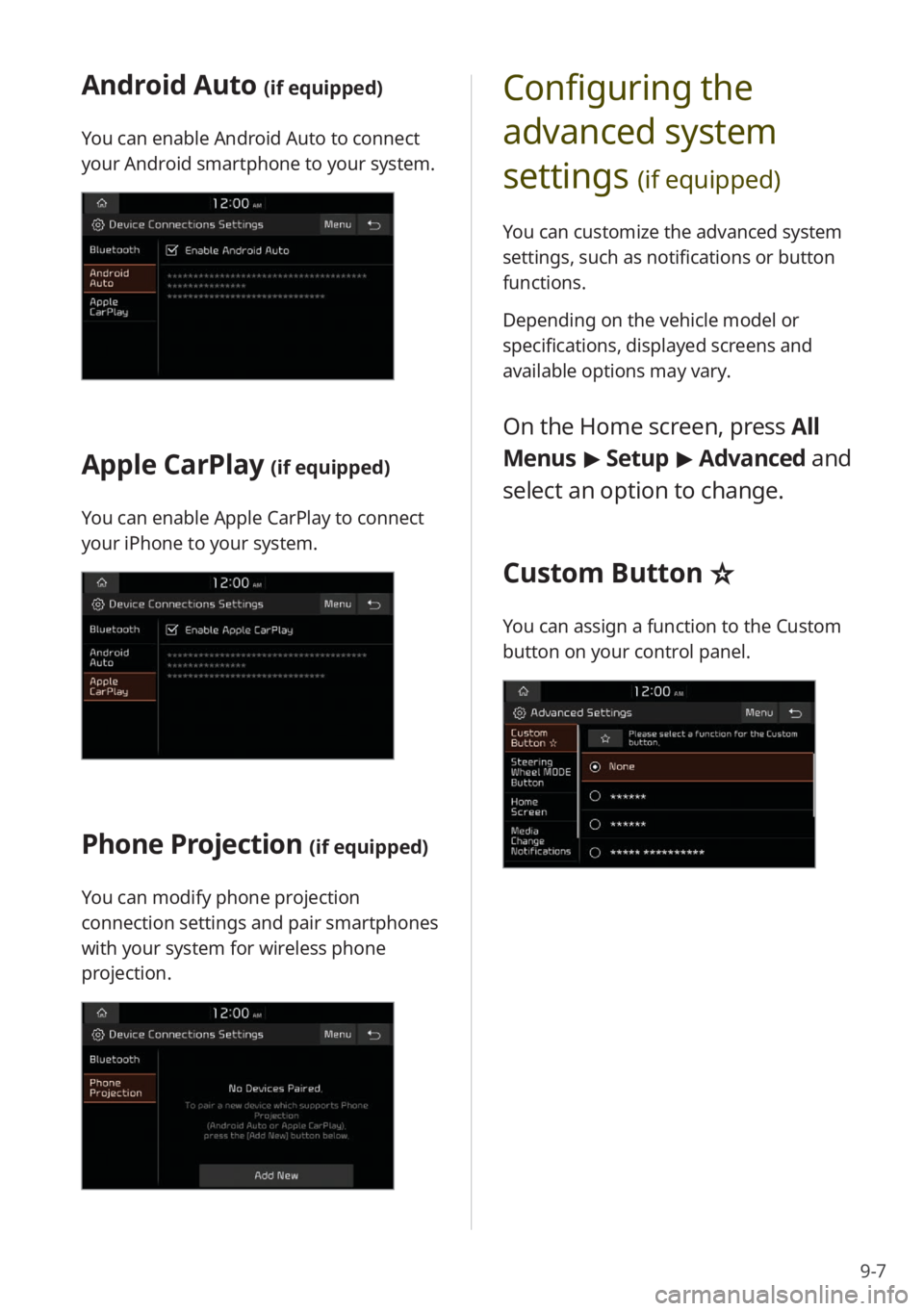
Android Auto (if equipped)
You can enable Android Auto to connect
your Android smartphone to your system.
Apple CarPlay (if equipped)
You can enable Apple CarPlay to connect
your iPhone to your system.
Phone Projection (if equipped)
You can modify phone projection
connection settings and pair smartphones
with your system for wireless phone
projection.
Configuring the
advanced system
settings
(if equipped)
You can customize the advanced system
settings, such as notifications or button
functions.
Depending on the vehicle model or
specifications, displayed screens and
available options may vary.
On the Home screen, press All
Menus > Setup > Advanced and
select an option to change.
Custom Button ☆
You can assign a function to the Custom
button on your control panel.
Page 125 of 164
9-11
[SW Info/Update (if equipped)
You can view your system′s version
information or update it to the latest
version. To update your system, visit your
local dealership.
\335 Caution
\225Depending on data size, an update may
take several minutes.
\225Do not turn off the system or remove
the storage device while the update is in
progress. If the power supply is cut off
or the storage device is removed from
the system, it may corrupt the data or
cause a system malfunction.
[Storage
You can view your system′s memory
storage information.
[User′s Manual on Web (QR
Code)
You can access the web manual of the
system by scanning the QR code with your
smartphone.
\334 Warning
Park your vehicle in a safe location before
scanning the QR code. For safety reasons,
you are not able to access QR codes from
the system′s screen while the vehicle is
moving.
[Reset (if equipped)
You can reset your system settings to
default values. All user data stored in the
system will also be deleted.
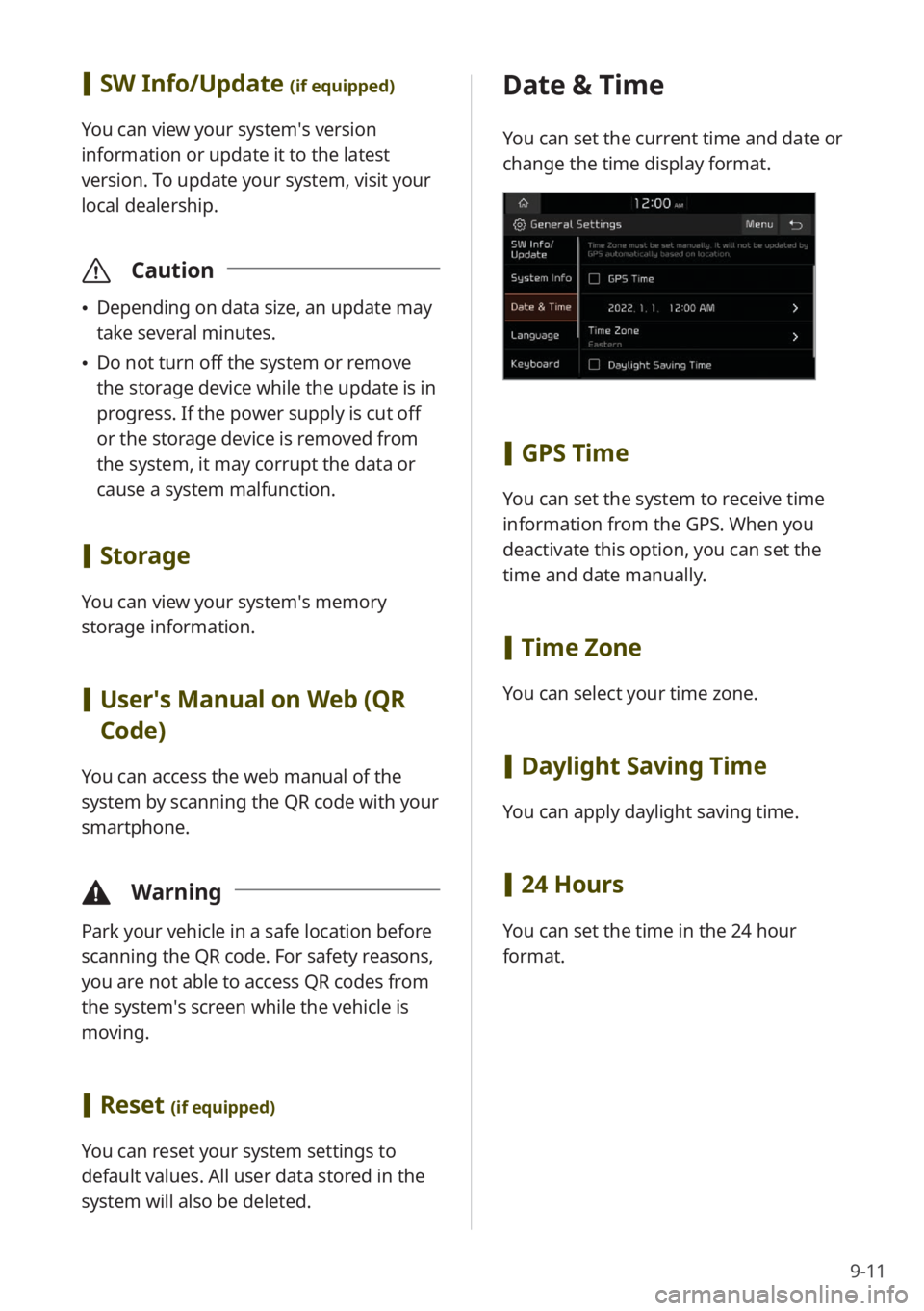
Date & Time
You can set the current time and date or
change the time display format.
[GPS Time
You can set the system to receive time
information from the GPS. When you
deactivate this option, you can set the
time and date manually.
[Time Zone
You can select your time zone.
[Daylight Saving Time
You can apply daylight saving time.
[24 Hours
You can set the time in the 24 hour
format.
Page 128 of 164
9-14
Configuring the sound
settings
You can adjust/modify sound settings
such as speaker volume or sound effects.
Depending on the vehicle model or
specifications, displayed screens and
available options may vary.
On the Home screen, press All
Menus > Setup > Sound and
select an option to change.
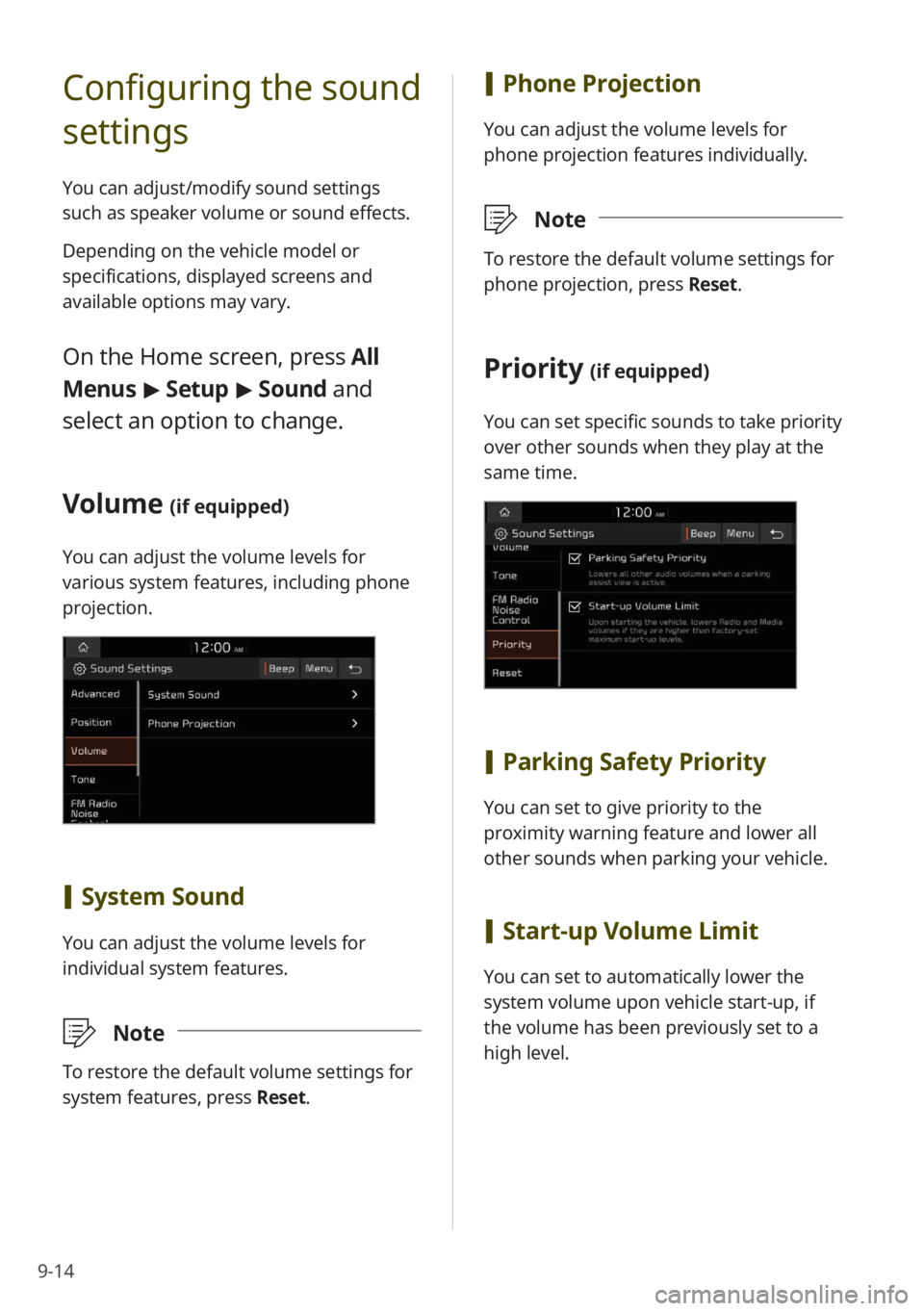
Volume (if equipped)
You can adjust the volume levels for
various system features, including phone
projection.
[ System Sound
You can adjust the volume levels for
individual system features.
\333 Note
To restore the default volume settings for
system features, press Reset.
[Phone Projection
You can adjust the volume levels for
phone projection features individually.
\333 Note
To restore the default volume settings for
phone projection, press Reset.
Priority (if equipped)
You can set specific sounds to take priority
over other sounds when they play at the
same time.
[Parking Safety Priority
You can set to give priority to the
proximity warning feature and lower all
other sounds when parking your vehicle.
[Start-up Volume Limit
You can set to automatically lower the
system volume upon vehicle start-up, if
the volume has been previously set to a
high level.
Page 129 of 164
9-15
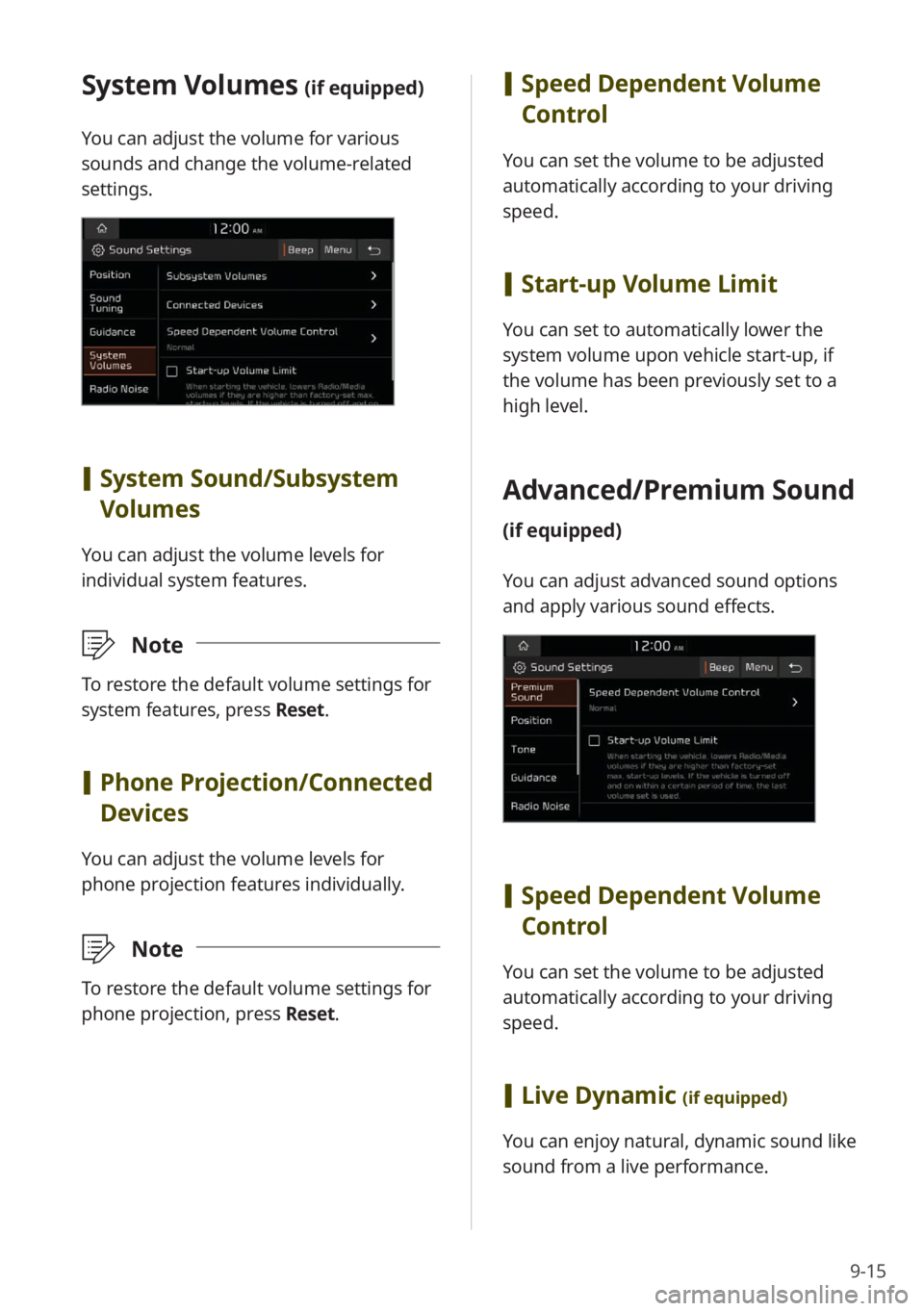
[Speed Dependent Volume
Control
You can set the volume to be adjusted
automatically according to your driving
speed.
[Start-up Volume Limit
You can set to automatically lower the
system volume upon vehicle start-up, if
the volume has been previously set to a
high level.
Advanced/ Premium Sound
(if equipped)
You can adjust advanced sound options
and apply various sound effects.
[Speed Dependent Volume
Control
You can set the volume to be adjusted
automatically according to your driving
speed.
[Live Dynamic (if equipped)
You can enjoy natural, dynamic sound like
sound from a live performance.
System Volumes (if equipped)
You can adjust the volume for various
sounds and change the volume-related
settings.
[System Sound /Subsystem
Volumes
You can adjust the volume levels for
individual system features.
\333 Note
To restore the default volume settings for
system features, press Reset.
[Phone Projection /Connected
Devices
You can adjust the volume levels for
phone projection features individually.
\333 Note
To restore the default volume settings for
phone projection, press Reset.
Page 132 of 164

9-18
Connected Devices (if
equipped)
You can adjust the volume levels for
phone projection features individually.
[ Android Auto
You can enable Android Auto to connect
your Android smartphone to your system.
\333 Note
To restore the default volume settings for
Android Auto, press Reset.
[Apple CarPlay
You can enable Apple CarPlay to connect
your iPhone to your system.
\333 Note
To restore the default volume settings for
Apple CarPlay, press Reset.
Driver Assistance Warning
(if equipped)
You can change the settings for the
guidance that is available while you are
driving.
[Parking Safety Priority
You can set the system to decrease the
audio volume to hear a proximity warning
prior to other sounds while parking your
vehicle.
Page 138 of 164

9-24
Configuring the Wi-Fi
settings
(if equipped)
You can change the Wi-Fi connection
settings for wireless phone projection.
Depending on the vehicle model or
specifications, displayed screens and
available options may vary.
On the Home screen, press All
Menus > Setup > Wi-Fi and
select an option to change.
Use Wi-Fi for Phone
Projection
You can activate or deactivate wireless
connectivity for phone projection.
Generate New Wi-Fi
Passkey
You can generate a new Wi-Fi passkey
for wireless connections. If your wireless
connection is poor, renew the passkey
and try again.
Page 142 of 164

10-4
SymptomPossible causeSolution
The Bluetooth device
is not connected to
the system. Bluetooth deactivated
Activate Bluetooth on the device.
Bluetooth error
\225 Deactivate Bluetooth and reactivate
it on the device. Then, reconnect the
device.
\225Turn the device off and on. Then,
reconnect it.
\225Remove the battery from the device
and reinstall it. Then, turn the device
on and reconnect it.
\225Unregister Bluetooth pairing on both
the system and the device and then
re-register and connect them.
Phone projection
Symptom Possible causeSolution
Phone projection
does not start. Phone projection not
supported by the
phoneVisit the following websites and ensure
that the smartphone supports one of the
corresponding functions.
\225
Android Auto: https://support.google.
com/androidauto
\225Apple CarPlay: https://www.apple.com/
ios/carplay
USB connection not
supported Apple CarPlay does not support USB
connections for systems that support
wireless phone projection. Connect your
iPhone to the system wirelessly and start
Apple CarPlay.
> See ″Connecting your
iPhone via Apple CarPlay .″